Windows 11 KB5074105 Preview: Risks, Fixes, and Safe Testing

  • Thread Author
Windows 11’s optional January preview (KB5074105) has left a chunk of the community unnerved after some early adopters reported serious post‑install regressions — from File Explorer and Start/Taskbar failures to brief black screens and, in a handful of cases, boot problems that require recovery. Microsoft documents KB5074105 as a non‑security preview released on January 29, 2026 (OS builds 26200.7705 and 26100.7705) and lists a mixture of fixes and small feature changes, but the real‑world rollout has been messier than typical for an “optional” update, prompting cautious advice from both consumer outlets and enterprise administrators.

Two monitors in a blue data-center scene show Windows 11 boot screen and a recovery options menu.Background / Overview​

KB5074105 is a Windows 11 preview (non‑security) update intended to deliver quality and functional improvements ahead of the next Patch Tuesday cycle. Microsoft’s release notes enumerate fixes across the shell, File Explorer, Start menu, Windows Update enrollment, Secure Boot components and some accessibility and input behaviors. The update is explicitly labeled as preview — meaning features may be staged, and the package isn’t required for security.
Despite that, KB5074105 landed during a turbulent January update wave that also included the January 13 cumulative update (KB5074109). That earlier cumulative produced its own set of regressions (GPU black screens, modem driver removals, Remote Desktop and Outlook problems and, in limited cases, UNMOUNTABLE_BOOT_VOLUME boot failures). Those January incidents changed the context: users and administrators were already alert and somewhat sensitive to additional regressions. Independent reporting has documented the KB5074109 fallout and Microsoft’s response to it, and that context shaped how KB5074105 was received.

What Microsoft says KB5074105 fixes and changes​

Microsoft’s KB entry for KB5074105 lists a number of targeted corrections and small behavior changes. Key documented items include:
  • Fixes to Start menu and taskbar visual/layout issues and memory leaks.
  • Improvements intended to make File Explorer more responsive in certain network scenarios.
  • A fix for Explorer.exe hanging on the first sign‑in under particular startup‑app configurations (a symptom that can make the taskbar not appear).
  • Changes around Secure Boot binaries on devices with the Windows UEFI CA 2023 certificate present (replacement of older-signed boot manager binaries on affected systems). Microsoft notes this in the KB and counsels caution if you plan to reset the Secure Boot DB.
These are legitimate, incremental improvements — the kind you’d expect in an optional preview — but the February/January servicing history makes even minor changes higher‑risk in practice.

What users are reporting (symptoms seen in the wild)​

Community telemetry and support threads have converged on a set of high‑visibility symptoms after installing recent January updates (including both KB5074109 and the KB5074105 preview). The commonly reported problems include:
  • Taskbar / Start / Explorer issues: Explorer.exe may appear in Task Manager but the taskbar is missing, Start menu produces a “critical error,” or File Explorer windows are blank, unresponsive, or crash on launch. This can happen immediately after first sign‑in for some configurations.
  • Black screen or brief display freezes: Users have reported short blackouts where the desktop disappears for several seconds before recovering; in some cases a driver reset appears to have occurred. These reports disproportionately mention NVIDIA GPUs but are not always limited to a single vendor.
  • Boot failures / UNMOUNTABLE_BOOT_VOLUME: While rare, several outlets and user reports tied to the January servicing wave described machines that would not boot and landed in WinRE with a UNMOUNTABLE_BOOT_VOLUME stop code. Microsoft characterizes these as a limited number of customer reports but acknowledges them and is investigating. Independent coverage notes users recovering via WinRE, System Restore, or — in the worst cases — clean reinstall.ps://www.techradar.com/computing/windows/microsoft-admits-windows-11-update-is-nuking-system-drives-albeit-theres-a-limited-number-of-reports-of-these-disasters)
  • Installation fails, stalls, or rollback errors: Some installations stall (e.g., freeze at 0% or 96%) or report servicing/component store errors (0x800f0922, 0x80070306), and some attempts to uninstall a problematic update can fail with errors like 0x800f0905.
  • Modem/legacy driver removals: Separate but related to the January servicing cycle, Microsoft intentionally removed certain legacy modem drivers in the January cumulative update, which left modem‑dependent workflows broken for some users. Microsoft says this was deliberate for security reasons. That particular behavior is not a bug per se, but it illustrates how changes bundled into servicing cycles can have disproportionate real‑world impact.
It’s important to stress that not every machine is affected and Microsoft emphasizes that many of the problems are configuration‑ or environment‑dependent — often occurring in enterprise provisioning flows, VDI/non‑persistent images, or systems with specific driver stacks.

Why this keeps happening: a technical anatomy​

Three overlapping technical realities explain why seemingly small updates can cause big userzed UI and AppX/MSIX packages.* Many modern Windows shell surfaces (Start, File Explorer XAML components, Settings) ship as AppX/MSIX packages and are registered into the user session during servicing. If servicing writes new package binaries to disk but packagehell processes that start too early can call into unregistered XAML activation points and fail — a classic race condition*. Microsoft has documented this exact failure mode in its advisories for earlier regressions, and community reproduce‑files point to this as a primary cause for missing Taskbar/Start symptoms.
  • Servicing Stack Update (SSU) complexity. When an update bundles an SSU with an LCU, it changes rollback mechanics: SSUs are designed to be persistent once committed. That makes recovery more complex if the SSU portion interacts with drivers or provisioning sequences in unexpected ways. Enterprise image hygiene and the inability to cleanly remove the SSU raise the bar for safe testing.
  • Driver and firmware timing assumptions. Display and storage drivers (GPU drivers, storage filter drivers) assume particular timing and API semantics from the OS. Changes to kernel/user components or the display pipeline can alter those assumptions and cause driver resets, black screens, or failures to mount system volumes during boot in edge cases. The pattern of brief black screens that recover lends weight to a driver reset/handshake mismatch rather than a full kernel panic.
These are not theoretical musings — Microsoft’s advisories and community forensic threads have independently converged on the same mechanics. However, the precise combination of conditions that reproduces the worst symptoms is complex and environment‑specific.

Which reports are confirmed and which remain anecdotal?​

Responsible reporting requires separating Microsoft‑confirmed Known Issues from raw forum noise:
  • Confirmed by Microsoft (documented in KBs/advisories): The KB for KB5074105 lists nd includes guidance about the Secure Boot binary change and the fixes it contains. Microsoft has also published advisories and KIR artifacts in the January servicing cycle for related regressions (e.g., AppX registration race conditions in enterprise provisioning). These are verified, documented items.
  • **Community/independent reporting (corroborated by multiple outlets) outlets (including WindowsLatest, Windows Central, TechRadar) and forum threads reported symptoms such as black screens, modems breaking, and UNMOUNTABLE_BOOT_VOLUME January updates. Those reports have been used by Microsoft to prioritize investigations and fixes; Microsoft itself acknowledged several January defects and released out‑of‑band patches for a subset of the issues.
  • Anecdotal or unverified claims: A small number of headline phrases — for example, “the update nukes drives” — have circulated and are incendiary. While there are confirmed cases of boot failures and some users required clean reinstalls, broad claims on are not substantiated by the public evidence Microsoft and investigative outlets have published. Treat those as anecdotal and unverified until confirmed by reproducible telemetry or official statements. Where possible, apprith caution and look for corroboration.

Practical guidance: what users should do now​

If you’re reading this and wondering whether to install KB5074105 (or any recent Windows 11 preview/security update), here’s a risk‑calibrated plan for

For home/power users (single PC, not enterprise-critical)​

  • Wait or pilot first. If your PC is your primary workstation, delay installing optional preview updates until they graduate into mainstream Patch Tuesday builds, or install first on a secondary device. Preview updates are explicitly non‑security and intended for testing.
  • Back up first. Create a system image or full file backup and ensure System Restore is enabled. Make recovery media (USB) so you can boot into WinRE if nready installed and see odd UI issues:** Try signing out and back in, use Task Manager to restart Explorer.exe, and check Event Viewer for relevant errors. If the problem persists, uninstall the update from Settings > Windows Update > Update history > Uninstall updates. If uninstall fails, use WinRE to remove the latest quality update.

For audio/creative professionals (MIDI, external hardware)​

  • Do not install previews on work machines. KB5074105 includes changes to MIDI and audio plumbing; early SDK/tooling can trigger SmartScreen warnings and incompatibilities. Validate in a lab first.

For enterprPause broad deployment. Hold updates at least until you’ve validated them in a pilot ring. The January cycle shows how quickly non‑security changes can cascade in managed environments.​

  • Create representative pilot groups. Include golden images, non‑persistent VDI pools, Copilot+ hardware (if applicable), and at least one configuration per major hardware vendor. Test sign‑in workflows and provisioning sequences carMicrosoft guidance:** Use Known Issue Rollback (KIR) Group Policy artifacts for affected devices when Microsoft publishes them. Monitor the Windows release health dashboard and KB Known Issues entries closely.
  • Document rollback and recovery steps: Ensure remote techs have bootable recovery media, and validate that SSU/LKU removal (DISM /Remove‑Package, WinRE) works in your environment. SSUs complicate simple uninstalls, so plan accordingly.

Step‑by‑step troubleshooting for common post‑update symptoms​

Below are practical troubleshooting steps presented in order. Try steps in sequence, moving to more invasive recovery only when necessary.
  • Explorer/taskbar missing or Start menu “critical error”:
  • Press Ctrl+Shift+Esc to open Task Manager.
  • If Explorer.exe is present, right‑click and choose Restart. If not present, use File > Run new task > type explorer.exe and press Enter.
  • If restart doesn’t help, sign out and sign back in; then try uninstalling the KB from Settings > Windows Update > Update history > Uninstall updates.
  • Black screen or brief display blackout:
  • If the desktop recovers automatically, check Event Viewer for display‑ or driver‑related errors.
  • Update GPU drivers to the latest WHQL or Studio drivers from the vendor (NVIDIA/AMD/Intel). Try both newer and previous driver versions if symptoms began after an update. Uninstalling the recent Windows update may also stop the flashes while a permanent fix is developed.
  • Cannot boot — UNMOUNTABLE_BOOT_VOLUME:
  • Boot into Windows Recovery Environment (WinRE).
  • Use Advanced options > Troubleshoot > Uninstall latest quality update.
  • If WinRE fails, consider System Restore (if enabled) or offline repair via bootable install media. Document that some users required clean reinstall in worst‑case scenarios.
  • Uninstall blocked with error 0x800f0905:
  • Try the “Fix problems using Windows Update” repair tool, or run sfc /scannow and DISM /Online /Cleanup‑Image /RestoreHealth from an elevated command prompt.
  • If still blocked, attempt System Restore or use WinRE’s advanced options. Backups and recovery media are essential at this stage. ([windowscentral.com](https://www.windowscentral.com/micr...blocking-the-rollback-try-these-tips-to-fix?u-

Strengths, risks, and our assessment​

KB5074105 contains legitimate quality improvements — File Explorer responsiveness, Start/Taskbar fixes, Secure Boot refreshes and a handful of operational feature tweaks are useful for users and admins alike. For audio creatives, the new MIDI stack and expanded Windows Hello peripheral support are important incremental wins if and only if they are validated first.
That said, the risk profile for deploying this preview widely is elevated right now because of two factors:
  • Recent servicing turbulence. January’s cumulative(s) caused high‑visibility regressions that required emergency patches, KIR actions and, in some cases, full recoveries. That history increases the probability that even minor preview changes can trigger headaches in complex environments.
  • Complexity of modern servicing and modular UI. The modularization of shell components increases the attack surface for race conditions and timing errors during provisioning — especially in non‑persistent VDI or automated imaging environments. These are not easy problems to catch with simple smoke tests.
Bottom line: KB5074105 is valuable for testers and early adopters who can tolerate risk and maintain recovery options. For primary production systems, the prudent choice is to delay optional preview installs until the update matures or has been validated in your specific configuration.

Final recommendations — a short checklist​

  • Do not install KB5074105 on production machines today — treat it as preview.
  • If you must test, use a controlled ring and include realistic images and hardware.
  • Back up and prepare recovery media before any update window.
  • Monitor Microsoft’s KB and Release Health pages and apply Known Issue Rollback (KIR) policies when Microsoft publishes them.
  • If you see severe breakage, use WinRE or System Restore rather than chasing fixes that might make matters worse; document and report telemetry to Microsoft to help prioritize fixes.

The January servicing episode — KB5074109 followed by the KB5074105 preview — is a reminder that even incremental, optional updates can interact unpredictably with driver stacks, provisioning scripts, and non‑persistent images. Microsoft’s published fixes, Known Issue Rollbacks and guidance are the authoritative route for enterprise remediation, and consumers should err on the side of caution: wait, back up, and stage. Where users are already affected, WinRE, System Restore and documented rollback procedures remain the most reliable recovery paths while official fixes are prepared and delivered.

Source: Neowin https://www.neowin.net/news/windows...-in-newest-kb5074105-optional-january-update/
 

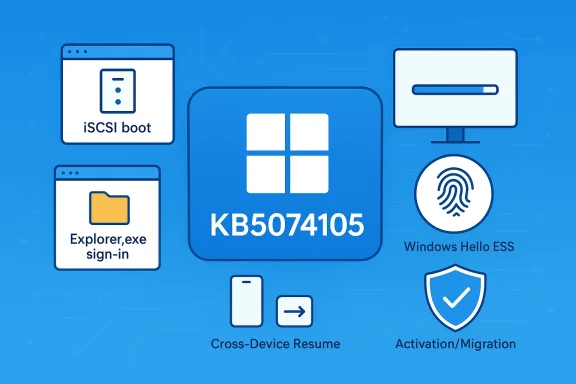
Microsoft’s optional preview cumulative update KB5074105 for Windows 11 arrives with targeted fixes for boot failures, sign‑in problems, activation and license migration issues, and a handful of usability and device‑compatibility improvements that administrators and power users should evaluate before the next Patch Tuesday rollout.

KB5074105 Windows update with iSCSI boot, sign-in, Cross-Device Resume, Windows Hello ESS, Activation/Migration.Background​

Microsoft issues two main kinds of monthly updates: mandatory security updates (delivered on Patch Tuesday) and optional preview cumulative updates that let administrators test fixes and quality improvements ahead of broader deployment. KB5074105 is one of those optional, non‑security preview updates released by Microsoft on January 29, 2026, and is intended to improve functionality, performance, and reliability for Windows 11 versions 25H2 and 24H2.
The update is published as a combined package that includes a Servicing Stack Update (SSU: KB5074104) alongside the cumulative update (LCU: KB5074105). Microsoft documents that the combined package’s SSU component cannot be removed after installation, and administrators should plan accordingly if they intend to test or roll back parts of the update.

What KB5074105 fixes (at a glance)​

This preview release addresses a wide range of quality issues reported by users and administrators. The most consequential fixes target four high‑impact problem areas:
  • Explorer.exe freezes during initial logon when specific apps are configured to run at startup. This could leave affected systems stuck at or immediately after sign‑in.
  • Boot failures tied to Windows Boot Manager debugging being enabled; a startup crash could occur in rare configurations where debugging components such as kdstub.dll or kdnet.dll were implicated.
  • iSCSI boot failures producing an “Inaccessible Boot Device” error for systems booting from network attached storage via iSCSI. This prevented some enterprise and thin‑client scenarios from starting normally.
  • Windows license migration and activation failures, where upgrades would fail to register with activation servers and thus block or complicate in‑place upgrades or license handoffs.
Beyond those headline fixes, Microsoft lists additional improvements across subsystems including graphics, Windows Sandbox, User Account Control (UAC) prompts, Windows Hello Enhanced Sign‑in Security (ESS) support for peripheral fingerprint sensors, Cross‑Device Resume enhancements (Android-to‑PC workflows), and expanded Windows MIDI support—features that broaden device compatibility and productivity scenarios.

Release details and build numbers​

When installed, KB5074105 advances Windows 11 machines to the following OS builds:
  • Windows 11 25H2Build 26200.7705.
  • Windows 11 24H2Build 26100.7705.
Microsoft released these builds to the Release Preview Channel for Windows Insiders first and is performing a phased rollout for general availability—meaning features and fixes may appear on different devices at different times as Microsoft monitors telemetry and compatibility. The Windows Insider announcement for the Release Preview rollout provides further detail on the distribution model.

Installation — how to get KB5074105​

Microsoft offers the preview update through multiple channels. The two primary delivery paths for most users and administrators are:
  • Settings > Windows Update > Check for updates. In the “Optional updates available” area you’ll see the preview listed as “Preview Update (KB5074105)” or similar; select Download and install to apply it. This update is optional and will not install automatically unless you request optional updates or enable an automatic toggle that brings optional updates immediately.
  • Manual download via the Microsoft Update Catalog (MSU files) for offline installation using the Windows Update Standalone Installer (wusa.exe) or DISM. Many outlets have collected direct .msu links for administrators who need offline installers or want to stage the package via WSUS/Intune.
Important technical notes before installing:
  • The combined package includes the servicing stack update KB5074104, which is installed together with KB5074105. The SSU portion is not removable once applied; the LCU (the cumulative update) can be removed with DISM’s Remove‑Package command if necessary, but uninstalling via wusa.exe will not work on the combined package because the SSU is present. Plan rollback and recovery steps accordingly.
  • Because the preview is optional and non‑security, Microsoft recommends it primarily for administrators and users who need the specific fixes it contains or who want to test upcoming changes before Patch Tuesday. If your systems are stable, it’s reasonable to wait for the next mandatory security update.

Notable feature and platform enhancements​

KB5074105 is more than a bug‑fix rollup; it also brings incremental feature improvements that affect both consumer and enterprise usage.
  • Cross‑Device Resume Expansion: Microsoft continues to build on the Cross‑Device Resume experience (introduced in earlier 2025 updates), enabling Android phones from vendors like HONOR, OPPO, Samsung, vivo and Xiaomi to resume activities on a PC (e.g., Spotify playback, Office documents, browser sessions) in supported scenarios. This is targeted at the productivity story between mobile and PC.
  • Windows Hello Enhanced Sign‑in Security (ESS) now supports peripheral fingerprint sensors in addition to built‑in sensors, widening the range of devices (notably desktops) that can use the stronger sign‑in option. This helps organizations standardize on ESS even for non‑laptop endpoints.
  • Windows MIDI Services enhancement adds broader support for MIDI 1.0/2.0 scenarios, WinMM/WinRT compatibility, shared MIDI ports across apps, custom port naming, and loopback routing—changes aimed at musicians and audio software vendors. Microsoft provides an App SDK and Tools package for enabling the inbox capabilities.
  • Voice Access and Voice Typing improvements, making onboarding faster and recognition more configurable for users who rely on speech input. These improvements are part of Microsoft’s accessibility and productivity investments.
These incremental changes are useful for specific user segments (musicians, accessible computing users, desktop deployments with peripheral biometrics), but are rolled out gradually—so availability may vary by device and region.

Why the fixes matter (technical impact analysis)​

  • Boot reliability matters more than ever — Modern enterprise fleets often include mixed boot scenarios: local SSDs, SAN/iSCSI boot, PXE, and even some UEFI Secure Boot edge cases. An “Inaccessible Boot Device” or a startup crash triggered by debug components can cause enterprise outages and complicate recovery. By addressing iSCSI boot and Boot Manager debugging crashes, Microsoft reduces the surface area for scenarios that previously required manual intervention or recovery media. The fixes eliminate known failure modes and restore predictability to automated deployments and remote reboots.
  • Activation and license migration fixes smooth upgrades — License registration failures during migrations are especially painful for ISVs and managed service providers relying on automated upgrades. Patching activation registration ensures upgrades and in‑place migrations can complete without requiring help‑desk tickets or manual activation steps.
  • Sign‑in reliability and startup freezes are immediate user‑facing problems — Explorer.exe freezes on initial logon create a first‑impression problem and a practical support burden. Fixing startup hangs avoids unnecessary reimaging or safe‑mode recovery for users who only experience the problem once after a specific update or configuration change.
  • Peripheral authentication expands desktop security posture — Adding peripheral fingerprint support to Windows Hello ESS helps organizations that use desktop form factors (where built‑in sensors are rare) to adopt stronger authentication policies. This is an important incremental step for Bring Your Own Device (BYOD) or hybrid fleets where security posture must be consistent.

Known issues and cautionary notes​

Microsoft reports no known issues for KB5074105 at the time of publication; however, there are several operational caveats administrators should consider before broad deployment:
  • Servicing Stack permanence: As noted, the combined package includes an SSU (KB5074104) that cannot be removed after installation. If you need to test the cumulative update and preserve the ability to cleanly uninstall it later, factor the SSU permanence into your rollback and imaging plans.
  • Preview updates are optional by design: While they often fix critical quality problems, they can also introduce regressions in edge scenarios. For production environments, follow your organization’s patching policy: stage in a test or pilot group, validate critical workloads and third‑party drivers, and monitor telemetry before broad deployment. Microsoft’s phased gradual rollout model is intended to reduce risk, but it does not eliminate the need for internal testing.
  • Secure Boot certificate lifecycle: Microsoft included an advisory about Secure Boot certificates that are set to begin expiring in June 2026. This is separate from KB5074105 but appears across recent release notes and is operationally significant; administrators should review the guidance and create recovery or update plans for devices that rely on older Secure Boot certificates. Failure to prepare may cause boot failures unrelated to the fixes in KB5074105.
  • Tracking and nomenclature changes: Microsoft introduced simplified update titles and, starting in January 2026, began assigning separate KB identifiers for Windows Server 2025 and Windows 11 (24H2/25H2). That decision can benefit administrative clarity, but tracking, parsing, and existing automation or reporting tools may need adjustments. Some administrators pushed back on earlier simplifications to titles; Microsoft has partially restored date prefixes in response to feedback—verify how update metadata looks in your management tools (WSUS, SCCM/ConfigMgr, Intune) before changing automation scripts.

Deployment guidance — recommended steps for IT​

If you manage Windows 11 devices, follow a conservative, test‑first approach for this preview update:
  • Identify impacted cohorts: prioritize devices that have experienced the exact bug(s) KB5074105 addresses (e.g., iSCSI boot systems, machines with peripheral fingerprint readers you want to enable, PCs that could not complete license migrations).
  • Create a pilot ring of machines (10–50 devices depending on fleet size) and confirm backups and system images are available. Perform functional testing across business‑critical applications and verify driver compatibility.
  • Install via your management platform (WSUS/Intune/SCCM) or manually from the Microsoft Update Catalog for offline scenarios. Monitor for telemetry anomalies for at least 48–72 hours.
  • Validate rollback steps: test DISM /Remove‑Package for the LCU on a non‑production device to confirm you can revert the cumulative update portion; remember the SSU cannot be removed. Document the exact package names and DISM commands you’ll need.
  • Stage broadly only after the pilot passes and after confirming that management and reporting tools correctly identify the new KB and build numbers. Note the separate KB IDs for Server 2025 vs. Windows 11 and update any ticketing or compliance reporting that maps fixes to KB numbers.

Recovery and troubleshooting tips​

  • If a device fails to boot after installing the update and you suspect an SSU or LCU problem, use Windows Recovery Environment (WinRE) to access advanced troubleshooting: System Restore, Uninstall Updates (if available), or boot to a saved image. Having current recovery media that matches your target build is essential. Microsoft documented Secure Boot certificate and recovery scenarios in the release notes; follow those steps if a Secure Boot violation occurs.
  • For iSCSI boot problems, verify target access, NIC firmware, and SAN configuration before reimaging. If boot fails with “Inaccessible Boot Device,” follow standard SAN/iSCSI recovery steps and then apply the update in a controlled pilot once you have a recoverable system.
  • If Explorer.exe hangs immediately after sign‑in, attempt a clean boot (disable non‑Microsoft startup apps) to determine if a specific vendor startup app triggers the issue. Microsoft’s fix targets scenarios where particular startup apps caused Explorer to freeze, but third‑party autostarts may still interact unpredictably—test with vendor updates if the problem persists.

The broader picture — Microsoft’s servicing posture and what it signals​

KB5074105 reflects three broader themes in Microsoft’s ongoing Windows servicing strategy:
  • A continued emphasis on quality through optional preview releases that allow early testing. These previews provide administrators the opportunity to address real‑world breakages before they affect larger populations.
  • Increased device and ecosystem parity, for example by enabling peripheral fingerprint ESS support and expanding Android‑to‑PC resume capabilities. Microsoft’s updates are increasingly focused on cross‑device workflows and broader hardware compatibility.
  • Administrative clarity changes, including simplified update titles and the splitting of KB identifiers between Windows Server 2025 and Windows 11. Those changes are intended to reduce confusion in large environments but have already prompted feedback and modest reversals from Microsoft—showing the tension between consumer usability and enterprise traceability.

What’s left unconfirmed or requires caution​

  • Some coverage and third‑party writeups have stated that KB5074105 is an immediate fix for all boot or sign‑in problems; that blanket statement overreaches. The update addresses specific bug patterns documented by Microsoft—systems exhibiting the exact symptoms described are most likely to benefit. If your failure mode is different, the update may not resolve it. Always correlate your logs and symptoms to the Microsoft release notes before applying.
  • A few outlet summaries referenced simplified update titling and potential identifier splits in a way that implies a complete overhaul of delivery mechanisms; Microsoft’s change is primarily about metadata and identifiers, not a wholesale alteration of the distribution channels. That nuance matters when you manage updates with automation tools that parse KB strings or titles. Validate your automation with sample metadata from the Microsoft Update Catalog after Microsoft publishes the packages.

Bottom line — who should install KB5074105 and when​

  • Install sooner rather than later if you are experiencing any of the targeted, high‑impact issues: Explorer.exe logon freezes, Boot Manager debugging crashes, iSCSI boot failures, or activation migration failures. The fixes are specific and will likely resolve those exact pain points.
  • For general production fleets that are otherwise stable, treat KB5074105 as a preview release: pilot in a controlled group, confirm rollbacks and recovery, and then schedule a broader deployment if the pilot is clean. Because the update includes an SSU that cannot be removed, administrators should be especially careful to validate the pilot before mass deployment.
  • Keep an eye on the Secure Boot certificate advisory and the KB‑identifier changes for Server 2025—both are operational considerations for fleet management that go beyond this single cumulative preview.

Microsoft’s KB5074105 is a pragmatic, quality‑focused preview rollup: useful where it resolves known breakages, beneficial for administrators who need early remediation, and manageable so long as teams respect the preview’s role and the non‑removable nature of the combined servicing stack update. Test thoroughly, back up images and recovery media, and treat the release as a corrective tool—not a substitute for the next scheduled security update cycle.
Conclusion: KB5074105 repairs several highly disruptive issues and brings incremental feature polish that benefits specific user groups. For administrators and power users experiencing the precise errors Microsoft documents, this preview is worth installing after usual testing; for conservative production environments, follow the standard pilot → monitor → deploy pattern and pay special attention to the SSU permanence and Secure Boot certificate timelines.

Source: filmogaz.com Windows 11 KB5074105 Update Resolves Boot, Sign-In, and Activation Issues
 

Back
Top