

Microsoft’s January preview update for Windows 11 — identified as KB5074105 (OS Build 26200.7705) — quietly hardens access to the Storage settings by invoking User Account Control (UAC) when you open Settings > System > Storage, and that change has a direct, practical side effect: the Temporary files scanner can hide admin-only cleanup categories unless Settings is elevated. At the same time, the update bundles visible feature work — notably expanded Cross Device Resume for Android apps and a usability improvement for Smart App Control — but the Storage UAC change has already created friction for everyday cleanup workflows and automation, especially for users who relied on Settings to remove Windows Update files and similar system-level items.
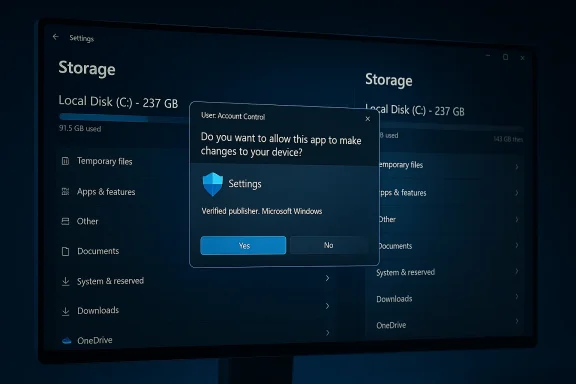
Microsoft published KB5074105 at the end of January 2026 as a preview cumulative update for Windows 11 versions 25H2 and 24H2. The release contains a long list of fixes — from Explorer stability and Start menu corrections to expanded device integration features — and it explicitly documents a new behavior: when a user attempts to open the Storage page in Settings, Windows will display a UAC prompt to help ensure that only authorized Windows users can access system files. That sentence in the official notes is short, but consequential.
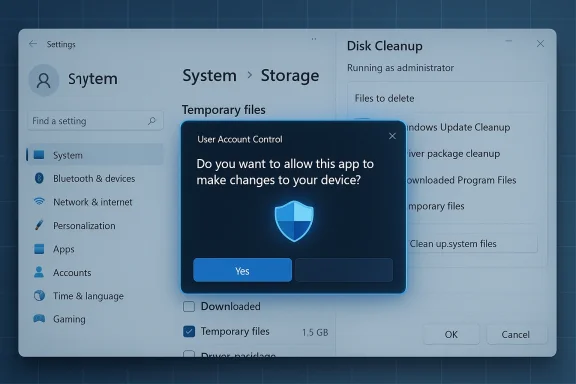
Community testing and early reporting show a consistent pattern after installing the preview: if you open Storage without elevating Settings, the Temporary files section will not list certain cleanup buckets that require administrative privileges (for example, Windows Update Cleanup and some driver-package cleanup entries). When Settings is elevated — i.e., after consenting to the UAC prompt — those admin-only items reappee (cleanmgr.exe) still shows Windows Update cleanup options when it is run elevated, which explains why some users see a discrepancy between the two tools.
From a hardening perspective this is sensible. It aligns Storage with other admin-only management interfaces and reduces casual exposure to sensitive system internals. From a user-experugh, it’s a change that was not obvious to many people and it breaks an expectation: opening Settings shouldn’t normally require elevation for common maintenance tasks. That mismatch is the root of the present controversy.
With KB5074105, Microsoft changed the Security Identifier (SID) or token boundary for Storage enumeration: when Settings is elevated it loads the admin-only handlers; when non-elevated it either cannot load them or the code em. Disk Cleanup, when elevated, still loads the system handlers and so continues to show the admin-only buckets. The result is a privilege-dependent UI surface. Community tracing and reproduction confirm this technical model.
Another meaningful change: Smart App Control (SAC) can — in preview builds — be toggled on or off without requiring a clean install. That addresses a longstanding user friction point where disabling SAC previously prevented it from being re-enabled without reinstalling or resetting Windows. Microsoft is rolling that change out in stages. Independent coverage and Microsoft’s own preview notes confirm SAC’s toggleability is part of the KB’s feature set.
These additional features show that KB5074105 is a mixed bag: meaningful user-facing improvements and important security hardenings landed in the same package, which increases the chance that a benign-looking fix (hardening a Settings page) creates surprise for users who came for unrelated fixes.
For most users the practical mitigation is simple: either accept the UAC prompt when opening Storage or use an elevated Disk Cleanr deeper system cleanup. For administrators and automation authors, the change is a reminder that UI surfaces are not stable pro if you depend on them, run your tasks elevated or use management APIs built for automation.
Recommendations, succinct:
Conclusion: the Storage UAC prompt is a security-first change with real usability consequences. It’s intentional and supported by Microsoft’s KB; it will help some threat models while inconveniencing others. Know your cleanup tools, update your automation to run elevated, and pilot preview updates before broad deployment — those simple practices will keep your machines tidy without surprising “missing” cleanup options.
Source: FilmoGaz Windows 11 Requires Admin Access, Disrupts Temporary Files Cleanup
 Background / Overview
Microsoft published KB5074105 at the end of January 2026 as a preview cumulative update for Windows 11 versions 25H2 and 24H2. The release contains a long list of fixes — from Explorer stability and Start menu corrections to expanded device integration features — and it explicitly documents a new behavior: when a user attempts to open the Storage page in Settings, Windows will display a UAC prompt to help ensure that only authorized Windows users can access system files. That sentence in the official notes is short, but consequential. Community testing and early reporting show a consistent pattern after installing the preview: if you open Storage without elevating Settings, the Temporary files section will not list certain cleanup buckets that require administrative privileges (for example, Windows Update Cleanup and some driver-package cleanup entries). When Settings is elevated — i.e., after consenting to the UAC prompt — those admin-only items reappee (cleanmgr.exe) still shows Windows Update cleanup options when it is run elevated, which explains why some users see a discrepancy between the two tools.
Why Microsoft made the change
Microsoft’s public rationale is straightforward: Storage settings enumerate and surface system locations and cleanup handlers that historically let a signed-in standard user see and, in some cases, interact with system-level components. Exposing that surface without an elevation boundary increases the chance a non-privileged account — or an attacker with limited local access — could enumerate or remove system files inadvertently or maliciousl is a typical least privilege hardening: put a consent boundary around a UI that touches system-level artifacts.From a hardening perspective this is sensible. It aligns Storage with other admin-only management interfaces and reduces casual exposure to sensitive system internals. From a user-experugh, it’s a change that was not obvious to many people and it breaks an expectation: opening Settings shouldn’t normally require elevation for common maintenance tasks. That mismatch is the root of the present controversy.
The exact behavior observed (what changes in practice)
- Opening Settings > System > Storage now triggers a UAC prompt on systems where UAC is enabled; decline the prompt and Storage remains non-elevated.
- When Settings runs non-elevated, the Temporary files scanner hides cleanup buckets that require administrative enumeration, such as:
- Windows Update Cleanup
- Windows upgrasionally device driver package cleanup entries
- Other system-only cleanup buckets.
- Running Disk Cleanup as administrator and selecting “Clean up system files” still lists those same items; the legacy t remains a reliable way to see admin-only cleanup categories.
- Automation or scripts that assumed the Settings UI would enumerate all cleanup buckets without elevation must be adapted: either run as SYSTEM or invoke elevated tools (cleanmgr, DISM) or management APIs.
Technical explanation: why the discrepancy exists
The Storage page and the Temporary files scanner rely on a set of cleanup handlers and enumeration code paths. Some of those handlers require administrative privileges to enumerate or remove items — especially those that interact with Windows Update components, the component store (WinSxS), or installer caches. Historically, Settings ran non-elevated and presented a mixed list: user-level temporary items alongside some system items that Settings could enumerate with the privileges of the current user.With KB5074105, Microsoft changed the Security Identifier (SID) or token boundary for Storage enumeration: when Settings is elevated it loads the admin-only handlers; when non-elevated it either cannot load them or the code em. Disk Cleanup, when elevated, still loads the system handlers and so continues to show the admin-only buckets. The result is a privilege-dependent UI surface. Community tracing and reproduction confirm this technical model.
Cross-check: Microsoft’s documentation and independent reporting
- Microsoft lists KB5074105 and calls out the new Storage UAC behavior in the Windows 11 release notes, showing the change is official and intentional.
- Independnve reproduced the behavior and documented the UX discrepancy between Settings and Disk Cleanup, notably noting that the Temporary files UI hides Windows Update cleanup unless Settings is elevated. Multiple community threads and tech outlets reported this immediately after the preview dropoft’s official notes and independent community tests converge on the same explanation, the technical claim is well-supported: the UAC change is intentional and the “missing” temporary-file options are the expected side effect of running Settings as a non-elevated process.
Practical implicationistrators
For home/power users
- If you use Settings > System > Storage > Temporary files to remove Windows Update files, expect a UAC prompt. Accepting it will restore the full list; declining means you won’ts in the list.
- If you prefer a single-step cleanup and wish to avoid the UAC prompt, launch Disk Cleanup (cleanmgr.exe) as administrator and choose “Clean up system files” to access Windows Update cleanup and related entries.
- You can also run DISM cleanup operations from an elevated Command Prompt or PowerShell to reclaim WinSe space: dism.exe /online /cleanup-image /startcomponentcleanup (and optionally /resetbase). Those commands must be run elevated and the latter is irreversible with respect to uninstalling superseded updates.
For IT admins and managed environments
- The hardening reduces the chance that aadvertently remove update components. That’s good for compliance and stability in many enterprise scenarios. It prevents helpdesk confusion arising from casual removals of system files.
- However, process and automation that relied on Settings to enumerate or remove system cleanup items must be adjusted. Recommended approaches:
- Run cleanup tasks from elevated scheduled tasks or use management tooling (Intune, SCpts) that run as SYSTEM.
- Use a scripted DISM cleanup flow for component-store reclamation.
- Use Disk Cleanup elevated in runbooks for one-off helpdesk tasks.
Step-by-step guidance: how to reclaim update and system space now
- Check whether KB5074105 is installed: run winver and confirm OS build 26200.7705 (25H2) or the corresponding 24H2 build. If you are testing the optional preview, this package shows up under Optional updates.
- If you prefer a GUI route:
- Prk Cleanup.
- Right-click Disk Cleanup and choose “Run as administrator.”
- Select C: and then click “Clean up system files.”
- Check Windows Update Cleanup, Delivery Optimization Files, and other system entries you want to remove, then click OK.
- For a command-line reclaim (elevated Command Prompt / PowerShell):
- Run: dism.exe /online /cleanuntcleanup
- To remove superseded component versions (irreversible), run: dism.exe /online /cleanup-image /startcomponentcleanup /resetbase
- Note: /resetbase will prevent uninstalling prior cumulative updates. Use with caution.
- To automate scheduled cleanup without prompting users:
- Configure a scheduled task that runs elevatese DISM or a wrapped cleanmgr invocation in that task.
- Alternatively, configure Storage Sense centrally for routine cleanup of user-level temporary items, while reserving DISM for deeper system reclamation.
UX and security tradeoffs — critical analysis
This change is the textbook example of a security/usability tradeoff:- Security win: The UAC boundary reduces uno system internals and helps prevent accidental or malicious deletions tied to system stability and update integrity. For shared, kiosk, or enterprise devices this is a meaningful hardening.
- Usability pain: For home users and power users who expect a consistent Settings experience, the change is disruptive. The Storage pane no longer provides parity with Disk Cleanup unless the ution, which is an extra step and a source of confusion. Many users don’t recognize that a missing option is privilege-related; they simply see a “loss” of functionality.
- Automation fragility: Scripts and helpdeed on the old behavior must be refactored — a real cost for organizations that automated maintenance flows using Settings as a programmatic surface.
Workarounds, mitigations, and recommended rollout practices
- For home users who want the old single-click flow: train yourself (or your household) to run Disk Cleanup as ad system cleanups, or accept the UAC prompt when opening Storage. Both are straightforward and supported.
- For IT teams:
- Pilot KB5074105 in a representative ring before broad deployment.
- Update support documentation and helpdesk scriAC prompt and to include Disk Cleanup and DISM instructions as fallback procedures.
- If automation must use Settings’ enumerations, move those automation flows to els or otherwise run them as SYSTEM via your management tooling.
- For script authors: do not rely on non-elevated Settings enumeration to detect system-only cleanup targets. Use elevated DISM queries or well-supported man race conditions and privilege surprises.
The broader feature context in KB5074105
KB5074105 isn’t limited to Storage hardening. The preview also expands Cross Device Resume (Resume) to more Android apps and vendors, enabling seamless continuation of tasks such as music playback or Microsoft 365 Copilot-based document editing from supported phones to Windows PCs; the feature requires Link to Windows / Phone Link and vendor entitlements for device support (Samsung, Xiaomi, OPPO, HONOR, vivo are called out; iPhone is not supported). Microsoft’s Cross Device Resume documentation spells out prerequisites and supported workflows for developers and users.Another meaningful change: Smart App Control (SAC) can — in preview builds — be toggled on or off without requiring a clean install. That addresses a longstanding user friction point where disabling SAC previously prevented it from being re-enabled without reinstalling or resetting Windows. Microsoft is rolling that change out in stages. Independent coverage and Microsoft’s own preview notes confirm SAC’s toggleability is part of the KB’s feature set.
These additional features show that KB5074105 is a mixed bag: meaningful user-facing improvements and important security hardenings landed in the same package, which increases the chance that a benign-looking fix (hardening a Settings page) creates surprise for users who came for unrelated fixes.
Known limitations and unverifiable claims
- Microsoft’s published notes explicitly describe the Storage UAC behavior and other fixes in the KB; community reproductions match those notes, so the central claim that Storage now prompts for UAC and that Temporary files can hide admin-only items is verifiable.
- Some online posts have claimed large, undeletable “Windows Update Cleanup” payloads (multi-GB) that persist after cleanup; this class of complaints has appeared historically and may be caused by checkpoint-update mechanics, partial cleanup, or corrupt caches. While anecdotal reports exist, the exact frequency and scale vary by machine and scenario; treat extreme-size claims cautiously and verify them on-device before acting. Community archives and forum posts document specific instances but they are situationally dependent.
- If you see system instability or missing UI after preview installs, those may be unrelated regressions or device-specific interactions; Microsoft’s known-issues list and the Windows release-health pages should be consulted for fixed/ongoing problems. KB5074105 fixes a number of Explorer and sign-in issues but preview packages can also introduce unexpected regressions, which is why piloting is recommended.
Final assessment and recommendation
KB5074105 is a consequential preview release: it fixes stability problems, expands useful cross-device integration, and introduces a defensible security hardening for Storage. The Storage UAC checkpoint is an intentional design change to reduce privilege exposure — and the behavioral outcome (Temporary files hiding admin-only options when Settings is non-elevated) is a predictat design.For most users the practical mitigation is simple: either accept the UAC prompt when opening Storage or use an elevated Disk Cleanr deeper system cleanup. For administrators and automation authors, the change is a reminder that UI surfaces are not stable pro if you depend on them, run your tasks elevated or use management APIs built for automation.
Recommendations, succinct:
- Home users: run Disk Cleanup as administrator or accept the UAC prompt to get full cleanup options.
- Power users: use DISM for component-store reclamation when you need irreversible reductions, and understand the trade-offs of /resetbase.
- IT admins: pilot KB5074105, update helpdesk runbooks, and move automation to elevated scheduled tasks or management tooling.
Conclusion: the Storage UAC prompt is a security-first change with real usability consequences. It’s intentional and supported by Microsoft’s KB; it will help some threat models while inconveniencing others. Know your cleanup tools, update your automation to run elevated, and pilot preview updates before broad deployment — those simple practices will keep your machines tidy without surprising “missing” cleanup options.
Source: FilmoGaz Windows 11 Requires Admin Access, Disrupts Temporary Files Cleanup

 , then click “Clean up system files”.