

Microsoft’s latest Windows 11 update — KB5077241 — is one of the cleaner, more practical releases in months: it ships a handful of genuinely useful quality‑of‑life features, important reliability fixes, and a few platform-level changes that IT teams and power users should care about, all while avoiding the headline‑grabbing (and sometimes divisive) AI bells and whistles that have dominated recent releases.
Windows 11 has been evolving steadily since its launch, but not without controversy. Many users have grown skeptical of feature updates that prioritize marketing‑friendly AI integrations over everyday stability and usability. KB5077241, published as a non‑security preview build on February 24, 2026, and widely discussed in the lead up to the March Patch Tuesday cycle, looks intentionally different: small, pragmatic improvements designed to reduce friction for typical desktop and laptop workflows. The update is being distributed as a gradual rollout to eligible Windows 11 24H2 and 25H2 devices and is available today as an optional preview; the same cumulative content is expected to be delivered automatically during the next Patch Tuesday deployment.
This release includes:
Why this matters:
Why this matters:
Key points:
Why this matters:
Practical impact:
What to expect:
That design choice matters. Users who have long felt Windows 11 prioritized style and spin over substance will appreciate the attention to friction‑reducing details. Administrators who needed Sysmon as a supported OS feature now have an easier, supported path to enable enterprise‑grade telemetry. And the decision to host the speed test content in the default browser — even if the content is Microsoft‑hosted — reduces the risk of vendor lock‑in for users who prefer Chrome, Firefox, or another browser.
At the same time, the update exposes ongoing tensions in Windows development: the line between helpful nudges and promotional nudges is thin. The Start menu’s account benefits link and the continued presence of Microsoft‑hosted links inside native controls will keep some users wary. And the gradual rollout model, while sensible for quality control, perpetuates uneven feature availability that complicates IT standardization.
Install with intention: back up, pilot, and check vendor drivers. Enable Sysmon only if you’ve planned for log volume and SIEM integration. Expect the rollout to be staggered and don’t be surprised if some features arrive on your device later than the official notes imply. For many users, KB5077241 won’t be a headline event — but it may well be the kind of small, steady improvement that makes using Windows 11 less frustrating and more dependable.
Source: TechRadar Microsoft’s Windows 11 fightback starts now – here’s why I recommend you download this update ASAP
 Background
Windows 11 has been evolving steadily since its launch, but not without controversy. Many users have grown skeptical of feature updates that prioritize marketing‑friendly AI integrations over everyday stability and usability. KB5077241, published as a non‑security preview build on February 24, 2026, and widely discussed in the lead up to the March Patch Tuesday cycle, looks intentionally different: small, pragmatic improvements designed to reduce friction for typical desktop and laptop workflows. The update is being distributed as a gradual rollout to eligible Windows 11 24H2 and 25H2 devices and is available today as an optional preview; the same cumulative content is expected to be delivered automatically during the next Patch Tuesday deployment.This release includes:
- A built‑in network speed test accessible from the taskbar.
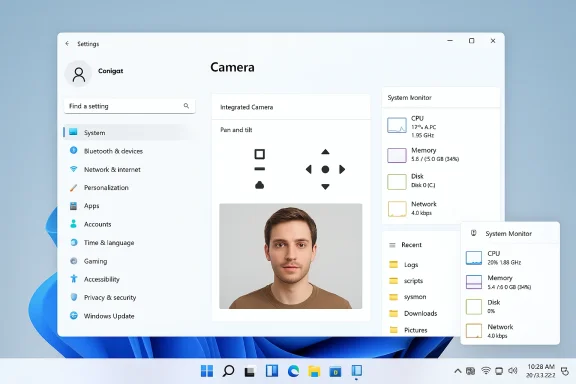
- Camera pan and tilt controls surfaced in Settings.
- Native System Monitor (Sysmon) functionality as an optional Windows feature.
- Visual and consistency improvements across taskbar, Search, Widgets, and File Explorer.
- Reliability fixes for sleep/resume behavior, BitLocker, printing, and sign‑in performance.
- Support additions such as RSAT for Arm64 and the ability to use .webp images as desktop backgrounds.
- Platform and servicing changes (including an updated servicing‑stack package).
What’s new: the practical wins
Built‑in network speed test — fast checks without a third‑party site
The most immediately useful feature for many people is the taskbar network speed test. It can be launched from Wi‑Fi or Cellular Quick Settings or by right‑clicking the network icon in the system tray. The test opens in your default browser and measures Ethernet, Wi‑Fi, or cellular connections, making it quick to verify whether a network slowdown is local to a single device or systemic across the link.Why this matters:
- It removes a repetitive troubleshooting step that currently sends users to search engines and third‑party sites.
- It helps gamers, video callers, and remote workers verify latency and throughput in seconds.
- Because it launches in the default browser, it respects your browser choice rather than hard‑switching to a Microsoft product.
- The feature is implemented as a browser‑launched test rather than a native UI widget. Early reports indicate the taskbar control opens a Bing‑hosted link that surfaces an Ookla Speedtest experience; that behavior means the UI is lightweight but is still a web shortcut rather than an integrated networking utility.
- Because rollout is gradual, you may not see the control right away even after installing the KB. If you need it immediately, some advanced users are enabling features via unofficial tools — proceed with caution (see the “How to get it” section).
Pan and tilt controls for compatible webcams
If you use advanced webcams that support motorized pan and tilt, KB5077241 surfaces basic camera positioning controls under Settings > Bluetooth & devices > Cameras. That brings hardware controls into the OS settings, allowing you to fine‑tune framing without vendor software.Why this matters:
- Consolidates camera configuration in a single place for multiple device vendors.
- Makes meeting room setups and streaming rigs simpler to manage.
- Addresses frustration with overly aggressive or buggy auto‑framing features by giving manual control back to the user.
- The controls appear only for supported devices; older or lower‑end webcams won’t gain new capabilities.
- Expect variability: vendor drivers determine available granularity, so exact pan/tilt increments depend on the camera.
Built‑in Sysmon: Windows ships System Monitor as an optional feature
One of the more technical additions is native Sysmon functionality. Historically provided as part of Sysinternals, Sysmon is a powerful tool that logs detailed system events (process creation, network connections, file changes, driver loads, and more) into the Windows Event Log. KB5077241 makes Sysmon available as a Windows feature you can enable via Settings or command line.Key points:
- Sysmon remains off by default. Administrators and security teams must explicitly enable it.
- Once enabled, you configure Sysmon with custom configuration files to filter events of interest.
- Windows writes Sysmon events to Event Log, making them consumable by standard SIEM and EDR tools.
- Lowers the friction for defenders to deploy consistent, OS‑native telemetry across endpoints.
- Gives small IT shops a supported way to ingest advanced process and network telemetry without third‑party installers.
- Sysmon can generate a lot of log data. Enabling it without an appropriate filter set can increase disk and event‑ingestion load and might require retention and SIEM adjustments.
- Administrators should plan configuration and storage carefully before broad rollouts.
Quick Machine Recovery and other recovery improvements
KB5077241 expands Quick Machine Recovery (QMR) behavior such that Windows 11 Pro devices that are not domain‑joined and not enrolled in enterprise management receive the same recovery features previously limited to Home devices. The update also bundles improvements to backup/restore experiences for organizational scenarios, making out‑of‑box device refresh and provisioning smoother in mixed environments.Why this matters:
- Faster and more reliable recovery pathways for end users and small business devices.
- Reduces the helpdesk load when devices need to be recovered or refreshed.
Reliability and quality‑of‑life fixes
Sleep/resume improvements — a long‑standing annoyance
One of the most persistent user complaints over several Windows 11 releases has been inconsistent resume behavior from sleep: peripherals not reinitializing, touchscreens not responding, or systems failing to wake cleanly without a reboot. KB5077241 includes targeted fixes designed to improve both the reliability and the performance of resume from sleep—especially under heavy load and when devices are docked.Practical impact:
- Expect fewer phantom peripheral failures after waking.
- Less time waiting for devices to become responsive after resume.
- Better behavior for plug‑and‑play scenarios (docks, multi‑display setups).
Sign‑in, print spooler, and Windows Update improvements
The update addresses a handful of other everyday annoyances:- Sign‑in/lock screen performance and reliability tweaks that should reduce login delays.
- Print spooler performance improvements to reduce slowdowns during heavy printing loads.
- The Windows Update settings page is more responsive, and Windows Update now uses improved device targeting for Secure Boot certificate distribution.
Platform and compatibility notes
WebP wallpapers, Widgets, and Search tweaks
- You can now set .webp images as desktop backgrounds directly from Settings or File Explorer. This modern image format brings better compression and color fidelity for many users.
- Widget Settings now open as a full‑page experience instead of a dialog, and Search on the taskbar gains result group counts and hover previews—small polish items that improve discoverability and usability.
RSAT on Arm64 and File Explorer improvements
- KB5077241 adds RSAT support for Arm64 devices and brings multiple File Explorer usability improvements (including an Extract All command for archive‑like folders). These ease administrative tasks on newer Arm hardware and reduce friction when working with compressed content inside File Explorer.
Secure Boot certificate timeline
A notable platform advisory appears alongside the KB: Secure Boot certificates are due to expire starting June 2026, and Microsoft is using targeted certificate updates to minimize boot disruptions. Organizations should review the Secure Boot certificate guidance and plan updates for affected devices well in advance of June to avoid potential boot issues.Deployment, installation, and rollback
Available now as an optional preview; wide rollout follows
KB5077241 was published as a preview (non‑security) update and appears as an optional install in Windows Update for eligible devices. Microsoft is using a controlled, phased rollout: features and controls will arrive gradually based on device signals.What to expect:
- If you install the optional preview, you’ll likely receive the new features immediately (subject to the progressive enablement Microsoft uses).
- If you skip the preview, the same cumulative content is expected to be distributed automatically via the Patch Tuesday channel in the March update cycle.
- Enterprises can obtain the MSU packages for offline deployment or for use with update management tools.
- Use Windows Update and choose the optional preview in Settings > Windows Update.
- Download and install MSU packages with tools like DISM or the Windows Update Standalone Installer.
- For large deployments, import the update into WSUS or your enterprise update management solution.
- The update is a cumulative LCU combined with the servicing stack update; removing the LCU is possible with DISM using the package name, but the servicing stack (SSU) is not reversible after installation. Always test in a lab prior to broad enterprise installs.
Concerns and trade‑offs
Is this just another way to push Microsoft services?
One understandable concern is that some UI changes — notably a new Start menu account menu option that “directs you to the benefits page” — could be used to surface Microsoft subscription services (OneDrive, Microsoft 365). While KB5077241’s changes are primarily UX improvements and administrative conveniences, the pattern of surfacing subscription‑oriented prompts inside the OS continues to worry privacy‑ and UX‑minded users. Expect Microsoft to make it easier to explore account benefits; plan for potential additional sign‑in prompts in shared or kiosk devices.The Edge / Bing worry — will Microsoft force its ecosystem?
Early reports show the network speed test opens in the default browser, but that the content is a Bing‑hosted shortcut that surfaces an Ookla Speedtest experience. That means the feature does not technically force Microsoft Edge, but it uses Microsoft’s web properties as the host for the experience. The user impact is small—most people only care that the test runs in the browser they chose—but it’s perfectly reasonable to be wary of OS features that push Microsoft‑hosted content.Telemetry, Sysmon, and logging implications
Making Sysmon a native Windows feature is broadly positive for security teams, but it brings responsibilities:- Sysmon logging can be verbose. Organizations must define filtering, storage, and log rotation strategies before enabling it across endpoints.
- For consumer devices, enabling Sysmon without understanding the configuration could lead to unexpected disk or telemetry consumption.
- Although Sysmon is an optional feature, the fact that Windows now bundles powerful diagnostic tooling requires administrators to audit feature enablement and policy settings carefully.
Gradual rollout and hidden variability
Microsoft’s controlled feature rollout approach means not everyone sees the same feature set immediately. That can be frustrating for users who install the update and still don’t get the advertised features. For organizations, it complicates standardization efforts: QA and helpdesk teams must be prepared for variable experiences across the fleet.ViveTool and early enablement: proceed at your own risk
Guides are circulating that use third‑party tools (like ViveTool) to force‑enable new features ahead of Microsoft’s gradual rollout. While tempting, these methods are unsupported and can create configuration drift or stability problems. I strongly advise:- Avoid the tool on production systems.
- If you experiment on a personal or test device, back up system images and be ready to reinstall if something goes wrong.
- Prefer Microsoft’s supported distribution methods for enterprise deployments.
Who should install, and when
Consumers and enthusiasts
- If you value the speed test, camera controls, or .webp wallpaper support and don’t mind optional preview updates, installing KB5077241 now is reasonable.
- Enthusiasts who tolerate occasional post‑preview glitches may appreciate getting earlier access to small but practical improvements.
- If you rely on stability above all (for example, primary work machines), consider waiting for the March Patch Tuesday mainstream rollout to minimize exposure to preview teething problems.
Small businesses and IT admins
- Test KB5077241 in a staged lab or pilot ring first. Pay attention to Sysmon enablement, print spooler behavior, and resume‑from‑sleep fixes on hardware representative of your fleet.
- If your environment uses Arm64 devices, RSAT support is a welcome change; but verify vendor drivers for camera pan/tilt and sleep/resume behavior before wide deployment.
- Plan for Secure Boot certificate updates: review the Secure Boot guidance and ensure firmware and platform support ahead of the June certificate expiration window.
Enterprises and security teams
- Consider enabling built‑in Sysmon in a controlled manner: design configurations that capture relevant events without overwhelming SIEM ingestion.
- Coordinate with endpoint management to roll out the update at scale, and include test scenarios for sign‑in flows, printing, and network connectivity tools.
- Watch Microsoft’s release health dashboard for any emerging known issues before mass deployment.
How to prepare and what to watch after installing
- Back up: Create a system image or ensure reliable restore points before installing preview updates.
- Pilot first: Deploy to a small set of devices (insiders or a pilot ring) and monitor event logs, printing performance, and sleep/resume behavior for several days.
- Verify drivers: Ensure OEM drivers (especially for dock, touch, and camera hardware) are up to date—many resume and camera fixes interact with vendor drivers.
- Monitor logs: If you enable Sysmon, configure a filter and ensure your SIEM/storage arrays can handle the increased telemetry.
- Track rollout: Keep an eye on Windows Update behavior in your tenant and on Microsoft’s release health page for any emergent issues.
The bigger picture: why this update matters
KB5077241 is noteworthy not because it delivers a single seismic feature, but because it signals a modest shift in focus. After a period where many updates emphasized high‑visibility AI integrations, this release leans into everyday polish: speed tests that save a search, camera controls that reduce third‑party software bloat, practical reliability fixes for sleep and printing, and the option to adopt native Sysmon for security telemetry.That design choice matters. Users who have long felt Windows 11 prioritized style and spin over substance will appreciate the attention to friction‑reducing details. Administrators who needed Sysmon as a supported OS feature now have an easier, supported path to enable enterprise‑grade telemetry. And the decision to host the speed test content in the default browser — even if the content is Microsoft‑hosted — reduces the risk of vendor lock‑in for users who prefer Chrome, Firefox, or another browser.
At the same time, the update exposes ongoing tensions in Windows development: the line between helpful nudges and promotional nudges is thin. The Start menu’s account benefits link and the continued presence of Microsoft‑hosted links inside native controls will keep some users wary. And the gradual rollout model, while sensible for quality control, perpetuates uneven feature availability that complicates IT standardization.
Bottom line
KB5077241 is one of those updates that quietly improves day‑to‑day Windows usage without demanding an overhaul of workflows. If you’re an enthusiast or an IT professional with a test ring, it’s worth installing and validating now. If you prize absolute stability, a conservative approach of waiting for the March Patch Tuesday mainstream rollout makes sense. Either way, this release is a step toward addressing user complaints with practical fixes — a welcome pivot for those who want Windows to feel smoother before it gets smarter.Install with intention: back up, pilot, and check vendor drivers. Enable Sysmon only if you’ve planned for log volume and SIEM integration. Expect the rollout to be staggered and don’t be surprised if some features arrive on your device later than the official notes imply. For many users, KB5077241 won’t be a headline event — but it may well be the kind of small, steady improvement that makes using Windows 11 less frustrating and more dependable.
Source: TechRadar Microsoft’s Windows 11 fightback starts now – here’s why I recommend you download this update ASAP
