

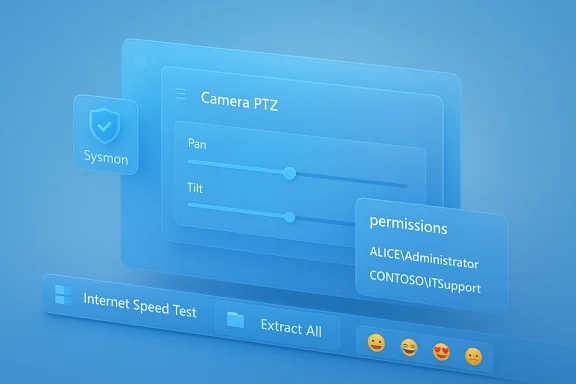
Microsoft’s latest non-security preview for Windows 11—packaged as KB5077241 and appearing as Builds 26200.7918 and 26100.7918 in the Release Preview Channel—delivers a surprisingly practical mix of small productivity refinements and notable platform changes. The update surfaces a one‑click taskbar network speed test, in‑box Sysmon telemetry support, camera pan and tilt controls exposed in Settings, Microsoft Entra ID SID translation, support for .webp wallpapers and Emoji 16 glyphs, plus a raft of File Explorer and system reliability fixes. These additions are part of Microsoft’s ongoing feature‑drop cadence and signal a continued shift toward making diagnostic and security primitives easier to enable and manage for both consumers and IT teams.
Windows 11’s development model now ships features iteratively through Insider channels and controlled feature rollouts rather than only in major OS releases. KB5077241 represents a Release Preview package that Microsoft has flagged as the first preview of the March 2026 non‑security update for Windows 11 versions 24H2 and 25H2. The Release Preview build notes and multiple industry outlets confirm the feature set and the build numbers delivered to testers. That places these changes firmly in Microsoft’s “gradual rollout” model: features may appear to some devices earlier than others and remain gated by server-side flags, hardware capability, and enterprise management policies.
Why this matters: small, discoverable changes—like putting a speed‑test launcher in the taskbar—have outsized user impact because they sit exactly where people go when troubleshooting. Conversely, platform‑level shifts—like bringing Sysmon functionality into Windows as an optional inbox feature—change how enterprises will provision, support, and secure endpoints.
Enterprise benefit: admins can now see meaningful names instead of raw SIDs in local ACLs, reducing misconfiguration and simplifying help‑desk workflows when troubleshooting access‑denied scenarios.
Operational caution: ensure that the devices that require name resolution have network access to the appropriate Entra endpoints, and validate the latency/availability impact in constrained networks.
If you are an everyday user:
In short: KB5077241 nudges Windows 11 toward easier everyday troubleshooting and stronger out‑of‑the‑box visibility for security teams—if administrators treat these new capabilities like the manageability and security investments they are. Pilot, validate, and document your posture before flipping switches across production fleets.
Source: Windows Report https://windowsreport.com/kb5077241...n-feature-camera-controls-more-to-windows-11/
 Background / Overview
Windows 11’s development model now ships features iteratively through Insider channels and controlled feature rollouts rather than only in major OS releases. KB5077241 represents a Release Preview package that Microsoft has flagged as the first preview of the March 2026 non‑security update for Windows 11 versions 24H2 and 25H2. The Release Preview build notes and multiple industry outlets confirm the feature set and the build numbers delivered to testers. That places these changes firmly in Microsoft’s “gradual rollout” model: features may appear to some devices earlier than others and remain gated by server-side flags, hardware capability, and enterprise management policies.Why this matters: small, discoverable changes—like putting a speed‑test launcher in the taskbar—have outsized user impact because they sit exactly where people go when troubleshooting. Conversely, platform‑level shifts—like bringing Sysmon functionality into Windows as an optional inbox feature—change how enterprises will provision, support, and secure endpoints.
What’s in KB5077241 — The Feature List
- Taskbar network speed test (one‑click launcher): Available from Wi‑Fi/Cellular Quick Settings and the network icon’s right‑click menu; launches a browser‑based speed test.
- Built‑in Sysmon (optional feature): Sysinternals’ System Monitor is now available as a Windows optional/in‑box feature (disabled by default) and integrates with the Windows Event Log.
- Camera pan and tilt controls: Basic PTZ controls exposed in Settings under Bluetooth & devices > Cameras for supported hardware.
- Microsoft Entra group and role SID resolution: Windows can now translate Entra cloud group and role SIDs into readable names for permissions, local groups, and access dialogues.
- Quick Machine Recovery (QMR) behavior changes: QMR auto‑enables for non‑domain Windows Pro devices not enrolled in enterprise management, aligning Pro behavior with Home in consumer recovery scenarios.
- Support for .webp desktop backgrounds and a curated subset of Emoji 16.0 glyphs.
- File Explorer and platform fixes: Extract‑All command for non‑ZIP archive folders, improved device listing on network pages, sleep/resume improvements for docked laptops, printing spooler performance tweaks, and other reliability work.
Taskbar Network Speed Test — Convenience, Not a Native Engine
What it does
A new Perform speed test or Test internet speed control appears in the network flyout and the network icon’s context menu. Choosing it opens the default browser and runs a web‑based speed test (the experience Microsoft surfaces is the Bing speed‑test widget). It measures download, upload, and latency across Ethernet, Wi‑Fi, and Cellular interfaces and is intended as a quick diagnostic for end users and help‑desk triage.Strengths
- Discoverability: Putting a test where users already look for network state reduces friction during troubleshooting.
- Low maintenance: By using a browser widget, Microsoft avoids shipping and servicing a native measurement service that would require ongoing calibration and trustable measurement backends.
- Familiar flow: Most users are comfortable with browser‑based tools, so the UX aligns with existing behaviors.
Limitations and risks
- Not a native measurement engine. Because the taskbar control simply launches a browser widget, the measurement uses third‑party backends and browser network stacks. That can introduce variability—firewall/proxy behavior, browser extensions, or captive portals may change results compared to a native measurement. Enterprises expecting per‑device fidelity or local logging should not treat this as a deterministic diagnostic.
- Privacy/telemetry surface. Launching a web tool routes at‑least‑some diagnostic flows to an online service (Bing/third‑party providers). Organizations concerned about telemetry must understand what data the web widget collects and which endpoints it contacts. This is manageable in enterprise environments via network controls and filtering, but it is a change in the default diagnostic pathway.
- Enterprise control & automation. The launcher isn’t yet an MDM/Group Policy‑managed diagnostic that reports back to management consoles. IT teams that rely on scripted or automated speed testing for telemetry will still need to use CLI tools (iperf3, Speedtest CLI) or managed monitoring agents.
Recommendation
For everyday users and help desks this is a welcome, quick sanity check. For administrators: do not replace scripted or agented measurement workflows with this tool. If you need to restrict use, enforce it through browser policies or network ACLs, and consider documenting the behavior for help‑desk triage playbooks.Built‑in Sysmon — A Platform Shift for Endpoint Telemetry
What changed
KB5077241 makes Sysmon functionality available as an optional, in‑box Windows feature. It is disabled by default and must be explicitly enabled through Settings > System > Optional features > More Windows features or via DISM /PowerShell. After the optional feature is enabled, you complete the setup by running the familiar Sysmon installer command (sysmon -i) to install the service and load your Sysmon XML configuration. Microsoft warns that any previously installed copy of Sysmon (from Sysinternals) should be uninstalled before enabling the in‑box variant.Why this matters
Sysmon (System Monitor) from Sysinternals has been a cornerstone of Windows host telemetry for detection engineering, incident response, and threat hunting for more than a decade. By providing Sysmon as an in‑box optional feature, Microsoft makes the capability:- Easier to deploy at scale through the Windows servicing pipeline.
- Supportable via standard OS servicing and patching.
- Officially supported in enterprise scenarios (drivers, servicing, and lifecycle aligned with Windows Update).
Benefits
- Simplified provisioning: Optional features can be enabled by OEM images, provisioning packages, or MDM/Intune lifecycle policies.
- Servicing and updates: In‑box delivery means the component can receive fixes via Windows Update channels instead of manual downloads from the Sysinternals website.
- Consistent event channels: Telemetry writes to the Windows Event Log in a predictable way that integrates with SIEMs and EDRs.
Risks and operational concerns
- Configuration drift & validation: Sysmon is powerful because of its configuration. A poorly tuned Sysmon XML can flood eventing pipelines with noise or, conversely, miss high‑value events. Enterprises must treat Sysmon rollout as an engineering effort with staged pilots, configuration validation, and SIEM mapping.
- Update cadence & trust: Moving Sysmon into the OS changes the trust model—updates come from Microsoft’s servicing pipeline. That is beneficial for patch management, but it centralizes the control of a critical visibility tool; organizations used to managing their own Sysmon versions must reconcile this shift.
- Uninstall and coexistence: Existing standalone Sysmon installations must be cleanly uninstalled before enabling the in‑box variant. Failure to do so can cause conflicts and potential telemetry gaps.
Recommended rollout playbook (high level)
- Inventory & baseline: Identify hosts that will run Sysmon and capture baseline telemetry volumes.
- Pilot: Enable the in‑box Sysmon on a controlled pilot group, using existing Sysmon XML configurations.
- Validate: Confirm events flow into SIEM/EDR, adjust filters to reduce noise, and validate detections.
- Document & automate: Create configuration and deployment scripts (PowerShell, Intune), including an uninstall path for previous Sysmon installs.
- Rollout: Stage the rollout across collections, monitoring ingestion and performance.
- Govern: Treat Sysmon configuration as a guarded artifact in change control—any XML changes should go through testing.
Camera Controls in Settings — Vendor Friction Reduced
What’s new
Devices with cameras that support PTZ capabilities will show pan and tilt controls directly in Settings under Bluetooth & devices > Cameras. Users can preview the camera and save default settings per user and device. Microsoft’s support documentation already describes the Settings page behavior and lists which controls may appear depending on hardware capabilities.Practical impact
- Less reliance on vendor apps: Users will no longer need to search for third‑party utilities to make modest camera adjustments—good news for video conferencing workflows.
- Per‑user defaults: Settings are stored per camera and per user, which keeps preferences predictable in shared machines or kiosk scenarios.
Caveats
- Not all cameras will expose PTZ controls—legacy DirectShow devices, proprietary industrial cameras, or infrared Windows Hello cameras may not appear in the new UI.
- Administrators who previously locked camera behavior via vendor tools may need to revisit device provisioning and ensure consistent experiences across fleets.
Microsoft Entra SID Resolution — Cloud‑Native Identity Gets Less Opaque
KB5077241 enables Windows to translate Microsoft Entra (Azure AD) group and role security identifiers (SIDs) into readable names. This allows cloud‑only groups and roles to appear correctly in file permission dialogs, local group membership listings, and access control dialogues without requiring hybrid AD or on‑premises synchronization. For cloud‑first organizations, this closes a practical gap in day‑to‑day administration and auditability.Enterprise benefit: admins can now see meaningful names instead of raw SIDs in local ACLs, reducing misconfiguration and simplifying help‑desk workflows when troubleshooting access‑denied scenarios.
Operational caution: ensure that the devices that require name resolution have network access to the appropriate Entra endpoints, and validate the latency/availability impact in constrained networks.
Smaller but Useful Additions: .webp Wallpapers and Emoji 16
KB5077241 adds support for setting .webp images as desktop backgrounds and ships a curated subset of Emoji 16.0 glyphs in the emoji panel. These are quality‑of‑life improvements—important for user experience, but low‑risk. The emoji rollout is intentionally conservative: Microsoft cherry‑picked one glyph per major category to reduce font and picker integration risk.Reliability, File Explorer, and Platform Fixes
Several platform fixes target long‑standing annoyances and reliability issues:- Extract All for non‑ZIP archive folders added to the File Explorer command bar.
- Fixes for taskbar behavior when using uncombined buttons.
- Display and resume‑from‑sleep improvements for docked laptops.
- Printing spooler performance improvements for high‑volume print scenarios.
- Nearby Sharing reliability improvements and project pane fixes for the Windows key + P experience.
Security and Governance Analysis — Why Administrators Should Care
The KB5077241 ensemble mixes consumer UX refinements with changes that have operational implications. Two items stand out for enterprise security teams:- Sysmon as an in‑box optional feature — This reduces friction for broad telemetry deployment but places a powerful detection tool under Microsoft’s servicing umbrella. Administrators must treat this like any other platform service: pilot carefully, maintain configuration governance, and validate detector outcomes in the SIEM before turning on wide‑scale ingestion.
- Taskbar speed test launcher — While innocuous for most users, the decision to route a built‑in diagnostic to a web widget changes telemetry flow. For managed environments that require minimal external telemetry, this change is worth documenting and, where appropriate, gating via network policy/compliance profiles.
Practical Steps — How to Prepare and Manage the Changes
Below are actionable steps for IT teams and advanced users who want to control or adopt features in KB5077241.- Inventory:
- Identify devices and user populations that would benefit from Sysmon telemetry or camera controls.
- Pilot Sysmon:
- On a test ring, enable the optional feature via Settings or DISM:
- Settings path: Settings > System > Optional features > More Windows features > check Sysmon.
- DISM alternative: Dism /Online /Enable-Feature /FeatureName:Sysmon
- After enabling, run: sysmon -i (and ensure previous Sysmon installs are removed). Validate events in Event Viewer and SIEM.
- Document and control the taskbar speed test:
- Communicate to help desks that the taskbar speed test is a browser‑launched shortcut (not a native measurement).
- If necessary, apply browser or network policies to limit or monitor access to the web widget endpoints.
- Camera governance:
- Validate which camera models expose PTZ controls through Settings. For devices where vendor utilities are required, document the difference and adjust provisioning scripts.
- If you need to prevent users from changing camera defaults in shared environments, use device configuration profiles to enforce settings.
- Update process:
- Treat KB5077241 as a feature preview for production. Schedule testing windows and validate critical workflows (printing, sleep/resume, display docking) before wide deployment.
Notable Strengths — What Microsoft Got Right
- Practical UX placement: The speed test shortcut lands in a logical place—network flyouts—reducing cognitive overhead for users and help desks.
- Operational modernization: Delivering Sysmon as an optional feature reduces deployment friction and aligns telemetry tooling to standard OS servicing models.
- Polished quality fixes: Sleep/resume docks, File Explorer refinements, and printing spooler improvements are meaningful for users who rely on these scenarios daily.
- Cloud‑first identity polishing: Entra SID resolution is a pragmatic fix for cloud‑only organizations and simplifies ACL troubleshooting.
Potential Risks and Unknowns
- Telemetry and privacy trade‑offs: The speed test’s web pathway introduces third‑party endpoints into an OS-native flow—organizatiot is acceptable by policy.
- Configuration and alert noise: Bringing Sysmon into Windows lowers the provisioning bar, which is good—but it also raises the risk that poorly configured deployments will flood ingestion pipelines with noisy events.
- Rollout variability: Controlled Feature Rollouts mean that availability will vary by region, OEM, and server–side flags. Assertions that “everyone will get it immediately” are incorrect—expect staged rollouts and gating.
What This Means for Everyday Users
For most home users and small businesses, KB5077241 is a net positive: easier camera adjustments, the ability to use modern image formats for wallpapers, quick access to a network speed test, and subtle polish across the OS. The built‑in Sysmon feature is unlikely to appear for everyday consumers unless an IT policy or savvy user enables it.If you are an everyday user:
- Try the taskbar speed test for a quick network sanity check, but don’t rely on it for precision benchmarking.
- If you use an external webcam that supports PTZ, check Settings > Bluetooth & devices > Cameras for new controls.
- Enjoy the new Emoji and .webp wallpaper support, but understand these are small cosmetic improvements rather than major platform shifts.
Final Assessment — Balanced Verdict
KB5077241 is a pragmatic feature drop: modest, well‑targeted user improvements coupled with an important enterprise‑grade shift. The addition of Sysmon as an optional, in‑box feature is the headline for enterprise defenders: it simplifies deployment and lifecycle management of a critical telemetry capability, but requires disciplined rollout and configuration governance to avoid noisy or brittle deployments. The taskbar speed‑test launcher is an example of good UX for the masses—fast, discoverable, and low maintenance—but it is not an enterprise diagnostic replacement.In short: KB5077241 nudges Windows 11 toward easier everyday troubleshooting and stronger out‑of‑the‑box visibility for security teams—if administrators treat these new capabilities like the manageability and security investments they are. Pilot, validate, and document your posture before flipping switches across production fleets.
Quick Reference — Admin Checklist
- Validate whether Sysmon must be enabled in your environment; pilot before broad rollout.
- If you rely on scripted network diagnostics, continue using managed tools—do not replace them with the taskbar browser shortcut.
- Audit camera hardware inventory to see which devices can surface PTZ controls in Settings and adjust provisioning flows accordingly.
- Communicate changes to help desks: new Start menu account benefits entry, taskbar speed test location, and the Extract All command in File Explorer.
Source: Windows Report https://windowsreport.com/kb5077241...n-feature-camera-controls-more-to-windows-11/
