

If you use a Windows PC every day, learning a handful of keyboard shortcuts isn't a nicety — it's a time multiplier. Microsoft’s own guidance highlights a compact set of keystrokes for Windows 11 that turn slow mouse hunts into instant actions, and when you combine those with a few system settings (Clipboard history, Snap layouts, virtual desktops) the payoff compounds across hours of work each week. shortcuts still matter in the age of AI and new UI paradigms
Windows 11 introduced a visual refresh and new productivity features, but the underlying performance gains you feel day-to-day come from low-latency interactions — and nothing beats the keyboard for that. The operating system layers features like Snap layouts, the modern Snipping Tool, and Clipboard history directly into the shell, meaning keystrokes tap into first‑class system behaviors rather than brittle third‑party hacks. That makes learning the right combos an efficient investment: small time savings per action turn into real minutes over a workday.
At the same time, Windows is adding — most notably a dedicated Copilot key on recent hardware — and Microsoft and OEMs have been adjusting which keyboard shortcuts map to which experience. That means some shortcuts are both powerful and mutable; expect subtle changes through feature updates and OEM driver layers.
Start here. These are the keystrokes that save time across almost every app — text editors, web browsers, File Explorer and system dialogs.
Practical tip: when you need text from an image, Snipping Tool’s Text Actions (OCR) can extract it, letting you paste text directly rather than retyping. This is a dramatic time-saver for screenshots of console output, error dialogs, and receipts.
Practical points to know:
Week 1 — Core habit formation:
Mastering these keystrokes doesn’t promise to finish all work faster, but it removes a predictable, recurring source of friction. Over weeks, that friction loss compounds into sizable productivity gains: fewer mouse trips, cleaner contexts, and faster sharing of ideas. If you make one commitment today, let it be to replace one mouse action with a keyboard action and repeat — you’ll feel the difference by the end of the week.
Source: Microsoft Best Shortcuts for PC Users | Microsoft Windows
Windows 11 introduced a visual refresh and new productivity features, but the underlying performance gains you feel day-to-day come from low-latency interactions — and nothing beats the keyboard for that. The operating system layers features like Snap layouts, the modern Snipping Tool, and Clipboard history directly into the shell, meaning keystrokes tap into first‑class system behaviors rather than brittle third‑party hacks. That makes learning the right combos an efficient investment: small time savings per action turn into real minutes over a workday.
At the same time, Windows is adding — most notably a dedicated Copilot key on recent hardware — and Microsoft and OEMs have been adjusting which keyboard shortcuts map to which experience. That means some shortcuts are both powerful and mutable; expect subtle changes through feature updates and OEM driver layers.
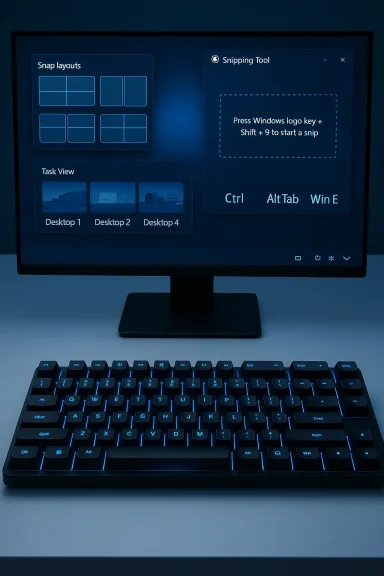 Everyday keyboard shortcuts every Windows 11 user should know
Start here. These are the keystrokes that save time across almost every app — text editors, web browsers, File Explorer and system dialogs.- Ctrl + C — Copy selected text, files, or objects.
- Ctrl + V — Paste the last clipboard item.
- Ctrl + X — Cut the selected item.
- Ctrl + Z — Undo the previous action.
- Ctrl + Y — Redo the last undone action.
- Alt + Tab — Cycle between open windows and apps.
- Win + L — Lock your PC instantly.
- Win + I — Open Settings.
- Win + E — Open File Explorer.
- Win + R — Open the Run dialog.
- Alt + F4 — Close the active app or window.
Why these matter (short answer)
- They are universal across apps.
- They avoid pointer travel — the single biggest micro‑latency in many workflows.
- They form a muscle‑memory core you can expand from.
The Snipping Tool and screen capture: modern capture with keyboard speed
Screenshots and quick captures are essential for documentation, bug reports, and collaboration. Windows 11’s Snipping Tool exposes fast, keyboard-first capture modes:- Win + Shift + S — Open Snipping Tool overlay and choose a region snapshot. The image goes to the clipboard and (optionally) to the Snipping Tool app for edits.
- PrtSc (Print Screen) — Capture the entire screen to the clipboard.
- Win + PrtScn — Capture the entire screen and automatically save the file to the Screenshots folder.
Practical tip: when you need text from an image, Snipping Tool’s Text Actions (OCR) can extract it, letting you paste text directly rather than retyping. This is a dramatic time-saver for screenshots of console output, error dialogs, and receipts.
Managing windows and multitasking: Snap layouts and virtual desktops
Windows 11’s Snap layouts are a rare OS-level productivity feature that works equally well with mouse and keyboard. Use these shortcuts to move windows and build tidy workspaces in seconds:- Win + Left Arrow / Win + Right Arrow — Dock the active window to the left or right half of the screen.
- Win + Up Arrow — Maximize.
- Win + Down Arrow — Restore/downsize or minimize.
- Win + Shift + Left / Right — Movetween monitors.
- Win + Home — Minimize all windows except the active one.
Virtual desktops
Virtual desktops let you group apps by context — work, personal, research — and switch with keyboard shortcuts:- Win + Ctrl + D — Create a new virtual desktop.
- **Win + Ctrl + Left / Rig desktops.
- Win + Ctrl + F4 — Close the current virtual desktop.
Clipboard history, clipboard hygiene, and productivity trade-offs
Windows 11's Clipboard history (enabled in Settings) keeps a stack of recent clipboard entries and is invokable with Win + V. That shortcut frees you from the single-item limit of Ctrl+C/Ctrl+V and turns the clipboard into a lightweight ephemeral repository of snippets, images, and small files.- Enable: Settings → System → Clipboard → Clipboard history.
- Use: Win + V to open the history and paste older items.
The Copilot key and launcher shortcuts — what’s changed and what to expect
One of the largest recent keyboard changes in Windows 11 is the emergence of a dedicated Copilot key on newer keyboards and the continuing role of Win + C as a Copilot launcher. OEMs began shipping keyboards with a dedicated Copilot key in 2024, and Microsoft has iterated on how the key and Win+C behave across updates and Copilot versions. The Copilot key typically sits near the right-side modifier cluster and is designed to launch Microsoft’s AI assistant quickly.Practical points to know:
- Win + C and the Copilot key can both launch Copilot (behavior is configurable on modern builds).
- Microsoft and OEMs have provided remapping options, and PowerToys can be used to remap the Copilot key on systems where it is mapped to a hardware function like F23.
- Because the Copilot experience itself is evolving (native app vs web view vs quick‑view), expect Microsoft to refine which shortcut opens which UI (full app vs quick chat) across updates. That means: a key that launches a full Copilot UI today may open a floating quick‑view after a future update.
High-value but underused shortcuts (the “secret weapons”)
- Win + D — Show or hide the desktop. Quick context switch when you need a clean workspace.
- Win + Tab — Open Task View (timeline of virtual desktops and open windows).
- Win + V — Clipboard history (covered above).
- Win + . (period) — Emoji, kaomoji, and symbol panel for chat and messaging.
- Win + Number (1–9) — Launch or switch to the app pinned in the taskbar position. For example Win + 1 opens the first pinned app. This is a practical, keyboard-first path to quickly launch your most-used applications.
- Win + G — Open the Xbox Game Bar (useful for quick recordings, overlays and performance widgets).
- Ctrl + Shift + Esc — Open Task Manager instantly.
A practical 4-week plan to make shortcuts stick
Learning is the easy part; adoption is the challenge. Here’s a short, repeatable plan that echoes successful practices used by power users.Week 1 — Core habit formation:
- Pick the top eight shortcuts (Ctrl+C/Ctrl+V, Alt+Tab, Win+E, Win+I, Win+Shift+S, Win+L, Win+R, Win+Arrow keys).
- Use a post-it or a desktop background cheat‑sheet to prompt use.
- Track usage: set a small counter or a tick mark each time you use a new shortcut.
- Enable Clipboard history and start using **Winap Windows and practice keyboard moving/resizing with Win + Arrow keys.
- Create two virtual desktops (Win + Ctrl + D) and move apps between them.
- Use Win + Shift + Left/Right to move windows across monitors.
- Add four “secret weapon” shortcuts (Win + Number, Win + Tab, Win + ., Win + G).
- Run two focused work sprints using only keyboard navigation to surface friction points.
Troubleshooting: when shortcuts don’t work
Shortcuts can fail for simple reasons. Run this checklist before assuming a bug:- Is a specific application capturing the shortcut? Many IDEs, remote desktop clients, or media apps override global keys.
- Does your keyboard require an Fn modifier for Print Screen or function keys? Laptop compact layouts often need Fn toggles.
- Are accessibility features like Sticky Keys or Filter Keys enabled? Those can change how simultaneous keystrokes are interpreted.
- Try restarting Windows Explorer (Task Manager → restart explorer.exe) if Win-key shortcuts stop responding.
- Check for OEM or third-party utilities that remap keys (gaming drivers, macro utilities, or keyboard manager tools).
Security and privacy: what to watch for
Shortcuts make repetitive tasks fast — and sometimes make mistakes permanent.- Shift + Delete permanently removes files without sending them to the Recycle Bin. Use with caution.
- Clipboard history can store sensitive data. If you work with regulated content, disable clipboard history or clear it regularly.
- Copilot launches may send contextual data to cloud services depending on configuration; verify corporate policy before enabling for managed devices.
- Global hotkey conflicts can expose surprising behavior if a malicious or misconfigured app binds the same hotkey. Keep an eye on installed utilities and remove untrusted tools.
Advanced customization and where to go next
Once you’ve mastered the essentials, explore these next steps:- Install PowerToys and use Keyboard Manager to remap keys and create custom shortcuts for specific workflows.
- Use AutoHotkey for conditional or app-specific macros (powerful but requires care to avoid conflicts).
- Learn a small set of Win + Number and Win + Shift + Number combinations to pin app workflows to the keyboard.
- For Copilot enthusiasts, explore remapping and shortcut settings to tailor Copilot behavior to your workflow.
Conclusion — the shortest path to faster work
Keyboard shortcuts are an investment with immediate returns. Start with the basics — copy/paste, Alt+Tab, Win + Arrow keys, Win + Shift + S — and layer system features: Clipboard history, Snap layouts, and virtual desktops. Practice deliberately, watch for privacy trade-offs (clipboard and Copilot behavior), and use simple troubleshooting steps if keys stop responding.Mastering these keystrokes doesn’t promise to finish all work faster, but it removes a predictable, recurring source of friction. Over weeks, that friction loss compounds into sizable productivity gains: fewer mouse trips, cleaner contexts, and faster sharing of ideas. If you make one commitment today, let it be to replace one mouse action with a keyboard action and repeat — you’ll feel the difference by the end of the week.
Source: Microsoft Best Shortcuts for PC Users | Microsoft Windows
