

Windows 11’s Bluetooth stack has quietly started to shift the balance of power away from decades‑old compromises — but the benefits only materialize if your PC, drivers and headphones are speaking the same language. What you’re seeing as flaky connections, muffled game chat, or sudden mono music when you open a voice app may not be “just Windows” — it’s often the OS choosing the wrong Bluetooth mode for the job. Microsoft’s move to Bluetooth Low Energy (LE) Audio and the Telephony and Media Audio Profile (TMAP) fixes many long‑standing problems, but hardware support and the occasional Windows fallback to legacy profiles mean users still need to know how and when to force the right mode for best results.
Bluetooth audio on PCs lived for years with a painful architecture: separate legacy profiles for stereo music and for two‑way voice, with Windows flipping between them whenever a microphone was required. That trade‑off — high‑fidelity A2DP for music, and low‑quality HFP/HSP for calls — created the familiar scenario where music sounded excellent until you joined voice chat, at which point everything went mono and tinny. The technical reason was simple: Classic Bluetooth audio used different profiles for different roles and the profiles had incompatible capabilities.
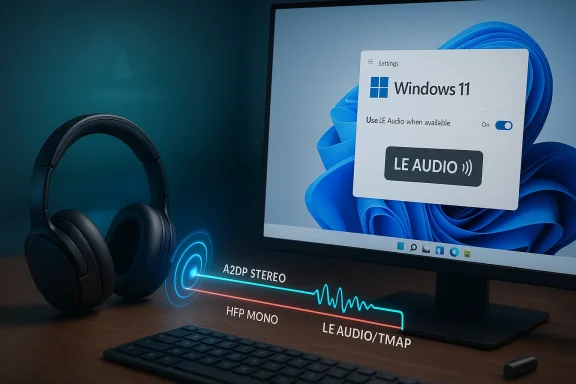
Bluetooth LE Audio changes that model. LE Audio introduces a modern codec (LC3) and profiles that let a single pathway carry both high‑quality media and telephony streams without the profile swap that ruined listening experiences. Windows implements this using the Telephony and Media Audio Profile (TMAP), and Microsoft added a “super wideband stereo” mode that supports higher sample rates (commonly cited as 32 kHz) so stereo gaming and music can continue while the headset mic is active. That’s a major quality and usability improvement — but only when the PC and the headset both support LE Audio and TMAP, and the OS is configured to prefer it.
At the same time Auracast (the LE Audio broadcast capability from the Bluetooth SIG) unlocks one‑to‑many audio sharing scenarios — think multiple people tuning into a TV or public display — which expands LE Audio’s practical uses beyond mere quality improvements. Implementation and vendor support determine when Auracast works on a PC.
LE Audio with TMAP and LC3 addresses the technical roots of these problems: a modern codec designed for efficiency and quality, a profile that unifies roles, and broadcast features (Auracast) that expand use cases. The platform change is a significant usability improvement for PC audio — but its value only appears when the entire chain (Windows build, Bluetooth radio, drivers, headset firmware) supports it. Microsoft’s documentation and community testing show promising results where all pieces align, while forum threads and troubleshooting posts reveal the persistent fragmentation that users must navigate.
Microsoft has done the heavy lifting by integrating LE Audio and TMAP into Windows 11, and the “super wideband stereo” capability is a meaningful fix for a problem that frustrated PC users for years. The cleanest, most future‑proof solution is to move to LE Audio‑capable hardware and keep Windows and drivers current. Until the ecosystem matures, however, knowing how to spot and force the correct Bluetooth mode will save you hours of chasing phantom audio problems.
Conclusion: the wrong Bluetooth mode is frequently the real culprit behind unreliable sound on Windows PCs. With careful checks, a few configuration tweaks, and — where possible — an upgrade to LE Audio hardware, the old compromises can finally be left behind.
Source: MUO If your Bluetooth feels unreliable, it might be using the wrong mode
 Background / Overview
Bluetooth audio on PCs lived for years with a painful architecture: separate legacy profiles for stereo music and for two‑way voice, with Windows flipping between them whenever a microphone was required. That trade‑off — high‑fidelity A2DP for music, and low‑quality HFP/HSP for calls — created the familiar scenario where music sounded excellent until you joined voice chat, at which point everything went mono and tinny. The technical reason was simple: Classic Bluetooth audio used different profiles for different roles and the profiles had incompatible capabilities.Bluetooth LE Audio changes that model. LE Audio introduces a modern codec (LC3) and profiles that let a single pathway carry both high‑quality media and telephony streams without the profile swap that ruined listening experiences. Windows implements this using the Telephony and Media Audio Profile (TMAP), and Microsoft added a “super wideband stereo” mode that supports higher sample rates (commonly cited as 32 kHz) so stereo gaming and music can continue while the headset mic is active. That’s a major quality and usability improvement — but only when the PC and the headset both support LE Audio and TMAP, and the OS is configured to prefer it.
At the same time Auracast (the LE Audio broadcast capability from the Bluetooth SIG) unlocks one‑to‑many audio sharing scenarios — think multiple people tuning into a TV or public display — which expands LE Audio’s practical uses beyond mere quality improvements. Implementation and vendor support determine when Auracast works on a PC.
How Bluetooth audio modes differ — the practical consequences
Bluetooth Classic Audio: A2DP vs HFP (the old fault lines)
- A2DP (Advanced Audio Distribution Profile): Designed for high‑quality, stereo audio playback. Excellent for music and spatial game audio, but no microphone support. If Windows uses A2DP, your headphones will sound good — until you need to speak.
- HFP/HSP (Hands‑Free Profile / Headset Profile): Designed for bidirectional voice calls. Supports microphone capture but at a much lower audio fidelity, often mono and narrowband by default. When Windows switches your device into HFP, music quality collapses.
Bluetooth LE Audio and TMAP: one profile to rule them all (for modern gear)
- TMAP (Telephony and Media Audio Profile): Unifies media and telephony roles for LE Audio, letting devices stream stereo media and handle microphone input simultaneously using LC3 at higher sampling rates. This avoids the old A2DP/HFP flip. In Windows, TMAP plus the LC3 codec forms the backbone of the “super wideband stereo” experience that preserves spatial audio while voice is active.
What changed in Windows 11, and what you must check
Microsoft has integrated LE Audio support into Windows 11’s audio stack and added UI controls to prefer LE Audio when available. But there are several moving pieces:- Windows version: LE Audio features appear beginning with Windows 11 version 22H2, with additional improvements (super wideband stereo behaviors and extra UI features) delivered with more recent servicing updates and the 24H2 wave. If your PC runs an older Windows 11 build or Windows 10, you won’t get the new TMAP behaviors.
- Hardware: The PC must have a Bluetooth controller (radio) that supports LE Audio (BLE with the required features, typically Bluetooth 5.2 or newer and vendor support). Even if the Bluetooth chip supports low energy, OEM driver/firmware and system integration matter; not all laptops advertised with “Bluetooth 5.x” will expose LE Audio to Windows.
- Headphones/earbuds: The receiver (your headset) must explicitly support Bluetooth LE Audio and the TMAP/LC3 capabilities. Marketing copy that says “Bluetooth LE” does not always equal “LE Audio / LC3 / TMAP” compatibility — check manufacturer specs.
- Windows setting: When supported, Windows exposes a “Use LE Audio when available” toggle in Settings → Bluetooth & devices → Devices → Device settings. Enable it to let Windows prefer LE Audio/TMAP when a compatible device is connected. If the toggle is missing, your hardware or drivers likely don’t support LE Audio.
- Verify Windows build: make sure you are on Windows 11 22H2 or later (and keep an eye out for 24H2 features).
- Check Device settings for the “Use LE Audio when available” toggle and enable it if present.
- Confirm your headset advertises LE Audio / LC3 / Auracast / TMAP support in its specification. If the vendor lists only “Bluetooth 5.x,” that alone is insufficient.
How to pick the right Bluetooth mode (step‑by‑step tactics)
If your PC and headphones both support LE Audio, default to LE Audio/TMAP — that covers music, calls and low‑latency use far better than Classic Bluetooth. But the ecosystem is transitional: many users still have one endpoint that is Classic‑only. Here’s practical, actionable guidance for each scenario.If you have full LE Audio support (recommended)
- Enable the Windows “Use LE Audio when available” toggle. Windows will prefer TMAP and the LC3 codec, preserving stereo media while the microphone is active and allowing super wideband voice paths (commonly 32 kHz) where supported. This is the cleanest path to fewer compromises.
If your PC or headset lacks LE Audio (you’re on Classic Bluetooth)
- Prioritize A2DP for music and stereo experiences — but A2DP cannot carry an active microphone stream, so you must choose trade‑offs consciously:
- Use A2DP (stereo) whenever you don’t need the headset mic (music, movies, single‑player gaming).
- Use HFP only when you need the headset mic (calls, in‑game voice chat). Expect reduced audio quality in that case.
- Disable the headset microphone in Windows when you don’t need it. Open Settings → System → Sound → More sound settings → Recording tab, right‑click the headset microphone and select Disable. This tends to keep Windows from switching the device into HFP. It’s a temporary, per‑session solution because some apps or OS events can re‑enable the mic.
- Disable Handsfree Telephony in the device’s Properties (Control Panel → Devices and Printers → right‑click device → Properties → Services tab → uncheck Handsfree Telephony). This removes HFP capability for that device and forces the system to use A2DP for audio. Note: you will lose the headset mic until you re‑enable that service.
- As a last resort, disable the Bluetooth Audio Gateway Service (BTAGService) via services.msc to stop HFP globally. This is blunt: it disables hands‑free support for all Bluetooth devices and can break any scenario needing HFP until the service is re‑enabled. Use it only if you rely on a separate microphone and are willing to lose headset mic functionality. Community reports confirm this works but warn it’s disruptive and persistent across reboots until reactivated.
- Many Windows apps (games with integrated voice chat, Discord, Teams, Zoom) open a communications stream that triggers profile switching; disabling Handsfree Telephony does not always prevent the app from reactivating HFP in every situation. Users report varied results; behavior can differ by headset and driver implementation. If you need reliable simultaneous mic+stereo today, a wired headset or a dedicated USB microphone + stereo headphones remains the most dependable option.
Diagnosing the “wrong mode” problem — a short troubleshooting flow
- Confirm Windows build and updates: Windows 11 22H2 or later is required for baseline LE Audio support; some LE Audio improvements were delivered in subsequent servicing.
- Open Settings → Bluetooth & devices → Devices → Device settings and look for the “Use LE Audio when available” toggle. If it’s present, enable it and reconnect your headset.
- Verify the headset reports LE Audio / LC3 / TMAP support in the vendor documentation — don’t assume “Bluetooth 5.x” equals LE Audio.
- If the mic is active and audio drops to mono/muffled, check whether Windows has switched to HFP: Control Panel → Sound → Playback/Recording tabs will show separate entries (Stereo vs Hands‑Free). If Hands‑Free is active, use the methods above to disable Handsfree Telephony or the mic when you don’t want it.
- Update Bluetooth and audio drivers from your OEM or chipset vendor. Some Bluetooth controllers require vendor drivers to expose LE Audio features to Windows. Generic Windows drivers may not be enough.
Risks, limitations and the road ahead
- Hardware fragmentation: LE Audio’s benefits are only as wide‑spread as vendor adoption. Many existing headsets and OEM Bluetooth radios lack the required features or firmware to support TMAP, so users will continue to see mixed behavior for a while. Manufacturers sometimes label devices as “BLE” without clearly stating LE Audio/LC3 or Auracast support, which causes confusion. Always check product specs.
- Driver and firmware maturity: Drivers from OEMs and chipset vendors govern whether Windows can use LE Audio properly. Some vendors have already published advisories explaining that LE Audio options only appear when the radio and firmware are integrated with Windows support. Expect occasional bugs, odd reconnection behavior, and rollback scenarios. Community reports show occasional regressions after Windows updates.
- Workarounds are imperfect and sometimes disruptive: Disabling Handsfree Telephony or the Bluetooth Audio Gateway Service will keep stereo quality but at the cost of microphone functionality. That trade is acceptable for users who have alternate mics, but not for those who need headset mic and stereo simultaneously on Classic hardware. Microsoft’s TMAP path solves this, but only when supported end‑to‑end. Use the blunt service disable only with eyes open.
- Auracast interoperability: Auracast promises broadcast scenarios, but vendor implementations and certification inconsistencies mean cross‑vendor interop can be spotty. Don’t expect universal Auracast behavior until the ecosystem matures and vendors publish clear compatibility notes.
Real‑world recommendations for Windows users (short‑form)
- If your PC and headset both support LE Audio/TMAP: enable “Use LE Audio when available” and enjoy stereo + mic without the old compromise. Update Windows, Bluetooth firmware and drivers first.
- If either endpoint is Classic‑only:
- Use A2DP for pure listening sessions. Disable the headset mic in Windows or uncheck Handsfree Telephony if you don’t need it.
- If you need mic + stereo reliably today and LE Audio isn’t available, use a wired headset or a USB audio solution (USB dongle headsets, separate USB mic + wired/stereo headphones).
- If your audio flips modes in games or voice apps, try disabling Handsfree Telephony for the device (Control Panel → Devices → Services) or temporarily disabling the BTAGService — but be aware you will lose headset mic capability until you re‑enable it. Community reports show this works but can be brittle across restarts.
Why this matters — beyond “it sounds better”
The classic A2DP vs HFP compromise didn’t just degrade musical fidelity; it changed how players and creators use audio on PCs. Stereo spatial cues in competitive games were lost when voice chat activated. Content creators who relied on a headset mic lost stereo game audio. Accessibility scenarios suffered because assistive hearing devices couldn’t benefit from unified, higher‑fidelity routing.LE Audio with TMAP and LC3 addresses the technical roots of these problems: a modern codec designed for efficiency and quality, a profile that unifies roles, and broadcast features (Auracast) that expand use cases. The platform change is a significant usability improvement for PC audio — but its value only appears when the entire chain (Windows build, Bluetooth radio, drivers, headset firmware) supports it. Microsoft’s documentation and community testing show promising results where all pieces align, while forum threads and troubleshooting posts reveal the persistent fragmentation that users must navigate.
Final word: what to do right now
If your Bluetooth feels flaky or music drops to mono the moment you speak, don’t assume your headphones are broken. First, check the Windows LE Audio toggle and confirm your Windows build and drivers. If full LE Audio isn’t available, treat A2DP and HFP as separate tools: use A2DP for listening, HFP only when you need a mic, and use the Windows device/service controls to disable the hands‑free pathway when you prefer stereo and have another mic available.Microsoft has done the heavy lifting by integrating LE Audio and TMAP into Windows 11, and the “super wideband stereo” capability is a meaningful fix for a problem that frustrated PC users for years. The cleanest, most future‑proof solution is to move to LE Audio‑capable hardware and keep Windows and drivers current. Until the ecosystem matures, however, knowing how to spot and force the correct Bluetooth mode will save you hours of chasing phantom audio problems.
Conclusion: the wrong Bluetooth mode is frequently the real culprit behind unreliable sound on Windows PCs. With careful checks, a few configuration tweaks, and — where possible — an upgrade to LE Audio hardware, the old compromises can finally be left behind.
Source: MUO If your Bluetooth feels unreliable, it might be using the wrong mode