

Microsoft’s latest Windows 11 cleanup effort is more than a cosmetic polish pass. It is a public acknowledgment that the operating system still carries visible baggage from Windows 8, Windows 10, and even older eras, and that Microsoft now sees that as a real product problem rather than an unavoidable quirk. The immediate trigger is small — the input method switcher on the login screen — but the implications are much larger because they reach into sign-in, recovery, Control Panel, and other system paths where Windows still feels stitched together from different generations. Microsoft’s own behavior in the discussion, and the fact that both design leadership and login-screen owners were pulled in, suggests the company is treating this as a genuine modernization task rather than a one-off complaint. s has always been a compromise machine, and that is both its greatest strength and its biggest design curse. The platform has survived for decades because it prioritizes compatibility with older software, older drivers, older workflows, and older hardware in a way few operating systems can match. The downside is that Windows rarely gets to replace anything cleanly; it layers new design on top of old design, then layers more design on top of that. The result is a desktop that can look modern in one area and ancient in another, sometimes only one click apart.
That tension became especially obvious after Windows 8 introduced a touch-first visual language that broke sharply from the classic desktop model. Microsoft later softened much of that direction, but not every component followed the same timeline. Some system surfaces stayed in their legacy form because they were low-level, hard to update, or too risky to touch. Others were simply lower priority because they were not front-and-center parts of the user experience. That is why so many older UI fragments have lingered in Windows 11 long after the rest of the shell moved on.
Microsoft has spent years modernizing the most visible parts of Windows 11. The Settings app, much of the shell styling, and several inbox apps now look far more coherent than they did at launch. But the modern exterior can create a false impression of completeness. Underneath, Windows still contains authentication flows, recovery tools, admin utilities, and legacy dialogs that expose the platform’s older layers in a way users notice immediately when something goes wrong or when they are still setting up a system. Those moments matter because they are the moments when the operating system is asking for trust.
The login screen is a particularly sensitive place for this kind of design debt. It is the first visible interface many users touch, and for multilingual users the input method switcher can be one of the first controls they interact with before reaching the desktop. If that control still looks like it was lifted from Windows 8, the mismatch is not just aesthetic. It sends a signal that the OS is still unfinished in the places where polish matters most.
There is also a strategic dimension to Microsoft’s current posture. The company appears less willing than before to shrug off user complaints about legacy UI. That matters because product teams often hide behind “compatibility” when old components are too difficult to replace. Compatibility is real, but so is design debt. The new emphasis suggests Microsoft now sees the two as separate problems that need separate tracking, which is an encouraging sign even if the work will take years.
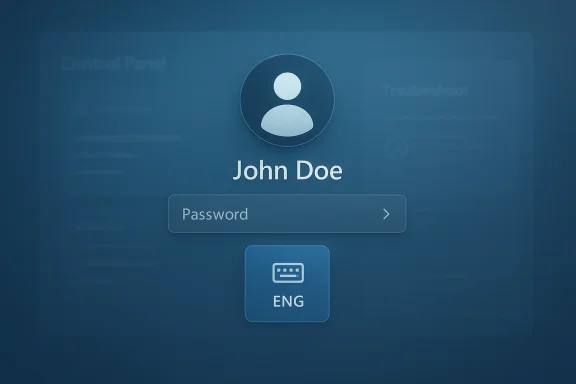
The immediate issue that sparked attention was the input method switcher on the sign-in screen, which still uses a rigid, square, Windows 8-era look. That may sound minor, but the login screen is one of the few surfaces almost every user sees every day. If the OS is trying to present a unified Windows 11 identity, then a visibly old control in that location becomes a kind of visual contradiction.
Microsoft’s response matters because it was not vague. March Rogers, the company’s Partner Director of Design, said the issue had been added to the internal craft list, which is Microsoft-speak for active design work. Diego Baca, the Windows Design Director, was also in the thread and said he would pass the issue to the team responsible for the login and lock screen. That combination suggests the issue moved quickly from public feedback to internal triage, which is not nothing. It shows that the design team is at least listening in public and prioritizing visible debt in public view.
The UI mismatch is also symbolic because it sits so close to Windows 11’s promise of visual coherence. If the login screen still exposes older styling, users begin to suspect that the rest of the OS may be just as fragmented beneath the surface. That feeling is often more damaging than the actual visual flaw.
That is why Microsoft has never been able to modernize Windows as if it were a greenfield project. The company must preserve support for older hardware, older peripherals, and enterprise workflows that depend on behavior going back many years. Rewriting low-level UI layers is not just a matter of swapping one visual framework for another. It means ensuring the new code can function in degraded environments, on broken systems, and in recovery scenarios where the entire point is to survive failure.
Microsoft’s own support and documentation reinforce this reality. The company still explains that Control Panel remains present for compatibility reasons and because some settings have not yet migrated to the Settings app. It also acknowledges, in official guidance, that some legacy control panel items continue to exist for historical and compatibility reasons even as Windows 11 pushes users toward the modern UI.
That does not mean the current state is ideal. It does mean the company has to modernize in layers and accept that some UI debt will outlive a product cycle or two. The challenge is deciding which layers are truly frozen by necessity and which are just frozen by inertia.
This kind of split identity has become one of the defining characteristics of Windows 11. It is not simply that old UI remains; it is that new UI and old UI often live side by side in the same workflow. That creates friction because users must mentally switch between design eras while doing ordinary tasks. It can make the OS feel less like a finished system and more like a transition state that never quite ends.
Microsoft has been slowly reducing that fragmentation, but the pace is uneven. The company continues to migrate functions out of Control Panel, and official support materials explicitly encourage users to use Settings whenever possible. Still, the migration is cautious because some functionality is tied to drivers, management tools, or old APIs that are too important to rip out quickly. The company’s own documentation and partner guidance make clear that legacy pathways remain part of the platform’s structure, not just its UI skin.
This matters in enterprise settings too. IT admins and power users tend to notice fragmentation more than casual users do because they interact with deeper system tools and settings more frequently. When those surfaces look outdated, the whole platform can seem less deliberate and less reliable.
That makes them poor candidates for casual modernization. A recovery UI cannot simply be prettier; it must be dependable in failure modes. Any redesign has to respect the reality that these screens may be used precisely when the machine is in trouble. That is why these interfaces often lag behind the rest of Windows, even when Microsoft has the design will to update them.
The familiar “Please wait” screen with its rotating dots is a perfect example. It feels dated because it is dated, but it also persists because boot-time feedback only has to be stable and understandable, not fashionable. In a failure path, trust comes from predictability, not visual novelty.
For consumers, removing legacy UI baggage tends to feel like progress. For enterprises, the same move can be welcome if it reduces confusion, but risky if it affects scripts, admin workflows, or vendor tools. That is why Microsoft has historically moved slowly in areas like Control Panel replacement. The company knows that breaking old paths can create much bigger costs than an outdated look.
This is where the design conversation becomes more interesting. A more coherent UI is not just prettier for consumers; it can also help enterprises by reducing training friction and making Windows feel more predictable. But the enterprise value depends on the migration being careful. Microsoft has to avoid the trap of creating a visually modern interface that still hides old behavior in the places admins actually use.
This is why the design team’s internal “craft” language matters. It suggests a focus not just on aesthetics, but on how the interface behaves in real workflows. Craft, in the Windows context, has to include durability.
That matters because users have long felt that Microsoft hears feedback selectively. The company often ships modern-looking updates while leaving deeper pain points untouched. In this case, the public acknowledgment creates a different impression: that the team is tracking visual debt and treating it as actionable. Even if the actual fix is not immediate, the presence of a public response builds credibility.
Microsoft’s broader Windows messaging has increasingly revolved around quality, reliability, and reducing friction. That shift is visible in other parts of the platform too, where the company has been cutting down on unnecessary clutter and trying to make core workflows more intentional. The design team’s public engagement fits that pattern. It makes the modernization push feel less like marketing and more like triage.
That is especially true for small UI issues that otherwise appear trivial to executives. A login-screen switcher may never top a roadmap slide, but if Microsoft can visibly improve that kind of detail, it signals a broader seriousness about finishing the platform.
What matters most is whether the company keeps building momentum. If login, lock screen, recovery, and admin tools continue to receive attention, Windows 11 could slowly stop feeling like a collage of old decisions and start feeling like a coherent platform again. That would not erase the past, but it would make the past less visible in day-to-day use.
Source: Windows Latest Microsoft confirms old Windows 8 UI elements are being replaced in Windows 11, but it's not enough yet
That tension became especially obvious after Windows 8 introduced a touch-first visual language that broke sharply from the classic desktop model. Microsoft later softened much of that direction, but not every component followed the same timeline. Some system surfaces stayed in their legacy form because they were low-level, hard to update, or too risky to touch. Others were simply lower priority because they were not front-and-center parts of the user experience. That is why so many older UI fragments have lingered in Windows 11 long after the rest of the shell moved on.
Microsoft has spent years modernizing the most visible parts of Windows 11. The Settings app, much of the shell styling, and several inbox apps now look far more coherent than they did at launch. But the modern exterior can create a false impression of completeness. Underneath, Windows still contains authentication flows, recovery tools, admin utilities, and legacy dialogs that expose the platform’s older layers in a way users notice immediately when something goes wrong or when they are still setting up a system. Those moments matter because they are the moments when the operating system is asking for trust.
The login screen is a particularly sensitive place for this kind of design debt. It is the first visible interface many users touch, and for multilingual users the input method switcher can be one of the first controls they interact with before reaching the desktop. If that control still looks like it was lifted from Windows 8, the mismatch is not just aesthetic. It sends a signal that the OS is still unfinished in the places where polish matters most.
There is also a strategic dimension to Microsoft’s current posture. The company appears less willing than before to shrug off user complaints about legacy UI. That matters because product teams often hide behind “compatibility” when old components are too difficult to replace. Compatibility is real, but so is design debt. The new emphasis suggests Microsoft now sees the two as separate problems that need separate tracking, which is an encouraging sign even if the work will take years.
 The Login Screen Problem
The immediate issue that sparked attention was the input method switcher on the sign-in screen, which still uses a rigid, square, Windows 8-era look. That may sound minor, but the login screen is one of the few surfaces almost every user sees every day. If the OS is trying to present a unified Windows 11 identity, then a visibly old control in that location becomes a kind of visual contradiction.Microsoft’s response matters because it was not vague. March Rogers, the company’s Partner Director of Design, said the issue had been added to the internal craft list, which is Microsoft-speak for active design work. Diego Baca, the Windows Design Director, was also in the thread and said he would pass the issue to the team responsible for the login and lock screen. That combination suggests the issue moved quickly from public feedback to internal triage, which is not nothing. It shows that the design team is at least listening in public and prioritizing visible debt in public view.
Why this tiny control matters
The input switchets at a high-trust moment. Users are not just launching an app; they are authenticating into the machine, often under time pressure, in a context where language, accessibility, and security all converge. A modern, coherent control reinforces the sense that the system is current and cared for.The UI mismatch is also symbolic because it sits so close to Windows 11’s promise of visual coherence. If the login screen still exposes older styling, users begin to suspect that the rest of the OS may be just as fragmented beneath the surface. That feeling is often more damaging than the actual visual flaw.
- It is one of the first controls users see.
- It affects multilingual and accessibility-sensitive workflows.
- It shapes first impressions before the desktop loads.
- It highlights whether Microsoft is addressing legacy debt or just repainting the shell.
- It carries more symbolic weight than its physical size suggests.
Why Legacy UI Persists
The obvious question is why these old surfaces survive at all. The answer is partly technical and partly historical. Components like the login screen, recovery environment, and some boot-time interfaces are not ordinary apps. They live in critical paths that have to work when the rest of Windows is not fully available, which means they are bound to security, accessibility, localization, and reliability constraints that make superficial redesign risky.That is why Microsoft has never been able to modernize Windows as if it were a greenfield project. The company must preserve support for older hardware, older peripherals, and enterprise workflows that depend on behavior going back many years. Rewriting low-level UI layers is not just a matter of swapping one visual framework for another. It means ensuring the new code can function in degraded environments, on broken systems, and in recovery scenarios where the entire point is to survive failure.
Microsoft’s own support and documentation reinforce this reality. The company still explains that Control Panel remains present for compatibility reasons and because some settings have not yet migrated to the Settings app. It also acknowledges, in official guidance, that some legacy control panel items continue to exist for historical and compatibility reasons even as Windows 11 pushes users toward the modern UI.
Compatibility is not an excuse, but it is real
Compatibility is often used as a catch-all excuse for stagnation, and sometimes that is fair. But in Windows, compatibility is also the reason the platform remains broadly useful across an enormous range of machines and enterprise environments. Microsoft cannot break foundational behavior lightly without risking regression in places that matter more than appearance.That does not mean the current state is ideal. It does mean the company has to modernize in layers and accept that some UI debt will outlive a product cycle or two. The challenge is deciding which layers are truly frozen by necessity and which are just frozen by inertia.
- Recovery paths must work even when the OS is damaged.
- Authentication flows need reliability before visual polish.
- Localization can complicate simple-looking controls.
- Accessibility requirements narrow the margin for experimentation.
- Enterprise compatibility makes “just replace it” unrealistic.
The Windows 11 Fragmentation Story
Windows 11 looks more coherent than Windows 10 at first glance, but only up to a point. The Settings app is the modern face of the system, yet Control Panel still exists for many advanced or legacy tasks. File Explorer has been refined in places, but its properties dialogs and classic fallbacks still reveal older design language. The context menu is a hybrid too: the new Windows 11 menu appears first, but “Show more options” drops users back into the older Windows 10-style interface.This kind of split identity has become one of the defining characteristics of Windows 11. It is not simply that old UI remains; it is that new UI and old UI often live side by side in the same workflow. That creates friction because users must mentally switch between design eras while doing ordinary tasks. It can make the OS feel less like a finished system and more like a transition state that never quite ends.
Microsoft has been slowly reducing that fragmentation, but the pace is uneven. The company continues to migrate functions out of Control Panel, and official support materials explicitly encourage users to use Settings whenever possible. Still, the migration is cautious because some functionality is tied to drivers, management tools, or old APIs that are too important to rip out quickly. The company’s own documentation and partner guidance make clear that legacy pathways remain part of the platform’s structure, not just its UI skin.
The mixed-message problem
The biggest issue is not that old components exist. It is that Windows 11 often presents itself as finished while still relying on visible leftovers from older versions. That can undermine confidence, especially for users who expect the OS to be more internally consistent than it actually is.This matters in enterprise settings too. IT admins and power users tend to notice fragmentation more than casual users do because they interact with deeper system tools and settings more frequently. When those surfaces look outdated, the whole platform can seem less deliberate and less reliable.
- Settings feels modern, but Control Panel still lingers.
- File Explorer is improved, but not fully unified.
- Context menus are half-new, half-old.
- System tools still expose legacy layouts.
- The experience changes depending on how deep you go.
WinRE and Other Hard-to-Modernize Surfaces
If the login screen is the visible tip of the legacy iceberg, then the Windows Recovery Environment is the submerged mass below it. WinRE remains a separate recovery layer built on Windows PE, which helps explain why it often looks and behaves differently from the desktop shell. Recovery components have special constraints: they need to function when the main operating system is compromised, when storage is degraded, or when the user session is unavailable.That makes them poor candidates for casual modernization. A recovery UI cannot simply be prettier; it must be dependable in failure modes. Any redesign has to respect the reality that these screens may be used precisely when the machine is in trouble. That is why these interfaces often lag behind the rest of Windows, even when Microsoft has the design will to update them.
Boot-time and recovery design are special cases
Users often assume that if Microsoft can modernize the Settings app, it should also modernize recovery tools on the same timeline. In practice, that is not how system software works. Boot and recovery environments are constrained by initialization order, dependency limits, and a need to minimize moving parts.The familiar “Please wait” screen with its rotating dots is a perfect example. It feels dated because it is dated, but it also persists because boot-time feedback only has to be stable and understandable, not fashionable. In a failure path, trust comes from predictability, not visual novelty.
- Recovery screens must work before the full shell loads.
- They often rely on minimal frameworks by design.
- They prioritize resilience over aesthetic coherence.
- Their user base is smaller but far more dependent.
- Fixing them safely requires more testing than normal UI changes.
The Enterprise vs Consumer Divide
Consumer users often judge Windows by what they can see immediately: the taskbar, the Start menu, the lock screen, the right-click menu. Enterprise users care about those things too, but they also care about stability, manageability, compatibility, and how much support cost the OS creates. Microsoft has to serve both audiences, which means every UI decision is a balancing act.For consumers, removing legacy UI baggage tends to feel like progress. For enterprises, the same move can be welcome if it reduces confusion, but risky if it affects scripts, admin workflows, or vendor tools. That is why Microsoft has historically moved slowly in areas like Control Panel replacement. The company knows that breaking old paths can create much bigger costs than an outdated look.
This is where the design conversation becomes more interesting. A more coherent UI is not just prettier for consumers; it can also help enterprises by reducing training friction and making Windows feel more predictable. But the enterprise value depends on the migration being careful. Microsoft has to avoid the trap of creating a visually modern interface that still hides old behavior in the places admins actually use.
What enterprises want from modernization
Enterprise IT generally prefers fewer surprises over more novelty. If Microsoft can modernize login, recovery, and system tools without breaking policy paths, it will earn goodwill. If it ships prettier surfaces that behave inconsistently, it will simply create a new class of support issues.This is why the design team’s internal “craft” language matters. It suggests a focus not just on aesthetics, but on how the interface behaves in real workflows. Craft, in the Windows context, has to include durability.
- Fewer support tickets.
- Clearer admin workflows.
- Better consistency across common surfaces.
- Reduced confusion for new hires and hybrid users.
- Less reliance on third-party tweaks and shell replacements.
Microsoft’s Design Team Is Sending a Signal
One of the most important parts of this story is not the UI itself but the way Microsoft’s design leadership responded. When March Rogers and Diego Baca both surface in the same public thread, it tells users something about internal priorities. It says the company is willing to engage with visible complaints instead of silently filing them away.That matters because users have long felt that Microsoft hears feedback selectively. The company often ships modern-looking updates while leaving deeper pain points untouched. In this case, the public acknowledgment creates a different impression: that the team is tracking visual debt and treating it as actionable. Even if the actual fix is not immediate, the presence of a public response builds credibility.
Microsoft’s broader Windows messaging has increasingly revolved around quality, reliability, and reducing friction. That shift is visible in other parts of the platform too, where the company has been cutting down on unnecessary clutter and trying to make core workflows more intentional. The design team’s public engagement fits that pattern. It makes the modernization push feel less like marketing and more like triage.
Why public acknowledgment matters
Users do not need perfection to feel encouraged. They need evidence that the right people inside Microsoft are noticing the same problems they are. Public acknowledgment is valuable because it collapses the distance between a user complaint and an engineering backlog.That is especially true for small UI issues that otherwise appear trivial to executives. A login-screen switcher may never top a roadmap slide, but if Microsoft can visibly improve that kind of detail, it signals a broader seriousness about finishing the platform.
- It makes internal prioritization visible.
- It validates long-standing user complaints.
- It suggests more cleanup is coming.
- It improves trust in the feedback loop.
- It shows Microsoft is willing to polish the smallest surfaces.
Strengths and Opportunities
Microsoft’s renewed focus on legacy UI cleanup is promising because it shows the company has finally begun treating design debt as real product debt. That opens the door to a better Windows 11 experience, stronger first impressions, and a more believable story about modernization. It also gives Microsoft a chance to improve trust without needing a sweeping rewrite of the entire operating system.- Better first impressions at login and setup.
- More coherent visual language across system surfaces.
- Less obvious fragmentation between old and new UI.
- A clearer path for migrating legacy features into modern frameworks.
- Stronger signaling that Microsoft is listening to user feedback.
- Lower frustration for multilingual users and power users.
- A chance to make Windows 11 feel more finished, not just newer.
Risks and Concerns
The main risk is that Microsoft modernizes the look without fully modernizing the experience. That would create a polished skin over the same fragmented plumbing, which might satisfy screenshots but not daily use. Another risk is that UI changes in critical paths could destabilize boot, login, or recovery behavior if the company moves too aggressively.- Surface-level redesign without deeper architectural cleanup.
- Regression risk in recovery, authentication, and admin flows.
- Compatibility issues with older tools or workflows.
- Fragmented rollout that makes the OS look half-finished.
- Accessibility regressions if legacy behaviors are replaced carelessly.
- User fatigue from constant UI churn with limited functional gain.
- Overpromising progress faster than Microsoft can safely ship it.
Looking Ahead
The next phase of Windows 11 cleanup is likely to happen in small, visible steps rather than through one giant reveal. That is probably the right approach. The hardest surfaces to modernize are the ones that live closest to security, recovery, and compatibility, and those are exactly the parts Microsoft cannot afford to destabilize.What matters most is whether the company keeps building momentum. If login, lock screen, recovery, and admin tools continue to receive attention, Windows 11 could slowly stop feeling like a collage of old decisions and start feeling like a coherent platform again. That would not erase the past, but it would make the past less visible in day-to-day use.
- Watch for changes to the login and lock-screen surfaces.
- Watch whether WinRE and boot-time screens receive Fluent-style updates.
- Watch for more Control Panel migration into Settings.
- Watch whether legacy dialogs such as Properties and Run get refreshed.
- Watch how much of this work appears in Insider builds before broad release.
Source: Windows Latest Microsoft confirms old Windows 8 UI elements are being replaced in Windows 11, but it's not enough yet
Last edited:
