

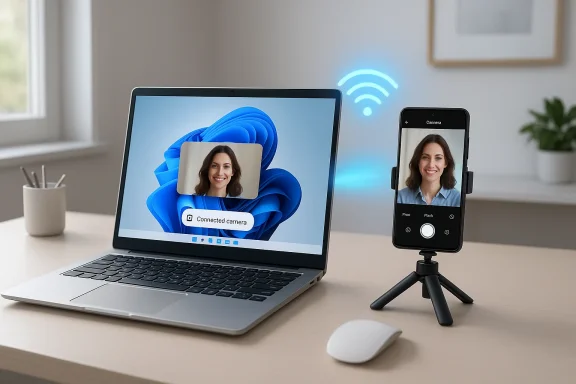
Windows 11 now lets you use your Android phone as a wireless webcam with a few taps — no extra apps, complicated drivers, or USB cables required — and in many real-world tests the phone’s higher-quality sensor produces a visibly better image than the tiny module built into most laptops.
Laptop webcams have improved slowly while smartphone cameras have leapt forward every year. For anyone who spends time on video calls, livestreams, or remote interviews, the mismatch is obvious: a flagship phone’s sensor, lens, and image pipeline can produce far better color, dynamic range, and low-light performance than a cramped laptop webcam. Microsoft’s answer is a native Windows feature commonly called Connected camera (exposed through the Manage mobile devices page and integrated with the Phone Link experience), which inserts a linked Android phone into Windows as a camera source any app can pick.
This isn’t a third‑party hack. Connected camera is a first‑party Windows capability: once your phone is paired and permissioned, Windows adds it to the system camera list so Zoom, Teams, Google Meet, OBS, and browser-based meeting sites can select it like any other webcam. The goal is simple: use the hardware you already own to upgrade video quality without buying another accessory.
Action plan:
Source: MakeUseOf Windows 11 now lets you seamlessly use your phone as a webcam — here's how to set it up
 Background
Laptop webcams have improved slowly while smartphone cameras have leapt forward every year. For anyone who spends time on video calls, livestreams, or remote interviews, the mismatch is obvious: a flagship phone’s sensor, lens, and image pipeline can produce far better color, dynamic range, and low-light performance than a cramped laptop webcam. Microsoft’s answer is a native Windows feature commonly called Connected camera (exposed through the Manage mobile devices page and integrated with the Phone Link experience), which inserts a linked Android phone into Windows as a camera source any app can pick.This isn’t a third‑party hack. Connected camera is a first‑party Windows capability: once your phone is paired and permissioned, Windows adds it to the system camera list so Zoom, Teams, Google Meet, OBS, and browser-based meeting sites can select it like any other webcam. The goal is simple: use the hardware you already own to upgrade video quality without buying another accessory.
Overview: why this matters now
- Most modern laptops still ship with small 720p or 1080p webcams that struggle in low light and have poor dynamic range.
- Smartphones now include large sensors, multi-lens setups, and advanced computational photography — even at lower stream resolutions, the image quality can be markedly better.
- Native integration removes friction: no manual virtual camera drivers, fewer compatibility headaches with conferencing apps, and simpler permission management.
- The feature also ties into other cross‑device tools on Windows 11 (Phone Link and Manage mobile devices), creating a unified mobile/PC workflow.
What you need (compatibility and versions)
Before you start, verify these essentials on both devices:- A Windows 11 PC. Newer Windows 11 builds (the feature was introduced during the 24H2-era rollout) expose the Manage mobile devices and Connected camera settings. Keep Windows updated.
- An Android phone or tablet running a relatively recent Android release. Microsoft’s documentation specifies Android 10 or later for the managed-device features, while some rollout notes referenced Android 9 during Insider testing — the safe rule is Android 10+.
- The Link to Windows (Link to Windows / Phone Link companion) app on the phone — keep it updated. Microsoft’s support pages reference specific minimum versions; different Help pages list slightly different build numbers (one page lists 1.23112.189 or later, another references builds in the 1.24022.x series). Because those numbers have changed during the feature’s rollout, the practical advice is to update Link to Windows to the latest Play Store release before pairing.
- Both devices on the same local network (Wi‑Fi). The wireless stream relies on local connectivity; performance improves on a stable, low-latency Wi‑Fi connection (prefer 5 GHz where possible).
- The same Microsoft account signed into Phone Link / Link to Windows on both devices. Phone Link pairs devices via your Microsoft account and may prompt you to sign in during setup.
Quick setup: two ways to link and enable Connected camera
Below are two reliable ways to get your phone recognized as a webcam by Windows 11: the Settings-led Manage devices flow, or the Phone Link pairing flow. Both ultimately enable the same Connected camera capability.Method A — Use Settings (Manage mobile devices)
- On your PC, open Settings → Bluetooth & devices → Mobile devices.
- Click Manage devices → Add device.
- A QR code will appear on the PC screen. Open your phone’s camera (or Link to Windows app) and scan the code.
- Confirm the pairing code on both devices when prompted.
- Grant the requested permissions on your Android phone (camera access and any additional prompts).
- Back on the PC, find your newly listed device under Mobile devices and toggle Use as connected camera (it’s usually enabled automatically after pairing).
Method B — Use Phone Link (recommended for ongoing integration)
- On Windows, open the Phone Link app.
- Select Android and follow the on‑screen prompts; Phone Link will ask you to sign into the same Microsoft account that you use on the phone.
- On the phone, open Link to Windows (you may be prompted to install it or be redirected to it).
- Pair via the QR code generated by Phone Link, and accept the permission requests on the phone.
- When pairing completes, your phone will be listed in Manage devices (or you can find it directly in the Phone Link device list); ensure Use as connected camera is toggled on.
What the experience is like in practice
- Plug‑free: once paired, the phone appears as a camera source for any Windows app that enumerates system cameras.
- Orientation is automatic: rotating your phone flips the camera feed between portrait and landscape; Windows adapts the feed automatically.
- On‑device controls: the phone shows a dedicated preview panel with controls to switch front/rear cameras, pause the stream, and sometimes change lens choices depending on the phone model.
- Windows Studio Effects: if your PC supports Windows Studio Effects, many of those enhancements (background blur, auto-framing) can still be applied to the phone’s feed.
- Default selection: some browsers or apps may pick the phone as the default camera after first use; you can change the camera per‑app in the app's video settings or in Windows Settings → Bluetooth & devices → Cameras.
Image quality: real expectations and limitations
It’s tempting to assume the phone will stream at native sensor resolutions (2K/4K) — that’s not the case today. Practical realities:- Wireless latency and bandwidth constraints mean streamed video is typically capped around 720p or 1080p at 30 FPS on many systems. Several real‑world tests have shown the Windows-connected feed often runs at roughly 720p/30.
- Even at lower resolution, a phone’s sensor and computational processing typically produce better color, dynamic range, and low‑light performance than many built-in webcams. So a 720p feed from a Pixel or Galaxy phone can look better than a brighter, flatter 1080p laptop webcam.
- If you need higher resolution and lower latency, consider the wired alternative below (USB UVC webcam mode available on devices that support Android’s Device-as-Webcam feature).
Pro tips to get the best picture
- Mount the phone at eye level. Use a small tripod, clamp, or magnetic mount. A steady, well‑positioned phone beats any software trick.
- Use the rear camera for better optics. The primary rear sensor will usually be superior to the front-facing selfie camera.
- Prefer a 5 GHz Wi‑Fi network and place both devices on the same access point for the lowest latency.
- Keep the phone plugged in while streaming—video streams drain battery fast and heat can throttle the camera.
- Close bandwidth-heavy apps on the network during calls (cloud backups, large downloads) to reduce jitter.
- Lock orientation if your phone camera app or mount makes the feed unstable.
- Test which camera (front vs rear) and lens (wide vs ultra-wide vs tele) looks best in your conferencing app before an important meeting.
Audio: what to expect
- Wireless Connected camera focuses on the video feed. In many setups, audio will still be handled by the PC microphone or a separate device (headset, USB microphone).
- If you require the phone’s microphone to travel with the phone’s camera feed, test this explicitly in your conferencing app. Wired USB webcam modes (see next section) generally provide better and more consistent audio routing as part of the UVC/USB audio endpoint on hosts.
- Practical recommendation: for professional calls use a dedicated microphone or a headset. That guarantees stable audio independent of camera mode.
Wired alternative: Android as a USB webcam (Device-as-Webcam / UVC)
If you want the most reliable, highest‑quality webcam experience, try the wired option — not via Phone Link but via Android’s built‑in USB “Device as Webcam” (UVC) support:- Android 14 QPR1 introduced a system‑level “Device as Webcam” service that presents the phone as a standard USB Video Class (UVC) device to any host (Windows, macOS, Linux). When supported by the phone vendor, selecting the USB Webcam option in the phone’s USB preferences turns the phone into a plug‑and‑play webcam.
- This wired mode often exposes multiple resolutions and can provide a stable 1080p or higher feed with lower latency, and it frequently forwards the phone mic as USB audio.
- Vendor support varies: Pixel phones have been the most consistent adopters, while other manufacturers may or may not implement the USB webcam function.
- If your phone supports it, wired UVC is the single best way to capture the phone’s full sensor and microphone capabilities with minimal network dependency.
Troubleshooting — common problems and fixes
- Phone not appearing as camera:
- Confirm both devices are on the same Wi‑Fi network and signed into the same Microsoft account.
- Update the Link to Windows app on the phone and Phone Link on the PC.
- In Windows Settings → Bluetooth & devices → Mobile devices → Manage devices, verify the device is present and Use as connected camera is toggled.
- On the phone, ensure camera permission is granted to Link to Windows.
- App can’t select camera or it defaults to the phone:
- Most apps allow you to pick the camera in their video settings. Change it there. To stop the phone from auto-selecting, toggle off Use as connected camera in Manage devices.
- Poor video quality or stuttering:
- Move both devices closer to the Wi‑Fi access point or switch to 5 GHz.
- Close background processes and network-heavy apps.
- If possible, switch to wired UVC mode.
- Preview is black or you see a placeholder:
- On the PC a small helper window may appear on the taskbar; click it to reinitiate streaming. Also check that the phone is unlocked and Link to Windows is allowed to show over other apps.
- Permissions or sign-in issues:
- Phone Link requires the same Microsoft account on both devices. If you see account mismatch errors, sign out and sign back in on the phone app and Phone Link.
Security and privacy considerations
- Pairing grants the PC access to your phone’s content depending on the permissions you allow. During setup you’ll be asked to grant camera and related permissions — review these carefully.
- Phone Link connections and the Connected camera stream operate over your local network; they are not intended to be cloud‑relay services. However, your Microsoft account is used during pairing, so account security matters.
- Unlink a phone when you’re finished, and toggle off Use as connected camera if you don’t want the phone to appear in the system camera list. If multiple people use the PC, use separate Windows accounts to isolate phone link data.
- If you’re in a sensitive environment (recorded meetings, regulated data), evaluate whether streaming a phone camera is permitted and ensure compliance with corporate policies.
How Connected camera compares to Apple’s Continuity Camera and third‑party apps
- Apple’s Continuity Camera provides a polished iPhone-as-webcam experience for macOS and iOS users. Microsoft’s Connected camera is functionally similar for Android/Windows users but currently has more device and OS fragmentation due to vendor differences on Android.
- Third‑party apps (Camo, DroidCam, EpocCam, etc.) offer cross‑platform support and sometimes higher fidelity or USB modes, but they rely on installing companion software on PC and phone. Connected camera’s advantage is native integration with Windows and simpler permission management.
- If you need maximum fidelity, wired USB UVC mode (Android Device as Webcam) or a dedicated hardware webcam remain the top choices.
When to use Connected camera — recommended scenarios
- Quick upgrades for remote meetings where you want a better image without buying gear.
- Mobile interviews or demos where camera placement flexibility matters.
- Casual streaming or classroom settings where wired setups are impractical.
- Users who already use the Phone Link ecosystem for calls, texts, and photo transfers and want an integrated camera option.
- High-end streaming where you need 60 fps or native 4K video.
- Scenarios requiring guaranteed lowest latency or bandwidth independence (use wired UVC or a dedicated webcam).
- Corporate environments with strict device management or security rules — check IT policies first.
Final verdict and practical recommendations
Microsoft’s Connected camera is exactly the sort of pragmatic, user‑friendly feature that unlocks better outcomes without forcing purchases. For most users it will be an immediate, noticeable upgrade over a cramped laptop webcam: easier to mount, better optics, and flexible positioning. It’s not a native 4K miracle, and current wireless streaming typically runs at modest resolutions, but the real‑world picture quality is often superior.Action plan:
- Update Windows 11 and the Link to Windows app on your Android phone.
- Pair via Phone Link or Settings → Mobile devices and enable Use as connected camera.
- Test in your preferred conferencing app, use the rear camera, and plug the phone in to avoid battery drain.
- If you need higher quality or audio routing, investigate Android’s USB webcam (Device‑as‑Webcam) support on Android 14+ phones or use a dedicated webcam.
Source: MakeUseOf Windows 11 now lets you seamlessly use your phone as a webcam — here's how to set it up

