

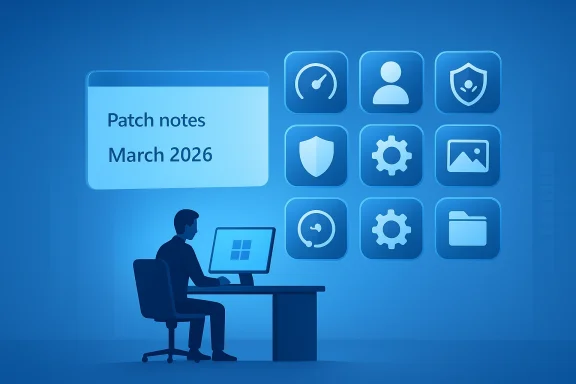
Microsoft’s March 2026 Patch Tuesday for Windows 11 arrives as a compact, pragmatic feature drop — not a headline-grabbing redesign, but a set of practical, widely useful changes that shift tidy pieces of Windows from optional downloads or third‑party workarounds into the operating system itself. Expect the rollout to start on March 10, 2026, delivered as cumulative servicing (preview and production rings following Controlled Feature Rollout), and focused on nine notable items: a taskbar speed test shortcut, Start menu account links, camera pan/tilt controls, native Sysmon, a full‑page Widgets settings panel, WebP desktop background support, Quick Machine Recovery enabled more broadly, refined Settings dialogs, and File Explorer improvements. These changes are modest individually but collectively tell a consistent story about Microsoft prioritizing reliability, enterprise telemetry, and small productivity wins ahead of bigger platform moves.
Windows servicing in 2026 continues to follow a steady cadence: monthly cumulative security updates with optional preview releases and phased feature rollouts. Microsoft increasingly uses staged delivery (Controlled Feature Rollout) to expose features to subsets of devices while monitoring compatibility and telemetry. That delivery model matters for anyone planning upgrades: an item you see in one week may not arrive on every PC for some time, and some capabilities remain behind optional controls or enterprise policies.
Two parallel trends shape this March release. First is the push to bring long‑standing tools and conveniences closer to the OS — turning previously external utilities (Sysmon, network speed testing shortcuts, WebP handling) into options built into Windows. Second is a continued emphasis on resilience and manageability (Quick Machine Recovery, Settings polish, RSAT support on ARM64). For IT teams and power users, this means re‑evaluating deployment, monitoring, and recovery practices rather than expecting a dramatic UX overhaul.
Caveats and nuance: because the test runs in the browser and depends on an external measurement provider, it’s not a substitute for in‑depth diagnostics. Network engineers will still prefer packet captures, local path testing, or in‑OS throughput utilities when diagnosing complex issues. Treat this as a quick sanity check rather than authoritative measurement.
For home users and enthusiasts:
Notable strengths:
For everyday users, the WebP wallpaper support, the taskbar speed test shortcut, and File Explorer polish are welcome conveniences. For IT and security teams, the message is clear: treat this release as a reminder to keep update windows guarded by standard change control and to validate telemetry and recovery behavior in test rings before wide deployment.
If you manage Windows fleets, take this update as an opportunity to tighten your update testing workflows, validate telemetry ingestion pipelines (especially for Sysmon), and review recovery policies for Quick Machine Recovery. If you’re a home user, enjoy the little UX improvements, but take the same basic precautions — backup, wait briefly for early reports if you’re risk averse, and apply updates during a maintenance window.
Windows 11’s March update doesn’t reinvent the OS. It quietly makes the parts of Windows that matter in day‑to‑day life work a bit better — and that incremental attention to detail, when executed with careful rollout, is precisely the kind of engineering that improves millions of PCs in aggregate.
Source: Windows Central Windows 11’s March update brings nine big changes
 Background / Overview
Windows servicing in 2026 continues to follow a steady cadence: monthly cumulative security updates with optional preview releases and phased feature rollouts. Microsoft increasingly uses staged delivery (Controlled Feature Rollout) to expose features to subsets of devices while monitoring compatibility and telemetry. That delivery model matters for anyone planning upgrades: an item you see in one week may not arrive on every PC for some time, and some capabilities remain behind optional controls or enterprise policies.Two parallel trends shape this March release. First is the push to bring long‑standing tools and conveniences closer to the OS — turning previously external utilities (Sysmon, network speed testing shortcuts, WebP handling) into options built into Windows. Second is a continued emphasis on resilience and manageability (Quick Machine Recovery, Settings polish, RSAT support on ARM64). For IT teams and power users, this means re‑evaluating deployment, monitoring, and recovery practices rather than expecting a dramatic UX overhaul.
What’s new in the March 2026 update: the nine headline changes
Below I unpack each of the nine changes in turn, explain why they matter, and highlight practical implications for users and administrators.1. Taskbar network speed test: convenience or window‑dressing?
Microsoft adds a one‑click network speed test reachable from the Taskbar’s network icon and the Wi‑Fi/Cellular quick settings flyout. Selecting the option launches your default browser to a Bing‑hosted speed test widget that uses the Ookla testing engine under the hood.- What it is: a context‑menu shortcut that opens a browser page to run an internet throughput test (download/upload/latency).
- What it’s not: a native, kernel‑level network diagnostic tool. It does not measure local driver-level issues or replace advanced throughput analyses.
Caveats and nuance: because the test runs in the browser and depends on an external measurement provider, it’s not a substitute for in‑depth diagnostics. Network engineers will still prefer packet captures, local path testing, or in‑OS throughput utilities when diagnosing complex issues. Treat this as a quick sanity check rather than authoritative measurement.
2. Start menu: direct link to Microsoft account benefits
A small but visible tweak: the account menu in the Start menu gets a link to the benefits associated with your Microsoft account. This surfaces subscription information and account perks more quickly for users signed in with a Microsoft account.- Why it’s helpful: reduces friction for users who want to manage subscriptions or check licenses.
- Risk or pushback: some privacy‑conscious users may see tighter account integration as another prompt toward cloud features; enterprises using Azure AD or endpoint management likely won’t be affected, but consumer devices may see the UX more prominently.
3. Camera settings: pan and tilt controls in Settings
On the Cameras settings page, Microsoft adds basic pan and tilt controls for cameras that expose PTZ (pan‑tilt‑zoom) features through standard UVC or vendor drivers.- Practical impact: users with hardware that supports remote pan/tilt can control orientation directly from Settings without vendor software.
- Reality check: not all webcams or docking station cameras expose PTZ controls; manufacturer firmware and driver support remain the gating factors. If your camera doesn’t show PTZ controls, check vendor utilities or firmware updates.
4. Sysmon becomes an optional, native Windows feature
Possibly the most consequential change for enterprise defenders: Sysmon (System Monitor), long distributed via the Sysinternals suite, is now offered as an optional inbox feature in Windows 11. Administrators can enable it from Settings → System → Optional features → More Windows features, or via DISM/PowerShell, and then finalize configuration with the familiar sysmon -i command.- Why this is significant: Sysmon is widely regarded as essential endpoint telemetry for detection engineering and incident response because it records high‑fidelity events (process creation details, network connections, file hashes, driver loads). Making it an optional inbox feature simplifies deployment, integrates servicing, and reduces reliance on separate downloads.
- Operational considerations:
- If you already use the Sysinternals Sysmon binary, Microsoft recommends uninstalling that version before enabling the native feature to avoid conflicts.
- Enabling Sysmon still requires providing a configuration file tailored to your environment; the built‑in installer does not magically supply a secure, production‑ready config.
- The delivery via Windows Update changes update cycles and patching semantics for the component — defenders should review change management policies and test upgrades in lab environments.
- Potential concerns: moving critical telemetry into the servicing pipeline centralizes control and could, in some scenarios, create single points of update impact. Security teams should maintain configuration as code, keep backups of event‑collection schemas, and ensure any changes to the Sysmon implementation are validated in test channels before enterprise rollout.
5. Widgets: a full‑page settings panel
Widgets keeps the dashboard experience but introduces a dedicated Settings page for managing cards, permissions, and personalization. Previously, configuration appeared in smaller overlay dialogs.- Benefit: clearer controls for widget content and privacy choices.
- For IT: widget control surfaces remain manageable via MDM and group policy for organizations that want to limit or configure widget experiences.
6. WebP image support for wallpapers
Windows 11 now supports WebP (.webp) images as desktop backgrounds systemwide — from the context menu “Set as background” to the Background settings page.- Why this matters: WebP is an efficient image format that combines smaller file sizes with good quality; native support simplifies workflows where creatives or users receive images in WebP without needing conversion.
- Limitations: other advanced wallpaper features (native video wallpapers) remain in testing or gated, so WebP support is specifically for static image backgrounds at this stage.
7. Quick Machine Recovery turned on by default for more devices
Quick Machine Recovery (QMR), Microsoft’s cloud‑assisted recovery tool that can diagnose boot failures, upload diagnostic logs, and fetch fixes from Windows Update, was previously enabled by default for Home. With this release Microsoft expands default enablement to Windows 11 Pro for devices that are not managed by an organization.- What QMR does: on severe boot failures QMR can connect a device to Microsoft services to fetch targeted remediation without manual intervention.
- Why this is a big deal: it dramatically reduces time‑to‑recovery for consumer and small business devices; for enterprises, centralized management and Intune controls mean admins keep policy control.
- Privacy and administrative implications:
- QMR will connect to Microsoft services and may upload logs; organizations should review data‑handling policies before enabling it in managed estates.
- IT admins using Intune can configure or disable QMR behavior via the Settings catalog to meet organizational compliance.
- Recommended action: enterprises should assess QMR in test rings, document which devices are auto‑enabled, and ensure Intune or other management tools set desired policies before wider deployment.
8. Settings interface refinements
Various dialogs in Settings—particularly in storage and printer management—are updated to match Windows 11 design language. This is primarily UI refinement rather than functional overhaul.- Benefit: improved consistency and fewer modal overlays; some dialogs move to full‑page experiences.
- Impact: minimal, but useful for clarity when managing storage and printer queues.
9. File Explorer: Extract All works with non‑ZIP archives
File Explorer’s “Extract All” function will now activate and work with archive folders that are not ZIP files, improving basic archive handling in the shell.- Advantage: removes the previous friction where only ZIP archives behaved as first‑class citizens in Explorer.
- Caveat: this does not make File Explorer into a full feature‑rich archiver; advanced formats or encrypted archives still benefit from dedicated tools like 7‑Zip or vendor utilities.
Smaller additions and platform notes
Beyond the nine main items, the update includes a handful of additional changes worth calling out for completeness:- Emoji 16: Windows gains new emoji glyphs, expanding the expressive palette for conversations and UIs.
- Task Manager polish: Windows Search process now includes a magnifier icon where placeholders previously appeared.
- RSAT on ARM64: Remote Server Administration Tools support for ARM64 devices, simplifying management for those running Windows on ARM hardware.
- Entra ID SID resolution: Windows can translate Microsoft Entra (Azure AD) cloud group and role security identifiers (SIDs) into readable names — a practical time‑saver for admins.
- Secure Boot certificate updates: Microsoft continues a gradual rollout of Secure Boot certificate chain updates for certificates expiring in June 2026. Devices using original 2011 certificates will be updated to newer certificates released in 2023 as part of the servicing cadence. If you run firmware with unusual customizations or OEM‑signed chains, double‑check compatibility.
Enterprise and IT‑pro analysis: what this means for organizations
This update is small in scope but meaningful in practice. Several items directly affect enterprise telemetry, recovery, and manageability.Native Sysmon: operational benefits and new responsibilities
Bringing Sysmon in‑box simplifies deployment, but it also moves a historically admin‑managed artifact into the Windows servicing model. That has important consequences:- Deployment: enabling the native feature replaces manual distribution of the Sysinternals binary and aligns the component with Windows Update. That simplifies onboarding for many devices.
- Configuration as code: organizations must continue to treat Sysmon configurations as code (versioned, reviewed, and deployed via configuration management) rather than relying on defaults.
- Upgrade testing: because the component is now serviced through Windows Updates, defenders must include Sysmon behavior in update testing and detection‑pipeline validation.
- Incident response: test response playbooks to ensure your SIEM/EDR ingests reconstructed event models identically between Sysinternals binaries and the native implementation.
- Test the native Sysmon in lab environments before enabling production-wide.
- Retain a copy of your validated Sysmon configuration and test it with the built‑in installer.
- Update monitoring rules and parsers if event IDs or fields change (minor differences can ripple into detection rules).
Quick Machine Recovery: improve uptime, but validate privacy and policy
QMR helps reduce disruptive downtime, but for managed devices admins should control enablement and review log‑upload behaviors.- Policy gating: use Intune or group policy to opt devices in or out of QMR where necessary.
- Test restores: simulate recovery scenarios in lab devices and observe telemetry uploads and fix application behaviors.
Staged rollouts and Controlled Feature Rollout (CFR)
Because Microsoft uses CFR, features will appear at different times for devices and may be gated by device state (managed vs. unmanaged), OEM OEM firmware, or channel (Release Preview, Beta, Production). Enterprises should:- Pilot the update on a small set of devices representative of the fleet.
- Monitor for regressions (boot loops, driver compatibility, group policy application).
- Delay broad deployments for at least a couple of weeks after the initial rollout to observe community‑reported issues.
Security and privacy considerations
The March update leans into stronger endpoint telemetry and cloud‑assisted recoverability. That’s good for security posture and resiliency, but it raises a few questions administrators should address.- Telemetry and compliance: enabling Sysmon increases the volume of host telemetry that may be forwarded to SIEMs or cloud collectors. Ensure retention and access policies comply with internal and regulatory requirements.
- Data movement with QMR: Quick Machine Recovery may upload diagnostic artifacts to Microsoft; review what data is transmitted and adjust policies for devices with sensitive workloads.
- Update servicing signals: with more components moving into the servicing model, the blast radius of misbehaving updates can increase. Maintain robust update testing, staggered rollouts, and reliable rollback/playbook processes.
Install now or wait: a recommended rollout strategy
There have been no widespread catastrophic reports tied to this update so far, but cumulative servicing updates can still cause device‑specific installation failures. Here’s a practical, conservative plan for both home users and IT teams.For home users and enthusiasts:
- If you need the WebP wallpaper support or the speed test shortcut today, you can install early; otherwise wait two weeks to let broader telemetry settle.
- Before installing, create a full system restore point or a disk image (especially on systems with important local data).
- Pilot the update with a representative set of devices (hardware models, driver stacks, and user roles).
- Validate critical workloads: provisioning, endpoint protection, network connectivity, and backup/restore.
- Confirm Sysmon behavior with your SIEM/EDR; if you plan to enable the native Sysmon, test config application and log collection pipelines.
- Review Quick Machine Recovery policy settings in Intune and decide default behavior for managed devices.
- Stagger production deployment using rings and WSUS / Windows Update for Business policies; do not fast‑track to 100% unless testing is green.
Strengths, trade‑offs, and what to watch next
This update’s strengths are obvious: Microsoft is shaving friction off daily tasks, improving telemetry availability for defenders, and broadening recovery tools to reduce device downtime. Individually, features are small, but together they reduce friction where users and admins most often feel it — connectivity checks, wallpaper handling, and boot recovery.Notable strengths:
- Practical wins: WebP support and File Explorer archive polish eliminate many small, recurring annoyances.
- Improved defender tooling: native Sysmon simplifies an operational burden for defenders and ties telemetry into the Windows servicing model.
- Greater resilience: Quick Machine Recovery reduces manual triage time for boot failures on unmanaged devices.
- Centralized servicing of Sysmon: while simplifying updates, this shifts change control to Windows Update and increases the importance of test discipline.
- Privacy and telemetry: QMR and other cloud‑assisted features introduce additional telemetry flows — organizations must reconcile these with compliance needs.
- Perception vs. reality: the taskbar speed test is convenient, but it’s essentially a shortcut to a web‑hosted test; users expecting deep native diagnostics may be disappointed.
- Update telemetry and community bug reports in the two weeks after rollout — pay attention to device‑specific driver regressions and boot issues.
- Microsoft’s documentation and change notes for the native Sysmon implementation — confirm compatibility of event models and any changes to supported event IDs.
- Firmware and OEM interactions for Secure Boot certificate rollouts, especially for devices with older or custom firmware implementations.
Practical tips and quick how‑tos
- Enable native Sysmon (test lab first):
- Go to Settings → System → Optional features → More Windows features.
- Locate and enable Sysmon.
- Open an elevated PowerShell or Command Prompt and run: sysmon -i <your-config.xml>.
- Confirm event flow into your collector and adapt parsers as needed.
- Run the Taskbar speed test:
- Right‑click the network icon in the system tray or open Wi‑Fi Quick Settings.
- Choose “Test internet speed” to open the browser‑hosted test.
- Set a WebP wallpaper:
- Right‑click a .webp image in File Explorer and choose Set as background, or use Settings → Personalization → Background to select a WebP file.
- Manage Quick Machine Recovery:
- For managed devices use Intune’s Settings Catalog to configure or disable QMR as required.
- For unmanaged Pro/Consumer devices the feature may be enabled by default; review the Quick Machine Recovery Settings page before major updates.
Final verdict: solid progress, but plan for change control
Microsoft’s March 2026 cumulative update for Windows 11 is a practical, low‑fanfare release that fixes dozens of small frictions and brings important tooling closer to the OS. The native Sysmon inclusion is the single biggest operational change — one that reduces deployment complexity for defenders while adding new responsibilities around update testing and configuration management.For everyday users, the WebP wallpaper support, the taskbar speed test shortcut, and File Explorer polish are welcome conveniences. For IT and security teams, the message is clear: treat this release as a reminder to keep update windows guarded by standard change control and to validate telemetry and recovery behavior in test rings before wide deployment.
If you manage Windows fleets, take this update as an opportunity to tighten your update testing workflows, validate telemetry ingestion pipelines (especially for Sysmon), and review recovery policies for Quick Machine Recovery. If you’re a home user, enjoy the little UX improvements, but take the same basic precautions — backup, wait briefly for early reports if you’re risk averse, and apply updates during a maintenance window.
Windows 11’s March update doesn’t reinvent the OS. It quietly makes the parts of Windows that matter in day‑to‑day life work a bit better — and that incremental attention to detail, when executed with careful rollout, is precisely the kind of engineering that improves millions of PCs in aggregate.
Source: Windows Central Windows 11’s March update brings nine big changes
