Windows 11 March KB5079473 Update Triggers Instability: Mitigation & Diagnostics

  • Thread Author
Microsoft’s March cumulative update for Windows 11, KB5079473 (released March 10, 2026), is rolling out with a familiar mix of new features and security fixes — but a growing number of users now say the patch is also triggering severe instability on some machines, including hard freezes, repeated restarts, and Blue Screens of Death (BSODs). The update’s official support page still lists no known issues, while community threads, Microsoft Q&A posts, and Reddit threads show multiple reports of failed installs, corrupted apps, and stop codes such as ATTEMPTED_WRITE_TO_READONLY_MEMORY (0xBE). This article pulls together the evidence, validates technical details against primary sources, flags unverified claims, and offers practical mitigation and diagnostic steps for both home users and IT administrators. (support.microsoft.com)

A computer screen shows a yellow warning triangle with code KB5079473 and a Patch Tuesday progress bar.Background / Overview​

KB5079473 is the March 10, 2026 Patch Tuesday cumulative update for Windows 11 versions 24H2 and 25H2, delivering security fixes, several non-security quality improvements, and a handful of visible features that Microsoft and the press have highlighted — for example, a built-in network speed test shortcut, emoji updates, improved File Explorer search reliability, and the in-box availability of Sysmon functionality. Microsoft published the KB article detailing those changes and the target build numbers (OS Builds 26200.8037 and 26100.8037). The support document currently states that Microsoft is “not currently aware of any issues with this update.” (support.microsoft.com)
At the same time, user reports surfaced within 48–72 hours of the roll-out describing serious post-installation problems: complete system freezes, repeated automatic restarts, BSODs with 0xBE stop codes, application corruption (Office/Outlook), and update install failures returning errors such as 0x800f0991 and 0x80070002. These reports appear in Microsoft-hosted Q&A threads and multiple community forums, and they are still being collected and upvoted by affected users. Because Microsoft’s official KB page has not (yet) logged a known-issue entry, there is a discrepancy between reported user experience and Microsoft’s formal release health status — a gap that often widens during early days after a cumulative update roll-out. (learn.microsoft.com)

What users are reporting — symptoms and patterns​

Common failure modes reported so far​

  • Install failures and update rollbacks — several Microsoft Q&A threads show KB5079473 failing to install, returning errors such as 0x800f0991 or 0x80070002, or repeatedly showing a “retry” message in Windows Update. Some reports say the update completes its download but fails at the install phase. (learn.microsoft.com)
  • Hard freezes and BSODs — multiple community posts describe immediate freezes requiring hard power cycles, and at least one documented BSOD logged the stop code ATTEMPTED_WRITE_TO_READONLY_MEMORY (0xBE). These crashes sometimes occurred during tasks like Zoom screen sharing or under GPU acceleration, according to user posts. (notebookcheck.net)
  • Application corruption and missing functionality — a few users reported that after the update Office/Outlook would not initialize, and core utilities (Command Prompt, Print Screen) behaved erratically or failed with errors such as 0x800704b3. One affected user reported needing an in-place reinstall from ISO to restore functionality. (learn.microsoft.com)
  • Device-specific reports — anecdotal claims surfaced about certain OEM devices (for example, some Samsung Galaxy Book models and at least one Dell Precision workstation) experiencing inaccessible system drives or graphics glitches. These reports are primarily community-sourced and currently lack independent confirmation. Treat these as unverified until Microsoft or affected OEMs confirm.

Timing and scale​

Reports began appearing within days of the update release (March 10–13) and continue to accumulate. The pattern resembles past rollouts where a relatively small percentage of installations run into edge-case interactions with specific drivers, firmware, or third-party software. At present there is no public evidence that the problem is universal; rather, it appears to affect particular hardware/driver combinations or system states. That said, because the reports include system corruption and BSODs, even a small subset of affected devices represents a high-severity impact for those users. (learn.microsoft.com)

Microsoft’s official position and update messaging​

As of the latest KB5079473 support article, Microsoft lists no known issues for this cumulative update and documents the improvements and feature list in detail, including notes on Secure Boot certificate rollouts and AI component updates included in the package. Microsoft’s guidance continues to recommend installing the update via Windows Update and the Microsoft Update Catalog; the KB page provides standard troubleshooting/installation instructions for enterprises and consumers. Microsoft’s release health dashboard and KB pages are the canonical reference if you need to confirm official status. (support.microsoft.com)
It is worth noting that Microsoft often learns of patterns through Feedback Hub reports, Microsoft Q&A threads, telemetry, and direct support cases before it posts a formal “known issue” entry. Historically, Microsoft’s known-issues section sometimes lags community reports because engineers need to reproduce a bug, isolate a root cause, and verify mitigations. That lag does not mean reports are false; it means the vendor has not yet confirmed or validated the problem at scale. (learn.microsoft.com)

Verifying the technical details — what we checked​

To ensure accurate reporting, we verified the most load-bearing facts against primary sources:
  • Release date, target builds, and the KB article text were checked directly on Microsoft’s KB page for KB5079473. That page lists the update, the builds it applies to, the listed improvements, and the explicit statement that Microsoft is not aware of any known issues at the time of publication. (support.microsoft.com)
  • Multiple independent outlets that covered the March Patch Tuesday release (including NotebookCheck and Windows Central) corroborate the update’s contents and reiterate that Microsoft’s documentation lists no known issues, while noting community complaints. These articles help confirm the update’s distribution and highlight the timing of the emerging reports. (notebookcheck.net)
  • User-reported error codes, symptoms, and partial remediation attempts were verified by reviewing active Microsoft Q&A threads where affected users shared specific error codes and system behavior. This provides primary, first-hand accounts of failures (install errors, BSOD stop codes, and system corruption claims). (learn.microsoft.com)
Where community posts from Reddit and other forums made device-specific or hardware-specific claims (for example, Samsung Galaxy Book drive inaccessibility or GPU-accelerated app crashes), we treated those as anecdotal until independently confirmed — they are useful signals to flag, but they are not yet equivalent to validated, reproducible bugs confirmed by Microsoft or OEM vendors. Always view community-sourced claims this way: useful for pattern spotting, not definitive proof.

Possible technical causes — what might be happening​

Pinpointing a single root cause from public reports alone is not reliable, but the symptoms fit a few plausible scenarios that Microsoft and system integrators regularly see after cumulative updates:
  • Driver or firmware incompatibility triggered by updated OS components. Cumulative updates touch low-level components and can expose latent incompatibilities in GPU/graphics drivers and storage drivers. Reports of GPU-accelerated app crashes and graphical glitches point to this vector. Community reports about OEM-specific failures (e.g., Samsung or Dell models) are consistent with driver/firmware interactions. This is one of the likeliest causes in early-stage post-update instability.
  • Servicing stack or update pipeline issues. Install errors such as 0x800f0991 or 0x80070002 and failed updates that roll back at 100% can indicate servicing-stack inconsistencies, corrupted component store entries, or SSU/LCU ordering problems. Microsoft’s standard remediation includes running DISM cleanup and ensuring the latest Servicing Stack Update is present before reattempting the LCU. Several Microsoft Q&A answers and community responses point to these typical remediation steps. (learn.microsoft.com)
  • Security/allowlist changes affecting COM objects or third-party security tools. KB5079473 includes changes intended to improve WDAC COM allowlisting behavior. In some environments where endpoint security or antivirus tools interact with COM objects, those policy adjustments can surface problems such as blocked processes or apps that won’t initialize. Reports of Outlook corruption and Command Prompt malfunction could conceivably trace back to permissions/allowlist interactions, though this hypothesis needs targeted reproduction. (support.microsoft.com)
  • Edge-case filesystem or boot-configuration interaction (Secure Boot certificate rollout). The KB includes targeting data related to new Secure Boot certificates. Historically, Secure Boot and certificate rollouts can produce boot-time or driver-verification issues on devices with unusual boot configurations or aged firmware, but there is no public indication that Secure Boot rollout is the root cause here. This remains an area to watch. (support.microsoft.com)
Caveat: at this stage, none of these possibilities are confirmed as the single root cause. Microsoft will need diagnostic logs, minidumps, and reproductions on lab hardware or telemetry correlation to conclude cause and fix.

Practical guidance for affected users (step-by-step)​

If you’ve already installed KB5079473 and are experiencing instability, follow these steps in order. The guidance is ordered from least invasive to most invasive; take care to back up important data before attempting any repair that touches disk or system files.
  • Stay calm and disconnect from risky activities. If you experience repeated BSODs or spontaneous restarts, avoid leaving unsaved work open.
  • Boot to Safe Mode (if the system can boot) and check Event Viewer for recent critical errors and minidump files under C:\Windows\Minidump. Record BSOD stop codes and time stamps.
  • If Windows Update shows the install failed, try the supported cleanup steps: open an elevated Command Prompt and run:
  • dism /online /cleanup-image /startcomponentcleanup
  • sfc /scannow
    Then reboot and retry Windows Update. These are Microsoft-approved first-line steps for update installation problems. (learn.microsoft.com)
  • Try uninstalling the update (only if it appears in Installed Updates and the system can boot). Use Settings > Windows Update > Update history > Uninstall updates, or run wusa.exe /uninstall with the KB package identifier. Note: combined packages that include SSUs can be harder to remove. Microsoft’s KB notes warn that the SSU cannot be removed once installed. (support.microsoft.com)
  • If core apps (Outlook/Office) are corrupted, attempt an Office repair from Control Panel > Programs and Features (Repair), or use the Microsoft Office repair tool. If Command Prompt or core system features are nonfunctional, consider running a system repair: use the Windows 11 installation media to perform an in-place repair or “repair install” (keeps files/apps but replaces system files). Several affected users reported success with repair install after update corruption. (learn.microsoft.com)
  • If the system is unbootable or system drives become inaccessible, do not attempt destructive fixes without a verified backup. Boot from external recovery media, collect logs (event viewer exports, CBS.log, windows\minidump), and seek OEM or Microsoft support. Community posts of inaccessibility require caution and professional handling.

For sysadmins and IT professionals — risk mitigation and containment​

  • Delay wide deployment. If you manage many endpoints, pause or defer KB5079473 deployment via Windows Update for Business policies, WSUS, or your patching ring. Allow time for Microsoft to acknowledge issues (if confirmed) and for fixes or mitigations to be published. This is standard risk management: avoid mass exposure until the update’s post-rollout telemetry stabilizes. (support.microsoft.com)
  • Monitor telemetry and feedback channels. Encourage or require users to file Feedback Hub reports when they encounter problems (Win + F captures a screenshot automatically and opens Feedback Hub). Upvoted feedback entries help Microsoft prioritize investigation. Also monitor Microsoft Q&A and OEM support channels for emerging, confirmed issues.
  • Prepare rollback and recovery plans. Ensure system restore points, image-based backups, or recovery media are available before you approve a wider rollout. Create a plan for rapid remediation (uninstall steps, in-place repair instructions, or reimaging). Document the exact OS build and installed driver versions for affected devices to help root-cause analysis. (support.microsoft.com)
  • Collect diagnostic data proactively. If your organization sees failures, collect minidumps, CBS logs, disk/driver versions, BIOS/UEFI firmware versions, and the list of installed third-party endpoint security tools. These artifacts are often the key to reproducing or isolating interactions. Microsoft’s guidance for submitting upgrade errors and reproduction traces via Feedback Hub or support cases is actionable here.

How to report the problem so it gets noticed​

If you are affected, follow these channels and best practices to ensure your report has maximum impact:
  • File a Feedback Hub entry (Win + F) and choose the correct category (Install and update, Desktop environment, or the specific component). Attach screenshots, recreate and attach traces where possible, and include minidumps/CBS logs as attachments. Microsoft’s documentation explains how Win + F attaches a screenshot automatically and encourages upvotes on similar reports.
  • Post to Microsoft Q&A with clear diagnostic details (OS build, exact error codes, chronological event timestamps, and logs). Community threads already show multiple affected users doing this; a well-documented Q&A thread helps Microsoft engineers triage. (learn.microsoft.com)
  • For enterprise customers with Premier or paid support, open a Microsoft support case and attach the logs. For OEM-specific hardware symptoms (e.g., Samsung Galaxy Book drive access issues) also contact the OEM support channel in parallel so driver/firmware vendors can correlate telemetry. Community-only reports are useful but slower to prompt vendor action.

Risk assessment and what to watch for next​

  • Short-term risk: For the individual user who encounters a BSOD or data corruption, the immediate risk is data loss and downtime. Unplanned in-place repairs and reimaging are time-consuming and disruptive. Because several reports describe lost unsaved data after full crashes, backup immediately if you see early warning signs. (learn.microsoft.com)
  • Operational risk for businesses: If a subset of devices in an enterprise fleet is susceptible, the organization faces productivity loss and helpdesk load. Administrators should delay broad rollouts and ensure recovery paths before continuing deployment. (support.microsoft.com)
  • Likelihood of a targeted fix: Microsoft historically responds to reproducible, high-impact update regressions with either an out-of-band (OOB) fix or a “known issues” advisory and a mitigation. Given the early reports and the severity (BSOD and app corruption), there is a reasonable chance Microsoft will investigate and publish guidance if telemetry shows a pattern. However, timeline and scope depend on Microsoft’s triage results. (learn.microsoft.com)
  • Unverified claims: Social-platform posts alleging inaccessible system drives on specific laptop models or GPU-specific catastrophic failures remain unverified until reproduced or confirmed by Microsoft/OEM telemetry. Treat such posts as signals worth investigating, not as proven facts. We will update coverage if authoritative confirmation appears.

Quick reference — error codes and what they commonly indicate​

  • **0x800f0991 / 0x800f0831 / 0x800f0*** family — typically Windows Update install failures; often remediated by DISM cleanup, installing latest SSU/LCU, or collecting logs for case escalation. (learn.microsoft.com)
  • 0x80070002 — file-not-found during update install or missing components in the update store; remediation often involves checking system files and update cache. (learn.microsoft.com)
  • 0x800704b3 — reported by users in the field often tied to application initialization errors; context-dependent and requires logs to diagnose. (learn.microsoft.com)
  • ATTEMPTED_WRITE_TO_READONLY_MEMORY (0xBE) — BSOD stop code indicating attempted write to read-only memory; can point to driver or kernel component attempting illegal memory access (often driver-related). If you see this, collect minidump files immediately for analysis. (notebookcheck.net)

Conclusion — measured caution and next steps​

KB5079473 is a standard March cumulative update that brings security fixes and user-facing improvements, but a non-trivial set of users have reported severe post-installation problems ranging from failed installs to BSODs and application corruption. Microsoft’s KB page currently lists no known issues, which is not unusual in the first days after a patch. The community signals — Microsoft Q&A threads, Reddit conversations, and tech press coverage — provide credible early warnings that merit attention, but some claims remain anecdotal and unverified.
If you manage updates, pause broad deployment and collect telemetry; if you’re an affected home user, follow the remediation steps above (DISM/SFC, safe uninstall, in-place repair) and file Feedback Hub reports with logs attached to help Microsoft prioritize investigation. For everyone: back up critical data before installing new cumulative updates, monitor the official KB and Windows release health dashboards, and treat early post-patch community reports as actionable signals rather than definitive proof until confirmed by vendor telemetry or OEM advisories. We will continue to follow and update this story as Microsoft, OEMs, and the community provide further diagnostic results or mitigations. (support.microsoft.com)

Source: Notebookcheck Windows 11 KB5079473 update causing BSOD and freezes for some users
 

Microsoft’s March cumulative update for Windows 11 — KB5079473 — is being blamed by a subset of users for new stability problems, including crashes, complete freezes, and apps refusing to launch, only days after the patch began rolling out to production systems on March 10, 2026. The update, which advances Windows 11 24H2 and 25H2 systems to builds 26100.8037 and 26200.8037, was marketed primarily as a security-focused Patch Tuesday release with a handful of reliability tweaks. But since deployment began, community threads and help forums have lit up with reports of Blue Screens of Death (BSODs), recurring restarts, inaccessible drives on certain laptops, and application failures — a reminder that even routine cumulative updates can surface new compatibility problems in widely diversified hardware and driver environments.

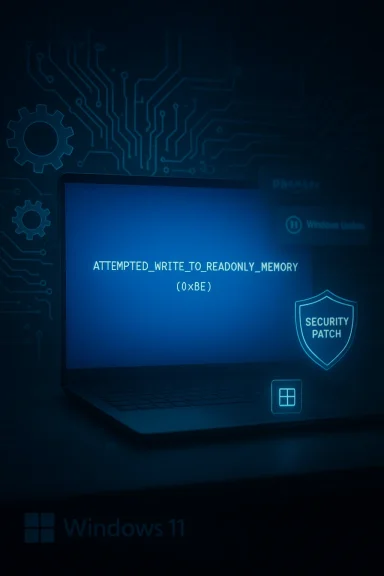
Blue laptop screen shows ATTEMPTED_WRITE_TO_READONLY_MEMORY error with a security patch shield.Background and what KB5079473 contains​

Microsoft released KB5079473 as the March 10, 2026 cumulative update for Windows 11 servicing branches 24H2 and 25H2. It was delivered as part of Patch Tuesday and is a typical quality/security roll-up: large in scope, including multiple security fixes and a series of non-security changes intended to improve reliability across core components.
Key user-facing items included in the update announcement:
  • Secure Boot certificate handling updates, continuing a multi-month rollout of certificate and key exchange updates intended to replace aging Secure Boot certificates scheduled to expire in 2026.
  • File Explorer search reliability improvements for cross-drive and “This PC” searches.
  • Windows Defender Application Control (WDAC) COM allowlisting enhancements.
  • A broad set of security patches addressing dozens of vulnerabilities.
On paper, none of those bullet points obviously maps to the types of wide-ranging stability problems users are reporting. That said, updates that touch boot security, device drivers, or system-level allowlisting can — under specific hardware or driver conditions — trigger surprising side effects. That appears to be the working hypothesis among many affected users and independent troubleshooters.

What users are reporting (symptoms and scope)​

A variety of symptoms have been reported by individual users across manufacturer forums, large community boards, Microsoft Q&A threads, and social media. These reports are anecdotal and not a formal telemetry roll-up, but they are consistent enough in pattern to merit caution and proactive mitigation.
Commonly reported problems include:
  • BSODs with stop code ATTEMPTED_WRITE_TO_READONLY_MEMORY (0xBE), sometimes recurring frequently or during ordinary desktop tasks.
  • Complete system freezes that require hard reboots, occasionally followed by “automatic repair” cycles.
  • Frequent spontaneous restarts, with some users saying their machines reboot every 10–20 minutes after the update.
  • Applications failing to start — including Microsoft Office and Outlook for some users — or returning errors when launched.
  • Core tools unresponsive, such as Command Prompt or the Print Screen shortcut not working.
  • Error dialogs showing 0x800704b3 when attempting to run system executables or access certain files; users report being unable to open C:\Windows\system32*.exe items in some cases.
  • Drives reported as inaccessible, most notably on some Samsung Galaxy Book models, where internal storage or partitions could not be opened after installing the patch.
  • Graphical glitches and crashes in GPU-accelerated apps on certain Dell Precision systems and gaming rigs, often correlated with NVIDIA or AMD driver interactions.
These issues surfaced within 24–48 hours of the update’s initial arrival for the affected machines. Some users could resolve their immediate problems by uninstalling the update or rolling back drivers, while others reported more stubborn corruption or functionality loss that needed deeper recovery steps.

Why these symptoms point to drivers, firmware, or compatibility — not fundamental Windows design failures​

The most frequently reported BSOD in these threads is ATTEMPTED_WRITE_TO_READONLY_MEMORY (0xBE) — a classic sign that a kernel-mode component (typically a driver) attempted to write to memory that the operating system had marked read-only. Historically, this stop code overwhelmingly implicates a problematic device driver or a third‑party kernel component (anti-cheat drivers, virtualization drivers, storage drivers, GPU drivers, etc.), rather than a change to user-mode code.
Other signals that point toward driver/firmware/compatibility causes:
  • GPU-accelerated apps crashing and graphical artifacts strongly implicate video drivers or the kernel graphics stack.
  • Drives becoming inaccessible only on specific laptop models suggests an interaction with storage controller drivers, SSD firmware, or vendor-supplied OEM utilities.
  • Error code 0x800704b3 is commonly seen when Windows cannot access executables or network paths — a symptom that can follow permission corruption, driver changes affecting filesystem access, or user-mode components blocked by new allowlisting policies.
Put simply: a cumulative update that changes boot security behavior, updates system components, or modifies allowlisting logic can expose latent incompatibilities with third-party drivers or OEM firmware. When a driver was already operating on assumptions that are now invalidated by a security/firmware tweak, the result can be the kinds of crashes and hangs being reported.

Notable patterns and reproducible clusters​

Community moderation and threads show several clusters worth flagging:
  • Samsung Galaxy Book systems: Multiple reports say certain internal drives or partitions became inaccessible after the update. Given that some OEMs deliver custom storage drivers and security utilities for their laptops, this suggests an interaction between the update’s Secure Boot/certificate changes and OEM storage drivers or middleware.
  • Dell Precision / workstation class machines: A subset of Dell workstation users reported GPU-driven crashes and artifacts. These are often seen when graphics drivers (NVIDIA/AMD) are operating at the edge of their expected behavior and kernel-level graphics components change.
  • Office / core app launch failures with 0x800704b3: Some users can’t open core Windows executables or Office apps and see 0x800704b3. That overlap is worrying because it indicates Windows can’t access fundamental resources — either due to permission corruption, driver-level filesystem issues, or WDAC/allowlisting interfering with process creation.
Caveat: the volume of reports is modest compared to the number of devices that received KB5079473. The issues appear limited to particular hardware/driver combinations rather than a universal failure. However, localized severe problems (systems unusable, data inaccessible) make this a high-priority support situation for affected users and IT departments.

Practical guidance: what to do if you’re affected​

If you installed KB5079473 and are seeing crashes, freezes, or unexplained application failures, act quickly but deliberately. Below is a prioritized, pragmatic workflow that balances fast recovery against risk.
  • Pause updates immediately
  • Open Settings > Windows Update and pause updates to prevent automatic reinstallation while you troubleshoot.
  • Pausing provides breathing room for fixes, updated drivers, or any vendor guidance.
  • If system is usable: uninstall the March cumulative update
  • Settings > Windows Update > Update history > Uninstall updates. Locate the March 2026 quality update (KB5079473) and remove it.
  • If the Settings UI fails or the option is missing, open an elevated Command Prompt and run the Windows Update Standalone Installer uninstall syntax:
  • wusa /uninstall /kb:5079473
  • Reboot after a successful uninstall and verify system stability.
  • If system won’t boot normally: use Safe Mode or WinRE
  • Boot to Safe Mode (hold Shift while selecting Restart, then Troubleshoot > Advanced options > Startup Settings > Restart > choose Safe Mode).
  • From Safe Mode you can attempt to uninstall the update via Control Panel > Programs and Features > View installed updates, or run wusa from an elevated prompt.
  • If Safe Mode is unavailable, use Windows Recovery Environment to roll back the latest quality update if the option appears under Troubleshoot > Advanced options.
  • Check and roll back drivers
  • Update or roll back GPU and storage drivers. If crashes are graphical or occur in GPU-accelerated apps, completely uninstall the vendor driver and install the latest WHQL-signed driver from the GPU vendor.
  • For storage/SSD issues on OEM laptops, check vendor support channels for updated storage drivers and firmware. If a vendor-supplied storage driver was recently updated, rolling back to a prior version can restore access.
  • Collect diagnostic data
  • Look in C:\Windows\Minidump and C:\Windows\MEMORY.DMP for crash dumps. Capture Event Viewer logs (System and Application).
  • Use basic tools (WhoCrashed, BlueScreenView) for a quick cause pointer, and share dumps with vendor support if asked.
  • File a Feedback Hub report and attach logs/screenshots. Include times, exact build numbers (10.0.26100.8037 or 10.0.26200.8037), and hardware model details.
  • Run recommended repairs
  • sfc /scannow (from elevated command prompt) to check system file integrity.
  • DISM /Online /Cleanup-Image /RestoreHealth to repair the component store.
  • Run a vendor disk/SSD health and firmware check if a drive is inaccessible.
  • Protect data and consider recovery options
  • If you still have intermittent access, back up critical files to an external drive or network location immediately.
  • If drives are inaccessible on specific OEM hardware, do not force destructive repairs; consult OEM support and document symptoms first.
Important reminder: uninstalling a cumulative security update leaves a machine potentially exposed to the vulnerabilities the update addressed. That tradeoff must be weighed: if a machine is unusable because it reboots, freezes, or loses data, recovering operation typically takes priority. For production or enterprise deployments, consider isolating affected devices from sensitive networks until they can be remediated.

Advice for IT admins and enterprise environments​

Large-scale deployments need a cautious, policy-driven response.
  • Pause automatic deployment: Use Windows Update for Business, Group Policy, or WSUS to defer or block the March 2026 cumulative update while you investigate. Staggered rollouts can limit blast radius.
  • Test in a controlled ring: Verify KB5079473 in a representative test group that includes hardware variants (OEM laptops, workstations, virtualized instances) before broad deployment.
  • Driver inventory and compatibility scans: Identify machines with vendor-specific drivers (OEM storage drivers, third-party security drivers, anti-cheat or virtualization drivers) and prioritize them for testing.
  • Use wushowhide or equivalent tools to hide the offending update until a confirmed fix/driver update is available.
  • Prepare rollback/runbook: Have a documented, automated rollback routine for affected machines (uninstall KB, reinstall verified drivers, restore registry/permission settings if required).
  • Observe the security tradeoff: coordinate with security teams to decide whether a temporary block is acceptable or whether mitigations (network isolation, additional endpoint controls) are necessary while the update is paused.

Likely root causes and technical analysis​

Bringing the field reports together with what the update changes suggests several plausible technical mechanisms.
  • Driver-initiated memory writes (0xBE) — In the majority of historical cases, ATTEMPTED_WRITE_TO_READONLY_MEMORY points to a kernel-mode driver bug. The new cumulative update may have altered system memory protections or kernel component behavior in a way that exposed latent driver bugs (particularly in GPU or storage drivers).
  • Secure Boot certificate updates interacting with OEM drivers — Changes to Secure Boot handling and allowed keys can affect signed drivers or vendor-supplied UEFI/firmware components. If an OEM driver or middleware relies on older certificates or unusual signing, the Secure Boot updates could change driver loading behavior or access paths to device firmware, producing inaccessible drives or failed driver initialization.
  • WDAC / COM allowlisting interactions — WDAC and allowlisting changes can block COM objects or binaries that previously ran. If an OEM utility or a third-party security product uses COM components not covered by the new allowlisting policy behavior, it could be prevented from loading, resulting in app launch failures and error codes such as 0x800704b3.
  • GPU driver incompatibilities — GPU drivers are a common cause of system instability after cumulative updates because they include kernel-mode components and interact deeply with the graphics stack. A kernel-mode GPU driver that tries to write to protected memory or mismanages buffers after a system-level change will produce 0xBE or other BSODs.
Given the diversity of affected hardware and driver stacks, there is unlikely to be a single-line root cause that explains every symptom. Instead, think in terms of a set of interactions where the update nudged kernel/driver expectations and revealed previously dormant bugs in specific driver/firmware combinations.

What vendors and Microsoft should (and likely will) do next​

For a situation like this, the expected and appropriate steps from vendors and Microsoft are:
  • Microsoft: monitor telemetry and public reports; if a widespread pattern is confirmed, publish a KB-known-issues advisory and either:
  • Pull or pause the problematic rollout while a fix/hotpatch is prepared, or
  • Publish a workaround and coordinate with vendors for driver updates.
  • GPU and OEM vendors: investigate crash dumps from affected customers and release updated drivers or firmware that are compatible with the new cumulative update.
  • Enterprise support teams: coordinate remediation steps, block updates using enterprise tooling, and apply vendor-supplied drivers or firmware updates as they become available.
As of the most recent community signals, vendors and Microsoft had not published a broad advisory acknowledging all reported issues. Administrators should watch vendor support pages and Microsoft update advisories closely for any official guidance or hotpatches.

Final assessment and risk guidance​

  • Strengths of Microsoft’s approach: KB5079473 addresses multiple security vulnerabilities and performs planned certificate rollouts that are critical to system security in advance of certificate expiry. The improvements in File Explorer search and WDAC allowlisting are legitimate, incremental quality work.
  • Risks and tradeoffs: updates that touch boot security, certificate handling, and system-level allowlisting inherently carry compatibility risk with third‑party drivers and OEM firmware. When security hardening collides with older or nonstandard drivers, the consequences can be severe — unbootable systems, inaccessible drives, or kernel crashes.
  • Practical bottom line for users: if your machine is stable and you don’t rely on unvetted third-party kernel software, you may choose to remain patched. If you are experiencing any of the reported symptoms, pause updates immediately, gather diagnostics, and roll back KB5079473 until a confirmed fix or vendor driver update is available.

Checklist: immediate actions for affected users​

  • Pause Windows updates to avoid reinstallation while troubleshooting.
  • Back up essential files to external media or a cloud location now if the machine is still functional.
  • Uninstall KB5079473 via Settings or wusa /uninstall /kb:5079473 from an elevated prompt.
  • Boot into Safe Mode if you cannot uninstall in normal mode.
  • Update or roll back GPU and storage drivers to vendor-recommended versions.
  • Collect crash dumps and Event Viewer logs; capture system build and driver versions for vendor support requests.
  • Submit detailed Feedback Hub reports and open support tickets with OEMs if the issue is device-specific.
  • For enterprise deployments, pause the rollout and test the update in a controlled ring until a fix is verified.

Conclusion
The March 2026 cumulative update for Windows 11 (KB5079473) demonstrates a predictable but painful tension in modern OS maintenance: security and system integrity improvements occasionally expose fragile edges in the complex ecosystem of vendor drivers, firmware, and third-party kernel components. Early reports of BSODs, freezes, inaccessible drives, and app failures are worrying but appear clustered to specific hardware and driver conditions rather than indicating universal failure. If you’re affected, prioritize data protection, pause updates, and follow the rollback path while coordinating with vendors. For IT teams, treat this as a reminder to maintain disciplined rings for Windows servicing, validate updates against the unique mix of drivers and OEM code in your environment, and have rollback playbooks ready — because when a security roll-up collides with real-world diversity, the first priority is to keep users productive and data safe.

Source: Gizmochina Windows 11 March update reportedly causing crashes and freezes for some users - Gizmochina
 

Microsoft’s March cumulative update for Windows 11, KB5079473, which shipped on March 10, 2026, is generating a small but noisy wave of stability reports: users across forums and social channels say systems are experiencing Blue Screen of Death (BSOD) crashes, hard freezes, failed installs, and GPU or network regressions after the patch applied. Microsoft’s official release notes list the expected security fixes and new features, but community threads and multiple anecdotal reports show real-world trouble on a subset of devices — particularly systems with certain graphics and network drivers — prompting rollback guidance and mitigation advice for IT pros and enthusiasts. ([support.microsoft.microsoft.com/en-gb/topic/march-10-2026-kb5079473-os-builds-26200-8037-and-26100-8037-9c222a8e-cc02-40d4-a1f8-ad86be1bc8b6)

A person at a desk monitors a blue neon wall displaying patch notes, errors, and warning icons.Background / Overview​

KB5079473 is the March 10, 2026 cumulative update for Windows 11 and advances affected systems to OS build numbers 26200.8037 (25H2) and 26100.8037 (24H2). The patch bundles routine security hardening together with several visible quality-of-life improvements that Microsoft promoted in the release notes, such as an in-box Sysmon facility, Emoji 16 support, and a taskbar internet speed test — a sizeable rollup that is distributed through Windows Update, WSUS, and Microsoft Update channels. Microsoft’s support document for the update summarizes the changes and — at the time of publication — does not list a formal “known issue” that matches the crash reports in community channels.
Why this matters: cumulative updates are mandatory security and quality rollups. They are applied broadly and quickly; when even a small percentage of systems encounter a driver or software es instability, the effect is amplified because of the sheer number of endpoints receiving the patch.

What users are reporting (symptoms and patterns)​

Community posts collorums and user threads show a repeating set of symptoms after KB5079473 installs:
  • Blue Screen of Death (BSOD) and driver bugchecks shortly after installation or during normal use, sometimes with varying stop codes reported by users.
  • Full system freezes — mouse and keyboarring hard power cycles. Several threads describe systems locking entirely rather than a simple application crash.
  • Installation failures and update loops, where Windows Update reports errors such as 0x80070306 or fails to progress past a percentage point in the installation process. Several users have posted Event Viewer entries and error messages after failed attempts.
  • GPU, display, and gaming regressions, including black screens, flicker, or games failing to render or launching then crashing. Some reports name interactions with specific GPU drivers as a likely trigger.
  • Network and Wi‑Fi issues after update, with some affected users describing intermittent connectivity loss or Realtek/Wi‑Fi driver regressions on specific driver versions.
These are not universal. Many systems receive the update with no problems; the reports cluster around specific configurations and driver versions, which strongly suggests compatibility regressions rather than a total OS failure.

Verifiable facts (what Microsoft says and what the evidence shows)​

  • Microsoft’s official KB page confirms the release date (March 10, 2026) and the updated build numbers for Windows 11, and describes both security fixes and the non‑security additions dragged forward from last month’s preview release. That authoritative release note does not, at the time of reporting, list a matching known issue for crashes or freezes tiedort.microsoft.com]
  • Independent technology outlets and Windows-focused publications reported feature highlights and the roll‑out details the same week, and acknowledged that controlled feature rollouts may mean not all new features are visible even after installing the cumulative update. These outlets also monitored early community complaints.
  • Community and support channels — forum threads uploaded by users and active discussion on Reddit — show a clear pattern of individual reports where uninstallinge returns a system to a previously stable state. Those anecdotal fixes are important because they point the finger at the update as a proximate cause in at least some cases.
Caveat: community reports are anecdotal evidence. They are critical for spotting patterns but musrosoft telemetry or vendor driver analysis before being treated as definitive root-cause confirmation. In some past rollouts Microsoft has identified driver or OEM package conflicts and issued targeted mitigations after analyzing crash dumps.

Technical analysis — what’s likely going on​

From the available evidence and the classic mechanics of Windows servicing, the most credible explanations are:
  • Driver compatibility regressions: cumulative updates touch kernel, graphics stack, networking components, and drivers often sit between hardware and those OS components. When driver models or driver versions are close to edge cases, a changed kernel call or timing introduced by a patch can trigger driver misbehavior — resulting in BSODs or hangs. pecifically mention graphics driver versions or Realtek network drivers in proximity to failures.
  • Third-party software interactions: antivirus, virtualization drivers, and third‑party low-level tools can interact unpredictably with OS updates. When a cumulative update changes locking, scheduler behavior, or I/O paths, those components can begin to fail. The pattern of partial installs and subsequently different apps crashing suggests a mix of driver and user-space interplay in some systems.
  • Feature‑rollout and telemetry differences: Microsoft often uses controlled rollouts whereby server-side flags enable features for subsets of devices even after the cumulative update is inwo identical-looking systems might behave differently if one surfaces a newly enabled feature that triggers a latent bug. Publications that examined KB5079473 noted this controlled feature‑rollout behavior.
  • Mixed signals from OEM driver bundles: while Microsoft ships many in-box drivers, OEMs often push their own via Windows Update. A recent pattern in several threads suggests an interaction between KB5079473 and specific vendor drivers that had previously been stable, leading to intermittent failures for some users.
This combination of factors — cumulative OS changes, third-party driver differences, and staggered feature activation — is the usual root cause when a monthly rollup touches a subset of hardware configurations.

How widespread is this? — scope and risk assessment​

Measured by absolute numbers, KB5079473 is not a global outage. Microsoft’s release notes do not show a global "known issue" entry for crashes as of the release snapshot, and many systems updated without incident. That said, the volume of reports in forums, technical support threads, and Reddit within 24–72 hours after rollout is enough to flag it as a targeted compatibility problem worth watching. Early indicators show:
  • Problems are concentrated: affected users tend to share common hardware or driver footprints (e.g., certain GPU drivers or Realtek network drivers).
  • Symptoms vary: some users see installation failures, others BSODs, and others hard freezes, which indicates more than one failure mode and suggests multiple interacting factors.
  • Enterprise risk: for managed environments, any update that can cause a small fraction of endpoints to become unstable is high impact because it scales across dozens or thousands of devices. Administrators should assume risk until a clear Microsoft or vendor fix is published.

Immediate actions for affected users (practical, verifiable steps)​

If you are experiencing crashes, freezes, or other instability after installing KB5079473, follow a measured escalation: don’t rush into fixes that could lose diagnostic data. Below are recommended steps — tested, commonly-adopted tactics used by support teams — with easy-to-follow commands and options.

First‑line actions (if Windows still boots)​

  • Restart and check reliability data
  • Reboot to confirm whether the crash recurs and review Reliability Monitor (type "reliability" into Start) and Event Viewer > Windows Logs > System/Application to capture any error entries.
  • Pause new updates
  • Open Settings > Windows Update and click Pause updates to prevent reapplication while you investigate. This gives you time for mitigation.
  • Uninstall the latest quality update
  • From Settings > Windows Update > Update history, select Uninstall updates under Related settings, then choose Uninstall latest quality update (or uninstall the KB entry if it’s listed explicitly). This is the straightforward GUI method and is supported by Microsoft.
  • Update device drivers
  • Visit your OEM or GPU vendor’s support page and install the latest drivers for your GPU and network adapters; several users reported that a driver update resolved their issue. If you recently installed a vendor driver via Windows Update, roll it back and try the vendor-supplied driver instead.
  • Temporarily disable third‑party security or virtualization software
  • As a diagnostic step, disable or exit non‑Microsoft antivirus and low‑level virtualization/add-on drivers to see if stability improves. If it does, coordinate with the vendor to identify hotfixes.

If Windows won’t boot (WinRE / advanced options)​

  • Force entry to WinRE by interrupting boot three times (power off during the Windows logo). From Troubleshoot > Advanced options you can choose Uninstall Updates and then Uninstall latest quality update. This removes the last applied quality patch (often the one causing the issue). This flow is documented in multiple guidance articles and in troubleshooting write‑ups.
  • If Uninstall Updates fails, use System Restore (if you have a restore point) or restore from an image backup. Always maintain backups before applying broad updates.

Advanced: command-line removal (for experienced users/IT staff)​

  • From an administrative Command Prompt, you can enumerate installed packages:
  • dism /online /get-packages
  • Identify the package name that corresponds to the KB you want to remove, then:
  • dism /online /remove-package /packagename:<Package_for_KBxxxxx~...> /norestart
  • Note: the exact package name varies by OS build; use the DISM output to select the right string. Use caution — removing the wrong package can destabilize the system. Several community guides cover this process in detail.
Warning: not all cumulative updates are uninstallable after a retention window or after certain subsequent updates install; the GUI method or WinRE method is the recommended path for most users.

How to collect useful diagnostics (so you can get help)​

If you plan to file a support case or post in a forum for help, collect the following items; they are the key artifacts support engineers and Microsoft will request:
  • Minidump and memory dump files: check C:\Windows\Minidump and C:\Windows for MEMORY.DMP; compress and attach them for analysis. Windows creates minidumps on BSODs by default; if you need to change dump settings use System Properties > Advanced > Startup and Recovery. Many troubleshooting guides and vendor instructions reference these locations and formats.
  • Event Viewer logs: export the System and Application logs surrounding the time of the crash (Event Viewer → Save All Events As).
  • DxDiag output: run dxdiag.exe and save the report for graphics and driver version details.
  • Driver lists: run the command driverquery /v > drivers.txt to capture installed driver versions.
  • Windows Update logs and CBS logs: collect the CBS.log (%windir%\logs\cbs\cbs.log) and Windows Update logs (use the command Get-WindowsUpdateLog to consolidate WU event logs).
  • A short reproduction script: if a specific action reliably triggers the freeze or crash, document it clearly.
Providing these artifacts when you file a Microsoft support case, open a vendor ticket, or post on a technical forum will make root‑cause analysis faster and helps engineers correlate crash dumps to drivers or OS subsystems.

What should IT administrators do now?​

  • Pause or stage the rollout: If you manage update deployment with WSUS, Intune, oBusiness, hold KB5079473 in pilot rings and push it only after you confirm no impact in a larger sample. Use maintenance windows and phased deployments for the next few updates.
  • Check vendor advisories: coordinate with GPU, NIC, and storage vendors that supply drivers to your fleet. If the vendor publishes a specific driver mitigation or a hotfix, apply that to pilot systems first.
  • Ensure backups and recovery plans are current: validate system images and test WinRE/Quick Machine Recovery options. Document and rehearse rollback steps for critical endpoints. Windows Central and other outlets have recommended best practices for preparing for patch cycles.
  • Monitor Microsoft release health: use Microsoft’s release health and the Windows update servicing pages to spot official holds, blocks, or hotpatches. Microsoft often issues targeted blocks for known-good mitigations before a full hotfix is released.

Vendor and Microsoft response — what to expect next​

When community reports cluster around a monthly rollup, Microsoft typically follows a predictable pattern:
  • Telemetry triage: Microsoft analyzes crash dumps and aggregated telemetry. If a clear OS regression is found, an out-of-band fix or a subsequent cumulative update is released.
  • Targeted holds: If the problem is tied to a specific driver or device class, Microsoft may apply a compatibility block for affected driver versions to prevent the update from being delivered to devices with that driver. That block can appear in the release-health page or as an automatic safeguard in Windows Update.
  • Coordination with vendors: Microsoft often works with OEM and ISV driver vendors to push updated drivers via Windows Update or vendor support pages.
Until Microsoft publishes a confirmed root cause and a fix, the safest position for cautious users and admins is to assume a limited compatibility regression and to follow the rollback and isolation steps documented above.

Strengths and weaknesses of the current situation​

Notable strengths​

  • Rapid community detection: Users and forum moderators flagged the problem quickly, allowing IT teams to triage and contain fallout before massive escalation. Community troubleshooting also surfaced driver versions and reproduce patterns faster than formal channels sometimes do.
  • Established rollback paths: Windows 11 retains GUI and WinRE paths for uninstalling the latest quality update, making rollback possible even when the desktop is not accessible. These mechanisms are well-documented and reliable for most cases. ([support.microsoft.microsoft.com/en-us/windows/how-to-uninstall-a-windows-update-c77b8f9b-e4dc-4e9f-a803-fdec12e59fb0)

Potential risks​

  • Data/uptime risk for critical systems: a stubborn freeze or BSOD on a server or workstation used for production tasks can lead to lost work or operational disruption. Administrators should treat patching as a risk-managed process for production environments.
  • Incomplete telemetry coverage: not all affected systems report the same crash signatures or logs, which complicates the root‑cause analysis and raises the risk of delayed mitigation.
  • Reinstall and retention complexity: cumulative update removal can be blocked after a retention period or when subsequent updates are installed; delayed detection can therefore make rollback harder.

Final assessment and recommendations​

KB5079473 contains bona fide improvements and security fixes for Windows 11, but early rollout testing has revealed a narrow set of compatibility regressions that are affecting real users. The balance of evidence indicates that these are not universal failures but are concentrated where OS changes interact with particular GPU and network drivers or third‑party low‑level software.
Recommended actions (summary):
  • Home users: pause updates for a week via Settings if you value stability over immediate installation; if you installed KB5079473 and are seeing instability, use Settings → Windows Update → Update history → Uninstall updates to remove the most recent quality update and pause updates until a fix is confirmed. Collect minidumps and Event Viewer logs if you plan to file a support case.
  • Power users and enthusiasts: check GPU and NIC driver versions immediately after encountering an issue; consider installing the vendor-provided driver (not the in-box driver) or rolling back to the previous driver if you have a recent installer handy. Gather minidump files from C:\Windows\Minidump.
  • IT administrators: hold the update in pilot rings, verify recovery images and restore processes, and coordinate with vendors for driver updates. Keep an eye on Microsoft’s release-health page and prepare to apply a targeted block or hotfix when Microsoft/partner vendors publish it.
If you’re affected right now, the pragmatic immediate step for most users is to uninstall the latest quality update and pause updates; that action has repeatedly returned systems to stability in forum reports. Document your findings and upload crash artifacts to Microsoft or your vendor’s support channel to accelerate a fix for everyone.

The Windows servicing ecosystem is complex — cumulative rollups are a powerful security mechanism, but their size and scope mean that regressions, while uncommon, still happen. The combination of fast community reporting, built‑in rollback tools in Windows 11, and coordinated vendor response typically ensures that these issues are resolved within days to weeks. For now: pause, collect diagnostics, and stage updates carefully.

Source: thewincentral.com Windows 11 KB5079473 Update Causing Crashes
 

Back
Top