

Microsoft’s March Patch Tuesday has landed a consequential, double-edged update for Windows 11: a cumulative rollup that folds highly useful security tools into the operating system while Microsoft’s preemptive Secure Boot certificate refresh and the usual monthly fixes have triggered a stream of compatibility complaints and at least a handful of critical failures on some machines. The update (KB5079473) brings native Sysmon, a built‑in internet speed tester and several user-facing improvements — but real-world installs and community reports show boot delays, Secure Boot errors, and driver/anti‑cheat incompatibilities that demand attention from administrators and power users alike.
Patch Tuesday on March 10, 2026 delivered the cumulative Windows 11 update KB5079473 for both the 25H2 and 24H2 servicing branches (OS builds 26200.8037 and 26100.8037). This monthly cumulative includes the usual security fixes — Microsoft’s March servicing bundle closes dozens of vulnerabilities and addresses multiple zero‑day issues — plus a set of new features and platform changes that are likely to be deployed broadly through the Windows servicing pipeline.
Two items stand out:
Key, verifiable highlights from the release:
The rollout, advertised as a phased deployment, installs a new “Secure Boot Allowed Key Exchange Key (KEK)” package on eligible systems and updates the device’s UEFI KEK list so future DB/DBX updates can be trusted and accepted.
That historical pattern advises a conservative rollout approach for production environments.
But they are also the kinds of changes that amplify operational risk if introduced without testing. The KEK refresh touches firmware trust anchors; integrated Sysmon can change event volumes and require migration work; and the usual unpredictables — third‑party drivers, OEM firmware quirks, and specialized software like anti‑cheat drivers — remain the usual culprits for post‑update breakage.
Practical rules to follow now:
Source: BornCity Windows 11: März-Update bringt Sicherheits-Tools und kritische Fehler - BornCity
 Background / Overview
Patch Tuesday on March 10, 2026 delivered the cumulative Windows 11 update KB5079473 for both the 25H2 and 24H2 servicing branches (OS builds 26200.8037 and 26100.8037). This monthly cumulative includes the usual security fixes — Microsoft’s March servicing bundle closes dozens of vulnerabilities and addresses multiple zero‑day issues — plus a set of new features and platform changes that are likely to be deployed broadly through the Windows servicing pipeline.Two items stand out:
- Sysmon (System Monitor) is now an optional, in‑box Windows feature. Administrators and defenders have long used Sysmon from the Sysinternals suite to capture high fidelity telemetry (process creations, network connections, file and registry operations). Microsoft’s inclusion converts Sysmon from a separately installed tool into an OS‑delivered, optionally enabled capability.
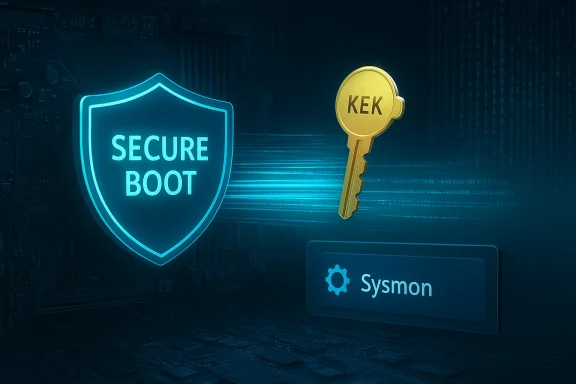
- A phased Secure Boot certificate/KEK refresh is under way. Microsoft is pushing a “Secure Boot Allowed Key Exchange Key (KEK)” update to many devices to replace aging certificates that were scheduled to expire in 2026. This change is intended to prevent a future break in Secure Boot-based protections, but it touches UEFI variables and, on some machines, appears to have exposed firmware or driver incompatibilities.
What Microsoft delivered in the March update
The formal rollout
Microsoft packaged KB5079473 as the March 10, 2026 cumulative update for supported Windows 11 branches (25H2 and 24H2). The update is distributed through Windows Update, WSUS, Windows Update for Business, and the Microsoft Update Catalog. The package combines security fixes with quality improvements and a handful of user-visible features.Key, verifiable highlights from the release:
- Builds: 26200.8037 (25H2) and 26100.8037 (24H2).
- Security content: the usual monthly fixes addressing dozens of vulnerabilities (including some high severity and a small number of actively exploited bugs).
- New/changed features and platform items that matter to IT professionals:
- Native, optional Sysmon integration (delivered as an optional Windows feature).
- Secure Boot KEK (Key Exchange Key) updates being staged to devices to refresh certificate trust anchors.
- Additional usability items such as an integrated internet speed test and UX refinements (emoji updates, File Explorer tweaks, camera control improvements).
Why this matters
- Native Sysmon means defenders can standardize on an OS‑supplied telemetry source, making deployment, configuration, and enterprise management simpler and more robust.
- The KEK refresh is a preventive move to avoid having crucial Secure Boot signing certificates expire and break the ability to deploy future Secure Boot DB/DBX updates. If handled correctly, most devices will update automatically and prevent future problems; if something goes wrong during the update, the consequences (boot failures, blocked boot manager) can be severe.
Native Sysmon: What changed, what to expect
What is Sysmon, and how is integration useful?
Sysmon (System Monitor) is a long‑standing Sysinternals utility that records detailed system events to the Windows Event Log. Popular with incident responders and security operations centers (SOCs), Sysmon provides events for:- Process creation and termination (with command line details)
- Network connections initiated by processes
- File creation time changes and file creation events
- Driver and DLL load events (when configured)
- Registry modifications and other advanced telemetry
Benefits
- Easier enterprise management. Sysmon delivered through the OS can be centrally enabled/disabled and patched through normal update channels, reducing configuration drift.
- Better integration with SIEM and Microsoft telemetry pipelines. An OS‑native provider can be more robustly matched to Windows Event Log semantics and Windows Update servicing.
- Reduced friction for defenders. Teams that previously relied on packaged deployments can now provision Sysmon as an optional Windows feature, simplifying onboarding for EDR/SOC integrations.
Caveats and deployment pitfalls
- Standalone Sysmon installs can conflict. Community reports and vendor notes indicate administrators should uninstall previously installed standalone Sysmon versions before enabling the in‑box feature. Failure to do so may cause unexpected behavior, hangs, or duplicate event streams. Treat this as a required step during migration.
- Configuration compatibility. Existing Sysmon configuration files (the XML rule sets) may need validation. Microsoft’s integrated Sysmon may expose different default behaviors or event IDs; validate your configuration in a lab before mass deployment.
- Performance and log volume. Sysmon’s granularity can generate large volumes of telemetry. Enable only the events you need, and ensure your log‑aggregation and storage systems are sized accordingly.
- Privacy/telemetry governance. Built‑in telemetry increases the OS’s attack surface for privacy concerns and requires clear governance in enterprise environments. Ensure appropriate data retention and access controls.
How to enable (high‑level)
- Validate and uninstall any existing Sysmon (Sysinternals) instances on test assets.
- Enable the new optional feature via:
- Settings > System > Optional features > More Windows features, or
- Your MDM/Intune policy or provisioning tooling.
- Deploy a tested Sysmon configuration (XML) centrally; tune to reduce noise.
- Monitor event ingestion and adjust filters and storage.
The Secure Boot KEK refresh: intent, mechanics, and risks
What is being changed — and why
Secure Boot’s trust model depends on a small set of UEFI variables and certificates: the Platform Key (PK), Key Exchange Keys (KEKs), the Allowed Signatures Database (DB), and the Revoked Signatures Database (DBX). Some Microsoft UEFI signing certificates issued in 2011 were scheduled to reach their validity end dates in 2026. To avoid a scenario where the old certificates expire and Microsoft (or other parties) could no longer update the Secure Boot DB/DBX, Microsoft is proactively deploying a refreshed KEK certificate and related updates to devices.The rollout, advertised as a phased deployment, installs a new “Secure Boot Allowed Key Exchange Key (KEK)” package on eligible systems and updates the device’s UEFI KEK list so future DB/DBX updates can be trusted and accepted.
Intended benefits
- Prevents a future break in Secure Boot updates caused by expiring root/signing certs.
- Keeps Secure Boot protections meaningful for boot‑level security checks and mitigation of pre‑OS attacks.
- Smooths future revocation and signing workflows for Windows boot components.
Reported problems and why they happen
Community reports and forum threads have documented a range of issues after receiving the KEK update. These include:- Boot failures or “Windows Boot Manager blocked by current security policy” messages.
- Slow boots or hang during firmware initialization on affected devices.
- Incompatibility with third‑party kernel drivers, notably anti‑cheat systems and virtualization drivers that rely on older driver signing footprints or firmware interactions.
- Failure to install or unexpected browser/driver behavior on a small subset of devices.
Mitigation and recommended actions
- Don’t panic; test first. For managed fleets, delay automatic installation until you’ve tested in a representative lab image. If possible, pilot the KEK update on a small group of hardware variations before broad rollout.
- Update firmware/BIOS first. OEMs frequently release UEFI/BIOS updates that resolve KEK/UEFI variable issues. Ensure devices are running the latest firmware before applying the KEK update.
- Check CMOS/RTC battery health. Some firmware anomalies tied to bad CMOS batteries have been reported to exacerbate Secure Boot issues.
- If you see a Secure Boot error, follow recovery steps: enter UEFI, check Secure Boot settings, and if necessary re‑enable Secure Boot or restore factory KEK/PK settings. Have a recovery image or boot media ready.
- Coordinate with vendor support for anti‑cheat/driver compatibility. If a game or virtualization platform stops working, contact the vendor for an updated signed driver or guidance.
- For home users: install the KEK update when convenient, but back up data and ensure you have recovery media. If you’re comfortable, update BIOS first.
Reported critical faults, past patterns, and context
What users have reported
Since late February and into March messaging around the KB5079473 rollout, threads across community forums and vendor support channels have recorded issues ranging from failed update installs to post‑update boot problems and compatibility headaches with gaming anti‑cheat systems. Reported symptoms include:- Update installation failures with a variety of Windows Update error codes.
- Slow or stalled boots after a KEK update.
- Secure Boot violations resulting in blocked boot manager messages.
- One‑off BSODs tied to kernel components after other monthly updates in prior years (a reminder that cumulative updates can interact badly with third‑party drivers).
Historical context
This isn’t the first time a March cumulative or a KEK/UEFI change has caused disruption. Past cumulative updates (notably in previous years) produced installation errors, Blue Screens of Death in certain hardware/driver combinations, or compatibility problems with specialized drivers. Microsoft’s cumulative approach — delivering security fixes together with quality updates and the occasional feature — increases the chance of cross‑component regressions.That historical pattern advises a conservative rollout approach for production environments.
Practical guidance: what IT teams should do now
Short checklist for administrators
- Audit hardware and firmware: inventory device models and current BIOS/UEFI versions. Prioritize firmware updates from OEMs.
- Test KB5079473 and the KEK update in a lab with representative hardware and workloads (gaming stations, VDI hosts, servers with custom drivers).
- Uninstall standalone Sysmon on test systems before enabling the in‑box feature. Prepare a migration plan for Sysmon configurations.
- Stage updates using Windows Update for Business or WSUS — do not auto‑approve in production until tests pass.
- Prepare rollback and recovery plans: create system images, ensure offline recovery media, and document UEFI recovery steps.
- Communicate with third‑party vendors: anti‑cheat, virtualization, and specialized driver vendors should be asked for compatibility statements or updated builds.
- Monitor update health dashboards and vendor advisories for emergent known issues that Microsoft posts to its release health pages.
Intune / Windows Update for Business options
- Use deployment rings and phased rollout policies to limit blast radius.
- For urgent remediation, Intune’s expedited policy can accelerate a critical patch to specific devices — but only after the device has the update integrity prerequisites in place.
- For devices that must not change immediately (critical production servers with proprietary drivers), create a deferred update policy and schedule maintenance windows.
Incident response checklist for affected devices
- Boot into UEFI and verify Secure Boot state and KEK/PK entries.
- Revert to a known good image if recovery is faster than troubleshooting.
- If a driver is implicated, boot to Safe Mode and uninstall the offending driver.
- Collect diagnostic logs: Windows Event Log, System UEFI events, and Windows Update logs for support engagement.
- Contact Microsoft support or the OEM if firmware appears corrupted or if the device refuses to accept KEK updates.
Guidance for home users and enthusiasts
- Back up before updating. A full system image or a File History backup will save time if recovery is needed.
- Check for firmware updates. Visit your PC maker’s support site and apply UEFI/BIOS updates before installing key system changes.
- If you see a “Secure Boot” error after the update: try re‑entering firmware settings, re‑enable Secure Boot, or restore default Secure Boot keys — but only if you’re comfortable in UEFI. If in doubt, use recovery media or contact vendor support.
- If you rely on games with anti‑cheat drivers or specialized virtualization drivers: wait a few days for vendors to confirm compatibility or release updates, especially if you depend on the system for streaming or live events.
- For Sysmon fans: uninstall any Sysinternals Sysmon package before enabling the built‑in feature. Validate your XML configuration in a test VM first to avoid unexpected log volumes.
The broader implications: security, telemetry, and operational risk
A deliberate shift toward native security tooling
Microsoft’s decision to include Sysmon as an in‑box feature signals a broader strategy: move essential defensive tooling into the OS, reduce fragmentation, and provide a more consistent telemetry baseline for enterprise defenders. For security teams, that’s a net win — simpler deployment and higher fidelity telemetry with less reliance on third‑party installers.Trade‑offs and governance
However, integrating powerful telemetry into the OS centralizes control and raises governance questions:- Who controls the default Sysmon configuration in an organization?
- How will Microsoft patch and modify the in‑box version, and how will that affect backward compatibility with SOC tooling?
- How are telemetry retention and access governed to protect privacy and regulatory compliance?
Operational fragility around UEFI and firmware
The KEK refresh demonstrates that cryptographic and firmware trust anchors are fragile intersection points between vendor OS updates and OEM firmware implementations. A trusted certificate refresh should be benign; in practice, firmware bugs, outdated UEFI stacks, or nonstandard OEM implementations can turn a benign maintenance task into a recovery incident. The fix is simple in principle (update firmware and validate), but in large, mixed hardware fleets it becomes complex operationally.Where coverage is thin and what remains unverified
- Community reports of widespread boot failures tied to the KEK update are concentrated to particular hardware and firmware versions. At the time of writing, Microsoft’s official channels describe a phased rollout and targeted deployment to devices with proven update telemetry, and Microsoft hasn’t issued a broad recall of the update. Treat anecdotal reports as urgent signals, not definitive proof of a universal failure.
- Some forum posts allege that the in‑box Sysmon will automatically replace standalone Sysmon and remove custom configurations. That claim is not the default behavior reported by Microsoft or early hands‑on coverage; administrators should still explicitly uninstall or migrate existing Sysmon installations rather than assume automatic replacement.
- The total count of vulnerabilities fixed in the March bundle varies slightly between third‑party trackers; Microsoft’s Security Update Guide and the official KB note are the final authorities for CVE counts and severity levels.
Conclusion: act like a defender, deploy like an operations team
March 2026’s Windows 11 update is consequential: it improves the platform by embedding mature security tooling (Sysmon) and by refreshing the Secure Boot trust model to head off certificate expiry. Those are the kinds of changes defenders welcome.But they are also the kinds of changes that amplify operational risk if introduced without testing. The KEK refresh touches firmware trust anchors; integrated Sysmon can change event volumes and require migration work; and the usual unpredictables — third‑party drivers, OEM firmware quirks, and specialized software like anti‑cheat drivers — remain the usual culprits for post‑update breakage.
Practical rules to follow now:
- Test before broad deployment. Run KB5079473 and the KEK update through a realistic pilot on representative hardware.
- Update firmware early. Push BIOS/UEFI updates before the KEK update lands.
- Prepare Sysmon migration plans. Uninstall standalone Sysmon first and validate configurations in a sandbox.
- Back up and plan recovery. Create images and recovery media before rolling out.
- Stagger rollouts. Use deployment rings and watch the vendor and Microsoft release health pages for emergent issues.
Source: BornCity Windows 11: März-Update bringt Sicherheits-Tools und kritische Fehler - BornCity


