

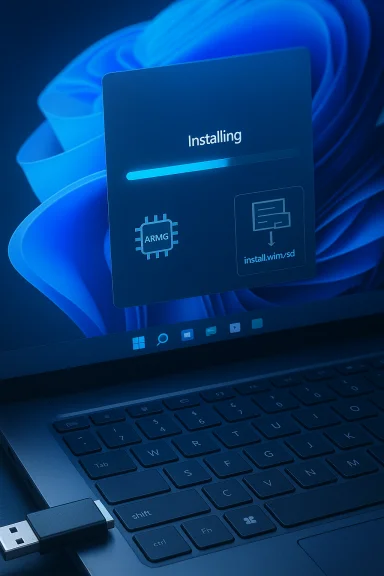
Microsoft has quietly pushed a fix to the Windows 11 Media Creation Tool that restores reliability for USB-based installations and clears a recent compatibility headache that left some users — notably those still on Windows 10 and ARM64 devices — unable to create installation media. The correction arrives after a problematic MCT release in late September left the tool closing unexpectedly on some hosts; the updated tool and a related non-security update remedy the failure and bring the Media Creation Tool back to its role as the simplest official way to download and create bootable USB installation media for Windows 11.
Microsoft’s Media Creation Tool (commonly abbreviated MCT) is the official utility used to download Windows installation images and create bootable USB drives or ISOs. Over the life of Windows 11 the utility has been updated intermittently so it can deliver the current feature update image (for example, 24H2 or 25H2) and package recent cumulative updates inside the install image, saving users from large update downloads immediately after installation. That convenience is one of the main reasons many home users and IT pros still default to MCT for USB creation. In late September 2025 Microsoft shipped a version of MCT (version 26100.6584) that, under certain conditions, would abort without an explanatory error message when run on some older hosts — most notably Windows 10 systems — and produced a separate error scenario on some ARM64-based machines. The issue surfaced at an inopportune time: as Windows 10 approached its end-of-life milestone, many last-minute upgraders expected to rely on the MCT for clean installs. Microsoft acknowledged the problem and released an update to the utility (and an accompanying optional non-security update) that addresses the failure.
Conclusion
The Media Creation Tool update removes a significant practical obstacle for users attempting Windows 11 USB installations and underscores a simple, recurring truth for system maintainers: keep your tools and ISOs under local control, validate changes, and document alternate paths. Microsoft’s fix restores the expected behavior of the tool and reduces the risk of failed installations for the majority of users, but savvy administrators should treat the recovery plan described here as part of standard installation hygiene to avoid surprises during critical migration windows.
Source: Neowin https://www.neowin.net/news/microso...eation-tool-for-windows-11-usb-installations/
 Background
Microsoft’s Media Creation Tool (commonly abbreviated MCT) is the official utility used to download Windows installation images and create bootable USB drives or ISOs. Over the life of Windows 11 the utility has been updated intermittently so it can deliver the current feature update image (for example, 24H2 or 25H2) and package recent cumulative updates inside the install image, saving users from large update downloads immediately after installation. That convenience is one of the main reasons many home users and IT pros still default to MCT for USB creation. In late September 2025 Microsoft shipped a version of MCT (version 26100.6584) that, under certain conditions, would abort without an explanatory error message when run on some older hosts — most notably Windows 10 systems — and produced a separate error scenario on some ARM64-based machines. The issue surfaced at an inopportune time: as Windows 10 approached its end-of-life milestone, many last-minute upgraders expected to rely on the MCT for clean installs. Microsoft acknowledged the problem and released an update to the utility (and an accompanying optional non-security update) that addresses the failure. What changed: the update and what it fixes
The patch timeline and what Microsoft says
- The problematic MCT build (26100.6584) was released on September 29, 2025 and was later found to exhibit incorrect behavior on certain platforms. Microsoft documented the problem in the Windows Release Health/Support channels and identified the symptoms: the tool would close unexpectedly with a generic message such as “We’re not sure what happened, but we’re unable to run this tool on your PC.”
- Microsoft released a follow-up update — reflected in an optional, non-security update (KB5067036) — which includes the fix for the Media Creation Tool issue and additional changes. After the update the Media Creation Tool functions again for affected systems, and the tool is again distributing current Windows 11 images (including 25H2 builds where applicable).
What users will notice
- The MCT will once more create bootable USB media reliably on Windows 10 and Windows 11 hosts, and should not exit unexpectedly on ARM64 hosts after the fix is applied. Administrators and end users who encountered abrupt failures should run Windows Update (or manually apply the optional update) to ensure the corrected MCT behavior.
Why this matters: practical impact on USB installations
For home users
The Media Creation Tool is the lowest-friction route for making a Windows 11 install USB: it downloads an up-to-date, Microsoft-signed image and writes a bootable USB without extra tools. When MCT stops working, average users must fall back to more manual workflows (direct ISO download + separate USB creation tool) — a tougher path for less technical users. The fix restores the simplest user journey for clean installs and reinstalls.For IT professionals and power users
When imaging dozens of machines or building reference media, reliability and reproducibility matter. A broken MCT adds unpredictability to an already complex process: either the team must switch to other tools (which may handle editions and compression differently), or they must script around the break. Restoring MCT removes that variable for teams that prefer the official Microsoft utility as the starting point for custom imaging workflows.Technical deep dive: what the Media Creation Tool does and common pitfalls
MCT outputs: ISO vs USB and image compression formats
When MCT produces an ISO or writes a USB installer it uses compression choices that often differ from Microsoft’s direct ISO download. The tool commonly uses an install.esd (a compressed electronic software distribution file) in the image it writes to USB. This produces a smaller file than a full install.wim, which in turn helps keep the largest single file under the FAT32 4 GB limit — a crucial consideration for UEFI boot compatibility on many systems. The direct ISO download from Microsoft’s disk image page can contain an install.wim (larger), which may exceed FAT32’s 4 GB file-size limit and complicate copying to a FAT32-formatted USB stick.FAT32’s 4 GB limit and what to do about it
UEFI systems typically expect a FAT32-formatted EFI System Partition to boot. FAT32 imposes a 4 GB per-file limit; if the Windows install image contains an install.wim larger than 4 GB, naive copying to a FAT32 USB will fail. There are several practical remedies:- Use MCT, which often avoids exceeding the 4 GB limit by using an install.esd or by producing media that fits FAT32.
- Use a third-party USB creation tool such as Rufus and choose NTFS as the file system (Rufus supports the necessary boot mechanisms on many modern UEFI firmwares). This permits larger files but carries firmware compatibility caveats.
- Split the install.wim into multiple install.swm parts using DISM so each piece is under the 4 GB threshold and copy the collection to a FAT32 USB. Microsoft documents the DISM /Split-Image command and provides a step-by-step method for splitting and deploying large images.
How to proceed safely today: step-by-step guidance
If you prefer the official Microsoft path (recommended for most users)
- Run Windows Update and install available optional updates, including KB5067036 if present for your machine. This ensures you have the corrected MCT behavior on affected platforms.
- Visit Microsoft’s Windows 11 download page and use the Media Creation Tool to either create a bootable USB or download an ISO. The MCT will attempt to deliver a current Windows 11 image and write it in a way that maximizes compatibility.
- If the MCT still fails on your machine after updating, use the direct ISO download and proceed with one of the alternate options below.
If you need a workaround (direct ISO + other tools)
- Option A — Use Rufus to make a bootable USB:
- Download the official Windows 11 ISO from Microsoft.
- Run Rufus, choose the ISO, and select the file system (NTFS if the ISO contains an install.wim > 4 GB). Rufus can create bootable USB media and also offers advanced options (including certain compatibility workarounds when installing on unsupported hardware). Be mindful that using Rufus flags to bypass TPM/Secure Boot or other requirements may introduce support and security considerations; these options are intended for specific use cases and carry risks.
- Option B — Split install.wim with DISM (keeps FAT32 boot compatibility):
- Mount the ISO on your PC and copy the sources\install.wim to a local folder.
- Open an elevated Command Prompt and run: Dism /Split-Image /ImageFile:C:\sources\install.wim /SWMFile:C:\sources\install.swm /FileSize:4000
- Replace the install.wim on your USB Sources folder with the generated install.swm, install2.swm, etc., then boot from the USB. This approach keeps the USB FAT32-friendly and compatible with UEFI firmwares that cannot boot from NTFS volumes. Microsoft documents this exact DISM pattern.
Risks, security notes and the enterprise perspective
Trust the official ISO if possible
Always prefer Microsoft’s official downloads for Windows installation media and validate images where checksums are available. Third-party sites can host altered images, and attackers have used fake installers in the wild. If you must use alternative tools (Rufus, Ventoy), point them at a Microsoft-supplied ISO to minimize tampering risk.Beware of bypassing hardware checks
Some third-party tools expose options to bypass TPM, Secure Boot, or CPU checks. While these can be helpful for lab work or legacy hardware, they create a system outside Microsoft’s tested and supported configuration. Organizations should avoid deploying such bypassed images in production. Security telemetry and supportability are the primary risks when running Windows on unsupported configurations.Update channels and corporate imaging
Enterprise environments often manage images with system center tools, MDT, or provisioning packages — these workflows rarely rely on MCT. However, MCT’s instability mattered because it interrupts simple ad-hoc recovery scenarios and the ability to build a reference image quickly from an official baseline. IT shops should continue to use their established imaging tools but confirm that the baseline ISO or MCT-produced media contains the latest cumulative updates to minimize post-deployment patching.Real-world lessons and best practices
- Keep a local copy of current Windows ISOs in your secure internal repository. An up-to-date ISO prevents last-minute scrambles when the MCT or online download pages change behavior.
- If you depend on MCT workstreams, monitor Microsoft’s Release Health / support announcements and have a fallback plan (e.g., scriptable Rufus usage or a documented DISM split-image procedure).
- Validate downloaded ISOs against published checksums where available, and keep a documented process for creating bootable media. This reduces human errors and improves reproducibility for both personal and enterprise installs.
Strengths of the fix — and remaining limitations
Notable strengths
- The update restores MCT as a one-stop, official tool for creating Windows 11 USB installers, eliminating the need for many users to jump to external tools or complicated manual workflows. This reduces risk for less technical users and keeps the install image chain tightly under Microsoft’s delivery and signing processes.
- The correlated non-security update (KB5067036) bundles fixes and improvements that go beyond MCT, improving overall installation and update experience for some users.
Remaining or persistent limitations
- The fundamental FAT32 file-size limitation remains a reality for UEFI boot compatibility. MCT typically mitigates this by using compressed .esd images, but advanced or customized images may still produce a large install.wim that needs manual handling. IT pros should remain familiar with DISM-based split and export techniques.
- Third-party tools continue to be necessary in edge cases: legacy hardware, intentionally unsupported installs, or specialized multi-boot scenarios. Those tools are powerful, but they carry firmware, support, and security considerations.
Practical example: recovering from the MCT failure (a worked scenario)
- Symptom: MCT closes immediately when launched on Windows 10 laptop.
- Quick triage:
- Confirm Windows Update status.
- If optional updates are pending, apply them (especially KB5067036 if available for the machine). Reboot.
- If MCT still fails:
- Download the Windows 11 ISO directly from Microsoft’s Download page.
- Use Rufus to write the ISO to a USB drive (select NTFS if the installer contains a >4 GB install.wim). Alternatively, split the install.wim with DISM and copy the resulting .swm files to a FAT32 USB to preserve maximum firmware compatibility.
- After installation: verify activation state and run Windows Update to pick up any newer security patches that have shipped since the build contained in the image. This ensures the machine is fully patched and support-ready.
Final assessment: what this means for the Windows ecosystem
Restoring the Media Creation Tool to full functionality is a straightforward win for both consumers and many IT practitioners: it reduces friction in the clean-install path, ensures the official delivery mechanism works as intended, and eliminates the awkward timing problems that occurred around Windows 10 end-of-life. The fix is not just a small bug patch; it represents closing a gap in Microsoft’s own upgrade and recovery toolchain that, when left open, forced users into riskier or more complex alternatives. That said, the episode highlights how fragile utility-based workflows can be when they are updated in tandem with major OS feature releases. Organizations should keep multiple validated media-building workflows in their toolkit — including scripting the creation of USB installers, maintaining a cleaned and signed ISO library, and codifying steps for handling oversized install.wim files — to remain resilient to transient tooling failures. The Media Creation Tool remains a fast, official route for most users to create Windows 11 USB installers. With the recent correction applied, those who rely on it can return to the simple task of creating a bootable USB and installing Windows 11 — while power users and admins should keep a small set of fallback techniques and tools ready for edge cases and custom imaging requirements.Conclusion
The Media Creation Tool update removes a significant practical obstacle for users attempting Windows 11 USB installations and underscores a simple, recurring truth for system maintainers: keep your tools and ISOs under local control, validate changes, and document alternate paths. Microsoft’s fix restores the expected behavior of the tool and reduces the risk of failed installations for the majority of users, but savvy administrators should treat the recovery plan described here as part of standard installation hygiene to avoid surprises during critical migration windows.
Source: Neowin https://www.neowin.net/news/microso...eation-tool-for-windows-11-usb-installations/
