

A new PC should feel like home within hours, not weeks: with the right plan and tools you can move your documents, photos, settings, and most of your everyday apps quickly and safely — and avoid the common pitfalls that turn a fresh start into a headache. This guide walks new computer owners through every practical migration path for Windows 11, explains what Windows’ built‑in tools will and won’t move, evaluates third‑party options, and gives a step‑by‑step checklist so you can finish the job confidently.
Every major Windows release and hardware refresh creates the same problem: your digital life is spread across folders, cloud accounts, app licenses, and device settings. Microsoft has pushed the migration story toward the cloud: the Windows Backup experience in Windows 10/11 links tightly with OneDrive to save files, settings, and a list of apps so the new PC can restore them during setup. That works well for many users but has clear limits — most notably OneDrive’s default free storage cap and the fact that not all desktop apps are automatically re‑installed. Microsoft’s official guidance emphasizes signing in with the same Microsoft account on both machines to restore from backup during the first sign‑in screen.
At the same time, long‑standing local options still matter: external drives, network transfers, disk cloning, and specialized migration software remain essential when you need full control, large media libraries, or when internet bandwidth and cloud quotas make cloud backups impractical. Community discussions among power users and IT pros show a persistent reliance on these local methods — especially for migrating large photo and video collections, developer toolchains, and custom system setups.
Cons: manual, requires a drive large enough for your data.
Cons: setup can be fiddly for non‑technical users, and transfer reliability depends on network quality.
Cons: hardware differences (chips, drivers) can cause instability; cloning across very different hardware may require a clean install later.
Community threads and expert posts repeatedly recommend cloning for same‑machine drive upgrades, while warning against expecting perfect results when moving to different hardware.
Bringing your digital life to a new PC in 2026 is faster and safer than it was a decade ago, but the acceleration comes with trade‑offs: cloud convenience versus storage costs, automatic settings sync versus manual app reinstalls, and local control versus vendor automation. Pick the approach that matches your priorities — speed, cost, or completeness — and back everything up first. When in doubt, a small external drive, a verified OneDrive sync, and a checklist will save you hours and give you a safe path back if anything goes wrong.
Source: Microsoft How to Transfer Data to a New PC | Microsoft Windows
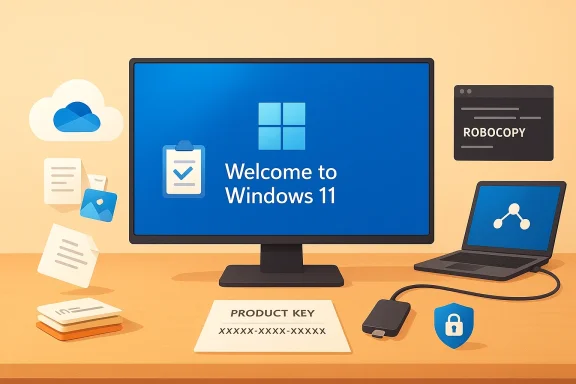 Background: why migration still matters in 2026
Every major Windows release and hardware refresh creates the same problem: your digital life is spread across folders, cloud accounts, app licenses, and device settings. Microsoft has pushed the migration story toward the cloud: the Windows Backup experience in Windows 10/11 links tightly with OneDrive to save files, settings, and a list of apps so the new PC can restore them during setup. That works well for many users but has clear limits — most notably OneDrive’s default free storage cap and the fact that not all desktop apps are automatically re‑installed. Microsoft’s official guidance emphasizes signing in with the same Microsoft account on both machines to restore from backup during the first sign‑in screen.At the same time, long‑standing local options still matter: external drives, network transfers, disk cloning, and specialized migration software remain essential when you need full control, large media libraries, or when internet bandwidth and cloud quotas make cloud backups impractical. Community discussions among power users and IT pros show a persistent reliance on these local methods — especially for migrating large photo and video collections, developer toolchains, and custom system setups.
Overview: what to move (and what to leave behind)
Before you choose a method, do a quick inventory. This keeps the migration focused and reduces wasted work.- Personal files: Documents, Photos, Videos, Music, Downloads — these are highest priority.
- Settings and preferences: Desktop wallpaper, browser bookmarks/favorites, Wi‑Fi profiles, accessibility settings.
- Apps and software: Productivity tools, creative apps, games, and utilities — determine which must be reinstalled or reactivated.
- Cloud‑stored data: Files already in OneDrive, Google Drive, Dropbox, or other services.
- System images and developer environments: VMs, IDEs, SDKs, and local databases that may require special handling.
The easiest option: Windows Backup + OneDrive (best for most users)
What it does and how it works
Windows Backup (the integrated Windows 11 backup experience) ties your backup to your Microsoft account. When you back up on the old PC and sign in on the new one during first setup (OOBE), Windows offers to restore saved files, many settings, and a recorded list of apps so the new device feels familiar quickly. Apps that come from the Microsoft Store can often be reinstalled automatically or are listed for reinstall. This is the fastest route for typical consumer setups.Pros
- Extremely simple for non‑technical users.
- Restores settings and Microsoft Store apps automatically during OOBE.
- Keeps files synced and protected in the cloud as you move devices.
Cons and practical limits
- OneDrive free tier is limited to 5 GB; larger migrations will need extra cloud storage or alternative transfer methods. Microsoft documents the 5 GB baseline and recommends higher plans for big transfers.
- Desktop apps and many third‑party programs are not reinstalled automatically; you’ll often need to reinstall them from vendor sites or use separate migration tools.
- Windows Backup restore requires you to sign in during initial setup with the same Microsoft account used for the backup — if you skip that step you may lose the automatic restore prompt.
Quick step checklist (OneDrive route)
- On the old PC, sign into OneDrive and ensure Documents, Pictures, Desktop, and other folders you want are syncing.
- Open Settings → Accounts → Windows Backup and enable the backup options you need. Let OneDrive sync fully.
- Start the new PC and, when asked, sign in with the same Microsoft account during initial setup. Choose to restore from the backup offered.
Local transfers: external drive, Ethernet, and network moves
If you have large files, poor internet, or don't want to buy OneDrive storage, local transfers are the most practical choice.External drive method (simple and reliable)
- Use an external SSD or HDD formatted NTFS to copy Documents, Pictures, Videos, and any other folders you want to move.
- For bulk media (photo/video libraries), copy the original folder structure to maintain metadata and folder organization.
- Reconnect the drive to the new PC and copy files into the appropriate user folders.
Cons: manual, requires a drive large enough for your data.
Network or Ethernet cable transfer (fast for LANs)
- Connect both PCs to the same wired network or use a direct Ethernet cable (preferably gigabit).
- Use File Explorer network sharing, Robocopy, or migration utilities that support LAN transfers.
- Microsoft has been evolving a local PC‑to‑PC migration experience (reintroducing local transfer features similar to Windows Easy Transfer), and community testing shows an emerging built‑in local migration wizard in Windows Backup for supported builds. This is being rolled out gradually; availability depends on Windows build and device.
Cons: setup can be fiddly for non‑technical users, and transfer reliability depends on network quality.
Disk cloning (keeps EVERYTHING, used with care)
- Use disk‑cloning tools (Macrium Reflect, Clonezilla, etc.) to make an exact copy of the old drive to a new SSD.
- Best when you’re replacing a drive in the same PC or want an identical environment quickly.
- After cloning, you may need to repair boot configuration, update drivers, or reactivate software.
Cons: hardware differences (chips, drivers) can cause instability; cloning across very different hardware may require a clean install later.
Community threads and expert posts repeatedly recommend cloning for same‑machine drive upgrades, while warning against expecting perfect results when moving to different hardware.
Use data‑transfer software when you need control or app migration
Third‑party migration tools exist for users who want more automation than manual copying but need more control than OneDrive gives. The longstanding commercial option is Laplink PCmover (desktop and enterprise editions), which supports LAN, USB, Ethernet, and storage‑based transfers and aims to migrate programs, files, and settings. Enterprise editions add centralized controls for IT staff.What third‑party tools promise
- Transfer installed programs and their settings (varies by product).
- Migrate user profiles, browser data, and application settings.
- Offer guided, step‑by‑step flows for less technical users.
Caveats and reality check
- No tool guarantees perfect migration of every app — licensing, drivers, and low‑level services may still require manual reinstallation.
- Paid migration tools can work well, but users report mixed outcomes: some apps migrate cleanly, others break or require reactivation. Community discussions urge caution and backups before using paid migration tools.
- Enterprise migration solutions (PCmover Enterprise, Microsoft USMT) are the robust choice for corporate fleets, but they need IT setup and scripting. Microsoft’s User State Migration Tool (USMT) is designed for large deployments and preserves profiles and many settings.
App licensing, activation, and compatibility — the messy middle
A migration is as much about licenses as it is about files.- Office and other paid desktop apps may require deactivating from the old PC and reactivating on the new one. Follow vendor instructions to avoid activation lock‑outs.
- Some apps (especially older ones) store licenses in machine‑specific locations or the registry. These often need clean reinstall and reactivation.
- 32‑bit vs 64‑bit differences matter: a 32‑bit app migrated to a 64‑bit machine might run but could lack optimized drivers or integrations.
- Games and DRM‑protected media might require re‑authorization or re‑download from the original store.
Security and encryption: BitLocker, passwords, and privacy
- If your old drive uses BitLocker, suspend or decrypt BitLocker before doing some migration steps like cloning or copying system partitions. Failing to handle encryption properly can block access on the new PC. Microsoft Support documentation covers backup and recovery basics and highlights BitLocker considerations in imaging and cloning scenarios.
- If passwords are stored in the Microsoft account (credential sync), signing into the new PC with the same Microsoft account will restore many saved credentials — but not all apps keep keys in a transferable way.
- When transferring sensitive files, prefer wired transfers on a trusted local network. Avoid copying sensitive data over open public Wi‑Fi. For local transfers, an external encrypted drive reduces risk if a device is lost in transit.
Step‑by‑step migration plans (choose one to fit your needs)
Plan A — Fast and easy (Microsoft account + OneDrive)
- On old PC: sign into OneDrive, enable folder backup (Desktop, Documents, Pictures). Wait for full sync.
- On old PC: open Settings → Accounts → Windows Backup and enable backups for settings, preferences, and apps list.
- On new PC: during first setup, sign in with the same Microsoft account; choose to restore from your backup when prompted.
- After setup: check OneDrive sync status, reinstall any non‑store apps from vendor installers, and verify licenses.
Plan B — Local drive transfer (best for big media collections)
- Buy an external SSD/HDD with capacity greater than what you plan to copy.
- On old PC: copy user folders and other data to the external drive (maintain folder structure). Use Robocopy for robust copying if you’re comfortable with the command line.
- On new PC: copy files into your new user folders; point apps (e.g., photo managers) to the new library location.
- Reinstall apps and migrate settings manually; use exported browser bookmarks and cloud sync where possible.
Plan C — Disk clone (for same‑machine drive upgrades)
- Use Macrium Reflect or similar to clone the old drive to the new SSD. Ensure you clone all partitions (EFI, Recovery, MSR).
- Swap drives, boot the PC, and run Windows repair if needed (bcdboot or Startup Repair).
- Update drivers and reactivate BitLocker.
- If hardware changed significantly, plan for a clean install later to ensure stability.
Plan D — Full migration with a commercial tool (when apps must come across)
- Research products (Laplink PCmover, Zinstall, others). Note prices and supported features.
- Back up everything first. Run the vendor migration according to instructions (LAN, cable, or storage).
- Verify app functionality, reauthorize licenses, and perform manual reinstalls for anything that failed.
Troubleshooting and post‑migration checklist
- Files missing? Check OneDrive online and local OneDrive folder; use File Explorer search.
- Apps not working? Reinstall from vendor, check for 64‑bit builds, and update drivers.
- Activation issues? Deactivate on the old machine (if possible), then reactivate on the new one. Keep product keys handy.
- Permissions problems with copied files? Right‑click → Properties → Security to reassign ownership if needed.
- Large media libraries slow to index? Rebuild app libraries (Photos, iTunes/Media apps) pointing to the correct folders.
Critical analysis: strengths, trade‑offs, and common risks
Strengths of the modern approach
- Simplicity for average users. Microsoft’s OneDrive + Windows Backup flow dramatically reduces friction for typical consumer migrations, especially when users already use Microsoft services.
- Cloud resilience. Files stored in OneDrive are available across devices and protected against local hardware failure.
Trade‑offs and vendor nudges
- Storage economics. The 5 GB free OneDrive limit pushes many users toward paid subscriptions or mixed strategies (local transfer + selective cloud sync), which critics argue favors Microsoft subscription revenue over fully free migration options. Independent coverage and user commentary note this commercial nudge.
- App migration gap. Built‑in tools favor files and settings over third‑party app binary migration. Paid tools fill some gaps but cannot guarantee license or driver transfers.
Risks to watch
- Incomplete backups. Relying on the cloud without confirming a full sync can leave large files behind. Always verify OneDrive completion or use a local copy as a fallback.
- Encryption and cloning traps. Cloning encrypted volumes or failing to prepare BitLocker can block access or cause boot failures. Properly suspend encryption before cloning.
- Assumed compatibility. Expect to reinstall or reconfigure many apps — particularly developer tools, drivers, and DRM media. Community advice consistently warns that “everything” rarely migrates perfectly.
Final checklist: migrate with confidence
- Inventory what you need: files, apps, licenses, and special configurations.
- Back up everything before you start (local backup + cloud is ideal).
- Choose the right method: OneDrive/Windows Backup for simplicity; external drive or LAN for big data; clone for same‑PC drive upgrades; commercial tools when you must migrate installed apps.
- Verify OneDrive sync or copy completion before wiping the old machine.
- Keep installers, product keys, and account passwords accessible.
- After migration, check drivers, update Windows, reenable BitLocker, and verify app licenses.
- Keep the old PC (or its backup) for a short period until you confirm everything is working.
Bringing your digital life to a new PC in 2026 is faster and safer than it was a decade ago, but the acceleration comes with trade‑offs: cloud convenience versus storage costs, automatic settings sync versus manual app reinstalls, and local control versus vendor automation. Pick the approach that matches your priorities — speed, cost, or completeness — and back everything up first. When in doubt, a small external drive, a verified OneDrive sync, and a checklist will save you hours and give you a safe path back if anything goes wrong.
Source: Microsoft How to Transfer Data to a New PC | Microsoft Windows
