

Microsoft is adding a one‑click Internet speed test to Windows 11’s network menu — but the convenience comes with an important caveat: it’s a launcher that opens a browser‑hosted speed widget (surfaced via Bing and observed to use established speed‑test backends like Ookla), not a native, in‑OS measurement engine.
Windows 11’s development continues to favor discoverability and lightweight web‑backed utilities: rather than embedding every small diagnostic inside the kernel or networking stack, Microsoft is surfacing quick checks where users already look — the taskbar and quick settings. The latest Release Preview servicing wave (distributed as KB5077241) has promoted a new “Perform speed test” / “Test internet speed” control into the network icon’s right‑click menu and the Wi‑Fi/Cellular quick settings. The change appears in Release Preview builds tied to the 24H2 and 25H2 branches (notably bui26200 lines).
This update also bundles several other small but visible improvements: expanded camera controls (pan/tilt on compatible devices), a fuller Widgets settings page, updated emoji glyphs, and support for .webp images as desktop backgrounds. These are being tested with Windows being rolled out via the Release Preview channel as a staged feature rollout. (pcgamer.com)
However, IT teams should keep several caveats in mind:
However, the design choice to route the measurement through a browser and external backends introduces material tradeoffs. It is not a substitute for disciplined, reproducible network diagnostics or for enterprise monitoring and compliance. IT professionals should treat this as a helpful heuristic rather than authoritative evidence, and enterprises should expect to manage or block the feature if outward telemetry is unacceptable.
In practice:
Source: hi-Tech.ua Windows 11 will get a built-in Internet connection speed test, but there is caveat
 Background
Windows 11’s development continues to favor discoverability and lightweight web‑backed utilities: rather than embedding every small diagnostic inside the kernel or networking stack, Microsoft is surfacing quick checks where users already look — the taskbar and quick settings. The latest Release Preview servicing wave (distributed as KB5077241) has promoted a new “Perform speed test” / “Test internet speed” control into the network icon’s right‑click menu and the Wi‑Fi/Cellular quick settings. The change appears in Release Preview builds tied to the 24H2 and 25H2 branches (notably bui26200 lines).This update also bundles several other small but visible improvements: expanded camera controls (pan/tilt on compatible devices), a fuller Widgets settings page, updated emoji glyphs, and support for .webp images as desktop backgrounds. These are being tested with Windows being rolled out via the Release Preview channel as a staged feature rollout. (pcgamer.com)
What shipped (concrete details)
- Where it appears: The new control shows up in the system tray network icon context menu and inside the Wi‑Fi/Cellular Quick Settings flyout.
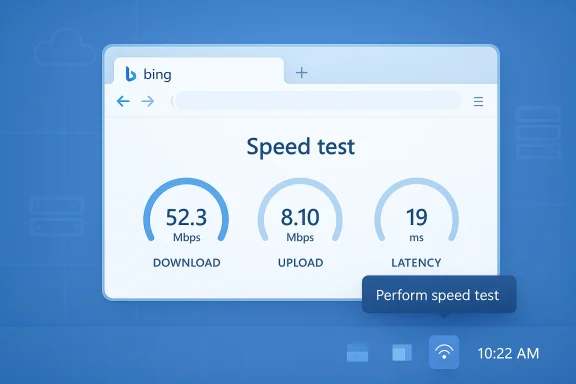
- How to invoke it: Right‑click the network icon → select Perform speed test; or open Quick Settings → look for Test internet speed. Clicking the control launches your default browser and r test.
- Build and packaging: The preview experience is included in the Release Preview wave packaged under KB5077241 and has been observed in builds in the 26100.7918 (24H2 lineage) and 26200.7918 (25H2 lineage) families. Availability is staged by Microsoft.
- What the web test uses: The browser widget surfaced by Bing appears to rely on familiar speed‑test backends (the Bing widget has historically integrated with or redirected to Ookla/Speedtest infrastructure). In practice, clicking the taskbar control opens a Bing‑hosted measurement page in your default browser.
How the feature actually works
A launcher, not a native probe
The simplest way to think about the new taskbar option is as a shortcut — a UI affordance that launches a web experience. The OS surfaces a control, but the measurement and visualization happen in a browser page delivered via Bing’s speed‑test widget. That widget, in turn, uses external measurement backends to perform throughput probes and latency tests. Microsoft has chosen a browser‑d and update agility: the web test can be updated independently of Windows servicing, and the UI workload is offloaded to the browser.Why Microsoft likely built it this way
- Lightweight shipping: delivering a link and a web widget is far faster than developing, testing, and maintaining a native OS measurement engine across driver and networking stacks.
- Update agility: web widgets can be updated server‑side without pushing an OS update.
- Reduced local attack surface: embedding new network probing code in OS components increases maintenance burden and potential vulnerabilities; a browser‑hosted approach delegates that surface area to the browser vendor and the web backend.
The caveat: accuracy, trust, and enterprise suitability
The headline caveat is straightforward: the taskbar control does not run a local, Windows‑native measurement; it launches a web‑based test. That design choice has three practical implications.1) Measurement methodology and reproducibility
Web‑hosted speed tests often rely on CDN‑proximate measurement servers and use heuristics to estimate throughput and latency. A native OS test could, in theory, be engineered to measure local stack performance, isolate driver issues, or run reproducible, automated tests under controlled settings.- For casual checks (e.g., “is my streaming lag because of my Wi‑Fi?”), a web test is usually fine.
- For formal diagnostics, SLA verification, or troubleshooting complex routing issues, a browser‑hosted test introduces additional variables (browser extensions, proxy settings, DNS intercepts, browser network stack) that can skew results.
2) Privacy and telemetry surface
When you click the taskbar control, your default browser is opened and a web page is loaded. That page will generally contact third‑party servers (the widget and its backends) to run probes. That introduces potential telemetry and logging outside your device:- The web test provider and CDN may log IP addresses, timestamps, and tf your environment funnels traffic through corporate proxies, inspection appliances, or privacy filters, test results may reflect those intermediaries rather than the raw last‑mile connection.
3) Management and blocking
Because the test is a browser‑launched web widget, administrators have limited ways to centrally control its behavior via standard Group Policy or MDM settings that manage native OS features. Blocking access to the web test is possible only by blocking the target web domains or configuring network appliances — there’s no native Group Policy to “disable taskbar speed test” at the OS level (at least in the current Release Preview documented behavior). That makes centralized governance of the feature less straightforward.Accuracy: what to expect and what not to expect
If you compare the taskbar speed test to established benchmarks, expect differences driven by endpoint selection, test methodology, and transient conditions.- Download vs. upload: Web tests typically measure both download and upload by filling multiple parallel connections to a near‑edge server. Results vary based on congestion, browser thread scheduling, and CDNs.
- Latency: Browser‑measured latency is a reasonable indicator of responsiveness but can be affected by JavaScript event loop timing and browser prioritization.
- Wi‑Fi vs. Ethernet: The test reports the active interface (Ethernet, Wi‑Fi, cellular) but cannot isolate problems inside the OS network stack versus hardware or driver issues.
Privacy and security considerations
- Browser context: Because the test runs in your default browser, the browser’s privacy settings, extensions, and cookies affect what happens when the widget loads. Private browsing mode or a hardened browser profile yields different behaviors.
- External backend: The test’s backend providers (e.g., Ookla/Speedtest via Bing) will typically record test metadata. That is expected for web measurement services and may be logged for analytics, ad targeting, or vendor reporting. Enterprises should assume test data could leave the corporate boundary.
- Attack surface: While offloading measurement to a web page reduces Windows’ internal attack surface, it means you rely on the browser’s security model and the integrity of the web content. Malicious redirection or compromised CDNs could potentially alter behavior, though mainstream browsers and CDNs have strong protections.
Enterprise, helpdesk, and IT implications
This feature is a clear win for helpdesk first‑line triage: a support agent can ask a user to right‑click the network icon and run “Test internet speed” to get a quick, shared baseline for latency, download, and upload. That reduces friction for basic troubleshooting.However, IT teams should keep several caveats in mind:
- Validation: Treat the taskbar test as a starting point, not a conclusive test. Verify suspicious results with controlled tests.
- Governance: If your organization forbids outbound connections to third‑party measurement services, the taskbar test must be blocked at the network level or users must be instructed not to use the feature.
- Documentation: Don’t accept taskbar test numbers as evidence for SLA disputes without corroboration from controlled probes or operator logs.
- Automation: The feature lacks a native API or scriptable interface (it’s a UI launcher), so it cannot replace automated synthetic monitoring or scheduled tests. For automation, continue using monitored probes and management tools.
How to use the new Windows 11 speed test (quick guide)
- Right‑click the network icon in the system tray.
- Select Perform speed test (or similar wording).
- Alternatively: open Quick Settings → Wi‑Fi/Cellular flyout → tap Test internet speed.
- Your defauuns the web widget; wait for the test to complete to see download, upload, and latency measurements.
- If you need a screenshot for support, capture it from the browser results and share as requested — but mark it as a casual diagnostic rather than a definitive measurement.
How itves
- Speedtest by Ookla (web or app): Widely used, mature measurement backend with a standalone desktop client and mobile apps. Provides server selection, history, and APIs for enterprise integration. More reproducible than a single web widget.
- Fasemely simple and minimal UI for download speed checks; good for quick verification of streaming‑related throughput.
- iperf3: Command‑line, scriptable, and preferred for controlled testing between two endpoints; highly recommended for engineering or SLA verification.
- Network monitoring appliances and RUM (Real‑User Monitoring): Provide ongoing, contextualized telemetry rather than one‑off tests.
Strengths and benefits
- Friction reduction: Places a commonly needed diagnostic directly in the taskbar; users no longer need to remember or search for a speed‑test site.
- Consistency for casual users: Standardizes a quick flow for nontechnical users to validate connectivity before escalating issues.
- Easy to maintain: A web‑backed implementation means Microsoft can iterate the test experience without OS updates.
Risks, limitations, and what Microsoft should clarify
- Enterprise governance: Microsoft should provide explicit Group Policy controls or MDM settings to disable the UI launcher or to point it at a corporate measurement endpoint. Without that, enterprises must block the web endpoints at the network level.
- Transparency about backend: Microsoft should docuthe Bing widget uses for measurement and whether the results are affected by Microsoft’s own telemetry. Public clarity will help IT teams rely on the data appropriately.
- Offline/native alternative: An optional, native in‑OS measurement mode (with administrative controls) would better serve advanced users and enterprises that cannot or will not rely on web‑hosted services.
Recommendations for different audiences
For regular users
- Use the taskbar speed test as a quick sanity checing, or during a video call hiccup.
- If measurements look off, repeat the test in an incognito/private window and try a second provider (Speedtest, Fast.com) to compare results.
For helpdesk and support teams
- Adopt the taskbar test as a first‑step triage: it reduces friction for callers.
- Always corroborate surprising results with a controlled iperf3 test or agent‑based monitoring before escalating or creating tickets tied to SLA violations.
For IT administrators and security teams
- Decide policy: allow the convenience for general users, or block the web endpoints if external measurement is not permitted.
- Ask Microsoft for administrative controls (Group Policy/MDM) to disable the feature if needed for governance.
- Continue to rely on internal probes and synthetic monitoring for formal metrics.
What to watch next
- Microsoft communication: watch for official documentation that names the backend providers and any enterprise controls.
- Policy additions: whether Microsoft adds a Group Policy setting or MDM toggle to disable or redirect the taskbar test.
- UX evolution: whether Microsoft eventually offers a native, optionally installable diagnostic package for enterprises seeking local measurements.
Final analysis and takeaways
The new Windows 11 taskbar speed‑test launcher is an incremental but useful convenience: it reduces friction for everyday connectivity checks and reflects Microsoft’s broader strategy of surfacing quick, web‑backed utilities where users already look. For most consumers, this will be a welcome, time‑saving addition.However, the design choice to route the measurement through a browser and external backends introduces material tradeoffs. It is not a substitute for disciplined, reproducible network diagnostics or for enterprise monitoring and compliance. IT professionals should treat this as a helpful heuristic rather than authoritative evidence, and enterprises should expect to manage or block the feature if outward telemetry is unacceptable.
In practice:
- Use the taskbar test for quick checks and first‑level troubleshooting.
- For any formal measurement, switch to dedicated tools (iperf3, managed probes, or operator portals).
- Expect Microsoft to iterate: the feature is in Release Preview and may gain administration or integration options before broad rollout.
Source: hi-Tech.ua Windows 11 will get a built-in Internet connection speed test, but there is caveat
