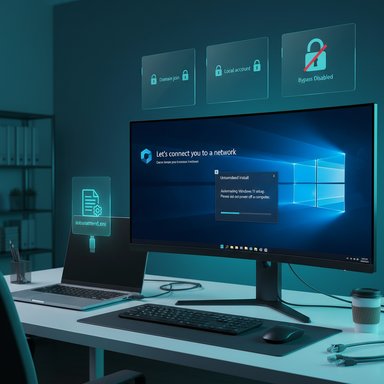
Microsoft has quietly removed the last low-friction ways to create a purely local user during Windows 11’s initial setup, neutralizing the Shift+F10 command-line tricks and baking an account-first Out‑of‑Box Experience (OOBE) into recent Insider preview builds.
Windows setup has been trending toward cloud‑centric defaults for years: OneDrive syncing, Windows Hello recovery, BitLocker key escrow, and settings synchronization increasingly assume a Microsoft Account (MSA) and an active network connection. Windows 11 continued and accelerated that trajectory, using OOBE as the primary surface to establish an online identity and configure cloud‑dependent features at first boot.
The community response to that direction has been predictable. Enthusiasts, privacy‑minded buyers, refurbishers and lab technicians discovered simple in‑OOBE workarounds—commonly executed from the Shift+F10 command prompt—that restored an offline, local‑account setup path without rebuilding installation media. Those tricks became part of everyday toolkit advice shared across forums and how‑tos. Microsoft has now started to neutralize those shortcuts in current Insider preview flights.
That rationale is straightforward from a product and operations perspective: standardizing the initial setup path reduces the number of misconfigured devices and increases the probability that cloud‑dependent features work seamlessly from day one. It also simplifies support triage and recovery scenarios because devices are more likely to be registered and escrow keys to the cloud.
The practical response for anyone who values a local‑first posture is straightforward: move from brittle in‑OOBE shortcuts to repeatable, supported provisioning workflows (unattend.xml, imaging, Autopilot, or MDM automation) or accept a temporary MSA and convert post‑setup. Microsoft’s preview channels are the testing ground for this policy; timeline and scope for mainstream rollout remain unconfirmed, so administrators and power users should validate behavior in lab environments and prepare their deployment documentation accordingly.
This is a consequential shift in the balance between convenience, security and control. It reduces a category of support risk while increasing operational cost for specific audiences. The debate over where to draw defaults will continue—but for now, the easy, in‑OOBE local account installation is waning, and the practical path forward is planning and tooling rather than one‑line command prompts.
Source: iTnews Microsoft to kill local account workarounds in Windows 11 preview builds
 Background / Overview
Windows setup has been trending toward cloud‑centric defaults for years: OneDrive syncing, Windows Hello recovery, BitLocker key escrow, and settings synchronization increasingly assume a Microsoft Account (MSA) and an active network connection. Windows 11 continued and accelerated that trajectory, using OOBE as the primary surface to establish an online identity and configure cloud‑dependent features at first boot.The community response to that direction has been predictable. Enthusiasts, privacy‑minded buyers, refurbishers and lab technicians discovered simple in‑OOBE workarounds—commonly executed from the Shift+F10 command prompt—that restored an offline, local‑account setup path without rebuilding installation media. Those tricks became part of everyday toolkit advice shared across forums and how‑tos. Microsoft has now started to neutralize those shortcuts in current Insider preview flights.
What changed in the preview builds
The specific builds and the headline
The change appears in recent Insider preview packages in the Dev and Beta channels—most notably the Dev channel build family in the 26220.x series and the companion Beta channel family in the 26120.x series. Microsoft’s Insider release notes for those flights include explicit language that it is “removing known mechanisms for creating a local account in the Windows Setup experience (OOBE).”Which in‑OOBE shortcuts were neutralized
The two consumer‑facing workarounds that mattered most to end users and technicians are now reported neutralized or ignored in patched preview images:- The long‑used OOBE\BYPASSNRO helper (often invoked as bypassnro.cmd from Shift+F10), which previously toggled a “no‑internet/limited setup” branch and exposed a local‑account creation flow. Attempts to run it in affected builds either do nothing or return OOBE to the Microsoft account sign‑in gate.
- The later one‑line convenience URI—start ms‑cxh:localonly—discovered by the community and used to pop a local‑account dialog directly from the OOBE command prompt. That command now either fails silently or loops the installer back to the network/credential screens.
Technical breakdown: how the bypasses worked and how they’re being stopped
How the bypasses previously operated
- BYPASSNRO: This helper manipulated OOBE behavior by toggling a registry flag that the setup logic used to decide whether to present the “I don’t have internet” / limited setup branch. That branch exposed the legacy local‑account creation dialog without enforcing an MSA.
- ms‑cxh:localonly URI: The Cloud Experience Host (CXH) registered URI handlers that, in some builds, could be invoked to surface the offline account dialog immediately, avoiding reboots and making the trick more convenient for technicians.
What remains intact
Enterprise and programmatic provisioning remains supported. Tools and mechanisms designed for managed deployments—Autopilot, unattend.xml unattended installations, MDT/SCCM imaging, Intune/MDM provisioning—still allow deterministic provisioning of local or domain accounts via supported channels. Microsoft’s changes are targeted at the consumer interactive OOBE surface, not enterprise imaging or automated provisioning pipelines.Why Microsoft says it did this
Microsoft frames the move as a quality, supportability and security decision. The company argues that ad‑hoc bypasses can cause devices to exit OOBE without completing critical configuration screens (for example, telemetry choices, BitLocker key escrow, device registration, or cloud recovery setup), leaving the machine in a state that is not “fully configured for use.” Consequently, Microsoft says users should complete OOBE with an internet connection and an MSA so device configuration completes properly.That rationale is straightforward from a product and operations perspective: standardizing the initial setup path reduces the number of misconfigured devices and increases the probability that cloud‑dependent features work seamlessly from day one. It also simplifies support triage and recovery scenarios because devices are more likely to be registered and escrow keys to the cloud.
Impact and implications
For consumers
For most mainstream consumers the change will be largely invisible: people who buy new machines and follow the guided OOBE will sign in with an MSA, finish setup, and benefit from immediate cloud integration for OneDrive, Windows Hello backup, and settings sync. That outcome aligns with Microsoft’s stated goals for play‑and‑work scenarios and aims to reduce friction later when cloud features are used.For privacy‑conscious users and hobbyists
The change increases friction for users who prefer a local account for privacy or offline reasons. The simplest ways to do a local‑first install on the interactive OOBE path are now gone; the practical options for those users are:- Use supported provisioning prior to OOBE (image or unattended answer files) to inject a local account.
- Accept a temporary MSA during OOBE, complete setup, then convert to or create a local account afterward.
- Use enterprise or advanced tooling (Autopilot with specific policies, MDT/SCCM, unattend.xml) to preserve local account flows.
For refurbishers and small-scale techs
Small refurbishers and technicians who relied on a quick Shift+F10 trick to configure devices at scale will feel a tangible operational impact. The neutralization of the one‑line workarounds raises the bar for day‑one local installs and may add labor (or require investment in imaging/provisioning automation). For many, switching to prebuilt images or scripted unattended provisioning will be the practical, supported response.For enterprise IT
Enterprises are mostly unaffected by these particular changes because they rely on supported provisioning tools that were never the target. Autopilot, unattend.xml, MDT/SCCM and MDM‑driven provisioning remain the authoritative ways to create local, domain‑joined, or Azure AD–joined accounts during deployment. Organizations should continue to validate and document their provisioning pipelines against the new preview behavior, but functional changes to enterprise tooling are not broadly reported.Risks, trade‑offs and broader policy questions
Benefits
- Consistency and supportability: Fewer outlier installations reduces the support burden and the chance of a device lacking critical recovery or security configuration.
- Immediate access to cloud features: Users get OneDrive, Windows Hello recovery and sync-ready settings from the start.
- Reduced fragmentation: A single well‑tested onboarding path makes telemetry and feature rollout more predictable.
Costs and risks
- Choice and control: Consumers lose a low‑friction path to a local account; this reduces flexibility for privacy‑minded users.
- Offline scenarios: Devices intended to remain offline at first boot are harder to provision without advanced tooling.
- Operational cost: Small refurbishers and technicians must adopt heavier provisioning workflows or accept the temporary MSA approach.
- Policy perception: The move may inflame debates about platform control, defaults, and whether vendors should be able to limit certain configuration choices in the name of security and support.
Regulatory and consumer‑rights considerations
While the neutralization of in‑OOBE shortcuts is a product decision, it raises legitimate questions about user autonomy and choice. Regulators and consumer advocates will pay attention to whether defaults effectively coerce users into cloud accounts that they would otherwise avoid, and whether clearer UI choices or explicit opt‑outs should be provided on consumer SKUs. For now, Microsoft’s changes are limited to the interactive consumer OOBE; enterprise provisioning is not impeded.Alternatives and recommended workflows
For users and organizations that need deterministic local‑account setups, the practical, supported alternatives are:- Use unattended installations (unattend.xml) when building installation media to provision a local account before OOBE runs.
- Create and deploy customized images (Sysprep + image capture or third‑party imaging tools) that include the local user profile.
- Leverage enterprise provisioning tools such as MDT, SCCM, Autopilot (with appropriate policies), or Intune scripting to provision identity and configuration state before first interactive login.
- Accept a minimal Microsoft Account during OOBE to finish setup, then convert provisioning to a local account and harden the device (revoking cloud linking where desired).
- If privacy is the primary concern, implement post‑setup hardening steps: remove or unlink the MSA, turn off telemetry settings to the desired level, and ensure BitLocker keys and recovery are managed according to policy.
What remains uncertain (and how to treat speculation)
- When the change reaches mainstream releases: Insider preview behavior is a staging ground. Some preview changes make it to stable channels quickly; others are modified or reversed. The precise timing for these OOBE changes to appear in a general release or cumulative update is not confirmed. Treat any timeline beyond Insider/Dev/Beta observations as speculative until Microsoft announces a promotion to Release Preview or Production channels.
- Whether Microsoft will further tighten identity choices on consumer SKUs: At present the change targets consumer interactive OOBE only. There is no confirmed removal of enterprise or programmatic provisioning paths. Future product strategy could alter this balance, so administrators and power users should monitor Insider notes and Microsoft communications.
Strengths and weaknesses of Microsoft’s approach — a critical assessment
Notable strengths
- Reduced misconfiguration risk: If bypasses allowed machines to miss BitLocker key escrow or recovery setup, neutralizing those shortcuts reduces a class of support headaches. This strengthens baseline security for mainstream users who would otherwise have unmanaged devices.
- Fewer edge cases for support: Microsoft and OEMs can standardize diagnostics and recovery expectations when the majority of consumer devices arrive with a cloud identity and recovery configured.
- Opportunity to surface a supported concession: Microsoft added a narrowly targeted OOBE helper (SetDefaultUserFolder.cmd) to allow technicians to control the profile folder name, which addresses a common annoyance for those signing in with MSAs without restoring a full offline path. That signals Microsoft is willing to provide limited, supported tooling to address specific pain points while retaining the account-first posture.
Notable weaknesses and risks
- Reduced consumer choice: For users who deliberately choose a local account for privacy or regulatory reasons, an enforced online path can feel coercive even if alternative supported routes exist.
- Operational burden on small actors: Small refurbishers and DIY installers must invest in imaging or provisioning workflows they may not already maintain.
- Potential for community backlash: The Windows enthusiast community has been vocal about preserving local control. Microsoft faces a reputational risk if the perception grows that platform defaults remove meaningful user choice without adequate, easy alternatives.
Practical advice for readers (quick checklist)
- If you deploy devices at scale: validate your provisioning pipeline against the latest Insider builds now and adopt supported methods (unattend.xml, MDT, Autopilot) if you rely on local accounts.
- If you refurbish or resell machines: prepare image or unattended workflows to avoid day‑one friction and ensure privacy requirements are met.
- If you are privacy-conscious: plan for a hybrid flow—finish setup with a temporary MSA, harden and convert to a local account post‑OOBE, then verify cloud connections are disabled according to your policy.
- If you are a typical consumer: accept the MSA sign‑in during OOBE for the smoothest experience and then adjust privacy settings after setup to the comfort level you require.
Conclusion
Microsoft’s neutralization of well‑known in‑OOBE local‑account workarounds marks a meaningful tilt in Windows 11’s user journey: the default consumer path is becoming account‑first, networked, and cloud‑anchored. The change reduces a class of misconfiguration and support issues by ensuring first‑boot flows complete registration and recovery tasks, but it also raises friction for privacy‑minded users, hobbyists and small refurbishers who previously relied on low‑friction, one‑line tricks to preserve a local account.The practical response for anyone who values a local‑first posture is straightforward: move from brittle in‑OOBE shortcuts to repeatable, supported provisioning workflows (unattend.xml, imaging, Autopilot, or MDM automation) or accept a temporary MSA and convert post‑setup. Microsoft’s preview channels are the testing ground for this policy; timeline and scope for mainstream rollout remain unconfirmed, so administrators and power users should validate behavior in lab environments and prepare their deployment documentation accordingly.
This is a consequential shift in the balance between convenience, security and control. It reduces a category of support risk while increasing operational cost for specific audiences. The debate over where to draw defaults will continue—but for now, the easy, in‑OOBE local account installation is waning, and the practical path forward is planning and tooling rather than one‑line command prompts.
Source: iTnews Microsoft to kill local account workarounds in Windows 11 preview builds