

Windows 11’s Out‑of‑Box Experience (OOBE) is quietly getting a pragmatic — and long‑requested — quality‑of‑life fix that answers years of frustration from power users and IT pros: for the first time in recent builds there is a supported way to set the default user profile folder name during initial setup. At the same time, Microsoft appears to be reining back an earlier, more aggressive plan to force Copilot deeper into core Windows surfaces — a tactical retreat that signals both technical limits and political sensitivity around adding AI to the OS. These two moves together capture where Microsoft’s Windows strategy is headed: small, user‑facing fixes that reduce friction for experienced users, paired with a more cautious posture for system‑level AI hooks after a wave of community and enterprise pushback.
Windows setup — the blue screens, progress wheels, and OOBE prompts every PC owner meets the first time they boot — has always been more than aesthetics. The Out‑of‑Box Experience is where Microsoft sets defaults, ties devices to identities, and nudges users toward cloud services. Over the Windows 11 era the company steadily pushed an account‑first model that favors Microsoft Accounts (MSA), OneDrive, and cloud recovery. Those changes simplified many consumer scenarios but also removed a set of long‑standing convenience options for power users: the ability to create purely local accounts with minimal fuss, or to control the default name used for the user profile folder in C:\Users.
Meanwhile, Microsoft has been folding Copilot — its conversational, cloud‑backed assistant — ever deeper into Windows. The push to make Copilot the “orchestrator” of the desktop has included taskbar placements, a dedicated Copilot key on some keyboards, and experimentations with contextual Copilot actions in File Explorer and other shell surfaces. Those integrations promised productivity benefits but ignited community concerns about privacy, performance, discoverability, and the erosion of user choice. Over the last year Microsoft paused or reworked several high‑profile Copilot plans in response to feedback.
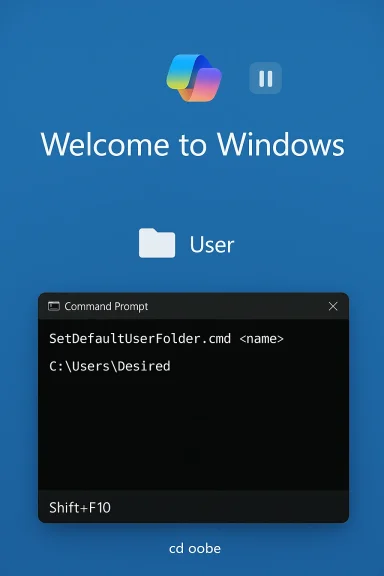
Recent Insider builds now surface a supported mechanism to set the default profile folder during the OOBE sequence. Practically, testers have discovered a small but useful command available from the OOBE environment that lets you specify the profile folder name (with a length limit and Unicode support) so the first local user gets the exact path you want. That change restores a practical level of control for scenarios where the profile path matters for scripts, application compatibility, or simply housekeeping.
Key implementation notes observed in preview builds:
Both changes are welcome, but they also reframe the conversation about Windows 11’s direction. Small, practical fixes improve everyday life for experienced users and admins. At the same time, Microsoft has learned that shipping AI everywhere by default is a political decision as much as a technical one. Future Copilot plans will likely be more incremental, better documented, and coupled with admin tools and privacy guardrails — which, if done well, will make Copilot more broadly acceptable without alienating the user base that values control over convenience.
In short: the era of “Copilot everywhere, right now” is giving way to “Copilot where it helps, with clear controls.” And while that recalibration continues, users get a practical win in setup: one less annoying manual step, and one more predictable profile path to manage.
Conclusion: Microsoft’s steady stream of incremental changes — from OOBE improvements to a more cautious Copilot rollout — paints a picture of a company listening and iterating. Power users and IT teams should welcome the new setup control and continue to push for greater transparency and stronger controls around Copilot. The next year will be decisive: if Microsoft pairs AI with clear opt‑in choices, robust governance, and engineering that respects device constraints, Copilot can evolve from a controversial experiment into a genuinely helpful system service.
Source: Neowin Windows 11's initial setup is getting a long-requested feature
Source: Neowin Microsoft ditches plans to inject Copilot into a key part of Windows 11
 Background
Windows setup — the blue screens, progress wheels, and OOBE prompts every PC owner meets the first time they boot — has always been more than aesthetics. The Out‑of‑Box Experience is where Microsoft sets defaults, ties devices to identities, and nudges users toward cloud services. Over the Windows 11 era the company steadily pushed an account‑first model that favors Microsoft Accounts (MSA), OneDrive, and cloud recovery. Those changes simplified many consumer scenarios but also removed a set of long‑standing convenience options for power users: the ability to create purely local accounts with minimal fuss, or to control the default name used for the user profile folder in C:\Users.Meanwhile, Microsoft has been folding Copilot — its conversational, cloud‑backed assistant — ever deeper into Windows. The push to make Copilot the “orchestrator” of the desktop has included taskbar placements, a dedicated Copilot key on some keyboards, and experimentations with contextual Copilot actions in File Explorer and other shell surfaces. Those integrations promised productivity benefits but ignited community concerns about privacy, performance, discoverability, and the erosion of user choice. Over the last year Microsoft paused or reworked several high‑profile Copilot plans in response to feedback.
What’s new in the Windows 11 initial setup
The long‑requested fix: set the default profile folder name during OOBE
For years Windows users — particularly administrators, refurbishers, and power users who image devices — have complained that the default profile folder name generated during setup (C:\Users\<auto‑name>) can create messes: mismatched folder names after joining domains, duplicated profile names, or migration scripts that break because the user directory doesn’t match expectations.Recent Insider builds now surface a supported mechanism to set the default profile folder during the OOBE sequence. Practically, testers have discovered a small but useful command available from the OOBE environment that lets you specify the profile folder name (with a length limit and Unicode support) so the first local user gets the exact path you want. That change restores a practical level of control for scenarios where the profile path matters for scripts, application compatibility, or simply housekeeping.
Key implementation notes observed in preview builds:
- The capability is exposed from the OOBE environment (the same screens you see on initial boot).
- Access is typically via a command prompt invoked during setup (Shift+F10), where an included helper script or command (reported as SetDefaultUserFolder.cmd in some previews) can be executed.
- The name you choose is validated (length restrictions apply; community reports indicate up to 16 Unicode characters in some builds).
- If left unset, Windows continues to derive the profile folder name from the account (MSA‑derived names for online sign‑ins, or the local account name otherwise).
Why this matters now
It’s a deceptively small tweak with outsized practical value. The default profile folder name is embedded in many places: shortcuts, application settings, environment variables, and migration utilities. When the name is unpredictable or includes characters that break tools, IT teams spend time remediating issues after the fact. Making that choice explicit during setup reduces downstream support work, makes imaging and provisioning scripts more predictable, and removes an annoyance hobbyists have worked around for years. The update also demonstrates Microsoft listening to the community on targeted usability gaps that don’t require sweeping UI changes.How to use the new OOBE profile name option (observed workflow)
Below is a concise, step‑by‑step walkthrough for testers and IT pros who want to try the preview workflow. Note: details such as command names and limits may change between preview builds and final release; test in a controlled environment before relying on the method for production imaging.- Boot a device into the Windows 11 OOBE (first boot after install or recovery).
- When the account/sign‑in screen appears, press Shift+F10 to open a Command Prompt (this key combo opens a system shell during setup in Insider builds).
- Navigate to the OOBE folder: cd oobe.
- Run the helper script or command (community reports identify SetDefaultUserFolder.cmd in some preview images): SetDefaultUserFolder.cmd <desired_name>. This sets the profile folder name that Windows will use when creating the first user's profile.
- Continue the normal OOBE flow. The chosen folder name will be applied to the profile that is created during setup.
Caveats, limits, and deployment considerations
- Preview‑only behavior: at the time of reporting this mechanism is visible in Insider preview builds or specific update channels. Administrators should not assume it’s available on stable retail builds until Microsoft ships it broadly. Test in an Insider VM or lab first.
- Not a blanket replacement for enterprise provisioning: imaging pipelines, Autounattend.xml, and enterprise provisioning tools still remain the supported way to automate large fleet rollouts. This feature is a convenience and remediation tool during first‑boot flows, not a full substitute for enterprise deployment practices.
- Interaction with account‑first flows: the method fits into existing account sign‑in screens. If the OOBE path forces an MSA sign‑in by default (a separate change Microsoft has been rolling through Insider channels), the profile name may be derived from the MSA unless explicitly set during the OOBE step. That means the benefit is strongest where you either need an explicit name or are working with local accounts.
- Support limits: documented length and character restrictions exist, and Microsoft may enforce additional validation to avoid conflicts with reserved names or illegal filesystem characters. Expect final product guidance in release notes when shipped.
Microsoft’s Copilot course correction: what was paused, and why
The original ambition
Microsoft’s design playbook for Windows in recent years has emphasized integration: cloud identity, built‑in productivity services, and now AI via Copilot. The company explored placing Copilot in multiple high‑visibility surfaces — the taskbar, the Start experience, File Explorer, and even embedding a “Copilot screen” or Recall features that would capture activity across the device to enable contextually aware assistance. These moves reflected a strategy to make the AI assistant a first‑class OS component rather than a standalone app.The rollback and public reaction
Multiple publications and reports indicate Microsoft has scaled back or delayed specific integration plans — notably those that would have injected Copilot deep into certain shell surfaces or given it a persistent, always‑on role. The reasons are a mix of technical, user‑experience, and reputational:- Technical complexity and performance: integrating a cloud‑backed AI assistant into low‑latency shell surfaces (like File Explorer) raises engineering trade‑offs for resource use and responsiveness on lower‑end hardware.
- Privacy and telemetry concerns: features like Recall — which periodically snapshot screen content to provide memory recall — sparked broad privacy debates. Enterprises and privacy‑minded users balked at the potential for sensitive data capture. Microsoft paused or limited rollout scopes for features that raised these issues.
- User backlash and default behavior concerns: heavy, opt‑out integration of Copilot into the Start or other central surfaces was received poorly by many who felt the assistant was being shoved into places where people did not want it. That backlash encouraged Microsoft to recalibrate, making certain features opt‑in or delaying them.
What the Copilot retreat means in practice
- More opt‑in experiences: expect Microsoft to favor opt‑in placements and clearer UI affordances, rather than injecting Copilot into the default taskbar or forcing Copilot panels to open. Tech coverage signals a move toward letting users choose how and where AI appears.
- Continued experimentation in controlled channels: Microsoft will likely keep iterating in Insider channels and on Copilot+ certified devices, but single‑step mass rollouts of system‑wide AI hooks are less likely until the company is confident on telemetry, privacy, and performance.
- Administrative controls and removal options: Microsoft has been adding enterprise controls that let admins remove or limit Copilot in managed environments — for example, a narrowly scoped Group Policy that can uninstall the consumer Copilot app on managed devices under defined conditions. That change signals Microsoft’s acknowledgment that enterprises need explicit controls.
Strengths and benefits of Microsoft’s two moves
- Practical, user‑led fixes improve daily workflows: restoring a supported way to set the profile folder name in OOBE is exactly the sort of small, focused change that materially reduces friction for power users, system builders, and enterprise imaging teams. It’s the kind of bike‑shed fix that answers a persistent, real problem without altering the platform’s strategic direction.
- Safer, slower AI rollout reduces risk: by stepping back from forcing Copilot into core shell surfaces, Microsoft reduces the risk of mass user outrage, privacy incidents, and poor first impressions that could sour adoption. Measured rollouts through Insider channels and opt‑in paradigms give engineering time to improve reliability and to craft clearer consent flows.
- Better admin controls: adding Group Policy or managed‑device uninstall tools gives IT organizations the levers they need to govern Copilot deployments, which is essential for enterprise adoption and regulatory compliance.
Risks, trade‑offs, and unanswered questions
- Fragmentation of behavior across channels: when Microsoft tests features in Insider builds and simultaneously changes defaults in retail, confusion increases. Power users and enterprises must track build numbers and channel behavior closely to avoid surprises during mass rollouts. Expect intermittent differences between preview documentation and how things behave in stable releases.
- Partial fixes versus systemic policy: the profile folder control is a welcome stopgap, but it does not address the broader account‑first design direction that has removed other local‑friendly paths. Users who oppose mandatory cloud sign‑ins still face friction; this fix simply reduces one pain point.
- Copilot’s future depends on trust, not just code: Microsoft can delay or pause feature injections, but lasting adoption requires clearer privacy guarantees, transparent telemetry, and consistent admin controls. If users continue to view Copilot as intrusive or resource‑hungry, upgrades that embed AI into the shell will encounter persistent resistance.
Practical advice for users, hobbyists, and IT teams
- Test in a lab: if you rely on a predictable user profile path for scripts or legacy apps, experiment with the new OOBE control in an Insider VM before relying on it in production. Integration and command names can change between builds.
- Maintain enterprise imaging pipelines: Autounattend.xml and enterprise provisioning tools remain the supported way to manage mass deployments. Use the new OOBE trick for spot fixes, refurbishing, or when imaging isn’t feasible.
- Use administrative controls for Copilot: if you manage corporate fleets, track the new Group Policy options and Intune controls that target the consumer Copilot app. Test removal and containment tools in pilot groups before broad enforcement.
- Watch Insider channels and release notes: Microsoft continues to iterate rapidly. Keep an eye on Insider release notes for final behavior, limits on new OOBE features, and how Copilot integrations evolve. This is the best way to get early visibility into what will arrive in stable builds.
Verdict and outlook
Microsoft’s twin moves — adding a supported way to set the default profile folder during OOBE and pausing or reworking some of the more aggressive Copilot injections — show a maturing product strategy. The company is responding to two different types of feedback: pragmatic, power‑user pain points that can be fixed with surgical changes; and broad, downstream concerns about AI that require posture adjustments, clearer consent, and stronger administrative controls.Both changes are welcome, but they also reframe the conversation about Windows 11’s direction. Small, practical fixes improve everyday life for experienced users and admins. At the same time, Microsoft has learned that shipping AI everywhere by default is a political decision as much as a technical one. Future Copilot plans will likely be more incremental, better documented, and coupled with admin tools and privacy guardrails — which, if done well, will make Copilot more broadly acceptable without alienating the user base that values control over convenience.
In short: the era of “Copilot everywhere, right now” is giving way to “Copilot where it helps, with clear controls.” And while that recalibration continues, users get a practical win in setup: one less annoying manual step, and one more predictable profile path to manage.
Conclusion: Microsoft’s steady stream of incremental changes — from OOBE improvements to a more cautious Copilot rollout — paints a picture of a company listening and iterating. Power users and IT teams should welcome the new setup control and continue to push for greater transparency and stronger controls around Copilot. The next year will be decisive: if Microsoft pairs AI with clear opt‑in choices, robust governance, and engineering that respects device constraints, Copilot can evolve from a controversial experiment into a genuinely helpful system service.
Source: Neowin Windows 11's initial setup is getting a long-requested feature
Source: Neowin Microsoft ditches plans to inject Copilot into a key part of Windows 11
