

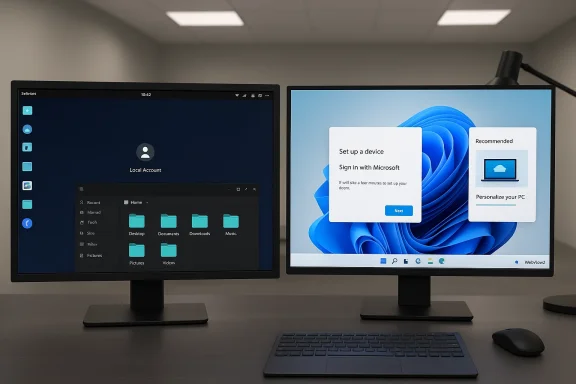
After three decades on Linux, a week spent using Windows 11 as a daily driver revealed a pattern: many of the platform’s modern conveniences arrive bundled with friction that repeatedly slows work, raises privacy questions, or quietly costs battery life. The nine pain points the veteran Linux user cataloged during that week are not random complaints — they map to platform choices Microsoft has made about accounts, cloud defaults, bundled runtimes, and monetization. These are design trade‑offs with real consequences for productivity, privacy, and device longevity.
Background / Overview
Windows 11 positions itself as a modern, secure, and cloud‑integrated desktop for a broad audience. It brings polished visuals, broad application compatibility, and deep ties to Microsoft services. But those surface wins hide a set of defaults and shared components that often benefit average consumers and enterprise telemetry while complicating the workflow of users who prize local control and predictable behavior.Across the weeklong test the same themes kept repeating: the operating system nudges you toward a Microsoft account and OneDrive; shared web runtimes (notably WebView2) are pervasive and can be resource‑hungry; the UI occasionally surfaces recommendations that act like ads; and power‑management behavior differs across hardware in ways that can waste laptop battery. Where Linux desktops typically default to local accounts, predictable input behavior, and light background services, Windows 11’s defaults push cloud integration and bundled components — and that divergence is where most of the friction appears.
The nine problems, explained
Below I summarize each problem the Linux veteran reported, explain why it happens, and compare the experience with a typical modern Linux desktop.1. Account lock‑in starts at setup and pushes cloud integration
What happened: The Out‑Of‑Box Experience (OOBE) on many consumer Windows 11 builds guides — and in some cases requires — a Microsoft account sign‑in. The result is a setup flow that wires the device to an online identity before you ever see the desktop.Why it happens: Microsoft designs OOBE to surface account‑linked benefits (OneDrive, Microsoft 365, device recovery), and the default experience optimizes for that path. Over time Microsoft has removed or tightened several workarounds that let users create a purely local account during setup, particularly for retail Home installs.
How Linux differs: Most Linux distributions present local account creation as the default during installation; cloud sign‑in is optional and usually handled at the application layer (e.g., sync clients), not at OS setup.
Practical impact: For privacy‑minded users, IT imaging or offline deployments, or air‑gapped systems, this is a meaningful regression. It’s not just a nuisance — it changes the trust model for file locations, telemetry, and recovery workflows.
Mitigations:
- Use enterprise provisioning or unattended install files for bulk deployments.
- Disconnect from the network during OOBE where possible (this workaround is increasingly brittle).
- After setup, create a local admin user and disable cloud defaults if you must keep an accountless environment.
2. Passkeys and Windows Hello collide, creating sign‑in friction
What happened: Passkeys (FIDO/WebAuthn) are meant to make passwordless sign‑ins simple. But on Windows 11 the interplay between browser‑stored passkeys, third‑party password managers, and the platform’s Windows Hello authenticator can be inconsistent. The veteran hit dead ends until enabling or reconfiguring Windows Hello.Why it happens: The passkey ecosystem is still maturing. While WebAuthn is a standard, implementations — and expectations about where passkeys live (browser keychain, platform authenticator, or a third‑party vault) — vary across providers. Windows’ native path bundles credentials with Windows Hello and platform TPMs, which can conflict with passkeys previously created in other environments.
How Linux differs: Linux desktops don’t yet have a single dominant native passkey store; many users rely on browser keychains or third‑party password managers that integrate across platforms. The result is different friction but often more explicit control over where credentials live.
Practical impact: Passkey failures become a productivity hit and a helpdesk call generator. For users who juggle devices across ecosystems (Android, iPhone, macOS, Linux), inconsistent UX and recovery paths remain the main adoption blocker.
Mitigations:
- Enroll Windows Hello (PIN/biometrics) before migrating passkeys to the device.
- Keep secondary recovery methods (phone, security key, exported backups) ready.
- Where available, use third‑party managers with explicit cross‑platform passkey portability support.
3. App store quality and aggressive upsells disappoint
What happened: Installing an app from the Microsoft Store resulted in a full‑screen upsell or recommendation that hijacked focus and interrupted work. The experience felt intrusive and, in one account, left Task Manager and command access awkwardly constrained until a reboot.Why it happens: Microsoft has been evolving the Store to support Win32 packaging and to monetize placement. The Store can surface promotions or recommendations that look very much like ads. Win32 apps bundled in the Store retain their native behavior — good and bad — meaning a poorly behaved packaged app can still perform modal, disruptive actions.
How Linux differs: Major Linux package managers (APT, DNF, Pacman) and software centers rarely present full‑screen upsells at install time. Desktop repositories and Snap/Flatpak/Flathub ecosystems are curated, and while promotional content exists, it’s less tied into the OS installer flow.
Practical impact: Interruptions like this undermine trust in the app‑install path and create support work for users who expect safe, non‑modal installs from a store.
Mitigations:
- Install apps from trusted vendors’ installers rather than the Store when you want predictable behavior.
- Use App‑Locker or enterprise management to control Store installs on managed devices.
- Immediately disable recommendations and similar prompts in Settings after setup.
4. Input settings that refuse to stick on Precision Touchpads
What happened: Changing scroll direction to “natural” repeatedly reverted, likely because of conflicts between OEM touchpad drivers and Windows Precision Touchpad settings.Why it happens: Many OEMs ship custom driver stacks (Synaptics, ELAN) that add their own control panels. Where Windows provides Precision Touchpad settings, OEM utilities sometimes override or reapply defaults, especially after driver updates. That creates a tug‑of‑war.
How Linux differs: Modern Linux desktops use libinput as a common abstraction for input devices; settings like natural scrolling tend to be applied consistently across applications and sessions once configured.
Practical impact: This is a low‑severity annoyance for power users but a source of repeated friction that damages perceived polish and reduces confidence that settings will persist.
Mitigations:
- Identify the active touchpad driver and uninstall or disable OEM control panels if you prefer Windows’ precision layer.
- Use registry or Group Policy locks where you manage fleets.
- Keep a short note of the registry/Settings location to reapply quickly if an update reverts the preference.
5. Ads creep into the desktop experience and erode trust
What happened: The OS surfaces recommendations and promotional content in Start, Settings, and occasionally File Explorer. Although Microsoft labels these as suggestions, they function as in‑product upsells.Why it happens: Microsoft uses the OS surface to promote its ecosystem (Edge, Microsoft 365, OneDrive, Store apps). Experimentation with placements often originates in Insider channels and rolls out to consumers as recommendations.
How Linux differs: Major Linux desktop environments rarely blend ads into core system UI. Commercial promotion in stock releases is unusual; third‑party app stores and snaps can contain promoted packages, but the core OS experience remains comparatively free of vendor upsells.
Practical impact: Trust costs are real. When a paid OS begins to promote first‑party services inside productivity surfaces, many professional users see this as a poor alignment with their privacy and workflow priorities.
Mitigations:
- Turn off Show recommendations and Get tips and suggestions toggles in Settings → Personalization and Settings → Notifications.
- Use Group Policy templates on managed devices to silence recommendation engines.
- Consider alternative shells or third‑party file managers if the ads persist in places you can’t control.
6. OneDrive as the default save trap for new installs
What happened: Windows steers new installations to OneDrive using Known Folder Move and cloud‑first save defaults. Users expecting local Documents and Desktop behavior can find files in the cloud unexpectedly.Why it happens: Microsoft packages OneDrive tightly into the OS and nudges cloud backup as a feature to reduce data loss and push subscribers to storage/Office services. Known Folder Move is convenient for consumers, but it changes default file locations.
How Linux differs: Linux desktops default to local home directories and leave cloud sync clients (Nextcloud, Dropbox, proprietary clients) as optional installs.
Practical impact: For workflows where offline access, data sovereignty, or controlled backups matter, automatic redirection to cloud storage can be disruptive and raise compliance questions.
Mitigations:
- Decline the Known Folder Move during setup or disable OneDrive’s backup options after install.
- Configure Office apps to Save to Computer by default if local saves are required.
- Use Group Policy to block Known Folder Move on managed endpoints.
7. Background WebView2 drains resources and hurts battery life
What happened: The WebView2 runtime — used to embed web content in desktop apps — appeared as a top consumer of CPU and power on the test machine even when Edge wasn’t in active use, producing fan noise and reduced battery runtime.Why it happens: WebView2 is a widely deployed runtime that many apps rely on to render web UI. Embedded web content can be resource intensive (JavaScript, animations, background tasks), and poorly optimized WebView2 hosts can keep render processes awake. Additionally, the evergreen WebView2 runtime updates itself and is shared by multiple apps, making its impact system‑wide.
How Linux differs: Linux desktops tend to have fewer system‑wide embedded browser runtimes in general; when apps embed web views they usually pull their own dependencies or rely on lightweight toolkits, and users often have tighter visibility into which apps spawn web processes.
Practical impact: On laptops, uncontrolled WebView2 activity can noticeably reduce battery life and raise fan noise. Because the runtime is shared, a single misbehaving app can drag many sessions into higher power states.
Mitigations:
- Use Task Manager’s Efficiency Mode for heavy WebView2 processes.
- Identify the parent application and update or replace that app with a lighter alternative.
- Where feasible, disable background refresh or web‑powered features inside the offending app.
8. Security Center messaging is inconsistent
What happened: The Windows Security app presented conflicting indicators for protection — one page saying a protection component was Off, another indicating On — leaving the user uncertain about actual protection status.Why it happens: Windows Security aggregates multiple telemetry sources (Defender engine, cloud protection, account protections, third‑party AV status). Different UI panes query different subsystems and can lag or reflect transient states after updates or scans, causing inconsistent messaging.
How Linux differs: Linux does not have a single integrated anti‑malware UI equivalent; endpoint protection on Linux is generally handled with explicit agent installs and clear, singular status reporting for those agents.
Practical impact: Mixed signals about security status increase cognitive load and can erode trust in the platform’s default protections, even though Microsoft Defender’s detection rates are strong in independent lab tests.
Mitigations:
- Use PowerShell (Get‑MpComputerStatus / Get‑MpThreat) for authoritative Defender state.
- Ensure Defender and Windows Update are current and allow cloud‑delivered protection to synchronize.
- For enterprises, use centralized EDR reporting to avoid machine‑level ambiguity.
9. Power defaults miss the laptop context and waste energy (Modern Standby)
What happened: The device failed to sleep or hibernate predictably. Modern Standby (S0) produced erratic sleep behavior and higher idle drain than the veteran expected from a modern laptop.Why it happens: Modern Standby (S0 low‑power idle) is a phone‑like model that keeps the system in a low‑power connected state so notifications and background tasks can run. Its actual power draw depends heavily on firmware, drivers, and OEM implementation. If network cards, drivers, or OEM utilities wake the platform frequently, the system won’t reach deep micro‑sleep states.
How Linux differs: Many Linux setups still routinely use S3 or explicit hibernate behavior on supported hardware, and users can reliably force the machine into deep sleep or hibernate with straightforward configuration — although behavior varies by firmware and distro.
Practical impact: For mobile professionals, an unreliable sleep model is a productivity and reliability problem: drained batteries and lost unsaved work are direct, tangible harms.
Mitigations:
- Run powercfg /a and powercfg /requests to diagnose available sleep states and blockers.
- Update firmware and drivers from the OEM and disable errant background sync tools.
- Consider enabling hibernate for long idle periods or, if supported, tweak Modern Standby settings through OEM guidance or registry keys (advanced users only).
What this says about Windows and Linux in daily work
Windows 11 gives mainstream users and enterprises powerful capabilities: robust compatibility with the Windows application ecosystem, polished UI, and integrated security provided by Defender and the platform’s telemetry. For many mainstream workflows the defaults are beneficial: instant backups to OneDrive, easy passkey onboarding for casual users, and a curated Store for convenience.That said, Windows’ defaults emphasize accounts, cloud, monetization, and shared runtimes in ways that can get in the way of focused work for people who expect a quiet, local environment. Linux achieves many of the veteran’s desired outcomes by doing one thing consistently: staying out of the way. Local accounts, predictable device state, the absence of in‑OS promotions, and a smaller shared runtime footprint make Linux a calmer platform for those who prize control and minimal background surprises.
This is not a binary verdict. Windows excels in application breadth, vendor support, and features many users need. Linux excels in predictable behaviour, local autonomy, and lightweight runtime profiles. The right choice depends on which trade‑offs you value more: compatibility and integrated services, or control and minimalism.
Strengths, risks, and practical recommendations
Strengths of Windows 11
- Application compatibility: Most mainstream desktop apps and games are Windows‑native first.
- Integrated security: Microsoft Defender offers strong, well‑tested default protection for many users.
- Polished UX for mainstream users: Copilot, OneDrive, and Microsoft 365 integration are conveniences for non‑power users.
Risks and recurring problems
- Default nudges: Account and cloud defaults can surprise users and administrators.
- Shared runtimes: Components such as WebView2 create a single point of resource impact.
- Inconsistent experience across hardware: Modern Standby behavior and OEM driver interactions produce variable sleep, input, and power behavior.
- Monetization inside core UX: Recommendations and promoted content erode trust for professional users.
Practical checklist for power users and IT admins (step‑by‑step)
- During setup: decide upfront whether you will use a Microsoft account. If local control is needed, prepare unattended / imaging options.
- Immediately after install:
- Disable recommendations and tips and suggestions in Settings.
- Turn off Known Folder Move for OneDrive if you require local control.
- Enroll or confirm Windows Hello and verify passkey behavior with critical services.
- Diagnose power behavior:
- Run powercfg /a and powercfg /requests; apply OEM firmware and driver updates; enable hibernate for long idle periods.
- Identify background drains:
- Use Task Manager to find which WebView2 or Edge host processes consume resources; correlate to parent apps and update or replace them.
- Verify security:
- Use PowerShell Defender cmdlets for authoritative status; configure EDR or centralized reporting where possible.
- Lock down settings:
- Use Group Policy/Intune to apply flat settings across managed fleets (disable suggestions, control Known Folder Move, manage OneDrive policy).
Final assessment
The weeklong account-switch exercise is valuable precisely because it translates a power user’s expectations into concrete failure modes you can observe, measure, and mitigate. Windows 11 is a capable mainstream desktop, but its defaults favor a cloud‑integrated, account‑centric model that sometimes clashes with the expectations of long‑term Linux users who prize local control, transparency, and minimal background noise.For professionals and IT teams, the right approach is pragmatic: accept what Windows does well (app compatibility, integrated security) and explicitly control or disable the behaviors that conflict with your needs (account nudges, OneDrive defaults, intrusive recommendations, and aggressive web runtimes). For individuals whose top priority is a calm, local desktop that stays out of the way, the modern Linux desktop still offers a frictionless alternative that rewards configuration and local ownership.
Windows 11 can be tuned into a reliable work environment — but it requires attention. If you plan a migration from Linux, make that tuning part of the migration checklist rather than an afterthought.
Source: findarticles.com Linux Veteran Switches to Windows 11, Finds 9 Problems
