

Windows 11’s personalization and performance story this week reads like a small ecosystem update: a comprehensive how‑to on changing wallpapers, a quiet but substantive improvement to legacy game visuals, a podcast-sized debate about AI’s reach in consumer services, a targeted Windows 10 hotfix for broken PDFs, an upbeat third‑party app update that improves ARM64 and multi‑monitor support, and a viral “secret trick” claim that needs to be treated with skepticism. Together these items illustrate the dual nature of modern Windows coverage: small, pragmatic fixes and features that quietly change day‑to‑day experience, alongside click‑friendly optimization tips that deserve closer technical scrutiny.
Windows personalization and platform polish have matured into two parallel streams. Microsoft continues to add incremental UX features (spotlight images, slideshow options, HDR controls) while the community builds complementary tools (animated wallpaper engines, modern flyout replacements). Meanwhile, system‑level features originally aimed at consoles (Auto HDR, DirectStorage) are migrating into Windows, promising visual and performance benefits for legacy software. Security and stability remain central: out‑of‑band hotfixes still arrive when regressions appear, and third‑party projects increasingly prioritize native ARM64 builds to support the growing Copilot/ARM device wave.
The practical takeaway is simple: most visible changes are small, but they compound. Knowing where to change a wallpaper is useful; understanding Auto HDR mechanics or the limits of a “secret speed trick” can save time—or prevent headaches.
That said, several real Windows 11 features and documented tweaks legitimately improve responsiveness; these are proven and worth trying before trusting opaque “secret” posts:
Finally, treat “secret” optimization claims with healthy skepticism. When in doubt, prefer documented OS features (Efficiency mode, updated drivers, Storage Sense) and test changes before applying them broadly. Small, verifiable adjustments produce the best, safest performance wins—viral gimmicks rarely do.
Source: H2S Media https://www.how2shout.com/how-to/ho...-pc-has-never-been-faster-t202601140008.html]
 Background
Windows personalization and platform polish have matured into two parallel streams. Microsoft continues to add incremental UX features (spotlight images, slideshow options, HDR controls) while the community builds complementary tools (animated wallpaper engines, modern flyout replacements). Meanwhile, system‑level features originally aimed at consoles (Auto HDR, DirectStorage) are migrating into Windows, promising visual and performance benefits for legacy software. Security and stability remain central: out‑of‑band hotfixes still arrive when regressions appear, and third‑party projects increasingly prioritize native ARM64 builds to support the growing Copilot/ARM device wave.The practical takeaway is simple: most visible changes are small, but they compound. Knowing where to change a wallpaper is useful; understanding Auto HDR mechanics or the limits of a “secret speed trick” can save time—or prevent headaches.
How to change your Windows 11 wallpaper (the complete methods)
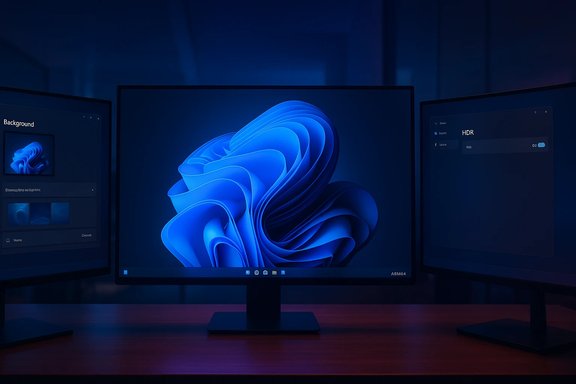
Windows 11 offers several built‑in ways to update your desktop background: Picture, Solid color, Slideshow, and Windows Spotlight. These options are accessible from Settings > Personalization > Background, or by right‑clicking the desktop and selecting Personalize. For many readers, that’s sufficient; for power users there are richer options—both official and third‑party—that let you run slideshows, fetch daily curated images, or run animated/video wallpapers. A practical, step‑by‑step walkthrough and overview of those choices is available in community guides that mirror Microsoft’s UI flow.Built‑in options (quick refresher)
- Picture: Set a single JPG/PNG/BMP image as your wallpaper. Right‑click a file and choose Set as desktop background for the fastest path.
- Solid color: Minimal, low‑overhead choice when distraction‑free is the goal.
- Slideshow: Point Windows at a folder and pick an interval (1 minute → daily) and optional shuffle. Good for rotating photo collections.
- Windows Spotlight: A curated daily feed of photography (Bing‑sourced) that updates automatically on compatible builds. Note: Spotlight can be unavailable on managed devices or older builds.
Level‑up: dynamic and animated wallpapers
Third‑party apps remain the practical path for motion, interactivity, and complex multi‑monitor rules. Two community‑tested leaders are:- Lively Wallpaper (open source): Handles GIFs, MP4/WebM videos, web pages and shaders; it supports smart pause rules (pause on fullscreen, pause on battery), per‑monitor assignment, and hardware‑accelerated playback.
- Wallpaper Engine (paid, Steam): Industry‑standard for interactive, reactive scenes with a vast Workshop of user content; supports per‑wallpaper performance limits and pause‑on‑fullscreen.
Practical tips and pitfalls
- Match image resolution to display resolution (e.g., 4K images for 4K monitors) to avoid blurring.
- For animated wallpapers, prefer MP4 (H.264) or WebM over GIFs: modern codecs use hardware acceleration and are far more CPU/GPU‑efficient. Converting large GIFs to MP4 can reduce CPU load dramatically.
- Pause animated backgrounds during gaming or presentations (Lively/Wallpaper Engine offer automatic pause rules).
- Corporate devices may block wallpaper changes via Group Policy or block third‑party installers; check with IT before deploying non‑Store apps.
Auto HDR Everywhere: what changed and why it matters
Windows 11 includes an Auto HDR feature that can expand the dynamic range of many older DirectX 11 and DirectX 12 games, mapping SDR game outputs into HDR‑capable displays to deliver brighter highlights and richer colors. Microsoft documents how to enable Auto HDR (Settings > System > Display > HDR > Auto HDR), and the feature is intentionally broad—designed to make thousands of legacy titles look more vivid on HDR monitors. Industry commentary and platform teams have framed the rollout as a quiet but meaningful upgrade: Auto HDR leverages Xbox‑era imaging techniques to enrich older titles without developer re‑authoring, and Microsoft’s Xbox/Windows teams have explicitly noted the scale of eligible games that can gain from the feature. Expect visual differences to vary widely: for some titles Auto HDR adds pleasing depth, for others it can over‑saturate or wash out midtones if the game’s original color pipelines are incompatible.How Auto HDR works (high level)
- Windows detects an HDR‑capable display and whether HDR is enabled in system settings.
- For eligible DirectX 11/12 titles, the OS applies an HDR transform/tonemapping pipeline that widens luminance range and color gamut.
- The effect is automatic; users can toggle Auto HDR on/off at the display level.
Practical implications and gotchas
- Many users report excellent results, but HDR implementation quality differs by game and display; calibration (HDR sliders, monitor controls) may be required. Community reports show mixed outcomes—particularly with older titles and certain monitors where color profiles or HDMI/DisplayPort handshake limits produce washed‑out results. Test each game individually and use the toggle where you prefer the SDR look.
- Auto HDR does not add details that weren’t present; it re‑maps values, which can increase perceived contrast but can also reveal banding or artifacts in low‑precision assets.
- HDR hardware and driver maturity matter: verify GPU driver support, use correct color formats (RGB vs YCbCr), and keep firmware/drivers up to date for best outcomes.
Windows Weekly 966: AI reaches everywhere (and yes, Gmail too)
The latest Windows Weekly episode—titled “You Can’t Spell Gmail Without AI”—takes stock of the relentless expansion of AI into everyday services. The discussion touches on the integration (and mis‑integration) of AI into public services, the marketing and governance challenges Microsoft faces, and consumer product changes (Gmail’s AI features as a high‑profile example). The episode underscores two persistent themes: AI brings convenience at scale, but it also raises reliability and policy concerns when used for high‑stakes decisions.Editorial takeaway
- AI features will continue to be bundled into email, search, and productivity apps because the value‑proposition is compelling: faster composition, summaries, and contextual assistance.
- Operational risk is real: misapplied or hallucinating AI outputs can lead to embarrassing or consequential decisions, and there are no universal governance guarantees today. The podcast’s tone is both excited and cautious—a useful summary for readers who want to think beyond feature lists into trust and reliability issues.
KB5004760: the Windows 10 PDF fix (what you need to know)
Microsoft published KB5004760 as an out‑of‑band, non‑security update to address a regression that could prevent PDFs from opening in Internet Explorer 11 and in applications relying on the 64‑bit WebBrowser control. The update also targeted a gray‑screen PDF rendering when certain Adobe Acrobat plug‑ins were present. Because this was a targeted bug affecting PDF workflows, Microsoft chose an optional off‑cycle release rather than the regular Patch Tuesday cadence. The KB page documents the fix in detail and confirms the affected Windows 10 builds (2004, 20H2, 21H1), and independent reports at the time corroborated the out‑of‑band decision.What admins and users should do
- If you rely on IE11‑hosted PDF workflows or legacy apps using WebBrowser control, install KB5004760 (manual install via Microsoft Update Catalog or WSUS) after validating in a test environment.
- If installing on managed fleets, consider compatibility testing with line‑of‑business applications that embed PDF plug‑ins. The update is optional, but recommended where the symptom appears.
- If immediate installation isn’t possible, a temporary workaround is to open PDFs directly in Acrobat Reader or another dedicated viewer rather than through IE‑based control hosts.
FluentFlyout’s update: ARM64 and multi‑monitor flyouts
FluentFlyout—a modern, Fluent Design‑style replacement for Windows’ built‑in flyouts—released a noteworthy update adding native ARM64 artifacts and improved multi‑monitor flyout placement. Native ARM64 builds matter: they remove emulation overhead on Qualcomm‑based Copilot/ARM laptops, improving startup latency and reducing battery and CPU costs. The release also exposes display selection so flyouts can appear on the user’s preferred monitor in multi‑display setups, a small but practical quality‑of‑life improvement for power users. The project is open source, actively maintained on GitHub, and offers a Microsoft Store package for easy installs.Why this matters
- ARM64 native builds reduce emulation edge cases and can cut resource usage on ARM devices.
- Multi‑monitor routing of UI flyouts reduces visual distance and keeps controls near the focused screen—useful for docking setups and creators with multiple displays.
Practical guidance
- Prefer the Microsoft Store version where possible for auto‑updates and fewer SmartScreen/installer warnings.
- Review permissions and ensure the app’s SMTC (System Media Transport Controls) integration matches your media player if you rely on Spotify, browsers, or VLC.
The “secret Windows 11 trick” for huge speed gains — verified and unverified claims
A viral piece claimed “we tried this secret Windows 11 trick; and our PC has never been faster.” Viral optimization claims often condense several legitimate techniques into a sensational headline; that makes them tempting but risky. The specific article cited by readers (from a site in Spanish) could not be located or verified in authoritative archives during research, so its precise steps and measurements are unverifiable. Any recommendation based solely on a single untraceable article should be treated with caution. When a claim can’t be independently corroborated, flag it. (This article’s claim is currently unverifiable.That said, several real Windows 11 features and documented tweaks legitimately improve responsiveness; these are proven and worth trying before trusting opaque “secret” posts:
- Efficiency mode (Task Manager): A Windows 11 control that throttles background processes’ CPU priority and applies EcoQoS to reduce interference with the foreground app. Microsoft performance diagnostics and the Task Manager docs show measurable responsiveness improvements (reported ranges differ by workload), and reputable outlets have written practical how‑tos. Use it on background apps that can tolerate lower priority.
- Close unused startup apps and disable unnecessary background apps: A classic, low‑risk step that reduces RAM/CPU pressure. Use Settings > Apps > Startup and Task Manager’s Startup tab.
- Keep drivers and firmware current, and ensure NVMe/SSD drivers are healthy: Storage IO stalls and outdated GPU drivers are common causes of “sluggish” behavior. Use vendor drivers (NVIDIA/AMD/Intel) and Windows Update for firmware where available.
- For specific gaming performance: test disabling Memory Integrity (Core Isolation) only if vendor guidance indicates large performance regressions and you understand the security trade‑off. This option can affect driver compatibility and should be changed with caution.
Safety and governance
- Be wary of scripts and registry tweaks from unknown sites. They can break system behavior or introduce security risks.
- Don’t disable virtualization‑based security (HVCI/Memory Integrity) on managed or enterprise devices without policy approval. The performance gains may be real, but the security trade‑offs are material.
Critical analysis — strengths, limits and long‑term risks
Strengths across this week’s coverage
- Practical utility: the wallpaper guide and FluentFlyout update are the kind of small, immediately useful items that improve daily UX for many users. The wallpaper guides validate Microsoft’s built‑in options while pointing to mature third‑party ecosystems for animated or cross‑monitor needs.
- Platform maturation: Auto HDR shows Microsoft continuing to fold Xbox innovations into Windows, improving visual fidelity for legacy titles without developer action—an efficient win for users with HDR displays.
- Responsiveness options are getting smarter: Efficiency mode is a thoughtful, OS‑level mitigation for background process interference and is documented by Microsoft with benchmark data showing measurable improvements.
Risks and gaps
- Over‑promising viral optimizations: Single‑article “secret tricks” without reproducible methodology risk misleading users and encouraging unsafe changes (e.g., disabling security features or using shady installers). Always cross‑check and prefer documented, reversible steps. The unverified Spanish article’s claim is a textbook example: it’s clickable, but unverified.
- Auto HDR is not universally beneficial: game‑by‑game variability and monitor/driver quality mean outcomes can be mixed. Users should consider per‑game testing and be prepared to toggle Auto HDR off where it looks worse.
- Third‑party ecosystems and user content: Wallpaper Engine’s Workshop and other user‑generated content stores are powerful but introduce risk—malicious or poorly optimized content can cause performance or privacy issues. Vet community content (ratings, comments) before applying it widely.
Practical checklist: what readers should do next
- Wallpaper basics: Use Settings > Personalization > Background for quick changes; switch to Lively or Wallpaper Engine if you want animations, but prefer the Microsoft Store or Steam for safer installs.
- Enable or test Auto HDR for HDR displays: Settings > System > Display > HDR > Auto HDR. Try key titles and toggle if visuals are worse. Keep GPU drivers up to date.
- Consider Efficiency mode for resource‑heavy background apps: Task Manager (Ctrl+Shift+Esc) → Processes → right‑click process → Efficiency mode. Don’t enable it for core OS processes.
- If you rely on legacy PDF workflows on Windows 10 and saw PDF errors, install KB5004760 after testing in a staging environment. If you can’t install it immediately, open PDFs in a dedicated reader until patching is possible.
- Avoid unverified “secret trick” instructions that require disabling security features or running unsigned scripts. If you see such advice, ask for concrete steps, measured before/after data, and independent corroboration.
Conclusion
This week’s Windows news reinforces a consistent theme: incremental changes add up. A thorough wallpaper how‑to and the continued maturity of animated‑wallpaper ecosystems make daily computing a little more personal. Auto HDR’s migration to Windows buys new life for older games, but it’s not a universal win—test and calibrate. FluentFlyout’s ARM64 and multi‑monitor improvements are emblematic of the community filling small but meaningful gaps. Meanwhile, hotfixes like KB5004760 remind administrators that regression responses still matter.Finally, treat “secret” optimization claims with healthy skepticism. When in doubt, prefer documented OS features (Efficiency mode, updated drivers, Storage Sense) and test changes before applying them broadly. Small, verifiable adjustments produce the best, safest performance wins—viral gimmicks rarely do.
Source: H2S Media https://www.how2shout.com/how-to/ho...-pc-has-never-been-faster-t202601140008.html]
