

Windows 11’s convenience-first defaults make it effortless to get online, but they also leave a noisy trail: location pings, advertising IDs, diagnostic telemetry, synced activity history, and cloud backups that can collectively expose far more about you than most realize. This feature story walks through a professional-grade, practical blueprint for achieving meaningful anonymity on Windows 11 — from quick, reversible settings to enterprise-grade policy controls — and explains the trade‑offs, brittle workarounds, and the maintenance burden of “going incognito” in a constantly updated OS.
Windows has steadily moved from a purely local OS toward a cloud‑integrated service: telemetry and personalization power diagnostics, search enhancements, cross‑device resume and AI features like Copilot, but they also create signals that can be collected, correlated, or intercepted. Microsoft separates telemetry into required (security/health data) and optional (richer usage and personalization) buckets; optional telemetry can be turned off via Settings, but required signals remain on consumer editions. That split matters for anyone trying to minimize external data flows.
Several features introduced over the last few releases increased the attack surface for privacy-conscious users: clipboard history integrations with browser Incognito/Private windows (addressed in more recent Windows 11 builds), the Recall snapshot feature that can record screen content, and the deepening Copilot/Copilot+ AI surfaces that tie local UI elements to cloud services. Each brings convenience — and additional data vectors to manage. Community testing and official notes indicate patches and feature updates can alter behavior, so a once‑done hardening can be partially undone by servicing if not actively monitored.
Source: WebProNews Vanishing in Plain Sight: The Ultimate Guide to Windows 11 Privacy Mastery
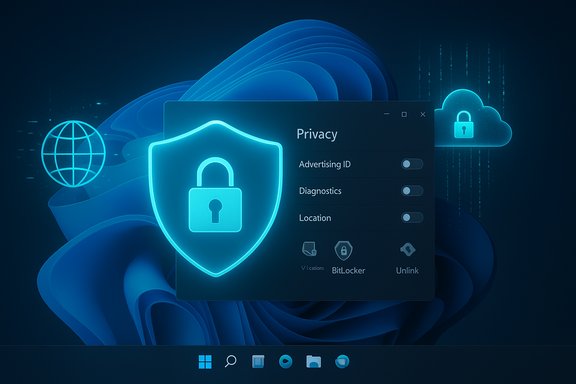 Background / Overview
Windows has steadily moved from a purely local OS toward a cloud‑integrated service: telemetry and personalization power diagnostics, search enhancements, cross‑device resume and AI features like Copilot, but they also create signals that can be collected, correlated, or intercepted. Microsoft separates telemetry into required (security/health data) and optional (richer usage and personalization) buckets; optional telemetry can be turned off via Settings, but required signals remain on consumer editions. That split matters for anyone trying to minimize external data flows.Several features introduced over the last few releases increased the attack surface for privacy-conscious users: clipboard history integrations with browser Incognito/Private windows (addressed in more recent Windows 11 builds), the Recall snapshot feature that can record screen content, and the deepening Copilot/Copilot+ AI surfaces that tie local UI elements to cloud services. Each brings convenience — and additional data vectors to manage. Community testing and official notes indicate patches and feature updates can alter behavior, so a once‑done hardening can be partially undone by servicing if not actively monitored.
Windows 11’s Privacy Pitfalls — What to Watch For
Telemetry and Tailored Experiences
- Optional diagnostic data collects richer usage signals used for personalization and advanced diagnostics; it’s opt‑out for most users and can be disabled in Settings. Turning it off reduces personalization but also reduces the telemetry Microsoft receives.
- Tailored experiences uses collected telemetry to drive targeted suggestions and ads; disabling it stops that personalization pipeline.
Advertising ID and Local Tracking
- Windows assigns a per‑profile Advertising ID used by apps to build local ad profiles. Disabling it prevents local in‑system ad targeting but does not remove server‑side ads tied to an online account.
Clipboard, Incognito Modes, and Browser Limits
- Browser private windows (InPrivate/Incognito) prevent local history and cookie persistence, but they don’t change your IP, stop server‑side logs, or prevent network observers from seeing traffic. Recent Windows changes improved clipboard privacy for Incognito, but InPrivate remains a local privacy measure, not full anonymity.
Cloud Sync and OneDrive Exposure
- OneDrive and Windows settings sync make cross‑device continuity easy but can surface files and activity outside the local machine. Unlinking OneDrive and turning off Windows backup/sync reduces this exposure.
AI Features: Recall and Copilot
- Recall can snapshot screen activity; while gated by Windows Hello in some designs, its existence is a privacy risk unless disabled. Copilot is surfaceable via taskbar, Edge sidebar and protocol handlers — hiding it in the UI doesn’t necessarily block all invocations; Group Policy or registry policies are required for robust disabling in managed environments.
Essential Settings Tweaks for Baseline Anonymity
For most users, a conservative, reversible sweep delivers the largest privacy gains with the least risk of breaking functionality. Apply these first; test for 48–72 hours before doing anything more aggressive. Each step below is available from Settings or, where noted, via Group Policy/registry for Pro/Enterprise.- Open Settings → Privacy & security → General
- Turn Advertising ID off.
- Disable “Let apps use advertising ID” / personalization toggles.
- Settings → Privacy & security → Diagnostics & feedback
- Set Send optional diagnostic data to Off.
- Turn Tailored experiences off.
- Optionally use Delete diagnostic data to purge already‑collected device diagnostics.
- Settings → Privacy & security → Location / Camera / Microphone / File system
- Globally disable any sensor you rarely use; then set per‑app permissions conservatively.
- Settings → Accounts → Windows backup (or Settings → Accounts)
- Turn off Remember my preferences and unlink OneDrive if you don’t want cloud sync. Unlink via OneDrive tray icon → Settings → Account → Unlink this PC.
- Settings → Personalization → Taskbar / Start
- Hide Widgets, Copilot, Search, Task View, and Start suggestions to reduce UI nudges and data‑driven recommendations.
Browser Integration and Incognito Enhancements
What Incognito/InPrivate Actually Protects
Private browsing clears local session artifacts (cookies, local history, some caches) on close, but it doesn’t:- Change your IP address (use a VPN for that).
- Prevent server‑side logging if signed into accounts.
- Stop sophisticated fingerprinting or network‑level observers from tracking activity.
Reinforcing Private Browsing on Windows 11
- Use InPrivate in Edge or Incognito in Chrome for local privacy; ensure you don’t sign into personal accounts during those sessions.
- Combine private browsing with:
- A reputable VPN (for IP masking and encrypted tunnels).
- Privacy‑first browser extensions (e.g., tracker blockers and ad‑blockers). Community recommendations include Privacy Badger and other tracker blockers to stop persistent tracking across sessions — but note extensions may leak data if untrusted.
- For high‑anonymity needs, use the Tor Browser in place of normal browsers; Tor changes routing and fingerprinting properties but introduces performance and trust trade‑offs.
Clipboard and Private Sessions
Recent Windows updates (applied in late releases) now prevent clipboard history from saving content copied in private windows in many cases, reducing a subtle privacy leak where pasted content ended up in cloud‑synced clipboard history. This is an important improvement but doesn’t make private browsing anonymous. Verify your build’s behavior after major updates.Advanced Tools for Digital Evasion
For professionals and threat‑averse users, the following tools and tactics close remaining gaps — at the cost of complexity, manageability, and sometimes supportability.Virtual Machines and Sandboxes
- Running sensitive tasks inside a Virtual Machine (VirtualBox, VMware) or Windows Sandbox isolates activity from the host OS and leaves fewer persistent traces on the main install. Use snapshots to revert the VM to a pristine state after risky sessions.
Tor and Dedicated Privacy Systems
- Tor provides stronger network anonymity than VPNs and should be the tool of choice when metadata concealment is essential. Use Tor Browser in a VM for best compartmentalization. Be aware of Tor’s performance limitations and some sites’ blocking of Tor exit nodes.
Full‑Disk Encryption and Data‑at‑Rest Protections
- Enable BitLocker (Pro/Enterprise) or Device Encryption to ensure local disk contents are unreadable if the device is seized. Store recovery keys securely (not in the same cloud account). This doesn’t stop live logging or telemetry, but it defends against offline data exposure.
Third‑Party Hardening Tools — Use with Caution
- Tools like O&O ShutUp10++ offer a consolidated UI to flip many privacy toggles quickly, but they require elevated access and may disable features needed for support or updates. Always test on a spare system and keep restore points.
Navigating Cloud and Sync Risks
Cloud features are the biggest anonymity leak in a modern Windows setup. The simple UX of “save to OneDrive” and synced settings hides a lot.- Disable OneDrive auto‑sync and unlink PCs you want isolated. Stop OneDrive from launching at startup in Settings → Apps → Startup.
- Turn off Windows backup Sync: Settings → Accounts → Windows backup → Remember my preferences → Off. This prevents personalization and activity history from syncing across devices.
- Clear Activity History: Settings → Privacy & security → Activity history → uncheck “Store my activity history on this device” and "Send my activity history to Microsoft" then click Clear to remove stored local records. Note: account‑level cloud history must be cleared separately on the Microsoft account privacy dashboard.
AI Features, Recall, and the New Attack Surfaces
AI helpers give great productivity, but they increase the data footprint.- Recall: Designed to index and let you search recent screen content. Because it can capture screen output, privacy‑first users should disable it: Settings → Privacy & security → Recall & snapshots → Save snapshots → Off, then delete snapshots. Some builds let you uninstall the feature entirely. Recall is often gated by Windows Hello, yet that’s not a substitute for disabling if your threat model demands it.
- Copilot / Copilot+: Hide the taskbar button for surface reduction, but for real removal use Group Policy (Computer Configuration → Administrative Templates → Windows Components → Windows Copilot → Turn off Windows Copilot) or the registry equivalent. Edge‑based Copilot fallbacks and protocol handlers (ms‑copilot
 may still invoke cloud experiences; block those via Edge policies or by blocking ms‑copilot URIs in managed environments. For enterprise‑grade isolation, AppLocker or Software Restriction Policies can prevent Copilot binaries and protocol handlers from running.
Customizing Privacy in Enterprise Environments
Enterprises have wider tools for consistent enforcement — and also wider obligations (logging, auditability, compliance).- Group Policy / Intune (MDM): Use Group Policy to enforce telemetry levels, disable Copilot, control InPrivate, and lock down sync settings at scale. For telemetry, the AllowTelemetry policy under Computer Configuration → Administrative Templates → Windows Components → Data Collection can set allowed levels (note: edition differences limit the lowest telemetry level on Pro vs. Enterprise).
- AppLocker / Firewall rules: AppLocker can block executables and scripts tied to unwanted features; network firewall rules can block Copilot endpoints or proto handlers where acceptable. But these blocks can cause help‑desk churn unless communicated and piloted.
- Balance with monitoring: Corporate security teams often need telemetry or monitoring for compliance and incident response. Don’t simply blanket‑disable telemetry on managed devices without coordinating with SOC and helpdesk. Document changes and maintain an undo plan.
Practical, Ranked Hardening Checklist (Apply in This Order)
- Create a full backup and a System Restore point. Test recovery.
- Update Windows and firmware (patches may change privacy behaviors). Reboot.
- Settings sweep (supported, reversible):
- Advertising ID: Off.
- Send optional diagnostic data: Off.
- Tailored experiences: Off.
- Activity history: Stop & Clear.
- Unlink OneDrive and disable Windows backup sync.
- Audit and restrict app permissions (Location, Camera, Microphone, File system).
- Hide Copilot/UI bloat (Taskbar/Start toggles). If required, move to Group Policy/registry for stronger enforcement.
- Enable BitLocker / Device Encryption and secure recovery keys offline.
- For network privacy, use a vetted VPN on untrusted networks; use Tor for highest anonymity tasks.
- If you need a disposable environment for sensitive browsing, use a VM or Windows Sandbox and revert when done.
- If managing fleets, codify policies through GPO/MDM and pilot changes; avoid user‑level registry pushes.
Risks, Trade‑Offs, and Maintenance Burden
- Functional loss: Disabling telemetry or sync removes conveniences such as cross‑device Resume, personalized search results, and cloud‑assisted troubleshooting. If you rely on Microsoft support, they may ask you to enable richer telemetry temporarily.
- Brittleness: Registry hacks and third‑party “debloaters” are frequently undone by feature updates; expect to reapply or roll back changes after major OS servicing. Maintain a documented rollback plan.
- Enterprise friction: Blocking Copilot, InPrivate, or telemetry on managed devices affects compliance and support processes; coordinate with IT and security teams.
- Residual leaks: Even with the OS hardened, network‑level logs (ISP, corporate proxies, DNS) or browser extensions may still leak identifying signals — hardening must be holistic across network, browser, and device.
Future‑Proofing Your Privacy Strategy
- Schedule periodic audits (monthly) to verify settings persisted, review installed apps, and check for new telemetry surfaces introduced by updates. Community guidance strongly recommends this habit.
- Use MDM/GPO for fleet consistency and audit trails where applicable. Pilot major policy changes before wide rollout.
- Keep a staged rollback and imaging plan for devices where aggressive changes were applied. Major cumulative updates can reset or alter behaviors; recovery plans prevent downtime.
- Educate users: simple habits (use InPrivate for shared PC tasks, avoid signing into personal accounts in private sessions, and use Ctrl+Shift+N or Ctrl+Shift+P for quick private windows) cut many accidental leaks.
Conclusion
Windows 11 can be tuned to dramatically reduce the amount of user data that leaves the device, but achieving meaningful anonymity is not a one‑click operation. Start with the supported, reversible Settings toggles to get the largest privacy return for minimal risk: disable optional telemetry, stop tailored experiences, unlink cloud sync, tighten sensor permissions, and hide AI surfaces. For higher threat models, add VM sandboxes, Tor, BitLocker, and enterprise policy enforcement — while accepting the costs in maintenance and potential functional loss. Above all, treat privacy as an ongoing posture: feature updates, new AI surfaces, and cloud integrations will continue to change the landscape, so recurring audits, careful testing, and a solid rollback plan are essential to staying truly private on Windows 11.Source: WebProNews Vanishing in Plain Sight: The Ultimate Guide to Windows 11 Privacy Mastery
