

If you want to spend less time hunting menus and more time getting real work done on Windows 11 Pro, learning a handful of high‑impact keyboard shortcuts will repay itself in minutes saved every day—and those minutes add up fast. The compact set of keystrokes TechRadar highlighted as their top five (Snap Layouts, Clipboard history, Virtual Desktops, moving windows between monitors, and the Quick Link/Task Manager shortcuts) covers the most common friction points in modern desktop workflows, and each one can be layered into a dependable, repeatable routine that improves focus, reduces context‑switching costs, and keeps your hands on the keyboard rather than the mouse.
Windows 11 reshaped the desktop with renewed focus on window management, quick access tools, and modern clipboard features that are specifically aimed at productivity scenarios—especially on laptops, ultrawide displays, and multi‑monitor setups where visual context matters. Microsoft’s own design choices put window snapping, clipboard history, and virtual desktops front and center, making keyboard access the fastest path to those capabilities. Tech writers and power‑user communities have converged on the same set of high‑ROI shortcuts because they cut the most common workflow costs: arranging windows, retrieving past copies, separating tasks, moving apps between displays, and getting to system tools quickly.
This feature expands on that core five, explains how each shortcut works, gives practical workflow patterns you can adopt immediately, flags security and enterprise considerations, and points to advanced alternatives for power users who want more control.
Where the shortcuts really pay off is in cumulative friction reduction: repeated small savings compound across a day. The path to reclaiming time is habitual—consistent use beats aggressive novelty.
Source: TechRadar 5 shortcuts to maximise your efficiency in Windows 11 Pro
 Background
Windows 11 reshaped the desktop with renewed focus on window management, quick access tools, and modern clipboard features that are specifically aimed at productivity scenarios—especially on laptops, ultrawide displays, and multi‑monitor setups where visual context matters. Microsoft’s own design choices put window snapping, clipboard history, and virtual desktops front and center, making keyboard access the fastest path to those capabilities. Tech writers and power‑user communities have converged on the same set of high‑ROI shortcuts because they cut the most common workflow costs: arranging windows, retrieving past copies, separating tasks, moving apps between displays, and getting to system tools quickly.This feature expands on that core five, explains how each shortcut works, gives practical workflow patterns you can adopt immediately, flags security and enterprise considerations, and points to advanced alternatives for power users who want more control.
Snap Layouts: Open, pick, and place in three keystrokes
What it does and why it matters
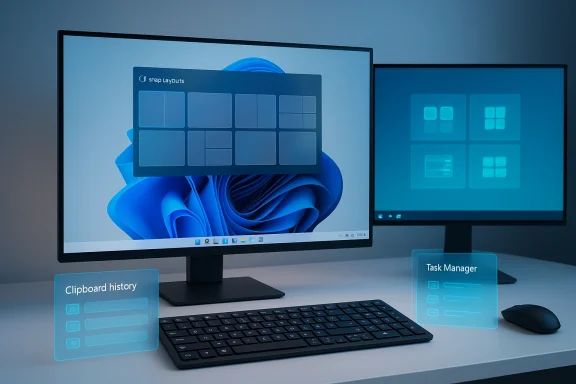
Snap Layouts is Windows 11’s answer to rapid window arrangement: instead of dragging windows to exact positions, you invoke a small layout chooser, pick a template, and assign apps to cells. The keyboard shortcut Windows + Z opens the Snap Layout selector and keeps your hands where they belong—this is the fastest route to a multi‑pane arrangement without hunting window borders. On wider displays and multi‑app workflows (browser + editor + chat, for example), Snap Layouts reduces the friction of setting up a focused workspace.Practical workflows
- For comparison work (research and writing): open your browser, a document, and an email client; press Windows + Z, choose a three‑column layout, then press Enter to place the active window and use the mouse or Tab to assign the others.
- For meetings: snap your video app to a small column, your notes window to the center, and reference documents to the left—switching between meeting and active work becomes eyes‑first and keyboard‑driven.
Tips and nuances
- Snap Layouts respects display scaling and docked/undocked states. If you routinely unplug from a docking station, Windows can remember and restore layouts when you plug back in.
- If you want more granular control (grids beyond the built‑in templates), PowerToys FancyZones offers highly customizable zone templates and keyboard-driven zone switching; it’s the recommended next step for power users who need repeatable, nonstandard layouts.
Potential pitfalls
- Some legacy applications don’t snap well (they may not expose a normal title bar or may have custom window frames). Be prepared to manually resize or use FancyZones to force placement.
- Relying on templates alone can lead to wasted space on smaller screens; adapt templates to your screen size and use virtual desktops (below) when screen real estate is tight.
Clipboard history: reclaim lost snippets fast
How to access it
Press Windows + V to open Clipboard history. Rather than pasting only the most recently copied item, Clipboard history lets you retrieve older text snippets, images, and small files you copied earlier. Windows will prompt to enable the feature the first time you use it if it’s not already active.Why this is a productivity multiplier
- Repetitive typing and multi‑window copying become trivial; instead of switching between windows to recopy, you recall the snippet from history and paste.
- For tasks like drafting emails from templates or moving standard lines of text between documents and apps, Clipboard history cuts dozens of clicks into a single keystroke sequence.
Best practices and safeguards
- Use the Pin feature for the handful of snippets you reuse every day (contact details, standard responses, code templates).
- Clear history or turn off syncing if you handle sensitive data. Clipboard history can be synced across your Microsoft account if you enable cloud sync—handy for cross‑device work but a potential data leakage avenue if not controlled by enterprise policies.
- For highly sensitive environments, disable clipboard history entirely via Settings or Group Policy and rely on ephemeral copy/paste only. Where Data Loss Prevention (DLP) is in place, confirm how clipboard contents are monitored or restricted.
Advanced tips
- Enable Clipboard history and pin common snippets.
- Learn to search inside the clipboard flyout—typing starts an inline search.
- Use a dedicated clipboard manager only if you need more features than Windows provides; remember external tools introduce their own security surface.
Virtual Desktops: separate context without losing windows
The essentials
Virtual desktops let you segment your work into multiple isolated spaces: one for focused tasks, another for meetings and chat, and a third for admin or research. Create a desktop with Windows + Ctrl + D, cycle between them with Windows + Ctrl + Left/Right, and close the current desktop with Windows + Ctrl + F4. This keyboard flow is ideal for users who need visual separation without physically disconnecting or minimizing windows.Workflow examples
- Deep work setup: Desktop 1 = coding or writing (editor + reference browser); Desktop 2 = meetings and messaging (Teams/Slack + calendar); Desktop 3 = reference materials (PDFs + search).
- Project separation: Give each client or project its own desktop to avoid accidental context switches and stray notifications.
Productivity tradeoffs
- Virtual desktops aren’t a replacement for disciplined task switching. They discipline visual clutter but don’t change cognitive context by themselves.
- Some users find too many desktops confusing; treat them like real physical desks—three to five desktops is a practical maximum for most people.
Enterprise and admin notes
- Windows 11 can remember desktop groups in certain docking and multi‑monitor scenarios, improving consistency when reattaching to external displays. This behavior may vary between builds and OEM implementations, so test in your environment.
Move windows between monitors: fast, keyboard-first multi‑display control
One small shortcut, major speed gain
When you work with two or more monitors, the keyboard command Windows + Shift + Right Arrow (or Left Arrow) instantly transfers the active window to the monitor on that side. It’s a small shortcut, but it removes the need to resize and drag windows across displays or fight with window snapping across monitor boundaries.How to use it well
- While presenting or sharing screens, quickly send the preview window to another display without changing focus on your main screen.
- Move chat or reference windows to a secondary display so your primary monitor stays dedicated to active work.
Caveats and interoperability
- Multi‑monitor setups with different scaling or orientation can produce unexpected window sizes after transfer; be ready to re‑snap or maximize if necessary.
- Some docking station setups (or outdated GPU drivers) can cause delays or fail to move windows reliably—ensure your display drivers are up to date and confirm expected behavior during routine IT checks.
Quick Link menu and Task Manager: direct access to system tools
The Quick Link menu (Windows + X)
Windows + X opens a compact, power‑user menu that includes direct access to Task Manager, Terminal, Device Manager, Settings, and power options. It’s the shortcut you want when you need system tools without drilling into Start or Settings. Use it to jump to tools that matter when performance or troubleshooting is the issue.Bonus rescue shortcut: Task Manager (Ctrl + Shift + Esc)
When an app freezes or you need to kill a process quickly, Ctrl + Shift + Esc opens Task Manager immediately—no intermediate screens required. This is the fastest way to regain control when something goes sideways. It’s a “rescue” shortcut rather than a day‑to‑day productivity one, but it saves time and frustration in high‑stakes moments.Security, privacy, and manageability considerations
Shortcuts are extremely low‑risk from a technical standpoint, but a few operational caveats matter in enterprise and security‑conscious contexts.- Clipboard history and cloud sync: If you enable Clipboard syncing across devices, data travels to Microsoft’s cloud associated with your account. That convenience introduces potential exposure for credentials, tokens, or PII accidentally copied. Enterprise environments should treat clipboard sync as a policy decision and often disable it through Group Policy or endpoint DLP tools.
- Shared devices: On shared or kiosk devices, disable clipboard history and consider restricting virtual desktop usage if multiple users log into the same seat.
- Accessibility and muscle strain: Keyboard workflows reduce the amount of mouse movement—which is generally beneficial for repetitive strain injury (RSI) prevention—but poorly chosen ergonomics can still cause issues. Pair keyboard shortcuts with a well‑set up chair, keyboard angle, and screen height.
- Automation and third‑party tools: PowerToys (FancyZones) and AutoHotkey offer far more customization but also increase the attack surface and complexity of endpoint management. Test thoroughly and validate with your security team before broad deployment.
Advanced customization and alternatives
For users who need more than the built‑in five shortcuts, there are several paths to scale and refine the keyboard‑driven workflow.- FancyZones (Microsoft PowerToys): Create custom snap zones with precise geometry and assign apps to zones by keyboard or drag. FancyZones is excellent for nonstandard layouts (ultrawide, triple stacks) and can be combined with the native Snap Layouts workflow for maximum flexibility.
- AutoHotkey and remapping: Automate repetitive actions (open a predefined desktop group, snap a set of apps to a template) using AutoHotkey scripts. These are powerful but require some scripting discipline and administrative oversight.
- Terminal and Window Manager tools: Windows Terminal, Windows PowerToys Run, and shell tools can be bound to single keys for launching workflows with near‑instant speed. Use these to reduce friction when launching complex multi‑app sessions.
How to practice and adopt these shortcuts fast
Learning keyboard shortcuts is a habit-building exercise. Here’s a short, practical plan to make these keystrokes second nature in a workweek.- Day 1 — Learn the rescue and access keys:
- Practice Ctrl + Shift + Esc (Task Manager).
- Use Windows + X to open the Quick Link menu.
- Day 2 — Add clipboard fluency:
- Enable Clipboard history, press Windows + V and pin 2–3 frequently used snippets.
- Day 3 — Build window control:
- Use Windows + Z to snap two or three apps into a reproducible layout.
- Try Windows + Shift + Left/Right to move windows between monitors.
- Day 4 — Start using virtual desktops regularly:
- Create a “deep work” desktop and a “meeting” desktop; switch with Windows + Ctrl + Left/Right.
- Day 5 — Combine shortcuts into workflows:
- Create an “email + calendar + notes” desktop and use Windows + Z to arrange apps quickly. Consider FancyZones if your layouts are nonstandard.
Measurable benefits and realistic expectations
Shortcuts don’t magically create productivity; they cut friction. Conservative estimates from user testing and community reports suggest routine adoption of a handful of shortcuts can save anywhere from 5 to 20 minutes per day for heavy multitaskers. That scales to several hours per month for knowledge workers who switch contexts frequently. These savings are not just time—lower friction means fewer context switches, longer focus blocks, and less cognitive overhead for arranging windows. However, exact time savings depend on workflow, screen real estate, and individual habits; treat numbers as directional rather than precise.Where the shortcuts really pay off is in cumulative friction reduction: repeated small savings compound across a day. The path to reclaiming time is habitual—consistent use beats aggressive novelty.
Final verdict: which shortcuts to learn first and why
If you want a minimal, high‑ROI learning path, adopt these three in order:- Windows + V (Clipboard history) — immediate daily value for anyone who reuses text, links, or small assets.
- Windows + Z (Snap Layouts) — transforms multi‑app workflows and is especially powerful on large and ultrawide displays.
- Windows + Ctrl + D / Left / Right (Virtual Desktops) — offers mental separation and reduces interruptions when used deliberately.
Closing guidance: practical checklist for deployment in business settings
- Confirm clipboard sync and history settings with IT policy—disable sync when handling regulated data.
- Offer a short internal training or cheat sheet that lists the five keystrokes, plus the Day‑by‑Day adoption plan.
- Test FancyZones (if chosen) on representative hardware before rolling it out broadly.
- Encourage ergonomic setup alongside keyboard adoption to avoid trading mouse time for poor posture.
Source: TechRadar 5 shortcuts to maximise your efficiency in Windows 11 Pro