

Microsoft has quietly confirmed a provisioning regression in Windows 11 that can leave core shell components — the Taskbar, Start menu, File Explorer, System Settings and other XAML‑dependent UI pieces — failing to load or crashing on some enterprise and managed devices after installing monthly cumulative updates released on or after July 2025. The company’s support bulletin details a timing/race condition that prevents essential XAML packages from registering in the interactive user session after servicing, and offers emergency registration commands and a synchronous logon script as short‑term mitigations while a permanent fix is developed.
Microsoft published the advisory under KB5072911 to describe a class of post‑update failures that happen after provisioning PCs with Windows 11, version 24H2 or 25H2 when updates released from July 2025 onward have been applied (Microsoft explicitly calls out July‑released cumulative updates such as KB5062553 and later packages). The symptoms span the modern, XAML‑based parts of Windows’ immersive shell and include Explorer.exe crashes, black screens at login, taskbar and Start menu failures, ShellHost.exe crashes, and crashes of XAML‑dependent binaries such as Consent.exe (the UAC UI). The company states the issue primarily affects a limited number of enterprise or managed environments and is very unlikely to occur on consumer PCs. The technical root cause is not a corrupted shell binary or a simple missing DLL: it’s an ordering and registration problem. During servicing, updated AppX/XAML packages that host core UI components are not registering in the interactive user session in time for the shell to initialize, creating a race condition where Explorer and other UI hosts start before their required XAML packages are fully provisioned. That race shows up first in environments that provision images and install updates prior to the first user logon — or in non‑persistent setups (VDI, pooled desktops) where per‑session provisioning is required each time a user logs in.
Two immediate options are provided:
Where this criticism is fair, however, is in the need for improved test harnesses that more closely mirror enterprise provisioning flows and non‑persistent session requirements. Microsoft’s Insider channels capture many user scenarios, but enterprise provisioning is a distinct test domain that deserves automated, gated coverage.
Concrete expectations for a proper servicing fix include:
Administrators should treat KB5072911 as actionable operational guidance: inventory impacted images, be prepared to apply Microsoft’s script‑based mitigations, and await the official correction from Microsoft before broadly re‑provisioning updated images. The workaround is effective when applied properly, but it should be considered a bandage until Microsoft closes the servicing race condition at the root.
Microsoft’s bulletin will be updated as the company develops and deploys a permanent fix; IT teams should monitor that advisory and stage updates in test rings before organization‑wide rollout.
Every paragraph above is intended to give clear, practical guidance for IT teams facing this regression, explain the technical reason it occurs, and examine the operational tradeoffs of the published mitigations. The problem is not a mystery; it’s a solvable servicing and QA gap. The immediate response is procedural — register the missing XAML packages or block the offending updates — while the longer term response requires better testing, telemetry and a servicing pipeline that guarantees AppX packages are available to the interactive shell before it starts.
Source: gHacks Technology News Microsoft says Windows 11 updates could break the Taskbar, Start Menu, Explorer and more on Enterprise PCs - gHacks Tech News
 Background / Overview
Microsoft published the advisory under KB5072911 to describe a class of post‑update failures that happen after provisioning PCs with Windows 11, version 24H2 or 25H2 when updates released from July 2025 onward have been applied (Microsoft explicitly calls out July‑released cumulative updates such as KB5062553 and later packages). The symptoms span the modern, XAML‑based parts of Windows’ immersive shell and include Explorer.exe crashes, black screens at login, taskbar and Start menu failures, ShellHost.exe crashes, and crashes of XAML‑dependent binaries such as Consent.exe (the UAC UI). The company states the issue primarily affects a limited number of enterprise or managed environments and is very unlikely to occur on consumer PCs. The technical root cause is not a corrupted shell binary or a simple missing DLL: it’s an ordering and registration problem. During servicing, updated AppX/XAML packages that host core UI components are not registering in the interactive user session in time for the shell to initialize, creating a race condition where Explorer and other UI hosts start before their required XAML packages are fully provisioned. That race shows up first in environments that provision images and install updates prior to the first user logon — or in non‑persistent setups (VDI, pooled desktops) where per‑session provisioning is required each time a user logs in. What’s actually affected
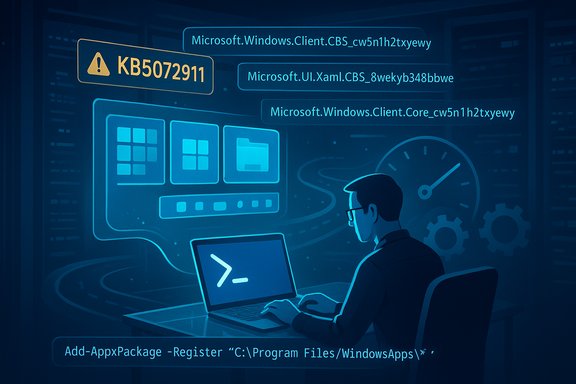
Microsoft enumerates specific packages and binaries tied to the problem:- XAML host packages commonly implicated:
- MicrosoftWindows.Client.CBS_cw5n1h2txyewy
- Microsoft.UI.Xaml.CBS_8wekyb3d8bbwe
- MicrosoftWindows.Client.Core_cw5n1h2txyewy
- Shell and UI process failure signatures reported:
- Explorer.exe — black screen after login; Taskbar fails to appear; Explorer may crash on start.
- StartMenuExperienceHost — Start menu fails to open or displays a critical error.
- ShellHost.exe — may crash.
- Consent.exe — UAC prompt binary may crash or fail to start.
- System Settings (Start > Settings > System) — may silently fail to open.
- Other apps that initialize XAML views may crash during startup.
Why this hits enterprises harder than consumer PCs
The advisory highlights two provisioning scenarios where the race condition is most likely to appear:- Persisted images that have been updated before the first interactive logon after servicing. In some enterprise imaging flows, administrators apply updates to a base image and then hand that image off to users — if the AppX provisioning step hasn’t completed in the user session, the shell might start with missing dependencies.
- Non‑persistent environments (VDI, pooled virtual desktops) where packages must be installed or registered at each logon. Because per‑session provisioning happens every user session, any timing issue during logon becomes much more likely.
The official workaround Microsoft published
Microsoft’s short‑term guidance is surgical and aimed at administrators who can execute commands in the affected user session or implement a logon‑time script in non‑persistent environments.Two immediate options are provided:
- Manually register the missed AppX packages inside the user session using PowerShell:
- Add-AppxPackage -Register -Path 'C:\Windows\SystemApps\MicrosoftWindows.Client.CBS_cw5n1h2txyewy\appxmanifest.xml' -DisableDevelopmentMode
- Add-AppxPackage -Register -Path 'C:\Windows\SystemApps\Microsoft.UI.Xaml.CBS_8wekyb3d8bbwe\appxmanifest.xml' -DisableDevelopmentMode
- Add-AppxPackage -Register -Path 'C:\Windows\SystemApps\MicrosoftWindows.Client.Core_cw5n1h2txyewy\appxmanifest.xml' -DisableDevelopmentMode
- For non‑persistent environments, run a synchronous logon wrapper to register packages before Explorer launches. Microsoft published a sample batch file wrapper that calls powershell.exe with -ExecutionPolicy Bypass to register each package sequentially; the wrapper is intended to run synchronously so it blocks explorer.exe from starting until the provisioning step completes.
Step‑by‑step remediation for IT teams (practical playbook)
The following is a concise, operations‑oriented checklist for administrators who must triage and recover affected endpoints quickly. Test all steps in a lab or on a single pilot machine before broad deployment.- Isolate: Determine whether the issue is systemic (many users) or isolated to a provisioning path. Check managed images and VDI pools first.
- Temporary mitigation (single machine):
- Open Task Manager (Ctrl+Shift+Esc) -> File -> Run new task -> powershell.exe (elevated).
- Run the three Add-AppxPackage -Register commands provided by Microsoft, exactly as shown in your support bulletin.
- Restart SiHost.exe or sign out and back in. If Explorer has crashed, you may need to run explorer.exe manually from Task Manager after reprovisioning.
- Scale mitigation for non‑persistent VDI:
- Add the synchronous batch wrapper to the image or logon sequence so it runs before Explorer launches. Microsoft’s sample wrapper runs PowerShell synchronously with -ExecutionPolicy Bypass.
- Validate the wrapper with a full pool reboot and first logon test.
- Longer term steps:
- Stop deploying the July+ cumulative updates to new images until a confirmed fix is available, or postpone provisioning updates until Microsoft publishes a resolution.
- Snapshot base images after applying the workaround and validating one first logon.
- If using Intune, WSUS, or ConfigMgr, use ringed deployments and test rings (pilot -> broad) to limit blast radius.
- Communicate with users: Provide a short remediation script/helpdesk steps to run if they encounter a blank desktop or missing Taskbar, including how to reach IT for offline recovery.
Risks and caveats with the workaround
- Running Add-AppxPackage from an elevated context changes per‑user registration state. If executed incorrectly it can leave inconsistent registrations across user profiles.
- The registration commands are intended to be run in the current user session; running them from the system account scoping may not produce the expected provisioning for interactive users.
- Scripts that block Explorer from starting can cause longer logon times. In VDI environments where login time matters for user experience, synchronous scripts must be optimized and monitored.
- Any remediation that involves mass scripting must be rolled out carefully, with telemetry and rollback plans — a bad script at scale can make a large fraction of a fleet unusable.
Why did this happen? A technical autopsy
At a high level, this is a race condition introduced by the interaction of the Windows servicing pipeline with AppX/XAML package provisioning. Key technical inputs:- Modern shell components in Windows 11 are implemented as AppX packages (system apps) that rely on XAML frameworks to render UI.
- Monthly cumulative updates can update both the shell binaries and the underlying XAML/AppX packages. During servicing, the system updates files on disk and schedules provisioning tasks that register AppX packages for user sessions.
- If Explorer or shell hosts start before those packages are registered in the interactive session, the shell’s initialization path finds unregistered or partially provisioned components and fails or throws exceptions.
- Provisioning timing differences become more pronounced in enterprise imaging and VDI scenarios because updates are often applied offline (image servicing) or during a sessionless provisioning step before the interactive session that expects the packages to be present.
Accountability questions: How did this escape testing?
This incident has revived long‑standing complaints about regression testing coverage, the reliability of staged rollouts, and the effectiveness of the Windows Insider Program as a QA pipeline for enterprise scenarios.- The Windows Insider Program primarily exercises consumer and enthusiast scenarios in development channels. Many enterprise provisioning topologies (non‑persistent VDI, Snap‑based provisioning, image servicing prior to first logon with specific OEM bundles) are difficult to reproduce in an Insider lab.
- Incremental or gradual rollouts and server‑side feature gating complicate reproducible testing: telemetry‑driven rollouts may hide a bug until a certain fraction of the fleet receives a change.
- Race conditions are notoriously brittle and can evade deterministic tests; they often require high‑scale or environment‑specific timing to surface.
Where this criticism is fair, however, is in the need for improved test harnesses that more closely mirror enterprise provisioning flows and non‑persistent session requirements. Microsoft’s Insider channels capture many user scenarios, but enterprise provisioning is a distinct test domain that deserves automated, gated coverage.
Broader operational and security implications
This class of failure has consequences beyond user inconvenience:- Productivity impact: When Explorer, Start, and Taskbar are unavailable, users lose app launching, window management, and many host UX affordances. Helpdesks face surges of tickets that may require physical or out‑of‑band remediation.
- Security surface: If Consent.exe (UAC) fails to appear reliably, elevation prompts may not render, potentially blocking legitimate admin tasks or, worse, encouraging unsafe workarounds that bypass UAC. Temporary UAC failures can also impede security tools that rely on elevated installers.
- Automation and monitoring: Alerting that relies on user session telemetry may fail to fire when the shell hasn’t initialized. Remote remediation tools that need a functioning agent in the user session may be less effective, forcing manual interventions.
- Image lifecycle: Enterprises that apply updates to golden images must now consider the first logon path as a validation step, adding friction to image maintenance and release cycles.
What Microsoft must fix (and what to expect)
Short‑term: the company has already published the KB advisory with mitigations — a necessary triage step. Longer term, a clean fix must address the root servicing ordering so that updated AppX packages are guaranteed to be registered in the interactive session before the shell initializes, in every provisioning topology Microsoft supports.Concrete expectations for a proper servicing fix include:
- Ensure the servicing pipeline invokes AppX registration in a system‑wide or preemptive manner so interactive sessions are not required as the gating point.
- Add server‑side or on‑device telemetry that detects and automatically triggers re‑registration when a timing failure is detected, reducing the need for manual, user‑visible remediation.
- Expand automated test coverage to include non‑persistent VDI provisioning and common enterprise image servicing flows, ideally with stress tests to expose race conditions.
- Deliver a clear hotfix and versioned guidance for administrators, including the build or KB that contains the resolution and the recommended deployment order.
Operational recommendations — immediate and strategic
- Short-term (next 24–72 hours)
- Inventory: Identify images and VDI pools updated with July 2025+ cumulative updates (KB5062553 and subsequent packages).
- Isolate: Stop provisioning new machines from updated images until validated. Don’t broadly deploy new images to production pools without test logon validation.
- Triage script: Prepare a tested, signed logon script or recovery script based on Microsoft’s sample to run in affected environments.
- Communication: Alert helpdesk and users about potential symptoms and provide safe contact and escalation routes.
- Medium-term (next 2–4 weeks)
- Patch rings: Use WSUS/Intune rings to stage the fix once Microsoft releases it.
- Image hardening: Update image build processes to include a first logon validation step that confirms Explorer, Start, UAC, and Settings load.
- Automation: Add re‑registration logic to provisioning automation so AppX registration runs synchronously in the user session where needed.
- Long-term (policy/architecture)
- Hardening: Advocate for Microsoft to adopt stronger gating before rolling updates into enterprise channels.
- Testing: Invest in a reproducible test harness that simulates your org’s provisioning flows and non‑persistent sessions.
- SLA discussion: For organizations with strict uptime needs, negotiate or review support paths and escalate with Microsoft Support where outages occur.
How to triage when you receive a support call
- Confirm the device build and the update KB installed (Settings > Windows Update > Update history).
- Confirm whether the device is from a managed image/VDI or a personal device.
- If the Taskbar/Start/Explorer are missing, attempt the PowerShell registration sequence in an elevated session and restart SiHost.
- If the user cannot interact with the desktop, use Provider/console access or remote management to run the remediation script offline.
- Gather logs (Event Viewer, AppX provisioning logs) and record the outcomes before expanding any remediation.
A reality check: severity, scope and judgment
The issue is severe when it hits an affected device, but Microsoft characterizes the scope as limited to managed environments and rare on personal devices. That assessment is meaningful: the deployment topology and provisioning timing are the critical variables that determine exposure. Still, for organizations that rely on image servicing, non‑persistent VDI, or automated provisioning, the impact can be broad and operationally costly. Independent reporting and analysis have echoed Microsoft’s bulletin while calling attention to the pattern of regressions surfacing in recent update cycles. Statements that Microsoft has “become sloppy” are editorial judgments; they reflect community frustration more than a technical analysis of the root cause. Nevertheless, this incident exposes gaps in test coverage for enterprise provisioning topologies that Microsoft and large organizations must jointly address.Closing analysis — what readers should take away
This bug underscores two persistent truths about modern Windows servicing:- Windows is now a highly modular platform where UI components ship and update as packages; servicing pipelines must manage not only binary replacement but also per‑user registration semantics.
- Distribution and deployment topologies matter. Changes that are benign on a single‑user consumer machine can become catastrophic in non‑persistent or large‑scale managed environments.
Administrators should treat KB5072911 as actionable operational guidance: inventory impacted images, be prepared to apply Microsoft’s script‑based mitigations, and await the official correction from Microsoft before broadly re‑provisioning updated images. The workaround is effective when applied properly, but it should be considered a bandage until Microsoft closes the servicing race condition at the root.
Microsoft’s bulletin will be updated as the company develops and deploys a permanent fix; IT teams should monitor that advisory and stage updates in test rings before organization‑wide rollout.
Every paragraph above is intended to give clear, practical guidance for IT teams facing this regression, explain the technical reason it occurs, and examine the operational tradeoffs of the published mitigations. The problem is not a mystery; it’s a solvable servicing and QA gap. The immediate response is procedural — register the missing XAML packages or block the offending updates — while the longer term response requires better testing, telemetry and a servicing pipeline that guarantees AppX packages are available to the interactive shell before it starts.
Source: gHacks Technology News Microsoft says Windows 11 updates could break the Taskbar, Start Menu, Explorer and more on Enterprise PCs - gHacks Tech News
