

Microsoft has quietly begun testing two of the most requested Quick Settings improvements in Windows 11: a built‑in dark mode toggle tucked into the Power/Energy Saver area of Quick Settings, and the ability to remove or reorganize unused Quick Settings tiles directly from the panel.
For years Windows users have had to take multiple steps to change the system theme: open Settings, navigate to Personalization, select Colors, and then pick Light or Dark. That multi‑click flow is a poor fit for the split‑second convenience that modern mobile platforms provide, where a single tap in a notification or quick‑action shade switches themes instantly. Microsoft’s latest Insider preview activity indicates the company is addressing that gap by placing a theme toggle inside Quick Settings — albeit behind a Power/Energy Saver subpage for now.
Quick Settings has been a focal point of Windows 11’s modernization of the Control Center concept: it centralizes commonly used controls such as Wi‑Fi, Bluetooth, volume, brightness, and Focus Assist. Customization of those tiles has been a longstanding user request, and earlier experiments with removable or customizable Quick Settings tiles surfaced in various test flights but did not always reach the stable channel. The current experiments appearing in Dev‑channel builds suggest Microsoft is revisiting that work.
Important details observed in the builds:
For everyday users, these changes should make theme switching and Quick Settings management more convenient once they reach stable builds. For power users and admins, the key work will be in testing, integrating management policies, and coordinating with existing automation tools like PowerToys to ensure predictable behavior. Until Microsoft formally announces a release plan, the features should be treated as preview experiments — promising, but subject to change as Microsoft gathers feedback and polishes the experience.
Source: eTeknix Windows 11 Will Let Users Switch to Dark Mode From Quick Settings and Remove Unused Shortcuts
 Background
For years Windows users have had to take multiple steps to change the system theme: open Settings, navigate to Personalization, select Colors, and then pick Light or Dark. That multi‑click flow is a poor fit for the split‑second convenience that modern mobile platforms provide, where a single tap in a notification or quick‑action shade switches themes instantly. Microsoft’s latest Insider preview activity indicates the company is addressing that gap by placing a theme toggle inside Quick Settings — albeit behind a Power/Energy Saver subpage for now.Quick Settings has been a focal point of Windows 11’s modernization of the Control Center concept: it centralizes commonly used controls such as Wi‑Fi, Bluetooth, volume, brightness, and Focus Assist. Customization of those tiles has been a longstanding user request, and earlier experiments with removable or customizable Quick Settings tiles surfaced in various test flights but did not always reach the stable channel. The current experiments appearing in Dev‑channel builds suggest Microsoft is revisiting that work.
What’s being tested now
Dark mode toggle inside Quick Settings (via Power/Energy Saver)
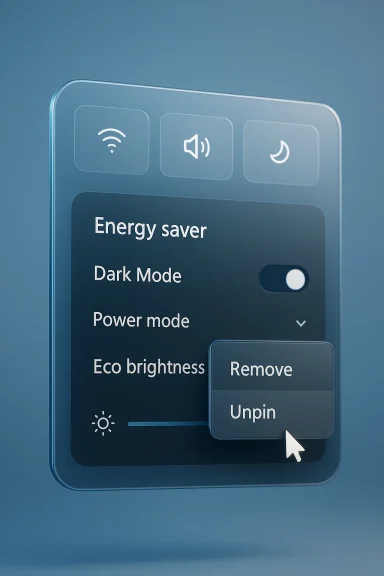
The most tangible change spotted in recent Insider Dev builds is a Dark Mode toggle placed inside a Power or Energy Saver subpage of Quick Settings. To use it, the current flow requires two steps: open Quick Settings (Win+A or click the system tray cluster), then enter the Power/Energy Saver subpage where the dark/light toggle appears alongside controls such as power mode, eco brightness, and screen contrast. That makes switching themes faster than the Settings app route, though less direct than a single exposed tile.Important details observed in the builds:
- The toggle sits inside the Power/Energy Saver module rather than as its own tile in the first Quick Settings layer.
- It appears alongside other power-related items such as power mode and eco brightness.
- The feature was visible in Dev‑channel preview builds in the 26xxx series (reports reference builds in the 26300 range), but Microsoft has not announced a public release date.
Remove or reorganize Quick Settings actions
The second usability improvement under test lets users remove actions directly from the Quick Settings panel. Early behavior indicates this will work via:- Right‑click on a tile with a mouse, or
- Press‑and‑hold on a touch screen to reveal a context option to remove or unpin the tile.
File drag tray preview update
In the same preview activity, Microsoft has also confirmed changes to the file drag tray UX: the drag preview now uses a smaller thumbnail that should avoid covering folders located at the top of the screen during drag operations. This is a smaller polish but one that addresses a frequent annoyance for users who drag files between folders near the top of the window.Why these changes matter
- Real‑world convenience: A one‑tap theme toggle (or a two‑tap flow inside Quick Settings) reduces friction for users who switch themes frequently — for example, people who prefer Dark during evening work and Light during the day. Placing such a control within reach respects current user expectations shaped by mobile OSes.
- Cleaner Quick Settings: Allowing removal of unused tiles helps declutter the Quick Settings surface, ensuring the most important controls are visible without scrolling or hunting through menus. This is particularly important on small screens and tablets where screen real estate is scarce.
- Alignment with other dark‑mode work: Microsoft has spent the last year closing gaps in Windows’ dark theme coverage — theming legacy File Explorer dialogs, the Run box, and many file‑operation dialogs. The Quick Settings toggle is a natural complement to those efforts and helps make theme switching feel complete.
UX and design trade‑offs: discoverability vs. clutter
Microsoft’s decision to place the toggle inside the Power/Energy Saver subpage rather than as a top‑level Quick Settings tile introduces a nuanced UX trade‑off.- Pros of embedding in Power/Energy Saver:
- Keeps the primary Quick Settings surface uncluttered for global actions like Wi‑Fi, sound, and clipboard.
- Groups theme switching with related power/policy items (eco brightness, battery saver), which could be logical for users who associate dark mode with power savings on OLED displays.
- Reduces accidental toggles by requiring a second tap to reach the control.
- Cons and risks:
- Discoverability: Users expecting a one‑tap experience (as on mobile) may not find the toggle immediately if it’s buried in a subpage.
- Inconsistent mental model: Theme switching is a personalization act, not strictly a power action; grouping it under Power may confuse some users.
- Accessibility and automation: If the control remains inside a submenu, scripting or assistive tech that expects a top‑level toggle may require updates — a potential friction for power users and organizations using automation.
Implementation notes for Insiders and power users
If you are running the Windows Insider Program (Dev channel), the experimental behavior has been observed in recent test flights (reports reference build numbers in the 26300 family). Practical observations include:- Open Quick Settings by pressing Win+A or clicking the system tray cluster.
- Look for an Energy/Power Saver tile. Open it.
- Inside that subpage, a Dark Mode toggle may appear beside power mode and eco brightness controls.
- To remove tiles, try right‑clicking with a mouse or press‑and‑hold on a touch screen; a context menu should offer removal/unpinning options when the feature is active.
- These features are being tested behind feature flags and may not appear consistently across Insider flights. The exact build numbers and flags can vary, and Microsoft frequently experiments with multiple UI variants simultaneously. Treat visible behavior as preview‑only.
- There is no confirmed public release date; feature availability will depend on Microsoft’s telemetry, polishing, and rollout scheduling. Do not expect immediate availability on stable or enterprise channels.
How this compares to mobile and macOS approaches
Mobile platforms typically provide a single action to toggle the system theme from their notification/quick panels. That one‑tap model emphasizes immediacy and was a design pattern that desktop systems have been slower to adopt.- Android/iOS: one tap in the notification/quick panel flips themes instantly.
- macOS: system appearance toggles are accessible via Control Center and can be configured in system preferences; third‑party utilities also enable scheduled switches.
- Windows (so far): required opening Settings until recent experiments and PowerToys provided faster or scheduled options. The Quick Settings approach Microsoft is testing narrows the gap but stops short of the single top‑level tile in the default layer.
Enterprise and administrative considerations
Enterprises should track these changes carefully. Even small UI tweaks can affect support workflows, training materials, and managed configurations.- Group Policy / MDM: If Microsoft exposes a user‑accessible toggle, administrators will want a policy to control or disable theme changes for managed devices (for example, enforce a system theme for kiosks or lab machines). At present, theme policies already exist, but new toggle surfaces should be mapped to management controls.
- User support: Help desk scripts and documentation should be updated if theme toggles appear in Quick Settings, to avoid calls where users don't know where to find theme controls or why themes changed.
- Accessibility testing: Ensure assistive technologies (screen readers, keyboard navigation) can access the toggle reliably when it lives inside a submenu. Enterprises that rely on accessibility tools should validate behavior on updated Insider builds before broad rollouts.
Security and privacy implications
These changes are primarily UX polish and customization; however, there are a few secondary concerns worth noting:- Telemetry and A/B testing: Microsoft has a well‑established practice of A/B testing UI changes in the Insider program and selectively rolling features to subsets of users. Administrators and privacy‑conscious users should assume that Insider telemetry may inform rollout decisions. This is standard practice but worth noting for transparency.
- Third‑party conflicts: PowerToys and other utilities that automate or override theme settings may conflict with a Quick Settings toggle. Microsoft and the PowerToys team have addressed such conflicts before (e.g., accidental activation of a “Light Switch” feature that flicked themes unexpectedly); expect follow‑up fixes or coordination if conflicts emerge again.
Potential problems and how Microsoft could improve the rollout
The current experimental placement and behavior present both opportunities and risk. Here are the most important issues and suggested mitigations:- Problem: Discoverability is poor if the toggle remains buried.
Fix: Offer an opt‑in pin or allow users to add a theme tile to the top Quick Settings layer. Also provide a tooltip or first‑run hint when the toggle is introduced to alert users. - Problem: Grouping personalization under Power/Energy may confuse users.
Fix: Add contextual labeling (for example, “Appearance (Theme)”) and an explanation linking theme changes to display power/brightness behavior where relevant. - Problem: Automation conflicts between PowerToys and system toggles.
Fix: Provide explicit integration points or a system API for theme automation so third‑party tools can register intent or be notified of changes to avoid flips and race conditions. - Problem: Enterprise controls and accessibility may lag behind the UI change.
Fix: Release management policy updates and accessibility test guidance together with the UI change so IT and assistive tech vendors can validate behavior before broad adoption.
What to expect next and how to prepare
Microsoft’s preview appearance of these features is a signal, not a guarantee. Expect the following cadence:- Insider experimentation (Dev channel): UI experiments and feature flags roll across Dev builds, sometimes appearing and disappearing as Microsoft evaluates telemetry and community feedback.
- Stabilization in Beta/Release Preview: If the experiments prove broadly beneficial and stable, Microsoft will typically move them into Beta or Release Preview channels for wider validation. This can take weeks to months depending on engineering and feedback cycles.
- Gradual stable rollout: Final release to the general population often occurs as part of a cumulative update or feature drop and may be throttled to minimize issues. There is no confirmed release date for the Quick Settings changes at the time of reporting.
- Insiders: test features in Dev channel but expect instability. Report bugs and UX feedback through the Feedback Hub to influence decisions.
- Power users: evaluate PowerToys’ Light Switch and Theme Scheduler as interim solutions if you need single‑tap or scheduled theme switching today. Coordinate with future system toggles to avoid conflicting behavior.
- IT admins: watch Beta/Release Preview release notes and test configurations in a lab before broadly deploying to managed devices. Consider drafting updated help desk guidance to reflect Quick Settings changes ahead of a stable rollout.
Quick reference: what we can confirm and what remains uncertain
What we can confirm from recent previews:- A Dark Mode toggle has been observed inside the Power/Energy Saver subpage of Quick Settings in Dev‑channel preview builds.
- A remove/unpin action for Quick Settings tiles (via right‑click or press‑and‑hold) is being tested in Dev‑channel code paths.
- The file drag tray preview has been adjusted to a smaller thumbnail to reduce obstruction during drag operations.
- A specific release date or the exact channel (Beta/Stable) for broad availability. Microsoft has not announced a public timeline.
- Whether Microsoft will expose the theme toggle as a top‑level tile by default, or keep it inside Power/Energy Saver with an optional pin. Early builds favor the latter, but this could change.
- The final management, accessibility, and developer APIs or policies tied to these Quick Settings changes — details will likely follow as the feature stabilizes.
Conclusion
The Quick Settings experiments currently visible in Windows 11 Insider builds represent a meaningful step toward closing a UI convenience gap that has frustrated users for years. By surfacing a Dark Mode toggle and restoring the ability to remove or rearrange Quick Settings tiles, Microsoft is aligning the desktop experience more closely with modern expectations for immediacy and personalization. That said, the current implementation choices — placing the theme toggle inside a Power/Energy Saver subpage and keeping removals behind a right‑click/press‑and‑hold gesture — reflect a measured approach that balances discoverability, clutter, and accidental activation risk.For everyday users, these changes should make theme switching and Quick Settings management more convenient once they reach stable builds. For power users and admins, the key work will be in testing, integrating management policies, and coordinating with existing automation tools like PowerToys to ensure predictable behavior. Until Microsoft formally announces a release plan, the features should be treated as preview experiments — promising, but subject to change as Microsoft gathers feedback and polishes the experience.
Source: eTeknix Windows 11 Will Let Users Switch to Dark Mode From Quick Settings and Remove Unused Shortcuts