

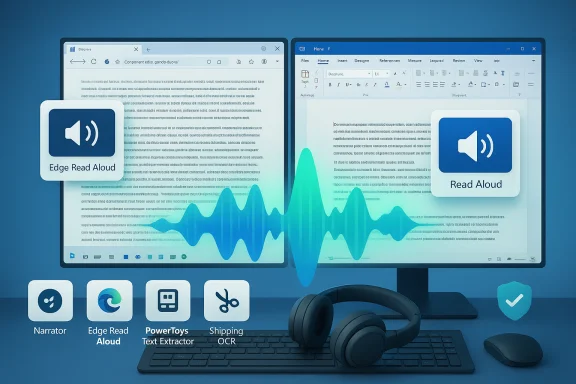
Windows 11 can read almost anything on your screen aloud — from long web articles to email threads, from text inside images and paused videos to full-length documents — and it does so with several built‑in and free Microsoft tools designed for accessibility and productivity. These tools — Narrator, Edge Read Aloud, PowerToys Text Extractor (and the Snipping Tool’s OCR), plus Read Aloud in Word and Outlook — let users listen while they multitask, proofread hands‑free, or reduce eye strain. This feature set is now mature, configurable, and increasingly natural-sounding thanks to downloadable voices; it also carries important deployment, privacy, and compatibility caveats IT teams and power users should understand.
Windows has long included accessibility features that read text aloud, but Windows 11 consolidates and extends those capabilities across the OS, browser, and productivity apps. The goal is simple: make long-form text and UI elements consumable by ear, not just by sight. That’s useful for users with vision impairment, people who prefer audio while doing other tasks, and anyone who needs to proofread by listening. Microsoft’s flagship screen reader is Narrator, while Microsoft Edge provides a browser‑native Read Aloud experience and Office apps offer integrated read‑aloud functions. For captured text in images or videos, Microsoft’s ecosystem provides OCR tools — notably PowerToys Text Extractor and the updated Snipping Tool — to convert pixels into selectable, readable text. Why this matters today: modern TTS engines are far better than the “robotic” voices of old, and Windows supports downloadable natural voices that run locally on the device. That lowers latency and preserves privacy compared with cloud-only solutions. At the same time, some voice features are cloud‑dependent and Microsoft has announced backend changes that affect older Office builds, so staying current with Windows and Office updates matters for a reliable read‑aloud experience.
Source: How-To Geek This Windows 11 Feature Reads to Me So I Can Relax (or Multitask)
 Background / Overview
Windows has long included accessibility features that read text aloud, but Windows 11 consolidates and extends those capabilities across the OS, browser, and productivity apps. The goal is simple: make long-form text and UI elements consumable by ear, not just by sight. That’s useful for users with vision impairment, people who prefer audio while doing other tasks, and anyone who needs to proofread by listening. Microsoft’s flagship screen reader is Narrator, while Microsoft Edge provides a browser‑native Read Aloud experience and Office apps offer integrated read‑aloud functions. For captured text in images or videos, Microsoft’s ecosystem provides OCR tools — notably PowerToys Text Extractor and the updated Snipping Tool — to convert pixels into selectable, readable text. Why this matters today: modern TTS engines are far better than the “robotic” voices of old, and Windows supports downloadable natural voices that run locally on the device. That lowers latency and preserves privacy compared with cloud-only solutions. At the same time, some voice features are cloud‑dependent and Microsoft has announced backend changes that affect older Office builds, so staying current with Windows and Office updates matters for a reliable read‑aloud experience. How to make Windows 11 read on‑screen text: the practical toolset
Narrator — the system screen reader
Narrator is Windows’ built‑in screen reader and is the most direct way to have the OS read UI elements, menus, dialog boxes, and selected text aloud. It’s intended primarily for accessibility, but it’s entirely usable as a general read‑aloud assistant.- How to open/close: Press Win + Ctrl + Enter to toggle Narrator on or off. This is the fastest route for most users. Narrator can also be enabled via Settings > Accessibility > Narrator.
- What it reads: Narrator will speak window titles, focused controls, menu items, and the content of text fields. It can also read documents, web pages, and other text you navigate to with keyboard focus.
- Key controls: Narrator exposes keyboard commands for starting and stopping reading, changing verbosity, and navigating elements — useful for efficiency and scripting workflows. Many common Narrator commands remain consistent across Windows 10 and 11, though some labels and settings have shifted in Settings menus.
Edge Read Aloud — long web pages and selected text
For web content, Microsoft Edge includes a built-in Read Aloud feature that turns any supported page into audio on demand. It’s one of the quickest ways to convert a news article, blog post, or documentation page into a listening session.- How to start: With a page open in Edge, right‑click on a blank area and choose Read Aloud (or More tools > Read Aloud), or press Ctrl + Shift + U to start or stop Read Aloud. You can also select text and use Read Aloud selection to hear only a portion of the page.
- Controls: Edge shows transport controls (play/pause, next/previous paragraph) and settings for voice and speed. Immersive Reader is available on many pages and cleans up layout before reading.
- When to use Edge vs. Narrator: Use Edge Read Aloud for a “booklike” listening experience on web content; use Narrator when you need the browser to narrate specific UI elements or when relying on keyboard navigation across content.
Extract text from images and videos (PowerToys Text Extractor & Snipping Tool OCR)
If the words you want to hear are inside an image, a screenshot, a paused video frame, or a presentation slide, you must first convert pixels into selectable text. Two reliable options are:- PowerToys Text Extractor: Activates with Win + Shift + T by default (customizable) and lets you drag a rectangle over any on‑screen content; the text is copied to the clipboard. Microsoft’s official PowerToys docs describe the utility and its keyboard activation flow. PowerToys itself recommends the Snipping Tool for many users but keeps Text Extractor for power workflows.
- Snipping Tool OCR / Text Actions: Windows 11’s Snipping Tool now includes OCR actions that can recognize and copy text from screenshots and images, with “Copy all text” and table-aware copy options in the Text Actions toolbar. The Snipping Tool’s OCR is increasingly promoted as the native alternative to PowerToys for many scenarios.
- Pause the video or open the image.
- Use Win + Shift + T (PowerToys Text Extractor) or Snipping Tool’s OCR to capture text.
- Paste into Notepad, Word, or an Edge page.
- Use Narrator or Edge Read Aloud to listen to the extracted text.
Read Aloud in Word and Outlook
Office apps support read‑aloud directly, making them ideal for long documents and email threads.- Word: In the Review tab, click Read Aloud to play the document starting from the cursor location. Keyboard shortcuts and playback controls are available; Word also includes Speak for reading selected text. Read Aloud is present in Office 2019/2021 and Microsoft 365 versions that support the feature.
- Outlook: In classic Outlook, Read Aloud appears on the Home or Message tab (depending on view) and will read the open email. Outlook provides playback controls and voice/ speed settings in the Read Aloud toolbar.
Make Narrator sound better: natural voices, speed, and pitch
Many users notice the old default voice feels mechanical. Windows 11 allows changing Narrator’s voice, speed, and pitch — and to download natural voices that sound more human.- Where to change settings: Settings > Accessibility > Narrator contains Choose a voice, Speed, and Pitch controls; additional natural voices can be downloaded and installed from the Narrator settings. Microsoft publishes a list of supported natural voices and how to install them.
- Local vs. cloud voices: Downloadable natural voices run locally, improving privacy and offline usability. Cloud voices may still be used in some services for higher fidelity or for languages not available locally.
- Practical tip: For long listening sessions, reduce speed slightly and choose a natural voice rather than the older synthetic default; this reduces fatigue and improves comprehension.
Workflows that make multitasking productive
The ecosystem of read‑aloud tools supports several real-world workflows that transform how Windows is used day-to-day:- Proofreading by ear: Open a Word document and use Read Aloud to catch awkward phrasing, missed words, or punctuation issues. Use the Word Read Aloud shortcut to move paragraph by paragraph if you want granular checks.
- Learn while you do other tasks: Use Edge Read Aloud to listen to longform articles while cooking, exercising, or taking notes. Immersive Reader cleans layout and improves focus before reading.
- Extract and digest text from images or video: Pause a tutorial, run Text Extractor, paste the text into Notepad, then let Narrator read the steps while you follow along with your hands free. Text Extractor is fast and keyboard‑centric for power users.
- Rapid email triage: Let Outlook read messages aloud while you mark, archive, or respond by voice (or type replies). Use Read Aloud controls to skip boilerplate and focus on core content.
Deployment, compatibility, and gotchas IT should know
Large‑scale deployments and power users should be aware of several operational considerations:- Office version requirements: Microsoft has signaled backend upgrades that may remove access to certain cloud‑backed voice features on older Office builds. Organizations should ensure Office is updated to supported versions to retain Read Aloud, transcription, and dictation features. Plan updates for any machines that still run older perpetual licenses.
- Windows build differences: Narrator UI labels and available voices vary across Windows 11 updates and Insider builds. If users report missing options, check the Windows build and update status; some features arrive via Windows Update or Microsoft Store updates for specific apps.
- Shortcut conflicts and reserved keys: Hotkey conflicts can surface (for example, evolving Windows/PowerToys/OS shortcuts). If Text Extractor’s Win + Shift + T conflicts with a system reserve or other app, the utility’s activation can be reconfigured in PowerToys settings or managed centrally for standardized environments. PowerToys docs and community reports are helpful when troubleshooting edge cases.
- Privacy and cloud processing: Some read‑aloud and transcription functionality uses cloud services for higher‑quality voices, translations, or summarization features. When features rely on cloud processing, review privacy settings and organizational policies; for sensitive environments, prefer on‑device natural voices and local models when available.
- Audio routing and feedback loops: If Narrator audio is played through the same microphone used for dictation features, it can create a feedback loop that degrades dictation quality. Use headphones or adjust microphone routing to avoid interference.
Troubleshooting quickchecks
- Read Aloud missing in Edge:
- Update Edge and check the context menu or More tools menu for Read Aloud.
- If a right‑click Read Aloud option doesn’t appear, try the address bar controls or Ctrl + Shift + U.
- Narrator won’t start:
- Confirm Windows is updated and use Win + Ctrl + Enter. If Narrator behaves inconsistently, check accessibility settings and reboot.
- Text Extractor returns garbled text:
- OCR is sensitive to font, contrast, and image quality. Try zooming the source or using Snipping Tool OCR for a higher‑quality result. Use the preferred OCR language pack for better recognition.
- Office Read Aloud isn’t available:
- Check Office version and subscription status (Read Aloud is supported in Office 2019/2021 and Microsoft 365 where enabled). If cloud services are required and blocked by policy, local voices or Narrator are alternatives.
Strengths and practical benefits
- Built in and free: The majority of read‑aloud capabilities are included with Windows 11, Edge, and the free PowerToys suite, removing the need for paid screen‑reading software for many users.
- Multiple input paths: Whether the text is HTML, an Office doc, a screenshot, or a paused video frame, there’s a clear path to audio playback.
- Configurable voices: Downloadable natural voices and speed/pitch controls make long listening sessions comfortable and less fatiguing.
- Productivity integration: These features integrate with Immersive Reader, Copilot vision capabilities (where available), and Office workflows to provide end‑to‑end listening experiences.
Risks, limits, and what to watch out for
- Feature fragmentation: Not every Windows or Office build exposes the same controls; staged rollouts and Insider flights mean experiences can differ across devices. Always verify the Windows build and Office channel when troubleshooting.
- Cloud vs. local tradeoffs: Cloud‑based TTS and translation offer higher fidelity in some cases but introduce privacy and connectivity dependencies. For sensitive content, prefer local/natural voices when possible.
- Accuracy of OCR: Text extracted from complex backgrounds, certain fonts, or low-resolution video may require manual proofreading — OCR is good, but not perfect. PowerToys and the Snipping Tool both advise validating OCR output.
- Compatibility with enterprise policies: Organization-level controls (group policy, Intune) can restrict cloud features or voice downloads; coordinate with IT to preinstall desired voices for a consistent user experience.
Practical setup checklist (recommended)
- Update Windows 11 and Microsoft Edge to the latest stable release.
- Update Microsoft 365/Office to a supported build if you rely on Read Aloud or dictation cloud services.
- Install PowerToys from Microsoft or Microsoft Store if you want the Text Extractor utility; verify the activation hotkey and change it if there’s a conflict.
- Download preferred natural voices via Settings > Accessibility > Narrator > Add Natural Voices to install local voices for offline, higher‑quality TTS.
- For shared devices, preinstall voices and configure Narrator defaults via provisioning or group policy to avoid per‑user setup time.
Conclusion
Windows 11 now offers a flexible, powerful reading‑aloud toolkit that supports multiple input types and real‑world workflows. Whether the goal is accessibility, hands‑free multitasking, proofreading, or converting on‑screen text in images and video into spoken words, the system provides both quick, no‑install options (Edge Read Aloud, Narrator) and deeper utilities (PowerToys Text Extractor, Snipping Tool OCR, Office Read Aloud) to fit the need. The addition of downloadable natural voices and integration across Windows and Office makes long listening sessions practical and comfortable. At the same time, administrators and power users should account for versioning differences, cloud vs. local tradeoffs, and OCR accuracy when deploying these features at scale. Use the checklist above to get started, and tailor voices and hotkeys to the workflows that matter most — the result is a hands‑free reading experience that genuinely expands how Windows is used every day.Source: How-To Geek This Windows 11 Feature Reads to Me So I Can Relax (or Multitask)
