

Safe Mode is not a niche relic tucked away in Windows’ past — it remains one of the most reliable, low-friction tools administrators and advanced users have for isolating and repairing stubborn Windows 11 problems, from driver conflicts and boot loops to malware that resists removal in a normal session. Safe Mode boots a curtailed version of the OS with only essential drivers and services, letting you see whether the problem is rooted in the core system or caused by third‑party software, drivers, or recent configuration changes. com]
Safe Mode’s basic principle is simple: reduce variables. When Windows 11 starts normally it loads a large set of device drivers, background services, startup apps, and optional components; Safe Mode deliberately restricts that set so the OS runs with the smallest surface area necessary to function. If the system behaves in Safe Mode but fails in normal mode, you can reasonably conclude that a non-essential component — most often a third‑party driver, service, or user-mode app — is the likely culprit. This basi has been consistent since the feature’s early days, and it remains unchanged in Windows 11.
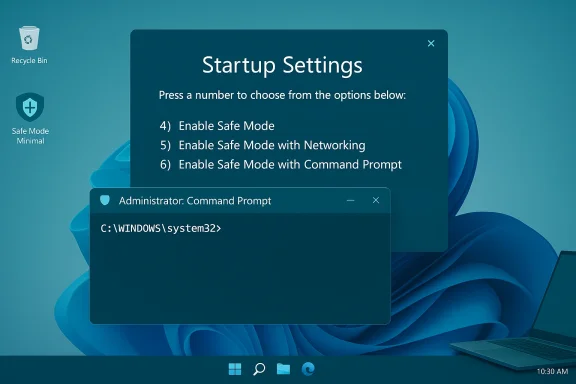
There are three common Safe Mode configurations available in Windows 11:
Safe Mode remains one of the single most valuable first steps in troubleshooting Windows 11 problems: it’s fast, low‑cost, and often sufficient to expose whether a fault is intrinsic to Windows or introduced by external software or drivers. Use the minimal mode first to limit exposure, escalate to Networking only when required, and always prioritize data safety with backups and imaging when repairs become invasive. When used with sensible precautions and the administrative tools described here, Safe Mode will repeatedly save hours of guesswork and help restore systems to reliable operation.
Source: TechTarget How Windows 11 Safe Mode works and when to use it | TechTarget
 Background / Overview
Safe Mode’s basic principle is simple: reduce variables. When Windows 11 starts normally it loads a large set of device drivers, background services, startup apps, and optional components; Safe Mode deliberately restricts that set so the OS runs with the smallest surface area necessary to function. If the system behaves in Safe Mode but fails in normal mode, you can reasonably conclude that a non-essential component — most often a third‑party driver, service, or user-mode app — is the likely culprit. This basi has been consistent since the feature’s early days, and it remains unchanged in Windows 11.There are three common Safe Mode configurations available in Windows 11:
- Safe Mode (Minimal) — the default. Boots the graphical shell with the minimum drivers and services and no network access. Good for uninstalling software and driver rollbacks when network connectivity is not required. ([howtogeek.com](How to Boot Into Safe Mode on Windows 11 Mode with Networking** — same minimal set but with network drivers and services loaded. Useful when you need to download updates, antivirus tools, or troubleshooting utilities, but it carries additional exposure because fewerctive.
- Safe Mode with Command Prompt — no graphical shell, boots to an elevated command prompt. Intended for advanced troubleshooting, offline repairs, and running text‑based utilities like DISM and bootrec.
How Safe Mode actually works (under the hood)
At boot, Windows selects a set of device drivers and services from the Boot Configuration Data (BCD) store and the service control manager. Safe Mode alters that selection by setting the safeboot option in BCD, which tells the kernel and service loader to skip non‑essential services and drivers. Key differences you’ll notice in Safe Mode:- The graphics subsystem may run in a basic driver mode (low resolution), so display drivers that cause crashes won’t load.
- Third‑party startup programs and scheduled tasks don’t run.
- Many optional kernel drivers (including some hardware accelerators) remain unloaded.
- Some built‑in Windows components continue to function, but behavior can be reduced — for example, the Windows Security app or other management tools may not operate the same way as in a full boot.
When to use Safe Mode: practical scenarios
Safe Mode is a diagnostic environment, not a cure-all. Use it when one or more of the following conditions exist:- The system is unstable in normal mode (frequent crashes, freezes, or BSODs) but appears stable when you can get into Safe Mode. This suggests third‑party software or drivers.
- Windows will not boot into the desktop, but the Recovery Environment or Safe Mode is accessible. Safe Mode gives you a way into the system to run recovery tools.
- You suspect malware that prevents normal uninstallation or interferes with AV tools. Many malware strains cannot fully initialize in Safe Mode, making removal easier. However, use *Safe Mode with Nyou need files or tools from the internet and you are confident of the network’s security — the environment can be more vulnerable.
- You recently installed a driver or kernel‑level component and the system entered an unbootable state. Booting to Safe Mode lets you roll back or uninstall the offending driver.
- Hardware failures (failing SSD/HDD, bad RAM, dying PSU) will often manifest even in Safe Mode. Use dedicated hardware diagnostics (MemTest86, manufacturer SSD tests) when Safe Mode shows the same faults.
- Firmware issues (UEFI/BIOS corruption) or missing boot sectors may require WinRE tools or offline media rather than Safe Mode alone.
How to start Safe Mode in Windows 11 — step‑by‑step methods
Windows 11 offers several legitimate ways to get to the Startup Settings screen that controls Safe Mode selection. All methods end at the same menu; choose the one that best fits your situation.From a working desktop (fastest)
- Open Start → Power.
- Hold the Shift key and click Restart. The PC will reboot into the Advanced Startup Options (Choose an option).
- Choose Troubleshoot → Advanced options → Startup Settings → Restart.
- After restart, press the number or function key for the mode you need (4/F4, 5/F5, 6/F6).
From Settings (System → Recovery)
- Go to Settings > System > Recovery and click Advanced startup → Restart now. Then follow the Troubleshoot → Advanced options → Startup Settings path. This is identical to the Shift+Restart flow.
When Windows won’t start — force WinRE
- If Windows can’t boot normally, trigger WinRE by interrupting boot twice: power on, then force shutdown as soon as the manufacturer logo or spinning dots appear; repeat. On the third start, Windows should enter Automatic Repair and provide the Advanced options link that leads to Troubleshoot → Advanced options → Startup Settings. Microsoft documents this automatic failover behavior precisely because modern fast boots prevent F8 from working reliably.
With msconfig (System Configuration utility)
- Run msconfig, open the Boot tab, and check *Minimal, Network, or Alternate shell (Command Prompt). Click OK and reboot. To exit, uncheck Safe boot and reboot. This method is pe boot policy until changed, so use it cautiously.
Legacy F8 approach (not recommended by default)
- On modern systems F8 rarely works because of fast startup. You can re-enable the legacy boot menu via
bcdedit /set {default} bootmenupolicy legacy, but doing so is usually unnecessary and may complicate UEFI/secure boot workflows. Considermsconfigor the Advanced Startup options instead.
What you can (and should) do while in Safe Mode
Safe Mode is designed for focused repairs. The following list captures the most productive, low‑risk actions:- Uninstall recent drivers or software — Use Device Manager and Programs uspect drivers/apps that likely caused the failure. Reboot normally to test.
- Run System Restore — Restore to a known good checkpoint if available. This often resolves problems caused by updates or recent installs.
- Run on‑demand malware scanners — Use Microsoft Safety Scanner, Microsoft Defender Offline, or a trusted third‑party scanner from removable media. If you need internet access to download a tool, consider Safe Mode with Networking but be cautious.
- Filesystem and OS integrity checks:
- Run
sfc /scannow(System File Checker). - Use DISM (
DISM /OnlineoreHealth) where appropriate. - Run
chkdsk /f /rto check disk integrity.
These tools help repair corrupted system files and storage issues. - Boot environment and BCD repairs — From Command Prompt you can run
bootrec /scanos,bootrec /rebuildbcdor use BCDedit to correct misconfigured boot entries. This is useful when Safe Mode fixes don’t persist because the boot configuration is broken.
Security and risk considerations
Safe Mode reduces system defenses in order to stop interference with troubleshooting; that same reduction increases exposure. Keep these points in mind:- Real‑time protections can be limited or disabled. Some security features require normal boot conditions to operate fully. That can leave the system more exposed while connected to a network. If you’re investigating malware, preere possible and use trusted offline scanners.
- Safe Mode with Networking expands attack surface. Only use it when you explicitly need internet access to fetch tools or updates, and avoid visiting untrusted websites or running downloaded packages without verification.
- WinRE usability caveat (recent history): Recent Windows updates have occasionally impacted the Windows Recovery Environment itself (e.g., reports of USB keyboard/mouse failures in RE after certain updates). If you rely on WinRE for Safe Mode entry, be aware that some update regressions may temporarily complicate recovery workflows; keep offline install media or a recovery USB as a fallback.erve user data first. If the fix risks deleting files or if the disk looks unstable, create a forensic image or copy important files to external media before attempting destructive repairs.
Advanced admin tips and commands
For IT staff managing multiple systems, a few commands and workflows speed up diagnosis and recovery:bcdedit /set {current} safeboot minimal— forces next boot into Safe Mode without using the GUI. Remove withbcdedit /deletevalue {current} safeboot. Use carefully; a wrong BCD edit can prevent normal booting.msconfig→ Boot → Safe boot: good for controlled test reboots where you need the system to reboot into Safe Mode and stay there until you remove the setting.- Use
sfc /scannow,DISM /Online /Cleanup-Image /RestoreHealthandchkdskin sequence when you suspect file corruption. Runchkdskwith/f /ron the unmounted disk via WinRE if you can’t run it in Safe Mode. - Consider Microsoft Defender Offline or other bootable AV tools for sophisticated malware that hooks deep into the system and survives standard removal attempts. Bootable tools operate outside the installed OS and can remove threats that attempt to reinstate themselves at startup.
A practical checklist: use Safe Mode to address these specific problems
- System frequently bluescreens immediately after login:
- Boot into Safe Mode (Minimal).
- Uninstall recent drivers or roll back GPU/network drivers.
- Run
sfc /scannowandchkdsk. - Reboot normally to test.
- Malware prevents opening security tools and blocks AV updates:
- Boot into Safe Mode with Networking only if you must download removal tools.
- Run an offline AV scan (Microsoft Defender Offline or a bootable scanner).
- Remove persistence mechanisms (scheduled tasks, registry run keys).
- Consider a full image backup before aggressive removal.
- System won’t boot but you need files:
- Force WinRE (power off during boot twice) and choose Safe Mode with Command Prompt or use the recovery command prompt.
- Copy essential files to external media before major repairs.
- Use
bootrec/bcdeditto repair boot configuration if necessary.
Limitations, caveats, and final recommendations
Safe Mode is highly effective for diagnosing software and driver issues, but it is not a substitute for:- proper backups (always maintain recent backups before significant repair work),
- hardware diagnostics (memtest and vendor tools when hardware is suspected),
- comprehensive incident response for advanced malware (forensic imaging and enterprise AV tools).
- a verified Windows 11 recovery USB,
- a copy of Microsoft Safety Scanner or Defender Offline on removable media,
- documentation for common
bcdedit,bootrec, and DISM commands, - and a policy for when to escalate to full OS reinstallation or data recovery services.
Safe Mode remains one of the single most valuable first steps in troubleshooting Windows 11 problems: it’s fast, low‑cost, and often sufficient to expose whether a fault is intrinsic to Windows or introduced by external software or drivers. Use the minimal mode first to limit exposure, escalate to Networking only when required, and always prioritize data safety with backups and imaging when repairs become invasive. When used with sensible precautions and the administrative tools described here, Safe Mode will repeatedly save hours of guesswork and help restore systems to reliable operation.
Source: TechTarget How Windows 11 Safe Mode works and when to use it | TechTarget
