

Microsoft appears to be preparing another small but meaningful upgrade to the Windows 11 Snipping Tool: an in‑editor text insertion option that lets users add typed text directly onto screenshots, a capability first flagged publicly this week after a short demo video surfaced online and was picked up by media.
The Snipping Tool has evolved dramatically since its days as a bare‑bones screen grab utility. Microsoft has steadily added features such as screen recording, inking and markup improvements, an OCR‑style Text Extractor that copies text from images, a color picker and measurement tools, and even AI‑assisted “perfect screenshot” and image editing capabilities in recent Windows Insider flights. These additions reflect a longer strategy to turn the Snipping Tool into a lightweight but capable content‑creation and productivity tool that removes the need to jump to separate editors for common tasks. This week’s development—an apparent “insert text” control inside the Snipping Tool editor—was not rolled out through Microsoft’s official channels but was demonstrated in a short social media clip shared by a well‑known Windows leaker. The clip shows a user adding a resizable text box over a captured image, suggesting Microsoft is extending the Snip editor’s annotation toolset beyond pens, shapes and highlights. BetaNews published a write‑up of the find and embedded the demo footage in its story.
Source: BetaNews Microsoft is updating Windows 11’s Snipping Tool with option to add text to screenshots
 Background
The Snipping Tool has evolved dramatically since its days as a bare‑bones screen grab utility. Microsoft has steadily added features such as screen recording, inking and markup improvements, an OCR‑style Text Extractor that copies text from images, a color picker and measurement tools, and even AI‑assisted “perfect screenshot” and image editing capabilities in recent Windows Insider flights. These additions reflect a longer strategy to turn the Snipping Tool into a lightweight but capable content‑creation and productivity tool that removes the need to jump to separate editors for common tasks. This week’s development—an apparent “insert text” control inside the Snipping Tool editor—was not rolled out through Microsoft’s official channels but was demonstrated in a short social media clip shared by a well‑known Windows leaker. The clip shows a user adding a resizable text box over a captured image, suggesting Microsoft is extending the Snip editor’s annotation toolset beyond pens, shapes and highlights. BetaNews published a write‑up of the find and embedded the demo footage in its story. Why this matters: the consolidation of capture and edit
Windows users have long accepted a multi‑step workflow for annotated screenshots: capture, paste into Paint or another editor, add text, save. A native text insert function removes that friction. The practical benefits are immediate and concrete:- Faster workflows for documentation, bug reporting, tutorials and quick social media content.
- Fewer steps to create annotated images for support tickets, classrooms and internal docs.
- A lower barrier for casual creators who do not want to learn or open more powerful editors like Paint, Photos, or third‑party tools.
What the demo showed (and what remains uncertain)
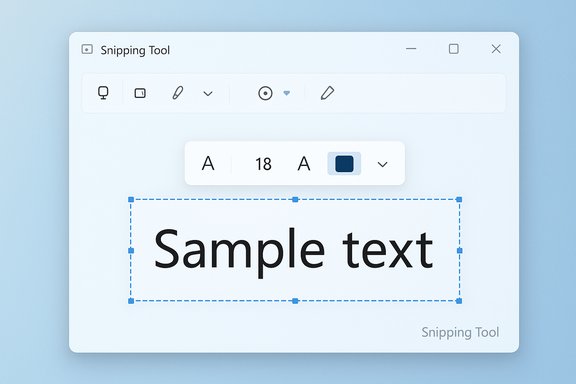
The short video making the rounds shows the Snipping Tool editor with a new text control. In the clip the user:- Clicks a text icon (letter “A” or similar) in the editor toolbar.
- Taps the image to create a text box and types content directly.
- Resizes and moves the box, and (in the demo) adjusts font size and perhaps color.
- Will inserted text be saved as editable layers (so users can reopen and edit type later), or will text be flattened into the image on save?
- Which formatting controls will be available (font family, bold/italic, alignment, background box, transparency)?
- Will the feature rely on local rendering only, or will any cloud‑assisted features (font suggestions, AI formatting) require a Microsoft account or online processing?
- When and where will it roll out—Canary/Dev first (Insider), or will it appear directly in Beta/Release channels?
How this fits with Snipping Tool’s recent trajectory
Over the last year Microsoft has repeatedly modernized the Snipping Tool experience. Key past moves include:- Adding an integrated Text Extractor so users can copy text from any region of the screen without saving an image first. That feature was rolled out to Windows Insiders earlier in 2025 and streamlined workflow for grabbing non‑selectable text.
- Improving inking with features such as draw & hold which helps create neater shapes and straight lines, and a more robust markup toolbar.
- Introducing AI‑adjacent tools in the broader Windows app set—features in Paint, Photos, and Notepad that apply generative or assistive elements—pointing to a strategy of expanding capability in inbox apps. Some of these require sign‑in or Copilot‑linked services.
Technical expectations and likely limitations
Several technical realities and limitations should be expected based on how Snipping Tool behaves today and how image editors generally operate:- Added text will likely be rasterized upon save. Most light editors that add annotations convert text into pixels when exporting PNG/JPG unless they implement a document model that preserves layers. If Snipping Tool follows its current simple‑image model, text will not remain as vector text for later editing. This matters for accessibility and reusability.
- Font options will probably be limited at first. Insiders receive simplified controls before broader formatting features appear, as Microsoft tends to ship steady incremental improvements rather than a full typographic toolset.
- Interoperability with Text Extractor (OCR) and redaction: Snipping Tool already offers redact options and OCR‑based text selection; an insertion feature will need to coexist cleanly with those flows to avoid confusing “editable text” vs “image text.” Microsoft’s documentation already separates Text Actions (OCR-related) from markup tools, which suggests insertion will be treated as a markup overlay rather than a native text object.
Privacy and security considerations
Any changes to the Snipping Tool that introduce richer editing or AI features also raise data handling and privacy questions. Previously, Microsoft’s Insider materials and reporting around AI features have noted that some capabilities require a Microsoft account and may use cloud services for processing. That raises three practical concerns:- Cloud processing and telemetry: If formatting suggestions, font identification, or image enhancements rely on cloud calls, users should expect telemetry and potential sharing of snippets with online services unless explicitly opted out. The Verge’s coverage of recent Windows AI features highlighted account and credit‑based constraints for some capabilities.
- Leakage of sensitive text: Annotated screenshots are often used to share or store sensitive information. Combining OCR, redaction, and text insertion increases the attack surface for accidental data exposure unless redaction tools are rock solid and clearly labeled.
- Organizational policy and DLP: Enterprises using Windows with managed device policies will want to control whether Snipping Tool can upload captures externally or integrate with cloud services. Admins should verify Data Loss Prevention (DLP) policies and Insider program settings before allowing broad deployment.
How this compares to third‑party alternatives
The Snipping Tool has historically played catch‑up with third‑party capture apps that include richer editing built‑in. A few comparisons:- ShareX: Free and extremely feature rich, including text overlays, callouts, and extensive export and automation options. It remains the choice for power users who need control.
- Snagit (TechSmith): A commercial tool with advanced annotation, text hotspots, and a persistent editor that keeps text objects editable. Snagit preserves layered elements and supports templating for repetitive tasks—capabilities that Snipping Tool is unlikely to match at first.
- PowerToys Text Extractor: Adds OCR extraction to Windows and served as an inspiration for Microsoft’s built‑in Text Extractor; PowerToys remains a powerful add‑on for users wanting more control. Microsoft’s consolidation of PowerToys‑style features into inbox apps shows the company prefers bringing focused utilities into core OS workflows rather than forcing users to adopt multiple tools.
Practical advice for Windows users and administrators
If the text insertion feature is of interest, adopt a cautious, pragmatic approach:- Join the Windows Insider Program (Canary/Dev) to evaluate features early, but treat Canary builds as experimental and unsuitable for production machines. Microsoft historically tests UI and workflow changes in Canary/Dev before promoting them to Beta and Release channels.
- For privacy‑sensitive work, confirm whether any new Snipping Tool feature requires a Microsoft account or cloud processing and configure DLP/telemetry settings accordingly.
- Continue using trusted third‑party tools like ShareX or Snagit for production screenshots that require layered edits, templates, or automation.
- Test the export behavior (are text overlays flattened? before integrating Snipping Tool into documentation workflows or templates to avoid surprises later when edits are needed. Practical guides and how‑tos that already mention text icons in editors suggest that Snipping Tool’s markup stage is best used for final‑touch annotations rather than source document composition.
Strengths and potential risks — a quick assessment
- Strengths
- Convenience: Native text insertion would cut the “capture → open Paint → add text → save” loop to a single app.
- Productivity: Quick annotations and captions are more accessible to general users and support staff.
- Integration: Works well with Microsoft’s broader push to add OCR and helpful AI to inbox apps, offering an integrated experience.
- Risks
- Flattening and re‑editability: If text is flattened on save, it limits reusability and accessibility.
- Privacy: Cloud‑assisted features risk sending snippets off‑device; enterprises must evaluate DLP impacts.
- Fragmentation: Microsoft’s staggered Insider rollout means features appear inconsistently across devices, which can be confusing for support teams and casual users.
Timeline and rollout expectations
Microsoft tends to iterate in public by exposing new features to Windows Insiders (Canary and Dev channels first), then promoting successful features to Beta and Release Preview before wide availability. The Text Extractor example from April 2025 followed that pattern, surfacing in Canary/Dev and gradually rolling to Beta/Release rings. If the text insertion control follows the same path, Windows Insiders will see it first and general availability will come later—potentially in the next quarterly or feature update—assuming no major UX or privacy objections emerge. Until Microsoft posts official release notes or the feature appears in an Insider flight, the demo should be treated as an early preview rather than a final, shipped product.The bigger picture: inbox apps as content tools
The incremental additions to Snipping Tool are a clear expression of Microsoft’s broader strategy: make inbox apps—the small utilities that ship with Windows—more capable so users can accomplish common tasks quickly without context switching. That approach reduces cognitive overhead, shortens workflows and increases adoption for built‑in apps. For end users, this means a more productive default environment. For IT and enterprise teams, it means more features to evaluate for compliance and training. As Microsoft continues to fold PowerToys‑like utilities into Windows, expect the Snipping Tool to gain more editing, extraction, and AI capabilities over time.Conclusion
A native text insertion control in the Windows 11 Snipping Tool is a logical and useful next step in the app’s evolution. The demonstration circulating online shows a simple, well‑understood UI for adding resizable text boxes to screenshots, which would remove a common friction point for quick annotations and lightweight content creation. However, the feature has not been formally announced by Microsoft and remains visible only via a social demo and secondary reporting at the time of writing, so its details—especially export behavior, formatting controls, and any cloud ties—remain unconfirmed. Users and admins should watch upcoming Windows Insider releases closely, test the capability on non‑production devices, and evaluate privacy and workflow implications before adopting it into critical processes.Source: BetaNews Microsoft is updating Windows 11’s Snipping Tool with option to add text to screenshots
