

Microsoft’s Windows 11 Snipping Tool has evolved from a basic screenshot utility into a multi-purpose capture app with color picking, screen recording, OCR, and redaction features now built into the operating system. That shift matters because it changes the default software stack on ordinary Windows PCs. For many users, the old reflex—install ShareX, Greenshot, PowerToys, OBS, or Snagit before doing real work—is no longer automatic. Microsoft has quietly turned one of Windows’ most forgettable inbox apps into a case study in how platform owners reclaim utility territory one small feature at a time.
The most important thing about the modern Snipping Tool is not that it became spectacular. It is that it became sufficient. That is a more threatening word for third-party utilities than “innovative,” because most people do not need the best screenshot app on Windows; they need the one that is already there, launches instantly, and handles the next five minutes of work without friction.
For years, Snipping Tool existed in the Windows mental junk drawer. It was the app you used on a locked-down corporate machine, or when you were helping a relative who had never heard of ShareX. Enthusiasts tolerated it, administrators deployed around it, and creators ignored it. If you needed scrolling capture, polished annotations, cloud upload rules, custom filenames, or GIF output, you installed something else.
Windows 11 has not erased that gap completely. ShareX remains a power user’s capture workbench, and Snagit remains the more polished commercial documentation tool. But the distance between “Windows has a screenshot tool” and “Windows has a credible screenshot workflow” has narrowed dramatically, and TweakTown’s account of uninstalling third-party capture tools captures a broader truth: Microsoft has been upgrading the utility layer of Windows in ways that users often discover only after they stop reaching for old habits.
This is the story of a default app becoming competent enough to change behavior. Not with a keynote moment, not with a new brand, and not with a sweeping “AI screenshot studio” pitch, but by absorbing the repetitive little jobs that once justified extra installs.
That fragmentation made sense when Snipping Tool was essentially a camera shutter. But Microsoft has clearly redefined the app as a front door for screen intelligence: if something visible on the display can be captured, copied, measured, sampled, recorded, or sanitized, Snipping Tool is becoming the place Windows expects you to start.
That explains why the feature set now feels oddly broad. A color picker is not, strictly speaking, a screenshot feature. OCR is not merely image capture. Redaction is not annotation. Screen recording is not a still snip. Yet all of them belong to the same workflow family: users are trying to turn what they see on screen into something portable, shareable, or actionable.
This is where Microsoft’s bundling instinct is at its most effective. The company does not need to beat every specialist app on depth. It only needs to remove enough reasons for ordinary users to go looking. Once a native tool captures 80 percent of the workflow, the remaining 20 percent becomes a power-user exception rather than the default path.
Putting that inside the Snipping Tool changes the calculus. If Win + Shift + S already opens the overlay, and the eyedropper can sample any pixel on screen, the need for a separate color utility starts to look optional. The feature is not just about convenience; it is about context. The same toolbar that captures the screen now interprets it.
That matters because Windows utilities often win by being nearby. A third-party color picker might have more options, better history, or richer palette tools, but most users are not managing color systems. They are copying one value into CSS, matching a UI accent, or pulling a shade from a mockup. For that job, proximity beats sophistication.
There is also a subtle PowerToys irony here. PowerToys has long functioned as Microsoft’s semi-official proving ground for features Windows itself did not quite have. When a PowerToys feature graduates into an inbox app, it validates the experiment while also making the module less necessary for mainstream users. The Snipping Tool’s color picker is exactly that kind of graduation: a small feature that says the boundary between power-user add-on and default Windows behavior is moving.
Snipping Tool now occupies the middle ground Windows should have owned years ago. Win + Shift + R launches a recording overlay, the user selects a region, and the tool produces a video file without requiring a scene collection, encoder knowledge, or a detour through a conferencing app. For IT support, QA, help-desk tickets, classroom demos, and “here is what I’m seeing” messages, that is often enough.
Audio support makes the feature more serious. A silent recording is useful for showing a visual defect; a recording with microphone and system audio can explain an issue without a paragraph of context. The fact that microphone capture is easy to toggle—and, importantly, not something users should accidentally leave on—reflects the kind of practical design choice that matters more than marketing copy.
The addition of lightweight trimming and GIF export further changes the role of the tool. A short MP4 is fine for support tickets and documentation, but a quick animated GIF can be better for chat threads, release notes, or bug trackers where friction kills communication. Microsoft does not have to turn Snipping Tool into Premiere Pro. It only has to make the first edit unnecessary.
This is the broader Windows 11 pattern: Microsoft is not always replacing professional software, but it is replacing the awkward middle tier of “I installed this because Windows did not do the obvious thing.” For many users, OBS remains essential. For many others, it is now overkill.
That has immediate practical value. Error dialogs, images of tables, locked PDFs, paused videos, web pages with disabled selection, remote desktop windows, and app installers all become copyable surfaces. Anyone who has typed a long error code from a screenshot knows how much friction this removes. Anyone who has copied text out of a user-submitted screenshot for a ticket knows it removes a small but constant tax on support work.
It also shows Microsoft’s platform advantage. OCR has existed for years, but when it is buried in a separate app, users treat it as a special operation. When it is a keyboard shortcut away, OCR becomes part of ordinary desktop behavior. That is a meaningful shift, especially as Windows increasingly treats visible screen content as something the operating system can parse rather than merely display.
There is a privacy dimension here, too. Local OCR is not the same trust model as uploading a screenshot to a website or pasting sensitive content into a cloud assistant. Users and administrators still need to understand what data is being processed and where, especially as Microsoft adds more AI-adjacent features across Windows. But for the simple act of extracting text from a screen region, keeping the task local is a real advantage.
The collision with PowerToys Text Extractor is especially telling. PowerToys once filled this gap for people who knew to install it. Now Microsoft’s own documentation and product direction increasingly steer users toward Snipping Tool for the same job. That does not make PowerToys irrelevant, but it does make it less necessary as a first-day install.
Automatic redaction for phone numbers and email addresses is not a full data-loss-prevention system, and Microsoft should not pretend otherwise. Pattern-based detection misses names, addresses, IDs, credentials, and anything that does not look like the expected format. But a black bar applied in the capture workflow is still far better than asking users to remember to open another editor, draw a rectangle, flatten the image, and save a new file.
The critical point is that redaction belongs as close as possible to the moment of sharing. If users notice sensitive information only after the screenshot is already in a chat thread, the damage is done. By placing redaction directly inside Snipping Tool’s text-detection workflow, Microsoft nudges users toward sanitizing images before distribution.
There is still a trust problem around reversible edits. Users should treat redacted screenshots as safe only after saving or exporting a flattened copy, not while an edit stack can still be undone. That is not a niche concern. Plenty of organizations have learned the hard way that “covered up” is not always the same as “removed.”
Even with those caveats, Quick Redact is one of the clearest signs that Snipping Tool is maturing from a convenience app into a workplace utility. Screenshots are not just pictures. They are records, evidence, instructions, and sometimes accidental leaks. A modern capture tool has to account for that.
Scrolling capture remains the glaring omission. Long web pages, full settings panels, documentation pages, and chat histories are exactly the kind of content people want to capture as a single artifact. Without scrolling capture, users still need a browser tool, ShareX, Snagit, or another utility when the visible viewport is not enough. That is not an edge case for writers, testers, administrators, or support teams.
Upload automation is another line Microsoft has not really crossed. ShareX can send captures through elaborate destination workflows, with naming rules, clipboard formatting, image hosts, file storage, URL shorteners, and post-capture actions. Snipping Tool is built around local capture and manual sharing. That is simpler and safer for many users, but it is not a substitute for high-volume workflows.
Annotation is also thinner than professional tools. A pen, highlighter, shapes, and basic markup are fine for circling a button. They are not the same as step numbers, reusable styles, callout libraries, templates, blur tools, magnification effects, or documentation-grade layout features. Snagit still earns its keep in environments where screenshots are not disposable messages but published training material.
Those gaps are not failures so much as boundaries. Microsoft has made Snipping Tool good enough for casual and semi-professional capture, but the moment screenshotting becomes production work, specialist tools still matter. The difference is that users now need to have that requirement before they install the specialist tool, not after.
This is not new behavior for operating systems. Platforms expand over time, and today’s indispensable utility often becomes tomorrow’s checkbox in Settings. The difference in Windows 11 is the pace and style of that expansion. Microsoft is less interested in monolithic replacement apps and more interested in adding small, targeted pieces where users already are.
That strategy is powerful because users do not usually maintain a formal app inventory. They keep installing the same utilities because those utilities solved a problem years ago. Once Windows solves the problem natively, the old app can remain installed out of inertia, quietly launching at startup, adding context menu entries, consuming update attention, or expanding the attack surface.
The TweakTown piece ends by suggesting an audit of the rest of the utility list, and that is the right instinct. The modern Windows desktop is full of tools whose original justification may have expired. Clipboard managers, color pickers, rename utilities, screenshot tools, file previewers, archive apps, window managers, launchers, and screen recorders all deserve periodic re-evaluation.
For enthusiasts, that audit may feel like betrayal. Many of these tools are beloved because they made Windows better before Microsoft did. But utility software should earn its place continuously. If the built-in feature is now fast, private enough, reliable enough, and integrated enough, nostalgia is not a deployment strategy.
That does not mean enterprises should blindly standardize on Snipping Tool. Some organizations need central policy controls, capture restrictions, watermarking, logging, DLP integration, or approved upload destinations. Others may restrict screen capture entirely in sensitive environments. The built-in tool’s convenience can be a benefit or a liability depending on the context.
But the default availability of OCR and recording features does require attention. Features that help a support technician copy an error message can also help a user extract text from material that was intentionally difficult to copy. Features that help employees document bugs can also capture internal dashboards, customer records, or confidential meetings. The tool is not dangerous by itself, but it makes certain actions easier.
That is the double edge of platform convenience. When Microsoft adds capability to an inbox app, adoption becomes invisible. Users do not file a procurement request to use a new Snipping Tool feature. They discover it, use it, and build habits around it before IT has necessarily documented the behavior.
Administrators should respond with policy and training rather than panic. If screenshots are allowed, teach users how to redact properly. If recordings are allowed, define where they may be stored and shared. If OCR is acceptable, distinguish local extraction from cloud processing. The mature response is not to pretend the feature does not exist; it is to fold it into the organization’s data-handling rules.
That low-drama delivery matters. Windows users are rightly suspicious when Microsoft loudly announces a new default experience, because too many of those experiences arrive with ads, account nudges, or unclear data practices. Snipping Tool has benefited from feeling like an old utility that got better rather than a new service being pushed onto the desktop.
It also helps that the features are concrete. Color picking, OCR, redaction, and screen recording are not abstract productivity promises. Users know immediately whether they help. The value is visible in seconds: a copied color, extracted text, a redacted email address, a short video clip.
This is where Microsoft’s Windows app modernization is at its best. Not every workflow needs Copilot branding. Not every feature needs to be framed as generative AI. Sometimes the winning move is to take a dusty app, connect it to the way people actually work, and make the obvious shortcut work.
That restraint may not last forever. Microsoft’s broader Windows strategy is increasingly tied to AI features, cloud services, and cross-device experiences. But Snipping Tool’s success should be a lesson: users reward utility that removes friction without demanding attention. The more Windows can improve in that mode, the better the reception will be.
Source: TweakTown The Snipping Tool quietly became the only screenshot app I keep installed on Windows 11
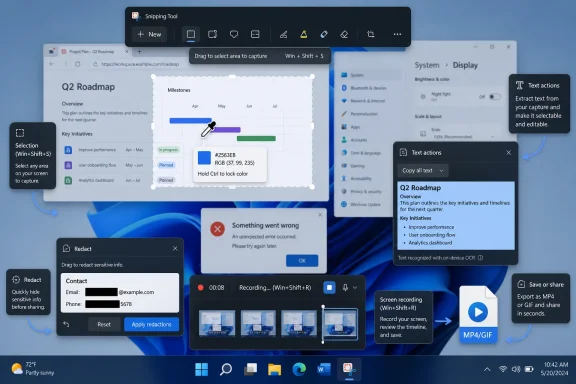 Microsoft Finally Made the Default Tool Good Enough to Be Dangerous
The most important thing about the modern Snipping Tool is not that it became spectacular. It is that it became sufficient. That is a more threatening word for third-party utilities than “innovative,” because most people do not need the best screenshot app on Windows; they need the one that is already there, launches instantly, and handles the next five minutes of work without friction.For years, Snipping Tool existed in the Windows mental junk drawer. It was the app you used on a locked-down corporate machine, or when you were helping a relative who had never heard of ShareX. Enthusiasts tolerated it, administrators deployed around it, and creators ignored it. If you needed scrolling capture, polished annotations, cloud upload rules, custom filenames, or GIF output, you installed something else.
Windows 11 has not erased that gap completely. ShareX remains a power user’s capture workbench, and Snagit remains the more polished commercial documentation tool. But the distance between “Windows has a screenshot tool” and “Windows has a credible screenshot workflow” has narrowed dramatically, and TweakTown’s account of uninstalling third-party capture tools captures a broader truth: Microsoft has been upgrading the utility layer of Windows in ways that users often discover only after they stop reaching for old habits.
This is the story of a default app becoming competent enough to change behavior. Not with a keynote moment, not with a new brand, and not with a sweeping “AI screenshot studio” pitch, but by absorbing the repetitive little jobs that once justified extra installs.
The Screenshot App Became a Utility Drawer
The old screenshot workflow was fragmented because each adjacent task lived somewhere else. Capture the image in Snipping Tool. Pick a color in PowerToys or a browser extension. Extract text with PowerToys Text Extractor or an OCR website. Record a quick bug reproduction in Xbox Game Bar, OBS, or a meeting app. Redact sensitive details in Paint, Photoshop, Snagit, or whatever editor happened to be open.That fragmentation made sense when Snipping Tool was essentially a camera shutter. But Microsoft has clearly redefined the app as a front door for screen intelligence: if something visible on the display can be captured, copied, measured, sampled, recorded, or sanitized, Snipping Tool is becoming the place Windows expects you to start.
That explains why the feature set now feels oddly broad. A color picker is not, strictly speaking, a screenshot feature. OCR is not merely image capture. Redaction is not annotation. Screen recording is not a still snip. Yet all of them belong to the same workflow family: users are trying to turn what they see on screen into something portable, shareable, or actionable.
This is where Microsoft’s bundling instinct is at its most effective. The company does not need to beat every specialist app on depth. It only needs to remove enough reasons for ordinary users to go looking. Once a native tool captures 80 percent of the workflow, the remaining 20 percent becomes a power-user exception rather than the default path.
The Color Picker Is a Small Feature With Outsized Consequences
The eyedropper may be the least glamorous feature in the new Snipping Tool, but it is also one of the clearest examples of Microsoft collapsing a separate utility into Windows itself. For developers, designers, theme tinkerers, and anyone matching brand colors, grabbing a HEX, RGB, or HSL value from the screen is a common enough task to justify a dedicated shortcut. Until recently, that often meant PowerToys Color Picker, a browser extension, or a graphics editor.Putting that inside the Snipping Tool changes the calculus. If Win + Shift + S already opens the overlay, and the eyedropper can sample any pixel on screen, the need for a separate color utility starts to look optional. The feature is not just about convenience; it is about context. The same toolbar that captures the screen now interprets it.
That matters because Windows utilities often win by being nearby. A third-party color picker might have more options, better history, or richer palette tools, but most users are not managing color systems. They are copying one value into CSS, matching a UI accent, or pulling a shade from a mockup. For that job, proximity beats sophistication.
There is also a subtle PowerToys irony here. PowerToys has long functioned as Microsoft’s semi-official proving ground for features Windows itself did not quite have. When a PowerToys feature graduates into an inbox app, it validates the experiment while also making the module less necessary for mainstream users. The Snipping Tool’s color picker is exactly that kind of graduation: a small feature that says the boundary between power-user add-on and default Windows behavior is moving.
Screen Recording Moved Out of the Specialist Lane
Screen recording has historically been one of Windows’ stranger gaps. Xbox Game Bar could capture gameplay or a focused application, but it was not designed as a general-purpose bug-reporting tool. OBS Studio could record almost anything, but launching OBS for a 20-second reproduction clip is like calling in a broadcast truck to document a typo. Teams, Zoom, and other meeting tools could record, but they brought account, privacy, and workflow baggage.Snipping Tool now occupies the middle ground Windows should have owned years ago. Win + Shift + R launches a recording overlay, the user selects a region, and the tool produces a video file without requiring a scene collection, encoder knowledge, or a detour through a conferencing app. For IT support, QA, help-desk tickets, classroom demos, and “here is what I’m seeing” messages, that is often enough.
Audio support makes the feature more serious. A silent recording is useful for showing a visual defect; a recording with microphone and system audio can explain an issue without a paragraph of context. The fact that microphone capture is easy to toggle—and, importantly, not something users should accidentally leave on—reflects the kind of practical design choice that matters more than marketing copy.
The addition of lightweight trimming and GIF export further changes the role of the tool. A short MP4 is fine for support tickets and documentation, but a quick animated GIF can be better for chat threads, release notes, or bug trackers where friction kills communication. Microsoft does not have to turn Snipping Tool into Premiere Pro. It only has to make the first edit unnecessary.
This is the broader Windows 11 pattern: Microsoft is not always replacing professional software, but it is replacing the awkward middle tier of “I installed this because Windows did not do the obvious thing.” For many users, OBS remains essential. For many others, it is now overkill.
OCR Is Where the Snipping Tool Stops Being Just a Camera
The OCR feature is arguably the most consequential addition because it changes the purpose of screen capture. A screenshot used to be a dead image: useful for evidence, useless for text unless you retyped it. Text Actions and the newer extraction shortcut turn the screen into a source of selectable information, even when the originating app refuses to cooperate.That has immediate practical value. Error dialogs, images of tables, locked PDFs, paused videos, web pages with disabled selection, remote desktop windows, and app installers all become copyable surfaces. Anyone who has typed a long error code from a screenshot knows how much friction this removes. Anyone who has copied text out of a user-submitted screenshot for a ticket knows it removes a small but constant tax on support work.
It also shows Microsoft’s platform advantage. OCR has existed for years, but when it is buried in a separate app, users treat it as a special operation. When it is a keyboard shortcut away, OCR becomes part of ordinary desktop behavior. That is a meaningful shift, especially as Windows increasingly treats visible screen content as something the operating system can parse rather than merely display.
There is a privacy dimension here, too. Local OCR is not the same trust model as uploading a screenshot to a website or pasting sensitive content into a cloud assistant. Users and administrators still need to understand what data is being processed and where, especially as Microsoft adds more AI-adjacent features across Windows. But for the simple act of extracting text from a screen region, keeping the task local is a real advantage.
The collision with PowerToys Text Extractor is especially telling. PowerToys once filled this gap for people who knew to install it. Now Microsoft’s own documentation and product direction increasingly steer users toward Snipping Tool for the same job. That does not make PowerToys irrelevant, but it does make it less necessary as a first-day install.
Redaction Turns Screenshots Into Safer Artifacts
Quick Redact is the kind of feature that sounds minor until you think about how screenshots actually move through workplaces. People paste screenshots into Teams, Slack, Jira, GitHub, email, support portals, and documentation systems all day long. Those images routinely contain phone numbers, email addresses, account names, tokens, internal URLs, serial numbers, and customer data.Automatic redaction for phone numbers and email addresses is not a full data-loss-prevention system, and Microsoft should not pretend otherwise. Pattern-based detection misses names, addresses, IDs, credentials, and anything that does not look like the expected format. But a black bar applied in the capture workflow is still far better than asking users to remember to open another editor, draw a rectangle, flatten the image, and save a new file.
The critical point is that redaction belongs as close as possible to the moment of sharing. If users notice sensitive information only after the screenshot is already in a chat thread, the damage is done. By placing redaction directly inside Snipping Tool’s text-detection workflow, Microsoft nudges users toward sanitizing images before distribution.
There is still a trust problem around reversible edits. Users should treat redacted screenshots as safe only after saving or exporting a flattened copy, not while an edit stack can still be undone. That is not a niche concern. Plenty of organizations have learned the hard way that “covered up” is not always the same as “removed.”
Even with those caveats, Quick Redact is one of the clearest signs that Snipping Tool is maturing from a convenience app into a workplace utility. Screenshots are not just pictures. They are records, evidence, instructions, and sometimes accidental leaks. A modern capture tool has to account for that.
The Missing Features Still Define the Power-User Boundary
The case for Snipping Tool should not be overstated. ShareX survives for good reasons, and so do Greenshot, Snagit, PicPick, CleanShot-style workflows on other platforms, browser extensions, and documentation suites. The built-in Windows tool is better, but it is not yet a replacement for every capture job.Scrolling capture remains the glaring omission. Long web pages, full settings panels, documentation pages, and chat histories are exactly the kind of content people want to capture as a single artifact. Without scrolling capture, users still need a browser tool, ShareX, Snagit, or another utility when the visible viewport is not enough. That is not an edge case for writers, testers, administrators, or support teams.
Upload automation is another line Microsoft has not really crossed. ShareX can send captures through elaborate destination workflows, with naming rules, clipboard formatting, image hosts, file storage, URL shorteners, and post-capture actions. Snipping Tool is built around local capture and manual sharing. That is simpler and safer for many users, but it is not a substitute for high-volume workflows.
Annotation is also thinner than professional tools. A pen, highlighter, shapes, and basic markup are fine for circling a button. They are not the same as step numbers, reusable styles, callout libraries, templates, blur tools, magnification effects, or documentation-grade layout features. Snagit still earns its keep in environments where screenshots are not disposable messages but published training material.
Those gaps are not failures so much as boundaries. Microsoft has made Snipping Tool good enough for casual and semi-professional capture, but the moment screenshotting becomes production work, specialist tools still matter. The difference is that users now need to have that requirement before they install the specialist tool, not after.
The Bigger Story Is Windows Eating the Utility Belt
Snipping Tool is part of a broader Windows trend that should make utility developers both pleased and nervous. Microsoft has been absorbing capabilities that used to live in small standalone apps: clipboard history, window snapping, terminal improvements, archive support, screen recording, OCR, color picking, focus modes, basic video editing hooks, and power-user conveniences that once required add-ons.This is not new behavior for operating systems. Platforms expand over time, and today’s indispensable utility often becomes tomorrow’s checkbox in Settings. The difference in Windows 11 is the pace and style of that expansion. Microsoft is less interested in monolithic replacement apps and more interested in adding small, targeted pieces where users already are.
That strategy is powerful because users do not usually maintain a formal app inventory. They keep installing the same utilities because those utilities solved a problem years ago. Once Windows solves the problem natively, the old app can remain installed out of inertia, quietly launching at startup, adding context menu entries, consuming update attention, or expanding the attack surface.
The TweakTown piece ends by suggesting an audit of the rest of the utility list, and that is the right instinct. The modern Windows desktop is full of tools whose original justification may have expired. Clipboard managers, color pickers, rename utilities, screenshot tools, file previewers, archive apps, window managers, launchers, and screen recorders all deserve periodic re-evaluation.
For enthusiasts, that audit may feel like betrayal. Many of these tools are beloved because they made Windows better before Microsoft did. But utility software should earn its place continuously. If the built-in feature is now fast, private enough, reliable enough, and integrated enough, nostalgia is not a deployment strategy.
Enterprises Should Care Less About Convenience and More About Drift
For managed environments, the Snipping Tool’s growth is not just a nice quality-of-life story. It changes the software governance conversation. Every third-party utility installed across a fleet creates an update obligation, a support variable, and a security review question. If a native Windows app can replace a chunk of that functionality, administrators have a reason to simplify.That does not mean enterprises should blindly standardize on Snipping Tool. Some organizations need central policy controls, capture restrictions, watermarking, logging, DLP integration, or approved upload destinations. Others may restrict screen capture entirely in sensitive environments. The built-in tool’s convenience can be a benefit or a liability depending on the context.
But the default availability of OCR and recording features does require attention. Features that help a support technician copy an error message can also help a user extract text from material that was intentionally difficult to copy. Features that help employees document bugs can also capture internal dashboards, customer records, or confidential meetings. The tool is not dangerous by itself, but it makes certain actions easier.
That is the double edge of platform convenience. When Microsoft adds capability to an inbox app, adoption becomes invisible. Users do not file a procurement request to use a new Snipping Tool feature. They discover it, use it, and build habits around it before IT has necessarily documented the behavior.
Administrators should respond with policy and training rather than panic. If screenshots are allowed, teach users how to redact properly. If recordings are allowed, define where they may be stored and shared. If OCR is acceptable, distinguish local extraction from cloud processing. The mature response is not to pretend the feature does not exist; it is to fold it into the organization’s data-handling rules.
Microsoft’s Quiet App Strategy Is Working Because It Avoids the Usual Drama
One reason Snipping Tool’s evolution has gone undernoticed is that Microsoft did not turn it into a cultural event. There was no grand rebrand, no forced migration wizard, no animated mascot, no subscription tier. The app simply got more useful through Store updates and Windows feature work.That low-drama delivery matters. Windows users are rightly suspicious when Microsoft loudly announces a new default experience, because too many of those experiences arrive with ads, account nudges, or unclear data practices. Snipping Tool has benefited from feeling like an old utility that got better rather than a new service being pushed onto the desktop.
It also helps that the features are concrete. Color picking, OCR, redaction, and screen recording are not abstract productivity promises. Users know immediately whether they help. The value is visible in seconds: a copied color, extracted text, a redacted email address, a short video clip.
This is where Microsoft’s Windows app modernization is at its best. Not every workflow needs Copilot branding. Not every feature needs to be framed as generative AI. Sometimes the winning move is to take a dusty app, connect it to the way people actually work, and make the obvious shortcut work.
That restraint may not last forever. Microsoft’s broader Windows strategy is increasingly tied to AI features, cloud services, and cross-device experiences. But Snipping Tool’s success should be a lesson: users reward utility that removes friction without demanding attention. The more Windows can improve in that mode, the better the reception will be.
The Capture App Now Forces a Utility Reckoning
The practical lesson is not that everyone should uninstall ShareX, Snagit, OBS, PowerToys, or Greenshot. The lesson is that Windows 11 users should stop assuming they need them before checking what the built-in tool now does. Snipping Tool has become good enough that the burden of proof has shifted back to the add-on.- The Snipping Tool now covers everyday screenshot capture, color sampling, OCR, quick redaction, and lightweight screen recording without requiring a separate installation.
- Power users still have strong reasons to keep ShareX, Snagit, OBS, or similar tools when they need scrolling capture, upload automation, advanced annotation, or production-grade recording controls.
- The most important improvements are workflow improvements, not flashy interface changes, because they remove the small handoffs that used to send users into other apps.
- Administrators should treat the expanded Snipping Tool as part of the managed desktop, especially where screen capture, OCR, and recording intersect with data-handling rules.
- Users should save flattened copies of redacted screenshots and manually inspect images because automatic redaction is helpful but not a substitute for judgment.
- The broader Windows utility audit is overdue, because many long-installed helper apps may now duplicate features Microsoft has quietly built into the operating system.
Source: TweakTown The Snipping Tool quietly became the only screenshot app I keep installed on Windows 11
