Deutschsprachige Settings AI in Windows 11 – Direkt zur Einstellung

  • Thread Author
Microsoft hat die KI‑Unterstützung in Windows 11 einen nennenswerten Schritt weitergedreht: Mit dem Preview‑Update KB5074105 erweitert das Unternehmen die Settings Agent-Funktionalität und bringt erstmals eine offizielle deutsche Sprachsteuerung für die KI‑gestützten Windows‑Einstellungen in den Release‑Preview‑Ring. Das bedeutet: Nutzerinnen und Nutzer können nun in Alltagssprache auf Deutsch beschreiben, welche Systemoption sie ändern möchten — und Copilot bzw. der Settings Agent liefert nicht nur Erklärungen, sondern direkte Verknüpfungen, die die passende Einstellungsseite in der nativen Settings‑App öffnen. Diese Neuerung ist Teil eines größeren, mehrsprachigen Rollouts und wird aktuell schrittweise, kanal‑ und hardwareabhängig verteilt.

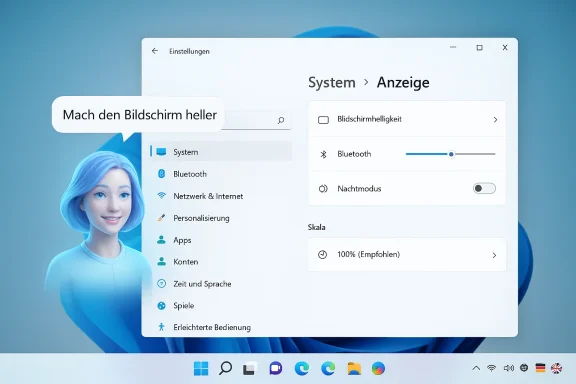
Windows 11 Anzeigeeinstellungen mit Helligkeitsregler und einer Sprechblase 'Mach den Bildschirm heller'.Hintergrund / Übersicht​

Seit dem Herbst 2025 arbeitet Microsoft daran, Copilot tiefer in Windows 11 zu integrieren — nicht länger als isoliertes Chatfenster, sondern als systemweit verfügbares Assistenz‑Ökosystem mit Voice, Vision, Actions und eben Settings‑Agent‑Funktionen. Das Ziel ist pragmatisch: weniger Menü‑Hopping, mehr Konversations‑ oder Absichtssprache, mit der Anwender schneller zu konkreten Einstellungen gelangen. Die jüngste Preview‑Welle (Builds 26100.7701 und 26200.7701, kumulativ als KB5074105 aufgeführt) trägt diese Funktion in den Release Preview Channel — und erweitert zugleich die sprachliche Abdeckungrachen, darunter Deutsch.
Kurz zusammengefasst, was diese Änderung für Windows‑Nutzer bedeutet:
  • Direkte Navigation zu Einstellungen: Natürliche Spracheingabe → KI‑Interpretation → Take‑me‑there‑Deep‑Link zur Settings‑Seite.
  • Mehrsprachigkeit: Deutsch ist jetzt offiziell als unterstützte Locale gelistet; weitere Sprachen wie Portugiesisch, Spanisch, Koreanisch, Japanisch, Hindi, Italienisch und vereinfachtes Chinesisch wurden ebenfalls ergänzt.
  • Gestaffelte Verfügbarkeit: Die Funktionen werden zuerst für Copilot+‑optimierte Geräte und im Insider‑Ring verteilt; ein weltweiter GA‑Termin ist noch nicht für alle Varianten fixiert.

Was genau bringt KB5074105 — die technischen Eckpunkte​

Kernfunktionen im Update​

Das Preview‑Paket KB5074105 (Rollout Ende Januar 2026 in den Release Preview Channel) enthält mehrere, teils graduell freigeschaltete Verbesserungen:
  • Settings Agent: Sprachunterstützung erweitert, inkl. Deutsch. Die Agent‑Funktion interpretiert Outcome‑Anfragen wie „Bildschirm heller machen“ und öffnet die passende Settings‑Seite.
  • Cross‑Device Resume (erweiterte Handoff‑Szenarien): Resume‑Karten erlauben das Fortsetzen von Smartphone‑Aktivitäten (z. B. Spotify, geöffnete Tabs oder M365‑Dokumente) auf dem PC.
  • On‑device / Copilot+‑Gating: Einige der neuen KI‑Erlebnisse sind für Copilot+ PCs vorgesehen, also Geräte mit NPU‑Fähigkeiten und Microsoft‑zertifizierter Hardware‑/Software‑Stack. Das hat Auswirkungen auf Latenz, Datenschutz und Verfügbarkeit.
  • Barrierefreiheit und Systempflege: Verbesserungen am Narrator, Voice Access sowie erhöhte Unterstützung für MIDI‑2.0 und ESS (Enhanced Sign‑in Security) gehören ebenfalls zu den Änderungen.

Versionen und Voraussetzungen​

Die Settings‑Agent‑Erweiterung ist sowohl in Windows 11 Version 24H2 als auch 25H2 in Preview‑Builds enthalten; die Kopplung an Copilot‑Versionen (beispielsweise Copilot app Version ≥ 1.25095.161 für Settings‑Deep‑Links) wird in Insider‑Dokumenten erwähnt. Die Verfügbarkeit ist kanal‑, account‑ und hardware‑abhängig; Microsoft nutzt Controlled Feature Rollouts (server‑seitige Gates), sodass ein installiertes Update nicht automatisch die Sichtbarkeit garantiert.

Wie der Settings Agent funktioniert — aus Nutzer‑ und Technikersicht​

Nutzererlebnis: eine typische Interaktion​

  • Nutzer tippt oder sagt in Copilot: „Mach den Bildschirm heller“ oder „Aktiviere Bluetooth“.
  • Der Settings Agent interpretiert die Absicht (Intent‑Erkennung) und generiert eine Antwort, die eine direkte, klickbare Verknüpfung zur relevanten Settings‑Seite enthält.
  • Ein Klick öffnet die native Settings‑App genau an der Stelle, an der die gewünschte Kontrolle liegt — der Anwender macht die Änderung manuell oder folgt der Anleitung.
Dabei ist wichtig: die KI handelt nicht automatisch in den meisten Fällen — sie führt zu der Stelle, sie nimmt nicht heimlich Einstellungen vor. Dieses Design reduziert unerwünschte automatische Aktionen und erhält die Nutzerkontrolle. Das ist ein bewusstes Designprinzip von Microsoft.

Technischer Unterbau (vereinfacht)​

  • Intent‑Erkennung: Lokale oder hybride Modelle (je nach Gerät) analysieren den Text oder das gesprochene Kommando.
  • Settings‑Mapping: Die KI übersetzt die Absicht in eine canonical Settings URI oder ein Navigationsziel innerhalb der Settings‑App.
  • Deep Link: Ergebnis ist ein Settings‑Deep‑Link, der die native UI‑Route öffnet (z. B. System → Display → Brightness).

Sprachunterstützung: Warum Deutsch wichtig ist​

Deutsch gehört zu Microsofts Prioritätenmärkten; lokale Sprachunterstützung ist nicht nur Komfort, sondern ein Faktor für Zugänglichkeit, Akzeptanz und Support‑Aufwände. Die Integration von Deutsch in den Settings Agent hat drei unmittelbare Vorteile:
  • Niedrigere Support‑Kosten: Anwender, die ihre Probleme direkt in Muttersprache beschreiben können, benötigen weniger Hand‑holding durch Support‑Mitarbeiter.
  • Bessere Zugänglichkeit: Für Menschen mit Einschränkungen ist die natürliche Sprache oft wesentlich barrierefreier als verschachtelte Menüs.
  • Marktstrategie: Deutschland ist ein Kernmarkt; lokalisiertes KI‑Verhalten stärkt Wettbewerbsposition und Vertrauen.

Risiken, Datenschutz und Governance — was IT‑Teams beachten sollten​

Die Einführung dieser KI‑Erweiterungen bringt Chancen, aber auch messbare Risiken mit sich. IT‑Verantwortliche müssen vor einem breiten Rollout folgende Punkte prüfen:
  • Datenflüsse & Modell‑Routing
    Es ist entscheidend zu verstehen, welche Anfragen lokal auf dem Gerät verarbeitet werden und welche in die Cloud wandern. Microsoft unterscheidet zwischen lokalen Small Language Models (z. B. Phi‑Silica‑Klassen für Copilot+ PCs) und cloudbasierten, größeren Modellen. Organisationen sollten klären, ob und wann Telemetrie oder Nutzereingaben außerhalb ihrer Tenant‑Region verarbeitet werden. Nicht alle Details sind auf Betriebsebene standardisiert veröffentlicht; testen Sie und fordern Sie bei Bedarf zusätzliche Dokumentation an.
  • Lizenzierung & Entitlement
    Einige Copilot‑Funktionen sind an Microsoft‑365‑Copilot‑Lizenzen oder Copilot+‑Hardware gebunden. IT‑Teams müssen Entitlement‑Regeln prüfen, um Überraschungen bei Verfügbarkeit und Support zu vermeiden.
  • Auditierung und Nachvollziehbarkeit
    Wenn Agenten Aktionen oder Empfehlungen ausgeben, benötigen Unternehmen Audit‑Logs, um Entscheidungen nachvollziehen zu können. Das Speichern von Chatlogs und die Möglichkeit, Kopien aus Compliance‑Gründen zu archivieren, sind in vielen Branchen Pflicht.
  • Fehlertoleranz und Rollback
    Features werden graduell ausgerollt; stellen Sie sicher, dass Piloten auf repräsentativer Hardware laufen, dass Imaging‑ und Rollback‑Pläne vorhanden sind und dass kritische Workflows nicht von experimentellen Agenten abhängig sind. KB‑Updates wie KB5074105 sollten zunächst in Testphasen geprüft werden — es gab in jüngster Vergangenheit Berichte über Problemfälle mit Preview‑Patches.

Praktische Checkliste für Administratoren und Power‑User​

  • 1.) Pilot zuerst: Rollen Sie KB5074105 und Copilot‑Updates zunächst auf nicht‑kritischen Geräten im Release Preview oder einem isolierten Test‑Ring aus.
  • 2.) Hardware‑Profil prüfen: Identifizieren Sie Copilot+‑PCs in Ihrer Flotte; diese Geräte haben bessere lokale KI‑Erlebnisse.
  • 3.) Entitlement‑Mapping: Dokumentieren Sie, welche Nutzergruppen Microsoft‑365‑Copilot Lizenzen und welche Funktions‑Gates benötigen.
  • 4.) Datenschutz‑Review: Klären Sie, ob gewünschte Agent‑Interaktionen sensiblen Input enthalten können und ob diese lokal bleiben.
  • 5.) Audit‑Prozesse aktivieren: Aktivieren Sie Protokollierung für Copilot‑Interaktionen in geschäftskritischen Bereichen.
  • 6.) Benutzer‑Schulung: Informieren Sie Endanwender über Unterschiede zwischen „Guided Navigation“ und „Automated Actions“ sowie über Opt‑out‑Möglichkeiten.

Für Heimanwender: Wie man die neue deutsche Settings‑AI ausprobiert​

  • Voraussetzungen: Windows 11 (24H2 oder 25H2), Copilot‑App aktualisiert (Version ≥ 1.25095.161 für Settings‑Deep‑Links) und Zugang zum Release Preview Channel oder die schrittweise Freischaltung durch Microsoft.
  • Schritt‑für‑Schritt:
  • Einstellungen → Update & Sicherheit → Windows Insider Program → Release Preview (nur auf Testmaschinen aktivieren).
  • Microsoft Store → Copilot App aktualisieren.
  • Copilot öffnen und eine natürliche Anfrage auf Deutsch stellen (z. B. „Reduziere Ablenkungen – Fokusmodus aktivieren“).
  • Auf den eingeblendeten Link klicken, der die passende Settings‑Seite öffnet.
  • Hinweis: Wenn die Verknüpfung nicht erscheint, liegt das oft an serverseitig gesteuerten Rollout‑Gates oder an Hardware‑Einschränkungen. Geduld bzw. ein Gerät in einem Insider‑Ring erhöht die Chancen, die Funktion zu sehen.

Einschränkungen und offene Fragen​

  • Nicht alle Aktionen sind agentisch: Der Settings Agent liefert primär Navigationshilfen; komplexe, automatisch ausgeführte Agent‑Actions bleiben experimentell und sind bewusst begrenzt. Dies ist wichtig für Vertrauen und Kontrolle.
  • Regionale/Entitlement‑Unterschiede: Einige Funktionen — insbesondere jene, die tiefer in Microsoft 365 integriert sind — werden in der EEA oder China initial zurückhaltender ausgerollt. IT‑Teams sollten lokale Compliance‑Regeln berücksichtigen.
  • Stabilitätsrisiken von Preview‑KBs: Vorsicht bei der Installation von Preview‑Patches auf Produktionsmaschinen; KB5074105 ist optional und wurde bereits in einigen Community‑Berichten auf Problemfälle untersucht. Testen Sie sorgfältig.
  • Transparenz über Modell‑Routing: Microsoft beschreibt Hybrid‑Architekturen, aber die genaue Routing‑Policy (wann was lokal bleibt und wann in die Cloud geroutet wird) ist auf hoher Ebene gehalten — größere Unternehmen benötigen detailliertere Nachweise. Chancen vs. Risiken

Stärken​

  • Praktischer Mehrwert: Das direkte Ansteuern von Einstellungsseiten per natürlicher Sprache reduziert Such‑ und Navigationsaufwand massiv — ein klarer UX‑Gewinn.
  • Mehrsprachigkeit: Die Erweiterung auf Deutsch und andere Sprachen ist ein strategisch richtiger Schritt, um breite Nutzersegmente zu bedienen.
  • On‑device Potenzial: Copilot+‑Hardware bietet niedrige Latenz und bessere Privacy‑Eigenschaften, wenn Modelle lokal laufen.

Risiken​

  • Rollout‑Fragmentierung: Unterschiedliche Verfügbarkeit nach Region, Hardware und Lizenzierung führt zu Support‑Overhead und Inkonsistenzen.
  • Unklare Modell‑Governance: Für regulatorisch sensible Umgebungen sind die bislang veröffentlichten Details nicht immer ausreichend. Unternehmen sollten zusätzliche Nachfragen an Microsoft stellen.
  • Preview‑Instabilität: Preview‑KBs können Nebenwirkungen haben; administrativer Pragmatismus ist gefragt (Pilot → Validate → Deploy).

Fazit und Handlungsempfehlungen​

Die Integration eines deutschsprachigen KI‑Assistenten für Windows‑Einstellungen ist aus Nutzersicht ein sinnvoller Evolutionstraum: weniger Klicks, bessere Auffindbarkeit und ein zugänglicheres System für Menschen, die nicht mit den tiefen Menüstrukturen vertraut sind. Gleichzeitig verlangt diese neue Ebene der Intelligenz nach sorgfältiger Governance: IT‑Teams, Compliance‑Beauftragte und Security‑Verantwortliche sollten Pilot‑Rollouts definieren, Audit‑Capabilities sicherstellen und genau dokumentieren, welche Interaktionen lokal verbleiben und welche in die Cloud gehen.
Kurzfristorientierte Empfehlungen:
  • Aktivieren Sie KB5074105 nur in kontrollierten Testumgebungen; führen Sie Kompatibilitäts‑ und Stabilitätstests durch.
  • Klären Sie Entitlements (Copilot Lizenzen, Copilot+ Hardware) bevor Sie Anwender informieren.
  • Schulen Sie Endnutzer in der Unterscheidung zwischen Guided Navigation (was der Settings Agent hauptsächlich macht) und automatisierten Actions.
Diese Etappe markiert nicht das Ende, sondern den Aufbau eines konversationelleren Windows. Wenn Microsoft die Balance zwischen Nutzerkontrolle, Transparenz und Nützlichkeit hält, kann die deutsche Settings‑AI zu einem echten Alltagsgewinn werden — besonders für Anwender und Organisationen, die Wert auf intuitive, sprachbasierte Steuerung legen.

Abschließend: Probieren Sie die neue Funktion in einer Testumgebung aus, dokumentieren Sie Auffälligkeiten und behalten Sie die offiziellen Ankündigungen im Blick — die Funktion wird stapelweise ausgerollt und kann Ihr Windows‑Support‑Alltag langfristig erleichtern, wenn Governance und Monitoring von Anfang an mitgedacht werden.

Source: BornCity Microsoft bringt KI-Assistenten für Windows-Einstellungen auf Deutsch - BornCity
 

Microsoft’s latest servicing cycle quietly elevates the gate around one of Windows 11’s most used maintenance pages: Settings > System > Storage now triggers a User Account Control (UAC) elevation prompt and requires administrator approval to enumerate and show certain system-level cleanup options. What looks like a small change in the release notes is a meaningful shift in privilege boundaries — and it has immediate implications for home users, helpdesk staff, and IT administrators who rely on the Settings app to diagnose and reclaim disk space.

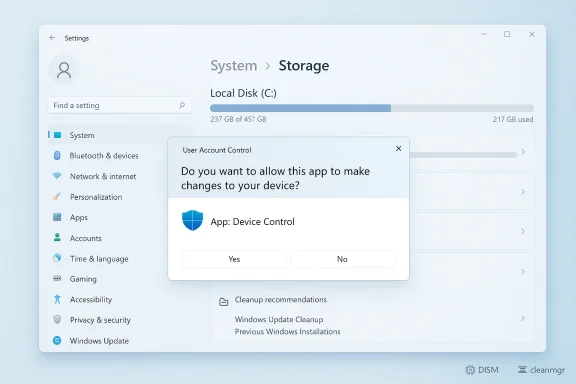
Windows-like system settings with a User Account Control dialog for App: Device Control.Background / Overview​

Microsoft published an optional preview cumulative update at the end of January 2026 that changes how the Storage settings page behaves. The update — surfaced in the Release Preview channel as the January 29, 2026 preview (KB5074105) — includes a short but consequential note: Windows now displays a User Account Control (UAC) prompt when you open Storage settings (Settings > System > Storage) to help ensure that only authorized Windows users can access system files. This wording makes the intent clear: Microsoft is treating the Storage page as a privileged UI surface that may expose system-level items, and it is gating access behind the same elevation mechanism used for other administrative tasks.
Microsoft plans to fold the preview’s content into the February 2026 security rollup (Patch Tuesday) distribution, which means the change will move from optional preview to broad rollout in the coming update cycle. For many machines the behavior is already visible if the preview was installed, and wider exposure will follow as the February cumulative updates reach devices.
This article examines what changed, why Microsoft likely made the move, how this affects different user groups, practical workarounds and administrative options, and the trade‑offs IT teams should weigh when balancing security and usability.

What changed — the concrete behavior shift​

  • The Settings > System > Storage landing page now triggers a UAC elevation prompt on systems using the standard UAC model. The prompt requests administrator consent or credentials.
  • When the Settings process is elevated, it will enumerate and display admin-only storage cleanup items — for example, Windows Update Cleanup, some device driver package entries, and certain system-only cleanup buckets.
  • If the user declines elevation or cannot provide admin credentials, the Storage page remains non-elevated and intentionally hides cleanup buckets that require administrative permissions to enumerate or delete.
  • Legacy tools that already run elevated — for example, Disk Cleanup (cleanmgr.exe) when launched with “Clean up system files,” or DISM and other admin utilities — continue to expose and remove these admin-only items when run with the required privileges.
Put simply: the Settings app’s Storage page now behaves like a privileged tool. If you want full visibility and the ability to run certain system-level cleanups from Settings, you must accept the elevation prompt or launch an elevated tool that already exposes those options.

Why Microsoft did this: the security argument​

There are three defensible security goals behind this change:
  • Limit unauthorized enumeration of system files. Storage settings surface details about system components, Windows update artifacts, and installer logs that, taken together, reveal information about protected system state. Restricting access reduces the risk that a standard or low-privilege account (or an attacker who gains access to such an account) can scrape or manipulate sensitive system files.
  • Reduce accidental system modifications. Some cleanup options (for example, Windows Update Cleanup or removing previous Windows installations) are destructive or irreversible in practical terms. Requiring elevation makes users consciously accept that they’re performing an administrative action and gives helpdesks a clear consent point.
  • Harden the UI against local attack vectors. A low-privilege user session on a shared PC — or an attacker using credentialed or buggy applications that don’t enforce privilege separation — might otherwise access system-level cleanup controls. The UAC prompt is a well‑understood control point in Windows for separating admin and standard tasks.
These goals align with modern security practices that favor explicit boundaries and least-privilege defaults. From a platform‑hardening perspective, moving privileged enumeration and destructive actions behind a UAC barrier makes sense.

The trade-offs: usability, automation, and user confusion​

Security hardenings are rarely cost‑free. This change introduces concrete usability and operational trade-offs:
  • Unexpected UAC prompts for end users. On consumer devices where users share a single administrative account, the UAC prompt will be familiar. But on shared household PCs, school machines, or enterprise devices configured with non-admin standard users, people will suddenly see a prompt where none existed before. That will cause calls to helpdesks and social friction in families.
  • Loss of parity between Settings and legacy tools. Historically, Settings and Disk Cleanup offered overlapping functionality. After this change, Settings’ Temporary files UI may hide admin-only buckets unless elevated, while Disk Cleanup — when run elevated — still shows those options. The inconsistency can be confusing: “Why does Disk Cleanup show Windows Update cleanup but Settings doesn’t?” The answer becomes privilege token differences rather than a bug in item enumeration.
  • Automation and scheduled maintenance breakage. Scripts or remote support workflows that relied on the ability of non-elevated user sessions to inspect Storage info via Settings will need to adjust. Automation that expects the Settings UI to list all cleanup buckets without elevation now fails to find admin-only items unless it launches an elevated process or uses alternate admin-capable utilities.
  • Helpdesk friction. Support teams will see more credential-based elevation events if non-admin users are asked to perform routine maintenance. Delegation strategies (temporary elevation, concierge admin support, remote elevation tools) will become more important.
  • Surface area for social engineering. Any legitimate new UAC prompt is an additional moment that can be socially engineered. Users trained to dismiss prompts may decline elevation and then follow unsafe advice from scripts or support calls. Clear messaging and training will help, but it’s a real operational impact.

Practical impact: who notices and how it shows up​

Home users and shared PCs​

  • On a personal PC where you use an admin account day-to-day, the UAC prompt is a minor interruption and the Storage page works once consent is given.
  • On a family or shared device where members use standard user accounts, users will not see admin-only cleanup options unless they know or can obtain admin credentials.
  • Casual users might read “Storage settings no longer showing Windows Update Cleanup” and assume the OS removed the feature; in reality it’s a privilege-filtered view.

Small business and education​

  • Devices managed with non-admin student/staff accounts will require delegated workflows to run admin-level cleanup.
  • IT support will need to adjust runbooks: either run Disk Cleanup or scripted DISM/cleanmgr tasks under scheduled service accounts, or provide temporary elevation workflows.

Enterprise / IT administrators​

  • The change is helpful from a hardening standpoint, but IT automation that relied on non-elevated GUI enumeration must be updated.
  • Remote helpdesk tools that elevate a Settings-like UI for troubleshooting may need to adopt new methods to surface admin-only buckets.
  • Group Policy and MDM controls for Storage Sense and scheduled cleanup silently remain the recommended path for centrally enforced cleanups that don’t require interactive elevation.

Workarounds and recommended admin actions​

If the new behavior impacts your workflow, here are safe, supported ways to perform system-level cleanups and to adapt:

1) Run the Settings app with elevation (when appropriate)​

  • To grant the Settings app an administrative token so it shows admin-only cleanup buckets:
  • Open an elevated command shell or terminal: right-click Start → Windows Terminal (Admin) or Command Prompt (Admin).
  • In the elevated shell, run: start ms-settings:
  • Or in Task Manager: File → Run new task → enter C:\Windows\System32\Settings.exe and check Create this task with administrative privileges.
  • Note: elevating the Settings app prompts UAC. Use elevation sparingly and only when you trust the session and user.

2) Use legacy Disk Cleanup (cleanmgr.exe) for admin-only cleanups​

  • Disk Cleanup retains the ability to enumerate and remove many system-level cleanup targets when run elevated:
  • Run Disk Cleanup, click “Clean up system files” (this relaunches elevated), and the UI will show Windows Update Cleanup, Previous Windows installations, and other admin-only entries.
  • For automation or scheduled tasks:
  • Configure a cleanup profile with: cleanmgr /sageset:1
  • Execute it via scheduled Task Scheduler job: cleanmgr /sagerun:1
  • Schedule the task to run with highest privileges and under a service account that has admin rights.

3) Use DISM to reclaim component store (WinSxS) space​

  • For reclaiming update component files and WinSxS entries, run DISM as administrator:
  • Dism.exe /Online /Cleanup-Image /StartComponentCleanup
  • For deeper cleanup (irreversible removal of superseded versions): Dism.exe /Online /Cleanup-Image /StartComponentCleanup /ResetBase
  • Warning: /ResetBase prevents uninstalling updates installed before the command. Use with caution and after confirming rollback is not required.

4) Rely on Storage Sense and MDM/Group Policy for routine automation​

  • Use Storage Sense for scheduled automatic cleanup (Settings > System > Storage > Storage Sense) — this can run without interactive elevation for many routine tasks.
  • For enterprise fleets, configure Storage Sense and other storage policies centrally:
  • Deploy via Group Policy or MDM the policies that control Storage Sense behavior and cadence.
  • Registry/Policy paths exist to configure Storage Sense programmatically for large deployments; prefer MDM/GPO for consistent behavior across the estate.

5) Scripted admin-run solutions​

  • When automation is required, run admin-level PowerShell or scheduled tasks under an admin service account:
  • Use elevated PowerShell to run cleanmgr /sagerun or DISM commands.
  • Wrap operations in logging, dry-run checks, and maintenance windows to avoid surprise reboots or irreversible deletions.

Step-by-step: elevate Settings safely (concise instructions)​

  • Right-click Start → select Windows Terminal (Admin). Accept UAC.
  • In the elevated terminal, type: start ms-settings:storage and press Enter.
  • Accept any UAC consent prompts presented by the Settings process.
  • The Storage page will now enumerate admin-only cleanup buckets.
Alternative: create an elevated desktop shortcut that launches Settings via an elevated command (set shortcut to C:\Windows\System32\cmd.exe /c "start ms-settings:storage" and enable Run as administrator in the Advanced properties). Use these only in trustworthy environments to avoid persistent elevated shortcuts that can be misused.

Risks, gotchas, and governance considerations​

  • Elevation fatigue and support load. Added UAC prompts increase the number of security dialogs users must respond to, which can train users to reflexively click through prompts or escalate support calls when they can’t proceed.
  • Potential automation blind spots. Backup and third-party maintenance tools that used the Settings app for automation may silently stop surfacing admin-only items; audit your scheduled jobs and scripts.
  • Shadow of irreversible actions. Admin-only cleanup entries often include items (e.g., previous Windows installs, resetbase DISM effects) that cannot be reversed easily. Ensure change control, rollback plans, and user data protections are in place before sweeping deletions.
  • Policy enforcement vs. convenience. Enterprises must weigh whether to grant users ad-hoc admin rights, create delegated maintenance accounts, or centralize cleanup entirely through scheduled admin tasks or managed policies.

Recommendations for IT teams and power users​

  • Communicate the change: Update helpdesk KB articles, FAQs, and user training materials to explain why the UAC prompt appears and how to proceed safely when storage cleanups are needed.
  • Centralize destructive maintenance: Prefer scheduled, elevated tasks that run during maintenance windows under managed service accounts rather than asking users to elevate interactively.
  • Update automation: Search for scripts or monitoring tools that read the Settings storage API or UI and revise them to use administrative tools (cleanmgr, DISM, PowerShell scripts) or MDM APIs.
  • Provide safe elevation paths: For support teams, implement just-in-time (JIT) elevation tooling, delegation through privileged access solutions, or scripted remote support that runs one-off elevated commands under audited contexts.
  • Test before widespread rollout: If you manage thousands of devices, pilot the update and verify your cleanup and monitoring workflows will still operate as expected after elevation gating is applied.

How to explain this change to less technical users​

  • Keep the message short and reassuring: “Microsoft moved some advanced cleanup controls behind a security prompt. If you see a prompt asking for administrator approval when opening Storage, this is normal. If you don’t have admin rights, we can run a cleanup for you or schedule one automatically.”
  • Provide two user-friendly options:
  • Ask an administrator or support to run the cleanup remotely or in person.
  • Enable scheduled cleanup (Storage Sense) so routine housekeeping happens automatically without prompts.

Final analysis: protection versus friction​

Microsoft’s decision to require elevation for Storage settings is a logical security hardening: it reduces the potential for low-privilege users or malicious actors to enumerate and remove system-level files silently. The platform has long exposed system artifacts via the Settings UI, and reclassifying some of that surface as administrative both tightens security posture and clarifies privilege boundaries.
However, the change isn’t purely technical — it redistributes operational work. Support desks, automation workflows, and user-facing help content must adapt quickly to avoid confusion and maintain smooth maintenance cycles. For organizations, the most practical response is to centralize destructive cleanups, update automation to use admin‑capable tools, and communicate the change so users understand why a prompt suddenly appears.
At the end of the day this is a trade‑off Microsoft chose to make in favor of a more conservative default security posture. Whether that trade‑off proves net positive will depend on how effectively IT teams and Microsoft itself manage the usability footprint: clearer in‑UI messaging, well-documented admin workflows, and sensible MDM/GPO alternatives will determine whether this becomes a minor, tolerable friction or a recurring operational headache.

Conclusion​

Windows 11’s new requirement to elevate Storage settings is a small but significant platform hardening that shifts the way ordinary disk maintenance is performed. It closes an easy vector for low-privilege access to system files and aligns the Settings app with other admin-gated tools, but it also creates practical friction for households, educators, and administrators who relied on the Settings UI for routine work.
If you manage devices, audit your cleanup automation, update runbooks to rely on elevated tools like Disk Cleanup or DISM when needed, and communicate the change clearly to your users. For end users, the simplest path is to accept that an occasional UAC prompt when opening Storage is a protective measure — and when in doubt, ask your administrator or support team to run the cleanup for you.
In the coming weeks, expect Microsoft’s wider rollout to prompt more community feedback and, possibly, clarifying guidance or additional management controls. For now, treat it as a deliberate hardening: useful for security, inconvenient for some workflows, and manageable with a small amount of administrative planning.

Source: Windows Central Microsoft quietly locks Storage settings behind admin rights in Windows 11
 

Windows 11 now requires administrator approval (a UAC prompt) the moment you open Settings > System > Storage — a seemingly small security adjustment that arrived in the January 29, 2026 preview update (KB5074105) and is slated to be pushed broadly with the February 10, 2026 Patch Tuesday rollup.

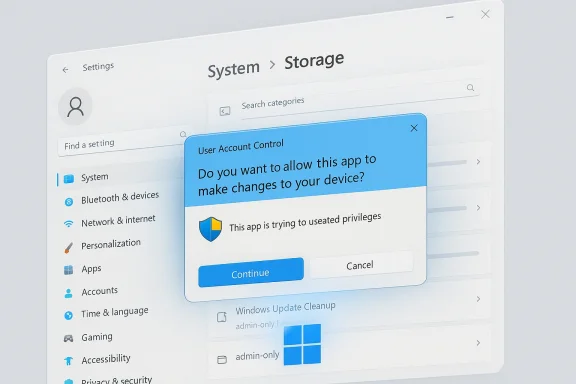
Windows Settings screen featuring a blue User Account Control prompt asking to allow changes.Background​

For years the Storage pane in Windows 11’s Settings app served as a broadly accessible dashboard: any signed‑in user could open Settings > System > Storage to view disk usage breakdowns, scan and remove temporary files, and inspect storage‑related system items without hitting additional security prompts. That model changed in late January 2026 when Microsoft quietly updated the optional preview cumulative KB5074105 to state that the Storage page will now trigger a User Account Control (UAC) elevation request when opened — a change Microsoft describes as intended to “help ensure that only authorized Windows users can access system files.”
The preview notes were revised shortly after release to explicitly call out the UAC behavior; Microsoft folded the same change into the February 2026 security rollup so devices that skip preview releases will still receive the restriction once the Patch Tuesday package is applied.

What changed — concrete behavior​

  • Opening Settings > System > Storage now immediately triggers a UAC prompt that asks for administrator consent or credentials. The prompt appears before any Storage content is rendered.
  • If the user accepts (or the current account is an administrator and consents), Settings runs elevated and the Storage UI enumerates both user‑level and admin‑only cleanup buckets.
  • If the user declines or cannot provide admin credentials, Settings remains non‑elevated and intentionally hides cleanup items and system buckets that require administrative enumeration (for example, Windows Update Cleanup, some driver‑package cleanup entries, and other system‑only buckets).
Put simply: the Storage page has been reclassified as a privileged UI surface. That reclassification affects both visibility (what the UI lists) and capability (what can be removed from the UI) unless the user elevates.

Timeline — how this reached users​

  • January 29, 2026 — Microsoft published optional preview KB5074105 for Windows 11 (OS Builds 26200.7705 and 26100.7705). The release initially did not highlight the UAC behavior but the release notes were updated on January 30 to document it.
  • February 10, 2026 — The February 2026 Security Update (Patch Tuesday) begins rolling out and includes the changes from the preview; systems that install the security rollup will obtain the Storage restriction whether or not they had applied the preview.
This staged rollout approach — preview channel first, then broad rollup — explains why some users saw the change in late January while others only encountered it after the February update became available.

Why Microsoft did it: the security rationale​

Microsoft frames the change as part of a broader push toward least privilege and “administrator protection” on Windows 11. Storage settings surface system files, installer caches, update artifacts and other areas that, if enumerated or removed by an unprivileged user or a malicious process, could aid local information discovery or cause system instability. By gating the Storage UI behind UAC, Microsoft reduces the chance that someone with only a standard user session — or malware executing with that same limited token — can enumerate or operate on system file locations without explicit admin consent.
This move aligns with an ongoing pattern where Windows 11 has progressively moved more sensitive controls and diagnostic surfaces behind elevation prompts or administrator‑only checks. Microsoft’s Administrator Protection work and related platform hardening efforts aim to shrink the attack surface that depends on elevated access.
Caveat: Microsoft’s announcement is terse and does not list every affected sub‑feature in the Storage pane; the company describes the behavior as intentional but has not published a granular matrix mapping each Temporary files bucket to its privilege requirement. Where Microsoft’s notes are quiet, community testing has filled in many of the practical details — see the sections below.

What this means for different users​

Home users on a single‑admin machine​

If your primary account is already an administrator, the effect is minimal: you’ll see an extra UAC confirmation the first time you open Storage during a session. It’s an extra click, but no functional loss.

Shared or family PCs​

On shared machines where occupants sign in with standard accounts, the change is more disruptive. Standard users can no longer:
  • View detailed breakdowns of storage that enumerate system/OS components.
  • Access admin‑level cleanup categories (for example Windows Update Cleanup) from Settings without admin consent.
  • Run built‑in Storage cleanup tools that require elevated enumeration.
Those operations now require an administrator physically present or reachable to approve the UAC prompt. For households used to letting children or non‑admin users tidy up space, this reduces convenience and may increase support calls to admins.

Managed enterprise devices​

For IT‑managed systems, the change is mostly compatible with standard practices: IT already expects system maintenance and certain cleanups to run under admin contexts or via management tooling. That said, some automated workflows or scripts that relied on non‑elevated Settings enumeration will break — for instance, scheduled user sessions that attempted to clear update caches from Settings will no longer work unless run elevated or converted to management actions that run under SYSTEM or an elevated service account.

Technical deep dive: why some cleanup items “disappear”​

The Storage > Temporary files scanner uses a set of cleanup handlers and enumeration paths. Some handlers are designed to enumerate user‑accessible items (Recycle Bin, Downloads, Temporary Internet Files), while other handlers must access system locations or services (WinSxS/component store, the Windows Update cache, some installer and driver package caches). Historically, Settings sometimes showed both categories, depending on context.
With the UAC change, the Settings process runs with either a non‑elevated token or an elevated admin token depending on whether the user consents. When running non‑elevated, Settings intentionally does not load the admin‑only handlers and therefore hides admin‑level cleanup buckets. When elevated, those handlers are available and the full list appears. This explains the commonly reported discrepancy where Disk Cleanup (cleanmgr.exe) — when run elevated and told to “Clean up system files” — still lists and can remove Windows Update cleanup and other admin buckets, while Settings does not unless elevated.
Key technical points:
  • The Settings app respects token boundaries; elevation changes which COM objects, handlers, or code paths it may load.
  • Some cleanup handlers query system‑level artifacts or require privileges to enumerate folder contents in protected locations; those handlers are not available in a deprivileged process.
  • Legacy cleanup tools (cleanmgr.exe) and platform servicing utilities (DISM) run under elevated contexts when instructed and therefore retain access to admin-only cleanup tasks.

Practical impact and examples reported by users​

Community testing and user reports exposed several consistent patterns after KB5074105:
  • Users opening Storage on a standard account immediately see a UAC prompt; declining leaves the page with only non‑admin items visible.
  • Items often missing in non‑elevated Settings include Windows Update Cleanup, Windows upgrade log files, and some device driver package cleanup entries.
  • Disk Cleanup (cleanmgr.exe) still lists these admin categories when run as administrator and remains a reliable fallback for removing them.
  • Automation that assumed Settings would enumerate all cleanup buckets without elevation will need to be adapted to run under elevated contexts (SYSTEM or administrative scheduled tasks).
Where a behavior appears to be a UX regression rather than an outright security bug — for example, when Settings previously showed certain system items to non‑admin users and no longer does — it’s likely intentional by design given Microsoft’s stated goal, but it may produce friction for users and IT teams until documentation or product UX clarifications are provided.

Workarounds and recommended actions​

There is no supported toggle in Settings to revert Storage to the pre‑change behavior. The practical options are:
  • Accept the UAC prompt or sign in with an administrator account when you need the full Storage view.
  • Use legacy elevated tools and servicing commands to reclaim system space without opening Settings:
  • Disk Cleanup (cleanmgr.exe) — right‑click and choose Run as administrator, then select Clean up system files to reveal Windows Update Cleanup and other admin categories.
  • DISM — run commands like:
    Dism.exe /Online /Cleanup-Image /StartComponentCleanup
    Optionally: Dism.exe /Online /Cleanup-Image /StartComponentCleanup /ResetBase
    These commands run elevated and handle component store (WinSxS) reclamation. Microsoft documents these servicing operations and notes they must be executed from an elevated context.
  • For scripted or automated maintenance, run elevated scheduled tasks (SYSTEM) or use enterprise management tools (Intune, Configuration Manager, etc.) to perform cleanup without user interaction. Convert any non‑elevated Settings‑based automation into run‑as‑SYSTEM or run‑as‑admin tasks.
Step‑by‑step: Run Disk Cleanup for system files
  • Press Start and type Disk Cleanup.
  • Right‑click Disk Cleanup and select Run as administrator.
  • Choose your system drive (typically C:) and click Clean up system files.
  • Inspect and select Windows Update Cleanup and any other admin‑restricted categories, then proceed to remove them.
Step‑by‑step: Use DISM for component store cleanup
  • Open Command Prompt or PowerShell as administrator.
  • Run: Dism.exe /Online /Cleanup-Image /StartComponentCleanup
  • Optionally add /ResetBase to remove superseded component versions (note: this prevents uninstalling updates installed prior to running the command).
Important cautions:
  • /ResetBase is irreversible for installed superseded components; do not use it if you might need to roll back recent updates.
  • DISM commands and component store operations should be performed with care and preferably during maintenance windows on production systems.

Enterprise considerations: policy, automation, and support​

IT teams should consider the following:
  • Audit existing scripts and runbooks that relied on non‑elevated Settings enumeration and update them to run under an elevated context or rework them to use supported maintenance APIs.
  • For managed deployments, use remote management controls (Intune, ConfigMgr, Group Policy, or PowerShell Remoting) to perform cleanup tasks centrally rather than relying on end users to approve UAC prompts.
  • Inform helpdesk and support teams about the UAC change so they can triage why standard users suddenly can’t access Storage details and prepare instructions or remote elevation procedures.
  • Evaluate whether Known Issue Rollback (KIR) or targeted update controls are necessary if the new behavior materially breaks critical, validated workflows in your environment — but note Microsoft’s KB indicates the change is intentional security hardening, not an accidental bug.

Security trade‑offs: safer by default, less convenient for some​

Security benefits
  • Reduces casual access to system file enumeration for non‑admin sessions, diminishing the chance of accidental or inquisitive alterations.
  • Shrinks information exposure to local attackers or low‑privilege malware that could otherwise harvest lists of system files or update artifacts for further exploitation.
  • Aligns with the principle of least privilege, a security best practice that limits the privileges granted to processes and users.
Usability costs
  • Increases friction for non‑admin users who previously relied on Settings to reclaim disk space.
  • Breaks assumptions in scripts and third‑party utility workflows that expected the Settings UI to enumerate all cleanup buckets without elevation.
  • Raises support overhead in households and smaller organizations where administrative consent is not readily available.
Ultimately, the change prioritizes security hygiene and explicit admin consent over convenience. For threat models where local access by untrusted parties (shoulder surfing, unauthorized sessions, shared workstations) is a concern, the trade‑off favors security. For small teams or families who prioritized hands‑off cleanup, the trade‑off is likely to be felt as friction.

What Microsoft hasn’t clearly answered (open questions)​

  • Will Microsoft ever restore a read‑only view of Storage for standard users that does not expose admin‑only cleanup buckets but still provides useful disk usage diagnostics? The KB and current documentation do not promise such a compromise.
  • Will Microsoft provide more granular documentation enumerating which Storage sub‑features require elevation and which remain visible to standard users? The current KB text is short; community testing is doing much of the reverse engineering.
Where claims or behaviors remain ambiguous in the public notes, treat community reproductions as practical evidence but flag them as community‑observed rather than officially documented by Microsoft.

How to prepare — checklist for home users and IT admins​

  • Home users:
  • Expect an extra UAC prompt; keep administrator credentials handy if you share a machine.
  • Use Disk Cleanup (Run as administrator) or DISM for system‑level cleanups.
  • Small business / IT helpdesk:
  • Update support scripts and knowledge base articles to reflect the need for elevation.
  • Prepare remote elevation procedures and educate non‑admin users on when to call for help.
  • Enterprise admins:
  • Review and update automation and scheduled tasks to run under SYSTEM or an admin context.
  • Communicate the change to end‑users and adjust device maintenance SOPs if necessary.

Final analysis and recommendation​

Microsoft’s decision to gate Storage settings behind a UAC prompt is defensible from a security architecture standpoint: the Storage pane can surface system files and operations that should not be trivially accessible from a deprivileged session. The change is consistent with Microsoft’s broader Administrator Protection posture and the principle of least privilege.
However, the practical outcome is a meaningful change to user workflows and automation assumptions. The real cost will be felt in environments where standard users were expected to perform routine cleanup tasks without admin involvement. IT teams and power users should proactively update procedures: rely on elevated servicing tools (DISM, cleanmgr), shift automation to management channels, and communicate the change to reduce confusion.
If you are an end user seeing this behavior for the first time: don’t panic. The UAC prompt is intentional. Accept it (or sign in as an admin) to get the full Storage experience, or use elevated Disk Cleanup / DISM to recover system space. If you manage devices at scale, treat this as a reminder to move maintenance into centrally managed, elevated processes — which, inconveniently for some, is also the safer way to run a modern desktop fleet.

The storage management surface in Windows 11 has just been reclassified from a mostly informational convenience pane into a guarded administrative gateway. That shift marks another moment in Windows’ security evolution: convenience yields to control, and users — and administrators — will need to adapt their habits and tooling accordingly.

Source: gHacks Windows 11 Now Requires Admin Rights To Open Storage Settings - gHacks Tech News
 

Back
Top