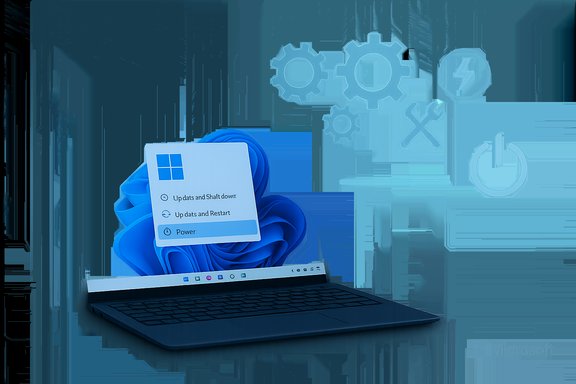
Microsoft has quietly closed a small but persistent Windows annoyance: the Start‑menu option labeled “Update and shut down” will now, in the scenarios Microsoft targeted, actually power off the PC after applying updates instead of finishing in a rebooted and powered‑on state. This fix landed first in Windows Insider preview builds and was packaged into the October 28, 2025 optional preview cumulative update KB5067036 (OS Builds 26200.7019 and 26100.7019), restoring predictable shutdown semantics that many laptop users, admins, and power‑conscious customers have long demanded.
For several years a non‑trivial subset of Windows users reported a frustrating mismatch: choosing Update and shut down often resulted in the system installing updates and then returning to a powered‑on state (lock screen or desktop) instead of completing a cold power‑off. That behavior undermined a simple expectation — pick the convenient UI option and leave — and had concrete, measurable consequences: drained laptop batteries, disrupted maintenance windows, and automation failures for shops that relied on deterministic shutdowns. Community troubleshooting and anecdotal records trace reports across forums and feedback channels for multiple Windows 11 update cycles.
Microsoft documented the repair succinctly in the Insider release notes and the KB changelog: “Fixed an underlying issue which could lead ‘Update and shutdown’ to not actually shut down your PC after.” That exact wording appears in the Windows Insider blog posts for the September 29, 2025 preview flights and in the KB5067036 preview page published October 28, 2025. Those are the authoritative artifacts confirming the remediation and its deployment path. Why this mattered in practical terms:
Key milestones:
This change removes a persistent friction point in Windows Update’s UX and — when broadly validated — will save battery, reduce surprises, and restore confidence in a deceptively simple but widely used feature.
Source: HotHardware Microsoft Fixes A Frustrating Windows Shutdown Bug That's Lingered For Years
 Background / Overview
For several years a non‑trivial subset of Windows users reported a frustrating mismatch: choosing Update and shut down often resulted in the system installing updates and then returning to a powered‑on state (lock screen or desktop) instead of completing a cold power‑off. That behavior undermined a simple expectation — pick the convenient UI option and leave — and had concrete, measurable consequences: drained laptop batteries, disrupted maintenance windows, and automation failures for shops that relied on deterministic shutdowns. Community troubleshooting and anecdotal records trace reports across forums and feedback channels for multiple Windows 11 update cycles.Microsoft documented the repair succinctly in the Insider release notes and the KB changelog: “Fixed an underlying issue which could lead ‘Update and shutdown’ to not actually shut down your PC after.” That exact wording appears in the Windows Insider blog posts for the September 29, 2025 preview flights and in the KB5067036 preview page published October 28, 2025. Those are the authoritative artifacts confirming the remediation and its deployment path. Why this mattered in practical terms:
- Laptops left overnight expecting to be off could remain powered on and drain battery.
- Scheduled maintenance or image‑deployed workflows that assume a shutdown could fail or leave systems in an indeterminate state.
- The UI trust model was weakened — when a labeled control doesn't do what it promises, users create workarounds that often reduce update compliance.
Technical anatomy — why “Update and shut down” is more complicated than it looks
At first glance, the command sounds atomic: install pending updates, then power off. In modern Windows the path is multi‑stage and fragile at a number of handoff points. The key technical elements that explain why the option sometimes behaved like a restart are:- Fast Startup / Hybrid Shutdown — When Fast Startup is enabled, Windows performs a hybrid shutdown that preserves kernel session state to accelerate boot. That hybrid path changes the semantics of “shutdown” and can interact poorly with offline servicing, producing different end states.
- Multi‑phase servicing — Many updates stage files while Windows is running and then perform offline commits during a shutdown/boot cycle. Some servicing operations require one or more reboots to reach a consistent committed state, and orchestration logic must track whether the user intended a final shutdown or is OK with intermediate reboots.
- Sign‑in / Finish‑after‑sign‑in flows — Windows can use saved credentials to sign in automatically to finish setup after a restart. If that path is blocked or not allowed, servicing logic might prefer a restart or change how it completes post‑update steps.
- Drivers and process handoffs — A driver or running process that must be replaced may force the servicing pipeline to select a restart to guarantee file integrity. OEM agents and third‑party management tools can also alter shutdown sequencing.
What Microsoft shipped and the timeline
Microsoft followed a conventional staged path for this repair: validate in Insider flights → include in an optional preview cumulative update → stage for broader rollout after telemetry validation.Key milestones:
- September 29, 2025 — Windows Insider posts for Dev (Build 26220.6760) and Beta (Build 26120.6760) explicitly listed the fix “Fixed an underlying issue which could lead ‘Update and shutdown’ to not actually shut down your PC after.” This was the first public admission of the remediation in preview notes.
- October 28, 2025 — Microsoft published the optional preview cumulative update KB5067036 (OS Builds 26200.7019 and 26100.7019) which included the same servicing change in its Windows Update changelog. The KB page details the update’s scope and the build numbers it produces.
- Late 2025 (staged) — Microsoft intends to fold the fix into mainstream cumulative updates after validating telemetry and ensuring no widespread regressions, consistent with its Insider → Preview → Patch Tuesday progression. Community posts flagged November as a likely time for the fix to reach general release rings, subject to telemetry.
Independent verification and cross‑checks
The fix is corroborated by multiple independent outlets and community testing:- Microsoft’s own KB page documenting KB5067036 confirms the improvement and lists OS build numbers.
- The Windows Insider blog entry (September 29, 2025) includes the same remediation text for the relevant preview builds.
- Coverage by wide‑read tech outlets and community boards (Windows Central, TechRadar, and others) reported the fix after confirming the Insider notes and preview packaging.
- Forum and community threads show real users testing the preview packages and reporting improved shutdown behavior when the update is applied.
Strengths and practical benefits of the fix
This remediation, while narrow in scope, delivers several immediate and observable benefits:- Restored trust in a simple UI action. Users who previously avoided Update and shut down can start to rely on the option again where the fix is present, reducing the need for manual workarounds.
- Reduced battery drain for mobile users. Laptops left overnight are now less likely to remain powered on after an update cycle, which conserves battery and reduces thermal wear.
- Fewer failed maintenance windows. IT automation that assumes a deterministic shutdown after applying updates should see improved reliability once the fix propagates into the environment. This reduces administrative overhead and the need for complex scripts.
- A deeper, not cosmetic, remediation. The language Microsoft used indicates engineers adjusted servicing orchestration — carrying the “shutdown after update” intent through offline servicing and multi‑phase commits — which is a more robust engineering approach than merely changing text.
Risks, regressions, and reasons for caution
No significant fix ships without tradeoffs. There are clear, documented reasons to proceed cautiously before broad deployment:- Preview updates are optional and staged. KB5067036 is an optional preview package. Microsoft typically uses these packages to gather telemetry and catch regressions; they are not automatically applied to all systems. Administrators should pilot the update before wide deployment.
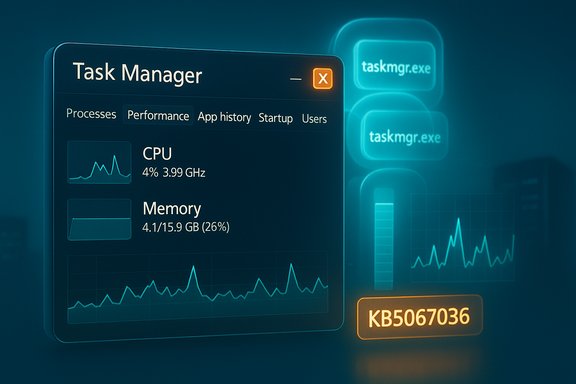
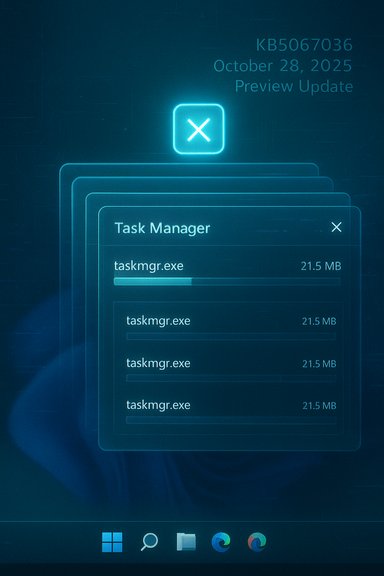
- Collateral regressions have already appeared. Multiple outlets and users reported a separate regression in KB5067036 where Task Manager can duplicate itself and become difficult to close, spawning multiple taskmgr.exe instances and consuming resources. That issue was flagged in coverage by The Verge, Tom’s Guide and other outlets and has had user reports on Reddit. That demonstrates the real‑world risk: a fix to one orchestration path can interact with unrelated subsystems and cause new behavior.
- Hardware and driver variability persist. The original bug’s intermittent nature was tied to drivers, OEM software, and Fast Startup behavior. Even with the orchestration change, some combinations of firmware and drivers might still experience different outcomes until device‑level interactions are validated by telemetry.
- Microsoft has not published a detailed root‑cause postmortem. The company’s public changelogs note the behavioral fix but do not enumerate the exact race condition or code path fixed. Any claim about an exact internal cause should be treated as an engineering inference unless Microsoft releases a deeper analysis.
Practical guidance — how to get the fix and how to test it safely
For power users and IT administrators who want to adopt the remediation or validate it in their environment, follow this structured approach.- Assess risk and pick test candidates
- Select a small, representative ring of noncritical machines (laptops and desktops with typical drivers and OEM firmware).
- Ensure you have a known good backup or snapshot plan for test machines.
- Install the preview safely
- Join the Windows Insider Program (Beta or Dev channel) or apply the optional preview update KB5067036 via Settings > Windows Update > Optional updates (if available). Note: preview packages are non‑security, optional updates.
- Validate the behaviour
- Reproduce the scenario: stage an update, trigger Update and shut down, and observe the final power state after the post‑install sequence completes.
- Test with Fast Startup enabled and disabled to see whether hybrid shutdown settings affect the outcome.
- Repeat across firmware variations and with common third‑party management agents installed.
- Monitor for regressions
- Watch for unrelated issues after install (for example, Task Manager duplication reported by early adopters). If you see regressions, gather diagnostics (ETW traces, reliability logs) and consider rolling the update back until a follow‑up patch arrives.
- Broaden deployment
- If tests are positive, expand the deployment ring and continue to monitor telemetry for device‑specific anomalies.
- If your environment relies on deterministic shutdown semantics today, consider scheduling the rollout during a maintenance period and maintain rollback procedures.
- Interim workarounds (if you need deterministic shutdown today)
- Use Update and restart, then manually shut down the machine once the restart finishes.
- Disable Fast Startup to reduce hybrid shutdown complexity: Control Panel > Power Options > Choose what power buttons do > Turn off fast startup. Note that disabling Fast Startup may lengthen boot times.
What to watch next
- Watch Microsoft’s cumulative update schedule (Patch Tuesday) and the Windows release health dashboard for announcements that the fix has been promoted from preview to mainstream. The KB preview page explicitly notes the update’s staged rollout strategy.
- Track follow‑up advisories for the Task Manager duplication regression and other collateral issues; several outlets flagged the taskmgr behavior shortly after KB5067036’s release. Organizations should be prepared to delay adoption if they depend heavily on Task Manager behavior or have resource‑constrained machines.
- Encourage user‑level telemetry and Feedback Hub reports if you pilot the preview; Microsoft uses that telemetry to judge whether a preview fix is safe to promote.
Final analysis — a meaningful quality‑of‑life fix, deployed with appropriate caution
Fixing the Update and shut down orchestration bug is an important, practical win for Windows reliability. It restores a straightforward UI expectation and removes an annoyance that had real battery and automation costs. The public evidence is clear: Microsoft documented the fix in Insider release notes on September 29, 2025 and packaged the same servicing change into the October 28, 2025 optional preview KB5067036 (OS Builds 26200.7019 and 26100.7019). Those published artifacts validate the change and the staged deployment path. That said, the preview release cycle has reminded us of the tradeoffs inherent in complex platform servicing. Early adopters reported an unrelated Task Manager regression tied to KB5067036, and Microsoft’s changelogs do not reveal low‑level root‑cause details. This combination argues for a measured rollout strategy: pilot, validate, monitor telemetry, and expand only when confidence is established. For everyday users the simplest outcome will be quietly positive — once the fix reaches their machine in a mainstream cumulative update, Update and shut down should do what it says on the tin. For administrators, the correct path is to treat KB5067036 as a pilotable preview: test it on representative hardware, verify deterministic shutdown behavior across configurations (Fast Startup on/off, common drivers, management agents), and wait for Microsoft to promote the fix to the general channel before mass deployment.This change removes a persistent friction point in Windows Update’s UX and — when broadly validated — will save battery, reduce surprises, and restore confidence in a deceptively simple but widely used feature.
Source: HotHardware Microsoft Fixes A Frustrating Windows Shutdown Bug That's Lingered For Years