

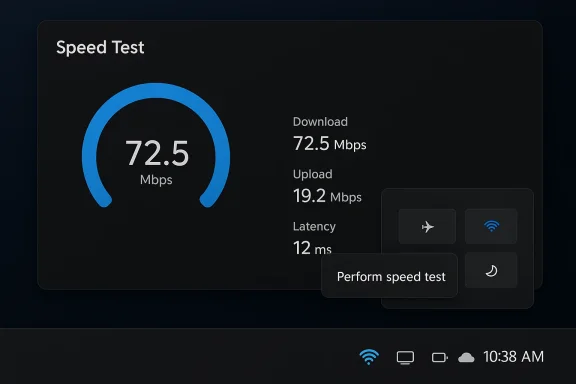
Microsoft’s quiet addition of a “Perform speed test” option to the Windows 11 taskbar is a small feature with outsized symbolism. It does not turn Windows into a new network diagnostics platform, but it does show how aggressively Microsoft is folding everyday utility into the Windows shell and the Edge/Bing ecosystem. The feature arrived through the KB5077241 preview update for Windows 11 24H2 and 25H2, where Microsoft says a built-in network speed test is now available from the taskbar and can be opened from Wi‑Fi, Cellular Quick Settings, or by right-clicking the network icon in the system tray.
What makes this interesting is not the test itself so much as the delivery model. Instead of shipping a native benchmark, Microsoft routes users to a browser-based Bing speed test, which means the experience is lightweight on Windows but deeply tied to Microsoft’s web stack. That design choice keeps the OS side simple while still steering traffic through Microsoft-controlled services, and it also makes the feature look more like a convenience layer than a true system tool.
Windows has long exposed network status through the taskbar, but it has rarely offered a one-click path to a meaningful diagnostics workflow. Over the years, users have relied on third-party speed tests, the browser, or the Windows troubleshooting stack to determine whether their broadband, Wi‑Fi, or Ethernet connection was underperforming. Microsoft’s current move is therefore less a breakthrough than a formal acknowledgment that connectivity checks are now a routine part of PC usage.
The timing matters. Microsoft introduced the feature first in Windows Insider Release Preview builds, then folded it into the February 24, 2026 preview update KB5077241 for Windows 11 versions 24H2 and 25H2. That is classic Microsoft rollout behavior: test in Insider channels, validate in a preview cumulative update, and then push broadly if telemetry and feedback look acceptable.
This also fits a broader Windows 11 pattern. Microsoft has been steadily moving small, frequently used utilities closer to the taskbar, Quick Settings, and Start menu, where they feel more immediate and less buried inside Settings. The company is clearly betting that users prefer “just enough” actions in the shell over a hunt through menus, even if the action itself is ultimately performed by the browser.
The distinction matters because “built-in” can mean very different things in Windows. Here, built-in refers to the launch point and shell integration, not the engine behind the test. Microsoft has effectively inserted a convenience button into the OS while leaving the measurement logic on the web, which is cheaper to maintain and easier to update than shipping a full native network benchmark.
That choice also explains why the feature feels modest rather than transformative. The test reports the usual headline numbers — download, upload, and latency — but it does not try to diagnose bufferbloat, DNS quality, packet loss, local congestion, or mesh-roaming problems. In other words, it is a screening tool, not a deep forensic tool.
This is not the first time Microsoft has blended OS features and online services in ways that blur the boundary between local and cloud-based functionality. The operating system increasingly behaves like a gateway to Microsoft services rather than an entirely self-contained product. In the case of network testing, that reduces development complexity while preserving a sense of native integration.
There is also a subtle UX argument here. By placing the button beside the network icon, Microsoft is acknowledging that users often diagnose problems in the moment they notice them. A speed test buried in Settings would be less useful; a speed test at the exact point of concern is more intuitive. That is smart product design, even if the implementation remains fairly thin.
That also suggests the feature is as much about funneling behavior as it is about solving a problem. Every click that goes through Bing is another signal, another Microsoft-controlled touchpoint, and another chance to keep the user inside a familiar ecosystem. That is not inherently bad, but it is not neutral either. It is product strategy wearing the clothes of utility.
Preview updates have become a key part of how Microsoft ships Windows features in the continuous innovation era. They allow the company to decouple feature introduction from the monthly security cadence and gather feedback before broad release. In practice, that means a feature can seem “sudden” to ordinary users even though it has been maturing in preview channels for weeks or months.
This also explains why the report from ISPreview says the function has now “made its way into the wild.” Microsoft’s own notes show that the feature is not a secret side project, but a previewed and documented taskbar enhancement. The surprise is not that Microsoft added it; the surprise is how quietly it slipped into the everyday Windows experience.
The feature is especially helpful for users who are not comfortable navigating browser tabs or remembering third-party speed test sites. Microsoft is giving them a direct path to a familiar measurement without requiring them to know much about network diagnostics. That may sound minor, but consumer UX is often won or lost in these tiny moments of friction reduction.
At the same time, the feature should not be oversold. If the test says the connection is fine, that does not mean a video call, game, or cloud app will behave well. Speed tests are point-in-time checks, and they do not account for all the variables that affect perceived performance. Consumers need that caveat, or they will assume the result is a full verdict on their home network.
Microsoft’s release notes for the update focus on consumer-friendly convenience, not enterprise-grade observability. That tells you where the company sees the primary audience. Still, small usability features like this can matter at scale because they shave minutes off countless support interactions. In a large fleet, minutes add up quickly.
There is also a policy question. Since the speed test launches through the browser and appears tied to Microsoft web services, organizations may want to consider whether that behavior aligns with their browser defaults, security posture, and network inspection policies. The feature is harmless in most settings, but it is not fully invisible from a governance standpoint. That may matter more than the feature itself.
That competition is less about raw measurement accuracy and more about default behavior. In consumer software, default behavior often wins. If the taskbar makes testing effortless, many people will stop there, especially if they only need a quick answer and do not care which service executes the benchmark.
For Ookla, the implication is not necessarily negative. Being embedded in a Microsoft-hosted experience may actually increase exposure to its underlying technology, even if the user never consciously leaves the Windows ecosystem. But it also means Microsoft captures more of the user journey and more of the brand association. That is always the tradeoff when an ecosystem partner becomes the front door.
This is one of those cases where the value lies in proximity and context. The taskbar icon already tells users they have network access or a network problem. Putting a test directly on that surface creates a logical next step, which reduces hesitation and saves time. In UX terms, the feature closes a loop that already existed in users’ heads.
It also reflects how Microsoft thinks about “native” Windows in 2026. Native no longer has to mean compiled into the OS kernel or the Settings app. Native now often means “present in the shell and tightly tied to Microsoft’s services.” That is a bigger philosophical shift than the speed test itself.
This trend has two consequences. First, it makes Windows feel more immediate and more consumer-friendly. Second, it reinforces Microsoft’s belief that the operating system should funnel users toward Microsoft-managed services whenever possible. The speed test is a perfect example because it does both at once.
The other important pattern is iterative release. Microsoft is increasingly comfortable shipping small, shippable ideas through preview channels and then letting them seep into everyday use. That can be frustrating for users who want neat, annual feature drops, but it also keeps the platform feeling alive. In 2026, Windows is less a static OS and more a moving interface layer.
In the near term, expect the feature to spread from preview update visibility into broader awareness as more users install KB5077241 or its successors. As that happens, forum discussions will likely focus on whether the test launches Edge, whether it works as expected, and whether it really adds value over opening a browser manually. Those questions will tell us a lot about how users perceive Microsoft’s evolving definition of “built-in.”
Source: ispreview.co.uk Microsoft Windows 11 Quietly Adds Internet Speedtest Option to Desktop
What makes this interesting is not the test itself so much as the delivery model. Instead of shipping a native benchmark, Microsoft routes users to a browser-based Bing speed test, which means the experience is lightweight on Windows but deeply tied to Microsoft’s web stack. That design choice keeps the OS side simple while still steering traffic through Microsoft-controlled services, and it also makes the feature look more like a convenience layer than a true system tool.
 Background
Windows has long exposed network status through the taskbar, but it has rarely offered a one-click path to a meaningful diagnostics workflow. Over the years, users have relied on third-party speed tests, the browser, or the Windows troubleshooting stack to determine whether their broadband, Wi‑Fi, or Ethernet connection was underperforming. Microsoft’s current move is therefore less a breakthrough than a formal acknowledgment that connectivity checks are now a routine part of PC usage.The timing matters. Microsoft introduced the feature first in Windows Insider Release Preview builds, then folded it into the February 24, 2026 preview update KB5077241 for Windows 11 versions 24H2 and 25H2. That is classic Microsoft rollout behavior: test in Insider channels, validate in a preview cumulative update, and then push broadly if telemetry and feedback look acceptable.
This also fits a broader Windows 11 pattern. Microsoft has been steadily moving small, frequently used utilities closer to the taskbar, Quick Settings, and Start menu, where they feel more immediate and less buried inside Settings. The company is clearly betting that users prefer “just enough” actions in the shell over a hunt through menus, even if the action itself is ultimately performed by the browser.
Why this matters now
Connectivity is no longer a niche troubleshooting topic. In a world of remote work, cloud apps, game streaming, and always-on collaboration, a slow line can look like a PC problem even when the fault sits with the ISP or local network. A taskbar shortcut lowers the friction of confirming where the bottleneck is, which is useful for both consumers and IT teams.- Consumers get a faster way to check whether “the internet is down” or just one app is misbehaving.
- IT admins get a familiar, low-friction diagnostic path for helpdesk conversations.
- Microsoft gains another entry point into Bing and Edge usage.
- Broadband providers may see more users performing ad hoc speed checks.
- Third-party speed test sites could lose a little spontaneous traffic from casual users.
What Microsoft Actually Added
The new option appears when users right-click the Wi‑Fi or Ethernet icon in the taskbar system tray, and it is also present in the Wi‑Fi Quick Settings panel. Microsoft’s release notes say the speed test opens in the default browser and measures Ethernet, Wi‑Fi, and cellular connections. That means the OS is not performing the measurement natively in a hidden diagnostics module; it is launching a web page to do the actual work.The distinction matters because “built-in” can mean very different things in Windows. Here, built-in refers to the launch point and shell integration, not the engine behind the test. Microsoft has effectively inserted a convenience button into the OS while leaving the measurement logic on the web, which is cheaper to maintain and easier to update than shipping a full native network benchmark.
That choice also explains why the feature feels modest rather than transformative. The test reports the usual headline numbers — download, upload, and latency — but it does not try to diagnose bufferbloat, DNS quality, packet loss, local congestion, or mesh-roaming problems. In other words, it is a screening tool, not a deep forensic tool.
What users should expect
The user experience is intentionally simple. Microsoft is not trying to replace the modem dashboard, an ISP app, or a technician’s toolkit. It is trying to answer the question, “Is my connection obviously slow right now?” with as few clicks as possible.- Opens from a right-click on the network icon.
- Also appears in Wi‑Fi Quick Settings.
- Launches the default browser.
- Shows download, upload, and latency.
- Uses a Bing-hosted page associated with Ookla’s speed test technology.
How It Fits Microsoft’s Shell Strategy
Windows 11 has steadily moved toward a more curated shell experience. The taskbar, system tray, and Quick Settings have become the places where Microsoft wants users to begin common tasks, from connectivity to accessibility to device controls. The new speed test button is a textbook example of that philosophy: surface the action where the problem is visible, then hand off the heavy lifting to a web service.This is not the first time Microsoft has blended OS features and online services in ways that blur the boundary between local and cloud-based functionality. The operating system increasingly behaves like a gateway to Microsoft services rather than an entirely self-contained product. In the case of network testing, that reduces development complexity while preserving a sense of native integration.
There is also a subtle UX argument here. By placing the button beside the network icon, Microsoft is acknowledging that users often diagnose problems in the moment they notice them. A speed test buried in Settings would be less useful; a speed test at the exact point of concern is more intuitive. That is smart product design, even if the implementation remains fairly thin.
The browser handoff is the real story
The browser launch is the most telling part of the design. If Microsoft had shipped a standalone diagnostics component inside Windows, users would likely expect deeper integration with system logs, adapter status, and Wi‑Fi event history. By moving the feature into Edge and Bing, Microsoft keeps it lightweight and cross-version friendly.That also suggests the feature is as much about funneling behavior as it is about solving a problem. Every click that goes through Bing is another signal, another Microsoft-controlled touchpoint, and another chance to keep the user inside a familiar ecosystem. That is not inherently bad, but it is not neutral either. It is product strategy wearing the clothes of utility.
- The taskbar placement improves discoverability.
- The browser-based backend reduces engineering overhead.
- Microsoft keeps the experience updated outside the Windows release cycle.
- The user gets speed and convenience, but not deep diagnostics.
The Role of KB5077241
The feature’s appearance in KB5077241 is important because it confirms this is not an experimental UI stub left behind in Insider builds. Microsoft’s support notes explicitly list the taskbar speed test as part of the February 24, 2026 preview update for Windows 11 versions 24H2 and 25H2. That makes it a real, documented capability rather than a rumor or hidden toggle.Preview updates have become a key part of how Microsoft ships Windows features in the continuous innovation era. They allow the company to decouple feature introduction from the monthly security cadence and gather feedback before broad release. In practice, that means a feature can seem “sudden” to ordinary users even though it has been maturing in preview channels for weeks or months.
This also explains why the report from ISPreview says the function has now “made its way into the wild.” Microsoft’s own notes show that the feature is not a secret side project, but a previewed and documented taskbar enhancement. The surprise is not that Microsoft added it; the surprise is how quietly it slipped into the everyday Windows experience.
Preview updates are becoming feature vehicles
For years, many users thought of monthly updates as mostly bug fixes and security patches. That mental model no longer holds. Microsoft now uses optional preview releases to stage new experiences, refine the shell, and shape user expectations before the feature becomes part of the mainstream servicing flow.- Preview updates now carry visible user-facing features.
- Features often arrive before most people expect them.
- The update model supports staged rollout and feedback collection.
- Small shell enhancements can matter as much as marquee features.
What It Means for Consumers
For home users, the main appeal is convenience. If the connection feels slow, the speed test is now one right-click away from the exact place where Windows already signals network status. That lowers the barrier to sanity-checking an ISP claim, a router issue, or a poor Wi‑Fi signal.The feature is especially helpful for users who are not comfortable navigating browser tabs or remembering third-party speed test sites. Microsoft is giving them a direct path to a familiar measurement without requiring them to know much about network diagnostics. That may sound minor, but consumer UX is often won or lost in these tiny moments of friction reduction.
At the same time, the feature should not be oversold. If the test says the connection is fine, that does not mean a video call, game, or cloud app will behave well. Speed tests are point-in-time checks, and they do not account for all the variables that affect perceived performance. Consumers need that caveat, or they will assume the result is a full verdict on their home network.
The consumer upside in practice
This is a “good enough, fast enough” feature, and that is often exactly what consumers want. They are not looking for a dissertation on packet shaping. They are looking for a quick answer to whether the network is the cause of the annoyance in front of them.- Faster triage of home network complaints.
- Easier support conversations with ISPs.
- Less dependence on third-party websites.
- More confidence in diagnosing Wi‑Fi versus broadband issues.
- Better fit for nontechnical users than command-line tools.
Enterprise and IT Implications
In corporate environments, the feature is more nuanced. On one hand, any reduction in helpdesk friction is welcome, and a built-in taskbar shortcut can help nontechnical users provide a quick speed snapshot during troubleshooting calls. On the other hand, enterprise support teams need reliable, repeatable diagnostics, and a browser-hosted test is only a starting point.Microsoft’s release notes for the update focus on consumer-friendly convenience, not enterprise-grade observability. That tells you where the company sees the primary audience. Still, small usability features like this can matter at scale because they shave minutes off countless support interactions. In a large fleet, minutes add up quickly.
There is also a policy question. Since the speed test launches through the browser and appears tied to Microsoft web services, organizations may want to consider whether that behavior aligns with their browser defaults, security posture, and network inspection policies. The feature is harmless in most settings, but it is not fully invisible from a governance standpoint. That may matter more than the feature itself.
Why support desks may like it anyway
Even if the test is basic, it gives frontline support a common language. Rather than asking users to install a third-party app or navigate a web page manually, the helpdesk can say, “Right-click the network icon and run the speed test.” That is simple, repeatable, and easy to document.- Reduces user confusion in first-line support.
- Standardizes a basic diagnostic step.
- Supports remote troubleshooting without extra software.
- May shorten calls involving “slow internet” complaints.
- Could become part of internal user guidance.
The Competition Angle
Microsoft is not entering a vacuum. The company is competing indirectly with browser speed tests, ISP-owned tools, mobile carrier checks, and standalone services such as Ookla’s Speedtest ecosystem. By placing a branded test in the Windows shell, Microsoft increases the odds that casual users will use its path first, rather than reaching for a rival service.That competition is less about raw measurement accuracy and more about default behavior. In consumer software, default behavior often wins. If the taskbar makes testing effortless, many people will stop there, especially if they only need a quick answer and do not care which service executes the benchmark.
For Ookla, the implication is not necessarily negative. Being embedded in a Microsoft-hosted experience may actually increase exposure to its underlying technology, even if the user never consciously leaves the Windows ecosystem. But it also means Microsoft captures more of the user journey and more of the brand association. That is always the tradeoff when an ecosystem partner becomes the front door.
Ecosystem control matters
This feature is a reminder that platform owners do not need to build every tool from scratch to influence the market. They only need to shape the first click. If Microsoft owns the shortcut, it owns the route, even if the final measurements are powered by an outside technology stack.- Microsoft gains more control over user intent.
- Browser-based tests are easier to update than native code.
- Competing test sites lose some casual traffic.
- Ecosystem integration can outweigh feature depth.
- Convenience often beats sophistication in everyday use.
Why the Feature Is More Useful Than It Looks
At first glance, a speed test button sounds trivial. Windows users already have dozens of ways to check their connection, and many of them are arguably more comprehensive. But utility features do not need to be groundbreaking to be valuable. They need to be one click away when the user is frustrated.This is one of those cases where the value lies in proximity and context. The taskbar icon already tells users they have network access or a network problem. Putting a test directly on that surface creates a logical next step, which reduces hesitation and saves time. In UX terms, the feature closes a loop that already existed in users’ heads.
It also reflects how Microsoft thinks about “native” Windows in 2026. Native no longer has to mean compiled into the OS kernel or the Settings app. Native now often means “present in the shell and tightly tied to Microsoft’s services.” That is a bigger philosophical shift than the speed test itself.
The quiet power of convenience
Convenience features are easy to dismiss because they rarely make keynote headlines. Yet they often shape daily satisfaction more than marquee AI or productivity announcements. A small, well-placed utility can improve the perceived quality of the entire platform.- Lowers the number of steps to an answer.
- Reduces the chance of users abandoning the task.
- Makes Windows feel more helpful in the moment.
- Encourages a more disciplined troubleshooting habit.
- Improves the perception of the taskbar as a utility surface.
The Bigger Windows 11 Pattern
The speed test is part of a broader trend in Windows 11: smaller, everyday tasks are getting more context-aware and more directly accessible from the shell. The operating system is increasingly built around surfaces like Quick Settings, the system tray, and Start menu extensions, rather than relying only on classic Control Panel-style navigation.This trend has two consequences. First, it makes Windows feel more immediate and more consumer-friendly. Second, it reinforces Microsoft’s belief that the operating system should funnel users toward Microsoft-managed services whenever possible. The speed test is a perfect example because it does both at once.
The other important pattern is iterative release. Microsoft is increasingly comfortable shipping small, shippable ideas through preview channels and then letting them seep into everyday use. That can be frustrating for users who want neat, annual feature drops, but it also keeps the platform feeling alive. In 2026, Windows is less a static OS and more a moving interface layer.
Where this could go next
If Microsoft wants to build on this, the next logical step would be a richer diagnostics summary that stays within Windows, or at least links directly to troubleshooting guidance after the test completes. That would make the feature more than a curiosity and turn it into a true support workflow. Whether Microsoft does that is another matter.- More shell-level utilities may appear in taskbar and Quick Settings.
- Microsoft could expand post-test guidance or diagnostics.
- The browser handoff may remain the default for simplicity.
- Enterprises may request policy controls over the shortcut.
- Users may start to expect more action-oriented taskbar tools.
Strengths and Opportunities
The quiet strength of this feature is that it solves a common problem with almost no learning curve. It is the kind of addition that most users will appreciate the first time they need it, even if they never think about it again. That makes it a classic Windows quality-of-life improvement rather than a headline feature.- Fast access from the network icon.
- Low friction for nontechnical users.
- Useful in support calls and quick triage.
- Fits the Windows 11 shell model of contextual actions.
- Keeps the feature easy to update through the web.
- Broad device coverage across Ethernet, Wi‑Fi, and cellular.
- Potentially improves user confidence in diagnosing connectivity issues.
Risks and Concerns
The biggest risk is overpromising. Users may assume that a taskbar speed test is more authoritative or more deeply integrated than it actually is, when in reality it is a browser-hosted measurement with limited diagnostic reach. If people treat the result as a full health check, they may draw the wrong conclusions.- Shallow diagnostics compared with enterprise tools.
- Browser dependency may surprise some users.
- Potential confusion over what “built-in” really means.
- Privacy and policy questions in managed environments.
- Inconsistent rollout across versions and update channels.
- Risk of false reassurance from a single speed snapshot.
- Possible ecosystem bias toward Microsoft services.
Looking Ahead
The real question is whether Microsoft treats this as a one-off convenience or the start of a broader connectivity toolkit in Windows 11. If the company follows through, the taskbar could become a genuinely useful launchpad for routine support tasks. If it does not, the speed test may remain a clever but minor quality-of-life tweak that people briefly notice and then forget.In the near term, expect the feature to spread from preview update visibility into broader awareness as more users install KB5077241 or its successors. As that happens, forum discussions will likely focus on whether the test launches Edge, whether it works as expected, and whether it really adds value over opening a browser manually. Those questions will tell us a lot about how users perceive Microsoft’s evolving definition of “built-in.”
What to watch
- Whether Microsoft adds richer diagnostics after the speed test completes.
- Whether enterprise admins get policy controls or documentation.
- Whether the feature remains tied to Bing and Edge.
- Whether it reaches more Windows 11 builds through broader servicing.
- Whether users embrace it as a genuine convenience or ignore it as a novelty.
Source: ispreview.co.uk Microsoft Windows 11 Quietly Adds Internet Speedtest Option to Desktop
