

Windows 11’s rough edges are no longer niche gripes: from update regressions that leave machines unbootable to UI choices that frustrate power users, the operating system’s most persistent problems have hardened into a recognizable list. What began as incremental complaints about the Taskbar and preinstalled apps now includes critical update failures, driver incompatibilities, and concerns around telemetry and AI features — a stacked combination that has amplified user frustration and produced real operational risk for individuals and IT fleets alike. The material the community circulated — and the support responses that followed — show a consistent pattern: many problems are fixable, but several stem from design decisions and servicing practices that continue to cause headaches months after patches arrive. d / Overview
Windows 11 was positioned as a modern refresh: a cleaner UI, tighter integration with cloud services and Microsoft accounts, and a roadmap that heavily emphasizes on-device and cloud-assisted AI. Those goals have delivered visible polish and new features, but they have also introduced complexity. The most common complaints cluster into two categories:
Why this matters: when updates change servicing or early-boot semantics, they can interact with firmware and virtualization-based protections (like Secure Launch) in unexpected ways. That’s what made the shutdown/hibernate regression particularly concerning for managed environments and kiosks that rely on deterministic power behavior. Microsoft’s OOB patches repaired the issue for many devices, but the event exposed how tightly coupled modern updates are to a wide variety of hardware and platform features.
Why this matters: compatibility holds are a blunt but effective instrument — they stop bad updates from reaching vulnerable configurations, but they also create fragmentation and user confusion. Many users see a “not eligible” message and assume their machine has been arbitrarily downgraded, when the reality is a temporary compatibility safeguard tied to a third‑party driver.
Practical takeaway: gamers should ensure anti‑cheat and game client updates are applied before jumping to a newly released Windows feature update, or defer the OS upgrade until third‑party tooling catches up.
Tips:
How to quiet them: Settings > Privacy & Security > Search permissions to turn off Search Highlights; Settings > Personalization > Start to disable recommendations.
Administrator note: In managed fleets, use configuration management (SCCM/Intune) to control app installations and registry policies so you avoid ad hoc manual removals that are undone by feature updates.
Privacy point: features like Recall (a Copilot‑adjacent screen/activity capture feature) raised legitimate concerns when early previews contained security flaws; Microsoft delayed and reworked the design. Always assume any on‑device assistant with capture features requires careful review against corporate policy and local regulation.
If you value stability over the latest features, the safest path right now is conservative: pause feature upgrades on production machines until vendors confirm driver compatibility, apply security updates after pilot testing, and use Group Policy/management tools to control emergent AI/telemetry components. If you’re an enthusiast who wants the latest UX and AI features, be prepared for occasional friction and maintain reliable backups and recovery media. Either way, the era of treating Windows upgrades as trivial background events is over — careful planning is the new baseline.
Source: Inbox.lv News feed at Inbox.lv -
Windows 11 was positioned as a modern refresh: a cleaner UI, tighter integration with cloud services and Microsoft accounts, and a roadmap that heavily emphasizes on-device and cloud-assisted AI. Those goals have delivered visible polish and new features, but they have also introduced complexity. The most common complaints cluster into two categories:
- Design and usability trade-offs, where aesthetic or unified experiences reduce customization and remove legacy workflows power users rely on.
- Servicing and compatibility failures, where cumiver interactions produce regressions that range from annoying to catastrophic (BSODs and boot failures).
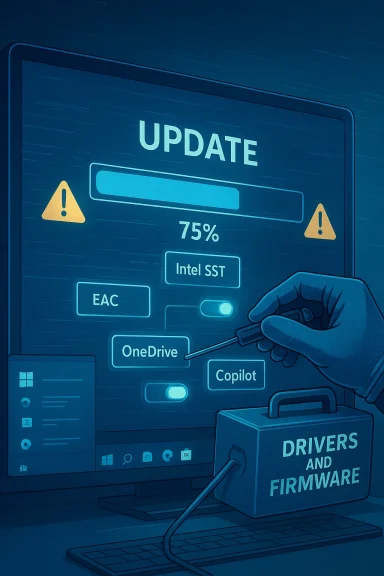 Update, Servicing and Driver Regressions
January 2026 patch chaos and boots that fail to boot
The single most serious user-facing theme in recent months has been update regressions introduced by cumulative rollups. January 2026’s security cumulative (delivered as KB5074109 for 24H2/25H2 and KB5073455 for 23H2) produced multiple, documented regressions: Remote Desktop authentication failures, systems that restart instead of shutting down when System Guard Secure Launch is enabled, app hangs when saving to cloud storage, and — in a smaller but severe set of cases — machines that fail to boot with UNMOUNTABLE_BOOT_VOLUME errors. Microsoft acknowledged the issues and shipped out‑of‑band (OOB) fixes (for example, KB5077744 and KB5077797) to address the most critical failures. These actions confirm the problem but also underline the fragility introduced by rapid monthly servicing.Why this matters: when updates change servicing or early-boot semantics, they can interact with firmware and virtualization-based protections (like Secure Launch) in unexpected ways. That’s what made the shutdown/hibernate regression particularly concerning for managed environments and kiosks that rely on deterministic power behavior. Microsoft’s OOB patches repaired the issue for many devices, but the event exposed how tightly coupled modern updates are to a wide variety of hardware and platform features.
Driver incompatibilities: Intel SST and other hardware blocks
A second recurring pattern is driver incompatibility forcing Microsoft to apply safeguard holds — blocking certain devices from receiving feature updates until vendors ship compatible drivers. A notable example involved Intel’s Smart Sound Technology (SST) audio drivers: certain file versions (notably 10.29.0.5152 and 10.30.0.5152) combined with Intel 11th‑gen silicon could cause kernel crashes during feature updates, prompting Microsoft and OEMs to block affected machines until drivers with specific trailing build numbers (10.29.00.5714 / 10.30.00.5714 or later) were deployed. That hold prevented mass breakage but created a prolonged upgrade limbo for many owners.Why this matters: compatibility holds are a blunt but effective instrument — they stop bad updates from reaching vulnerable configurations, but they also create fragmentation and user confusion. Many users see a “not eligible” message and assume their machine has been arbitrarily downgraded, when the reality is a temporary compatibility safeguard tied to a third‑party driver.
Gaming and anti-cheat: Easy Anti-Cheat (EAC) BSODs
Games that use kernel‑level anti-cheat tooling have been a repeated source of trouble. Microsoft’s release‑health documentation confirmed that older Easy Anti‑Cheat (EAC) driver versions caused MEMORY_MANAGEMENT blue screens on systems with Alder Lake+ processors in some configurations. Microsoft applied an update hold for affected systems, and the block remained in place until EAC/data‑owner game publishers updated their drivers. The issue was significant because it only triggered when the problematic anti‑cheat drivers were actually invoked, meaning many users could upgrade safely — but launching a game might still produce a crash. Microsoft and the gaming ecosystem coordinated fixes; the hold was later removed after publishers and EAC rolled out updates.Practical takeaway: gamers should ensure anti‑cheat and game client updates are applied before jumping to a newly released Windows feature update, or defer the OS upgrade until third‑party tooling catches up.
Performance and Responsiveness Issues
File Explorer lag, I/O hangs and perceived sluggishness
A persistent complaint is that Windows 11 can feel less responsive in everyday tasks than its predecessors — tiny latencies in File Explorer, context menus and search accumulate into a less snappy experience. In several update cycles, users reported File Explorer crashes, slow drag‑and‑drop, and in some cases application hangs when interacting with cloud‑backed files (OneDrive, Dropbox), particularly right after major updates. Microsoft documented and patched several file I/O and cloud‑storage‑related issues in release notes and OOB updates. sable or limit background cloud indexing and Search Highlights if you do not need them.- Keep device drivers current (storage and NVMe firmware updates frequently matter).
- Use sfc /scannow and DISM for corrupted system file checks when Explorer becomes unstable.
Background services and CPU spikes
Windows 11 ships with more background features enabled by default: indexing, telemetry, Copilot agents (on some SKUs), Widgets, and OneDrive sync. For machines with constrained I/O (older HDDs) or marginal cooling, the extra background activity can translate to high CPU/IO utilization and battery drain. The perception of slowness is often as much about background work as about raw single‑thread performance. Community guides focus on targeted housekeeping: trim startup apps, disable nonessential tray services, and selectively remove vendor bloat.UI and Usability: Choices That Frustrate Power Users
Taskbar and Start menu: reduced flexibility by design
One of the earliest and loudest complaints about Windows 11 is the redesign of the Taskbar and Start menu. Several practical capabilities were removed or made harder: the classic left‑aligned Start with full Pin/Jump‑list parity, drag‑and‑drop pinning of files to the Taskbar, per-item Taskbar resizing, and easy restoration of a Windows 10–style Start layout. Microsoft’s focus on a streamlined, modern aesthetic came at the expense of certain workflows many professionals rely on. Third‑party tools such as StartAllBack and Start11 remain popular to restore the lost behaviors.Tips:
- Use StartAllBack or Start11 if you need classic behavior and are comfortable with third‑party paid tools.
- For smaller changes, the built‑in Settings panels (Personalization > Taskbar / Start) still enable a number of toggles to hide Widgets, remove recommendations, and reduce clutter.
Search Highlights, Bing integration and unwanted recommendations
Windows 11’s search and Start experiences aggressively surface web content and Microsoft recommendations. Many users report accidental browser launches, persistent “Recomnd unwanted Search Highlights (news and web links inside local search). These features are configurable, but often buried behind several layers in Settings, and they can reappear after updates.How to quiet them: Settings > Privacy & Security > Search permissions to turn off Search Highlights; Settings > Personalization > Start to disable recommendations.
Widgets, badges and taskbar notifications
Widgets were designed to give quick access to news, weather and personalized content, but many power users find them resource‑hungry and noisy. App badges and flashing taskbar icons can be turned off, but again this requires poking through Taskbar behaviors in Settings. The recurring pattern is simple: modern convenience features are useful for many, intrusive for others.Preinstalled Apps, Bloatware and the Edge/OneDrive Experience
Hard-to-remove Microsoft components and OEM bloat
Windows 11 continues Microsoft’s and OEMs’ practice of bundling system images with a mix of first‑party and third‑party applications. Edge and OneDrive get special mention: Edge integrates tightly with the OS and is difficult to fully remove; OneDrive’s persistent backup prompts sometime push users towards Microsoft 365 subscriptions and cloud sync defaults that may be undesired. Removing these behaviors often requires registry edits, PowerShell commands, Group Policy tweaks, or third‑with tradeoffs and potential maintenance burdens across updates.Administrator note: In managed fleets, use configuration management (SCCM/Intune) to control app installations and registry policies so you avoid ad hoc manual removals that are undone by feature updates.
Advertising and nudges
Several of the “recommendations” and prompts are designed to guide users into Microsoft services (365, Edge features). For many users this is an annoyance rather than a technical failure; but the constant nudging undermines the cleaner UX promises and contributes to the perception of bloat. The mitigation is manual — hiding, uninstalling, or disabling prompts — but those actions are unintuitive and sometimes only temporary.AI Features, Copilot and Privacy Concerns
Copilot: convenience, resource use, and control friction
Microsoft has pushed Copilot into Windows as a first‑class assistant. For some users it is genuinely useful; for others it’s unnecessary background noise and a potential privacy vector. Copilot can be hidden or uninstalled in many editions of Windows, but the removal mechanism changed across feature updates — sometimes requiring Group Policy (Pro/Enterprise), registry edits (Home), or waiting for app updates. That inconsistency has inflamed the “it’s being installed without consent” narrative in community forums even when the behavior is a store‑delivered app or an automatic reinstallation triggered by other updates.Privacy point: features like Recall (a Copilot‑adjacent screen/activity capture feature) raised legitimate concerns when early previews contained security flaws; Microsoft delayed and reworked the design. Always assume any on‑device assistant with capture features requires careful review against corporate policy and local regulation.
Managing Copilot
- For Pro/Enterprise: use Group Policy to “Turn off Windows Copilot”.
- For Home: a registry key exists (HKEY_CURRENT_USER\Software\Policies\Microsoft\Windows\WindowsCopilot\TurnOffWindowsCopilot = 1), but backup the registry first.
- If Copilot reappears after updates, consider treating it as a store app and remove the Microsoft‑store package (with the necessary caveats around future system integrity checks).
Practical Fixes and Tactical Advice
When to pause updates and when to install them immediately
- Pause major feature upgrades on mission‑critical systems until the first cumulative (and ideally an OOB hotfix window) has passed. This is standard IT practice but more relevant now given recent regressions. Microsoft provides safeguard IDs and release‑health advisories — check those before rs.
- For security patches in the regular Patch Tuesday cadence, weigh risk vs. exposure: critical security fixes should often be applied promptly, but you should test in a pilot ring first.
Routine maintenance checklist
- Update firmware and device drivers (storage, audio, GPU) before applying a feature upgrade. Dell and other OEM advisories are often the fastest route to validated drivers.
- Create a full backup and a system image before major upgrades.
- Use Group Policy/Intune to push standard configuration (disable Copilot where disallowed, limit telemetry) for managed fleets.
- Keep anti‑cheat and game clients updated if you are a gamer planning to upgrade — the EAC situation is a reminder to coordinate with software vendors.
Tools that help — and the risks they carry
- StartAllBack / Start11: restore classic UI features. Risk: paid third‑party dependency and occasional conflicts after OS upgrades.
- PowerToys: useful productivity tools with limited risk when obtained from trusted channels.
- Registry and script‑based tweaks: effective but dangerous if misapplied. Always document, test and provide rollback instructions.
Strengths, Weaknesses and the Road Ahead — Critical Assessment
Windows 11 remains a strong platform for the majority of users: broad hardware support, ongoing security improvements, and visible UI polish. Microsoft’s rapid servicing cadence also has real benefits — security fixes and incremental improvements arrive quickly. But the same speed reveals weaknesses:- Strength: Modern features (AI integrations, richer File Explorer capabilities, better energy management on mobile) deliver incremental user value.
- Weakness: Servicing complexity and deep hardware interactions mean regressions can affect critical functions — and diagnosing those regrequires coordinated vendor fixes (drivers, anti‑cheat, OEM firmware).
Conclusion
The “main problems of Windows 11” form a mixed bag of design choices and engineering realities. Many complaints are about preference and polish — taskbar behavior, Search Highlights, and bundled nudges — and those are mitigated by Settings, third‑party tools, or straightforward policy changes. But the more serious issues are systemic: update regressions, driver incompatibilities, and kernel‑level interactions with third‑party software that can produce BSODs or boot failures. Microsoft’s documentation, OOB patches, safeguard holds, and vendor fixes demonstrate that the company is actively addressing high‑impact problems, yet the ecosystem remains fragile enough that administrators and power users must adopt disciplined upgrade practices: test, stage, and keep drivers current before feature upgrades.If you value stability over the latest features, the safest path right now is conservative: pause feature upgrades on production machines until vendors confirm driver compatibility, apply security updates after pilot testing, and use Group Policy/management tools to control emergent AI/telemetry components. If you’re an enthusiast who wants the latest UX and AI features, be prepared for occasional friction and maintain reliable backups and recovery media. Either way, the era of treating Windows upgrades as trivial background events is over — careful planning is the new baseline.
Source: Inbox.lv News feed at Inbox.lv -
