

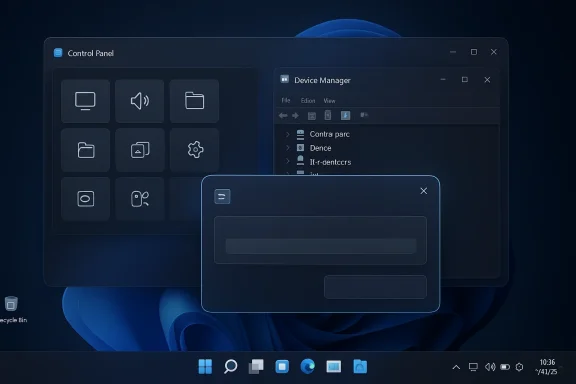
Microsoft is finally moving to tackle one of Windows 11’s most persistent annoyances: the operating system’s split personality between sleek modern panels and visibly older utilities. The company’s design leadership has now confirmed that legacy areas such as Control Panel and Device Manager are part of a broader modernization effort, with WinUI 3 positioned as the framework for the refresh and early preview builds already showing a redesigned Run dialog. That matters because this is not just a cosmetic cleanup; it is a signal that Microsoft wants Windows 11 to feel coherent, not assembled from different eras. For users, that could mean fewer jarring transitions, better dark mode behavior, and a more polished desktop overall. s 11 has always been a study in contrasts. On one side, Microsoft has pushed a more refined visual language, with rounded corners, translucent surfaces, and a stronger emphasis on modern system apps. On the other side, the operating system still contains deep pockets of legacy UI that look and behave like holdovers from previous Windows generations. That inconsistency has been one of the loudest complaints from power users and casual users alike, because it breaks the feeling that the OS is a single product rather than a patchwork.
The new modernization push fits into a much longer story. Microsoft has been trying to migrate functionality out of Control Panel and into Settings for years, but the transition has been partial, uneven, and at times confusing. Some tasks now live in the modern Settings app, while others still jump users back into older dialog boxes or traditional control surfaces. That means Windows 11 often looks like two operating systems layered on top of one another, with the seam obvious whenever a legacy utility opens.
This is why the latest confirmation matters. Microsoft is no longer treating UI modernization as a side effect of feature development. Instead, it appears to be turning visual consistency into an explicit product goal, and that is a significant shift for a platform whose reputation has long depended more on compatibility than elegance. In practical terms, users care less about the framework name than the outcome: faster opening dialogs, clearer navigation, and fewer ancient-looking interfaces interrupting daily work.
There is also a broader strategy at work. Microsoft has been putting more weight on WinUI 3 and the Windows App SDK as the preferred native route for modern Windows experiences, which lines up with its wider push toward more responsive, better integrated inbox tools. That direction is not surprising, but it is important. If Microsoft wants Windows 11 to feel premium, it needs its own system apps to set the standard rather than undermine it.
A lot of Windows criticism in recent years has not been about missing features. It has been about friction. Users complain about too many clicks, too many duplicated paths, and too many old surfaces that ignore the visual language of the rest of the OS. Microsoft’s apparent answer is not a dramatic restart, but a long cleanup cycle that slowly removes those rough edges.
That approach is sensible, if less glamorous. A radical redesign would create its own backlash, while a careful modernization effort can improve day-to-day usability without forcing users to relearn everything at once. In the Windows world, incremental progress is often the only progress that survives contact with the installed base.
The company has also been explicit that the goal is not merely appearance. Microsoft’s own Windows quality messaging has emphasized lower memory usage and more fluid interactions through moving core experiences to WinUI 3, which suggests that performance and responsiveness are part of the same modernization story. That is especially relevant in a system-level UI where delays are felt more strongly than in ordinary app usage.
That is why the Run dialog matters more than it might seem at first glance. It is a tiny utility, but it is one of those foundational Windows experiences that power users touch constantly. When Microsoft modernizes something that basic, it sends a signal that the cleanup work is not just about cosmetic showpieces. It is about bringing the whole system forward, one panel at a time.
Microsoft has already shown in preview and Insider work that it is willing to modernize specific utilities first and then expand outward. That strategy is smart because it lets the company test whether the new framework, theming, and control patterns hold up under real usage. It also reduces the risk of breaking workflows all at once, which is especially important in enterprise deployments where consistency matters more than novelty.
The real challenge is that system utilities are not isolated. They connect to drivers, security prompts, account settings, and administrative tasks. Modernizing them means preserving compatibility while updating appearance and behavior, and that is exactly the kind of balancing act Microsoft has historically handled cautiously.
That is why Microsoft’s effort to extend dark mode and update legacy dialog handling is more consequential than it sounds. A single mismatched dialog may not ruin the experience, but a dozen of them can make Windows 11 feel unfinished. The cleanup work is about reducing those tiny reminders that parts of the OS are still living in the past.
Microsoft has already been working on dark mode improvements in areas like the Run dialog and File Explorer surfaces, and that effort appears to be part of the broader modernization program. The significance is not just aesthetic. Consistent dark mode support implies that the app or dialog has been refactored enough to understand the current visual language rather than merely inheriting it by accident.
This is where interface polish becomes a proxy for engineering maturity. If Microsoft can make the old surfaces behave like the new ones, it suggests the company has both the tooling and the willingness to carry legacy interfaces forward without forcing users to accept visual debt. That makes the whole operating system feel more deliberate.
For Windows 11, this is especially sensitive because Microsoft has spent years positioning the system as a more premium, design-led desktop. If the OS still drops users into older-looking control surfaces at key moments, the promise feels incomplete. The result is not just cosmetic disappointment; it is a weakened sense of platform identity.
The broader lesson is that modernizing legacy UI is not a one-time rewrite. It is an ongoing process of making old and new components speak the same visual language. In a product as large as Windows, that is often a multi-year effort rather than a single release milestone.
This latest effort suggests Microsoft is trying to solve the problem more intentionally. Rather than pretending Control Panel can disappear overnight, the company seems to be modernizing the specific legacy tools that still matter most. That is a more realistic strategy because it preserves compatibility while moving the user experience in the right direction.
For enterprise customers, this matters even more than it does for consumers. IT teams care about predictability, documentation, and supportability. A gradual, well-managed migration from old control surfaces to modern ones is far more useful than a sudden disappearance that breaks workflows or leaves administrators hunting for settings in unfamiliar places.
At the same time, the upside is meaningful. Cleaner settings flows, fewer legacy detours, and better theming consistency can reduce confusion across large fleets. A system that is easier to understand at a glance is also easier to support at scale.
This is why Microsoft’s incremental approach is politically smarter than a sweeping rewrite. It improves the experience where it matters without forcing the user to think about architecture. The best UI modernization is often invisible to everyone except the people looking for it.
The important part is not just that Microsoft can use WinUI 3. It is that it wants its own apps to demonstrate confidence in the framework. When Microsoft ships first-party tools using the same stack it recommends to developers, it strengthens the credibility of the platform. That matters in a world where external developers watch Microsoft’s own product decisions closely.
There is also a performance story here. Native apps generally offer tighter integration, better responsiveness, and fewer awkward transitions than web-wrapped or layered experiences. That does not make them magically better in every case, but in system-level utilities, the difference is often noticeable.
That signal is especially important as Windows continues to evolve toward more device-diverse hardware, including Arm-based systems and Copilot+ PCs. Native apps help the platform feel faster and more aligned with the hardware Microsoft is trying to champion.
For a desktop OS that already carries a lot of historical baggage, native modernization is one of the few ways to make change feel like progress instead of churn. Microsoft seems to understand that now, and that is a meaningful shift.
Preview builds also give Microsoft room to move gradually. It can assess whether new UI patterns work, whether they break existing expectations, and whether they create problems for power users who depend on the old behavior. This is crucial because UI changes are often less about the design itself than about the way people have built habits around it.
The redesign cadence matters as well. If Microsoft keeps surfacing these modernized legacy pieces across multiple preview cycles, it indicates a real roadmap rather than a one-off experiment. That would make the story more than a visual refresh; it would make it a platform-wide cleanup campaign.
At the same time, Insiders also normalize change. When users get used to seeing the old and new coexist in preview, the eventual stable rollout feels less disruptive. It is a useful bridge between legacy reality and a more modern Windows future.
That uncertainty is part of the Windows development model now. It allows Microsoft to experiment, but it also means the company has to manage expectations carefully. The existence of a redesigned Run dialog is encouraging, but it is not a final promise on its own.
Microsoft cannot simply rely on compatibility forever. It has to make the modern Windows experience feel worth choosing. Legacy UI cleanup is one of the ways it can reinforce that case, because it reduces the feeling that Windows is lagging behind its own design ambitions.
This is particularly important in a market where Microsoft wants Windows to remain the default choice for work, gaming, and mainstream personal use. If the operating system feels clunky in ways that rivals do not, that can slowly shape perception. Modernizing legacy apps may not win a headline war, but it can absolutely strengthen long-term platform loyalty.
That does not mean rivals need to copy Windows. It means they need to recognize that Microsoft is trying to close the gap between functional depth and visual coherence. If Windows succeeds there, it will be harder for alternatives to market themselves as the only polished option.
That is exactly the perception Microsoft is trying to undo. The goal is not simply prettier dialogs. It is a more confident Windows identity.
The biggest opportunity is trust. When users see the company fixing legacy rough edges instead of only adding new features, they are more likely to believe Microsoft understands the day-to-day experience of the desktop. That perception is invaluable.
There is also the danger of partial modernization. A few redesigned dialogs are helpful, but if too many legacy surfaces remain untouched, the OS can end up with a more uneven blend of old and new than before. In that case, the visual debt is not solved, only rearranged.
That would be a smart move. Users do not usually ask for framework transitions, but they do ask for fewer annoyances, less visual clutter, and more predictable behavior. If Microsoft keeps following that brief, it may not only improve the look of Windows 11, but also restore some confidence in the platform itself.
What to watch next:
Source: Technobaboy Microsoft to modernize Windows 11 legacy apps - Technobaboy
The new modernization push fits into a much longer story. Microsoft has been trying to migrate functionality out of Control Panel and into Settings for years, but the transition has been partial, uneven, and at times confusing. Some tasks now live in the modern Settings app, while others still jump users back into older dialog boxes or traditional control surfaces. That means Windows 11 often looks like two operating systems layered on top of one another, with the seam obvious whenever a legacy utility opens.
This is why the latest confirmation matters. Microsoft is no longer treating UI modernization as a side effect of feature development. Instead, it appears to be turning visual consistency into an explicit product goal, and that is a significant shift for a platform whose reputation has long depended more on compatibility than elegance. In practical terms, users care less about the framework name than the outcome: faster opening dialogs, clearer navigation, and fewer ancient-looking interfaces interrupting daily work.
There is also a broader strategy at work. Microsoft has been putting more weight on WinUI 3 and the Windows App SDK as the preferred native route for modern Windows experiences, which lines up with its wider push toward more responsive, better integrated inbox tools. That direction is not surprising, but it is important. If Microsoft wants Windows 11 to feel premium, it needs its own system apps to set the standard rather than undermine it.
 Why this story is resonating now
A lot of Windows criticism in recent years has not been about missing features. It has been about friction. Users complain about too many clicks, too many duplicated paths, and too many old surfaces that ignore the visual language of the rest of the OS. Microsoft’s apparent answer is not a dramatic restart, but a long cleanup cycle that slowly removes those rough edges.That approach is sensible, if less glamorous. A radical redesign would create its own backlash, while a careful modernization effort can improve day-to-day usability without forcing users to relearn everything at once. In the Windows world, incremental progress is often the only progress that survives contact with the installed base.
The meaning of WinUI 3 here
WinUI 3 is more than a branding choice. It represents Microsoft’s attempt to give desktop Windows a modern UI foundation that better matches Fluent Design, supports richer visuals, and integrates more naturally with the rest of the platform. In theory, that should help Microsoft unify its inbox apps and reduce the awkward seams between older and newer surfaces.The company has also been explicit that the goal is not merely appearance. Microsoft’s own Windows quality messaging has emphasized lower memory usage and more fluid interactions through moving core experiences to WinUI 3, which suggests that performance and responsiveness are part of the same modernization story. That is especially relevant in a system-level UI where delays are felt more strongly than in ordinary app usage.
What Microsoft Is Actually Modernizing
The most obvious takeaway from the new direction is that Microsoft is targeting the surfaces users see most often, not just the obvious flagship apps. Control Panel has been the symbolic battleground for years, but Device Manager, system dialogs, and small utility windows are just as important because they reinforce the sense that Windows is coherent or inconsistent.That is why the Run dialog matters more than it might seem at first glance. It is a tiny utility, but it is one of those foundational Windows experiences that power users touch constantly. When Microsoft modernizes something that basic, it sends a signal that the cleanup work is not just about cosmetic showpieces. It is about bringing the whole system forward, one panel at a time.
Microsoft has already shown in preview and Insider work that it is willing to modernize specific utilities first and then expand outward. That strategy is smart because it lets the company test whether the new framework, theming, and control patterns hold up under real usage. It also reduces the risk of breaking workflows all at once, which is especially important in enterprise deployments where consistency matters more than novelty.
Legacy surfaces still shape user perception
Users often judge an operating system by the least polished thing they see. If the Start menu feels new but a device-properties dialog looks old, the overall effect is not “some parts are modern.” It is “Windows still feels inconsistent.” That’s a harder problem to solve than simply rewriting a single app.The real challenge is that system utilities are not isolated. They connect to drivers, security prompts, account settings, and administrative tasks. Modernizing them means preserving compatibility while updating appearance and behavior, and that is exactly the kind of balancing act Microsoft has historically handled cautiously.
Why small dialogs matter
Small dialogs are where Windows either earns trust or loses it. A driver property box, a file warning prompt, or a device-management window may only appear for a moment, but those moments accumulate. If they are ugly, slow, or visually disconnected from the rest of the OS, the user notices.That is why Microsoft’s effort to extend dark mode and update legacy dialog handling is more consequential than it sounds. A single mismatched dialog may not ruin the experience, but a dozen of them can make Windows 11 feel unfinished. The cleanup work is about reducing those tiny reminders that parts of the OS are still living in the past.
- Control Panel migration remains a central design problem.
- Device Manager is a high-visibility legacy surface.
- The Run dialog is a canary for UI modernization.
- Dark mode parity is a key sign of platform coherence.
- Small utilities often define the user’s emotional reaction to the OS.
Why Dark Mode Consistency Matters
Dark mode is no longer a novelty feature. It is part of the baseline expectation for a modern desktop OS, and Windows 11 users notice immediately when an older dialog flashes white inside an otherwise dark interface. That kind of mismatch does more than look odd. It breaks immersion and makes the system feel stitched together from incompatible parts.Microsoft has already been working on dark mode improvements in areas like the Run dialog and File Explorer surfaces, and that effort appears to be part of the broader modernization program. The significance is not just aesthetic. Consistent dark mode support implies that the app or dialog has been refactored enough to understand the current visual language rather than merely inheriting it by accident.
This is where interface polish becomes a proxy for engineering maturity. If Microsoft can make the old surfaces behave like the new ones, it suggests the company has both the tooling and the willingness to carry legacy interfaces forward without forcing users to accept visual debt. That makes the whole operating system feel more deliberate.
The psychology of coherence
People often underestimate how much visual consistency affects trust. When an interface follows the same design rules everywhere, users assume the product is more reliable. When it breaks its own rules, even briefly, that trust erodes.For Windows 11, this is especially sensitive because Microsoft has spent years positioning the system as a more premium, design-led desktop. If the OS still drops users into older-looking control surfaces at key moments, the promise feels incomplete. The result is not just cosmetic disappointment; it is a weakened sense of platform identity.
More than theme support
Dark mode work sounds simple until you realize it usually requires more than a color swap. Many older dialogs were not built with modern theme behavior in mind, so bringing them up to standard can mean touching rendering paths, control behavior, and layout assumptions. That is why these changes take time, and why Microsoft’s progress is meaningful even if it arrives gradually.The broader lesson is that modernizing legacy UI is not a one-time rewrite. It is an ongoing process of making old and new components speak the same visual language. In a product as large as Windows, that is often a multi-year effort rather than a single release milestone.
- Theme parity improves the feeling of quality.
- Dark mode bugs are often signs of deeper legacy dependencies.
- Consistent dialogs reduce cognitive friction.
- Visual coherence helps Windows feel more unified.
- The best polish is often the kind users stop noticing.
Settings Versus Control Panel
The old Settings versus Control Panel story is one of the defining design sagas of modern Windows. Microsoft has spent years trying to make Settings the primary control surface, but it has never fully completed the transition. That has left users in a strange middle ground where some tasks belong to the new app and others still require the older one.This latest effort suggests Microsoft is trying to solve the problem more intentionally. Rather than pretending Control Panel can disappear overnight, the company seems to be modernizing the specific legacy tools that still matter most. That is a more realistic strategy because it preserves compatibility while moving the user experience in the right direction.
For enterprise customers, this matters even more than it does for consumers. IT teams care about predictability, documentation, and supportability. A gradual, well-managed migration from old control surfaces to modern ones is far more useful than a sudden disappearance that breaks workflows or leaves administrators hunting for settings in unfamiliar places.
The enterprise angle
Enterprises live on repeatability. If a control path changes, help desk scripts, automation tools, and internal documentation may need to change too. That means Microsoft has to modernize carefully, or risk turning a UI upgrade into an operational headache.At the same time, the upside is meaningful. Cleaner settings flows, fewer legacy detours, and better theming consistency can reduce confusion across large fleets. A system that is easier to understand at a glance is also easier to support at scale.
The consumer angle
For consumers, the benefit is simpler. A smoother Settings app and fewer old dialogs make Windows feel more refined, more modern, and less intimidating. Users who only change a few system options a month may not care about framework details, but they absolutely care whether the interface feels clunky.This is why Microsoft’s incremental approach is politically smarter than a sweeping rewrite. It improves the experience where it matters without forcing the user to think about architecture. The best UI modernization is often invisible to everyone except the people looking for it.
- Settings is becoming the main control surface.
- Control Panel is not disappearing all at once.
- Enterprise admins want stability more than novelty.
- Consumers want fewer confusing detours.
- Gradual migration reduces the risk of backlash.
Why WinUI 3 Keeps Coming Up
Microsoft’s repeated emphasis on WinUI 3 is not accidental. The framework represents the company’s preferred path for building native Windows desktop experiences with modern controls and a UI language that matches the rest of Windows 11. That makes it the natural candidate for modernizing legacy inbox apps.The important part is not just that Microsoft can use WinUI 3. It is that it wants its own apps to demonstrate confidence in the framework. When Microsoft ships first-party tools using the same stack it recommends to developers, it strengthens the credibility of the platform. That matters in a world where external developers watch Microsoft’s own product decisions closely.
There is also a performance story here. Native apps generally offer tighter integration, better responsiveness, and fewer awkward transitions than web-wrapped or layered experiences. That does not make them magically better in every case, but in system-level utilities, the difference is often noticeable.
Platform signaling
Microsoft has a long history of asking developers to trust a framework while simultaneously shipping its own experiences through a mix of technologies. That can undermine confidence. A more consistent commitment to WinUI 3 gives Microsoft a cleaner message: this is the path forward, and we are using it ourselves.That signal is especially important as Windows continues to evolve toward more device-diverse hardware, including Arm-based systems and Copilot+ PCs. Native apps help the platform feel faster and more aligned with the hardware Microsoft is trying to champion.
Why native still matters
A lot of people hear “native app” and assume the distinction is old-fashioned. It is not. On Windows, framework choice still affects startup behavior, responsiveness, theming, and system integration. Users may not describe those things in technical terms, but they feel them immediately.For a desktop OS that already carries a lot of historical baggage, native modernization is one of the few ways to make change feel like progress instead of churn. Microsoft seems to understand that now, and that is a meaningful shift.
- WinUI 3 is the preferred modern Windows UI path.
- Native apps support tighter OS integration.
- Microsoft can better control look and feel across inbox tools.
- Framework consistency strengthens developer messaging.
- The move supports future hardware and platform goals.
The Role of Preview Builds
Preview builds have become the proving ground for Windows 11’s identity. That is where Microsoft tests not only new features, but also how aggressively it wants to reshape the operating system’s visual and functional behavior. The redesigned Run dialog is a good example because it shows the company is willing to modernize even small, historically stable utilities.Preview builds also give Microsoft room to move gradually. It can assess whether new UI patterns work, whether they break existing expectations, and whether they create problems for power users who depend on the old behavior. This is crucial because UI changes are often less about the design itself than about the way people have built habits around it.
The redesign cadence matters as well. If Microsoft keeps surfacing these modernized legacy pieces across multiple preview cycles, it indicates a real roadmap rather than a one-off experiment. That would make the story more than a visual refresh; it would make it a platform-wide cleanup campaign.
Why Insiders matter
The Windows Insider community acts as both a testing lab and an early warning system. If a redesign feels awkward, too slow, or too limited, users will say so quickly. That feedback can save Microsoft from shipping a mistake to the wider audience.At the same time, Insiders also normalize change. When users get used to seeing the old and new coexist in preview, the eventual stable rollout feels less disruptive. It is a useful bridge between legacy reality and a more modern Windows future.
Not all changes survive
This is the cautionary part. Preview features can vanish, change shape, or arrive much later than expected. Users should not assume that every modernized dialog seen in a build will ship exactly as shown.That uncertainty is part of the Windows development model now. It allows Microsoft to experiment, but it also means the company has to manage expectations carefully. The existence of a redesigned Run dialog is encouraging, but it is not a final promise on its own.
- Preview builds show where Microsoft is willing to take risks.
- The Run dialog is a useful test case.
- Insider feedback can shape or derail a redesign.
- UI experiments are not guaranteed final features.
- Gradual exposure lowers the shock of change.
Competitive Implications
This modernization effort also has competitive implications, even if Microsoft is not framing it that way. Windows has always competed on utility, compatibility, and breadth of support, but user experience matters more today than it did a decade ago. When the platform feels fragmented, users compare it not just to other Windows releases, but to the polish of macOS, ChromeOS, and increasingly some Linux desktop environments.Microsoft cannot simply rely on compatibility forever. It has to make the modern Windows experience feel worth choosing. Legacy UI cleanup is one of the ways it can reinforce that case, because it reduces the feeling that Windows is lagging behind its own design ambitions.
This is particularly important in a market where Microsoft wants Windows to remain the default choice for work, gaming, and mainstream personal use. If the operating system feels clunky in ways that rivals do not, that can slowly shape perception. Modernizing legacy apps may not win a headline war, but it can absolutely strengthen long-term platform loyalty.
Why rivals should care
Competitors watch Windows UI changes closely because the desktop remains a reference point for productivity software. If Microsoft improves consistency and responsiveness in its inbox tools, it resets expectations for what a desktop OS should feel like.That does not mean rivals need to copy Windows. It means they need to recognize that Microsoft is trying to close the gap between functional depth and visual coherence. If Windows succeeds there, it will be harder for alternatives to market themselves as the only polished option.
Why this is not just about looks
A more cohesive operating system can also reduce the incentive for users to switch away. People may tolerate quirks if the OS is otherwise strong, but a visibly aged interface can become a symbolic weakness. It suggests the platform is not as modern as the hardware underneath it.That is exactly the perception Microsoft is trying to undo. The goal is not simply prettier dialogs. It is a more confident Windows identity.
- Better UI coherence strengthens Windows’ competitive story.
- Consistency can improve user retention.
- Rival platforms benefit when Windows looks fragmented.
- Modern legacy apps reduce symbolic weakness.
- Platform perception can matter as much as raw functionality.
Strengths and Opportunities
Microsoft’s modernization push has real upside because it targets the places where users most often feel the operating system’s age. If the company executes this well, Windows 11 can become more polished without becoming unfamiliar, which is the sweet spot any platform upgrade should aim for.The biggest opportunity is trust. When users see the company fixing legacy rough edges instead of only adding new features, they are more likely to believe Microsoft understands the day-to-day experience of the desktop. That perception is invaluable.
- Better visual consistency across the OS.
- Fewer dark mode mismatches and theme breaks.
- Smoother Settings-to-Control-Panel transitions.
- Improved confidence in Microsoft’s design direction.
- More responsive system utilities through native frameworks.
- Stronger support story for enterprise IT teams.
- A clearer platform message for developers building on Windows.
Risks and Concerns
The biggest risk is that modernization can create as much friction as it removes if Microsoft moves too quickly or inconsistently. Users are often surprisingly tolerant of legacy UI, but they become frustrated when familiar paths disappear before the new ones feel complete. That is especially true in enterprise environments where support scripts and workflows rely on stable behavior.There is also the danger of partial modernization. A few redesigned dialogs are helpful, but if too many legacy surfaces remain untouched, the OS can end up with a more uneven blend of old and new than before. In that case, the visual debt is not solved, only rearranged.
- Migration friction if familiar tools move too quickly.
- Partial modernization could leave Windows looking fragmented.
- Enterprise support complexity may rise during the transition.
- Framework trade-offs can affect performance or compatibility.
- User confusion if old and new interfaces coexist too long.
- Perception risk if changes look cosmetic rather than meaningful.
- Update instability remains a concern for any broad UI rewrite.
Looking Ahead
The key question now is not whether Microsoft can modernize one or two legacy utilities. It is whether the company can sustain this cleanup long enough to make Windows 11 feel truly unified. If the answer is yes, then this will be remembered as more than a cosmetic pass; it will be seen as the point where Microsoft began treating coherence as a core product feature.That would be a smart move. Users do not usually ask for framework transitions, but they do ask for fewer annoyances, less visual clutter, and more predictable behavior. If Microsoft keeps following that brief, it may not only improve the look of Windows 11, but also restore some confidence in the platform itself.
What to watch next:
- More legacy dialogs adopting WinUI 3 styling.
- Wider dark mode parity across system utilities.
- Further migration of Control Panel tasks into Settings.
- Additional redesigns for small but important tools like Device Manager.
- Preview build evidence that the Run dialog change is becoming standard.
- Signs that Microsoft is modernizing for both consumer and enterprise workflows.
- Whether the cleanup effort is paired with performance gains, not just visual polish.
Source: Technobaboy Microsoft to modernize Windows 11 legacy apps - Technobaboy
Last edited:
