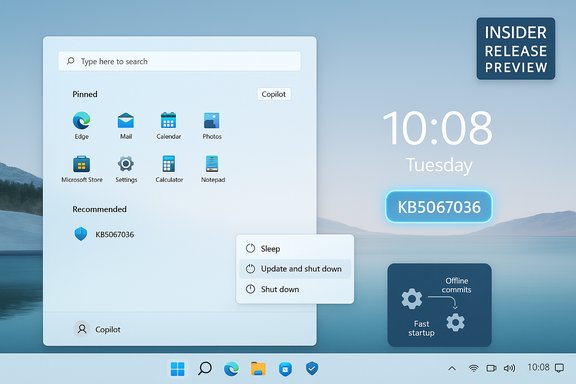
Microsoft has quietly corrected a long-standing Windows annoyance: the “Update and shut down” option that for many PCs applied updates and then returned the machine to a powered‑on state instead of honoring a true shutdown, and the repair is now documented in Microsoft’s preview release notes and optional October 28, 2025 preview package.
For years some Windows users have reported a frustrating mismatch between the Start‑menu label Update and shut down and the actual outcome. Instead of installing updates and powering off, affected machines sometimes completed an update cycle and then restarted or landed at the lock screen — effectively leaving the device powered on. That behavior damaged user trust in a basic update workflow, caused overnight battery drain on laptops, and disrupted maintenance automation that relies on deterministic shutdowns.
Microsoft has now added a servicing‑level correction to Insider preview builds and bundled the same change into the October 28, 2025 optional preview cumulative update KB5067036 (OS builds 26200.7019 and 26100.7019). The KB entry explicitly lists: “Improved: Addressed underlying issue which can cause ‘Update and shutdown’ to not actually shut down your PC after updating.”
However, the community also recorded a caution: preview packages sometimes introduce other regressions, which can appear as collateral effects of complex changes. One widely reported example connected to the October preview was a Task Manager regression (duplicate or orphaned taskmgr.exe processes) in some installations, demonstrating that seemingly narrow servicing fixes can have unexpected side channels. That regression was reproduced by testers and discussed in community posts. If you’ll be deploying preview packages, validate on non‑critical devices and monitor for regressions.
Source: CP24 Microsoft fixes longstanding ‘update and shut down’ bug that caused computers to restart
 Background / Overview
For years some Windows users have reported a frustrating mismatch between the Start‑menu label Update and shut down and the actual outcome. Instead of installing updates and powering off, affected machines sometimes completed an update cycle and then restarted or landed at the lock screen — effectively leaving the device powered on. That behavior damaged user trust in a basic update workflow, caused overnight battery drain on laptops, and disrupted maintenance automation that relies on deterministic shutdowns.Microsoft has now added a servicing‑level correction to Insider preview builds and bundled the same change into the October 28, 2025 optional preview cumulative update KB5067036 (OS builds 26200.7019 and 26100.7019). The KB entry explicitly lists: “Improved: Addressed underlying issue which can cause ‘Update and shutdown’ to not actually shut down your PC after updating.”
Why this bug mattered
The underlying symptom sounds small but it had outsized, practical consequences.- Battery and energy waste: Laptops expected to be off overnight were left running, draining battery and keeping cooling subsystems active.
- Operational friction: Administrators and automation scripts that assume a shutdown after an update saw those workflows fail intermittently.
- Trust erosion: When a labeled UI action doesn’t do what it promises, users stop relying on it and adopt riskier workarounds.
What Microsoft shipped (builds, KBs, and timeline)
Microsoft’s fix followed the standard Insider → Release Preview → mainstream rollout staging path.- September 29, 2025: Microsoft published Insider Preview release notes for Dev Channel Build 26220.6760 and Beta Channel Build 26120.6760 that include the remediation text “Fixed an underlying issue which could lead ‘Update and shutdown’ to not actually shut down your PC after.”
- October 28, 2025: Microsoft included the same servicing correction in the optional preview cumulative update KB5067036 (OS Builds 26200.7019 and 26100.7019). The KB page’s Windows Update section lists the improvement in plain language.
- Late 2025 (expected): The staged rollout model means the repair will be folded into mainstream cumulative updates (Patch Tuesday) after telemetry and validation; many commentators expect inclusion in the subsequent stable CU once testing is complete.
Technical anatomy: why “Update and shut down” sometimes acted like a restart
The update‑at‑shutdown flow in modern Windows is not a single atomic operation; it’s an orchestration between several subsystems:- Fast Startup (hybrid shutdown) changes the semantics of a shutdown by saving kernel session state. That hybrid state can interact poorly with offline servicing and lead to an intermediate restart instead of a cold power‑off.
- Multi‑phase servicing: Many updates require staged commits; the servicing pipeline may request one or more reboots to finalize component swaps and driver replacements.
- Sign‑in / finishing flows: Windows can use saved credentials to sign in after a restart and complete configuration tasks; if sign‑in finishing is blocked or unavailable, the servicing flow can stop at a desktop or lock screen.
- Drivers and running handles: Certain drivers or processes need a full restart to replace in‑use files, nudging the orchestrator toward a restart path for stability.
What the fix actually does (and what it doesn’t disclose)
Microsoft’s public release notes are concise: they name the symptom and say it’s fixed. That is useful and verifiable, but the notes do not include a line‑by‑line engineering postmortem.- Concrete: Microsoft documented the fix in Insider flight notes and in KB5067036’s preview page. The packaging and build numbers are published.
- Opaque: Microsoft did not publish an internal root‑cause analysis in public engineering notes, so the exact race condition or code path remains undisclosed. Any deeper assertions about the single code bug should therefore be treated as informed inference, not confirmed fact.
Independent verification and community testing
Multiple independent tech outlets and Insider testers corroborated Microsoft’s notes: early Insider reports show that after installing preview builds, testers observed improved shutdown behavior when choosing Update and shut down. Coverage across Windows‑focused media tracked the same phrasing in release notes and confirmed the update’s packaging into KB5067036. That independent corroboration reduces the risk that the KB line was merely cosmetic. When testers see the behavior correct itself after installing the update, it strengthens the case that the servicing orchestration was changed.However, the community also recorded a caution: preview packages sometimes introduce other regressions, which can appear as collateral effects of complex changes. One widely reported example connected to the October preview was a Task Manager regression (duplicate or orphaned taskmgr.exe processes) in some installations, demonstrating that seemingly narrow servicing fixes can have unexpected side channels. That regression was reproduced by testers and discussed in community posts. If you’ll be deploying preview packages, validate on non‑critical devices and monitor for regressions.
Practical guidance: what to do right now
Your approach depends on your risk tolerance and whether you manage production devices.- Home users who want stability:
- Wait for the fix to arrive in the mainstream cumulative update (safest). Microsoft will fold stable servicing changes into Patch Tuesday releases after validation.
- If you rely on Update and shut down and can’t wait, consider applying the preview KB on a spare device first and test your configuration.
- Power users / testers:
- Join the Windows Insider Beta or Dev channel on non‑critical hardware to get the fix earlier. Use the Feedback Hub to report regression telemetry.
- When installing optional preview packages like KB5067036, check the “Optional updates” area in Settings > Windows Update.
- IT administrators:
- Pilot KB5067036 or the forthcoming cumulative update in a small ring with representative hardware and software mixes.
- Validate scripted shutdowns, imaging workflows, and remote management tools.
- Monitor for any new regressions (Task Manager anomalies were reported in early preview installs).
- Back up critical data and ensure rollback procedures are in place.
- Apply the update in a controlled test ring first.
- Verify the Update and shut down behavior across typical user scenarios (Fast Startup enabled/disabled, different sign‑in policies, and driver sets).
- Monitor telemetry (or Microsoft public guidance) for any follow‑up fixes.
Strengths of Microsoft’s response
- Transparency in release notes: Microsoft explicitly named the behavioral fix in Insider and KB notes, which made the change easy to verify. That clarity is a welcome change after months of community troubleshooting.
- Standard staged rollout: Using Insiders → optional preview KB → mainstream CU allows Microsoft to gather telemetry across many hardware configurations before broad deployment.
- Targeted remediation: The wording indicates a servicing/orchestration fix rather than a superficial relabel — meaning engineers attempted to correct the underlying behavior, not just change UI language.
Potential risks and caveats
- Preview regressions: Optional previews can bundle unrelated feature flights and UI changes in addition to servicing fixes. The October preview that included this fix (KB5067036) also included Start menu and shell updates, meaning installing it exposes devices to a wider change set. Community testing reported at least one notable regression around Task Manager duplication after installing the preview. That underlines the need for cautious deployment on production machines.
- Incomplete coverage: Because the original symptom was configuration‑dependent, it may take time for telemetry to confirm that every affected hardware/driver combination is cured. Expect some residual edge cases until the fix has accumulated broad field validation.
- Visibility of root cause: Microsoft’s public notes do not reveal the precise code path; absent a detailed engineering postmortem, third parties cannot fully audit the repair’s scope or rule out related race conditions.
How to verify the fix on your device
- Check your current OS build:
- Press Windows key + R, type winver, and press Enter. The About Windows dialog shows your build and version.
- If you’re on Insider channels:
- Compare the build number to the Insider builds that include the fix (examples: Dev build 26220.6760 / Beta build 26120.6760).
- If you’re not an Insider:
- Open Settings > Windows Update > Optional updates. The October 28 preview (KB5067036) appears in optional/preview updates on systems Microsoft allows to see it.
- Test the behavior:
- Choose Update and shut down with a known pending update, leave the device offline for an hour, then power the device back on and confirm whether the system was off (expected) or left powered on (previous symptom).
- If you spot regressions:
- Collect diagnostics (Reliability Monitor, Event Viewer, and, if needed, process dumps) and submit feedback via Feedback Hub.
Broader context: Windows 10 end of support and why updating matters
Microsoft ended free mainstream support for Windows 10 on October 14, 2025. After that date Microsoft no longer provides security updates or technical assistance for most Windows 10 devices, and the company strongly recommends upgrading to Windows 11 or enrolling eligible systems in Extended Security Updates (ESU). If you’re still on Windows 10, the operational importance of reliable update behavior is higher: you’ll need a clear upgrade or ESU plan for continued protection.Final assessment — what this fix means for users
This repair is a meaningful, quality‑of‑life improvement: it restores the basic promise of Update and shut down, reduces unintended battery drain, and simplifies update behavior for users and admins who rely on deterministic shutdowns. The public evidence (Insider release notes and the KB preview page) shows Microsoft made a servicing/orchestration change and staged it for wider validation. That said, the fix is not the end of the story. Because Windows updates touch many subsystems, the preview channel also surfaced collateral issues (notably a Task Manager regression), and the community should continue to validate the repair across diverse hardware. Administrators and cautious home users should pilot the preview or wait for the mainstream cumulative update; early adopters who install the preview should be prepared to report regressions and to roll back if necessary.Quick recap (TL;DR for busy readers)
- Microsoft fixed the “Update and shut down” behavior in Insider previews and in the October 28, 2025 optional preview KB5067036 (Builds 26200.7019 / 26100.7019).
- The fix is a servicing/orchestration change intended to ensure Update and shut down truly powers the PC off after updates.
- Install KB5067036 on a test device if you want the fix early; otherwise, wait for Microsoft to include it in the mainstream cumulative update.
- Be cautious: preview packages can introduce regressions; testers reported a Task Manager duplication issue in early installs.
Source: CP24 Microsoft fixes longstanding ‘update and shut down’ bug that caused computers to restart