Microsoft's latest Insider preview build makes a small but meaningful tweak to how voice typing integrates with the on‑screen touch keyboard in Windows 11, shifting dictation from a full‑screen overlay into a compact, in‑keyboard indicator that preserves context and reduces visual interruption. This change arrives as part of the matched Insider update Windows 11 Insider Preview Build 26220.7523 (KB5072043) and is being tested in the Dev and Beta channels; Microsoft says the update replaces the old full‑screen dictation overlay with status animations directly on the dictation key so users can keep editing without losing their place.
Windows has iterated on touch, pen, and voice input for years, and voice typing has seen particularly active development across Insider flights. Historically, pressing the dictation key on the touch keyboard launched a sizeable overlay that showed listening and transcription status — useful for long dictation but often intrusive for short messages or quick edits. Recent Insider releases have focused on reducing friction for touch‑first devices and improving accessibility, and the KB5072043 package continues that work by reworking the voice typing visual experience.
Microsoft bundles these changes into enablement packages for the Windows 11 25H2 servicing line, which lets the company ship the same binary while gating specific features server‑side. That model explains why two devices on the same build may show different features based on hardware, account entitlements, or server flags. The new voice typing behavior is being staged to Insiders first so Microsoft can evaluate feedback before broader rollout.
Key user experience changes:
A few caveats:
Over time, expect additional refinements in three broad areas:
Source: Windows Report Microsoft Improves Touch Keyboard Voice Typing Experience in Windows 11 With KB5072043
 Background
Windows has iterated on touch, pen, and voice input for years, and voice typing has seen particularly active development across Insider flights. Historically, pressing the dictation key on the touch keyboard launched a sizeable overlay that showed listening and transcription status — useful for long dictation but often intrusive for short messages or quick edits. Recent Insider releases have focused on reducing friction for touch‑first devices and improving accessibility, and the KB5072043 package continues that work by reworking the voice typing visual experience.Microsoft bundles these changes into enablement packages for the Windows 11 25H2 servicing line, which lets the company ship the same binary while gating specific features server‑side. That model explains why two devices on the same build may show different features based on hardware, account entitlements, or server flags. The new voice typing behavior is being staged to Insiders first so Microsoft can evaluate feedback before broader rollout.
What changed: from overlay to in‑key status
The old behavior
Until this update, pressing the microphone/dictation key on the touch keyboard commonly launched a full‑screen overlay or a large floating pane that centered attention on the voice input session. While clearly indicating listening and transcription progress, that overlay often displaced the app UI or obscured the text field the user was working in. For quick corrections, short messages, or intermittent dictation, the overlay could feel disruptive.The new behavior in KB5072043
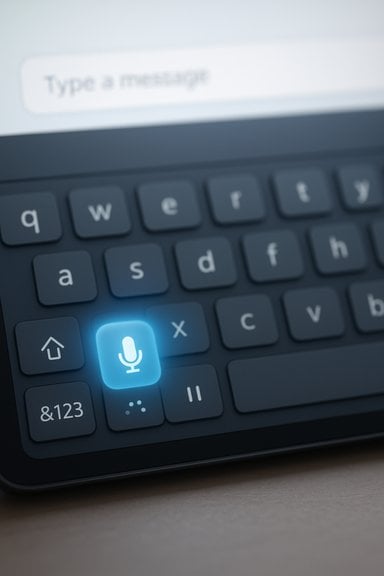
With Build 26220.7523 (KB5072043), Microsoft removes that full‑screen overlay for touch keyboard dictation and instead surfaces listening/processing/paused status directly on the dictation key. Subtle animations on the key indicate when the system is actively listening, transcribing, or paused, while the rest of the screen remains unchanged. The result is a more integrated, keyboard‑centric voice input experience that keeps focus in the app and text field.Key user experience changes:
- The dictation indicator stays on the key rather than commandeering the display.
- Status transitions (listening → processing → paused) are indicated with lightweight animations.
- Users can continue editing, navigating, or reading without the UI jumping away.
These changes are explicitly aimed at touch‑first devices — tablets and 2‑in‑1s — where on‑screen context is precious.
Why this matters: productivity and accessibility implications
Reworking the visual model for voice typing is more than cosmetic. There are practical productivity and accessibility gains if executed correctly.- Reduced cognitive switching cost. Removing a large overlay prevents loss of visual context. For short dictation tasks — composing a chat reply, entering a search query, or making inline edits — less visual disruption speeds workflow.
- Improved edit/verify loop. With the text remains visible and focus intact, users can more rapidly verify and correct transcribed text without toggling away from the UI they were interacting with.
- Better parity with other platforms. Mobile platforms and modern mobile keyboards typically present compact, non‑modal dictation indicators. This change brings the Windows touch keyboard closer to those interaction norms.
- Accessibility wins. For users relying on voice input due to physical or motor limitations, minimizing unnecessary mode shifts reduces friction and potential confusion. The compact indicator provides a clearer, lighter cue about dictation state that works alongside screen readers and other assistive tech.
Technical details and rollout mechanics
The build and KB
The change is packaged in Windows 11 Insider Preview Build 26220.7523, delivered as cumulative update KB5072043 in the Insider Dev and Beta channels. Microsoft distributed this build to both channels during a temporary parity window, which allows Insiders greater flexibility while the company stages features server‑side. Features in these enablement packages can be turned on, gated, or rolled back without requiring separate binaries.Feature gating and staged visibility
Microsoft uses server‑side gating and account/hardware entitlements to control who sees new UI experiments. That means:- Some Insiders will see the new in‑key voice typing indicator immediately; others may not, even on identical hardware.
- Copilot‑related and on‑device model‑dependent voice features can be hardware gated (for example, Copilot+ devices with NPUs may get additional on‑device processing).
Compatibility and languages
Historically, voice typing rollout has been incremental for locales and IMEs. Past Insider notes show Microsoft expanding speech packs, on‑device speech recognition, and language support over multiple flights. Expect initial availability in core English locales and gradual expansion to more languages and IMEs. If exact language support or on‑device speech pack availability for KB5072043 is crucial for your workflow, validate your device’s current Insider visibility and installed languages before assuming universal availability.Strengths: what Microsoft got right
- Less intrusive UI: The move to an in‑key status reduces the UX cost of voice typing for short, inline tasks. This is a clear quality‑of‑life win for everyday use.
- Consistency with touch expectations: The touch keyboard is now behaving more like the compact keyboards on mobile platforms, which users are already familiar with. That lowers the learning curve for new or mobile‑first users.
- Insider‑driven experimentation: Shipping as an Insider preview allows Microsoft to gather telemetry and qualitative feedback while the change is still reversible. The enablement package model reduces upgrade friction and lets Microsoft iterate quickly.
- Broader input work: The change is part of a larger effort to integrate voice as a first‑class input alongside typing, touch, and pen, signaling a coherent long‑term direction for Windows input UX.
Potential downsides and risks
While the UX improvement is welcome, there are several risks and limitations worth highlighting.- Discoverability trade‑off. A smaller indicator may be less noticeable for first‑time users or those with reduced vision. The previous overlay was unmissable; if the in‑key animation is too subtle, users may not realize dictation is active or paused. Microsoft will need to balance subtlety with accessibility.
- Edge cases with long dictation. The full overlay provided space for context, corrections, and visible transcription streaming during long sessions. For extended dictation, the compact indicator might not convey enough information — Microsoft may need to provide an optional expanded view for long sessions. This is not fully documented in the Insider notes; expect further refinement.
- Fragmented rollout and support burden. Server‑side gating and hardware entitlements can yield inconsistent experiences across a fleet. IT administrators testing upgrades in mixed environments should expect variable behavior and plan user communications and test matrices accordingly.
- Privacy model questions. Any change to voice input invites scrutiny about on‑device vs cloud processing, retention, and telemetry. While Microsoft has been moving some speech models on‑device via downloadable Speech Packs and Copilot+ NPUs, the exact telemetry behavior for the in‑key indicator and transcription pipelines in KB5072043 is not exhaustively documented in the Insider notes — treat claims about "always on‑device" processing cautiously and verify per device.
How this fits into Microsoft’s broader voice strategy
The touch keyboard tweak sits alongside larger voice and Copilot work across Windows 11. Recent Insider releases and enablement packages have introduced:- Copilot Voice and wake‑word experiments designed to make spoken interactions a primary input.
- Fluid Dictation and on‑device small language model (SLM) work for low‑latency, private speech processing on Copilot+ hardware with dedicated NPUs.
What Insiders and IT teams should watch and test
If you’re enrolled in the Windows Insider Program or managing pilot deployments, consider the following checklist to evaluate KB5072043 and the new voice typing behavior.- Check channel parity and entitlements
- Confirm whether your device is on Dev or Beta and whether Microsoft is gating features server‑side for your account. The same build may show different features for different devices.
- Test discoverability and accessibility
- Run scenarios with screen readers (Narrator, NVDA) and high‑contrast themes to ensure the in‑key animation and status are reliably perceivable.
- Validate whether keyboard focus and assistive announcements clearly indicate dictation state transitions. Insider notes list ongoing accessibility refinements in these builds.
- Validate language and IME behavior
- Try dictation in the locales and input methods you expect to support. Historically, voice typing rollout has been incremental across languages and IMEs; do not assume full parity on first exposure.
- Rehearse long dictation flows
- If users rely on extended dictation sessions, test whether the compact UI provides sufficient cues and controls. If not, document required behaviors and provide feedback to Microsoft.
- Review privacy and telemetry settings
- Audit microphone privacy settings, speech language packs, and any system toggles that control on‑device vs cloud processing. Confirm retention policies for speech telemetry on your devices. If you manage enterprise devices, confirm whether group policies or Intune controls exist for these speech features.
- Prepare user communications
- Because the experience is subtle, brief user guidance may help adoption. Explain the visual change and how to tell when dictation is active.
Practical tips for everyday users
- To launch voice typing: tap the microphone icon on the touch keyboard or press Windows key + H on hardware keyboards.
- If dictation feels too subtle: check Settings > Time & Language > Speech and review whether speech packs or on‑device options are available for your language.
- For short edits, use the in‑key indicator and pause/resume dictation rather than invoking a long session.
- If you need more visibility during long dictation sessions, look for an optional expanded view or consider using a separate dictation tool until Microsoft exposes richer controls for extended transcription.
Verification, caveats, and notes on claims
The analysis above is based on Insider release notes and aggregated community summaries for Build 26220.7523 and related Insider flights. The specific UX change — removal of a full‑screen overlay and surfacing voice typing status on the dictation key — is described in the KB5072043 release coverage and Insider summaries.A few caveats:
- Microsoft’s enablement model means not every claim in early notes is universally visible; feature availability is often staged and device‑dependent. Treat visibility reports as subject to change.
- Documentation around telemetry, exact privacy behavior for each device configuration, and specific language/IME availability can lag initial announcements. Any strong claim that voice processing is entirely on‑device for all users should be treated with caution until Microsoft publishes definitive, per‑device documentation.
The broader trajectory: quieter, smarter inputs
This touch keyboard update reflects a design philosophy shift: making voice input feel like part of the keyboard rather than a separate mode. It’s a step toward the goal of having voice, pen, and touch coexist seamlessly with typing — a natural evolution for devices that bridge laptop and tablet form factors.Over time, expect additional refinements in three broad areas:
- Visibility controls: optional expanded views for long sessions while keeping the default compact indicator for short tasks.
- On‑device models: increased on‑device processing for privacy and latency on NPU‑equipped devices, paired with cloud fallbacks where appropriate.
- Context awareness: tighter integration between Copilot voice, Copilot Vision, and keyboard input so voice prompts can reference on‑screen content without displacing it.
Conclusion
The KB5072043 update (Build 26220.7523) delivers a pragmatic, user‑facing improvement that makes voice typing in Windows 11 less disruptive and more keyboard‑centric. By moving dictation status into the dictation key itself and away from a full‑screen overlay, Microsoft reduces context switching and aligns Windows’ touch keyboard more closely with modern expectations for mobile and touch interactions. Insiders and administrators should validate discoverability, accessibility, language coverage, and privacy behavior on their devices, because staged visibility and hardware gating mean experiences will vary across machines. If the change holds through broader testing, it will be a welcome refinement for tablet and convertible users who depend on quick, reliable voice input without losing their place in the UI.Source: Windows Report Microsoft Improves Touch Keyboard Voice Typing Experience in Windows 11 With KB5072043