

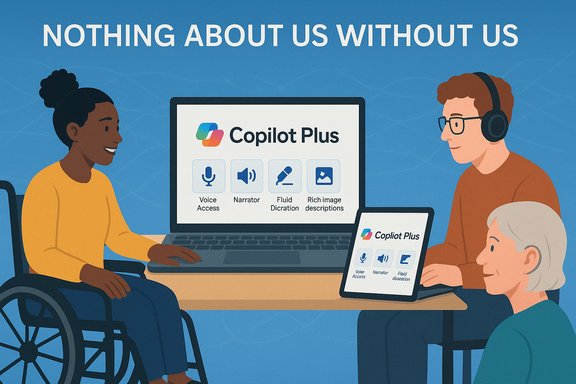
On International Day of Persons with Disabilities this year, Microsoft published a comprehensive year-in-review for Windows accessibility that consolidates a year’s worth of incremental but meaningful advances — from on-device AI dictation and expanded Voice Access language support to higher-fidelity Narrator voices, richer image descriptions, and workflow improvements in Word and Magnifier — all shaped explicitly by ongoing engagement with disability communities.
Background
The Windows Accessibility team frames its work around the principle “nothing about us, without us,” emphasizing advisory-board collaboration with blind, mobility, and hard-of-hearing communities to guide feature priorities and design decisions. That foundation matters: accessibility improvements are not cosmetic add-ons but functional necessities for many users, and Microsoft says community feedback — especially from Windows Insiders — has directly informed design choices and quality priorities this year.Over the past twelve months Windows accessibility evolved along two parallel axes: better assistive tooling (Narrator, Magnifier, Voice Access) and deeper AI integration that runs either in the cloud or locally on qualifying hardware (the so-called Copilot+ PC tier). The practical result is a mixed delivery model: many features are available broadly but reach their lowest-latency, privacy-first experience when executed on Copilot+ hardware that includes dedicated neural processing capability. Independent reporting and Microsoft documentation confirm this two-tier pattern.
What changed this year — a concise recap
- Fluid Dictation: on-device, AI-powered dictation mode that corrects punctuation, grammar, and filler words in real time. Available on Copilot+ PCs and in Voice Typing for Insiders.
- Voice Access refinements: new “wait time before acting” setting, custom vocabulary/dictionary, expanded natural command recognition, improved recognition for atypical speech patterns (including Parkinson’s-related speech), and support for Chinese and Japanese.
- Narrator & Magnifier: HD natural-sounding voices via on-device neural TTS, richer image descriptions powered by on-device AI on Copilot+ PCs, Speech Recap with live transcription and copy-last-speech shortcuts, Screen Curtain privacy toggle, and structured improvements for reading Word documents (tables, footnotes, comments, proofs).
- Reliability and fundamentals: focused bug fixes, scan-mode efficiency, Braille viewer updates, and keyboard shortcut polish to reduce friction in long sessions.
Fluid Dictation: what it is and why it matters
What Microsoft shipped
Fluid Dictation is a mode inside Voice Access that attempts to deliver near–what-you-say–is–what-you-get text by performing grammar, punctuation, and filler-word cleanup in real time. It draws on on-device small language models (SLMs) when available, which Microsoft positions as faster and more private than cloud-only dictation. The feature is enabled by default on Copilot+ PCs and works across first- and third-party text entry surfaces (excluding secure fields such as password inputs). It is also available to Windows Insiders via Voice Typing (Win + H).Why this is significant
Dictation that reduces post-hoc editing is a major productivity boost for users who rely on voice for text entry, including people with motor disabilities or repetitive-strain limitations. Real-time punctuation and grammar correction reduce cognitive load and the friction of switching between voice and keyboard to fix errors. On-device execution further offers privacy and responsiveness benefits when hardware supports SLM inference locally.Caveats to test and watch
- Hardware gating: the most capable Fluid Dictation experience is tied to Copilot+ PCs (devices with NPUs). Users on standard Windows 11 devices may still get functionality but with cloud-dependent processing and higher latency.
- Language and locale coverage: early releases have been English-centric for Fluid Dictation; Microsoft documents and community reporting indicate expanded language support is being rolled out incrementally. Confirm availability for your locale before planning deployments.
Voice Access: polishing voice control into a spectrum
More natural commanding and timing control
Voice Access has moved beyond rigid phrase-matching to understanding a wider range of natural language commands: variations like “Can you open Edge application,” “Switch to Microsoft Edge,” and “Please open the Edge browser” now map to the same intent. That flexibility reduces the training burden for users and improves discoverability of tasks. In addition, the Wait time before acting setting lets people control the delay between spoken commands and execution — essential for users with slower speech patterns or those who pause naturally while forming commands.Custom vocabulary and speech-pattern recognition
The ability to add custom words to Voice Access’s vocabulary improves recognition of proper names, technical terms, and culturally specific words, increasing dictation accuracy. Microsoft also reports improved recognition for atypical speech patterns, such as those associated with Parkinson’s, which reduces errors and makes the feature more reliable for users across the speech-disability spectrum. These are foundational improvements that directly affect day-to-day usability.Expanded language support
Voice Access added support for Chinese and Japanese this year, broadening reach for non-English users and reflecting Microsoft’s push to internationalize voice accessibility. The rollout of additional languages remains staged; enterprises and global users should verify support for the exact language variant they require.Narrator and Magnifier: more human voices and richer content descriptions
HD, expressive TTS voices
Narrator and Magnifier now include HD natural-sounding voices that use on-device neural TTS models to reduce listening fatigue and provide more natural pauses, emphasis, and prosody. Early preview builds surfaced downloadable persona voices (e.g., labeled Andrew and Ava) and promised reduced cognitive load for screen-reader users during long-form reading. Expect a slightly larger disk footprint for HD voice models, and initial availability has been regionally limited in preview builds.Rich image descriptions and contextual OCR
On Copilot+ PCs, Narrator offers richer, contextual image descriptions (press Narrator key + Ctrl + D) that detail people, objects, colors, text, and numbers — moving beyond terse alt text into descriptive, useful narrations for complex images, charts, and graphs. This improves access to visual information without requiring image authors to add manual alt text, though human-authored metadata remains the gold standard for accuracy-sensitive contexts.Speech Recap and live transcription
Narrator’s Speech Recap can show the last 500 spoken strings, supports live transcription, and exposes shortcuts to re-hear or copy the last phrase. That feature is especially useful for Assistive Technology trainers, educators, and professionals who need a textual record of Narrator output for review or training. Keyboard shortcuts (for example Narrator key + Alt + X for Speech Recap) make the flow efficient without more UI friction.Better Word reading, comments, and proofing
Microsoft reports smoother Narrator behavior inside Microsoft Word, with improved navigation of tables, footnotes, comments, and clearer spelling/grammar announcements. This matters for productivity workflows — reading and editing long documents becomes less disruptive and more reliable when screen reader announcements are concise and consistent. Copilot interactions with Narrator were also refined to reduce awkwardness when AI assistants speak or change UI context mid-read.The Copilot+ distinction: on-device AI, privacy, and performance trade-offs
What Copilot+ means
Microsoft’s Copilot+ PC tier is defined by hardware capable of local AI inference — typically dedicated NPUs and support for on-device SLMs and neural TTS. When features are executed locally the company emphasizes lower latency, enhanced privacy (less telemetry leaving the device), and offline capability. Many of the newest accessibility features deliver their best experience on Copilot+ hardware.Benefits
- Lower latency for real-time tasks like fluid dictation.
- Stronger privacy guarantees for sensitive dictation and screen-reading scenarios when work remains on-device.
- Offline availability for critical assistive flows when internet is unavailable.
Risks and fragmentation
Tying premium experiences to specialized hardware creates a split user experience. Not every user who relies on assistive technologies can (or should be expected to) upgrade hardware to a Copilot+ PC. This introduces variability in performance and capability across the installed base, which affects both individual users and IT deployment strategies. It also shifts the onus to Microsoft and OEMs to provide clear compatibility guidance, graceful fallbacks, and consistent QA across device classes. Independent reporting and documentation confirm that Microsoft is using Controlled Feature Rollouts and staged gating to manage this complexity.Strengths: where Microsoft made the right bets
- User-centered process: The explicit embrace of the “nothing about us, without us” principle and advisory-board consultations is a structural strength that increases the chance new features meet real needs rather than speculative design preferences.
- On-device AI for privacy-sensitive flows: Using SLMs and on-device TTS for dictation and Narrator reduces cloud dependence for the most time-sensitive and privacy-sensitive tasks. This is a durable architectural choice.
- Incremental reliability work: Fixing scan mode behavior, adding Speech Recap, and improving Word navigation address long-standing pain points that impact daily productivity for assistive-technology users.
- Language expansions and custom vocab: Extending Voice Access beyond English and allowing personal vocabularies are tangible wins for global and domain-specific accessibility.
Risks, limits, and open questions
- Hardware gating and equity: The best experiences require Copilot+ NPUs. That creates equity concerns: economically disadvantaged users and institutions may not access full capabilities. Planned rollouts must be accompanied by clear fallbacks and timelines for broader availability.
- Staged rollouts cause fragmentation: Because Microsoft often ships binaries with features gated behind server flags and CFR (Controlled Feature Rollout), organizations and users see inconsistent behavior across devices. That complicates testing and support in enterprise and educational environments.
- Model behavior and hallucination risk: On-device SLMs reduce cloud exposure, but any generative cleanup (rewriting, grammar correction) can introduce unexpected edits or remove user-intended phrasing. Users who require verbatim transcription for legal or medical reasons should validate accuracy before adopting fluid dictation as a primary workflow. This kind of behavioral risk must be surfaced in product documentation and settings (e.g., toggle options to disable on-the-fly rewriting).
- Dependency on vendor models for images: Rich image descriptions driven by AI expand access but can be inconsistent with human-authored alt text. Automatic descriptions must offer clear ways to expose uncertainty, let users request more detail, and allow content creators to provide corrections.
Practical guidance — how to try, test, and configure these features
For end users (quick steps)
- Enable Voice Access: Settings → Accessibility → Speech → Voice Access.
- Try Fluid Dictation: within Voice Access open the settings flyout and toggle Fluid Dictation; or press Windows + H for Voice Typing in Insider builds.
- Add custom vocabulary: while in Voice Access use the “Add to Vocabulary” command or go to Voice Access settings → Add to vocabulary to add names and technical terms.
- Try Narrator Speech Recap: enable Narrator and press Narrator key + Alt + X to view the last 500 spoken strings or copy the last phrase with Narrator key + Ctrl + X.
- Explore HD voices: Settings → Accessibility → Narrator (or Magnifier) → Add a natural voice; download HD voice models for a more natural read‑aloud.
For IT administrators and pilots
- Perform device inventory for NPU capability and classify which endpoints qualify as Copilot+. Expect differences in behavior between Copilot+ and non-Copilot devices.
- Use Controlled Feature Rollout awareness: validate features on representative hardware and user personas before broad deployment. Plan rollback and support documentation for staged feature visibility.
- Consider privacy policy updates: if you enable on-device AI features or cloud fallbacks, document where user data may traverse and obtain consent for any telemetry beyond standard diagnostics.
What to watch next
- Language parity: broader language rollouts for Fluid Dictation and HD voices beyond early English locales.
- Enterprise controls: policy and management hooks that let administrators enable/disable Copilot+ local inference features and define data-handling boundaries.
- Assistive accuracy benchmarks: independent audits or published metrics showing improvements in recognition for speech-impairment patterns, math-reading comprehensiveness, and image-description precision. The industry needs verifiable benchmarks rather than purely anecdotal evidence.
Conclusion
Microsoft’s 2025 accessibility recap details a steady, pragmatic advance: smarter dictation, more forgiving voice control, richer narration, and practical reliability work — all increasingly shaped by on-device AI and the Copilot+ hardware tier. For people who rely on assistive technology, these changes reduce friction in everyday tasks and demonstrate a mature approach to inclusive design driven by community engagement.At the same time, the path forward raises real operational and equity questions. Hardware-gated experiences and staged rollouts create variability that organizations and individual users must manage. Accuracy expectations for generative cleanup and image descriptions must be explicitly managed, especially in legal, educational, and professional contexts where verbatim accuracy and provenance matter.
The pragmatic recommendation for users and IT teams is to pilot these features now, validate them against real workflows and populations you support, and keep a close eye on Microsoft’s rollout notes and management controls so you can balance improved accessibility with predictable, auditable outcomes. Microsoft’s investment in community-driven design and on-device AI is a significant step; the next challenge is ensuring those gains are accessible, verifiable, and equitable across the diverse set of Windows users who depend on them.
Source: Windows Blog 2025 – A year in recap – Windows Accessibility
