

The days of hunting through ad‑ridden search results for sketchy .exe installers are, for most Windows users, largely behind us — but where and how you download apps in 2025 still matters for both speed and security. Microsoft’s Store has matured into a legitimate first stop (now offering curated multi‑app packs), package managers like winget provide reproducible, scriptable installs, and middle‑ground services such as Ninite and GUI front‑ends (Winstall) keep the convenience while reducing risk. This article breaks down the safest, fastest routes to get Windows software in 2025, validates the technical details you need to trust those routes, and gives practical, step‑by‑step guidance and checklists you can use today.
Windows software distribution has become increasingly centralized along three main vectors in 2025:
Checklist for safe developer downloads:
This is not a time for complacency: the convenience of one‑click bundles and single‑launcher flows still demands good endpoint controls and verification practices. Follow the checklist above, adopt a manifest‑driven approach for repeatability, and treat any downloaded binary — even a small Store launcher — as code that requires governance. The result is a Windows software library that is fast to assemble, simple to maintain, and significantly safer than the wild west of the past.
Source: gadgetbridge.com How and Where to Download Windows Apps in 2025
 Background / Overview
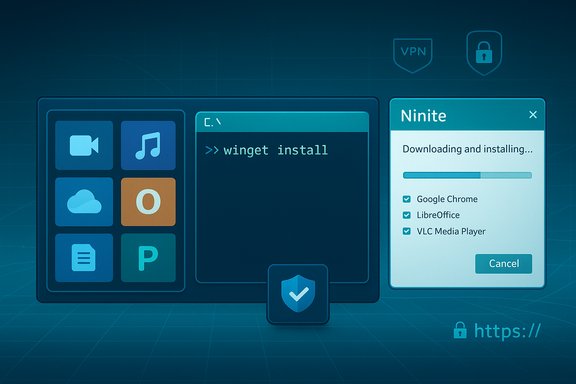
Windows software distribution has become increasingly centralized along three main vectors in 2025:- The Microsoft Store — now supporting Win32 apps and offering a web‑based multi‑app install workflow that generates a small launcher .exe which hands off installs to the Store app.
- Windows Package Manager (winget) — the command‑line, manifest driven package manager from Microsoft, suitable for automation, bulk installs and enterprise workflows.
- Repository aggregators / bundlers — services like Ninite that create single, silent installers which fetch and install vendor installers from publisher sources.
The Modern Microsoft Store: safer, faster, curated
What changed and why it matters
The Microsoft Store is no longer just UWP/mobile‑app territory. Over the past few years Microsoft widened support for Win32 apps and improved Store backend performance. A major convenience introduced in 2025 is a web-based “Multi‑app install” feature: in your browser you can tick a curated list of mainstream apps, click “Install Selected,” download a tiny launcher .exe, run it, and the Microsoft Store app on the PC downloads and installs every selected title automatically. That launcher is an orchestration pointer — not a massive bundle of installers. Because the Store performs the downloads, installs originate from Microsoft’s validated delivery channels rather than a third‑party server. This matters for two reasons: first, the Store’s vetting reduces the risk of counterfeit or repackaged installers; second, the “one‑run” approach compresses the time it takes to provision a fresh machine. For casual users and many home‑office setups, it’s now the fastest, safest default.Limits and governance caveats
The Store’s multi‑app page is curated — it doesn’t yet expose the entire Store catalog. Early rollouts listed a few dozen mainstream apps (examples observed include Spotify, Discord, Telegram, Adobe Reader and Canva), and there are selection caps per bundle to keep the process manageable. Enterprises and power users should note two gaps:- The generated launcher is a binary artifact with no human‑readable manifest to version‑control or audit; that reduces transparency for regulated environments.
- The workflow depends on a functional Microsoft Store on the device (and in many cases a signed‑in Microsoft account), so air‑gapped or tightly locked machines may be unable to use it.
Winget: the power user and enterprise staple
What winget does (and what it supports)
Winget (Windows Package Manager) is Microsoft’s command‑line package manager built for discoverability, scripting, auditing and automation. It is distributed as part of the App Installer and is effectively standard on modern Windows 11 systems and supported Windows 10 builds; it supports a wide range of installer types (EXE, MSI, MSIX, APPX, ZIP, portable formats, and more). Winget lets you search, install, upgrade, remove and export/import package lists — making it ideal for reproducible day‑one setups and enterprise provisioning. Key technical details validated from Microsoft’s documentation:- Winget is included in the App Installer and available on Windows 10 (1809+) and Windows 11; if it’s missing you can register or install App Installer to restore it.
- Winget supports MSIX and Microsoft Store packaged apps but some download operations for Store‑packaged apps require Entra (Azure AD) authentication when performing offline download operations. The winget download command supports a full set of options for architectures, installer types and download directories.
Practical winget examples
- Search for an app:
- winget search vscode
- Install an app by name:
- winget install VisualStudioCode
- Install multiple apps from a manifest (repeatable day‑one script):
- winget import my‑pc‑apps.yaml
- Download installers for offline provisioning:
- winget download --id <packageId> --download-directory C:\Installers
Bulk installers: Ninite, Winstall and the middle ground
Why they still matter
Not everyone wants to wrestle with the command line, but nobody enjoys clicking “Next” a dozen times. That’s the space Ninite, Winstall, and similar tools fill: they let you pick a list of common free utilities in a GUI and produce a single installer that automatically downloads and installs the chosen apps without toolbars or extra offers. Ninite fetches publisher installers at runtime, validates signatures or hashes, and automates the installer dialogs to keep the process silent and clean. Winstall is effectively a GUI front‑end for winget: it produces ready‑to‑run scripts or batch commands from a web‑based selection of winget package IDs. That gives you the convenience of a checkbox UI while keeping the underlying mechanism scriptable and transparent (the script contains explicit winget commands you can audit before running).When to use each
- Use Microsoft Store multi‑app packs for consumer provisioning when the apps you need are present in the curated grid.
- Use Ninite for fast, offline‑friendly installs of common free utilities when you prefer a single GUI download and don’t require enterprise auditing.
- Use Winstall when you want GUI convenience but also want the transparency and reproducibility of winget scripts.
- Use winget for enterprise, scripted, or auditable installs and for private repositories.
Direct developer downloads: when you must, and how to do it safely
Sometimes the app you need isn’t in the Store or a package repository. In that case direct downloads from the developer remain necessary. That route requires the most scrutiny.Checklist for safe developer downloads:
- Verify the URL carefully (domain typos and look‑alikes are common).
- Prefer vendor pages on known domains (official vendor site or verified GitHub releases).
- Check the file type: expect .msi, .msix, .msixbundle, .exe or signed installers. Be extremely cautious with unexpected script files (.js, .vbs) masquerading as installers.
- Validate digital signatures or checksum hashes when provided (compare SHA256 / SHA512 values published on the vendor page).
- Scan the downloaded file locally using Windows Defender / your EDR and, if needed, an offline hash check against published hashes.
- When possible, download from HTTPS endpoints and avoid downloaded "helper" launchers that may redirect you to adware.
Installer formats: .msi, .msix, .exe — what to prefer
- MSIX: Modern, containerized packaging format that provides cleaner installs/uninstalls, differential updates and better isolation. Ideal for modern app delivery where supported; MSIX packages are signed and can be published via the Microsoft Store or other distribution channels. MSIX reduces leftover registry/files compared with MSI and supports delta updates.
- MSI: Established enterprise installer format with robust features for deployment, transforms, and Group Policy integration. MSIs can support administrative installs and are still widely used in enterprise distributions. However, MSIs can leave more “residue” after uninstallation compared with MSIX.
- EXE: Catch‑all wrapper; behavior varies widely. Use vendor‑signed EXEs and validate signatures and checksums. Avoid unknown EXE downloaders from ad‑driven sites.
Secure your network before downloading: VPNs, public Wi‑Fi and TLS caveats
Before building your software library on a public network (coffee shop, co‑working space), secure the network layer:- Use a reputable VPN client to encrypt traffic and hide your local network presence from peers and potential man‑in‑the‑middle attackers.
- Ensure the VPN uses modern TLS and ephemeral keying (IKEv2, WireGuard are good options).
- Confirm that the download endpoint uses HTTPS and that the certificate chain is valid before trusting an installer download.
- For enterprise or regulated work, use company VPNs and ensure traffic to Store and winget sources is allowed and inspected via secure egress policies.
Managing your software ecosystem: updates, ghost files, and clean uninstalls
Installing apps is only the first step — maintainability and system hygiene is ongoing.- Prefer Store or MSIX installs for cleaner uninstall behavior; MSIX aims to remove all artifacts on uninstall while MSI and EXE installs can leave registry keys and residual files.
- Use winget to perform bulk upgrades:
- winget upgrade --all
- Periodically audit autorun and background services to trim resource creep after adding utilities.
- When Windows’ “Add or remove programs” leaves leftovers, use vendor uninstallers or specialized removal tools recommended by the vendor; for stubborn traces, tools like the Microsoft Install/Uninstall Troubleshooter or vendor cleanup utilities can help. Be cautious: registry edits are powerful but can destabilize the system if done incorrectly.
Practical, step‑by‑step workflows
Fast, safe consumer setup (recommended order)
- Connect to a trusted network and enable a VPN if on public Wi‑Fi.
- Check the Microsoft Store multi‑app grid for the apps you need; if covered, build a pack in the browser and download the launcher .exe. Run it to have Store install the apps. This is the least risky consumer path.
- For any missing titles, use winget or Winstall to install via winget (audit the generated script first).
- If a title is not in any repository, download it from the official vendor site, verify its signature/hash, scan locally, then install.
Automated power‑user / IT provisioning (scripted)
- Create a winget configuration or YAML manifest with the exact package IDs you want.
- Store the manifest in version control.
- On a new machine: winget import my‑manifest.yaml
- Schedule periodic winget upgrade --all or integrate into endpoint management (Intune / ConfigMgr).
Quick GUI bulk for non‑technical users
- Use Ninite: pick apps, download the single installer, run it. It fetches the latest publisher installers and installs silently. Use Ninite Pro or their Intune integrations for small business fleets.
Enterprise and governance considerations
- For fleets, prefer winget manifests and Microsoft Intune / ConfigMgr for auditable, policy‑driven deployments.
- Treat any generated launcher binary (including Store multi‑app launchers) as code: scan it, control its execution via AppLocker or Windows Defender Application Control (WDAC), and log its use.
- Winget’s manifest model offers versioning and private repositories ideal for regulated environments; the Store pack is currently a consumer convenience and lacks manifest transparency. Enterprises should reserve the Store pack for unmanaged devices only.
Summary Checklist — a practical hierarchy for 2025
- Check the Microsoft Store first for mainstream apps and consider the web‑based multi‑app pack for fast, safe provisioning when the apps you need are present.
- Use winget for scripted, repeatable, auditable installs and enterprise provisioning; it supports MSIX/MSI/EXE and many installer types.
- Use Ninite or Winstall when you want GUI convenience and single‑file installers without manual prompts.
- Download directly from developers only when necessary; always verify domain, signature, and published checksums before running any installer.
- Keep software updated and remove unused apps cleanly (prefer MSIX for cleaner uninstalls where possible).
Risks and what to watch for
- The Store multi‑app launcher is a new executable artifact — treat it like any downloaded binary and subject it to the same enterprise controls. This is especially relevant for environments that require auditable manifests and provenance.
- Catalog coverage for Store packs is curated and incomplete; don’t assume parity with the full Store. If you depend on niche apps, plan a fallback via winget or direct downloads.
- Legacy installers and archived software can be functional but may carry unpatched vulnerabilities; verify, test in a sandbox, and isolate legacy machines from sensitive networks.
Final verdict
By 2025 the Windows app‑distribution landscape is both safer and more flexible than it was a decade ago. The Microsoft Store’s evolution — and its new multi‑app install convenience — provides a practical, low‑risk first stop for mainstream apps. Winget remains the backbone for repeatable, auditable installs and enterprise provisioning. Ninite and Winstall keep the middle ground approachable for non‑technical users. The best practice is a layered approach: prefer the Store when possible, use winget for automation and governance, and reserve direct downloads for niche cases — always combined with signature/hash verification and sensible network security (VPN and TLS checks).This is not a time for complacency: the convenience of one‑click bundles and single‑launcher flows still demands good endpoint controls and verification practices. Follow the checklist above, adopt a manifest‑driven approach for repeatability, and treat any downloaded binary — even a small Store launcher — as code that requires governance. The result is a Windows software library that is fast to assemble, simple to maintain, and significantly safer than the wild west of the past.
Source: gadgetbridge.com How and Where to Download Windows Apps in 2025
