

Microsoft’s Remote Desktop transition has reached a tipping point, and the message from Redmond is now unmistakable: the old clients are being retired, and the Windows App is the intended successor. For most users, that does not mean remote access is disappearing; it means the experience is being folded into a broader, more unified client that spans Windows 365, Azure Virtual Desktop, Microsoft Dev Box, remote PCs, and Remote Desktop Services. The real story is not just a rebrand, but a deliberate platform shift that changes how Microsoft wants people to think about Windows access in a cloud-first era.
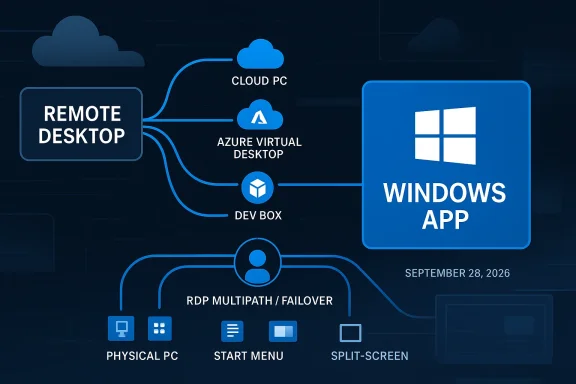
The timing matters. As of March 27, 2026, Microsoft says the Remote Desktop client for Windows (MSI) and the Remote Desktop web client are no longer supported for public cloud environments, while the Store-based Remote Desktop app had already been retired earlier. Azure Government and Azure operated by 21Vianet get a longer runway until September 28, 2026, but the direction of travel is the same: migrate to Windows App now, or risk being stranded later. (learn.microsoft.com)
The Remote Desktop story has always been more fragmented than many users realized. There was the standalone MSI client for Windows, the Microsoft Store app, the web client, and platform-specific clients on macOS, iOS, Android, and the web. Over time, Microsoft began consolidating those experiences into a single, branded Windows App, but the transition happened in stages rather than all at once. That slow rollout created a lot of confusion, especially for administrators who had standardized on specific clients, connection types, or automation workflows.
The company’s recent documentation makes the consolidation explicit. Microsoft’s support matrix now frames Windows App as the replacement path for remote access scenarios across multiple devices and connection types, while the older clients are either retired or in the process of reaching end of support. The Windows App also keeps expanding feature coverage, with new capabilities appearing on a steady cadence in Microsoft Learn’s changelog. (learn.microsoft.com)
The pivot is also part of a broader product strategy. Microsoft has spent years moving from a “remote desktop” mindset to a “workspace” mindset, where the user is not merely connecting to a computer, but to a managed environment with identity, policy, device redirection, and cloud-backed session orchestration. That distinction sounds subtle, but it matters. It gives Microsoft a way to position Windows App as more than a utility and instead as the front door to cloud-hosted Windows services.
There is also a naming problem baked into the transition. The name Windows App is broad to the point of being generic, which can make it harder to search for, easier to confuse with the operating system itself, and less intuitive than “Remote Desktop” for many users. Yet Microsoft appears willing to accept the branding friction in exchange for a unified client that can support multiple Windows access models under one umbrella. That is a tradeoff, not an accident.
The practical consequence is that IT teams now have to separate old habits from current support reality. In many environments, “Remote Desktop” still means a catch-all for accessing a machine remotely. But Microsoft’s own lifecycle notes now make clear that the old client paths are being phased out, and the transition is no longer theoretical. The migration has entered the operational phase. (learn.microsoft.com)
Microsoft has also been adding quality-of-life improvements at a steady pace. The changelog shows support for Start menu integration, Spotlight search integration, split-screen support in the web experience, clipboard-based file transfer, health checks, improved diagnostics, and better logging. Individually, those are incremental. Together, they tell a clear story: Microsoft is trying to make Windows App feel less like a bare transport layer and more like a polished work surface.
The other issue is that parity is not static. A client can be “feature complete” on paper and still lag in performance, reliability, or session restoration. Microsoft’s own updates emphasize RDP Multipath, connection failover, improved diagnostics, and in-app health checks, which suggests the company is aware that the user experience has to be more resilient than the old “connect and hope” model.
That staggered schedule is important because it reflects Microsoft’s attempt to balance modernization with operational reality. Large organizations do not flip remote access clients overnight. They have change-control windows, compliance reviews, desktop imaging cycles, application compatibility testing, and end-user support desks to consider. The company appears to be giving federal and sovereign-cloud customers more time, while pushing public-cloud customers to move first.
For administrators, the risk is not just a broken login dialog. It is the accumulation of small failures: expired auth paths, unsupported integration points, unpatched security issues, and users discovering that a workflow no longer behaves as expected. In high-volume environments, those issues are more disruptive than a simple hard stop.
That kind of sustained update cadence matters because migration resistance often comes down to small annoyances rather than major blockers. If the app is slightly slower, slightly harder to find, or slightly worse at reconnecting after sleep, users will complain loudly. Microsoft seems to understand that, which is why many of the changes focus on launch behavior, connection stability, and discoverability.
That matters especially in mixed network environments, where home broadband, VPN usage, mobile hotspots, and corporate proxies all influence session quality. Better failover and retry behavior can dramatically improve the perceived reliability of the whole platform, even if the user never knows those mechanisms are working behind the scenes.
The bigger enterprise story is that Microsoft is trying to normalize managed access through a single front end. That aligns neatly with cloud PC models, where identity, policy, and data protection are centrally governed. In that context, Windows App becomes a control point as much as a client application.
Microsoft’s own documentation acknowledges this by steering users toward migration guidance and platform-specific getting-started resources. The support matrix also makes clear that different connection types are available across different device families, with the strongest coverage in Windows App’s core target environments. (learn.microsoft.com)
That said, small organizations often benefit from a cleaner, more modern client once they get past the naming issue. They are less likely than large enterprises to have deep automation dependencies, and more likely to value ease of use, cross-device support, and quick setup. If Windows App keeps improving its discoverability and connection stability, many of those users may prefer it after the initial adjustment.
The challenge is discoverability. If users rely on search, app lists, or muscle memory, the transition can feel awkward. Microsoft has tried to soften that with Start menu and Spotlight integrations, but the searchability and naming problem is still real. The product may be better than the label suggests.
That has implications for rivals in the virtualization and endpoint management markets. A cleaner, more polished Windows App makes Microsoft’s cloud PC stack look more cohesive, which in turn strengthens the appeal of Windows 365 and Azure Virtual Desktop. The better the client experience, the easier it is to sell the service behind it.
This also helps explain why Microsoft has prioritized features like health diagnostics, failover, and clipboard transfer. Those are not just convenience items. They are the visible signs of a mature remote platform, and they help reduce the gap between a local machine and a cloud-hosted one.
The key question is whether Microsoft can close the remaining gaps fast enough for organizations that still depend on the old client’s quirks. That means support for more launch scenarios, stronger parity for advanced remote desktop workflows, and continued attention to admin-facing tooling. The company has bought itself time with phased deadlines, but the clock is already running.
Source: Windows Central Remote Desktop support is over. It's time to move to the "Windows App."
The timing matters. As of March 27, 2026, Microsoft says the Remote Desktop client for Windows (MSI) and the Remote Desktop web client are no longer supported for public cloud environments, while the Store-based Remote Desktop app had already been retired earlier. Azure Government and Azure operated by 21Vianet get a longer runway until September 28, 2026, but the direction of travel is the same: migrate to Windows App now, or risk being stranded later. (learn.microsoft.com)
 Background
The Remote Desktop story has always been more fragmented than many users realized. There was the standalone MSI client for Windows, the Microsoft Store app, the web client, and platform-specific clients on macOS, iOS, Android, and the web. Over time, Microsoft began consolidating those experiences into a single, branded Windows App, but the transition happened in stages rather than all at once. That slow rollout created a lot of confusion, especially for administrators who had standardized on specific clients, connection types, or automation workflows.The company’s recent documentation makes the consolidation explicit. Microsoft’s support matrix now frames Windows App as the replacement path for remote access scenarios across multiple devices and connection types, while the older clients are either retired or in the process of reaching end of support. The Windows App also keeps expanding feature coverage, with new capabilities appearing on a steady cadence in Microsoft Learn’s changelog. (learn.microsoft.com)
The pivot is also part of a broader product strategy. Microsoft has spent years moving from a “remote desktop” mindset to a “workspace” mindset, where the user is not merely connecting to a computer, but to a managed environment with identity, policy, device redirection, and cloud-backed session orchestration. That distinction sounds subtle, but it matters. It gives Microsoft a way to position Windows App as more than a utility and instead as the front door to cloud-hosted Windows services.
There is also a naming problem baked into the transition. The name Windows App is broad to the point of being generic, which can make it harder to search for, easier to confuse with the operating system itself, and less intuitive than “Remote Desktop” for many users. Yet Microsoft appears willing to accept the branding friction in exchange for a unified client that can support multiple Windows access models under one umbrella. That is a tradeoff, not an accident.
The practical consequence is that IT teams now have to separate old habits from current support reality. In many environments, “Remote Desktop” still means a catch-all for accessing a machine remotely. But Microsoft’s own lifecycle notes now make clear that the old client paths are being phased out, and the transition is no longer theoretical. The migration has entered the operational phase. (learn.microsoft.com)
What Changed and Why It Matters
The biggest change is not one feature; it is the packaging of features into a single client that Microsoft wants to become the default access point for Windows resources. Windows App now supports remote connections to cloud PCs, physical PCs, Azure Virtual Desktop, Microsoft Dev Box, and remote desktop-style services in a way that the older split-client model did not. That makes it more than a replacement app; it is a consolidation layer.Microsoft has also been adding quality-of-life improvements at a steady pace. The changelog shows support for Start menu integration, Spotlight search integration, split-screen support in the web experience, clipboard-based file transfer, health checks, improved diagnostics, and better logging. Individually, those are incremental. Together, they tell a clear story: Microsoft is trying to make Windows App feel less like a bare transport layer and more like a polished work surface.
Why feature parity is only part of the story
Feature parity gets discussed as if it were the finish line, but in practice it is only the baseline. For enterprise adoption, parity means the replacement app can do the essential things without breaking workflows. For users, it means the new app does not feel like a downgrade. For Microsoft, it means the company can remove legacy code paths and focus support on one modern client.The other issue is that parity is not static. A client can be “feature complete” on paper and still lag in performance, reliability, or session restoration. Microsoft’s own updates emphasize RDP Multipath, connection failover, improved diagnostics, and in-app health checks, which suggests the company is aware that the user experience has to be more resilient than the old “connect and hope” model.
- Unified access reduces tool sprawl.
- Better diagnostics help support teams isolate failures faster.
- Health checks can catch issues before users report them.
- File transfer and clipboard improvements make the client more usable day to day.
- Search and Start menu integration make remote resources feel native.
- Split-screen web support improves multitasking on smaller or shared screens.
- Continuous feature updates indicate the product is still actively evolving.
The Retirement Timeline
Microsoft’s lifecycle messaging is unusually direct here. The Store-based Remote Desktop app for Windows lost support earlier, while the Remote Desktop client for Windows (MSI) and the Remote Desktop web client hit end of support for public cloud environments on March 27, 2026. Azure Government and Azure operated by 21Vianet are still on a delayed timeline, with support extended to September 28, 2026 for the MSI client. (learn.microsoft.com)That staggered schedule is important because it reflects Microsoft’s attempt to balance modernization with operational reality. Large organizations do not flip remote access clients overnight. They have change-control windows, compliance reviews, desktop imaging cycles, application compatibility testing, and end-user support desks to consider. The company appears to be giving federal and sovereign-cloud customers more time, while pushing public-cloud customers to move first.
What “end of support” actually means
End of support does not always mean immediate failure, and that distinction matters. In many Microsoft lifecycle events, clients may continue to function for some period, but they stop receiving security updates, bug fixes, and official support guarantees. That is a dangerous place for remote access software to live, because remote connectivity is foundational infrastructure, not optional software.For administrators, the risk is not just a broken login dialog. It is the accumulation of small failures: expired auth paths, unsupported integration points, unpatched security issues, and users discovering that a workflow no longer behaves as expected. In high-volume environments, those issues are more disruptive than a simple hard stop.
- Public cloud customers are already at the deadline.
- Government and sovereign cloud customers have extra time but should not delay.
- Store app users should already have moved on.
- Web client users need to validate any dependency on legacy access paths.
- Automation-heavy environments should test for CLI and file-association gaps.
Windows App Feature Growth
One reason this transition is less disruptive than it might have been two years ago is that Windows App has been getting noticeably better. The release notes show a product that is no longer merely replacing a deprecated client; it is accumulating the sort of polish and connective tissue that users expect from a modern productivity tool. Microsoft has added support for Start menu integration, Spotlight improvements, clipboard-based file transfer, split-screen support, auto logoff, and a variety of reliability and accessibility fixes. (learn.microsoft.com)That kind of sustained update cadence matters because migration resistance often comes down to small annoyances rather than major blockers. If the app is slightly slower, slightly harder to find, or slightly worse at reconnecting after sleep, users will complain loudly. Microsoft seems to understand that, which is why many of the changes focus on launch behavior, connection stability, and discoverability.
The reliability layer is the real upgrade
The most important changes may be the least visible. RDP Multipath support, connection failover, improved diagnostics, and health checks are not headline-grabbing features, but they are exactly what enterprise customers care about. Remote access is only as good as the quality of the network path and the client’s ability to recover when conditions change.That matters especially in mixed network environments, where home broadband, VPN usage, mobile hotspots, and corporate proxies all influence session quality. Better failover and retry behavior can dramatically improve the perceived reliability of the whole platform, even if the user never knows those mechanisms are working behind the scenes.
- Better startup behavior reduces friction at sign-in.
- Improved logging helps IT support diagnose connection issues.
- Health checks can shorten troubleshooting cycles.
- Proxy-related fixes are critical in enterprise networks.
- Clipboard and file transfer improvements make remote work more fluid.
- Accessibility updates broaden usability.
- Search and launcher integrations help the app feel native.
Enterprise Impact
For enterprises, the shift to Windows App is about more than clicking a new icon. It affects identity flows, device management, session launch methods, endpoint policy, and in some cases automation scripts that were built around the old client behavior. A hospital environment, for instance, may depend on CLI-based launches, file associations, or SSO chains that are easy to overlook until they break. That is why migration planning has to begin with workflow mapping, not just app deployment.The bigger enterprise story is that Microsoft is trying to normalize managed access through a single front end. That aligns neatly with cloud PC models, where identity, policy, and data protection are centrally governed. In that context, Windows App becomes a control point as much as a client application.
IT admins will feel the change first
Administrators are the first audience to experience the consequences of retirement because they manage the deployment pipeline. They need to confirm that Windows App supports the connection types, authentication methods, proxy configurations, and device policies their organization actually uses. If a remote desktop workflow is embedded in scripts, kiosk setups, or onboarding processes, the replacement can be more complex than a simple app swap.Microsoft’s own documentation acknowledges this by steering users toward migration guidance and platform-specific getting-started resources. The support matrix also makes clear that different connection types are available across different device families, with the strongest coverage in Windows App’s core target environments. (learn.microsoft.com)
- Azure Virtual Desktop remains the cleanest fit for Windows App.
- Windows 365 and Dev Box are central use cases.
- Remote PC access remains part of the story.
- Remote Desktop Services support is broader on non-Windows platforms than on Windows.
- Automation workflows may need testing before the deadline.
- Policy-managed environments should verify Intune and MAM behavior.
- Shared device scenarios require special attention to sign-out and logoff behavior.
Consumer and Small Business Impact
Consumers and small businesses are in a different position. They may not care about Azure Virtual Desktop or Dev Box, but they do care about the simple promise of reaching a home or office PC from elsewhere. For them, the Windows App branding is less intuitive, and that could slow adoption even if the software works well. The name sounds abstract, while “Remote Desktop” said exactly what it did.That said, small organizations often benefit from a cleaner, more modern client once they get past the naming issue. They are less likely than large enterprises to have deep automation dependencies, and more likely to value ease of use, cross-device support, and quick setup. If Windows App keeps improving its discoverability and connection stability, many of those users may prefer it after the initial adjustment.
A simpler front door, once people find it
The strongest consumer benefit is consolidation. One app can now handle multiple Windows connection types and multiple device families without making users hunt through separate tools for different access modes. That is especially useful for people who switch between a home PC, a work Cloud PC, and a mobile device.The challenge is discoverability. If users rely on search, app lists, or muscle memory, the transition can feel awkward. Microsoft has tried to soften that with Start menu and Spotlight integrations, but the searchability and naming problem is still real. The product may be better than the label suggests.
- Fewer apps to manage simplifies the user experience.
- Cross-device access helps people move between home and work setups.
- Clipboard and file transfer reduce friction.
- Web split-screen improves multitasking on smaller displays.
- Automatic external monitor handling helps laptop users.
- Native dock and app-switching support improves macOS usability.
- Surface Mouse support on iOS shows Microsoft is paying attention to peripheral details.
Competitive Positioning
Microsoft’s move also has a competitive angle, even if it is not framed that way in the company’s own messaging. By unifying remote access under Windows App, Microsoft is competing not only with legacy remote desktop tools, but with modern cloud workspace vendors, VDI platforms, and remote support ecosystems. The app becomes part of the broader argument that Windows itself can be delivered as a service, not just installed on a local machine.That has implications for rivals in the virtualization and endpoint management markets. A cleaner, more polished Windows App makes Microsoft’s cloud PC stack look more cohesive, which in turn strengthens the appeal of Windows 365 and Azure Virtual Desktop. The better the client experience, the easier it is to sell the service behind it.
Why the client matters strategically
In enterprise software, the client is often the proof point. If the app feels clumsy, customers infer that the service behind it may also be clumsy. If the app feels fast, integrated, and reliable, the entire platform looks more credible. Microsoft seems to be investing in that experience because it affects not just user satisfaction, but also product perception.This also helps explain why Microsoft has prioritized features like health diagnostics, failover, and clipboard transfer. Those are not just convenience items. They are the visible signs of a mature remote platform, and they help reduce the gap between a local machine and a cloud-hosted one.
- Strong client UX supports cloud service adoption.
- Unified branding reinforces Microsoft’s platform story.
- Better reliability reduces churn to third-party tools.
- Integrated search and launch increase daily usage.
- Cross-device consistency strengthens the ecosystem effect.
- Admin controls deepen enterprise lock-in.
- Modern connectivity features help Microsoft compete on quality, not just compatibility.
Strengths and Opportunities
Microsoft has turned a deprecation notice into an opportunity to modernize remote Windows access, and that is not a trivial accomplishment. The company is consolidating its client surface area, improving reliability, and building a more coherent narrative around cloud-hosted Windows. If executed well, the transition could reduce support burden while improving the user experience.- One client for multiple scenarios reduces fragmentation.
- Ongoing feature releases show active investment.
- Reliability work like multipath and failover can materially improve sessions.
- Improved diagnostics should lower support costs.
- Search and launcher integration improve discoverability.
- File transfer and clipboard support make the app more practical.
- Cross-platform coverage broadens its utility across organizations.
- Cloud-first alignment strengthens Windows 365 and AVD adoption.
- Better accessibility support widens the audience.
- Shared device controls help modern enterprise deployments.
- Brand consolidation can simplify documentation and training.
- Gradual migration windows reduce operational shock.
Risks and Concerns
The biggest risk is not technical failure, but operational confusion. Microsoft has introduced multiple retirement dates, multiple client names, and multiple replacement paths, which can make even a well-planned migration feel messy. For organizations with automation, niche workflows, or strict compliance requirements, the change could expose hidden dependencies.- Brand confusion may slow user adoption.
- Automation gaps could break scripted launches or file associations.
- Feature parity claims may not cover every edge case.
- Searchability issues make the app harder to find for some users.
- Legacy workflows may rely on unsupported behaviors.
- Delayed sovereign-cloud timelines could fragment support plans.
- Perceived complexity may trigger user resistance.
- Client regressions are always possible during rapid iteration.
- Third-party integrations may need revalidation.
- Mixed-platform environments could end up with inconsistent experiences.
- Help desk load may rise during transition periods.
- User trust can be damaged if the new app feels less predictable than the old one.
Looking Ahead
The next phase will be judged less by Microsoft’s messaging and more by what happens in day-to-day use. If Windows App continues to gain features, improve launch speed, and handle connection failures gracefully, the retirement of Remote Desktop will eventually look like a sensible consolidation. If not, the transition will be remembered as a branding exercise that asked users to relearn a familiar task without enough payoff.The key question is whether Microsoft can close the remaining gaps fast enough for organizations that still depend on the old client’s quirks. That means support for more launch scenarios, stronger parity for advanced remote desktop workflows, and continued attention to admin-facing tooling. The company has bought itself time with phased deadlines, but the clock is already running.
- Feature parity needs to keep expanding.
- CLI and automation support will matter for enterprise migrations.
- Diagnostics and logging should remain a priority.
- Search and discovery must become more intuitive.
- Cross-cloud support will shape adoption in specialized environments.
- Performance refinements could determine user satisfaction.
- Documentation clarity will be as important as software updates.
Source: Windows Central Remote Desktop support is over. It's time to move to the "Windows App."
