

Microsoft’s Copilot is no longer just a chat window or an add‑on inside Office — it’s creeping into the places you use Windows every day: the taskbar and File Explorer. A recent set of demos and preview releases show Microsoft pushing Copilot deeper into Windows 11 with contextual file actions, persistent AI “agents” that can run from the taskbar, and expanded on‑device functionality for Copilot+ PCs. The changes promise real productivity upside for people who want AI to do the boring parts of their workflows, but they also raise urgent questions about clutter, trust, security, and licensing for enterprises and individuals alike.
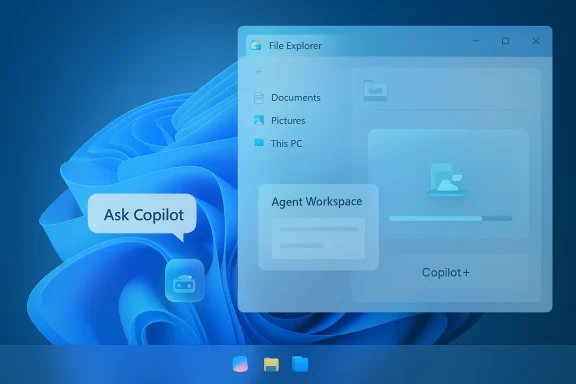
Microsoft’s current direction is to make Windows 11 an “agentic OS” — an environment where AI agents can be launched from the taskbar, run background tasks, access files and cloud data with scoped permissions, and present progress via taskbar icons and floating windows. At the same time, Copilot is being embedded into File Explorer so users can ask the assistant about a file without opening it, summarize documents, and take context‑aware actions. Those enhancements are paired with differentiated on‑device experiences for Copilot+ PCs: local model acceleration, real‑time transcription and dictation, image and screen understanding, and privacy‑oriented features that keep sensitive data on device.
These features are rolling out via preview builds and Copilot updates and are being staged for commercial Microsoft 365 customers and Copilot‑licensed users first, with broader consumer availability depending on licensing and product decisions.
There are three forces driving this push:
It’s worth stressing: not all Copilot features are local. Microsoft continues to use cloud models for heavier multimodal reasoning, long‑form generation, and cross‑tenant searches. The hybrid strategy is deliberate: local models for speed and privacy, cloud models for scale and deeper context.
What that means in plain terms:
But value only arrives when three conditions are met:
Microsoft’s move to make Windows an agentic OS is bold and technically impressive, but the next year will reveal whether that ambition results in everyday time saved — or just a new set of security and trust headaches. The features are worth watching closely; organizations that pilot them carefully and insist on strong governance will capture the upside while limiting the risks.
Source: PCMag Copilot Creeps Into File Explorer and the Taskbar on Windows 11
 Overview
Microsoft’s current direction is to make Windows 11 an “agentic OS” — an environment where AI agents can be launched from the taskbar, run background tasks, access files and cloud data with scoped permissions, and present progress via taskbar icons and floating windows. At the same time, Copilot is being embedded into File Explorer so users can ask the assistant about a file without opening it, summarize documents, and take context‑aware actions. Those enhancements are paired with differentiated on‑device experiences for Copilot+ PCs: local model acceleration, real‑time transcription and dictation, image and screen understanding, and privacy‑oriented features that keep sensitive data on device.These features are rolling out via preview builds and Copilot updates and are being staged for commercial Microsoft 365 customers and Copilot‑licensed users first, with broader consumer availability depending on licensing and product decisions.
Background: why Microsoft is pushing Copilot deeper into Windows
Microsoft’s strategy is straightforward: make AI a natural, ambient part of the OS so it reduces friction and stays in the user’s flow. Integrating Copilot into core surfaces — the taskbar, File Explorer, the text input layer — aims to eliminate context switching and let AI perform repetitive tasks, summarize content, or surface insights without forcing users to jump between apps.There are three forces driving this push:
- Platform leverage: Windows + Microsoft 365 creates a huge installed base where Microsoft can bake Copilot into everyday workflows.
- Hybrid AI model strategy: a mixture of local (on Copilot+ PCs) and cloud AI to balance latency, privacy, and capability.
- Competitive pressure: other OS and browser vendors are building assistant experiences; Microsoft wants to own the desktop assistant narrative.
What’s arriving in the taskbar: agents, Ask Copilot, and a new UX
A new entry point for AI
Microsoft has introduced an “Ask Copilot” taskbar surface that blends file search with conversational interactions and agent invocation. The idea is to let users:- Start a Copilot conversation directly from the taskbar.
- Launch purpose‑built AI agents that can run multi‑step tasks in the background.
- See an agent’s progress via taskbar badges and hover previews, and get notifications when a task completes.
Agent behavior and visibility
Key elements of the taskbar agent model include:- Background execution: agents can perform research, fetch and aggregate files, or perform administrative work while you continue other tasks.
- Taskbar presence: icons show status (working, needs attention, completed), and hovering reveals progress, making background automation observable rather than mysterious.
- Floating UIs: interactions happen in lightweight floating windows rather than full‑blown app windows, preserving desktop context.
What’s uncertain or unverified
Some early writeups described keyboard triggers — for example, pressing the “@” key in the search box to surface agent options — and showcased scripted demos where a Microsoft presenter prompted a “Researcher” agent with high‑level asks. Those specific keyboard trigger mechanics and demo transcripts vary between reports and weren’t consistently documented in official release notes at the time of reporting. Readers should treat such granular UX claims as provisional until they appear in formal release notes or the Copilot changelog.File Explorer gets Copilot: one‑click summaries and contextual actions
Inline Copilot controls next to files
Windows 11 File Explorer now exposes Copilot affordances directly next to files in certain preview channels. The experience takes two forms:- A Copilot button or “Ask Copilot” entry in context menus and the file previewer so you can request a summary or ask a question about the contents without launching the file.
- AI “actions” that operate on images and documents (for example, background blur, object removal in photos, or Office document summarization) accessible from right‑click menus or the preview pane.
When this is gated behind enterprise licensing
Initial rollouts of File Explorer Copilot features have been tied to Microsoft 365 commercial accounts and to users with paid Copilot licenses in Microsoft 365. That means many consumer Windows 11 users may not see these capabilities immediately; enterprise tenants and commercial customers are the early recipients.Practical value for end users
- Faster triage: you can learn the gist of a file without opening resource‑heavy apps.
- Contextual drafts: Copilot can use the document content as source material to draft replies or meeting notes.
- File‑centered workflows: automations tied to a file’s content (for example, flagging items for follow‑up) reduce manual copying and pasting.
Copilot+ PCs: what local acceleration adds (and what it doesn’t)
Microsoft’s Copilot+ PC initiative brings stronger on‑device AI experiences to PCs with NPUs and other accelerator hardware. Practical differences for Copilot+ hardware include:- Local inference for certain features (low latency and reduced cloud calls).
- On‑device features like improved live transcription, richer local image descriptions, and certain offline text generation or text‑in‑vision workflows.
- Enhanced “Click to Do” experiences that let users convert tables and page content into Excel or run other contextually aware tasks more quickly.
It’s worth stressing: not all Copilot features are local. Microsoft continues to use cloud models for heavier multimodal reasoning, long‑form generation, and cross‑tenant searches. The hybrid strategy is deliberate: local models for speed and privacy, cloud models for scale and deeper context.
The licensing and availability picture
- Commercial first: many of the enterprise‑grade integrations — particularly in File Explorer and SharePoint/OneDrive previewers — are rolling out to Microsoft 365 commercial customers with Copilot licensing.
- Copilot as an add‑on: Copilot remains a paid add‑on for Microsoft 365 in many commercial contexts, so organizations will need to evaluate seat counts and pilot strategies.
- Copilot+ hardware: local capabilities dependent on Copilot+ PC hardware (NPUs, specific firmware/driver support) will be available on selected OEM machines and may come bundled with different SKUs.
Adoption reality: promising but early
Microsoft has shared adoption figures that indicate sizable interest but modest paid conversion relative to the overall Microsoft 365 base. Public disclosures put paid Copilot seats in the low‑double‑digit millions range, which represents a small percentage of the hundreds of millions of commercial Microsoft 365 users.What that means in plain terms:
- Many organizations are piloting Copilot with limited user sets rather than instantly rolling it out to entire workforces.
- Microsoft still faces a conversion challenge: turning curiosity and usage into paid seats and sustained daily habits.
- The rollout strategy reflects this reality: experiment with deep integrations in ways that add clear, measurable productivity value — while keeping enterprise controls in mind.
Strengths: where deeper Copilot integration could actually help
- Flow preservation: embedding Copilot in the taskbar and File Explorer reduces app switching and keeps users in the context of their work.
- Contextual intelligence: file‑aware prompts let the assistant reason over a document’s content, producing more relevant outputs than a generic chat.
- Hybrid privacy model: Copilot+ on‑device features and sandboxed agent workspaces aim to reduce unnecessary cloud transfers for sensitive operations.
- Platform scale: Microsoft can iterate across the desktop, Office apps, and cloud services to create end‑to‑end use cases (meeting recaps to email drafts to follow‑up tasks).
Risks and tradeoffs: privacy, trust, and the cost of being always‑on
Privacy and data exposure
- Scoped access is necessary but not sufficient: even with sandboxed agent workspaces and scoped permissions, agents that search files and connective sources increase the possible vectors for accidental data leakage unless policies and telemetry are strictly controlled.
- On device ≠ safe by default: Copilot+ PCs promise local processing for some features, but hybrid flows will still route data to cloud models in many cases — administrators need clear visibility into which workloads are local vs cloud.
- Recall and screenshotting concerns: features that snapshot user activity (even if opt‑in) amplify insider risk profiles; retention policies, access controls, and delete/pausing mechanisms must be transparent and configurable.
Accuracy and hallucination risk
AI assistants can invent plausible but incorrect information. When Copilot is summarizing documents or making claims on behalf of an agent that performs multi‑step research, the downstream cost of an incorrect summary can be high. Enterprises must build human‑in‑the‑loop review and citation checks into critical workflows.UI clutter and cognitive overload
- Opt‑in helps, but default settings matter. If taskbar agents and File Explorer buttons are on by default, many users may feel the OS is pushing unwanted services into the foreground.
- Notifications and background agents can become a source of distraction if not throttled. A well‑designed backoff and notification policy is essential.
Security, compliance and auditability
- New execution contexts and agent workspaces create new forensic surfaces. Security teams will require logs, tamper‑proof auditing, and a clear chain of custody for agent actions.
- Legal and compliance teams will want explicit guarantees about where data was processed (on device vs cloud), retention policies, and the ability to revoke agent permissions retroactively.
Cost and ROI
- Copilot seats are an incremental license cost; early adoption figures show paid conversion is not yet universal. Organizations will need to measure time saved vs license and hardware upgrade costs.
- Hardware requirements for Copilot+ features — NPUs, updated firmware, OEM support — can make a full rollout materially expensive if IT leaders want the on‑device benefits.
Guidance: what IT teams and power users should do next
- Inventory and pilot:
- Identify high‑value user groups (research teams, legal, product) where Copilot can reduce repetitive work.
- Pilot Copilot features in controlled settings and measure time savings and error rates.
- Policy and governance:
- Define clear permission scopes for agents and set default opt‑out policies for sensitive data stores.
- Require Windows Hello or equivalent for access to any stored snapshots or Recall timelines.
- Training and literacy:
- Teach users to verify Copilot outputs, request sources, and treat summaries as first drafts — not final authority.
- Create templates and guardrails for prompts used in critical workflows to reduce hallucination and variability.
- Logging and auditing:
- Ensure agent actions are logged with contextual metadata and that logs are retained for incident response and compliance reviews.
- Work with vendors to obtain visibility into model routing (local vs cloud) for regulated workloads.
- Licensing and procurement:
- Evaluate Copilot seat usage against business cases; start with a percentage of knowledge workers and scale based on measurable outcomes.
- Consider Copilot+ hardware only where latency, privacy, or offline capability is a material business requirement.
The product and cultural questions Microsoft must answer
Microsoft faces a balancing act between ambition and restraint. Embedding AI into the OS yields powerful productivity narratives, but it also risks alienating users and admins if it feels invasive or unreliable.- Which features should be on by default versus opt‑in? Defaults matter more than bright‑line feature announcements.
- How will Microsoft demonstrate trustworthiness? Auditability, citation of sources, and human‑review workflows will be decisive for enterprise buy‑in.
- When will Microsoft simplify the user experience so agents are useful without being overwhelming? Clear affordances, throttling, and management controls will determine whether users embrace or disable these features.
Final analysis: meaningful potential — with a big asterisk
Embedding Copilot in the taskbar and File Explorer is an important step toward making AI genuinely useful at the desktop level. When the assistant can act on a file without opening it, summarize a long doc in seconds, or run a background agent that fetches and aggregates information, the productivity upside is real.But value only arrives when three conditions are met:
- Trust: outputs must be auditable, source‑backed, and easy to verify.
- Control: IT and users must be able to limit what agents can access and opt out cleanly.
- Measurable ROI: organizations need clear before/after metrics showing time saved and errors reduced, so Copilot becomes a business case rather than a nice‑to‑have.
Microsoft’s move to make Windows an agentic OS is bold and technically impressive, but the next year will reveal whether that ambition results in everyday time saved — or just a new set of security and trust headaches. The features are worth watching closely; organizations that pilot them carefully and insist on strong governance will capture the upside while limiting the risks.
Source: PCMag Copilot Creeps Into File Explorer and the Taskbar on Windows 11
