

Microsoft’s push to fold generative AI into the Windows desktop has given us one of the most polarizing features in recent Windows history: Copilot — a capable assistant that many users find useful but frustratingly slow, while updates intended to stabilize Windows have occasionally undone its presence entirely. dows 11 has evolved from a UI refresh into a platform for Microsoft’s AI ambitions. The company now ships Copilot as a built‑in assistant and has introduced a separate hardware tier — Copilot+ PCs — that places strict NPU (neural processing unit) requirements on devices that want to run powerful local AI features. That shift touches three broad fault lines for users: update reliability, perceived bloat and performance, and hardware fragmentation driven by AI acceleration requirements.
In March 2025, a Patch Tuesday cumulative update (KB5053598 and related packages) unintentionally removed the Copilot app from some devices; Microsoft acknowledged the problem and later pushed a fix. The episode crystallized two user anxieties: that updates can break visible features, and that Microsoft’s AI-first direction sometimes feels precipitate compared with the real-world experience of people using older hardware.
Windows 11 complaints fall into recurring categories: update problems and regressions, UI and usability regressions (including context menu and taskbar changes), performance slowdowns (File Explorer, search, idle RAM ballooning), driver and peripheral misbehaviors, and tensions around preinstalled or pushed features such as Copilot and other Microsoft services. Many of those ioots in how updates are staged, the tradeoffs of background services, and the complexity of supporting a huge range of hardware.
This article focuses on the AI‑angle raised in the Surfshark excerpt you supplied — namely, Copilot’s usefulness paired with slow responses — but places that complaint into the larger context of Windows 11 reliability, update behavior, and the Copilot+ hardware story. I verify each major claim against official Microsoft notes and independent reporting, and I flag where a claim is still evolving or not fully verifiable.
There are multiple reasons for perceived slowness:
Independent reporting and forum threads show repeated complaints about:
The Copilot uninstall incident and widespread reports of sluggish responses are not fatal flaws — they are symptoms of a massive engineering transition. Moving more inference to device‑centred NPUs (the Copilot+ path) will help, but it will also fragment the user experience unless Microsoft deliberately designs graceful fallbacks and clearer user controls. Independent reporting, Microsoft’s own KB notes, and a rich set of community threads confirm that the problem is both real and fixable — it requires continued engineering focus, better communication, and more thoughtful defaults.
If Microsoft can make Copilot faster on older hardware through software optimizations, and if OEMs and the company can be candid about what Copilot requires to run at its best, then Copilot’s future in Windows 11 could be less divisive and more genuinely helpful. Until then, users and admins should treat AI features as powerful but optional tools, and manage updates, privacy settings, and hardware purchases with those tradeoffs in mind.
Conclusion: Copilot is a noteworthy capability that highlights both the potential and the pains of integrating generative AI into a mainstream operating system. It’s legitimately useful, often slow on non‑AI hardware, and occasionally fragile when updates go awry — but technical fixes, clearer controls, and an emphasis on performance for the broad installed base would go a long way toward turning that promise into everyday value.
Source: Surfshark Most common Microsoft Windows 11 issues
In March 2025, a Patch Tuesday cumulative update (KB5053598 and related packages) unintentionally removed the Copilot app from some devices; Microsoft acknowledged the problem and later pushed a fix. The episode crystallized two user anxieties: that updates can break visible features, and that Microsoft’s AI-first direction sometimes feels precipitate compared with the real-world experience of people using older hardware.
 Overview: What users mean by “Windows 11 issues”
Windows 11 complaints fall into recurring categories: update problems and regressions, UI and usability regressions (including context menu and taskbar changes), performance slowdowns (File Explorer, search, idle RAM ballooning), driver and peripheral misbehaviors, and tensions around preinstalled or pushed features such as Copilot and other Microsoft services. Many of those ioots in how updates are staged, the tradeoffs of background services, and the complexity of supporting a huge range of hardware.This article focuses on the AI‑angle raised in the Surfshark excerpt you supplied — namely, Copilot’s usefulness paired with slow responses — but places that complaint into the larger context of Windows 11 reliability, update behavior, and the Copilot+ hardware story. I verify each major claim against official Microsoft notes and independent reporting, and I flag where a claim is still evolving or not fully verifiable.
Copilot and slow AI integration: the user experience
Why Copilot feels both promising and slow
For many users, having a ChatGPT‑style assistant integrated with the desktop is a genuine productivity win: natural‑language file searches, quick summaries, and one‑click content transformations can save time. But reviewers and long‑term testers report that Copilot’s responses can be noticeably slow, inconsistent, or inaccurate — especially when compared with the responsiveness users expect from local OS features. In practice, that latency makes the convenience evaporate: users wait for answers that are sometimes underwhelming, and then revert to familiar web searches.There are multiple reasons for perceived slowness:
- Copilot uses a mix of cloud and local model inference depending on feature and device capability; network round trips add latency for cloud‑backed operations.
- Local, on‑device AI requires both optimized runtime and NPU hardware to be fast; most older PCs lack high‑performance NPUs, so those devices fall back to slower cloud paths.
- The Copilot runtime and the UI layer are complex: generating text, rendering suggestions, and integrating with system services (Search, File Explorer, browser) adds overhead that can feel sluggish on midrange machines.
Evidence from reporting and community logs
Technical reviews have documented Copilot’s limitations and slow workflows in real user scenarios; one prominent review noted repeated misidentifications, generic output, and long wait times that made an otherwise capable PC feel less competent. Community threads also show many users reporting that the assistant is “legitimate but slow,” echoing the ad‑hoc Surfshark excerpt you provided.The March 2025 update saga: Copilot uninstalled and the trust problem
What happened (concise, verified)
On March 11, 2025, Microsoft published cumulative updates that included the LCU and servicing stack changes (packaged as KB5053598 among others). After rollout, some devices saw the Copilot app uninstalled and unpinned from the taskbar. Microsoft documented the problem in its support notes and later issued an emergency server‑side fix to restore Copilot to affected machines. The official KB entry and subsequent Microsoft communications confirm the timeline and remediation.Why this matters beyond a disappeared app
The incident isn’t just a bug: it’s emblematic of a broader user trust issue. When a vendor’s security patch unintentionally removes a conspicuous user feature, it feeds narratives that updates are risky and that users are not in control of what lives on their machines. For features like Copilot — which some users want and others dislike — involuntary removal or reinstatement by updates touches on user agency, consent, and transparency. Community threads mirrored the mix of amusement and anger when Copilot vanished, with some users relieved and others annoyed at the unpredictability.Hardware fragmentation and Copilot+ PCs: the 40‑TOPS divide
What “Copilot+” actually means
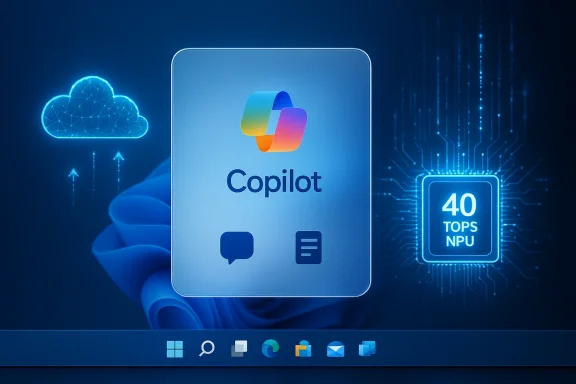
Microsoft’s Copilot+ program defines a separate hardware tier for Windows laptops built to run large parts of the Copilot experience locally. The stated baseline includes an NPU with roughly 40 TOPS of inference throughput, a minimum amount of RAM, and SSD capacity — thresholds intended to ensure low‑latency local AI features. That hardware bar has real consequences: many existing PCs — even high‑end x86 machines — do not meet the criteria, leaving tens of millions of PCs with a different Copilot experience (cloud‑reliant and often slower).Real‑world implications
- Manufacturers are shipping Copilot+‑flagged models (MSI, HP, Lenovo, and others) that advertise NPU performance and Copilot keys, but buyers need to read the fine print: not every system with an AI marketing blurb gets the full Copilot+ feature set.
- Users with older or NPU‑less hardware are forced into an uneven experience: Copilot exists on their machines, but with slower cloud‑backed responses. For some, that means paying for battery and thermal improvements on modern Copilot+ laptops to get an experience that should feel native on any modern OS.
- The 40 TOPS threshold also creates complexity for enterprise deployments and IT policies: admins must decide whether to permit Copilot features, block them, or provision only Copilot+ hardware for priority users.
Bloat, defaults, and perception of “Windows getting heavier”
Is Windows 11 bloatware worse than before?
“Bloatware” is a loaded term: it can mean preinstalled OEM apps, background services, layered Microsoft apps, or system features that consume cycles. Windows 11’s growing integration with cloud services and generative AI has increased the number of background agents and telemetry processes on default installs, which some users interpret as more bloat than in previous versions.Independent reporting and forum threads show repeated complaints about:
- Default apps being pushed or re‑selected after updates.
- Startup and idle RAM growth.
- Context menu and UI changes that feel less customizable than before.
What users can do immediately
- Remove or disable unwanted OEM apps and Microsoft storefront apps through Settings > Apps or PowerShell scripts.
- Use Task Manager and Resource Monitor to find processes consuming RAM and CPU; apply targeted fixes (driver updates, uninstall problematic apps).
- Pause updates or defer feature updates in managed environments, but be mindful this can delay security patches. Community guidance on hiding specific updates or using Group Policy remains common for enterprise admins.
Performance pain points beyond Copilot
Several Windows 11 subsystems continue to draw attention:- File Explorer slow cold starts: Microsoft has acknowledged cold‑start latency and is testing a preload approach to keep Explorer warmed in memory for faster first opens. That opt‑in experiment appears in Insider builds before broad rollout.
- Context menu size and slow right‑click: The right‑click menu bloat has introduced perceptible delays on systems with many shell extensions; Microsoft is studying decluttering strategies.
- Update‑caused regressions: Aside from Copilot removal, cumulative updates have occasionally produced RDP or driver regressions on particular hardware stacks, contributing to the sense that “updates break things.” Community threads document real-world instances where updates cause audio, RDP, or boot failures.
Privacy and the Recall problem
One of the advertised Copilot features for Copilot+ PCs is Recall: a timeline that can capture user activity and permit later searches across recent work. That capability is deeply useful but simultaneously raises privacy questions about what is captured, how long it is stored, and where the data goes. Microsoft’s messaging emphasizes local inference and on‑device NPU processing for privacy, but the architecture still sometimes leverages cloud components for quality and large model inference. That mixed model requires careful documentation and user choice. Independent analysis and community threads reveal anxiety about background capture and the opt‑in versus opt‑out model.Practical troubleshooting: what to do when Copilot feels slow (or disappears)
- Check Windows Update history and Microsoft support notes — known update regressions are documented in KB articles and sometimes receive emergency fixes. If Copilot was removed by an update, Microsoft has previously restored affected devices via an over‑the‑air remediation.
- Restart and test network latency — cloud calls suffer if your internet has high jitter. Try the same prompt on different networks to isolate whether the slowness is on device or network.
- Install the latest Windows updates and Copilot app updates from the Microsoft Store — fixes that improve runtime efficiency often arrive as small patches.
- If you have an older machine, consider disabling Copilot or hiding it from the taskbar until a faster, less resource‑hungry runtime arrives; enterprises can use AppLocker/Group Policy to block the Copilot app. Community how‑tos and guides detail safe removal/hiding procedures.
- For persistent File Explorer slowness, test with the Explorer preload experiment in Insider builds or use alternative file managers for heavy workflows.
Strengths of Microsoft’s approach
- Integrated assistant model: Having a system‑level AI makes certain tasks frictionless — quick summarization, basic document edits, and natural‑language local searches are genuine wins when they work smoothly.
- Copilot+ hardware strategy: Setting a baseline (40 TOPS) creates a deterministic target for OEMs and gives users a clearer signal about what “fast local AI” requires. When hardware and software align, on‑device latency and privacy improve significantly.
- Rapid response to update issues: Microsoft’s rollback or server‑side fixes for critical regressions (e.g., the Copilot uninstall incident) demonstrate the ability to remediate once an issue is identified, which is reassuring for enterprise admins and consumers alike.
Risks and open questions
- Fragmentation and fairness: A two‑tier Copilot experience risks leaving ordinary users with a slower, cloud‑dependent assistant while manufacturers sell “Copilot+” as a premium differentiator. That dynamic could create confusion and resentment.
- Trust, transparency, and control: Forced defaults, app reinstalls, or opaque update behaviors erode trust. Users want clearer opt‑outs and more transparent explanations when Microsoft pushes features to their machines.
- Security vs. convenience tradeoffs: Delaying updates to avoid regressions leaves systems vulnerable. Conversely, aggressive, fast‑moving update policies increase the chance of regressions that affect productivity.
- Privacy complexity: Mixed local/cloud inference models are hard to communicate succinctly. Without simple UI toggles that state what is captured and where it is stored, users will continue to be skeptical about features like Recall.
Recommendations for users
- Treat Copilot as an optional productivity add‑on: enable it if you find immediate utility, and disable it when you don’t.
- Keep your device updated but subscribe to reliable update channels (e.g., for consumers: stable public releases; for power users and admins: staged deployments) and maintain backups before major feature updates.
- For performance issues, profile with Task Manager and Resource Monitor, update drivers (especially graphics and storage controllers), and run targeted troubleshooting (SFC/DISM) where necessary.
- If you’re evaluating a new laptop primarily to get a snappy AI experience, buy a validated Copilot+ model and check the NPU TOPS rating in the spec sheet rather than trusting generic “AI‑ready” marketing claims.
Recommendations for Microsoft (and OEM partners)
- Make Copilot opt‑in at install by default, or at minimum provide a clearer, single‑click global UI toggle that disables Copilot and related background capture services.
- Publish concise side‑by‑side descriptions of what Copilot features run locally versus in the cloud for each Windows SKU and Copilot+ hardware tier. That will reduce user confusion and litigation risk related to privacy expectations.
- Prioritize performance optimizations for non‑Copilot+ machines — small runtime improvements can reduce the cloud latency penalty and make the assistant feel faster to a large population of users.
- Strengthen update telemetry segmentation so risky regressions can be caught earlier in staged rings without impacting broad user bases. Consider opt‑out telemetry for users who prioritize privacy over telemetry‑driven stability improvements.
Final analysis: where Windows 11 goes from here
Windows 11 stands at a crossroads between classic OS stewardship and a new AI‑first vision. Copilot shows real promise: when it works fast and accurately, it reduces friction and empowers users. But at its current pace of rollout, Microsoft must manage optics and engineering tradeoffs carefully.The Copilot uninstall incident and widespread reports of sluggish responses are not fatal flaws — they are symptoms of a massive engineering transition. Moving more inference to device‑centred NPUs (the Copilot+ path) will help, but it will also fragment the user experience unless Microsoft deliberately designs graceful fallbacks and clearer user controls. Independent reporting, Microsoft’s own KB notes, and a rich set of community threads confirm that the problem is both real and fixable — it requires continued engineering focus, better communication, and more thoughtful defaults.
If Microsoft can make Copilot faster on older hardware through software optimizations, and if OEMs and the company can be candid about what Copilot requires to run at its best, then Copilot’s future in Windows 11 could be less divisive and more genuinely helpful. Until then, users and admins should treat AI features as powerful but optional tools, and manage updates, privacy settings, and hardware purchases with those tradeoffs in mind.
Conclusion: Copilot is a noteworthy capability that highlights both the potential and the pains of integrating generative AI into a mainstream operating system. It’s legitimately useful, often slow on non‑AI hardware, and occasionally fragile when updates go awry — but technical fixes, clearer controls, and an emphasis on performance for the broad installed base would go a long way toward turning that promise into everyday value.
Source: Surfshark Most common Microsoft Windows 11 issues
