

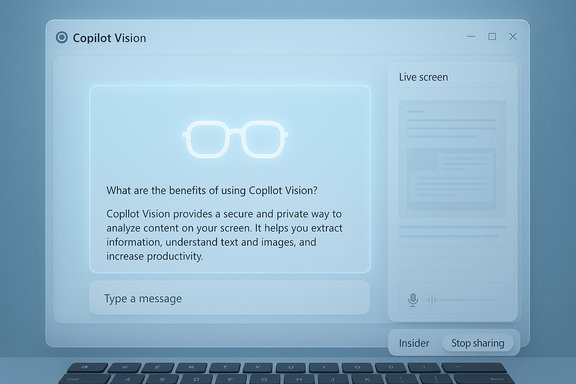
Microsoft has quietly expanded Copilot’s Vision capability on Windows so that Insiders can now type queries about what the assistant sees — and receive text replies in the same chat pane — turning a previously voice‑centric experience into a fully multimodal, text‑in/text‑out interaction that Microsoft is distributing as a staged Copilot app update (package 1.25103.107 and later) through the Microsoft Store.
Microsoft’s Copilot strategy for Windows has been a rapid push to make the desktop a multimodal “assistant surface” that listens, sees, and (in controlled modes) acts. The program bundles three interlocking pillars: Voice (wake‑word and conversational speech), Vision (permissioned, session‑scoped screen or camera sharing with OCR and UI awareness), and Actions (experimental, permissioned agents that execute multi‑step workflows). The text‑in/text‑out addition is the next natural evolution of Vision: it preserves the visual context Copilot obtains when you share a window or desktop region while giving users the option to interact by typing rather than speaking.
This feature first appeared in Windows Insider channels as a staged preview distributed via the Microsoft Store as part of a Copilot app package update. Microsoft’s documentation and the community’s reporting show the update is deliberate and phased: Insiders must have the Copilot app at or above package version 1.25103.107 to access the text Vision path, and availability will vary by channel and device while Microsoft collects feedback.
The move also aligns with Microsoft’s hardware tiering strategy. While baseline Copilot features will run broadly across Windows 11 devices, the company continues to promote a Copilot+ PC tier with NPUs (Neural Processing Units) that enable lower‑latency, on‑device inference for the most privacy‑sensitive or latency‑intensive tasks. Text Vision itself remains a hybrid experience: much of the heavy OCR and reasoning will still rely on cloud services on most devices, unless on‑device model support is available.
Key governance issues to consider:
For users, the update is an immediate usability win — quieter, searchable, and more accessible. For IT and security teams, it raises familiar questions about telemetry, cloud processing, and agent governance that require policy review and measured pilots. Organizations that plan carefully — validating package versions, defining bounded pilots, and auditing telemetry — will benefit from the added flexibility while keeping risks under control.
The direction is clear: multimodality is now table stakes for desktop assistants. Microsoft’s text Vision is a practical step toward that vision, and it deserves careful testing across the enterprise to ensure the convenience it offers doesn’t outpace the protections organizations need.
Source: Cloud Wars Windows Copilot Now Responds to Text Prompts in Vision Feature Update
 Background
Microsoft’s Copilot strategy for Windows has been a rapid push to make the desktop a multimodal “assistant surface” that listens, sees, and (in controlled modes) acts. The program bundles three interlocking pillars: Voice (wake‑word and conversational speech), Vision (permissioned, session‑scoped screen or camera sharing with OCR and UI awareness), and Actions (experimental, permissioned agents that execute multi‑step workflows). The text‑in/text‑out addition is the next natural evolution of Vision: it preserves the visual context Copilot obtains when you share a window or desktop region while giving users the option to interact by typing rather than speaking.This feature first appeared in Windows Insider channels as a staged preview distributed via the Microsoft Store as part of a Copilot app package update. Microsoft’s documentation and the community’s reporting show the update is deliberate and phased: Insiders must have the Copilot app at or above package version 1.25103.107 to access the text Vision path, and availability will vary by channel and device while Microsoft collects feedback.
What the update actually delivers
Headline capabilities
- Text‑in / text‑out Vision: Start a Vision session by sharing a window, set Vision to start with text, type questions about the visible content, and receive textual replies in Copilot’s chat pane — no speaking required.
- Seamless modality switching: A live session can flip from typed text to voice by pressing the microphone icon; the conversation context is preserved across the switch.
- Session‑bound sharing and visible UI cues: Vision is opt‑in and scoped to the windows or desktop region you explicitly share. The UI provides a visible glow around shared content and clear Stop/X controls to end sharing.
- Staged Insider rollout: The new mode is delivered through the Microsoft Store in an updated Copilot app package and gated by server‑side flags, so not every Insider will see it immediately.
Practical UX details (what to expect)
- Toggle the Vision (glasses) icon in the Copilot composer and turn off “Start with voice” to begin in text mode. Select the app window or desktop region you want Copilot to analyze; a glow confirms what’s shared. Type questions in the composer and read Copilot’s textual responses in the same pane. If needed, press the microphone to convert the session into voice Vision.
- The initial text‑vision preview intentionally omits some visual overlays and pointers demonstrated earlier in voice Vision (notably the “Highlights” that draw on‑screen pointers to UI elements). Microsoft is iterating on how to integrate visual cues into typed conversations without confusing context or privacy boundaries.
How this fits into Microsoft’s broader Copilot roadmap
Microsoft is positioning Copilot as an “intelligent companion” embedded at the OS level. The text Vision change is pragmatic: voice is convenient in many scenarios, but it is unsuitable in quiet offices, meetings, or environments where speaking aloud is inconvenient or impossible. Making Vision equally accessible by typing lowers the barrier to adoption, improves accessibility for users who can’t or prefer not to use voice, and creates a persistent, searchable record of the conversation inside Copilot’s chat pane.The move also aligns with Microsoft’s hardware tiering strategy. While baseline Copilot features will run broadly across Windows 11 devices, the company continues to promote a Copilot+ PC tier with NPUs (Neural Processing Units) that enable lower‑latency, on‑device inference for the most privacy‑sensitive or latency‑intensive tasks. Text Vision itself remains a hybrid experience: much of the heavy OCR and reasoning will still rely on cloud services on most devices, unless on‑device model support is available.
Why the change matters — benefits for everyday users
- Usability in quiet environments: Typing enables Vision in places where speaking is impractical — conference rooms, shared offices, and transit. It removes the inadvertent social friction that comes with audible narration.
- Accessibility parity: Users who have speech impairments, prefer typing, or use assistive technologies now get comparable access to Vision’s contextual reasoning without needing voice. The typed conversation is easier to scan, copy, and export.
- Auditability and record keeping: Text replies live in the Copilot chat pane and can be searched or copied, which helps when you need to preserve instructions, troubleshooting steps, or extracted data from a document.
- Flexible workflows: Start a quiet, text‑based troubleshooting conversation and, when hands‑free follow‑ups are useful, switch to voice without losing the thread. That fluidity supports hybrid work patterns and task switching.
Limitations and gaps in this preview
The staged preview is deliberately conservative. Expect the following constraints while Microsoft gathers feedback and telemetry:- Highlights and visual pointers are missing: The initial text Vision release does not include the on‑screen Highlights overlays that point to UI elements. Tasks that rely on explicit on‑screen direction will be less precise in text mode until Microsoft brings visual cues back.
- Rollout inconsistency: Because availability is server‑gated, not all Insiders (or regions) will see the capability simultaneously. That can complicate testing and documentation across enterprise pilot groups.
- Cloud dependency for heavy reasoning: On many devices, OCR and complex generative reasoning will still use cloud services. Organizations with strict data residency or offline requirements will need to review policy and architectural implications. Microsoft’s Copilot+ hardware tier changes some of this calculus, but on‑device coverage is not universal.
- Potential for feature drift: Early previews often change rapidly — UI exactly where toggles live, labels like “Start with voice,” or package numbers may shift between flights. Confirming the installed Copilot package version is a practical prerequisite to testing.
Privacy, security, and governance analysis
The text Vision mode reuses the same permission‑driven model Microsoft has emphasized for Vision: sharing is session‑bound and explicit, and the UI indicates what’s being shared. That model reduces continuous surveillance risks, but it does not eliminate all privacy or leakage threats in complex workflows.Key governance issues to consider:
- Consent clarity: The glow and Stop/X affordances are good UX signals, but organizations must ensure users understand the downstream handling of shared visuals — e.g., whether shared content is retained for telemetry, model training, or diagnostic logs. The session‑scoped model helps, but administrators should validate telemetry settings and opt‑out controls in enterprise builds.
- Data residency and cloud processing: OCR and generative summarization may be routed to cloud services by default. Enterprises handling regulated or sensitive data should confirm whether any on‑device options are available or whether conditional access policies can prevent Vision usage on managed devices.
- Agent and action escalation: Copilot Actions (agents that perform multi‑step tasks) are separate from Vision but live in the same Copilot ecosystem. Ensure agents remain off by default for sensitive deployments and require explicit admin policies before enabling cross‑app automation.
- Audit logs and forensics: For incidents or compliance checks, organizations will want clear logging of Vision sessions (who shared what window, when, and what Copilot produced). Confirm whether enterprise telemetry or MDM policies surface these events to SIEMs or monitoring dashboards.
- Review Copilot privacy and telemetry settings in Settings > Privacy & security and the Copilot app’s configuration panels.
- Limit Vision or agent features via group policy or MDM profiles where regulatory controls warrant it.
- Test the behavior of copy/paste and file exports from Vision to ensure no unintentional exfiltration channels exist.
- Make legal and compliance teams part of pilot programs to assess residual risk from cloud processing.
Enterprise considerations and rollout guidance
For IT leaders planning pilots or broader deployments, the staged nature of this preview demands a disciplined approach.- Confirm versions: Validate Copilot app package numbers on pilot devices (1.25103.107 or later is the minimum for this preview) and track Microsoft Store / Windows Update delivery behavior.
- Define a bounded pilot: Start with a small set of knowledge worker volunteers who can provide qualitative feedback on typed Vision workflows and privacy prompts.
- Evaluate policies: Use MDM or group policies to control Copilot features, especially Vision and Actions, until you can certify the telemetry and data handling flows.
- Train and document: Provide users with clear guidance on how to start a text Vision session, what is shared, and how to stop sharing. Demonstrate the modality switch and the absence of Highlights in the preview to set accurate expectations.
- Monitor logs: Ensure audit and monitoring systems capture Copilot launches and Vision session events so security teams can review usage patterns for anomalous or risky behavior.
Accessibility and usability benefits
The text‑in Vision update is a concrete win for accessibility and inclusive design. It acknowledges that natural language interaction should be modality‑agnostic: users can pick typing, voice, or a hybrid flow based on context and need.- Persisted transcripts: Typed conversations create an immediate, searchable record that benefits people who need to review guidance later or share instructions with colleagues.
- Assistive tech compatibility: Keyboard and screen‑reader users will find typed Vision easier to integrate into their existing workflows than a voice‑only interaction model. That lowers friction for adoption in diverse user populations.
- Privacy for disabled users: Some accessibility needs involve environments where speaking aloud is not possible (medical settings, shared care environments). Text Vision supports those contexts without requiring workarounds.
Risks and potential downsides
- Overreliance on generative outputs: As with any LLM‑powered assistant, Copilot’s summaries or UI advice can hallucinate or misinterpret complex UI states. Users and IT must treat outputs as assistive, not authoritative, especially in high‑stakes workflows.
- Incomplete feature parity: The absence of Highlights in text mode can make certain step‑by‑step tasks harder; users may need to toggle to voice Vision or revert to manual instruction. This gap could frustrate users who expected full visual guidance in a typed session.
- Mixed rollout confusion: Staged, server‑gated releases create support complexity — some users see the new mode, others do not. Clear internal communication is required to avoid a flood of helpdesk tickets.
- Privacy perception: Even when technically session‑scoped, users may misinterpret what is being sent to the cloud. Clear UI language and training are essential to reduce fear and incorrect mental models.
Practical how‑to (short checklist for Windows Insiders and admins)
- Update the Copilot app from the Microsoft Store and confirm the app package is 1.25103.107 or later.
- Open the Copilot composer, click the Vision (glasses) icon, and toggle Start with voice off to begin in text mode. Select the window or desktop region to share — a glow indicates shared content. Type your question in the chat composer; press the microphone icon to switch to voice if needed.
- For admins: review and set group policy or MDM controls for Copilot features and verify telemetry/diagnostic controls before enabling Copilot Vision in production.
Market and competitive context
Microsoft’s multimodal Copilot roadmap puts Windows in direct competition with other desktop and productivity assistants that mix visual context with large‑model reasoning. By enabling typed Vision, Microsoft addresses a practical gap that competitors either already solved or are actively pursuing: usable, private, permissioned ways for AI agents to reason over a user’s screen without forcing a single interaction modality. The addition of typed Vision is therefore both pragmatic and defensive — pragmatic because it improves daily usability, defensive because it reduces the friction for users considering alternative assistant models.Conclusion
The text‑in/text‑out update to Copilot Vision is a measured but meaningful advance. It converts Vision from a voice‑first experiment into a truly multimodal assistant that better respects context, accessibility, and real‑world etiquette. Microsoft’s staged rollout (Copilot app package 1.25103.107 and higher, distributed through the Microsoft Store) reflects a cautious approach: the company is opening the door to typed Vision while retaining clear permission boundaries and iterating on missing visual overlays like Highlights.For users, the update is an immediate usability win — quieter, searchable, and more accessible. For IT and security teams, it raises familiar questions about telemetry, cloud processing, and agent governance that require policy review and measured pilots. Organizations that plan carefully — validating package versions, defining bounded pilots, and auditing telemetry — will benefit from the added flexibility while keeping risks under control.
The direction is clear: multimodality is now table stakes for desktop assistants. Microsoft’s text Vision is a practical step toward that vision, and it deserves careful testing across the enterprise to ensure the convenience it offers doesn’t outpace the protections organizations need.
Source: Cloud Wars Windows Copilot Now Responds to Text Prompts in Vision Feature Update
