

Microsoft has quietly folded a new kind of smarts into Windows search: on eligible machines, Windows now uses semantic indexing alongside traditional indexing so you can find files, images, apps and settings using everyday language — and, critically, that indexing runs locally on the PC rather than being sent to Microsoft’s cloud.
Microsoft’s official support documentation and Insider announcements make the same basic case: Windows Search is evolving from literal filename and keyword matching toward meaning-aware search on a new class of devices named Copilot+ PCs. These machines include on-device neural acceleration (NPUs) that let semantic indexing run offline and at scale. The feature is rolling out in stages — first to Snapdragon-powered Copilot+ PCs and then to AMD and Intel Copilot+ hardware — and is available in a limited set of languages and file formats.
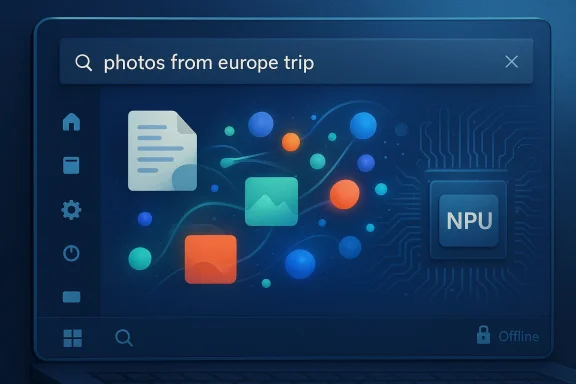
What Microsoft calls semantic indexing augments the traditional index of filenames and file properties with vector-style representations of file content (text and images). The practical outcome is you can type conversational queries such as “photos from my Europe trip” or “budget spreadsheet for March” and get results that include semantically related items, not only exact matches. Third-party coverage and early hands-on reports confirm the change and note the same file-format and language constraints described by Microsoft.
Industry coverage from independent outlets aligned with Microsoft’s messaging while also highlighting caveats: initial device gating, limited formats and languages, and the offline/on-device emphasis. Collectively these sources give a consistent picture of a staged, cautious rollout rather than a sudden, universal change.
If you manage devices, don’t treat semantic indexing as a purely end-user convenience; treat it like a new platform capability that intersects security, compliance, and device management. If you’re an individual user with a Copilot+ PC, test the feature and use the Search settings to tune indexing to your comfort level. Either way, this rollout is an important example of how on-device AI will reshape core OS experiences — and why practical governance must evolve alongside capability.
Microsoft’s official support guidance and Insider preview notes are the basis for the technical claims and recommended settings referenced above, and early community and press reporting confirm the staged rollout, supported formats, and on-device design.
Source: Microsoft Support Find your files and apps in Windows - Microsoft Support
 Background / Overview
Microsoft’s official support documentation and Insider announcements make the same basic case: Windows Search is evolving from literal filename and keyword matching toward meaning-aware search on a new class of devices named Copilot+ PCs. These machines include on-device neural acceleration (NPUs) that let semantic indexing run offline and at scale. The feature is rolling out in stages — first to Snapdragon-powered Copilot+ PCs and then to AMD and Intel Copilot+ hardware — and is available in a limited set of languages and file formats.What Microsoft calls semantic indexing augments the traditional index of filenames and file properties with vector-style representations of file content (text and images). The practical outcome is you can type conversational queries such as “photos from my Europe trip” or “budget spreadsheet for March” and get results that include semantically related items, not only exact matches. Third-party coverage and early hands-on reports confirm the change and note the same file-format and language constraints described by Microsoft.
What changed — a technical summary
How semantic indexing differs from classic indexing
- Traditional indexing extracts filenames, metadata, and text tokens and builds an inverted index for fast lexical matches.
- Semantic indexing builds embeddings (compact numerical representations) of file contents and images so the system can return related results even when the query and the content do not share exact words. This is the same high-level approach used by many modern semantic search systems, but Microsoft emphasizes it runs locally on Copilot+ hardware.
Which devices are eligible
- The capability is gated to Copilot+ PCs — a class of devices certified by Microsoft that include NPUs capable of performing on-device AI work. Early rollouts targeted Snapdragon-powered Copilot+ PCs, with support for AMD and Intel Copilot+ variants scheduled to follow.
Supported file types, languages, and scope
- Microsoft lists supported document formats as .txt, .pdf, .docx, .doc, .rtf, .pptx, .ppt, .xls, .xlsx and supported image formats as .jpg/.jpeg, .png, .gif, .bmp, .ico for the semantic indexing preview. The initial language set includes Chinese, English, French, German, Japanese, and Spanish.
- For the preview, semantic search works only for files saved locally in the indexed locations you designate in Settings. Microsoft says cloud support (OneDrive and other cloud storage) will follow in a future flight.
Privacy and locality claims
- Microsoft explicitly states the data gathered for semantic indexing is stored locally on the PC (or local to Cloud PC storage when running on AI-enabled Windows 365 devices), and that this data is not stored by Microsoft nor used to train AI models. Semantic indexing is enabled by default on Copilot+ PCs, and users or administrators can disable or limit indexing via Settings → Privacy & Security → Searching Windows → Advanced indexing options.
What users will notice (the new experience)
- Search boxes across the OS (Start/taskbar search, File Explorer, and Settings) become more forgiving and conversational. Instead of needing exact filenames, users can describe content — for example, “presentation about Q4 results” or “photo of a bridge at sunset” — and Windows will return relevant documents and images.
- Settings discovery becomes more natural-language friendly. Searching for “change my theme” will surface the relevant Settings options without requiring exact menu names — though Microsoft notes some settings search behavior may arrive in stages (e.g., initial behavior within the Settings app and later in the taskbar search box).
- The system adds semantic recall, so a search for “pasta” might also surface documents or images that mention or depict lasagna — an immediately useful, if sometimes noisy, shift in result relevance.
Why this matters: benefits and concrete gains
- Faster recovery of content you can’t name — Most of us remember meaning and context more reliably than exact filenames. Semantic search reduces friction when you can’t recall the filename, exact phrase, or folder.
- Image discovery by description — Finding the right photo by keywords like “sunset on the beach” becomes much more reliable than relying on file names or minimal metadata. This is especially useful for users who rely on File Explorer for photo management.
- Offline utility — Because the heavy lifting runs on-device for Copilot+ PCs, the semantic search feature works without an internet connection, which is useful for privacy-sensitive contexts, air-gapped machines, and places with poor connectivity.
- More discoverable settings and workflows — Bringing conversational search to Settings reduces the time spent navigating nested menus and helps users accomplish tasks more directly.
Risks, trade-offs, and open questions
No feature is purely beneficial: integrating semantic indexing into an OS-level search has real trade-offs. Below are the main concerns administrators and privacy-minded users should consider.Privacy vs. convenience
- Microsoft’s documentation states semantic index data is stored locally and not used to train models. That reduces certain risks, but local storage is not inherently safe. Local indexes can be exfiltrated by malware, compromised backups, or misconfigured enterprise tooling. Administrators must consider Data Loss Prevention (DLP), device encryption policies, and endpoint protection controls.
- Community and enterprise threads show immediate interest and concern: early adopters ask how indexing interacts with enterprise DLP rules and whether admins can prevent sensitive folders from being indexed. Those conversations are already active in technical forums and emphasize governance as a priority.
Accuracy, hallucination and noise
- Semantic search returns related items, which is helpful but can introduce false positives — files that are related in meaning but not relevant to the user’s intent. This will be most apparent when users search for narrowly scoped items (e.g., a specific contract clause) and the system returns tangential documents.
- Users and admins should treat semantic results as suggestions, not authoritative matches — the familiar pattern when moving from strict lexical search to meaning-centric retrieval.
Resource and performance costs
- The initial semantic indexing pass can be expensive in terms of battery, storage I/O, and CPU/NPU utilization. Microsoft recommends plugging in the Copilot+ PC during initial indexing so the operation can complete faster and without draining the battery. Expect a performance impact during that first run.
- Even after indexing completes, on-device inference for semantic queries relies on the NPU; older or non-Copilot hardware will not get the feature, and administrators must weigh upgrade costs if they want broad deployment across fleets.
Enterprise governance and policy gaps
- Administrators need explicit controls around what gets indexed. Microsoft provides options under Settings → Privacy & Security → Searching Windows → Advanced indexing options, but larger organizations will want centralized controls (Intune/MDM), auditing of indexing scope, and integration with existing DLP policies. Forum discussions from enterprise-focused channels highlight questions about whether current management tools give granular enough control.
How to manage, troubleshoot, and tune semantic search
Below are practical steps for IT pros and power users who want to adopt or control semantic search on Windows.Quick user steps (how to change indexing scope)
- Open Settings and go to Privacy & Security → Searching Windows.
- Under Advanced indexing options, choose which folders are indexed or enable Enhanced to index the entire PC.
- Use Advanced options to exclude file types or specific locations if you want to limit what semantic indexing touches.
For administrators: checklist before mass deployment
- Audit sensitive folders and configure exclusions so confidential or regulated data is not indexed.
- Verify your endpoint protection and encryption policies are up-to-date to mitigate local-index exfiltration risk.
- Test indexing on representative devices during off-hours while plugged in, and validate performance impact.
- Confirm Intune/MDM policy coverage for Search settings and document a rollback plan if indexing exposes unexpected behavior. Community threads show admins already pushing for clearer MDM controls and DLP integration.
Troubleshooting tips
- If search results are missing expected items, check that the file’s location is included in the indexed locations and that indexing has completed (Settings → Privacy & Security → Searching Windows shows status).
- For slow indexing or heavy disk I/O, run the initial indexing while plugged in, and consider using the Enhanced toggle only when necessary.
Governance: what IT teams should ask Microsoft and vendors
Semantic indexing in the OS raises vendor-and-supplier questions that require answers before broad enterprise adoption.- Can MDMs centrally disable semantic indexing or exclude specific file types and network locations?
- What telemetry does Microsoft collect about indexing failures, performance, or edge cases — and can that telemetry be disabled in enterprise builds?
- How does semantic indexing interact with third-party backup and eDiscovery tools? Will indexing change the order or content available for legal holds?
- Is there an API or group policy that offers fine-grained control over indexing schedules, CPU/NPU throttling, and index retention policies?
Real-world scenarios: how semantic indexing changes workflows
For knowledge workers
Imagine searching for “notes from last week’s budget meeting” and getting the meeting minutes, the related spreadsheet, and the presentation — even if none of the files use the phrase “budget meeting.” That reduces context-switching and opens a faster path from memory to action.For creatives and photographers
Describing imagery like “bridge at sunset” yields visual matches without manual tagging. That’s a major improvement for people who store large numbers of photos in folders and depend on quick visual recall.For IT support teams
Troubleshooting lost files becomes easier when users can locate content by concept rather than remembering exact names. However, support teams must also be ready to field questions about privacy and explain how to turn indexing off.Community reaction: cautious enthusiasm
In Windows-focused forums and internal discussion threads, users and admins reacted the way you’d expect: excitement about natural-language file discovery, paired with concerns about security and administrative controls. Several posts in early preview threads praised the productivity gains while flagging the need for clearer enterprise controls and DLP integration. Those conversations are a good early barometer of adoption pain points IT should prepare for.Industry coverage from independent outlets aligned with Microsoft’s messaging while also highlighting caveats: initial device gating, limited formats and languages, and the offline/on-device emphasis. Collectively these sources give a consistent picture of a staged, cautious rollout rather than a sudden, universal change.
Recommendations — a practical roadmap
- For individual users: Try the feature on a Copilot+ PC if available. Use Settings → Privacy & Security → Searching Windows to confirm or reduce what’s indexed, and plug your PC in for the initial indexing pass to accelerate completion. Keep backups and enable full-disk encryption.
- For IT teams evaluating Copilot+ rollout:
- Pilot on a small set of representative devices and workloads.
- Validate indexing exclusions and DLP compatibility.
- Measure CPU/NPU and I/O impacts during indexing and typical use.
- Define policies for index retention, auditing, and incident response.
- Engage with vendor channels for group-policy or MDM-level control and request clarifications on telemetry and cloud fallback behavior.
- For privacy-conscious organisations: Treat the local-only promise as a good start, but adopt a defense-in-depth posture — combine encryption, endpoint detection, identity protections, and controlled indexing to reduce risk.
What’s next (what to watch)
- Cloud integration: Microsoft plans to expand semantic search to cloud-stored content like OneDrive. That will change the privacy model (local-only vs. cloud-assisted results) and requires careful attention to account-level policies.
- Broader hardware support: As AMD and Intel Copilot+ hardware receive support, administrators will need to decide whether to upgrade devices or limit the feature to specific roles.
- Control plane improvements: Expect requests from enterprise administrators for richer, centralized controls (Intune, group policy) and clearer documentation from Microsoft on the interaction between semantic indexing and enterprise compliance tooling. Forum threads indicate this is already a high-priority ask.
Final assessment
Microsoft’s integration of semantic indexing into Windows Search is a pragmatic, forward-looking step. It brings meaningful productivity improvements — better image discovery, natural-language queries, and settings discoverability — while preserving an offline, on-device privacy posture that will appeal to many users and organizations. At the same time, the feature introduces non-trivial governance and risk management questions that organizations must address before broad deployment: indexing scope, DLP compatibility, potential local-exfiltration vectors, and performance impacts during initial indexing.If you manage devices, don’t treat semantic indexing as a purely end-user convenience; treat it like a new platform capability that intersects security, compliance, and device management. If you’re an individual user with a Copilot+ PC, test the feature and use the Search settings to tune indexing to your comfort level. Either way, this rollout is an important example of how on-device AI will reshape core OS experiences — and why practical governance must evolve alongside capability.
Microsoft’s official support guidance and Insider preview notes are the basis for the technical claims and recommended settings referenced above, and early community and press reporting confirm the staged rollout, supported formats, and on-device design.
Source: Microsoft Support Find your files and apps in Windows - Microsoft Support
