

IPTV on a Windows PC has gone from a fringe hobbyist trick to a mainstream way to run live TV, catch‑up services and personal media from a single machine — but the path from browsing an M3U playlist to a stable, legal, high‑quality viewing setup is littered with compatibility caveats, licensing traps and performance trade‑offs that every Windows user should understand up front.
IPTV (Internet Protocol Television) is the umbrella term for services that deliver television channels and video‑on‑demand over an IP network rather than over cable or satellite. On a modern Windows PC this can mean anything from loading an M3U playlist into VLC to running a polished commercial IPTV client that supports EPGs (Electronic Program Guides), DVR/recording and multi‑device sync. The same concept applies whether the machine is running Windows 10 or Windows 11 — most mainstream IPTV players explicitly support modern Windows releases, and many older Windows 10 guides still apply to Windows 11 machines in practice.
The practical appeal is obvious: a single, familiar device (your PC) becomes an entertainment hub with access to live channels, catch‑up TV and on‑demand libraries — often without a traditional cable subscription. But the experience is determined by three things: the IPTV service you choose, the player app on Windows, and the network + hardware that feeds the stream. Each element brings its own strengths and risks.
However, the quality of the experience depends more on which service you choose and where you get your player than on the PC itself. Key risks are:
Conclusion: The simplest, safest path for most Windows users is to use the official web player or an established client (VLC/Kodi/IPTV Smarters), prefer licensed IPTV providers, and tune hardware and network resources to the resolution you want. When a feature looks too good to be true (unlimited paid‑service downloads, “free 4K channels”), treat that as a red flag — both for legality and security — and verify claims before proceeding.
Source: PrioriData Download IPTV for PC – Latest Windows 10 Version | Priori Data
 Background / Overview
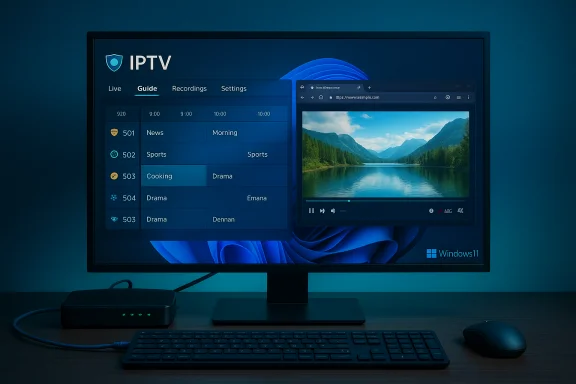
IPTV (Internet Protocol Television) is the umbrella term for services that deliver television channels and video‑on‑demand over an IP network rather than over cable or satellite. On a modern Windows PC this can mean anything from loading an M3U playlist into VLC to running a polished commercial IPTV client that supports EPGs (Electronic Program Guides), DVR/recording and multi‑device sync. The same concept applies whether the machine is running Windows 10 or Windows 11 — most mainstream IPTV players explicitly support modern Windows releases, and many older Windows 10 guides still apply to Windows 11 machines in practice.The practical appeal is obvious: a single, familiar device (your PC) becomes an entertainment hub with access to live channels, catch‑up TV and on‑demand libraries — often without a traditional cable subscription. But the experience is determined by three things: the IPTV service you choose, the player app on Windows, and the network + hardware that feeds the stream. Each element brings its own strengths and risks.
How IPTV on PC actually works
IPTV systems typically deliver channel lists and content through one or more of these common mechanisms:- M3U / M3U8 playlists (plain text lists of stream URLs that players open).
- Xtream / API style endpoints (username/server/password model that many commercial providers use).
- Web‑based players or Progressive Web Apps (PWAs) that stream through a browser.
- Proprietary Windows desktop clients or Android apps run under an emulator or Android subsystem.
What modern IPTV apps for Windows offer (features and expectations)
IPTV applications for Windows have matured considerably. Typical feature sets include:- High‑quality streaming: Many players support adaptive streaming and can handle HD and, in some cases, 4K content; actual resolution depends on the stream source and your network.
- Electronic Program Guide (EPG): Integrated TV guides let you see what's live and what's upcoming; some apps let you set reminders.
- Recording / DVR: Local recording is offered by many clients, though provider policies may limit or forbid recording for some channels. Confirm your provider’s rules before scheduling recordings.
- Multi‑device support and sync: Commercial providers usually support viewing across PCs, phones and tablets with user progress syncing.
- Playlist management, subtitles and audio tracks: Robust apps let you organize channels, load subtitles and select alternate audio streams.
Step‑by‑step: Downloading and installing an IPTV player on Windows
- Choose an IPTV app or player. Consider whether you want a lightweight player (VLC), a full media center (Kodi) or a commercial IPTV client with EPG and DVR features. Popular options for Windows include VLC, Kodi, IPTV Smarters and Perfect Player.
- Download from the official source. Always use the vendor’s official site or the Microsoft Store when available to avoid bundled malware or fake installers.
- Run the installer as Administrator. Follow the app’s setup wizard and allow reputable apps through Windows SmartScreen and UAC. If an AV product flags the installer, don’t panic — re‑confirm the download origin and scan it with a multi‑engine scanner before proceeding.
- Add your playlist or credentials. For M3U playlists, point the player to the URL or local file. For Xtream‑style services, enter the server, username and password. Many apps provide a quick “Add Playlist” workflow.
- Test playback and adjust settings. Play several channels to verify playback, set preferred video quality and configure audio and subtitle options. If you plan to record, verify storage paths and available disk space.
System requirements and network realities (what to expect on Windows 10 / 11)
A smooth IPTV experience on Windows depends on both hardware and network capacity.- Minimum hardware: A modern dual‑core CPU and 4 GB RAM will handle basic SD/HD streams. Integrated graphics are often sufficient for 1080p; hardware decoding support (HEVC, AV1) reduces CPU load for high‑bitrate or 4K streams.
- Recommended hardware: For heavy multitasking, recording while watching, or 4K playback, 8 GB+ RAM and a discrete GPU (or modern integrated GPU with HEVC/AV1 hardware decode) will improve reliability.
- Network speeds: Practical guidelines are:
- SD playback: ~3–5 Mbps
- HD (720p–1080p): ~8–15 Mbps
- 4K/UHD: 25 Mbps and up
Wired Ethernet yields the most stable experience; Wi‑Fi (especially 2.4 GHz) can introduce buffering for higher bitrates. These are general targets — actual needs vary by the stream’s compression and bitrate.
Best Windows IPTV players and alternatives (practical comparisons)
- VLC Media Player — Free, lightweight and extremely tolerant of formats. Add M3U playlists directly and use it as a reliable fallback player. Excellent for users who want transparency and minimal fuss.
- Kodi — The ultimate customizable media center. With IPTV add‑ons it becomes a full living room hub: EPG support, VOD libraries, and extensive plugin options. Complexity is the trade‑off.
- IPTV Smarters Pro — A polished, commercial‑style interface aimed at IPTV subscribers; supports multiple playlist formats, EPG and user profiles. Good for users who want a near‑TV experience on PC.
- Perfect Player — Designed specifically for IPTV viewing with a TV‑style UI, strong playlist management and EPG integration. A favorite when the goal is a TV‑like PC UI.
- Other players: PotPlayer, ProgTV, OttPlayer and Plex provide different tradeoffs in UI, codec support and extra features. Choose based on whether you prioritize customization, simplicity or integrated DVR.
Troubleshooting common IPTV problems on Windows
- Buffering or stuttering: Check network speed, reduce quality, close background downloads, and prefer wired Ethernet. If buffering persists only on certain channels, the provider’s origin servers may be the bottleneck.
- No audio or wrong audio device: Verify Windows sound device selection, update audio drivers via Device Manager, and check the player’s audio track settings.
- Connection/authentication errors: Confirm your provider credentials, verify the server address, and check whether Windows Firewall or third‑party AV is blocking the app. Some providers require periodic reauthentication or token refreshes.
- App flagged by antivirus: If an installer triggers an AV alert, download the app only from the official site, scan with VirusTotal and consider running the installer in an isolated test user account or VM first. Heuristic flags are common for downloaders and accelerated networking code, but they shouldn’t be ignored.
- EPG misalignment: EPG data depends on correct time zones and matching channel IDs; many clients include built‑in mapping tools to align guides.
Legal, copyright and safety considerations — what every reader must know
The technology behind IPTV is neutral and legal — it’s how the content is licensed and provided that matters. Many reputable services offer fully licensed IPTV channels and apps for Windows; others circulate unlicensed streams that infringe copyright. The key points:- IPTV itself is legal; unauthorized streaming or redistribution of copyrighted channels is not. Use services that disclose licensing and operate transparently.
- Recording restrictions: Even if a player supports recording, your provider may prohibit local DVR of certain channels for licensing reasons. Always check the service’s terms.
- Downloader tools and content grabbers: Apps that download streams (video downloaders, live‑stream capture tools) raise extra legal and security risks. Many vendors explicitly state the tools are for personal, non‑commercial use and warn against misuse; nevertheless, downloading content from subscription platforms can violate terms of service and local law. Treat bold claims (e.g., “download Netflix” or “download DRM streams”) with skepticism — such workflows are typically blocked by DRM and platform policy.
- Security risks: Using unknown playlists, pirated apps or random third‑party installers is a common malware vector. Prefer official clients and verified vendor pages, and scan installers.
Recommended setup checklist for a reliable Windows IPTV experience
- Use a reputable IPTV provider that lists licensing/contact info. Avoid anonymous “too good to be true” services.
- Install a trusted player from the official site or Microsoft Store (VLC, Kodi, IPTV Smarters, Perfect Player).
- Prefer wired Ethernet for live channels and set up your router so streaming traffic isn’t congested.
- Verify system codecs and hardware acceleration (install HEVC/AV1 codecs from official stores if needed).
- Scan installers with multiple AV engines before running, and test in a non‑privileged account or VM if unsure.
- Respect provider rules on recording and redistribution. If you need offline content legally, prefer official download options provided by the platform.
When to choose a browser/PWA or an emulator instead of a native app
- Browser/PWA: The safest, most supported PC path for many paid providers is the browser-based web player or a Progressive Web App. It avoids installing additional software and tends to be officially supported by the service. If a web player is available, use it.
- Emulator / WSA: Use an Android emulator or Windows Subsystem for Android only if a native Windows client is not available and you truly need a mobile UI. Emulators add overhead, raise the attack surface and sometimes break DRM or account checks; use them as a last resort.
Deep dive: recording and DVR on Windows — technical and legal limits
Recordings may be done by:- The IPTV app itself (built‑in DVR).
- External screen capture tools or downloaders.
Final analysis and recommendations
IPTV on Windows is a powerful, flexible option that can transform a PC into a living‑room hub. The core advantages are obvious: control, flexibility and often lower ongoing cost than traditional cable. Modern apps deliver polished UIs, EPGs and recording — features that make PC viewing convenient and familiar.However, the quality of the experience depends more on which service you choose and where you get your player than on the PC itself. Key risks are:
- Legal exposure from unlicensed streams and improper recording. Favor licensed providers and official apps.
- Security risks from downloading installers or playlists from unverified sources — always fetch software from official vendor pages and scan installers.
- Performance limits driven by network bandwidth and hardware decoding capabilities — use wired Ethernet and confirm codec support for high‑resolution playback.
- Start with a browser/web player or the official Windows client your provider offers.
- If you prefer a desktop app, choose a well‑known player (VLC or Kodi) or a commercial IPTV client with good reviews.
- Use wired Ethernet for HD/4K streaming, verify hardware decoding, and test recording features under the provider’s documented rules.
- If you must use third‑party downloaders or capture tools, treat them as experimental: test in a VM, scan installers and respect content licensing.
Conclusion: The simplest, safest path for most Windows users is to use the official web player or an established client (VLC/Kodi/IPTV Smarters), prefer licensed IPTV providers, and tune hardware and network resources to the resolution you want. When a feature looks too good to be true (unlimited paid‑service downloads, “free 4K channels”), treat that as a red flag — both for legality and security — and verify claims before proceeding.
Source: PrioriData Download IPTV for PC – Latest Windows 10 Version | Priori Data
