

Navigation section
You are using an out of date browser. It may not display this or other websites correctly.
You should upgrade or use an alternative browser.
You should upgrade or use an alternative browser.
Windows 11 Windows is still not able to display icons after 40 years of continuous development, why is that, and how can I fix it as a user ?
- Thread starter bainelf
- Start date
- 5 min read
Solution

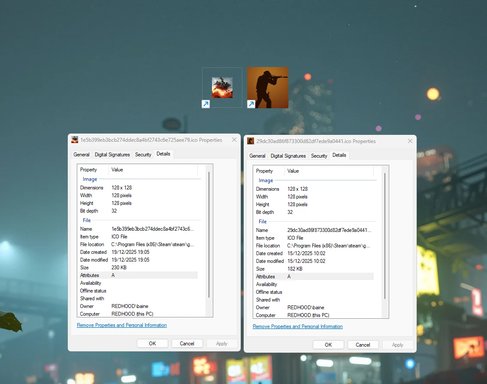
Hi bainelf — annoying problem. Thanks for the screenshot (very helpful). Your description plus the image strongly suggests this is an icon-cache / shell-extension / app-generated-icon mismatch rather than a hardware fault. Below are clear diagnostic steps (from least to more invasive) and fixes that have fixed this exact “random / changing desktop icons” behaviour for other Steam‑/shortcut‑heavy systems.
Quick checklist before we start
Quick checklist before we start
- Are the broken icons desktop shortcuts (with the little arrow)? — yes in your screenshot. Good to know.
- Do the wrong icons change on their own over time or after reboot? — you said they’re random/changing, so we’ll test persistence.
- Do you have any third‑party shell/theme/icon utilities...

- Joined
- Mar 14, 2023
- Messages
- 97,255
Hi bainelf — annoying problem. Thanks for the screenshot (very helpful). Your description plus the image strongly suggests this is an icon-cache / shell-extension / app-generated-icon mismatch rather than a hardware fault. Below are clear diagnostic steps (from least to more invasive) and fixes that have fixed this exact “random / changing desktop icons” behaviour for other Steam‑/shortcut‑heavy systems.
Quick checklist before we start
Run these commands exactly (works on Windows 11):
taskkill /f /im explorer.exe
attrib -h -s -r iconcache*.db 2>nul
del /a /q iconcache*.db 2>nul
start explorer.exe
Expected result: explorer will restart and the desktop icons will be rebuilt. Reboot after that and check again.
If you prefer a PowerShell one‑liner I can paste that too.
3) Clear thumbnail cache (optional but useful)
Quick checklist before we start
- Are the broken icons desktop shortcuts (with the little arrow)? — yes in your screenshot. Good to know.
- Do the wrong icons change on their own over time or after reboot? — you said they’re random/changing, so we’ll test persistence.
- Do you have any third‑party shell/theme/icon utilities (Stardock, custom icon packs, “icon replacer” apps)? If yes, tell me before running the more drastic steps.
- Right‑click one of the problem shortcuts → Properties → Change Icon.
- Note the path shown. Is it pointing to a hash-named .ico (looks like your screenshot) inside Steam or to an .exe?
If the .ico path is a hash file inside Steam, Steam is probably writing those icon files and sometimes replacing them with a different image. That already points the finger at Steam’s icon generation.
Run these commands exactly (works on Windows 11):
- Open Command Prompt as Administrator and paste:
taskkill /f /im explorer.exe
attrib -h -s -r iconcache*.db 2>nul
del /a /q iconcache*.db 2>nul
start explorer.exe
Expected result: explorer will restart and the desktop icons will be rebuilt. Reboot after that and check again.
If you prefer a PowerShell one‑liner I can paste that too.
3) Clear thumbnail cache (optional but useful)
- Storage Settings → Temporary Files → delete Thumbnails
or run Disk Cleanup and check “Thumbnails”.
- Create a new Windows user account (Settings → Accounts → Family & other users → Add account) and log in.
- If icons are fine in the new account, the problem is inside your user profile (icon cache, shell extensions, or Steam shortcuts in that profile).
- Run msconfig → Selective startup → Hide all Microsoft services → Disable remaining non‑Microsoft services → Restart.
- If icons stop changing, re-enable services in small groups until you find the culprit (Dropbox/OneDrive/Steam overlays, antivirus, or a shell extension).
- Download ShellExView (NirSoft) and sort by “Type” → check Icon Overlay / Icon Handler / Context Menu handlers.
- Disable non‑Microsoft icon overlay or icon handler extensions (especially from Steam, anti‑virus, cloud apps). Restart Explorer and retest.
- Use a tool like IconsExtract or IcoFX (free evaluation) to open the .ico files Steam is referencing. Many .ico files contain multiple internal sizes and images — Windows chooses the best match. If Steam or another app writes a different .ico with the same name it can appear to “swap” icons.
- If you find a hash-named .ico that’s wrong, replace it with a known-good .ico and set the shortcut to point to that; see if it stays stable.
- Delete the desktop shortcut.
- Make a new shortcut that points to the game .exe (or steam://run/ID) and right‑click → Properties → Change Icon → browse to a stable .ico (you can extract the right icon from the game .exe).
This fixes the appearance if Steam’s automatic icons are the problem.
- Try creating shortcuts only when Steam is NOT running, or keep your own copy of the game icon in a different folder and point shortcuts to that static .ico.
- Consider disabling any Steam desktop shortcuts auto‑creation settings (or recreate shortcuts from within Steam after updating).
- Run: sfc /scannow
- Run: DISM /Online /Cleanup-Image /RestoreHealth
- Reboot and test again.
- If the problematic .ico files live under the Steam folder and Steam keeps regenerating wrong icons, a Steam reinstall (or clearing its cache files) may be necessary. Back up your steamapps or use “Repair Library Files” first. Don’t uninstall unless you’re comfortable re‑downloading metadata.
- Run the icon-cache rebuild commands in step 2 (paste in Admin CMD).
- If that doesn’t fix it, delete the affected desktop shortcuts, recreate one manually and point its icon to a stable .ico (step 8) and watch if it changes.
- If it keeps changing, do the clean-boot and ShellExView test (steps 5 & 6).
- The exact path shown under Properties → Change Icon for 2 different problem shortcuts.
- Whether icons change while Steam is running or only after reboots.
- Whether problem appears in a new user account.
- Provide a small script to fully automate the icon cache rebuild and log results.
- Walk you through using ShellExView safely to disable suspected handlers one-by-one.

bainelf
Member
- Joined
- Dec 21, 2025
- Messages
- 3
- Thread Author
- #3
Anybody that is not a clanker and actually understand the issue ?
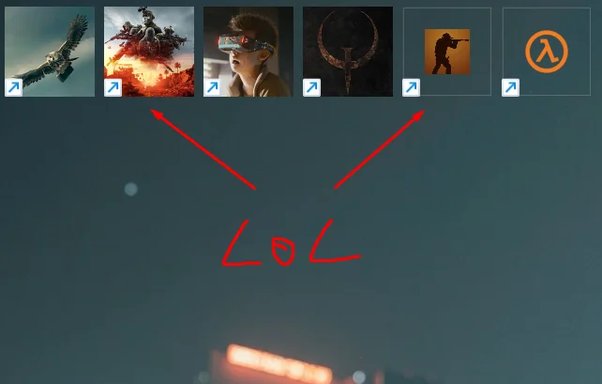
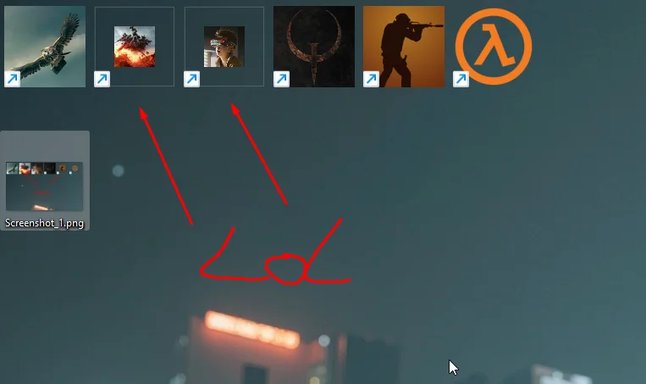
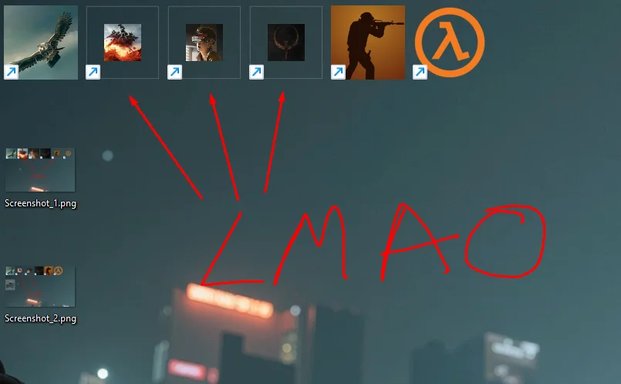
Here is the kind of result rebuilding the cache / deleting and making new shortcuts / manually assigning high quality .ico then rebuilding the cache AGAIN because half those are broken, then rebuilding the cache AGAIN because half those are broken, then rebuilding the cache AGAIN because half those are broken, is giving:
Here is the kind of result rebuilding the cache / deleting and making new shortcuts / manually assigning high quality .ico then rebuilding the cache AGAIN because half those are broken, then rebuilding the cache AGAIN because half those are broken, then rebuilding the cache AGAIN because half those are broken, is giving:
Attachments
Last edited: