

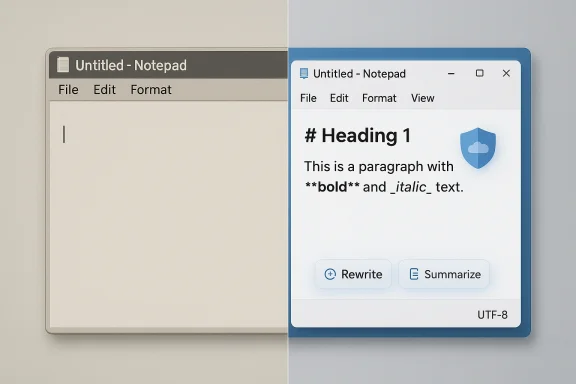
Windows Notepad’s quiet transformation from a bare-bones text scratchpad into a surprisingly capable markdown editor says as much about Microsoft’s priorities as it does about the app itself. For more than forty years, Notepad has embodied the idea that a great utility should disappear into the background, yet Windows 11 has given it tabs, autosave, formatting tools, and now AI features that make many longtime users wonder whether the soul of the app is still intact. That tension is exactly what makes Notepad such an interesting Windows story in 2026: it is still genuinely useful, but it is also now a symbol of Microsoft’s broader push to modernize every corner of the desktop, whether the user asked for it or not. The recent shift toward Markdown-aware editing, plus the ongoing debate about Copilot integration, has turned a once-obvious utility into a case study in product philosophy. Microsoft’s own release notes confirm the app’s rapid evolution, while the community response shows that simplicity remains Notepad’s defining strength. (blogs.windows.com)
Notepad debuted publicly in 1983 as the Multi-Tool Notepad and became a bundled Windows app with Windows 1.0 in 1985, which makes it one of the longest-lived pieces of software in the Windows ecosystem. Its original purpose was not to be a writer’s playground or a programmer’s dream tool; it was a demonstration of mouse-driven GUI interaction for a new kind of personal computer. Over time, though, the app became something more valuable than Microsoft probably intended: a trusted, near-instant, offline place to think. (howtogeek.com)
For decades, Notepad barely changed. That stasis was not an accident, and it was not a weakness. The app’s value came from a tightly bounded feature set, small memory footprint, and dependable behavior, especially compared with heavier editors and office suites that increasingly bundled collaboration, formatting, cloud sync, and other layers of complexity. Many users came to trust Notepad precisely because it did so little, and because that little still worked every time. (howtogeek.com)
One of the most consequential technical limitations in that old model was line-ending handling. For years, Notepad assumed Windows-style carriage return plus line feed endings, which made cross-platform text files from Unix, Linux, and classic macOS annoying or unreadable in some cases. Microsoft eventually corrected that in 2018, allowing Notepad to recognize Unix and Mac line endings properly, and that fix quietly opened the door to a more modern editing experience. In practical terms, it meant the app could finally behave like a real cross-platform text tool rather than a Windows-only relic. (howtogeek.com)
The modern phase of Notepad started with features that felt modest but strategically important: tabs, autosave, and then lightweight formatting. Microsoft introduced tabs in Windows 11 Insider builds in 2023, then automatic file saving and session restoration followed, and later the company added Markdown-style formatting support with bold, italic, headings, lists, and links. The latest preview cycle even extends that with tables and streaming AI responses, showing just how far the app has moved from its classic role. (blogs.windows.com)
At the same time, this evolution has made Notepad less emotionally simple. Microsoft’s push toward Copilot and rewrite features has triggered a familiar reaction among Windows power users: if the app’s value was its quiet neutrality, what happens when the interface starts advertising “help” instead of just providing a blank page? That question is now central to the future of the app, especially as Microsoft continues to test where AI belongs and where it clearly does not. (support.microsoft.com)
The app’s minimalist design is not merely aesthetic; it shapes behavior. In a fully loaded writing environment, users are constantly tempted to format instead of think, to tinker instead of compose, and to perform productivity rather than produce. Notepad reduces that temptation by stripping the interface down to the essentials, which makes it especially well suited to short-form writing and markdown drafting where structure matters more than layout. (howtogeek.com)
The current Windows 11 version has preserved that core identity while adding just enough utility to make the app more adaptable. Tabs help manage multiple drafts, word wrap makes long notes easier to read, and autosave makes the app less punishing than the classic version that could lose work if you forgot to save before closing. For many users, those changes make Notepad more useful without fundamentally changing the reason they open it. (blogs.windows.com)
It also means the app can function as a portable writing surface for users who want to move their text across Windows, macOS, and Linux without conversion headaches. Saving as UTF-8 by default helps keep files legible and consistent, which is exactly the kind of unglamorous reliability that matters most in utility software. In other words, Notepad’s best markdown feature may be that it still feels like plain text. (howtogeek.com)
A few practical strengths stand out:
Autosave and session restoration pushed the app even further toward practical daily use. Microsoft’s rollout means Notepad can preserve unsaved content across tabs, which is convenient but also symbolically important, because it removes one of the oldest sharp edges in the app. That change makes Notepad feel less disposable and more like a working environment, even when users only intend to open it for a minute. (howtogeek.com)
The trade-off is philosophical rather than technical. The more stateful Notepad becomes, the less it resembles the clean, temporary scratchpad that generations of Windows users relied on for low-friction tasks. That does not automatically make the new version worse, but it does mean Microsoft has to be careful not to overcorrect and turn a utility into a miniature content platform. (howtogeek.com)
The autosave behavior is similarly useful for rough drafting, especially in markdown where users often work across fragments and then move content elsewhere later. A good scratchpad should be forgiving, and Notepad now is much more forgiving than it used to be. That is progress, even if it comes with some loss of old-school purity. (howtogeek.com)
The key benefits are straightforward:
That design choice is especially interesting because Microsoft did not force a WYSIWYG interface onto the app. Instead, it kept Markdown syntax visible and allowed users to toggle formatting off entirely. This makes Notepad feel less like a word processor clone and more like a practical hybrid between a scratchpad and a markup editor. (blogs.windows.com)
The significance here is broader than a feature checklist. Markdown support is a signal that Microsoft sees value in simple, text-native formats that survive platform changes and app migrations. In a software world increasingly shaped by cloud services and proprietary document ecosystems, that kind of restraint is refreshing and strategically useful. (blogs.windows.com)
The downside is that some users will inevitably want more. Tables, images, and richer content can make a markdown editor more versatile, and Microsoft is already exploring some of that territory in later Insider builds. The danger is that each addition nudges the app a little farther from the “just write” simplicity that made it trustworthy in the first place. (blogs.windows.com)
The practical implications are clear:
Microsoft’s own documentation shows that AI features in Notepad are cloud-based, require sign-in, and are gated behind Microsoft account access and AI credits for some subscriptions. In other words, once you cross into Rewrite or Summarize, you are no longer just using a local text box; you are entering a service layer with authentication and data-processing implications. For users who value offline simplicity, that is a meaningful shift. (support.microsoft.com)
It is important to be precise, though. The existence of autosave or session caching does not automatically mean the app is secretly compromising confidentiality in a dramatic sense. What it does mean is that Notepad is no longer the same kind of tool it once was, and that distinction matters to users who adopted it because it felt transient, private, and uncomplicated. (howtogeek.com)
Microsoft has at least acknowledged that users may want to disable these features. The app settings can turn off formatting support entirely, and the AI features are optional rather than mandatory. That helps, but it does not fully restore the old mental model of Notepad as a truly invisible tool. Optional is not the same thing as irrelevant. (blogs.windows.com)
The main concerns are:
The company’s recent behavior suggests it is at least aware of the risk. Insider messaging from 2025 and 2026 shows Microsoft testing AI features in Notepad, including Rewrite and Summarize, but also giving users controls to turn features off and, in some cases, reducing AI entry points in places where they feel intrusive. That suggests a corrective phase after an earlier period of aggressive AI surfacing. (blogs.windows.com)
Still, the experience matters as much as the roadmap. A toolbar button can change the meaning of an app even if many users never click it. In Notepad, that is especially true because the app’s cultural identity is built around quiet neutrality, and every visible AI affordance chips away at that feeling. Sometimes less choice on the screen feels like more respect for the user. (support.microsoft.com)
In practice, many users open Notepad because they want to think in their own voice, not negotiate with a suggestion engine. That makes AI feel more like interference than help in certain workflows, especially when the app is being used for code snippets, passwords, terminal commands, or personal reminders. The less semantic ambiguity a task has, the less useful an assistant usually becomes. (support.microsoft.com)
The most important takeaways are:
Microsoft also deserves credit for keeping the app light enough that it still feels like Notepad when it launches. The UI changes have not turned it into a heavyweight document manager, and that restraint is important because performance is part of the brand. For a utility that competes on immediacy, being merely “okay” would be a failure. (howtogeek.com)
There is also a case to be made that Notepad’s evolution helps fill the practical gap left by WordPad’s disappearance from Windows. Users who need more than raw text but less than a full office suite now have a native path that stays closer to plain text and markdown than to traditional rich document editing. That gives the app a clearer purpose in the modern Windows stack. (blogs.windows.com)
That middle ground is also where Notepad can still beat many third-party alternatives for casual users. A lot of markdown editors are excellent but demand installation, onboarding, or configuration that most people simply do not want for quick work. Notepad’s advantage is that it is already there, already trusted, and already familiar. (howtogeek.com)
Its strengths include:
For third-party editors, this is both a threat and an opportunity. The threat is obvious: if Notepad handles basic markdown well, opens instantly, and now supports tabs and autosave, casual users may never bother installing a separate editor. The opportunity is that power users will still want features Notepad intentionally avoids, such as advanced search, plugins, syntax highlighting depth, git integration, and heavy customization. (blogs.windows.com)
This dynamic is similar to what has happened in other parts of Windows over the years. Microsoft adds a modest layer of convenience to a built-in tool, and then third-party apps respond by emphasizing depth, speed, or specialization. That competition usually benefits users, but it also makes Microsoft’s line-walking more delicate: too much feature growth and Notepad loses its identity; too little and it becomes irrelevant. (howtogeek.com)
Enterprises are more complicated. IT teams tend to care about consistency, offline behavior, privacy, and policy control, which means any AI or cloud-authenticated behavior in a formerly simple utility will attract scrutiny. That does not make Notepad unusable in business settings, but it does mean administrators will increasingly view it through a governance lens rather than a convenience lens. (support.microsoft.com)
The competitive picture can be summarized this way:
The most plausible future is not a dramatic reinvention but a slow refinement of the current middle ground. Microsoft may add more lightweight formatting, more optional AI capabilities, and maybe a few more convenience features, while trying to keep the app small enough that it still launches like a utility and not a platform. If the company succeeds, Notepad could become one of the best examples of modern minimalism in Windows. (blogs.windows.com)
What to watch next:
Source: How-To Geek This 43-year-old Windows app is still my favorite markdown editor
 Overview
Notepad debuted publicly in 1983 as the Multi-Tool Notepad and became a bundled Windows app with Windows 1.0 in 1985, which makes it one of the longest-lived pieces of software in the Windows ecosystem. Its original purpose was not to be a writer’s playground or a programmer’s dream tool; it was a demonstration of mouse-driven GUI interaction for a new kind of personal computer. Over time, though, the app became something more valuable than Microsoft probably intended: a trusted, near-instant, offline place to think. (howtogeek.com)For decades, Notepad barely changed. That stasis was not an accident, and it was not a weakness. The app’s value came from a tightly bounded feature set, small memory footprint, and dependable behavior, especially compared with heavier editors and office suites that increasingly bundled collaboration, formatting, cloud sync, and other layers of complexity. Many users came to trust Notepad precisely because it did so little, and because that little still worked every time. (howtogeek.com)
One of the most consequential technical limitations in that old model was line-ending handling. For years, Notepad assumed Windows-style carriage return plus line feed endings, which made cross-platform text files from Unix, Linux, and classic macOS annoying or unreadable in some cases. Microsoft eventually corrected that in 2018, allowing Notepad to recognize Unix and Mac line endings properly, and that fix quietly opened the door to a more modern editing experience. In practical terms, it meant the app could finally behave like a real cross-platform text tool rather than a Windows-only relic. (howtogeek.com)
The modern phase of Notepad started with features that felt modest but strategically important: tabs, autosave, and then lightweight formatting. Microsoft introduced tabs in Windows 11 Insider builds in 2023, then automatic file saving and session restoration followed, and later the company added Markdown-style formatting support with bold, italic, headings, lists, and links. The latest preview cycle even extends that with tables and streaming AI responses, showing just how far the app has moved from its classic role. (blogs.windows.com)
At the same time, this evolution has made Notepad less emotionally simple. Microsoft’s push toward Copilot and rewrite features has triggered a familiar reaction among Windows power users: if the app’s value was its quiet neutrality, what happens when the interface starts advertising “help” instead of just providing a blank page? That question is now central to the future of the app, especially as Microsoft continues to test where AI belongs and where it clearly does not. (support.microsoft.com)
Why Notepad Still Matters
Notepad remains relevant because there is still a large category of work that benefits from a plain-text-first tool. Markdown drafting, quick code snippets, config notes, pasted logs, and temporary outlines do not need collaboration panes or rich document chrome to be useful. They need speed, predictability, and the confidence that the file you save will be readable on practically any machine. That is still what Notepad offers better than many alternatives. (blogs.windows.com)The app’s minimalist design is not merely aesthetic; it shapes behavior. In a fully loaded writing environment, users are constantly tempted to format instead of think, to tinker instead of compose, and to perform productivity rather than produce. Notepad reduces that temptation by stripping the interface down to the essentials, which makes it especially well suited to short-form writing and markdown drafting where structure matters more than layout. (howtogeek.com)
The current Windows 11 version has preserved that core identity while adding just enough utility to make the app more adaptable. Tabs help manage multiple drafts, word wrap makes long notes easier to read, and autosave makes the app less punishing than the classic version that could lose work if you forgot to save before closing. For many users, those changes make Notepad more useful without fundamentally changing the reason they open it. (blogs.windows.com)
The Markdown Use Case
Markdown is where Notepad’s modern value becomes most obvious. Microsoft’s 2025 update explicitly added lightweight formatting with Markdown support, while also giving users a way to switch between formatted view and Markdown syntax view. That is a big deal because it means Notepad can serve both casual note-taking and structured writing without forcing users into a heavier editor. (blogs.windows.com)It also means the app can function as a portable writing surface for users who want to move their text across Windows, macOS, and Linux without conversion headaches. Saving as UTF-8 by default helps keep files legible and consistent, which is exactly the kind of unglamorous reliability that matters most in utility software. In other words, Notepad’s best markdown feature may be that it still feels like plain text. (howtogeek.com)
A few practical strengths stand out:
- Fast launch times keep the app usable as a true scratchpad.
- Plain-text output avoids lock-in and hidden formatting baggage.
- Markdown-friendly tools let users structure documents without learning a new app.
- Tabs make multi-document work much less tedious.
- UTF-8 defaults improve compatibility across platforms.
- Word wrap makes long-form drafting more comfortable.
- Session restore reduces the risk of losing work during interruptions. (blogs.windows.com)
Tabs, Autosave, and Session Restore
The addition of tabs changed Notepad more than it might appear at first glance. For decades, the app’s single-document model reinforced its identity as a throwaway utility, but tabs gave it the ability to support more serious workflows without adding the overhead of a full-blown editor. Users can now keep reference material, outlines, and draft fragments in one window, which is a subtle but meaningful usability gain. (blogs.windows.com)Autosave and session restoration pushed the app even further toward practical daily use. Microsoft’s rollout means Notepad can preserve unsaved content across tabs, which is convenient but also symbolically important, because it removes one of the oldest sharp edges in the app. That change makes Notepad feel less disposable and more like a working environment, even when users only intend to open it for a minute. (howtogeek.com)
The trade-off is philosophical rather than technical. The more stateful Notepad becomes, the less it resembles the clean, temporary scratchpad that generations of Windows users relied on for low-friction tasks. That does not automatically make the new version worse, but it does mean Microsoft has to be careful not to overcorrect and turn a utility into a miniature content platform. (howtogeek.com)
Why This Matters for Writers
Writers often want a tool that is both flexible and forgettable. They need tabs to keep sources nearby, but they do not want the app to become a project manager. Notepad’s current tabbed model hits a useful middle ground because it organizes work without imposing a workflow. (blogs.windows.com)The autosave behavior is similarly useful for rough drafting, especially in markdown where users often work across fragments and then move content elsewhere later. A good scratchpad should be forgiving, and Notepad now is much more forgiving than it used to be. That is progress, even if it comes with some loss of old-school purity. (howtogeek.com)
The key benefits are straightforward:
- Multiple tabs reduce window clutter.
- Restore on launch protects unfinished work.
- Autosave makes quick edits safer.
- One window, many drafts improves focus.
- Low overhead keeps the app responsive. (blogs.windows.com)
Markdown Formatting and Lightweight Structure
Microsoft’s move to add formatting support is the clearest sign that Notepad is no longer just a text editor; it is being repositioned as a lightweight authoring surface. The 2025 Insider update brought bold, italic, links, headings, and simple lists, all while keeping the option to return to plain text whenever needed. That is a smart compromise because it preserves the app’s plain-text roots while acknowledging that many users now use Notepad for structured notes and markdown drafting. (blogs.windows.com)That design choice is especially interesting because Microsoft did not force a WYSIWYG interface onto the app. Instead, it kept Markdown syntax visible and allowed users to toggle formatting off entirely. This makes Notepad feel less like a word processor clone and more like a practical hybrid between a scratchpad and a markup editor. (blogs.windows.com)
The significance here is broader than a feature checklist. Markdown support is a signal that Microsoft sees value in simple, text-native formats that survive platform changes and app migrations. In a software world increasingly shaped by cloud services and proprietary document ecosystems, that kind of restraint is refreshing and strategically useful. (blogs.windows.com)
Formatting Without Bloat
Notepad’s formatting model works because it is deliberately narrow. It does not try to become a full publishing suite, and it does not force users into layout mode when they merely need structure. That keeps the editing experience fast and reduces the cognitive overhead that usually comes with richer apps. (blogs.windows.com)The downside is that some users will inevitably want more. Tables, images, and richer content can make a markdown editor more versatile, and Microsoft is already exploring some of that territory in later Insider builds. The danger is that each addition nudges the app a little farther from the “just write” simplicity that made it trustworthy in the first place. (blogs.windows.com)
The practical implications are clear:
- Headings and lists make outlines easier to scan.
- Bold and italics are enough for most note-taking.
- Markdown syntax support keeps the file format portable.
- Formatting toggles preserve plain-text control.
- Simple structure keeps the app light and fast. (blogs.windows.com)
The Privacy Debate Around Modern Notepad
The most emotionally charged criticism of modern Notepad is not about formatting; it is about trust. Longtime users see Notepad as a temporary and local tool, which makes features like autosave, hidden session state, and AI connectivity feel more invasive than they would in a cloud-first app. That reaction is understandable because expectations matter as much as architecture when it comes to privacy. (howtogeek.com)Microsoft’s own documentation shows that AI features in Notepad are cloud-based, require sign-in, and are gated behind Microsoft account access and AI credits for some subscriptions. In other words, once you cross into Rewrite or Summarize, you are no longer just using a local text box; you are entering a service layer with authentication and data-processing implications. For users who value offline simplicity, that is a meaningful shift. (support.microsoft.com)
It is important to be precise, though. The existence of autosave or session caching does not automatically mean the app is secretly compromising confidentiality in a dramatic sense. What it does mean is that Notepad is no longer the same kind of tool it once was, and that distinction matters to users who adopted it because it felt transient, private, and uncomplicated. (howtogeek.com)
Local Utility vs Cloud Features
The core tension is between local utility and cloud-enhanced convenience. A pure text editor can be evaluated almost entirely on speed, file format, and portability, while an AI-enhanced editor has to be judged on authentication, transmission, and policy. That introduces new questions that old Notepad simply never had to answer. (support.microsoft.com)Microsoft has at least acknowledged that users may want to disable these features. The app settings can turn off formatting support entirely, and the AI features are optional rather than mandatory. That helps, but it does not fully restore the old mental model of Notepad as a truly invisible tool. Optional is not the same thing as irrelevant. (blogs.windows.com)
The main concerns are:
- Cloud-based AI changes the trust boundary.
- Microsoft account sign-in adds friction to a formerly frictionless app.
- Autosave and session state challenge the idea of a temporary scratchpad.
- Feature creep risks making Notepad feel less neutral.
- Privacy expectations are higher for a simple local editor than for a modern productivity suite. (support.microsoft.com)
Copilot, Rewrite, and the Cost of Ambient AI
Microsoft’s AI push inside Notepad is part of a wider company-wide strategy to make Copilot feel omnipresent across Windows and Microsoft 365. That has obvious strategic logic: if users encounter AI everywhere, they are more likely to adopt it somewhere. But Notepad is a particularly sensitive place to apply that logic because its entire appeal rests on the opposite idea — one app, one task, no interruptions. (support.microsoft.com)The company’s recent behavior suggests it is at least aware of the risk. Insider messaging from 2025 and 2026 shows Microsoft testing AI features in Notepad, including Rewrite and Summarize, but also giving users controls to turn features off and, in some cases, reducing AI entry points in places where they feel intrusive. That suggests a corrective phase after an earlier period of aggressive AI surfacing. (blogs.windows.com)
Still, the experience matters as much as the roadmap. A toolbar button can change the meaning of an app even if many users never click it. In Notepad, that is especially true because the app’s cultural identity is built around quiet neutrality, and every visible AI affordance chips away at that feeling. Sometimes less choice on the screen feels like more respect for the user. (support.microsoft.com)
Feature or Interruption?
Microsoft would argue that Rewrite and Summarize are helpful for users who want fast polishing and quick transformation of rough notes. That is reasonable on its face, especially for students, office workers, and users who draft rough text before moving it into a larger system. The issue is that not every utility needs to be an assistant. (support.microsoft.com)In practice, many users open Notepad because they want to think in their own voice, not negotiate with a suggestion engine. That makes AI feel more like interference than help in certain workflows, especially when the app is being used for code snippets, passwords, terminal commands, or personal reminders. The less semantic ambiguity a task has, the less useful an assistant usually becomes. (support.microsoft.com)
The most important takeaways are:
- AI is optional, but still visually present.
- Rewrite and Summarize are useful only in narrow contexts.
- User trust is more fragile in minimalist apps.
- Plain-text use cases often do not benefit from AI at all.
- Interface restraint matters more than feature count. (support.microsoft.com)
What Microsoft Gets Right
The best argument for modern Notepad is that Microsoft has, at least in part, respected the app’s core strengths. The recent additions are mostly incremental, and several of them are genuinely useful: tabs, session restore, UTF-8 defaults, Markdown support, and formatting toggles all improve the app without making it unrecognizable. That is a much better approach than a total reinvention would have been. (blogs.windows.com)Microsoft also deserves credit for keeping the app light enough that it still feels like Notepad when it launches. The UI changes have not turned it into a heavyweight document manager, and that restraint is important because performance is part of the brand. For a utility that competes on immediacy, being merely “okay” would be a failure. (howtogeek.com)
There is also a case to be made that Notepad’s evolution helps fill the practical gap left by WordPad’s disappearance from Windows. Users who need more than raw text but less than a full office suite now have a native path that stays closer to plain text and markdown than to traditional rich document editing. That gives the app a clearer purpose in the modern Windows stack. (blogs.windows.com)
Why the Middle Ground Works
The strongest version of modern Notepad is not “Notepad as a mini Word” or “Notepad as an AI canvas.” It is Notepad as the best lightweight text utility Windows ships by default. That means enough structure to be helpful, but not enough complexity to become a project unto itself. (blogs.windows.com)That middle ground is also where Notepad can still beat many third-party alternatives for casual users. A lot of markdown editors are excellent but demand installation, onboarding, or configuration that most people simply do not want for quick work. Notepad’s advantage is that it is already there, already trusted, and already familiar. (howtogeek.com)
Its strengths include:
- Default availability on Windows systems.
- Near-zero learning curve for basic tasks.
- Good-enough markdown support for many users.
- Cross-platform-friendly file output.
- A familiar, distraction-free environment. (blogs.windows.com)
Competitive Implications for Other Editors
Notepad’s new feature set puts it into a different competitive category than it occupied even a few years ago. It is no longer competing only with Windows’ own legacy utilities; it is nibbling at the edges of markdown editors, lightweight code editors, and note-taking tools that rely on simplicity as their main selling point. That matters because default apps can reshape user expectations simply by improving enough to be “good enough.” (blogs.windows.com)For third-party editors, this is both a threat and an opportunity. The threat is obvious: if Notepad handles basic markdown well, opens instantly, and now supports tabs and autosave, casual users may never bother installing a separate editor. The opportunity is that power users will still want features Notepad intentionally avoids, such as advanced search, plugins, syntax highlighting depth, git integration, and heavy customization. (blogs.windows.com)
This dynamic is similar to what has happened in other parts of Windows over the years. Microsoft adds a modest layer of convenience to a built-in tool, and then third-party apps respond by emphasizing depth, speed, or specialization. That competition usually benefits users, but it also makes Microsoft’s line-walking more delicate: too much feature growth and Notepad loses its identity; too little and it becomes irrelevant. (howtogeek.com)
Consumer and Enterprise Differences
Consumers are likely to appreciate the convenience first. A household user who needs a quick notes app or a markdown scratchpad may never notice the ideological debate around Notepad, and that is fine. If the app helps them write faster and saves their work reliably, it has succeeded. (blogs.windows.com)Enterprises are more complicated. IT teams tend to care about consistency, offline behavior, privacy, and policy control, which means any AI or cloud-authenticated behavior in a formerly simple utility will attract scrutiny. That does not make Notepad unusable in business settings, but it does mean administrators will increasingly view it through a governance lens rather than a convenience lens. (support.microsoft.com)
The competitive picture can be summarized this way:
- Casual users may stick with Notepad instead of downloading extras.
- Power users will still want deeper tooling elsewhere.
- Enterprises may prefer strict policy controls and predictable behavior.
- Third-party editors must justify themselves with specialization.
- Microsoft is using default-app improvements as ecosystem leverage. (blogs.windows.com)
Strengths and Opportunities
Notepad’s best opportunity is to remain the default place where Windows users can write quickly without friction, while also giving power users enough structure to handle markdown, quick documentation, and short technical notes. That combination is unusual because it bridges two very different behaviors: casual scratchpad use and lightweight drafting. If Microsoft keeps the balance right, the app can stay relevant for another generation. (blogs.windows.com)- Instant accessibility remains one of its biggest advantages.
- Markdown support broadens its use without forcing a redesign.
- Tabs make the app more suitable for real projects.
- UTF-8 and line-ending support improve portability.
- Optional formatting controls preserve the plain-text escape hatch.
- Session restore makes it more forgiving in everyday use.
- Default app status gives it massive built-in reach. (blogs.windows.com)
Risks and Concerns
The biggest risk is that Microsoft may keep adding features that erode the very qualities people still love. Once a lightweight utility starts carrying too much interface weight, it stops feeling like a tool and starts feeling like a product surface. That is the line Notepad has to avoid crossing. (support.microsoft.com)- Feature creep could blur Notepad’s identity.
- AI integration may alienate privacy-conscious users.
- Cloud sign-in requirements add friction to a simple app.
- Autosave and session caching weaken the temporary-scratchpad model.
- Formatting expansion could slow launch or clutter the UI.
- Perception of bloat may push enthusiasts toward third-party editors.
- Overlapping goals can create confusion about what Notepad is for. (support.microsoft.com)
Looking Ahead
The next phase of Notepad will likely be defined less by any one feature than by how Microsoft chooses to pace change. The company appears to be testing a broader markdown-plus-AI model, but it is also showing signs of restraint by letting users disable or ignore the extra layers. That is encouraging, because Notepad’s long-term success depends on preserving trust as much as shipping features. (blogs.windows.com)The most plausible future is not a dramatic reinvention but a slow refinement of the current middle ground. Microsoft may add more lightweight formatting, more optional AI capabilities, and maybe a few more convenience features, while trying to keep the app small enough that it still launches like a utility and not a platform. If the company succeeds, Notepad could become one of the best examples of modern minimalism in Windows. (blogs.windows.com)
What to watch next:
- Whether Microsoft adds more Markdown features like richer tables or image handling.
- How aggressively AI entry points are surfaced or hidden in the UI.
- Whether performance remains as fast as longtime users expect.
- How much control users get over formatting and session behavior.
- Whether the app continues to feel local-first, or becomes more service-driven. (blogs.windows.com)
Source: How-To Geek This 43-year-old Windows app is still my favorite markdown editor
