

Windows Sandbox is one of those quietly powerful Windows features that does exactly what most users — and many IT pros — want: it gives you a fresh, fully isolated Windows desktop in seconds so you can install, run, and investigate unknown applications without putting your main PC at risk. That disposable environment boots from a dynamic base image, isolates itself using hardware virtualization, and is destroyed the moment you close the window — making it a fast, low-friction alternative to a full virtual machine for short-term testing and threat triage. ([learn.microsoft.cosoft.com/en-us/windows/security/application-security/application-isolation/windows-sandbox/windows-sandbox-faq)
Windows Sandbox first appeared in Microsoft channels as a lightweight, disposable desktop environment intended to let everyday users and sysadmins run untrusted software in a safe bubble. The Sandbox runs a clean copy of the same Windows build that’s installed on the host, reuses immutable OS files from the host to keep the image tiny, and relies on the Microsoft hypervisor for kernel isolation. That design makes Sandbox fast to start and efficient with memory and storage compared with full virtual machines.
Why this matters: downloading and running unknown installers is still one of the most common ways malware reaches endpoints. Traditional approaches — full Hyper‑V VMs, VirtualBox machines, or cloud sandboxes — work well, but they add setup time, maintenance, and disk overhead. Windows Sandbox trades a little capability (no snapshots, no long-term persistence by default) for speed and launch a clean environment, test an app, and destroy the whole session without leaving traces on your host. That practical trade-off is what makes Sandbox useful for both casual users and security-conscious power users.
Notable strengths:
Practical takeaways:
Conclusion: use Windows Sandbox as the first dynamic test for unknown Windows apps — fast, disposable, and integrated — but complement it with static scans, controlled mappings, and full VMs when persistence, snapshots, or deeper telemetry are required.
Source: TechPP Windows Sandbox: Safely Install and Test Unknown Windows Applications - TechPP
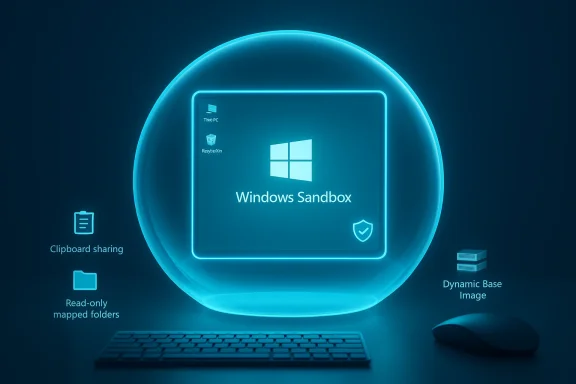 Background / Overview
Windows Sandbox first appeared in Microsoft channels as a lightweight, disposable desktop environment intended to let everyday users and sysadmins run untrusted software in a safe bubble. The Sandbox runs a clean copy of the same Windows build that’s installed on the host, reuses immutable OS files from the host to keep the image tiny, and relies on the Microsoft hypervisor for kernel isolation. That design makes Sandbox fast to start and efficient with memory and storage compared with full virtual machines.Why this matters: downloading and running unknown installers is still one of the most common ways malware reaches endpoints. Traditional approaches — full Hyper‑V VMs, VirtualBox machines, or cloud sandboxes — work well, but they add setup time, maintenance, and disk overhead. Windows Sandbox trades a little capability (no snapshots, no long-term persistence by default) for speed and launch a clean environment, test an app, and destroy the whole session without leaving traces on your host. That practical trade-off is what makes Sandbox useful for both casual users and security-conscious power users.
What Windows Sandbox is — and what it is not
Core properties
- Disposable: Everything installed or created inside the session is deleted when the Sandbox is closed. Nothing persists by default.
- Pristine: Each session starts from a clean state derived from the host’s Windows build; you get a fresh desktop every time.
- Hardware-isolated: Uses Hyper‑V / Microsoft hypervisor for kernel isolation. Sandbox runs a separate kernel instance to reduce the risk of lateral movement into the host.
- Efficient: Reuses host files where possible and maintains a compact dynamic base image so the footprint is far smaller than a full VM. Microsoft’s engineering notes and subsequent coverage describe the dynamic base image as occupying only tens to a few hundred megabytes, depending on state and compression.
What Sandbox is not
- It is not a replacement for full virtual machines when you need:
- Persistent snapshots, long-lived experiments, or multi‑node virtual labs.
- Kernel-mode driver testing or complex network topologies.
- Forensic-grade analysis where preserving volatile state across reboots is necessary (unless you explicitly use allowed workflows like mapped folders or snapshots outside the Sandbox).
System requirements and platform limits
Before you try Sandbox, verify these hard requirements — they’re frequently the reason people can’t see or enable the feature.Editions and OS
- Supported editions: Windows 10/11 Pro, Enterprise, and Education. Windows Home editions do not include Windows Sandbox by default. That’s a licensing/feature gating decision Microsoft has kept for the platform components Sandbox relies upon.
Hardware and firmware
- 64‑bit CPU with virtualization extensions (Intel VT‑x / AMD‑V).
- Virtualization enabled in UEFI/BIOS (check Task Manager → Performance → CPU to see “Virtualization: Enabled” if it’s on). If you run Sandbox inside another VM, nested virtualization must be exposed/enabled on the host.
Resource guidance
- Minimum: 4 GB RAM, 1+ GB free disk space, and 1–2 CPU cores.
- Recommended: 8 GB RAM or more and multiple logical cores for responsive sessions. Fast storage (SSD) improves load times. Microsoft and community guides recommend these targets to keep the Sandbox responsive under real-world testing.
Windows features to enable
Windows Sandbox depends on multiple optional platform components. The typical checklist:- Windows Sandbox (Containers‑DisposableClientVM feature).
- Virtual Machine Platform.
- Windows Hypervisor Platform (and, in many installs, Hyper‑V or the Microsoft‑Hyper‑V platform).
You can enable these from “Turn Windows features on or off” or with PowerShell / Deployment Image Servicing and Management (DISM) commands. A restart is required.
How to enable Windows Sandbox — step by step
The fastest, reliable way to enable Sandbox:- Confirm your Windows edition is Pro, Enterprise, or Education (winver).
- Ensure virtualization is enabled in firmware (Task Manager → Performance → CPU shows “Virtualization: Enabled”) or follow your OEM’s UEFI instructions to turn it on.
- Open “Turn Windows features on or off” and enable:
- Windows Sandbox
- Virtual Machine Platform
- Windows Hypervisor Platform (and Hyper‑V if suggested).
Click OK and restart when prompted.
- Enable the Sandbox optional feature:
Enable-WindowsOptionalFeature -Online -FeatureName "Containers-DisposableClientVM" -All - Enable Virtual Machine Platform and Hyper‑V features as needed, then restart.
Using Windows Sandbox to test unknown applications
Quick workflow — a practical example
- Launch Windows Sandbox from Start (it opens a clean Windows desktop).
- Transfer the file you want to test:
- Copy and paste (Ctrl+C / Ctrl+V) — clipboard sharing is enabled by default, so you can paste files into the Sandbox desktop.
- Or drag and drop from the host into the Sandbox window.
- Advanced users can predefine mapped folders in a .wsb configuration file for read‑only or read/write access if needed.
- Install and observe the behavior: watch for unexpected network connections, additional processes, or persistence mechanisms (scheduled tasks, services).
- If the app requests a reboot, Sandbox now supports restarts initiated inside the session — the virtual environment will reboot and return to the post-reboot state, as long as you don’t close the outer Sandbox window. (This is a useful change for installers that require a restart.)
- When finished, simply close the Sandbox window. The virtual machine and all changes are destroyed. Nothing from the session persists on the host unless you explicitly copy files out before closing.
Using .wsb configuration files
Power users can create XML .wsb files to tune Sandbox behavior: enable/disable networking, control clipboard redirection, map host folders, and specify startup commands. This gives more control for testing or for safer forensic-like exercises (for example, disable networking while executing suspicious code). Remember: mapped folders increase exposure risk and should be used cautiously.Benefits — why you should add Sandbox to your toolset
- Speed and convenience: No ISO downloads, no VM configuration; a Sandbox session is ready in seconds. That makes low-cost, frequent tests practical for non-technical users.
- Low storage overhead: Because the Sandbox shares many immutable host files and uses a compressed dynamic base image, the incremental disk footprint is minimal compared with full VMs. Microsoft’s engineering notes and community coverage put the installed dynamic base image in the tens-to-hundreds‑MB range, depending on state.
- Integrated safety model: Hardware-assisted kernel isolation reduces attack surface for many common threats and prevents simple persistence techniques from surviving past the Sandbox session.
Risks, limitations, and real-world caveats
Windows Sandbox is useful, but it is not a silver bullet. Here’s a practical risk assessment you should weigh.1) Not immune to sophisticated escape or side‑channel threats
While Sandbox provides a strong isolation boundary for everyday threat scenarios, no single-layer defense can guarantee absolute isolation against well-resourced, targeted attacks. Attackers have historically targeted hypervisors and kernel components; Sandbox adds protection but does not eliminate the theoretical risk of escalation or escape. Always treat Sandbox outputs as observational, not forensic absolutes. Microsoft’s documentation frames Sandbox as a convenience tool — not a hardened forensic appliance.2) Integration features create exposure vectors if misused
Features like clipboard sharing, mapped host folders, and virtual GPU accelerate testing but expand attack surface. If you copy a malicious payload into a mapped, writable host folder, you defeat the discard model. Use read‑only mappings or disable clipboard/folder redirection for high‑risk analysis. The .wsb configuration provides these controls — use them.3) Not suitable for kernel/driver or device-level testing
Because Sandbox runs a separate kernel instance but still shares many platform-level resources, testing kernel-mode drivers or hardware-level exploits requires a fully isolated lab VM or physical testbed. Sandbox is designed for user-mode application testing and quick triage.4) Stability and compatibility issues can appear
Community reports and forum threads show occasional problems: Sandbox may fail to enable on certain OEM systems, some cumulative updates hafeature activation, and specific error codes (for example, timeouts) have been reported across builds. If you rely on Sandbox for regular tasks, maintain fallbacks (full VMs or dedicated analysis environments) and keep the host patched.5) Edition and policy restrictions in enterprise settings
Many enterprises manage feature policy via Group Policy or MDM. Sandbox may be intentionally blocked in corporate environments for data governance reasons. If you administer endpoints, be intentional about allowing/disallowing Sandbox and document why.Alternatives and complementary tools
If you run Windows Home or require persistent snapshots and advanced networking, these options fill the gaps:- VirtualBox / VMware / Hyper‑V: Full-featured VMs with snapshot support and richer networking. Use when you need snapshots, persistent testing, or low-level driver experimentation. Snapshots let you revert a VM to a known clean state repeatedly — a feature Sandbox intentionally omits for simplicity.
- VirusTotal and multiscanners: Before executing a binary, submit it to multiscanning services to get a consolidated anti‑malware verdict. This is complementary; static scanning and reputation checks are useful first steps but cannot replace dynamic behavioral testing for complex or novel threats.
- Dedicated cloud sandboxes and EDR labs: For advanced malware analysis, cloud-based dynamic sandboxes and hosted analysis platforms offer richer telemetry and longer observation windows than Sandbox. Use these when you must capture network callbacks, C2 behavior, or remediation artifacts over time.
Practical recommendations and tested workflow for safe app testing
- Scan first: submit the file to a multiscanner (VirusTotal) and inspect vendor flags. If the detection consensus is high, treat it as malicious and analyze with caution.
- Use Sandbox as a short, controlled test: disable networking if you only need to inspect local behavior; enable networking if you need to observe installer downloads or activation behavior. Use .wsb to lock down exposure features.
- Never map sensitive host directories into the Sandbox. If you must use mapped folders, make them read‑only and isolated to a temporary testing folder.
- Capture evidence: before closing the Sandbox, copy out logs, screenshots, and network captures you need. Remember, closing the session destroys everything. Use local packet capture on the host or a permitted external capture appliance if you must preserve network traces.
- If an app restarts the system during install, use Sandbox restart; don’t close the outer window. Some earlier Windows updates changed restart behavior — test this on your build first.
Critical analysis — strengths, surprises, and where Microsoft should improve
Windows Sandbox is excellently positioned for rapid, low-friction testing tasks. Its tight integration with Windows and efficient use of host resources mean it removes common friction points that kept many users from doing any dynamic testing at all.Notable strengths:
- Low barrier to use: No ISO, no VM setup, and a short cognitive load to get started. This increases the chance users will test suspicious files safely rather than run them directly.
- Efficient architecture: The dynamic base image and reuse of host OS files keeps the footprint small and launch time fast — a key design win.
- Feature gating by edition: Home users — often the least security-savvy — cannot use Sandbox without upgrading to Pro. Microsoft could consider a limited Home variant or a controlled sandbox app to reduce the attack surface for consumer endpoints.
- Enterprise manageability: Larger security teams want richer telemetry and control over Sandbox sessions (central logging, remote evidence extraction). Adding enterprise-oriented tooling around Sandbox would make it more useful in managed incident response.
- Transparency on resource/size semantics: public materials vary in describing the exact dynamic base image size (25 MB compressed / ~100 MB installed / other numbers reported). Microsoft’s original engineering writeups explain the approach, but clearer, current documentation about real-world disk and memory characteristics per Windows build would help admins plan.
Final verdict — how and when to use Windows Sandbox
Treat Windows Sandbox as the fast, disposable tool it was designed to be: ideal for quick checks, initial triage, and low-effort curiosity testing. It is not a replacement for a full VM or dedicated malware lab, but it is one of the most useful features Microsoft has shipped in a long time for everyday safety: it lowers the friction to avoid running unknown executables on your primary desktop.Practical takeaways:
- If you run Pro/Enterprise/Education and have virtualization enabled, enable Sandbox and incorporate it into your “first response” checklist for suspicious files.
- Use .wsb files to harden sessions (disable clipboard/networking, map read‑only folders) when you need repeatable, limited tests.
- Keep fallbacks (full VMs, cloud sandboxes) for advanced analysis, driver testing, and forensic preservation.
Conclusion: use Windows Sandbox as the first dynamic test for unknown Windows apps — fast, disposable, and integrated — but complement it with static scans, controlled mappings, and full VMs when persistence, snapshots, or deeper telemetry are required.
Source: TechPP Windows Sandbox: Safely Install and Test Unknown Windows Applications - TechPP
