

Windows telemetry is not a secret spy network — but calling it harmless would be equally misleading; what you get with Windows diagnostic collection is a trade‑off: critical, machine‑level signals that help keep billions of PCs updated and secure, paired with optional signals that can reveal usage patterns you may reasonably want to keep private.
When Windows 10 arrived in 2015, privacy alarms exploded across social feeds, blogs, and forums. Critics argued the OS was effectively “listening” and “watching” users — a modern telescreen — while Microsoft insisted telemetry was diagnostic, encrypted in transit, and intended to make Windows more reliable and secure. The sharpest public rebuke came from regulators: in 2017 the Dutch Data Protection Authority concluded Windows 10’s telemetry practices failed to give users clear, informed consent — a ruling that pushed Microsoft to change how it explained and offered controls for diagnostic data.
More than a decade of headlines, regulatory reviews, and incremental product changes has not resolved the debate. That’s partly because people use the word “spying” to bundle many different fears — targeted profiling, surveillance by companies, secret backdoors for governments, or opaque data‑sharing with partners. Each fear requires a different kind of evidence and a distinct response. This article separates the facts from the rhetoric, summarizes what Microsoft actually collects today, explains how to inspect and limit what you share, and evaluates risks so you can pick the right policy for your situation.
Two practical checks when you evaluate that claim:
If you follow that path, keep in mind:
Source: ZDNET Is Microsoft really spying on you with Windows telemetry?
 Background: why this debate never goes away
When Windows 10 arrived in 2015, privacy alarms exploded across social feeds, blogs, and forums. Critics argued the OS was effectively “listening” and “watching” users — a modern telescreen — while Microsoft insisted telemetry was diagnostic, encrypted in transit, and intended to make Windows more reliable and secure. The sharpest public rebuke came from regulators: in 2017 the Dutch Data Protection Authority concluded Windows 10’s telemetry practices failed to give users clear, informed consent — a ruling that pushed Microsoft to change how it explained and offered controls for diagnostic data.More than a decade of headlines, regulatory reviews, and incremental product changes has not resolved the debate. That’s partly because people use the word “spying” to bundle many different fears — targeted profiling, surveillance by companies, secret backdoors for governments, or opaque data‑sharing with partners. Each fear requires a different kind of evidence and a distinct response. This article separates the facts from the rhetoric, summarizes what Microsoft actually collects today, explains how to inspect and limit what you share, and evaluates risks so you can pick the right policy for your situation.
Overview: what Microsoft calls telemetry (diagnostic data) and how it’s organized
Two buckets: Required and Optional
Microsoft classifies Windows diagnostic collection into two principal levels:- Required diagnostic data — the minimum set of signals Microsoft says it needs to keep Windows secure, deliver updates, and troubleshoot reliability and compatibility issues. This includes basic error information, device and driver inventories, update install/rollback status, and other health metrics. Required diagnostic data is always collected for consumer (unmanaged) devices and is the baseline for Microsoft’s product‑quality and security workflows.
- Optional diagnostic data — additional detail that can include app usage patterns, browser activity (in Microsoft browsers), enhanced crash dumps (memory state), and other signals used to prioritize improvements and investigate hard‑to‑reproduce problems. Optional data is switched on by default in many new setups but can be turned off; Microsoft also uses sampling so not every device sends the full optional payload.
Why some Required data really is necessary
The Required category contains diagnostics that underpin patch delivery, driver compatibility checks, servicing telemetry, and Windows Update health statistics. Microsoft’s argument — and a practical reality for a platform that must support millions of hardware and driver combinations — is that a baseline of telemetry is necessary if the ecosystem is to remain secure and functional at scale. Turning those channels off wholesale would make realistic remote diagnosis and large swathes of updates impractical.The record: what regulators and researchers have found
- In 2017 the Dutch DPA (Autoriteit Persoonsgegevens) concluded Microsoft’s then‑current telemetry approach for Windows 10 Home and Pro violated Dutch privacy law because users were not given clear, granular information to make informed choices and could not give valid consent for some categories of processing. Microsoft responded with product changes, improved documentation, and new transparency tools. That regulatory engagement is the clearest example of a credible privacy authority finding the company’s approach legally insufficient — not because telemetry necessarily leaked identifiable content at scale, but because the consent and transparency mechanisms were inadequate at the time.
- Independent privacy advocates and security researchers have repeatedly urged more straightforward opt‑in controls for optional data and clearer, prominent choices during initial setup (OOBE). Microsoft has moved in that direction with transparency tooling, but critics continue to urge stronger defaults and less reliance on opt‑out settings.
Transparency today: tools you can use right now
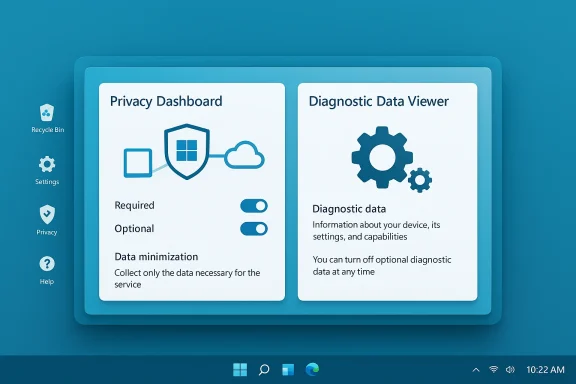
Microsoft has taken multiple steps to make telemetry less mysterious; two deserve special attention.- Diagnostic Data Viewer (DDV) — introduced to Windows Insiders in early 2018 and later published broadly, DDV lets you inspect the diagnostic events your PC has generated and see the exact fields and values sent to Microsoft (within the limits of what the viewer shows). Install it or enable it via Settings > Privacy & security > Diagnostics & feedback, and you can examine events, filter by category, and export or delete local records. The tool won’t instantly reveal every server‑side use of aggregated telemetry but it substantially reduces opacity.
- Settings and the Privacy Dashboard — Windows provides a Diagnostics & feedback page where you can choose to stop sending Optional diagnostic data (recommended for privacy‑sensitive users). You can also control Tailored Experiences / Personalized Offers (the feature that uses diagnostic signals to show suggestions and some promotional content) and toggle the “Improve inking & typing” setting that can upload samples used to train recognition models. Microsoft’s privacy portal also offers per‑account activity history and deletion tools for some data categories.
What Microsoft says it doesn’t do — and how to evaluate those claims
Microsoft has repeatedly stated that Windows does not scan the contents of your files, email, or other communications in order to deliver targeted advertising, and the company has emphasized encryption and de‑identification steps. For example, the Windows privacy blog and the broader Microsoft privacy statement state diagnostic data is transmitted and stored with identifiers and that Microsoft takes steps to minimize personally identifying signals. Terry Myerson’s 2015 blog explicitly said information “is encrypted in transit to our servers, and then stored in secure facilities.”Two practical checks when you evaluate that claim:
- Data minimization and sampling — Microsoft documents that some categories of Optional data are collected only from a percentage of devices (sampling), which reduces the total volume of sensitive payloads collected. But sampling is not proof of privacy — it only limits exposure.
- Crash dumps and enhanced error reports — Optional diagnostics may include memory state at the time of a crash. That can unintentionally include fragments of files or typed content. Microsoft acknowledges this risk and advises sensitive users to disable Optional collection. This is a precise, verifiable privacy surface to care about.
Community behavior and “third‑party fixes”: what users actually do
The Windows privacy debate has spawned a cottage industry of “antispy” tools and forums discussing host‑file blocks, service disablement, and registry hacks. Forum threads from long‑running Windows communities show users sharing lists of blocked telemetry endpoints, recommending utilities such as Spybot Anti‑Beacon and host‑file rules, and debating whether disabling telemetry breaks updates. These community conversations illustrate two things: (1) a sizable group of users distrust Microsoft telemetry and will take blunt measures to block it, and (2) some of those blunt measures can have unintended side effects like breaking update services or support scenarios.If you follow that path, keep in mind:
- Third‑party “antispy” tools can be useful for casual hardening, but they often take aggressive actions (hosts file blocks, service removals, registry edits) that may be unsupported and can break Exchange/Teams/OneDrive integrations or Windows Update behavior.
- Enterprise customers have supported group‑policy and MDM controls that allow careful configuration; home users who pursue registry hacks or service removal are taking unsupported risks.
Practical guide: what to check and what to change (step‑by‑step)
Follow these steps to reduce optional telemetry exposure while keeping Windows functional.- Open Settings > Privacy & security > Diagnostics & feedback.
- Under Diagnostic data, set to Required (turn off “Send optional diagnostic data”). This removes the extra app usage and browser‑history categories from Microsoft’s optional payload.
- Turn Personalized offers / Tailored experiences off to avoid using diagnostic signals for suggestions or certain promotional content.
- Under Inking & typing and Improve inking & typing, set collection off if you type or write sensitive content. Optional inking/typing data may include text samples.
- Install and run Diagnostic Data Viewer if you want to audit what your PC is actually sending. Enable the viewer toggle in Settings and launch the app; expect dense, technical output but also searchable fields.
- If you need maximum assurance (e.g., regulated environments), consider using a privacy‑hardened platform, an isolated dedicated device for sensitive work, or deploying endpoint controls that limit network egress to known, auditable services. For enterprises, use Microsoft’s documented processor‑configuration and contract terms for managed devices.
- Set Diagnostic Data to Required.
- Turn off Personalized Offers (Tailored experiences).
- Disable Improve inking & typing.
- Audit using Diagnostic Data Viewer.
- For regulated work, use an isolated device or enterprise control plane.
Critical analysis: strengths, weaknesses, and risks
Strengths
- Engineering necessity: Required telemetry supports update health, security telemetry, and compatibility testing across an enormous combinatorial space of hardware and drivers. That is a practical engineering requirement for a widely distributed OS.
- Transparency tooling: Microsoft’s Diagnostic Data Viewer and the privacy dashboard are a material improvement over the early Windows 10 era when telemetry was much harder to inspect. The DDV gives technically skilled users a way to see events and discover whether optional samples are active on their device.
- Regulatory accountability: The Dutch DPA intervention in 2017 is evidence that regulatory scrutiny can improve defaults and disclosure; Microsoft responded with product changes and better documentation.
Weaknesses and risks
- Granularity and defaults: Optional diagnostic data remains opt‑out in many flows, and setup experiences that default optional collection on can still confuse users. Many privacy advocates argue that opt‑in should be the default for anything beyond the minimal necessary telemetry.
- Crash‑dump exposure: Enhanced crash dumps can contain fragments of files or typed text. If optional diagnostics are enabled, that creates a real surface for accidental exposure of sensitive content. Microsoft documents this explicitly and recommends turning off Optional for sensitive environments.
- Back‑end aggregation and measurement choices: When Microsoft or others publish “one billion devices” or similar platform metrics, those numbers are telemetry‑driven and depend on internal counting choices. That telemetry is also what people worry about: aggregations of many small signals can be re‑identified in theory if combined with other datasets — a general privacy problem that affects all telemetry systems, not just Microsoft’s. Recent academic work has emphasized how repeated sampling and repeated collection can erode differential‑privacy guarantees over time; the math of repeated collection matters. Treat privacy as a function of collection frequency and aggregation strategy, not just a single binary.
The “is Microsoft spying on you?” checklist — practical answers
- Is Microsoft collecting diagnostics from your PC? Yes — Required data from every unmanaged Windows device and Optional data if enabled.
- Is Microsoft secretly scanning all your files to build ad profiles? Microsoft says it does not scan file contents for advertising and its public documentation and blogs make that claim explicit; however, optional crash dumps can contain fragments of files unintentionally. Treat these as distinct issues.
- Can you see what’s being sent? Yes — use Diagnostic Data Viewer and Settings to inspect what your device is reporting. It’s technical, but it’s direct.
- Can you stop all telemetry in supported ways? No — Required telemetry is the baseline and cannot be fully disabled on unmanaged consumer devices through supported settings; optional collection can be disabled. Aggressive third‑party blocking is possible but unsupported and may have side effects.
What policy makers and Microsoft should do next (constructive proposals)
- Make Optional telemetry truly opt‑in during the out‑of‑box experience (OOBE), with neither Required nor Optional pre‑selected, and require an explicit affirmative action to enable Optional. That change would follow the spirit of the Dutch DPA’s consent concerns and make the ethical default clearer.
- Provide per‑field explanations in the OOBE (short, plain‑English) showing sample examples of what Optional fields can contain and the risk/benefit tradeoffs; exploit pattern‑language rather than linked legal pages. Transparency without jargon builds trust.
- Publish a technical appendix describing how often telemetry is collected and the decay properties that matter for differential privacy, and commit to rolling re‑identification impact assessments. Recent academic work shows repeated collection can weaken guarantees; vendor transparency here would be valuable to the entire industry.
Bottom line for different user types
- Everyday consumer who wants reasonable privacy — set Diagnostic Data to Required, turn off Personalized Offers, disable inking/typing telemetry, and use Diagnostic Data Viewer occasionally to audit. You get updates and security with limited behavioral exposure.
- Power users who distrust platform vendors — consider using a separate, privacy‑hardened device for sensitive work, or run privacy‑first OSes for that work. Aggressive blocking is possible but unsupported; be ready to troubleshoot broken features. Community tools exist but use them with caution.
- Enterprises and regulated environments — manage devices through supported MDM/GPO controls, use Microsoft’s processor configuration and contractual controls for data processing, and use dedicated enterprise telemetry flows that Microsoft documents for managed deployments. Enterprise contracts and technical configurations are the right place to insist on limits and proof of processing practices.
Final assessment
Calling Windows telemetry “spying” is a rhetorically powerful shorthand, but it clouds more than it clarifies. The technical reality — as Microsoft’s documentation, regulatory reviews, and independent researchers show — is more nuanced:- Microsoft collects Required diagnostic data from all unmanaged Windows devices to support patching, security, and reliability. That collection is an engineering reality for a platform that must keep itself secure and updated at global scale.
- Optional diagnostics carry real privacy tradeoffs: browsing activity in Microsoft browsers, app usage signals, and enhanced crash dumps are the categories that raise the most concern. These are the things privacy‑minded users should switch off unless they want deeper personalization and assisted troubleshooting.
- Transparency is demonstrably better now than in 2015: Diagnostic Data Viewer, privacy dashboards, and regulators forcing clarity have pushed Microsoft to document what it collects. But defaults and consent UX still matter, and regulators remain right to press for clearer opt‑in choices.
Source: ZDNET Is Microsoft really spying on you with Windows telemetry?
