Maester: Treat Cloud Configuration as Code with Automated Microsoft 365 Tests

  • Thread Author
Maester arrived as a simple idea with a practical purpose: treat cloud configuration like code and test it continuously so Microsoft 365 and Entra administrators stop discovering broken security only after an incident exposes the gap.

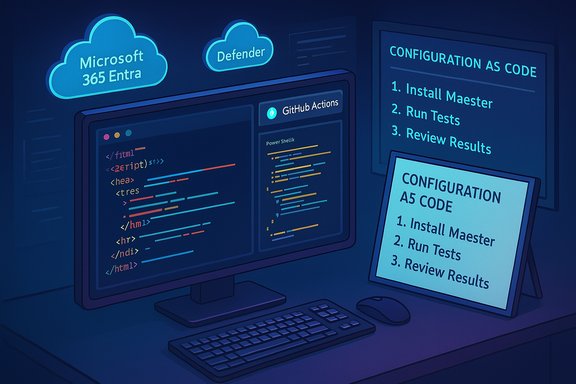
Code editor on a desk with cloud icons and a Configuration as Code checklist.Background​

Cloud configuration drift is a persistent, low‑visibility risk in modern organizations. Administrators change settings, delete groups, or tweak policies for operational reasons; over time the tenant’s effective security posture diverges from the documented or intended state. Maester is an open‑source, PowerShell‑based test automation framework that applies the developer practice of regression testing to Microsoft 365 and Entra configuration so teams can detect those drifts before they become breaches. The tool was conceived by Merill Fernando and early contributors to run Pester tests against Microsoft Graph and PowerShell APIs and produce actionable reports for administrators. This origin story—turning configuration validation into automation and code—is central to Maester’s design and adoption.

What Maester is and what it does​

Maester is a Pester‑based framework that executes automated checks (Pester tests) across Microsoft 365 services to validate security posture, configuration, and policy intent. It uses Microsoft Graph and PowerShell modules to query tenant state, evaluate conditions (for example, "does Conditional Access policy X cover all guest accounts?"), and surface regressions or misconfigurations in a readable format.
Key attributes:
  • Built on Pester and PowerShell to enable test-driven configuration validation.
  • Extensible: ships with a large suite of tests and lets organizations add custom Pester tests that codify their security intent.
  • Automation friendly: integrates with GitHub Actions, Azure DevOps, and other CI/CD tooling to run continuously and produce HTML artifacts, notifications, and dashboards.
  • Human‑friendly reporting: Maester converts Pester console output into color‑coded HTML reports and summaries that can be emailed, posted to Teams, or archived as build artifacts.
These features position Maester as a practical implementation of security configuration as code—you write assertions about how your tenant should behave, and Maester runs those assertions regularly so configuration drift is visible and actionable.

Origins and rationale: why configuration needs tests​

The practical problem Maester targets is simple but widespread: admins make many routine changes (group cleanup, policy tweaks, automation), and a single deletion or misconfiguration can silently disable critical protections. A typical failure mode is the “policy exists but does not apply” scenario—e.g., a Conditional Access policy that depends on a dynamic group that was removed years earlier. Those errors rarely show up in daily operations until an incident triggers them.
Maester is explicitly inspired by software regression testing. Instead of writing unit tests against application code, administrators write Pester tests against the tenant configuration. This approach does three things:
  • Creates a living, executable specification of intent (the tests become documentation that is continuously validated).
  • Enables early detection of regressions and misalignment.
  • Fits into existing DevOps and automation workflows so tests run daily, nightly, or on every change.
The Pester + Graph pattern makes it easy for PowerShell‑fluent teams to adopt Maester quickly, and the community has contributed tests that map to public security baselines and guidance—accelerating time to value.

Verified claims and numbers — what the records show today​

When measuring an open‑source project's reach and scope, the most authoritative sources are the project's own release notes, the project repo, and package registries. Public Maester project pages and release posts (June 2025) list the following verified metrics:
  • Maester reports 55,000+ tenants that have used the tool (June 2025 blog).
  • The June 2025 release reported roughly 285 Maester tests after a large expansion.
  • The project’s GitHub organization and repo are publicly available, and Maester includes ready‑made tests that can be installed and updated using PowerShell commands (Install‑MaesterTests / Update‑MaesterTests).
  • Maester documentation shows direct support and recipes for GitHub Actions and Azure DevOps pipelines to automate daily runs and artifact collection.
Important note about conflicting figures: some secondary articles and earlier writeups have quoted different adoption numbers (for example, higher tenant counts or daily run numbers). Adoption metrics for open‑source projects change rapidly and are often reported differently (e.g., unique tenants versus total runs). The project's official blog and GitHub repository are the best single authoritative sources for current totals; older or third‑party figures should be treated as snapshots in time. Where external articles or press pieces present different numbers, those should be flagged as likely time‑dependent or based on different measurement definitions.

How Maester runs and how teams adopt it​

Three quick commands (the beginner path)​

Maester’s documentation emphasizes accessibility: a new admin can get started with the built‑in PowerShell (on Windows or PowerShell Core) and a few straightforward commands:
  • Install the Maester PowerShell module (Install‑Module -Name Maester).
  • Install the prebuilt tests into a local folder (Install‑MaesterTests).
  • Connect and run (Connect‑Maester ; Invoke‑Maester) to generate results and the HTML report.
The framework includes helpers for output and notifications (e.g., send results to Teams, email, or upload as CI artifacts), which lowers the barrier for non‑DevOps teams to adopt continuous testing.

CI/CD and automation​

Maester provides documented integration patterns for:
  • GitHub Actions (a published action and example workflows).
  • Azure DevOps pipelines (a Terraform module and pipeline examples).
These integrations let organizations schedule daily runs, capture HTML reports as artifacts, and fail pipelines on policy regressions—making configuration testing a natural part of operational change control.

Extensibility: tests as living configuration​

A core strength of Maester is that the prebuilt tests are only the starting point. Teams can:
  • Add tests that codify internal policy (e.g., "the global admin list must include exactly these accounts"), which will fail the moment an unexpected privilege appears.
  • Integrate third‑party checks and community modules—Maester can orchestrate tests from other frameworks, including Office 365 Recommended Configuration Analyzer (ORCA) controls and system baselines.
  • Use tools like GitHub Copilot or code snippets to accelerate writing Pester tests; authors emphasize that tests are easy to create and maintain.
This turns static documentation into executable governance. Tests live in source control, evolve with the tenant, and become part of change history and review processes.

Where Maester shines: common real‑world use cases​

  • Detecting Conditional Access failures: reveal when a policy is present but not enforced because its target group no longer exists.
  • Privilege monitoring: assert the exact set of global admins and alert on changes.
  • Mail and Defender hygiene: verify mail flow rules, tenant‑level Defender configuration, and other recommended settings.
  • Daily posture reports: automated daily runs that produce an executive‑friendly HTML report and an operations view for engineers.
These patterns convert many stealthy operational errors into test failures that can drive remediation tickets, alerts, or even automated rollback actions.

Risks, limitations, and operational considerations​

No tool is a silver bullet. The following are important constraints and risks to manage when adopting Maester:
  • Permissions and service principal risk: Maester needs read access to broad tenant configuration (often Directory.Read.All, Policy.Read.All, etc. to evaluate policies across Microsoft Graph. Granting such broad permissions to automation requires careful governance—use least‑privilege service principals, conditional access on the automation principal, and credential rotation. Maester docs and integration guides show recommended permission sets for CI/CD workflows.
  • False positives and context: automated checks can report "fail" on technically non‑compliant configurations that were intentionally permitted for business reasons. Teams must add context, tune tests, or add exceptions with documentation. The test becomes an operational policy only when owners treat failures as meaningful and actionable.
  • Supply‑chain and runtime security: running Maester in shared automation or CI systems means you must secure the runner, credentials, and artifact storage. Treat Maester runs like any automation that holds privileged access.
  • Data retention and telemetry: some organizations will need to decide how long to retain reports and diagnostic output. Put retention policies in place if tenant metadata is sensitive and ensure artifact storage follows organizational compliance rules.
  • Measurement differences: adoption and usage numbers published by different outlets may measure different things (unique tenants, total runs, downloads). Use the project's official release notes for baseline counts and treat press numbers as time‑bound snapshots.

Cross‑verified facts and flagged claims​

  • Verified: Maester is open source, Pester‑based, and written in PowerShell; the GitHub repo and PowerShell Gallery package are public.
  • Verified: Maester provides GitHub Actions and Azure DevOps integration patterns and ships with prebuilt tests you can install/update with Install‑MaesterTests / Update‑MaesterTests.
  • Verified: The official Maester blog (June 2025) reported roughly 55,000+ tenants and ~285 tests at that time. That official figure is the most recent authoritative snapshot published by the project.
Flagged/unverifiable or time‑dependent claim: a specific figure quoted in some summaries—“75,000 tenants have used Maester and 10,000+ run it daily”—could not be corroborated by the official Maester release notes available at the time of writing. Adoption metrics for open‑source projects change frequently, and different outlets or snapshots may report different numbers depending on measurement windows and definitions. Treat such claims as time‑sensitive and seek the project’s current blog or repository for the latest counts before citing them in governance documents.

Best practices for adoption: a pragmatic checklist​

  • Start small and iterate. Choose 5–10 critical assertions to begin: global admin membership, coverage for Conditional Access, external sharing defaults, mailbox transport hygiene, and Defender baseline settings. Add tests as changes are made.
  • Use least‑privilege automation principals. Create dedicated service principals or managed identities with narrowly scoped permissions for Maester runs. Rotate credentials frequently and instrument runs with logging and audit trails.
  • Integrate into CI/CD. Run Maester daily in a scheduled GitHub Action or Azure DevOps pipeline and publish HTML reports to a secure artifact store visible to security and IT teams.
  • Establish triage and exception workflows. Treat test failures like production test failures: assign owners, require reasoned exceptions tracked in source control, and mandate expiration for ad‑hoc exceptions.
  • Review and tune. Periodically review the test suite, retire obsolete checks, and add tests aligned to formal baselines (CISA SCuBA, vendor hardening guides). The CISA focus on secure baselines makes configuration testing a priority for both public and private sector tenants.

Governance and operationalizing tests as policy​

Turning tests into enforceable governance requires more than automation:
  • Codify tests in a repository with PR review for changes. Use branch protections and approvals for test updates.
  • Link test failures to ticketing (automated issue creation) and use run history as evidence in audits and compliance reviews.
  • Use role‑based visibility: executive summaries for leadership, detailed artifacts for SecOps, and contextual alerts for platform owners.
This model—tests in source control, enforced runs in CI, and integrated remediation workflows—creates a repeatable, auditable mechanism to maintain tenant posture over time.

Strengths and strategic value​

  • Reproducible posture checks: Tests are deterministic and repeatable; automation reduces human error and improves speed of detection.
  • Community contribution: Maester’s open‑source model means organizations share tests and best practices, avoiding duplicate effort and benefiting from collective expertise.
  • Practical accessibility: Maester targets administrators by making setup straightforward (PowerShell, simple commands, readable HTML reports), which accelerates organizational adoption even in teams without a heavy DevOps background.

Where to watch next​

  • Continued growth of the test corpus and integrations (more ORCA, Defender, Exchange checks) as the community contributes new controls.
  • Tightening of automation governance and marketplace agents: as identity and configuration agents become more common in vendor ecosystems, organizations should scrutinize permissions, auditability, and supply‑chain risk.

Conclusion​

Maester reframes a familiar operational problem—configuration drift—into an engineering discipline: write tests for the state you expect, run them regularly, and treat failures as defects that must be triaged. The approach borrows proven developer practices (Pester, CI/CD, regression testing) and makes them available to Microsoft 365 administrators with minimal friction. Verified documentation and release notes show steady growth in test count and adoption, and the project’s open‑source, community‑driven model accelerates coverage of Entra ID, Exchange, Defender, and Intune surfaces. Organizations that codify their security intent in Maester tests and embed those tests in daily automation pipelines gain continuous visibility, stronger audit trails, and a pragmatic way to reduce the fragile human reliance on stale documentation.
Start with a handful of tests that protect the highest‑value controls, lock down the automation identity, and make Maester runs—and their resulting reports—part of your normal change and incident workflows. Over time, that discipline is how teams convert configuration drift from a recurring surprise into predictable operational hygiene.
Source: Petri IT Knowledgebase Maester: Turning Security Configuration into Code
 

Windows Terminal is no longer a niche power‑user toy — it’s a modern, extensible command‑line host that bundles multiple shells (PowerShell, Command Prompt, WSL distributions and cloud shells) into a single, high‑performance workspace while exposing deep customization and experimental AI features that change how many Windows developers and sysadmins work. The practical highlights — tabs and split panes, per‑profile themes, a JSON settings model, GPU‑accelerated rendering, and a new Terminal Chat integration — make it a must‑have for users who value speed, clarity, and reproducible terminal layouts.

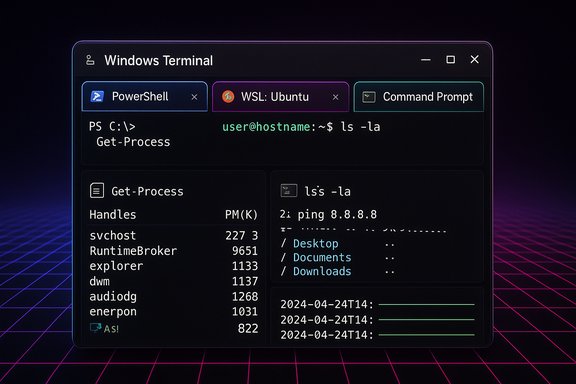
Windows Terminal with tabs for PowerShell, WSL: Ubuntu, and Command Prompt showing process lists.Background​

Windows Terminal is a terminal host, not a shell. It runs whatever shells (cmd.exe, PowerShell, PowerShell Core, WSL distros, Git Bash, Azure Cloud Shell) you already use, presenting them inside one modern UI with tabs, panes, and a settings model designed for both GUI and power users. The project is open source on GitHub and has matured rapidly since its introduction, with preview and Canary channels delivering features faster than legacy console hosts ever did.

Why this matters now​

Consolidating shells into a single, configurable host reduces context switching and visual mistakes. For teams and solo devs alike, visual cues — colors, icons, and per‑profile fonts — become operational safety nets. The Terminal’s active development model means new capabilities appear often (session restore, image rendering via Sixel, and AI integrations), but it also means administrators need to evaluate preview features before wide deployment.

What to know — feature deep dive​

Multi‑tab support: a browser model for shells​

The tabbed UI is the most visible productivity win. Instead of separate console windows, Windows Terminal lets you run multiple independent sessions in one window — each tab preserves its working directory, font and color settings, and scrollback buffer.
  • Default shortcut: Ctrl + Shift + T to open a new tab.
  • Profile indexing: single‑keystroke combos can be mapped to profiles (open profile 1–9 quickly).
  • Tabs are reorderable and duplicable.
These behaviors are core to the Terminal’s productivity story and are exposed via both the GUI and the JSON settings.

Split panes: real multitasking without window clutter​

Split panes let you tile multiple sessions inside one tab — ideal for running a server in one pane, tailing logs in another, and keeping an interactive shell in a third.
  • Vertical split: Alt + Shift + Plus (+)
  • Horizontal split: Alt + Shift + Minus (-)
  • Move focus: Alt + Arrow keys
Panes are great for cross‑platform work (PowerShell on the left, a WSL bash pane on the right) and for monitoring long outputs while you work. The keybindings and pane actions are configurable through the settings UI or settings.json.

Profiles and WSL integration: context‑driven shells​

Profiles let you treat each environment as a first‑class citizen:
  • Automatic/dynamic profiles: when you install WSL distros or PowerShell Core, Windows Terminal will generate profiles for them automatically.
  • Per‑profile customization: icon, color scheme, starting directory, environment variables, and font.
  • Use cases: one profile for local builds (WSL), another for Azure CLI (PowerShell), another for admin tasks (elevated PowerShell).
Dynamic profile generation is documented and is a key convenience — especially for users who frequently install new distros or shell tooling.

Deep customization: themes, fonts, transparency, and JSON​

Terminal supports both a GUI settings editor and the classic declarative settings.json file. Advanced users can declare profiles, actions, keybindings, and even custom command palette entries in JSON for reproducible setups.
  • Visual options: font face (Cascadia Code is bundled), font size, cursor shape, tab colors, background images, acrylic and Mica effects, and opacity.
  • Quick edit: settings UI writes to settings.json, but manual edits remain supported for precision changes.
Use the GUI for common tweaks and the JSON for version‑controlled, shareable configurations. This makes it easy to sync or migrate configurations across machines by copying the settings file.

GPU‑accelerated rendering and AtlasEngine​

Windows Terminal moved to a modern, GPU‑accelerated text rendering pipeline — the AtlasEngine — which improves glyph handling (including overlapping glyphs, Powerline symbols, emojis, and complex scripts) and significantly smooths scrolling for large outputs.
  • Benefits: crisp glyphs, smoother scrolling, reduced CPU for long outputs, and better support for full‑color emojis and Powerline glyphs.
  • AtlasEngine was introduced as an experimental renderer and over several preview releases became the default as its behavior matured.
This rendering revamp is a major reason the Terminal feels snappy compared with the old conhost experience. If you encounter rendering anomalies with specific fonts, AtlasEngine includes toggles in the rendering settings so advanced users can tune behavior.

Command palette and snippets: keyboard‑first control​

The Command Palette (invoke with Ctrl + Shift + P) exposes actions and commands — similar to the palette in Visual Studio Code.
  • Two modes: action mode (search actions) and command line mode (enter wt commands).
  • Snippets (experimental): store commonly used command strings and paste them via the palette to avoid typo‑prone repetition.
The palette makes discoverability of Terminal actions trivial: no need to memorize every hotkey.

JSON settings file + syncability​

The settings.json model still exists and is intentionally powerful. Teams and power users use it to:
  • Export consistent profiles and keybindings.
  • Keep a repository of a “golden” Terminal config.
  • Automate workstation provisioning via scriptable copy of the JSON.
Note: a GUI exists that edits the JSON for convenience, but the file remains the canonical configuration artifact.

Experimental: Terminal Chat — AI inside the terminal​

Windows Terminal Canary includes an experimental Terminal Chat pane that connects to external LLM services (GitHub Copilot, Azure OpenAI, or OpenAI) so you can ask context‑aware questions about commands, errors, or shell syntax without leaving the terminal.
  • Terminal Chat is experimental and available in the Canary channel. You must configure your AI provider and keys.
  • Use cases: explain a cryptic bash error, get suggested commands tailored to the shell context, or copy command suggestions into your prompt.
  • Governance: the feature can be managed via Group Policy in enterprise environments; chat history is not persisted by Terminal after the session ends.
Terminal Chat dramatically shortens the "look up docs + return" loop, but it introduces new operational and privacy considerations when used with external LLM services.

Sixel images, session restore and other newer features​

Recent preview releases added features that show how Terminal is evolving beyond text:
  • Sixel image support: some Terminal builds now support rendering images inline using the Sixel protocol — useful for CLI tools that visualize data.
  • Session restore: the Terminal can restore open windows and their buffers between launches (optional), bringing browser‑like session continuity to terminals.
  • Quick fix suggestions: experimental helpers that prompt winget package suggestions when a command isn’t found.
These additions reflect a trend to make terminals more than text panes — they’re becoming full interactive workspaces.

Installation, system requirements, and distribution​

Windows Terminal is distributed via the Microsoft Store (recommended), GitHub releases (msixbundle), and package managers such as winget and Chocolatey.
  • Microsoft Store: easiest, auto‑updates the app.
  • winget: use winget install --id Microsoft.WindowsTerminal -e for scripted installs.
  • GitHub: direct msixbundle downloads for air‑gapped or non‑Store systems.
Important caveat: the documented minimum Windows version has varied in public writeups. The official GitHub README currently states Windows 10 2004 (build 19041) or later is required for supported builds, which is a stricter requirement than some earlier third‑party guides claiming 1903. Administrators should check the GitHub README or the Microsoft Store listing on target systems before mass deployment to avoid mismatches.

Practical workflows and examples​

1. Cross‑platform development (typical setup)​

  • Open Windows Terminal.
  • Create three panes in one tab: PowerShell (left), WSL Ubuntu (top‑right), and a log‑tail pane (bottom‑right). Use Alt+Shift++ then Alt+Shift+- to split and Alt+Arrow to move focus.
  • Assign a purple color scheme and an Ubuntu icon to the WSL profile; keep the PowerShell profile blue. Visual cues prevent running destructive commands in the wrong shell.

2. Repeatable admin sessions​

  • Create a profile named “Admin” with an elevated PowerShell commandline and a fixed starting directory.
  • Export your settings.json to a repo or shared location. Copy it to new servers for consistent admin workspaces.

3. Fast help via Terminal Chat (Canary)​

  • Configure Terminal Chat to use GitHub Copilot or an Azure OpenAI endpoint in Settings → Terminal Chat.
  • Hit the Terminal Chat button or keybinding, ask for a translation of a PowerShell error, and paste the suggested command after possible edits.
These workflows use built‑in features to reduce context switching and manual repetition, improving speed and reducing mistakes.

Customization best practices​

  • Use per‑profile colors and icons to avoid costly human errors (e.g., running destructive scripts in production shells).
  • Pick a monospace font that supports the glyphs you need (Cascadia Code is bundled; Powerline or Nerd fonts are common for glyphs).
  • Keep a version‑controlled copy of settings.json for reproducibility.
  • Pin commonly used profiles to the dropdown for one‑click access.
  • If you rely on preview features (AtlasEngine tweaks, Sixel), test them in Canary or Preview channels before enabling in production.

Security, enterprise risks, and governance​

Windows Terminal is a host — it does not alter the security model of the shells it runs. Execution policies, script signing, and logging remain the responsibility of PowerShell, CMD, or the underlying shell. Administrators should treat Terminal like any other client app and apply the same controls:
  • Enforce PowerShell execution policies and script signing rules.
  • Audit scripts that run in elevated profiles.
  • Control Terminal Chat and AI usage: Terminal Chat speaks to external AI services and requires API keys or subscriptions. In regulated environments, restrict or disable Terminal Chat via Group Policy until compliance reviews are completed.
  • Session restore risk: session restoration can preserve sensitive outputs; treat the feature like any other stateful capability and enable it only where appropriate.
The Terminal team provides Group Policy controls for experimental features and documents the privacy behavior of Terminal Chat (for example, session chat content is not persisted by Terminal after the session ends), but third‑party AI providers may retain request logs depending on their policies — review provider contracts and data handling details before adoption.

Strengths, trade‑offs and potential pitfalls​

Strengths​

  • Productivity: tabs, panes and profiles cut context switches and save time.
  • Clarity: per‑profile visuals reduce mistakes.
  • Performance: AtlasEngine + GPU rendering makes long outputs and emoji/Unicode rendering reliable and efficient.
  • Extensibility: JSON settings and an open‑source model let teams customize and contribute.

Trade‑offs and risks​

  • Not a shell: Terminal won’t change shell security — misunderstandings here create operational risk.
  • Preview features: Canary/Preview features are powerful but may change; test before roll‑out.
  • New attack surface: richer capabilities (images, AI integrations) increase complexity; follow the same security hygiene as for any client app.
  • Requirements drift: minimum OS versions and dependencies can change; verify before large deployments. For example, there is inconsistent reporting about the earliest Windows 10 build supported — check the project README and Store listing for the most current requirement.

Verifications and cross‑checks (what was checked)​

  • Dynamic profile behavior, the command palette, pane keybindings, and per‑profile customization are documented in Microsoft Learn.
  • The AtlasEngine renderer and its improvements are documented in the Terminal team’s preview release notes and devblogs. Those documents describe the renderer’s conversion from experimental to the default path as it matured.
  • Terminal Chat’s experimental nature, service provider support (GitHub Copilot, Azure OpenAI, OpenAI), and configuration guidance are on Microsoft Learn and the Windows Terminal dev blog. The GitHub Copilot and GitHub changelog entries confirm Copilot integration into Terminal Canary and availability options.
  • Installation options and the recommended approach (Microsoft Store, winget, GitHub msixbundle) are documented in the project README and the official install docs; they also list the minimum Windows build required (Windows 10 2004 / build 19041) — note this differs from some earlier summaries that cited older 1903 requirements. Administrators should validate the README on the Terminal GitHub for the latest minimums.
If a claim could not be corroborated or was subject to conflicting public writeups (for example, an article claiming Windows 10 1903 minimum), that discrepancy has been explicitly called out above and substantiated with the authoritative GitHub README.

Recommendations for power users and admins​

  • Standardize a shared settings.json in a repo for teams to ensure a consistent starting point.
  • Use per‑profile color schemes and icons to lower the chance of accidental destructive commands.
  • Keep Terminal stable on production machines; use Canary or Preview on dedicated test hosts for early features like Terminal Chat or Sixel.
  • Review and control Terminal Chat usage in enterprise environments; treat AI endpoints as external services that need contractual and security review.
  • Automate installation via winget for easier fleet provisioning; fall back to msixbundle for air‑gapped environments but remember manual installs don’t auto‑update.

Windows Terminal has transformed the Windows command‑line experience into a flexible, fast, and extensible workspace. Its combination of modern rendering, multi‑pane workflows, profile‑centric ergonomics, and experimental AI integrations delivers tangible productivity gains for developers and administrators. The same openness that brings rapid innovation demands measured rollouts in enterprise settings — verify system requirements, governance for AI integrations, and test preview features before broad adoption. For anyone who spends serious time in shells on Windows, Windows Terminal is an operational upgrade: faster, clearer, and far more controllable than the classic consoles it replaces.

Source: Windows Report Windows Terminal Features You Should Know
 

Back
Top