

Windows updates are no longer background chores — they’re front-page events that shape device reliability, user trust, and IT policy, and a recent cluster of BetaNews stories neatly illustrates why: practical rollback guides for feature updates sit alongside celebratory pieces about the most widely installed feature update to date, lightweight coverage of the community ecosystem (the week’s best Windows apps), and a small, human moment in which Microsoft thanked Insider testers with a few surprises. Taken together, these dispatches capture a Windows world that’s simultaneously mature and brittle — one where installation momentum and upgrade telemetry meet real-world driver diversity, app compatibility gaps, and the very human need for escape hatches when upgrades break workflows.
Windows servicing has evolved from monolithic, once-a-year overhauls to a continuous pipeline of feature updates, cumulative security patches, and enablement packages. The trade-off is clear: faster delivery of improvements and security fixes, but a larger surface area where regressions can appear on specific hardware and driver stacks. Microsoft builds rollback safety nets into the process, but those nets have limits — a typical “go back” window, dependencies on Windows.old, and scenarios where only a complete image restore will reliably return a device to its prior state. Community and technical coverage routinely focuses on these fallback options because, in practice, they’re what users and admins reach for when things go awry.
The BetaNews pieces in question reinforce two parallel narratives. First: upgrades succeed at scale — the Fall Creators Update’s high installation count is an operational win and a sign that staged rollouts and enablement strategies can and do work. Second: updates sometimes cause serious, device-specific regressions that require immediate remediation, from simple toggles and Explorer restarts to full rollbacks and clean reinstalls. The practical guidance contained in how‑to rollback articles and community troubleshooting playbooks is therefore an essential complement to coverage of adoption and product milestones.
Why “Go back” might be missing:
The right posture is pragmatic and cautious: back up before you upgrade, pilot updates where possible, prefer targeted fixes over full rollbacks when appropriate, and treat uninstalling security patches as a temporary last resort. Microsoft’s staging infrastructure and community of testers are strengths worth preserving, but they cannot replace disciplined testing, timely vendor coordination, and better transparency around rollout and rollback mechanics. The Windows update story continues to be a balancing act — between rapid delivery and operational stability — and the best defense for users is a combination of preparation, awareness, and the tactical playbooks the community has refined and shared.
Source: BetaNews https://betanews.com/article/how-to...y-the-most-installed-windows-10-update-ever/]
 Background / Overview
Windows servicing has evolved from monolithic, once-a-year overhauls to a continuous pipeline of feature updates, cumulative security patches, and enablement packages. The trade-off is clear: faster delivery of improvements and security fixes, but a larger surface area where regressions can appear on specific hardware and driver stacks. Microsoft builds rollback safety nets into the process, but those nets have limits — a typical “go back” window, dependencies on Windows.old, and scenarios where only a complete image restore will reliably return a device to its prior state. Community and technical coverage routinely focuses on these fallback options because, in practice, they’re what users and admins reach for when things go awry.The BetaNews pieces in question reinforce two parallel narratives. First: upgrades succeed at scale — the Fall Creators Update’s high installation count is an operational win and a sign that staged rollouts and enablement strategies can and do work. Second: updates sometimes cause serious, device-specific regressions that require immediate remediation, from simple toggles and Explorer restarts to full rollbacks and clean reinstalls. The practical guidance contained in how‑to rollback articles and community troubleshooting playbooks is therefore an essential complement to coverage of adoption and product milestones.
How to rollback and uninstall a Windows feature update — what the guides actually say
Built-in rollback: the “Go back” safety net
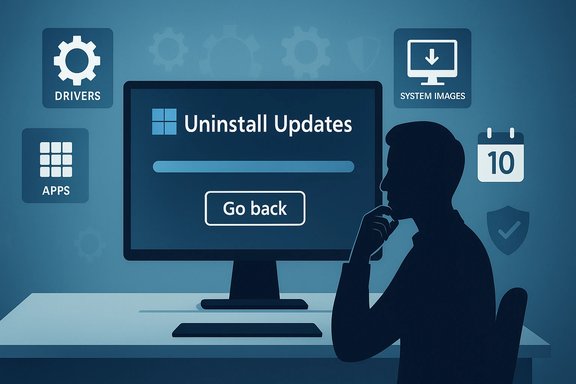
Windows preserves the previous installation for a limited period (commonly about 10 days) after a feature update so users can reverse the change without a full reinstall. The most user-friendly path is Settings → System → Recovery → Go back. When available, this option automates the uninstall of the feature update, typically preserving personal files while removing apps and drivers installed after the update. The process can take anywhere from tens of minutes to a few hours depending on hardware and installed software.Why “Go back” might be missing:
- The rollback window expired and Windows removed the Windows.old folder.
- Disk cleanup utilities (including third‑party cleaners) deleted the recovery artifacts.
- OEM or custom recovery setups change how previous installation images are retained.
WinRE and Advanced Startup — rollback when the GUI fails
If the OS won’t boot normally, WinRE (Windows Recovery Environment) provides an alternative route: Advanced options → Uninstall Updates → Uninstall latest feature update. This flow uses the same retained artifacts as the Settings method but is accessible even when the system won’t boot into the desktop environment. It’s the usual fallback for “boot into Automatic Repair” or for users who boot from recovery media.Targeted removals: uninstalling a specific KB
Not every problem requires a full feature rollback. When a cumulative update (KB) produces a regression, targeted removal using the UI (Settings → Update history → Uninstall updates) or the elevated command-line tool wusa (/uninstall /kb:#####) is often the fastest remedy. Caveats:- Some KBs are non-removable.
- Uninstalling a security update temporarily reduces protection and should be treated as a stopgap until a fixed update is available.
System image restore and clean reinstall
If Windows.old is gone or the machine is irreparably damaged, restore a pre-update system image or perform a clean install using official install media. System Image Recovery via WinRE restores the exact pre-update state (OS, drivers, apps, files). A clean install is disruptive but sometimes unavoidable. Always back up critical data before attempting either approach.Power-user and enterprise alternatives
For administrators and advanced users who wish to avoid disruptive rollbacks:- Use Windows Update for Business, WSUS, or SCCM to stage feature updates.
- Configure Group Policy to set Target Release Version or pause updates for validation.
- Leverage Known Issue Rollback (KIR) when Microsoft flips server-side mitigations for specific regressions. KIR is powerful but not universally available, and it’s no replacement for a well-managed pilot testing process.
Step-by-step tactical playbook (condensed)
- Back up critical data immediately (File History, full disk image, or manual copy).
- Check Settings → System → Recovery for the Go back option; use it if present.
- If the PC won’t boot, use WinRE: Troubleshoot → Advanced options → Uninstall Updates.
- If you’ve identified a problematic KB, try Settings → Update history → Uninstall updates, or run wusa /uninstall /kb:XXXXX.
- If an uninstall fails or rollback artifacts are missing, restore from a system image or perform a clean install using verified install media.
- After rollback, pause updates to avoid auto‑reinstallation while you wait for a Microsoft fix.
Why rolling back matters: real consequences and trade-offs
Productivity vs. security
Rolling back a cumulative security update or uninstalling a KB improves immediate usability but reopens the window to the vulnerabilities that update fixed. Community guides repeatedly warn that uninstalling security updates should be a short-term mitigation — use network restrictions and reduced risk operations until a patched update is available. The decision to roll back is often a business judgment: is the lost productivity from the bug greater than the security risk of missing a patch?Incomplete fixes and hidden causes
A rollback might restore a system’s previous behavior without addressing the underlying issue (for example, an out-of-date driver or firmware that was aggravated by the update). Document logs, collect crash dumps, and if possible, test driver updates or vendor firmware before concluding that a full rollback is the best path.The limited rollback window
The 10‑day rollback default is useful but short. If you don’t act within that period — or if Windows automatically cleans up Windows.old — the only viable restores are system images or clean installs. This reality underscores the importance of creating recovery images before major upgrades and of conservative rollout policies for production machines.The other side of the story: when updates win
The Fall Creators Update’s large installed base is an important counterweight to doom-and-gloom headlines. High adoption shows Microsoft’s staged rollout and telemetry-driven delivery can move the ecosystem forward at scale. That matters for security, for feature parity across devices, and for developer targeting. Celebrating a widely installed release is not just PR — it’s evidence that, for most users, the update model works. However, high installation counts don’t erase the need for robust rollback tools or more conservative enterprise testing.Microsoft and the Windows Insider community: small gestures, big signals
One BetaNews piece covered Microsoft thanking Windows 10 Preview (Insider) testers with three small surprises. These gestures are more than morale-boosters; they’re a recognition that the preview ecosystem is a critical, crowd-sourced quality control layer. Insiders catch regressions early, validate compatibility across obscure hardware, and help refine telemetry signals that guide staged rollouts. Rewarding that community helps sustain participation and makes the feedback loop healthier. That said, participation often correlates with risk tolerance: Insiders expect instability and should treat preview builds as test environments, not primary work machines.App ecosystem: “Best Windows 10 apps this week” and why app quality matters during rollouts
Lightweight weekly app roundups are part of the broader Windows ecosystem story. Apps are a key vector of perceived reliability: a stable OS that breaks the apps people rely on will be judged unstable, regardless of patch counts or installation statistics. Highlighting useful, well-maintained apps helps users discover alternatives when compatibility problems appear, and it encourages developers to keep pace with OS changes. The lessons are practical:- Keep essential applications updated and verify compatibility with new Windows builds before committing to mass upgrades.
- Favor apps with active developer support and frequent security updates.
- When a core app breaks after an update, document the issue and check vendor support before rolling back the OS.
Critical analysis — strengths, weaknesses, and risks
Strengths
- Operational scale: Microsoft’s staged rollout and telemetry have enabled high adoption rates for major updates, which is good for long-term security and feature parity.
- Multiple recovery paths: The OS includes several rollback options (Settings “Go back,” WinRE uninstall, KB uninstalls, image restore) that suit different failure modes and user skill levels.
- Community coverage and playbooks: Tech sites and forums provide practical, battle-tested guidance that helps users survive and recover from problematic updates. Those guides reduce downtime in the wild.
Weaknesses and risks
- Rollback window and artifact scavenging: The default rollback period is short and subject to cleanup, leaving users without the easy “Go back” option if they don’t act quickly. This makes pre-upgrade imaging critical.
- Security trade-offs: Uninstalling security KBs is a blunt instrument — effective for immediate relief but risky if used as a long-term solution.
- Opacity in background downloads and enablement packages: Machine-learning-driven background downloads and silent enablement packages reduce user visibility and can catch organizations off guard when images and WinRE expectations aren’t updated in tandem.
- Varied vendor ecosystems: Driver and firmware variability remain the top causes of post-update regressions. Microsoft’s own telemetry can only go so far; OEMs and driver vendors must participate closely in pre-release testing.
Where Microsoft could improve
- Extend or make rollback windows configurable for enterprise environments and provide clearer guidance for home users about when Windows.old will be removed.
- Improve the release-health dashboard with faster, clearer, and more granular communication when community reports diverge from KB entries.
- Expand targeted KIR availability and coordination with OEM driver vendors to reduce the need for full rollbacks.
Practical recommendations for users and administrators
For home users and enthusiasts
- Back up before every major feature update. A simple image plus a copy of Documents and Desktop will save hours.
- If an update causes trouble, try the least disruptive fixes first: restart Explorer, disable a new shell feature (like News & Interests), uninstall a specific KB, then use Go back if necessary.
- Pause updates after uninstalling a problematic patch to avoid automatic reinstallation while you wait for an official fix.
For power users and IT admins
- Maintain a library of validated golden images and offline WinRE/WinPE rescue media. If an in-image change is permanent, redeploying a pre-update image is often safer than piecemeal fixes.
- Use controlled pilot rings to validate feature updates across representative hardware, drivers, and workflows before broad rollout.
- Track Microsoft’s release-health and known-issue notices closely; apply KIR and vendor driver blocks when appropriate.
Unverifiable claims and cautionary notes
Some reportage cites high-level adoption statistics (for example, labeling a feature update as “the most installed ever”). While telemetry-backed adoption claims are plausible, they require corroboration against Microsoft’s official telemetry statements or independent market analysis to be fully verifiable. Readers should treat such superlatives as indicators of scale rather than precise metrics unless the vendor provides explicit numbers. Similarly, community anecdotes about obscure errors and vendor-specific regressions are invaluable for pattern recognition, but individual reports require reproduction and log collection for definitive root-cause analysis. Where exact KB behavior or permanence is in question, consult Microsoft’s KB entries and your OEM’s advisories before taking action.Conclusion
The BetaNews coverage — from practical rollback how‑tos to celebratory adoption news and sidebars about apps and Insider goodwill — reflects the modern reality of Windows maintenance: this is a system built for scale, but one that still needs human-centered recovery playbooks and clear communication. For most users, updates deliver security and improvements with minimal fuss; for a nontrivial minority, updates trigger compatibility failures that require decisive, documented responses.The right posture is pragmatic and cautious: back up before you upgrade, pilot updates where possible, prefer targeted fixes over full rollbacks when appropriate, and treat uninstalling security patches as a temporary last resort. Microsoft’s staging infrastructure and community of testers are strengths worth preserving, but they cannot replace disciplined testing, timely vendor coordination, and better transparency around rollout and rollback mechanics. The Windows update story continues to be a balancing act — between rapid delivery and operational stability — and the best defense for users is a combination of preparation, awareness, and the tactical playbooks the community has refined and shared.
Source: BetaNews https://betanews.com/article/how-to...y-the-most-installed-windows-10-update-ever/]
