

After years of dragging installers out of web pages and clicking through “Next → Next → Finish,” switching to a Linux-style package manager on Windows can feel like discovering a productivity superpower — and for many users the native Windows Package Manager, WinGet, is the simplest, safest first step. The experience described by an XDA contributor — swapping manual downloads for terminal commands, silent installs, per‑package version selection, one‑line upgrades, and JSON export/import for new machines — captures a practical, immediately useful workflow change that many long‑time Windows users will appreciate.
That said, WinGet is not a magic bullet. The manifest model introduces a dependency on community metadata quality; silent installs are constrained by the installer’s native behavior; and for mission‑critical or heavily regulated environments, you still need vetting, private sources, and robust testing. Use WinGet because it saves time and produces reproducibility, but pair it with sensible controls: inspect manifests, test silent flows, maintain logs, and host private sources where governance requires it. Microsoft’s documentation and the winget‑pkgs repository supply the guardrails; the community and Microsoft’s moderation processes have improved over time, but vigilance remains necessary.
Adopting WinGet is less about replacing your favorite GUI installers and more about choosing a reproducible, scriptable workflow that fits today’s multi‑machine and multi‑role reality. For anyone who manages more than one PC, rebuilds machines occasionally, or simply values repeatability and speed, WinGet is a practical, supported tool that’s worth learning — and, as the XDA user discovered, it’s the kind of small change that pays back many times over.
Source: XDA I finally started using Linux-style package management on Windows, and I should have sooner
 Background
What WinGet is — and where it came from
WinGet (the Windows Package Manager) is Microsoft’s command‑line tool for discovering, installing, upgrading, removing, and scripting application management on Windows. The project began publicly as a preview announced at Microsoft Build 2020 and reached the 1.0 milestone in May 2021; the client is distributed as part of the App Installer package and is maintained as an open‑source project on GitHub. That lineage explains both the tool’s design (manifest‑driven, curated sources) and its modern trajectory (active feature work and policy changes).How WinGet is delivered on Windows
WinGet is provided as part of the App Installer system component and is available on Windows 11 and modern Windows 10 releases; the Microsoft documentation notes that WinGet requires Windows 10 version 1809 or later and that the App Installer registers the package manager as part of the Store/App Installer registration process — meaning in edge cases users may need a one‑time step to get it active. The client is updated via the Microsoft Store or, for preview builds, via the WinGet preview releases. This delivery model makes WinGet effectively native for most current desktop installs while still allowing updates outside typical OS servicing.Why package management matters on Windows (the user case)
From web downloads to reproducible scripts
The traditional Windows route — find the vendor site, download an installer, click through prompts, repeat — still works, but it’s slow, manual, and error prone. WinGet replaces those steps with scriptable commands, making it straightforward to:- Recreate an environment on a new PC with a JSON export/import.
- Automate silent installs for unattended provisioning.
- Pin and choose specific versions when the latest release introduces regressions.
- Update dozens of apps with a single line instead of hunting and clicking.
Key WinGet user journeys
- Quick installs:
winget install --id <packageId> --silentremoves the typical installer dialogs for supported installers. - Version control:
winget show <id> --versionslists available releases;winget install --id <id> --version <x.y.z>installs the chosen version. - Bulk updates:
winget upgrade --allchecks and upgrades installed packages in one pass. - Migration:
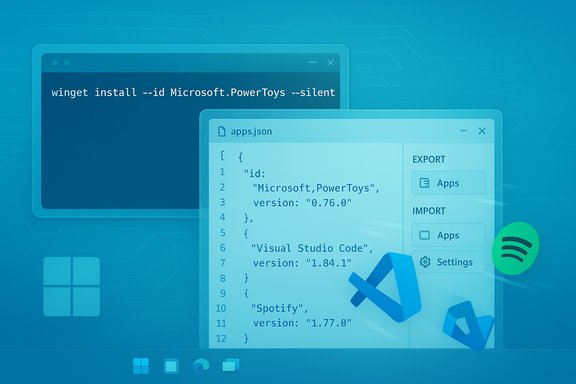
winget export -o apps.jsonandwinget import apps.jsonlet you move an app list between machines.
Deep dive: What WinGet actually does (and how it does it)
Manifests, sources, and the client‑server split
WinGet is two cooperating layers: the client (thewinget binary you run in a Terminal) and sources (repositories of manifests that describe installers). Most users rely on the default Microsoft/Community source (the winget‑pkgs GitHub repo), but the client supports adding private or third‑party sources for enterprise scenarios. This separation is important: the client orchestrates installs, while each manifest contains the installer URL, expected silent switches, hash checks, and metadata — so WinGet’s behavior depends on both. Supported installer types and silent installs
WinGet supports many common installer formats (EXE, MSI, MSIX, Inno, Nullsoft, ZIP, portable, and more). For silent installs, the client uses manifest data and known installer flags to suppress UI. The install command exposes a dedicated silent flag (-h or --silent), and there’s also --disable-interactivity and --accept-package-agreements/--accept-source-agreements for unattended scripts. Important nuance: silent mode depends on the underlying installer and the manifest’s mapping to its silent arguments — WinGet requests a silent execution path, but the installer ultimately controls how silent it can be. This explains some community reports where --silent reduces prompts but still shows output for certain installers. Version selection and multi‑version visibility
WinGet can list available versions for a package (winget show <id> --versions) and allows installing a specific release with --version. This is a practical, built‑in way to roll back to older, stable releases without hunting vendor archives. It’s one of the features that most closely mirrors Linux package managers’ version control model and explains why the XDA author valued it for avoiding buggy updates. Export/import for migrations
winget export -o file.json and winget import file.json convert an installed app list into a JSON manifest that can be replayed on another machine. Compared to tools like Ninite, WinGet’s export includes access to a far larger community repo and integrates with Store and third‑party packages where available, making a migration script more complete and future‑proof. Several community tutorials and Microsoft docs highlight this ability as a strong reason to adopt WinGet for provisioning. Strengths: Why WinGet changes the day‑to‑day
1) Speed and predictability
Common installs that previously involved clicks now happen in seconds with predictable command output. For power users and IT pros, the time savings compound fast: scripted installs, unattended setups, and single‑command upgrades remove much of the tedium from system provisioning.2) Declarative, repeatable setups
WinGet’s export/import model and manifest‑driven installs make provisioning declarative. That matters in two ways: you can version‑control your app list, and you can reproduce a machine’s software state reliably across hardware or when rebuilding a PC.3) Integration with Microsoft ecosystem
Because WinGet is distributed through App Installer and integrated with the Microsoft Store, it can handle Store packages and conventional installers in a unified workflow — a combination that traditionally required multiple tools and manual steps. This first‑party integration also simplifies update paths for some Store apps.4) Granularity and control
WinGet supports installing specific versions, choosing installer architecture, setting install scope, and supplying custom installer arguments. For users who need to pin a tool to a stable release — such as developers, testers, or enterprise images — this control is essential.Risks, edge cases, and operational caveats
Repository quality and manifest accuracy
The winget community repository accepts manifest submissions via GitHub; Microsoft runs validations and, historically, has shifted from automated merges to more manual review when problems emerged. The manifest model is powerful but not infallible: malformed or duplicate manifests have occasionally slipped through, and community contributors (not vendors) submit many entries. That creates room for incorrect metadata, broken installer URLs, or mismatches between the manifest and the vendor’s intended distribution. Enterprises and cautious users should test manifests and prefer vendor‑published manifests where possible.Silent install limitations and inconsistent behavior
The--silent flag is a request to the manifest’s installer argument mapping, not a guarantee of zero output. Some installers do not fully support silent modes, or they require distinct switches for certain build types (online vs offline). Community reports and GitHub issues show that --silent reduces UI in many cases but is not a universal panacea — testing is required for critical unattended deployments. Security and supply‑chain concerns
WinGet’s manifest policy checks include URL and binary validation and antivirus scans during submission, but the community repository is public and historically suffered from duplicate or malformed PR floods. The community‑driven model increases the surface for mistakes or, in worst cases, malicious links if bad manifests were to be accepted. Microsoft’s policies, validation systems, and manual review reduce this risk, but they don’t eliminate it — especially for private or enterprise scenarios where you may want to host an internal source and vet all manifests. Treat the default community source as convenient and generally safe, but apply the same vetting you would for any third‑party distribution source.Edge cases: installer hash mismatches and app footprint
Occasionally users see "installer hash does not match" errors when the upstream vendor rebuilds a release without updating tags, or when manifests point to a mirror that changes. These situations are annoying and require maintainers to update manifests; they’re symptomatic of an ecosystem still maturing. Additionally, some apps installed via WinGet may still register with Windows in vendor‑specific ways (start‑menu shortcuts, services, OS integrations) that differ from pure MSIX installations — so expect variance when scripting removal or discovery.Practical recommendations — how to use WinGet safely and effectively
Quick start checklist
- Verify WinGet is present:
winget --version. If missing, install App Installer or use the WinGet bootstrapper. - Update the source index:
winget source update. - Try a single install interactively first:
winget install --id Microsoft.PowerToys. - Test silent installs for automation:
winget install --id Some.App --silent --accept-package-agreements --accept-source-agreements. - Export your machine list for migration:
winget export -o myapps.json; import on the new machine withwinget import myapps.json.
Vet manifests before automating
- Use
winget show <id> --versionsandwinget show <id> --manifestto inspect metadata. - Test installs in a sandbox or VM when delegating automation across many machines.
- For enterprise fleets, consider a private WinGet source where you control manifests and vet updates.
Add safety nets and logging
- Run
wingetwith verbose logs (--verbose-logs/--logs) in automation to capture failures. - For scripted upgrades, combine
winget list --upgrade-availablewith targetedwinget upgrade --id <id>runs rather than blind--allon critical machines. - Keep rollback plans; maintain copies of installer artifacts for critical proprietary apps in case an upstream change breaks manifests.
Real‑world picture: where WinGet fits in your toolkit
For enthusiasts and power users
WinGet is a near‑instant productivity win: faster installs, easier testing of releases, and a straightforward path to reproduce a workstation with a few shell commands. The XDA contributor’s switch from browser installs to WinGet mirrors a common small‑business or enthusiast migration: fast, reversible, and low risk when you validate critical packages.For IT and administrators
WinGet is useful for scripting and bootstrap provisioning, but it’s not (yet) a complete enterprise management replacement. Integrations with Intune, private sources, and system‑level deployment scripts make it useful, but admins should pair WinGet with existing device management, testing, and auditing processes. Use private sources for curated manifests and test silent installs across your standard image set before wide rollout. Community reports show some friction in system‑context installs and private repository handling, so pilot thoroughly.When not to use WinGet
- For software requiring vendor‑specific licensing activation tied to installers that cannot be scripted, WinGet will only get you the installer — manual post‑install steps remain.
- Where absolute supply‑chain control is required, use a private package source and signed installers under your control.
- If a vendor offers a managed enterprise channel (MSI/MSIX with vendor‑certified deployment), prefer that for production fleets.
The verdict — adopt, but do it deliberately
WinGet delivers a modern, practical package‑management model that changes the cost curve for installing and maintaining software on Windows. The benefits are immediate: faster installs, easier updates, version control, and machine migration that’s far simpler than manually redownloading and clicking through installers. The XDA account is a useful illustration of this shift — what once took repeated clicks and hunt‑and‑peck downloads is now a concise, auditable script.That said, WinGet is not a magic bullet. The manifest model introduces a dependency on community metadata quality; silent installs are constrained by the installer’s native behavior; and for mission‑critical or heavily regulated environments, you still need vetting, private sources, and robust testing. Use WinGet because it saves time and produces reproducibility, but pair it with sensible controls: inspect manifests, test silent flows, maintain logs, and host private sources where governance requires it. Microsoft’s documentation and the winget‑pkgs repository supply the guardrails; the community and Microsoft’s moderation processes have improved over time, but vigilance remains necessary.
Quick reference — essential WinGet commands
winget search <term>— find package IDs.winget show <id> --versions— list available versions.winget install --id <id> --version <x.y.z> --silent— install a specific version silently.winget list --upgrade-available— see apps with updates.winget upgrade --all— update everything WinGet can update.winget export -o apps.json— export installed apps to JSON.winget import apps.json— import and install apps from JSON.winget settings— configure sources and client behavior.
Adopting WinGet is less about replacing your favorite GUI installers and more about choosing a reproducible, scriptable workflow that fits today’s multi‑machine and multi‑role reality. For anyone who manages more than one PC, rebuilds machines occasionally, or simply values repeatability and speed, WinGet is a practical, supported tool that’s worth learning — and, as the XDA user discovered, it’s the kind of small change that pays back many times over.
Source: XDA I finally started using Linux-style package management on Windows, and I should have sooner
