

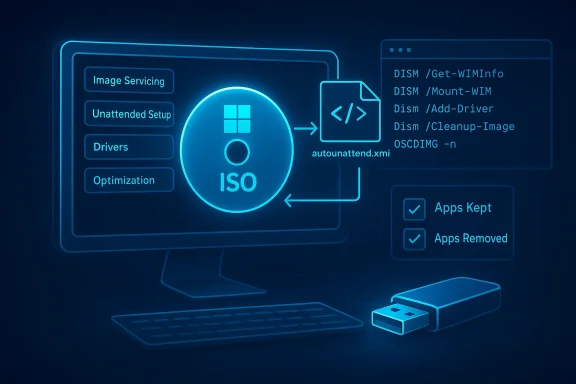
Winhance gives you a practical, one-tool path to a bloat-free Windows 11 installer — it builds a custom autounattend-driven ISO, injects drivers and settings, and packages everything so your next clean install skips the busywork and the apps you never wanted.
Background / Overview
Windows 11 ships with a growing set of inbox apps, optional features, and default settings that many power users call "bloat." For professionals, enthusiasts, and admins who repeatedly deploy or reinstall Windows, trimming those extras by hand is time-consuming and error-prone. A modern solution combines two proven ideas: perform offline servicing of the Windows image (so changes are baked into the installer), and use an unattended answer file (autounattend.xml) to automate setup choices during installation.Winhance is a GUI-first implementation of that concept — it exposes image-servicing workflows and unattended XML generation through a friendly interface, and bundles a tailored WIM/ISO workflow named WIMUtil that extracts an official Microsoft ISO, injects an autounattend.xml (and optionally drivers), and creates a new bootable installer that enforces your choices out of the box. Winhance documents this workflow and the WIMUtil feature in its docs and site.
Community threads and how‑to guides have converged on the same general strategy: download an official ISO, prepare an answer file that removes or includes specific inbox apps and features, inject that answer file into the image, and repackage the ISO for USB use with tools such as Rufus or Ventoy. This pattern shows up across multiple projects (Winhance, UnattendedWinstall, Tiny11, MSMG Toolkit, etc.), and forum discussions echo practical choices and caveats from users who build and deploy these custom images.
What Winhance actually does — the practical anatomy
Key capabilities (at a glance)
- Generate autounattend.xml from GUI selections (apps to keep/remove, optional features, OOBE behavior).
- Service WIM/ESD images using a WIMUtil wizard that extracts an official ISO, mounts the image, and writes the answer file and drivers into the image.
- Create a new bootable ISO that includes your autounattend.xml and any injected drivers; the result works with Rufus or Ventoy for USB creation.
- Optimization toggles for privacy, telemetry, power plans, scheduled tasks, gaming tweaks, and a suite of settings exposed through the Optimization tab.
Why build a custom ISO instead of debloating post‑install?
- Speed: one-time image creation saves repetitive post-install cleanup when you reinstall or provision VMs.
- Reproducibility: a single ISO ensures identical setups across machines.
- Offline readiness: image-level changes run without an internet connection (useful for air-gapped or restricted environments).
- Automation: autounattend.xml automates OOBE, account choice, feature enable/disable, and post-install scripts.
The autounattend.xml foundation — what Microsoft supports
Microsoft’s setup supports answer files named autounattend.xml placed at certain locations on installation media, and Setup processes those during unattended installs. Answer files can set nearly every OOBE and image-time option (which features to enable, whether to skip MSA prompts, create a local account, apply regional settings, run commands at first logon, and more). Microsoft’s guidance shows how to mount and add an answer file to the image using DISM, and it clarifies where Setup searches for these files. If you intend to automate installations, you should understand the official answer-file model before automating aggressive removals.Step-by-step: creating a bloat-free Windows 11 ISO with Winhance (tested workflow)
The following is a practical, repeatable workflow that mirrors the Winhance WIMUtil process and the established community approach. This assumes you want to create a custom installer that applies your choices automatically.- Prepare a clean workspace and backups.
- Ensure you have at least 20–30 GB free on the drive where you’ll extract and work with the ISO.
- Back up any important data on machines you will install to. A custom autounattend can wipe disks without prompts depending on the settings you choose.
- Download the official Windows 11 ISO from Microsoft (use the official Microsoft media image, not third‑party builds).
- Winhance and WIMUtil are designed to operate on official ISOs only.
- Decide which inbox apps and optional features you want to include.
- Examples commonly kept: Windows Terminal, Microsoft Edge, Notepad, Calculator, Snipping Tool, Windows Media Player, OpenSSH Client, WSL, Windows Sandbox.
- Examples commonly removed: games, trial apps, Copilot (if present in the build), Clipchamp, and other consumer-targeted inbox apps.
- Tip: Do not remove components you don’t understand. Removing Edge or other components can break dependent functionality in rare cases; keep at least one browser available in your image or ensure you include a browser installer in post-install tasks. (More on risks below.)
- Install and open Winhance, then go to Advanced Tools → WIMUtil.
- Select your official ISO and a working directory, then Start Extraction.
- Choose Generate next to "Generate an Add Winhance XML" to produce an autounattend.xml based on your selected apps and optimization toggles. Alternatively, point WIMUtil at a pre-built autounattend from UnattendedWinstall or a custom generator if you prefer.
- (Optional) Add drivers.
- If you plan to install to machines that require non‑standard storage or network drivers, extract and add those drivers via the "Extract and Add Drivers" page so Setup can see them during installation.
- Create the new ISO.
- Use the Create a new ISO option in WIMUtil, choose “Download” location for output, and Create ISO. Winhance documents that it uses oscdimg.exe to create an ISO compatible with both UEFI and legacy boot. Expect the final ISO to be larger if you included drivers.
- Write the ISO to USB using Ventoy or Rufus.
- Ventoy is the most flexible if you want multiple ISOs on one drive. Rufus is a single-ISO, robust writer if you prefer a simple bootable USB. Both are widely used alternatives to the Microsoft Media Creation Tool.
- Test the installer in a VM first.
- Boot the custom USB in a virtual machine (Hyper‑V, VirtualBox, or VMware) and run a full install to validate:
- The autounattend applied the settings you expected.
- Required drivers are present.
- You can access the network and update services.
- If anything fails, fix the source XML or driver set, rebuild, and test again.
- Boot the custom USB in a virtual machine (Hyper‑V, VirtualBox, or VMware) and run a full install to validate:
Practical examples: what to include by default
From community practice and the How‑To Geek style recommendations, these apps are useful to include in many builds:- Microsoft Edge — many system components assume a browser is present; removing it can create intermittent issues.
- Windows Terminal — invaluable for power users who rely on Command Prompt/PowerShell/WSL.
- Notepad / Calculator / Snipping Tool — minimal, low-risk conveniences.
- WSL / OpenSSH / Windows Sandbox — include if you rely on developer tools or secure sandboxing.
Strengths: why Winhance is compelling
- Consolidates the common tasks (image servicing, answer-file generation, driver injection) into one GUI-driven flow — lowers the skill barrier for repeatable custom installs.
- Supports multiple workflows: generate your own XML, or import established community XMLs (e.g., UnattendedWinstall) to combine curated tweaks with your choices.
- Automation: autounattend.xml eliminates most manual clicks during OOBE; for admins and lab builders this saves huge amounts of time.
- Integration with Ventoy/Rufus: the ISO output is standard boot media, compatible with standard flashing tools recommended by community guides and Windows‑centric media sites.
Risks, limits, and what you must watch for
1. Breakage and serviceability
Removing some inbox components or deeper features can break dependent services or later updates. For example, aggressive removals in "core" or "nano" builds (community projects like Tiny11 core) can produce images that are hard to update or that prevent feature servicing. The more items you remove, the higher the likelihood of an unexpected side effect. Community projects explicitly warn that extreme builds are for testbeds or specific devices, not daily drivers. Flag any claim of “universal safe reduction” — results vary with Windows build and hardware.2. Windows Update & future compatibility
Some custom builds may disable or remove update-critical components (Windows Update, Defender, Component Store pieces). That can mean missed security fixes or broken servicing paths. If you need a production-ready machine, test updateability: install, update, and confirm that Microsoft Update still applies patches. When a customized image fails to receive or apply updates, restoring service can be costly.3. Support and warranty
Deploying a heavily modified image can run afoul of organizational support policies or vendor expectations. Microsoft documents answer-file support, but does not provide support for third-party image alterations; OEMs may only support factory images. If you rely on vendor warranty or managed IT support, check policies before mass deployment.4. Driver or hardware mismatches
If you inject drivers into the image, make sure they are tested across your target hardware. Incorrect drivers can cause blue screens or installation failures. Always test on representative hardware.5. Security and provenance
Only use official Microsoft ISOs as the source image. Community builders and toolchains generally start from official media for security and licensing reasons; using third-party ISOs risks supply‑chain compromise and may violate licensing. Winhance explicitly encourages official ISOs and documents that third‑party custom ISOs are unsupported.6. Unverifiable size and performance claims
Community claims that a particular builder cuts ISO size by 50% or to a 2‑3GB image are possible only with aggressive removal and compression profiles, and they are highly dependent on the Windows version and which components were removed. Treat those numbers as anecdotal unless reproduced in your own environment. We flag such claims and recommend a measured testing approach.Comparison: Winhance vs. other common approaches
- Post-install debloat scripts (Win11Debloat, WinUtil, Talon):
- Pros: reversible in many cases; easier to iterate on an existing install.
- Cons: requires full install first; slower for multiple machines.
- Community threads show many users prefer a script for single machines or when testing.
- Offline builders (Tiny11, MSMG Toolkit, NTLite, Tiny11Builder):
- Pros: aggressive image trimming, can yield very small images.
- Cons: sometimes remove serviceability and update paths; require technical skill to get right.
- Winhance (GUI + WIMUtil):
- Pros: compromises between convenience and control; built to leverage official ISOs and produce standard bootable images.
- Cons: still requires careful testing; generated images can be large if drivers are added.
Best practices and checklist before you deploy
- Always start from an official Microsoft ISO.
- Run a complete validation cycle in a VM:
- Install from USB.
- Complete first-run scenarios.
- Apply Windows Update and feature updates if possible.
- Confirm network, drivers, and security posture.
- Keep the original ISO and checksums; store the autounattend.xml separately under version control.
- Maintain an "escape" or fallback recovery USB in case an image breaks on certain hardware.
- Keep driver packages organized by hardware model and test driver injection thoroughly.
- Use Ventoy for lab use (many ISOs on one drive) and Rufus for single-image write operations.
Troubleshooting common issues
- Installer ignores autounattend.xml: Ensure the file is named correctly and placed in the root of the media or the correct Templates folder when using Ventoy. Confirm Setup is reading the file by checking the Panther logs on the target (C:\Windows\Panther after install).
- Missing network after install: You may have omitted network drivers. Rebuild the ISO with the correct NIC drivers or include a post-install script to fetch drivers via WinPE or WinRE.
- Updates fail post-debloat: Check whether essential servicing components were removed. You may need to rebuild with a less aggressive profile.
Conclusion
Winhance and its WIMUtil workflow provide a pragmatic one-tool solution to the recurring problem of Windows 11 bloat. By combining official image servicing with an autounattend.xml generator, Winhance lowers the barrier to reproducible installs that match a user’s preferred baseline. The result: fewer repetitive setup steps, fewer surprises after first boot, and a cleaner system image for VMs and lab machines.However, the convenience comes with responsibility. Thorough testing, conservative defaults for production machines, and strict use of official ISOs are not optional — they are the guardrails that keep custom installations maintainable and safe. Community builders and scripts demonstrate what’s technically possible, but they also illustrate that aggressive trimming can degrade updateability and supportability. Flag bold performance or size claims as community‑sourced and revalidate them in your environment before accepting them as fact.
If your goal is to stop fighting with Windows 11 bloat and automate consistent installs, Winhance is a legitimate and powerful toolset — just build, test, and deploy carefully.
Source: How-To Geek Stop fighting with Windows 11 bloat: The one-tool solution for custom installs
