

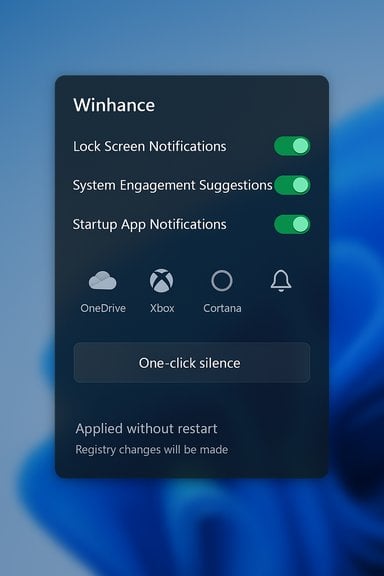
Windows notifications are meant to help — but when they don’t, they become the single most distracting part of the desktop experience; a tiny utility called Winhance now gives power users a clean, centralized way to silence the noise without hunting through nested Settings pages. The app consolidates notification controls, exposes buried toggles (lock screen, system engagement tips, Xbox & startup app nags), and preserves the alerts you actually need, all from a polished GUI that also doubles as a full Windows debloating and optimization toolkit. For anyone tired of the “Complete your setup” nag, OneDrive nags, or Xbox pop-ins that sneak past Do Not Disturb, Winhance provides practical, one-click remedies — but it also changes low-level settings and registry keys, so it deserves a measured approach.
Windows has long balanced helpfulness with persistence: tips, feature prompts, and promotional nudges that appear as notifications are useful for newcomers but intrusive for experienced users. Microsoft has introduced finer controls in Settings and, more recently, added some one-off fixes (for instance, better OneDrive notification controls in newer updates), but the controls are scattered and sometimes unreliable. The result: users either accept the interruptions or spend time drilling through multiple screens to disable individual senders and system tips. Community-built utilities have stepped in to fill that gap; Winhance is one of the better-known modern entries, combining notification control with debloating, optimization, and customization features. Winhance is freely available and open-source, maintained on GitHub with an official site and install channel; the developer provides both an installer and a portable option and publishes release artifacts including SHA256 checksums for verification. The project documents compatibility and testing on Windows 10 (x64 22H2) and Windows 11 (23H2, 24H2, 25H2). If you choose to adopt it, follow standard safety steps — verify checksums, create a restore point, and export configuration before making sweeping changes.
That said, the tool is powerful because it reaches deep into Windows’ configuration. With that power comes responsibility: verify downloads, create backups, and change one setting at a time. For users who simply want to quiet a single app, built-in Settings may suffice; for those who want a one-stop fix for the whole OS, Winhance is one of the best community-built options today — provided you follow the standard precautions.
Winhance doesn’t just mute the noise; it exposes the controls Windows should make more visible. If you’re fed up with being interrupted by system nags or Xbox ads, it’s a practical tool to regain focus — but treat it like an admin tool: deliberate, reversible, and verifiable.
Source: MakeUseOf This tiny utility fixed the most annoying thing about Windows notifications
 Background / Overview
Windows has long balanced helpfulness with persistence: tips, feature prompts, and promotional nudges that appear as notifications are useful for newcomers but intrusive for experienced users. Microsoft has introduced finer controls in Settings and, more recently, added some one-off fixes (for instance, better OneDrive notification controls in newer updates), but the controls are scattered and sometimes unreliable. The result: users either accept the interruptions or spend time drilling through multiple screens to disable individual senders and system tips. Community-built utilities have stepped in to fill that gap; Winhance is one of the better-known modern entries, combining notification control with debloating, optimization, and customization features. Winhance is freely available and open-source, maintained on GitHub with an official site and install channel; the developer provides both an installer and a portable option and publishes release artifacts including SHA256 checksums for verification. The project documents compatibility and testing on Windows 10 (x64 22H2) and Windows 11 (23H2, 24H2, 25H2). If you choose to adopt it, follow standard safety steps — verify checksums, create a restore point, and export configuration before making sweeping changes. The problem with Windows notifications
Why notifications become noise
Notifications are designed for timely, actionable information: meetings, security alerts, incoming calls. But when OS-level suggestions (link your Microsoft account, enable OneDrive, try Microsoft 365) or irrelevant third-party messages (Xbox Game Bar, app install reminders) are treated as high-priority, they interrupt workflows and break concentration. Microsoft’s own “tips and suggestions” toggles have helped, but the sheer number of surfaces where Windows and bundled apps can push notices means many nagging sources remain hidden from the primary Settings page. That fragmentation makes it easy to miss a checkbox and keep getting pings you don’t want.Real-world pain points
- The persistent “Complete your setup” or “Start backup” nudges that reappear even after dismissing or opting out.
- Notifications about turning off notifications (a meta-notice that itself interrupts).
- Xbox-related notifications and badges that are added to priority lists, piercing Do Not Disturb.
- Invisible banners or “ghost” notifications that momentarily block clicks in the bottom-right corner of the screen.
How Winhance tackles notifications — a practical tour
A single pane of glass for Windows’ scattered toggles
One of Winhance’s core promises is consolidation. The app’s Optimization → Notifications area maps many of Windows’ notification-related options into a single, searchable UI. From here you can:- Disable lock screen notifications entirely or selectively.
- Turn off system engagement suggestions (the “tips, tricks, and suggestions” that Windows uses to promote features).
- Hide or remove the notification bell icon from the tray.
- Disable Startup app notifications, Windows Security pop-ups (with caution), and maintenance/Action Center notices.
- Preserve critical notifications like calendar reminders and VoIP calls while blocking lower-priority noise.
Actionable indicators and transparency
Winhance surfaces helpful status indicators: when a setting change requires a registry value that’s missing or a restart to apply, the UI shows a small warning icon. That transparency reduces the black-box feel many power tools induce and lets users understand when a reboot or additional permission is necessary to finalize a tweak. Community posts and the installer’s documentation highlight those UX improvements as practical and user-friendly.Deep dive: notification controls you’ll actually use
Lock screen and priority notifications
Lock-screen clutter is a common gripe. Winhance offers toggles to:- Suppress general lock-screen notifications while preserving alarms, reminders, and incoming calls if you want them visible.
- Remove system-suggested items from the lock screen (for example, OneDrive “Start backup” prompts).
- Inspect and remove apps automatically added to Priority notifications, such as Xbox components that Windows sometimes places there by default.
System engagement suggestions and ads
Windows shows “suggestions” to push features or services. Winhance aggregates these controls so you can:- Turn off targeted Windows tips and suggestions globally.
- Silence promotion-style cards in Start and File Explorer (where the “Start Backup” button lives).
- Remove taskbar and Start “recommended” prompts that act as mini ads for Microsoft services.
Fine-grained sender control
For apps you don’t want to ban entirely, Winhance provides per-app toggles and sliders for:- banners vs. action-center-only delivery,
- sound on/off,
- badge visibility,
- lock-screen permission.
Winhance beyond notifications: debloating and performance tools
Winhance is not just a notification manager. It bundles a broader suite aimed at streamlining Windows:- One-click removal of bundled apps (Cortana, Xbox components, Clipchamp, etc. and scripts to prevent reinstallation during updates.
- Privacy toggles (disable typing data collection, activity history, personalized ads).
- UAC slider/combobox to set User Account Control level easily.
- Performance tweaks (CPU priority for gaming, delay startup apps, optimize visual effects).
- External software management: bulk WinGet installs for utilities like 7-Zip, Notepad++, VLC.
- Advanced tools (create custom Windows ISOs, autounattend generation via WIMUtil integration).
Installation, verification, and safety best practices
How to get Winhance
Winhance provides an official quick-install command and downloadable installers:- Quick install (PowerShell): irm "https://get.winhance.net" | iex
- Official downloads and release artifacts are hosted on the project website and GitHub releases; the repo lists both installer and portable options.
Safety checklist before you tweak
- Create a System Restore point and export any important settings you plan to change.
- Note which apps you remove — keep a list so you can reinstall any accidentally removed feature.
- Verify download checksums (SHA256) against the GitHub release page.
- Apply changes gradually; test for stability and reboot when prompted.
- Avoid disabling core security telemetry or Defender notifications on machines that require robust protection.
Risks, caveats, and what to watch for
Registry edits and system behavior
Winhance automates many registry and policy edits behind the scenes. While these are typically reversible, any tool that modifies policy keys or removes “optional features” can change update behavior, driver installs, or app dependencies. The app’s UI attempts to warn when a restart or missing key prevents a change from applying, but users should still proceed with caution — particularly on enterprise-managed machines or devices with vendor-specific support requirements.Security implications
- Disabling security notifications (Windows Security, Defender alerts) reduces noise but increases risk if you miss real threats. Winhance exposes these toggles; do not disable critical security alerts unless you have an alternative monitoring solution.
- Removing system apps like OneDrive or Edge may affect integrated experiences (e.g., Default app handling or cloud sync) and should be reversible if needed.
Enterprise & managed devices
System changes can conflict with Group Policy or Mobile Device Management policies. Winhance is best for personal or self-administered devices; avoid broad removals on corporate endpoints unless you manage the device lifecycle and understand the implications. Community guidance commonly recommends reserving such tools for personal machines or test beds.Alternatives and complementary tools
No single tool is a silver bullet. Depending on needs, consider these complementary approaches:- Built-in Settings: For conservative users, Settings → System → Notifications provides safe per-app and system toggles.
- ViVeTool: Enables hidden Windows features (useful for enabling or disabling experimental UI flags) — used primarily by power users to test OS-level changes.
- Winaero Tweaker: Another popular third-party registry-backed tweaker for visual and behavioral changes (reversible via UI).
- Windhawk: A modular mod manager for granular taskbar and UI mods, useful to hide system tray icons without registry surgery.
Step-by-step: using Winhance to silence distracting notifications
- Verify and download:
- Download the installer from the official site or GitHub.
- Check the SHA256 checksum against the release notes.
- Create a restore point:
- Open System Restore or create a full system image if you prefer.
- Run Winhance (portable mode recommended for first-time use):
- Launch in portable mode to preview settings without a full install.
- Open Optimization → Notifications:
- Scan the list of toggles and identify the high-noise culprits (Xbox, OneDrive prompts, Tips).
- Apply conservative defaults first:
- Turn off “tips, tricks and suggestions” and lock-screen promotions.
- Silence Xbox and Startup app notifications.
- Preserve essentials:
- Ensure calendar reminders, alarm/VoIP calls, and Windows Security alerts remain enabled.
- Reboot if required:
- Accept the restart prompt if Winhance indicates a registry change needs it.
- Monitor for side effects for 24–72 hours:
- Re-enable any alerts you missed and export a config if you’re satisfied.
Critical analysis — strengths and limitations
Notable strengths
- Centralized control: Winhance aggregates scattered notification and privacy toggles into one neat interface, saving time and frustration.
- Preservation of essentials: The tool is designed to block noise while allowing important alerts (calendar, calls, security) to pass through — a practical, user-friendly balance.
- Breadth of features: Beyond notifications, the app handles debloating, performance tweaks, and bulk software installs, which is excellent for new system setups or refreshes.
- Open-source & auditable: Public GitHub repo and published releases with checksums provide transparency and the ability for community scrutiny.
Potential risks and limitations
- Registry-level changes: Any tool that changes policy or registry keys can create unintended side effects. Enterprise admins should exercise caution.
- Security trade-offs: Silence equals risk if critical Defender or update notifications are inadvertently disabled.
- Distribution trust: Always verify downloads and checksums. Community assessments of the site’s registration and domain metadata vary; verifying installer signatures is best practice.
- Niche bugs: Deep OS changes sometimes expose edge cases (ghost banners blocking clicks, or compatibility weirdness); monitor for system anomalies after large sweeps.
Final verdict
Winhance delivers a pragmatic, high-value solution for one of Windows’ most persistent UX frustrations: noisy, scattered notifications. It is particularly well-suited for power users, technicians, and anyone setting up multiple machines who wants consistent, reproducible cleanup and notification policies. The combination of centralized notification controls, debloating scripts, and performance tweaks is compelling and time-saving.That said, the tool is powerful because it reaches deep into Windows’ configuration. With that power comes responsibility: verify downloads, create backups, and change one setting at a time. For users who simply want to quiet a single app, built-in Settings may suffice; for those who want a one-stop fix for the whole OS, Winhance is one of the best community-built options today — provided you follow the standard precautions.
Winhance doesn’t just mute the noise; it exposes the controls Windows should make more visible. If you’re fed up with being interrupted by system nags or Xbox ads, it’s a practical tool to regain focus — but treat it like an admin tool: deliberate, reversible, and verifiable.
Source: MakeUseOf This tiny utility fixed the most annoying thing about Windows notifications
